Adjusting DAM Images
TABLE OF CONTENTS
- Adjusting DAM Images
- Adjust the Aspect Ratio
- Rotate the Image
- Change the Dimensions
- Lock the Aspect Ratio
- Output Settings
- Quality
- Format
- Preview the Adjustments
- Download the Adjusted Image
- Save Your Changes
The Adjustments tab lets you crop, resize, rotate, and change an image's settings directly within the Screendragon DAM.
As you make adjustments, the preview updates to show the selected crop and dimensions before you download or save your changes.
To access the image adjustment tools, open an asset, select Edit, and then select Adjustments from the left navigation.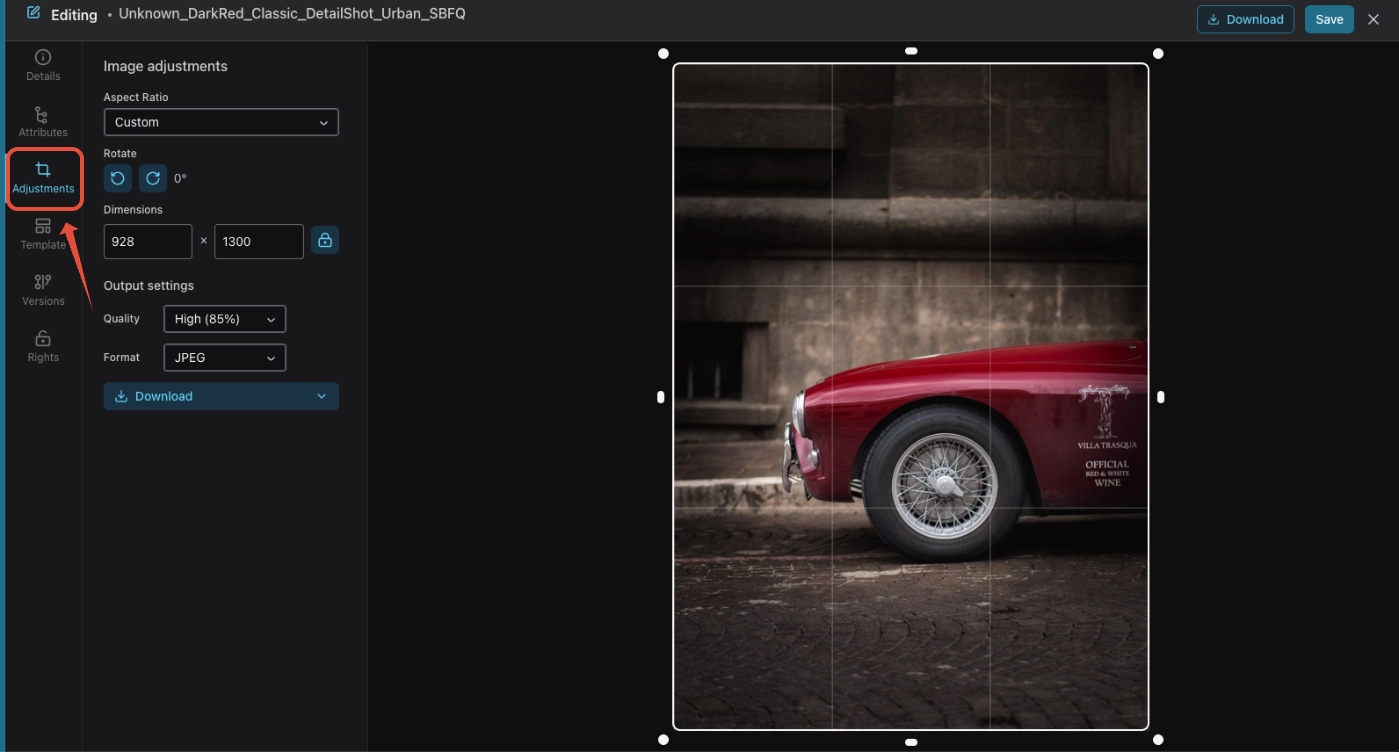
Adjust the Aspect Ratio
Use Aspect Ratio to control the image proportions.
Select an aspect ratio from the dropdown or choose Custom to manually adjust the crop area.
When adjusting the crop, use the handles around the image to resize the selected area and position the image as required.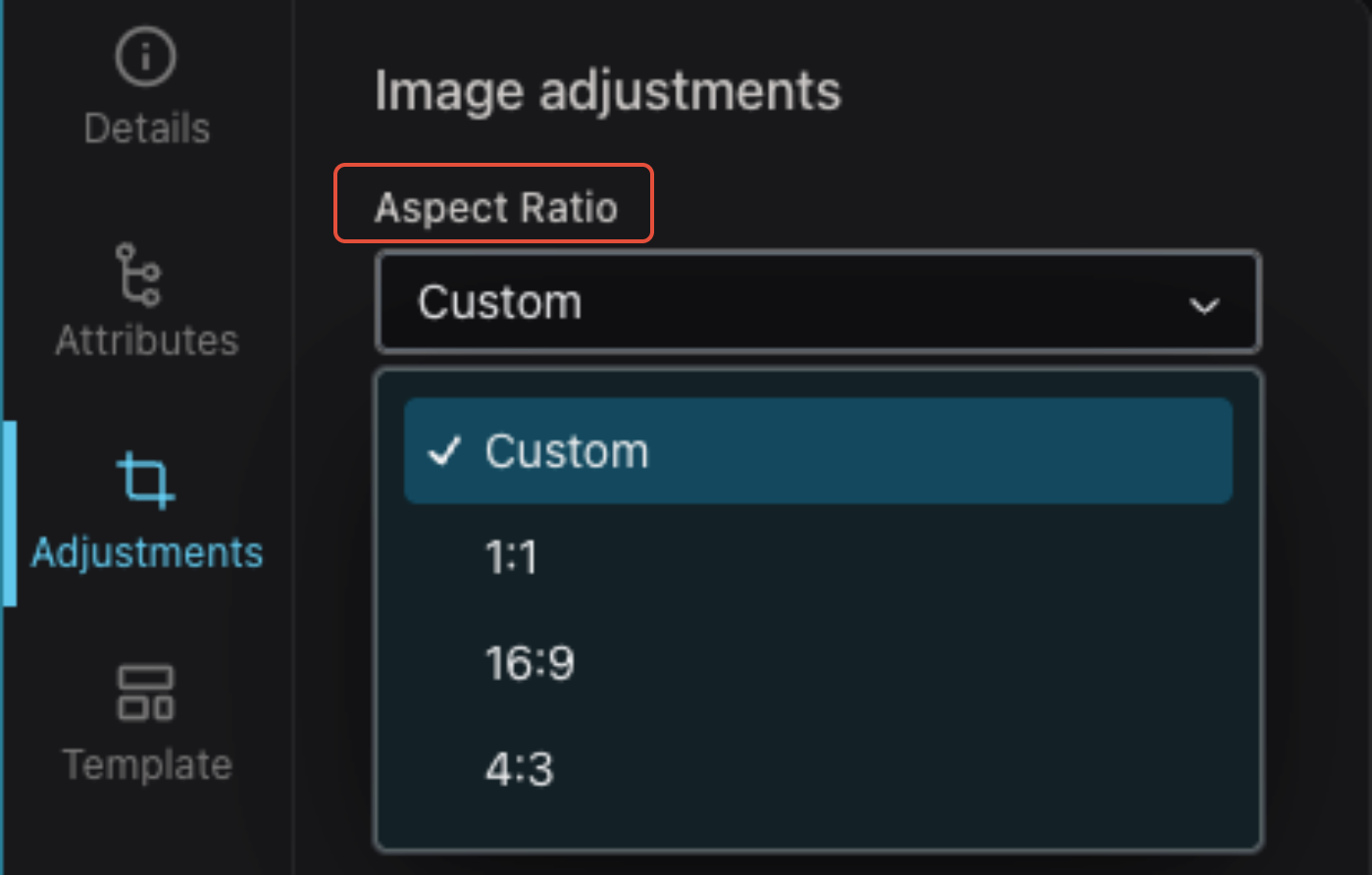
Rotate the Image
Use the Rotate controls to change the image orientation.
Click the appropriate rotate button to rotate the image clockwise or counterclockwise. The current rotation is displayed next to the controls.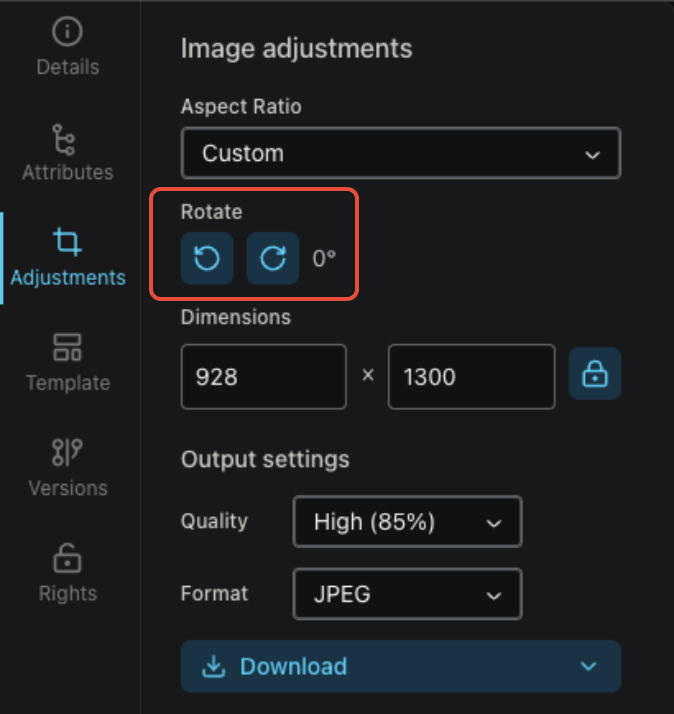
Change the Dimensions
Use Dimensions to specify the width and height of the output image.
Enter the required values in the width and height fields.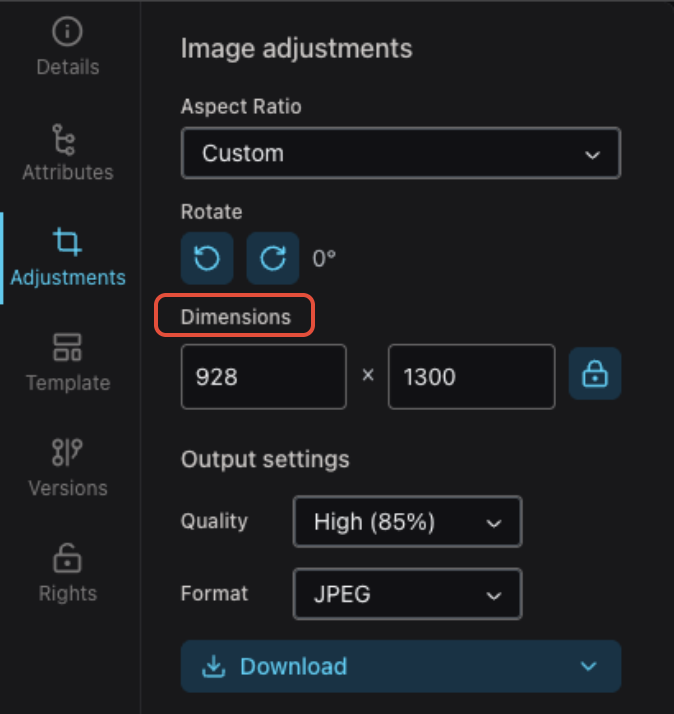
Lock the Aspect Ratio
Use the lock control next to Dimensions to maintain the image's proportions while resizing.
When the aspect ratio is locked, changing either the width or height automatically maintains the corresponding proportions. Unlock the dimensions when you need to adjust the width and height independently.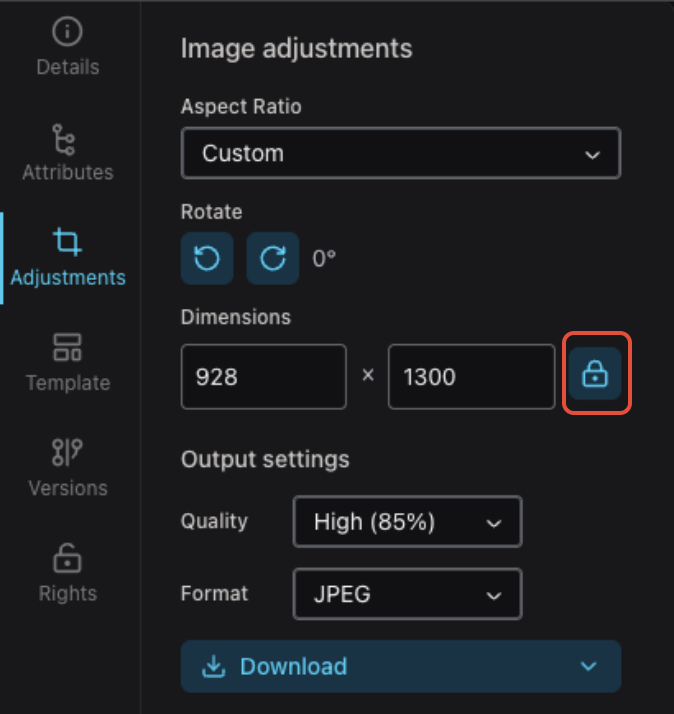
Output Settings
Use Output settings to determine the quality and file format of the adjusted image.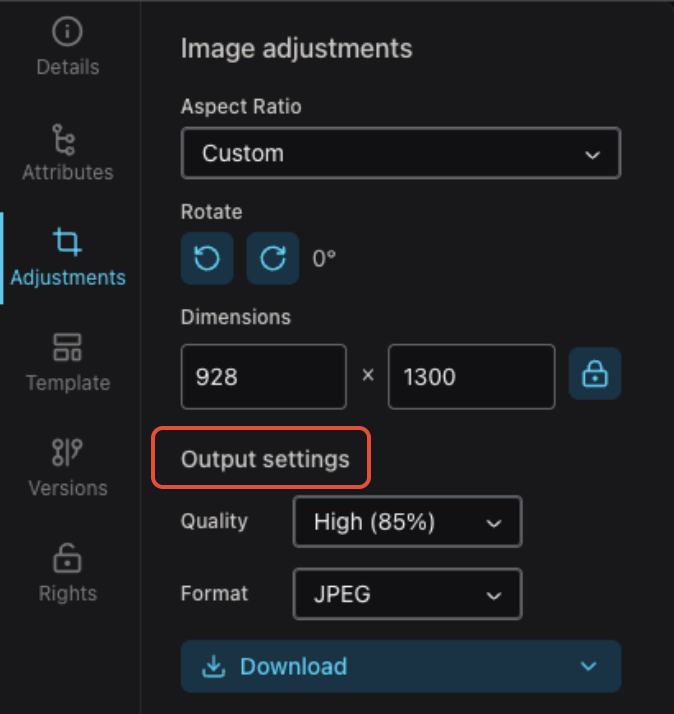
Quality
Select the desired Quality from the dropdown.
Higher-quality settings retain more image detail but may result in a larger file size. Lower-quality settings can reduce the file size when maximum image quality is not required.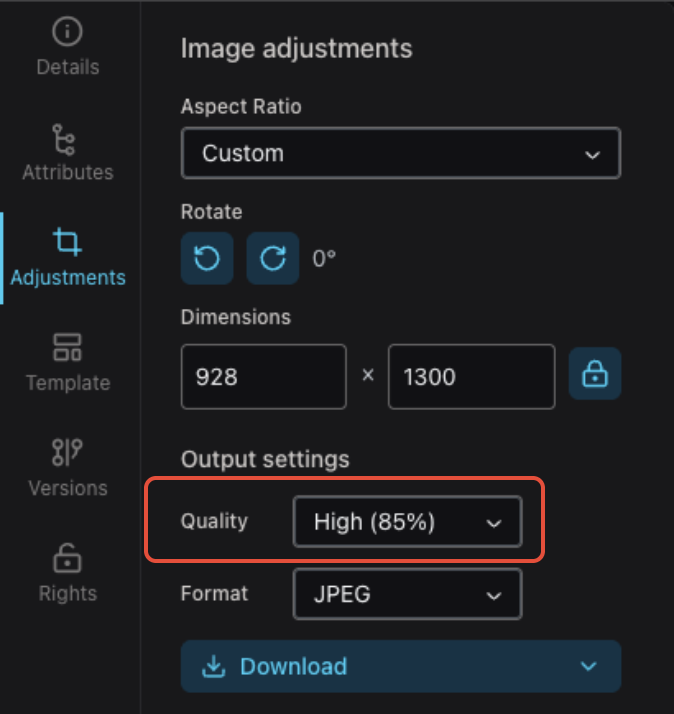
Format
Use Format to select the file format for the adjusted image, such as JPEG.
Available formats may vary depending on the asset and system configuration.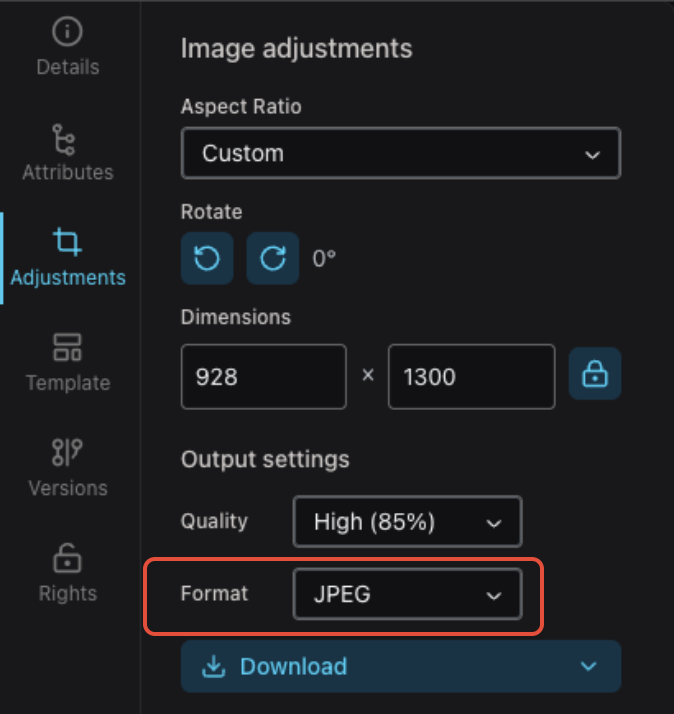
Preview the Adjustments
The image preview displays the selected crop and other adjustments before they are applied.
Use the handles around the image to resize the crop area. You can also reposition the selected area to control which portion of the original image is included in the output.
The grid displayed over the image can help with positioning and composition.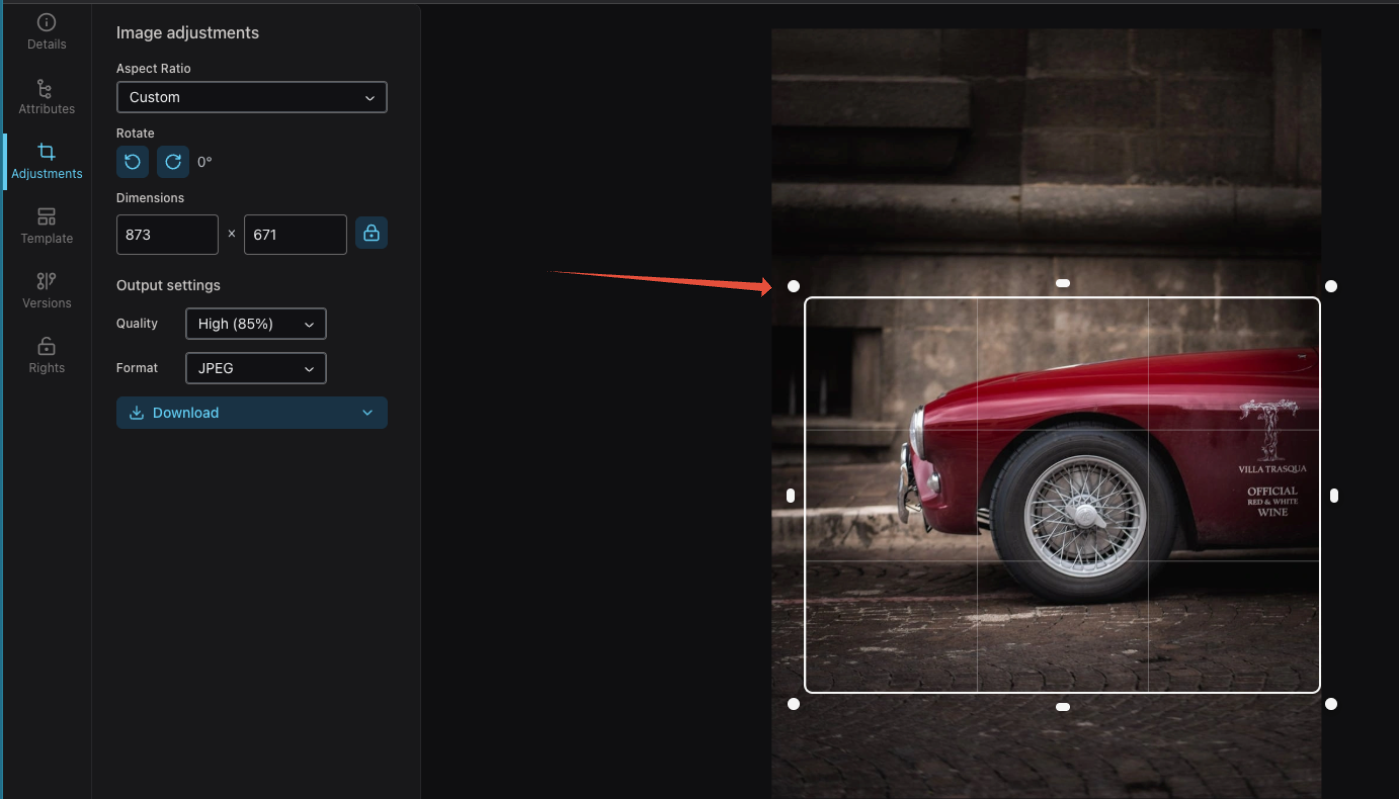
Download the Adjusted Image
Once you are satisfied with the adjustments, click Download to generate and download the image using the selected dimensions, quality, format, and crop.
If additional download options are available, use the arrow next to Download to access them.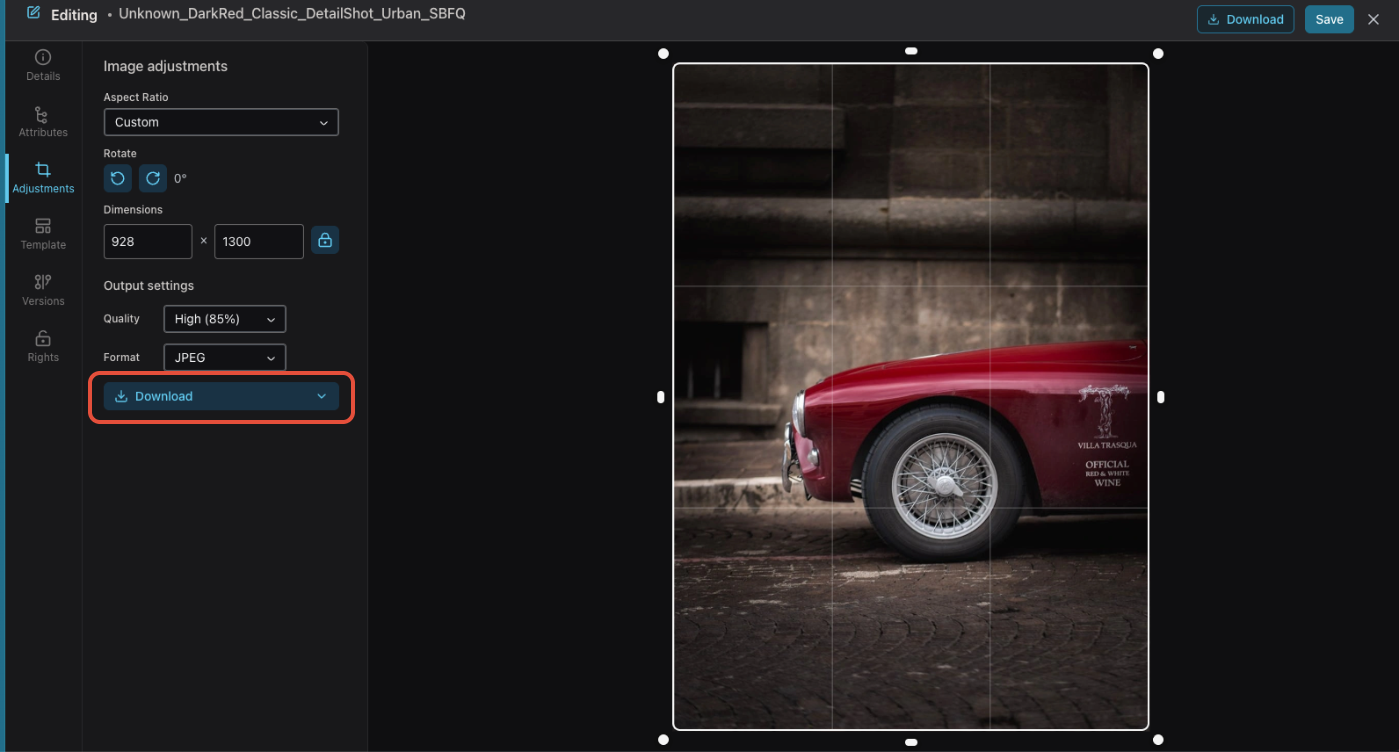
Save Your Changes
Click Save in the upper-right corner to save your changes to the asset.
To exit the editing view, click the X in the upper-right corner.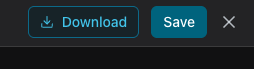
Was this article helpful?
That’s Great!
Thank you for your feedback
Sorry! We couldn't be helpful
Thank you for your feedback
Feedback sent
We appreciate your effort and will try to fix the article