Section Manager
TABLE OF CONTENTS
From local activations to global campaigns, the Section (Event) Manager transforms how teams manage event content — providing the structure, control, and insight needed to keep everything running smoothly.
The Section Manager is an admin-level tool designed to streamline event creation, metadata management, permissions, and reporting within Screendragon’s Digital Asset Management (DAM) strategy.
This feature provides a centralized way to manage large-scale campaigns and asset structures. It enables admins to configure events with structured metadata, enforce access permissions, and generate audit-ready reports—all from an intuitive, card-based interface.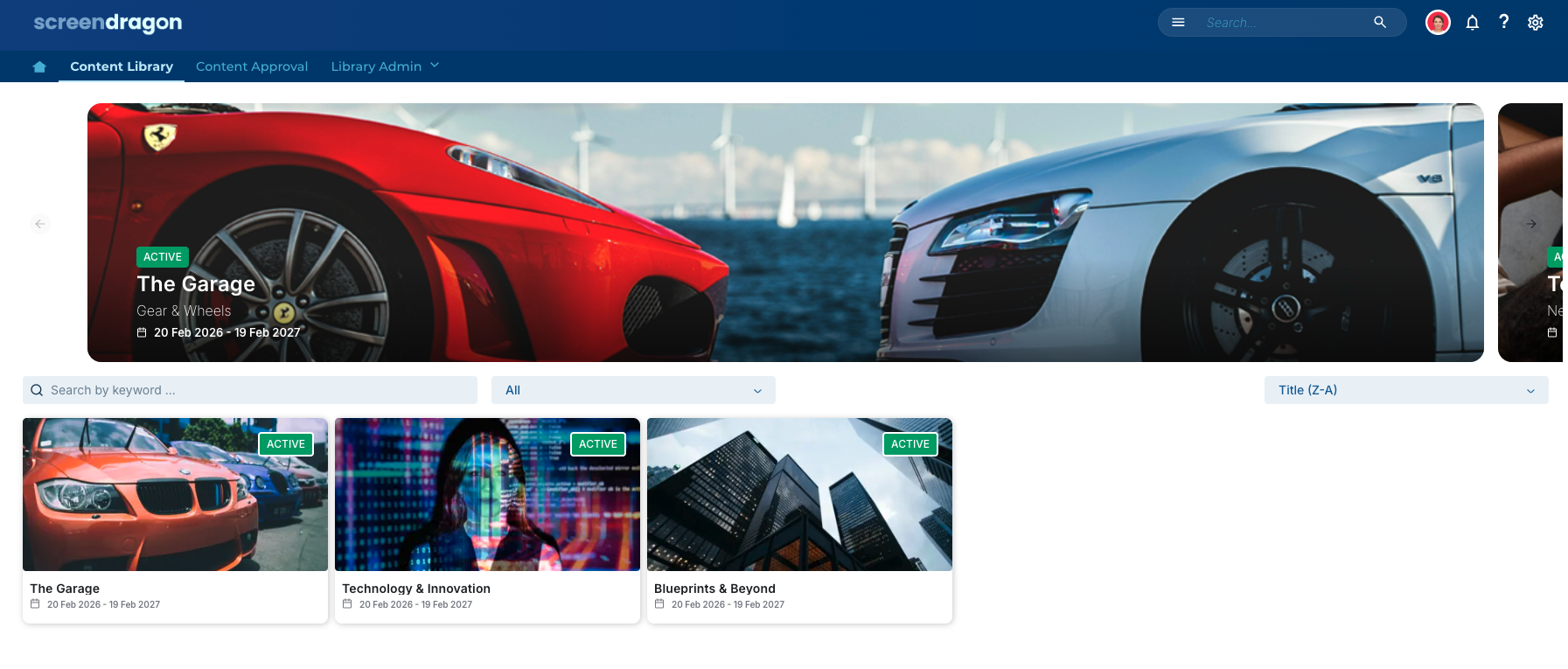
Easy Organization Setup
The Section (Event) Manager is a powerful new tool designed to help marketing, operations, and admin teams manage events and campaigns with greater structure, visibility, and control. Admins can create new organizations using a simple front-end form.
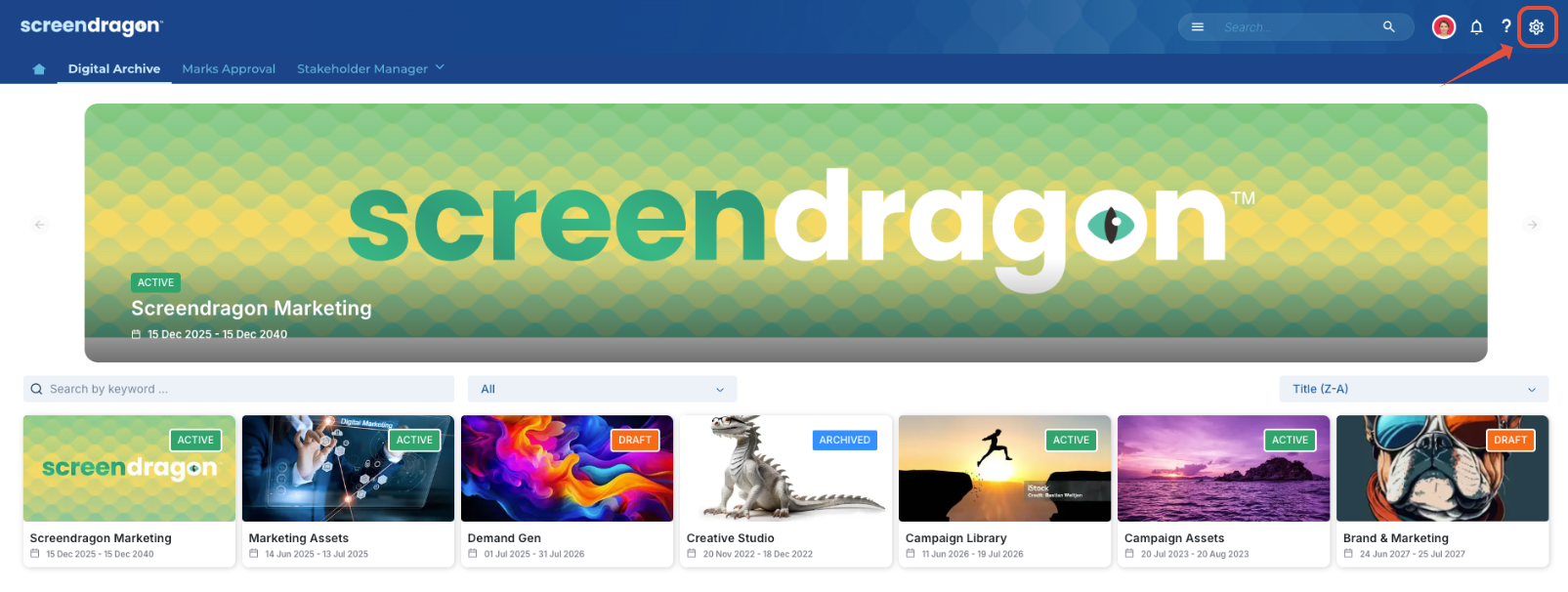
- Navigate to the Admin Tools.
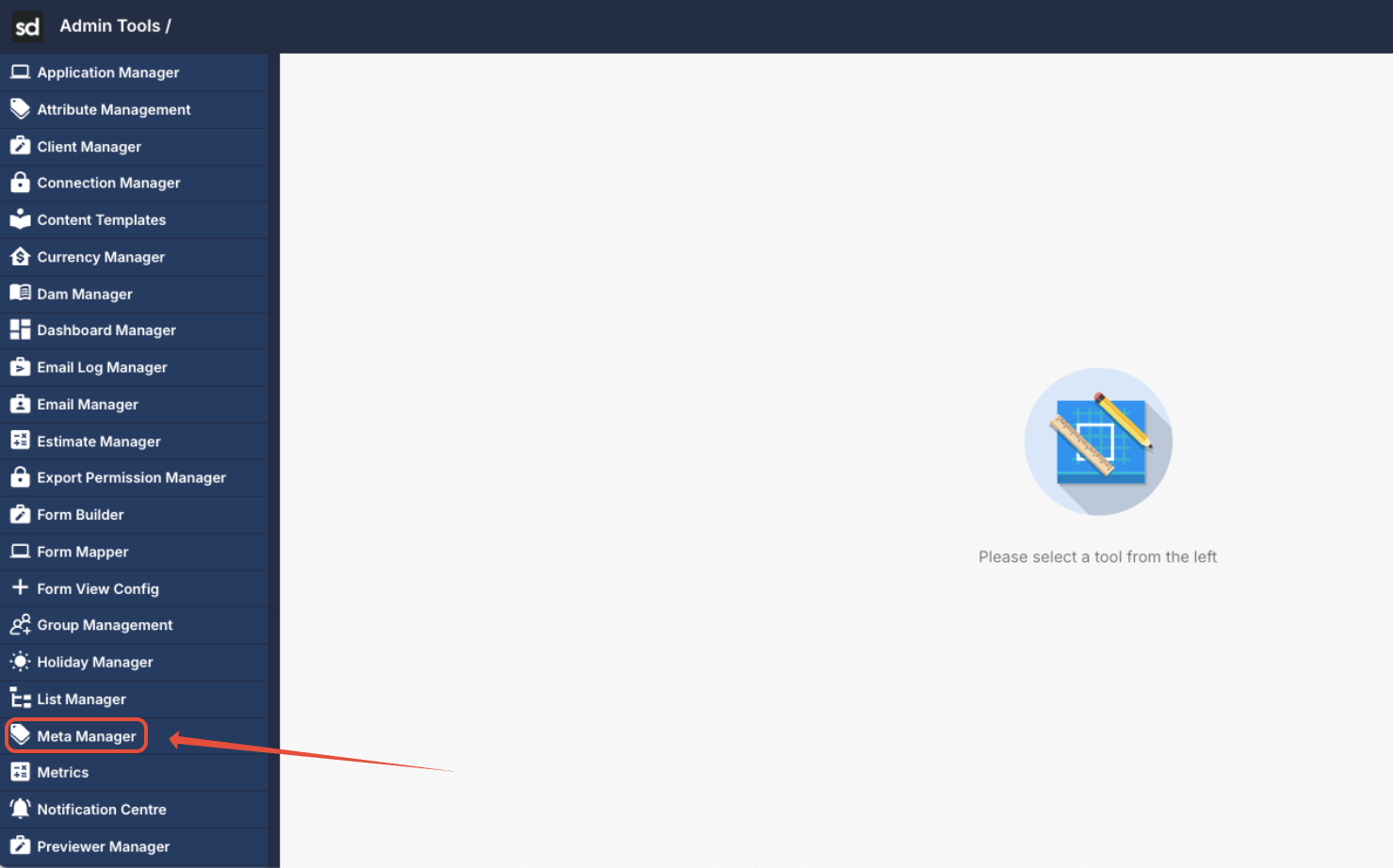
- Click Meta Manager.
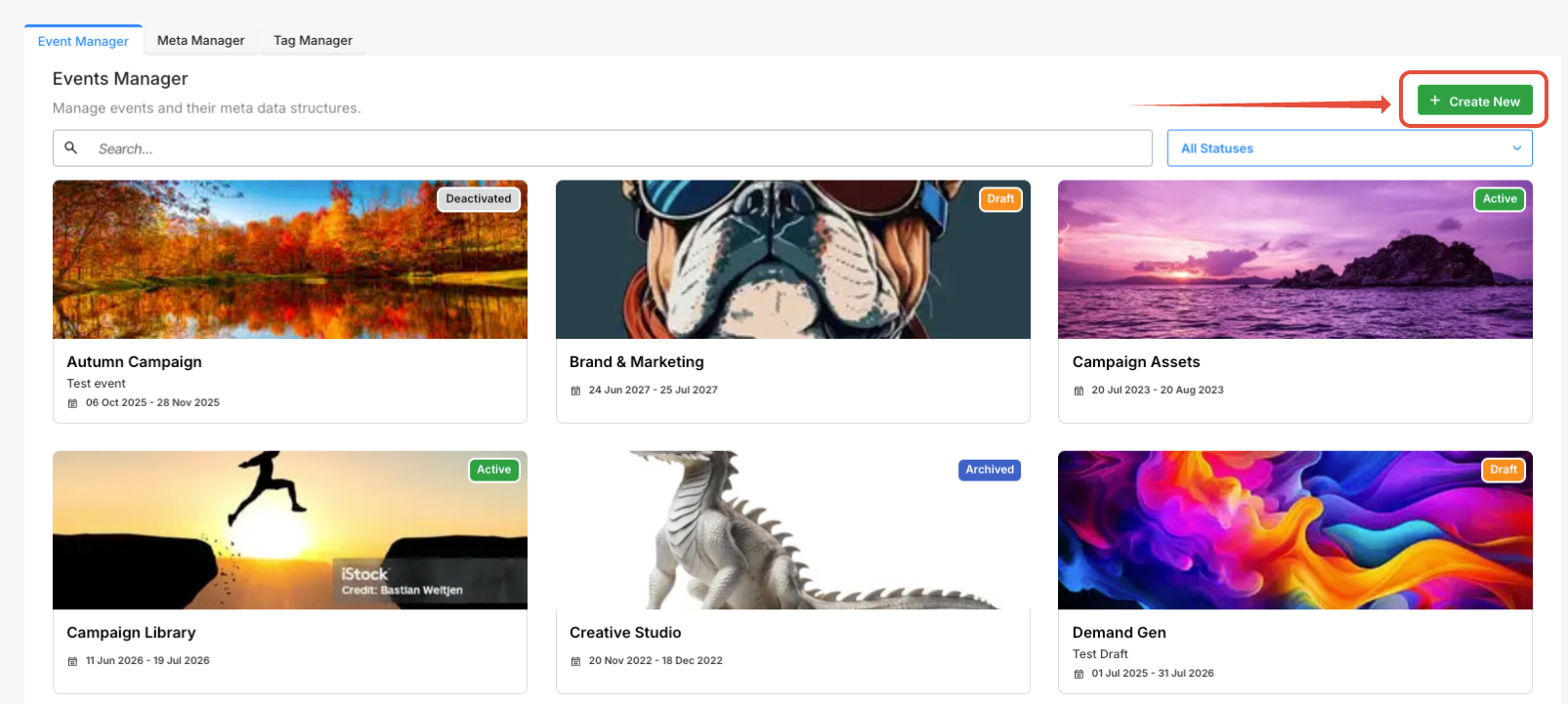
- Here you see all the existing sections. Click Create New.
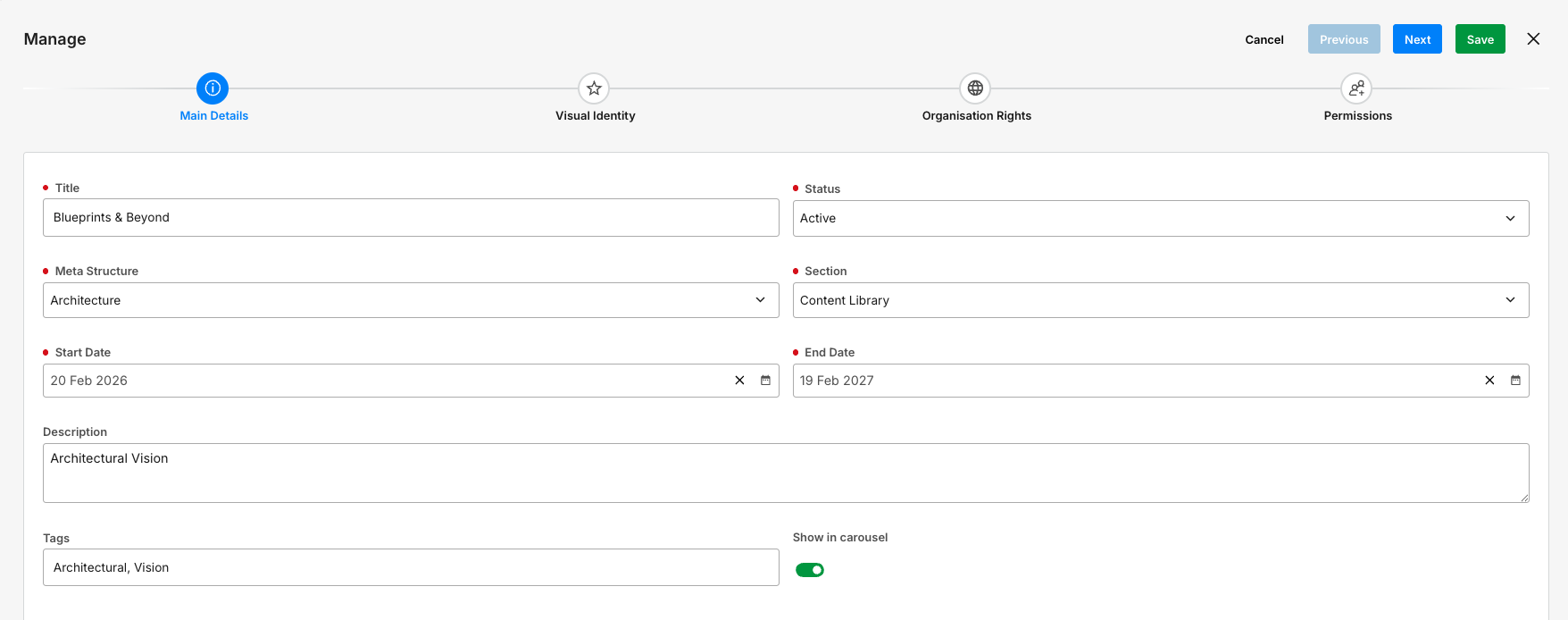
Enter Details for the Section
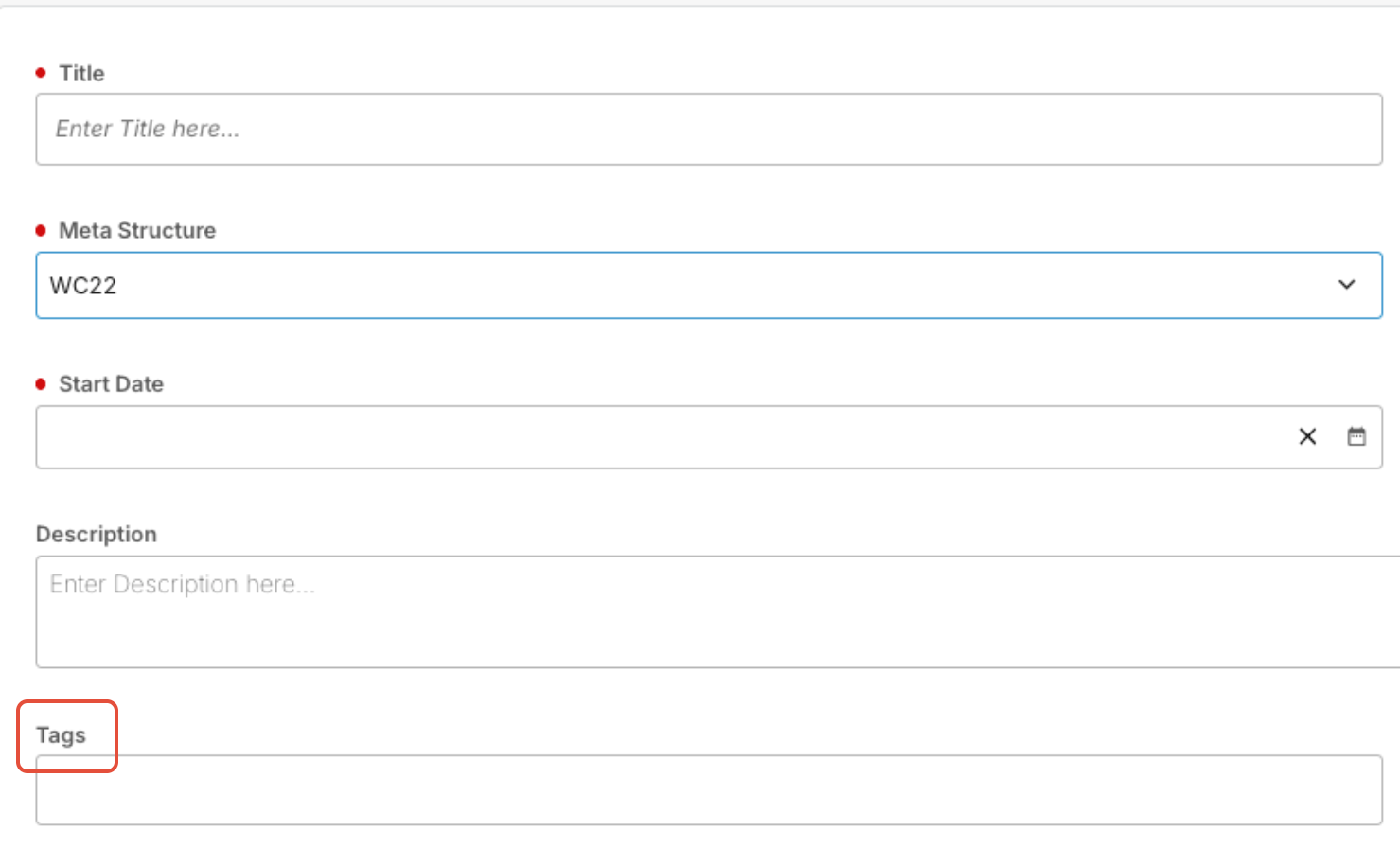
- Title: This is the display name of the section. This title appears in the DAM interface and helps users identify the content grouped within the section.
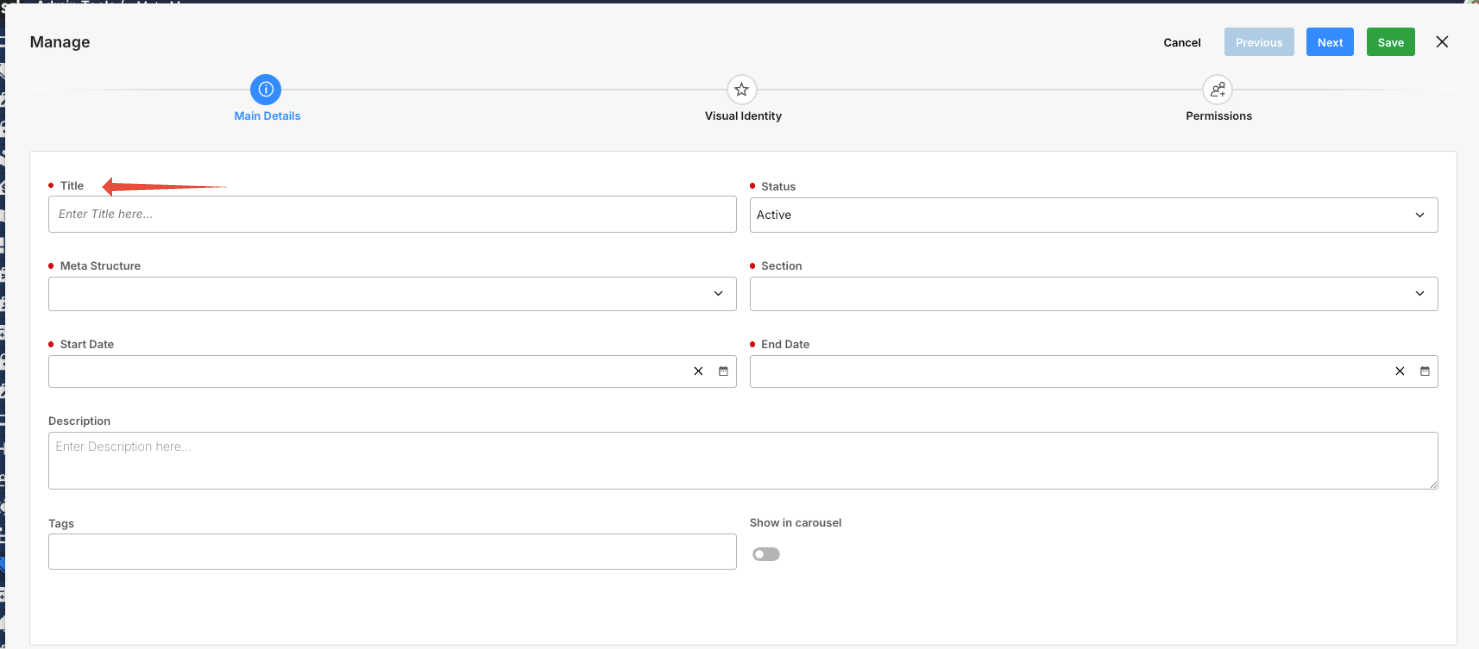
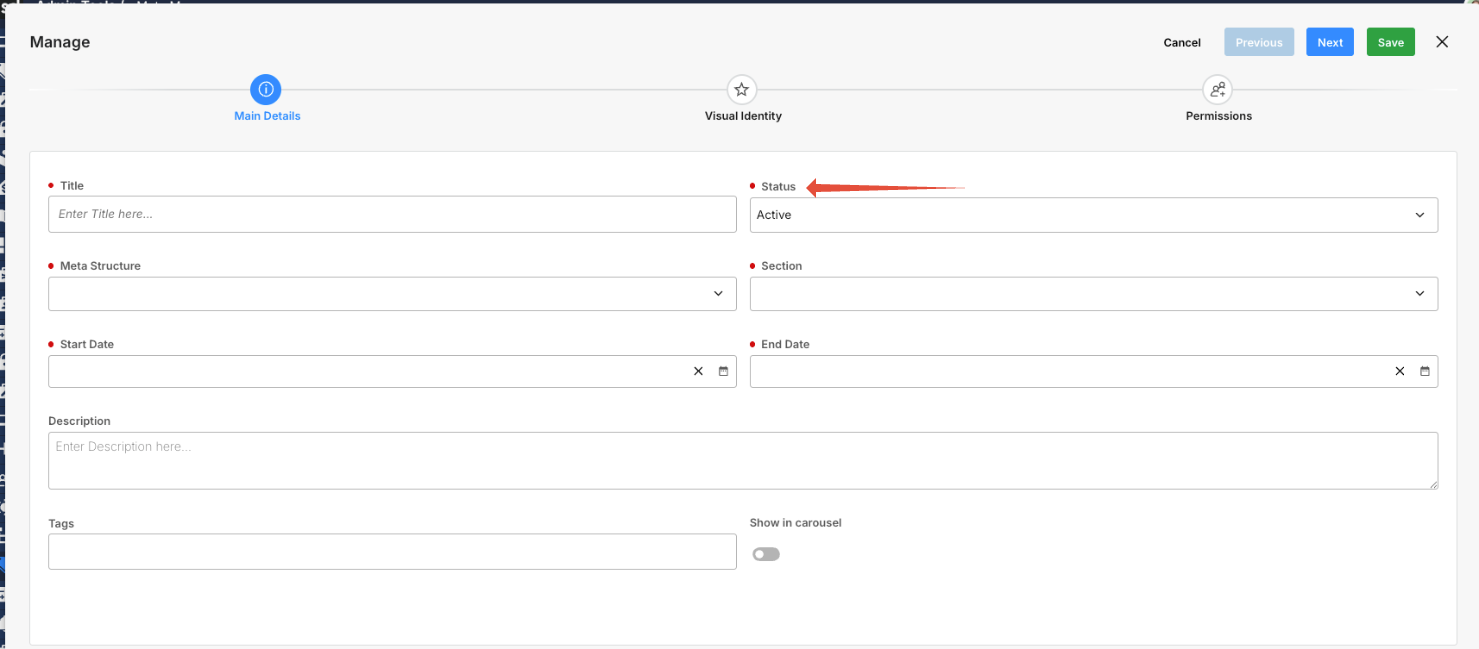
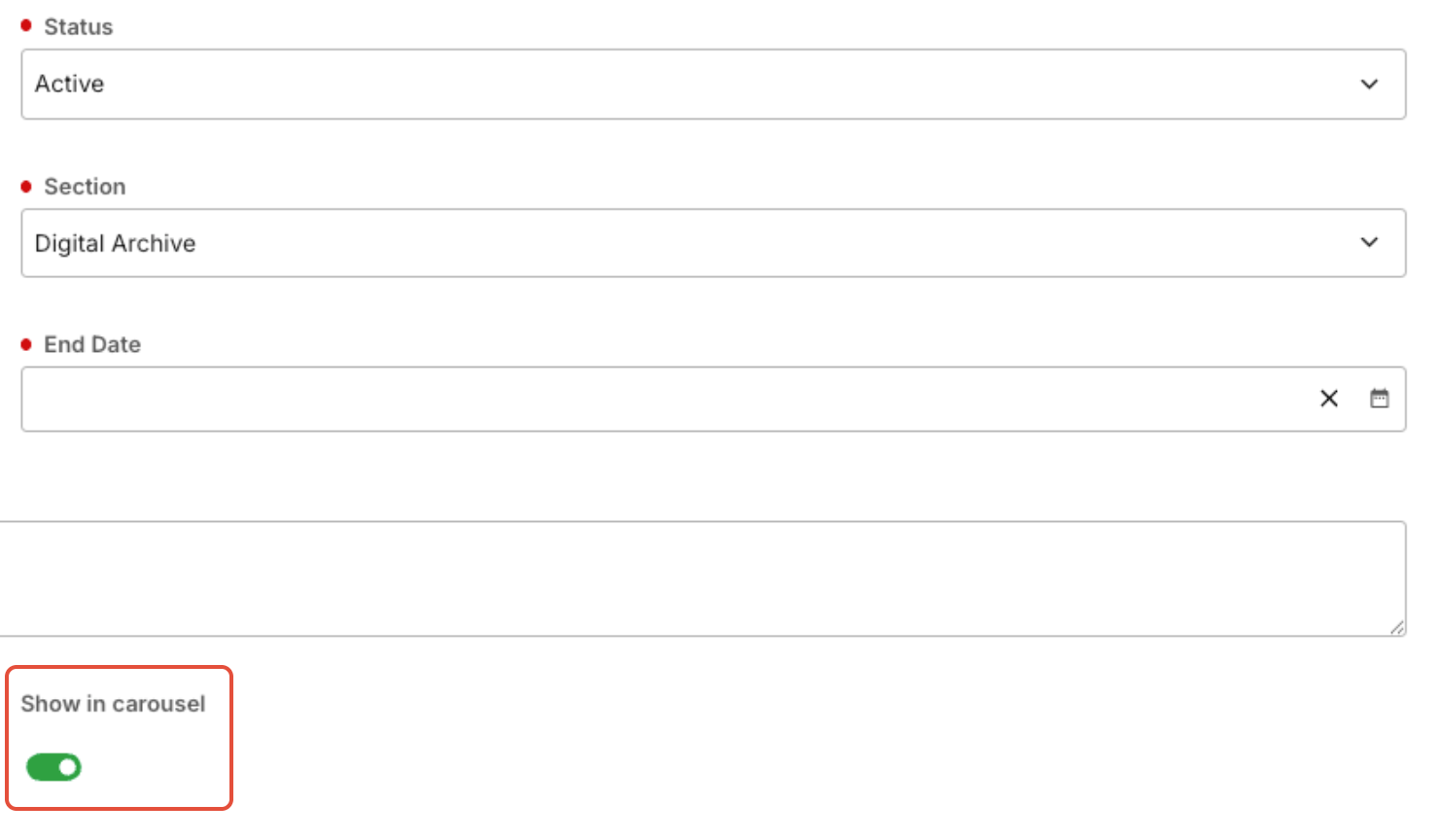
- Status: Indicates whether the section is active or inactive. Only active sections are typically visible to users in the DAM interface.
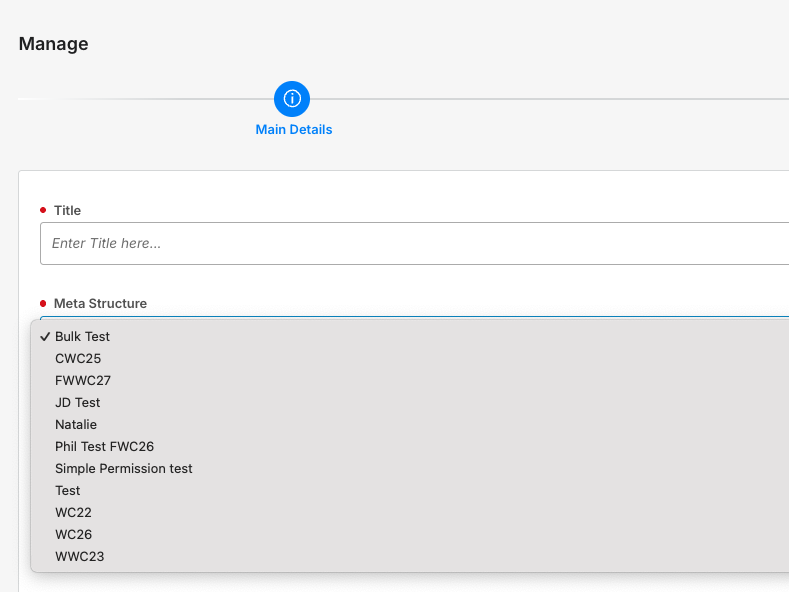
- Meta Structure: Defines the metadata structure applied to assets within the section. This controls which metadata fields are available or required for assets stored in the section.
- Section: Specifies the parent or related section within the DAM hierarchy. This helps organize sections into logical groupings or navigation structures.

- Start Date: The date from which the section becomes available or visible in the DAM. Useful for scheduling time-based content visibility.

- End Date: The date after which the section is no longer visible or active. This allows sections to expire automatically when they are no longer needed.

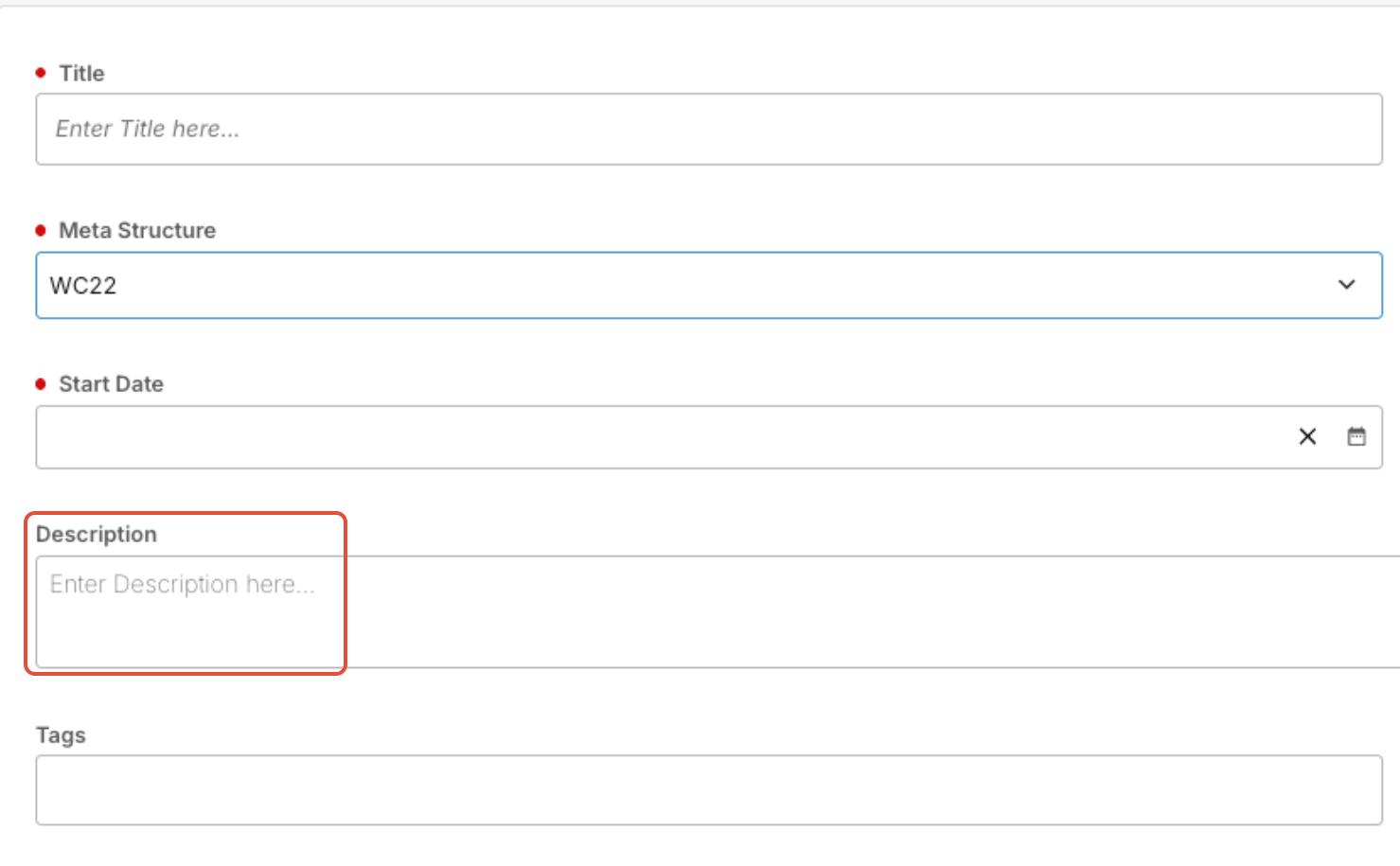
- Description: A short explanation of the section’s purpose or contents, helping administrators and users understand what assets belong in the section.
- Tags: Keywords assigned to the section to improve searchability and organization. Tags help users quickly locate relevant sections or associated assets.
- Show in Carousel: Determines whether the section appears in the homepage or library carousel, highlighting featured sections for users.
- Click Next.
Visual Identity
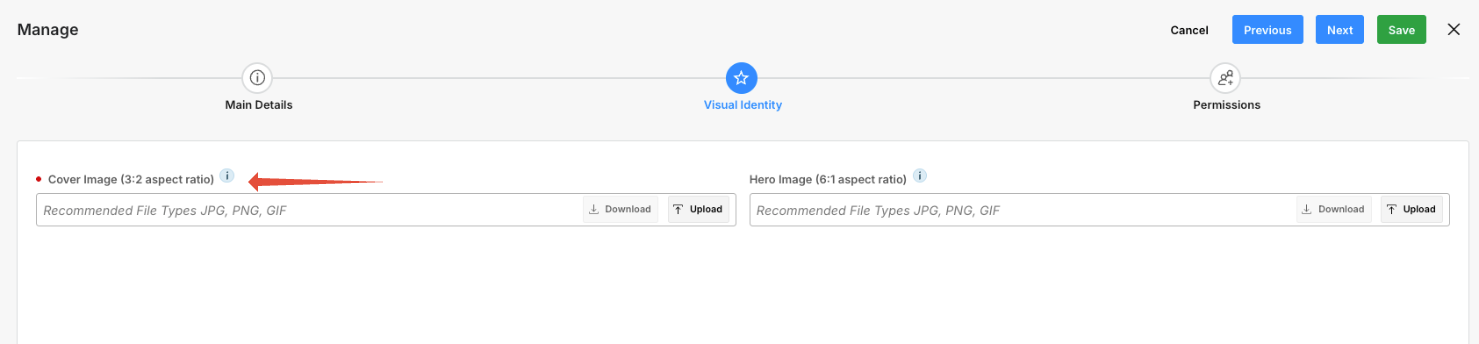
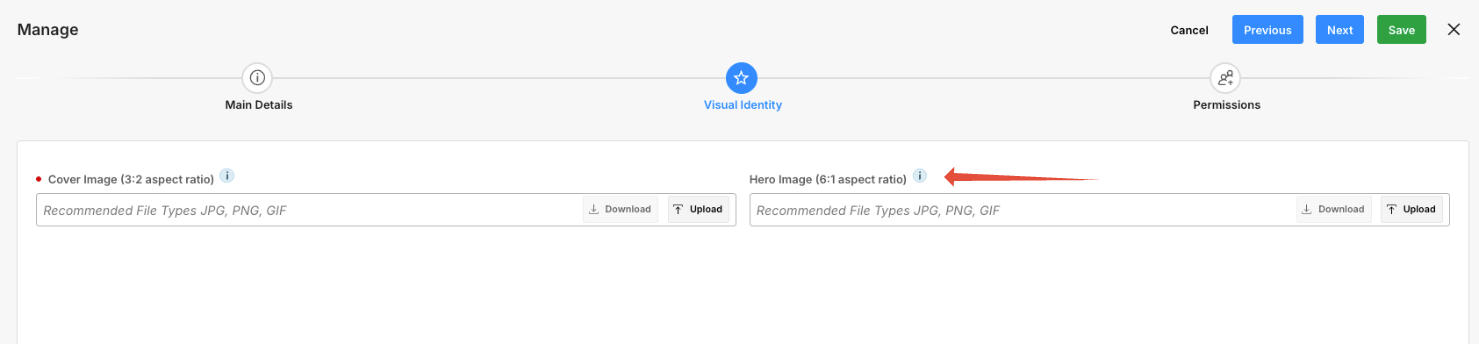
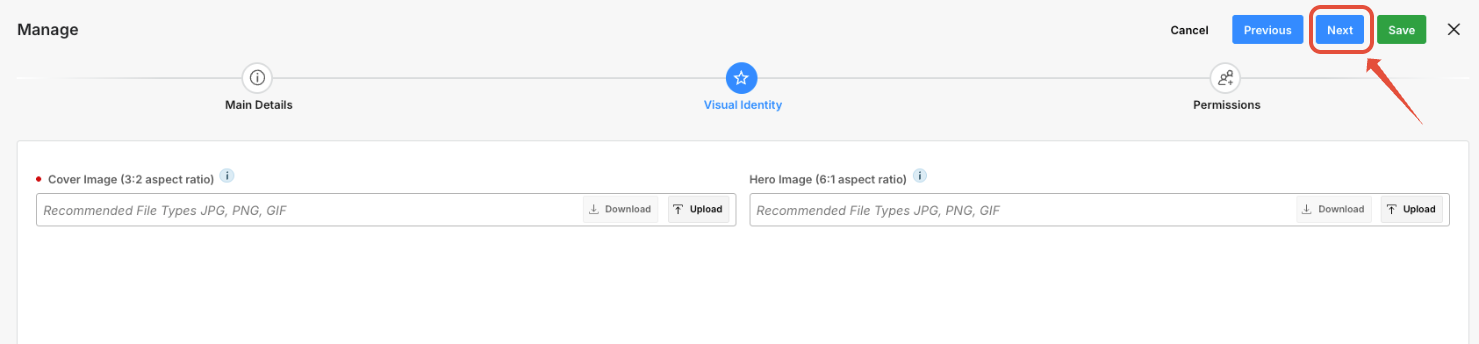
Here, you can assign images for instant visual recognition.
- Cover Image (3:2 Aspect Ratio): The primary image representing the section. This image appears in section listings or cards and should use a 3:2 aspect ratio to ensure proper display without cropping or distortion.
- Hero Image (6:1 Aspect Ratio): A wide banner image displayed at the top of the section page or in featured displays. Images should use a 6:1 aspect ratio to fit correctly within hero or banner layouts across the DAM interface.
- Click Next.
Advanced Permissions
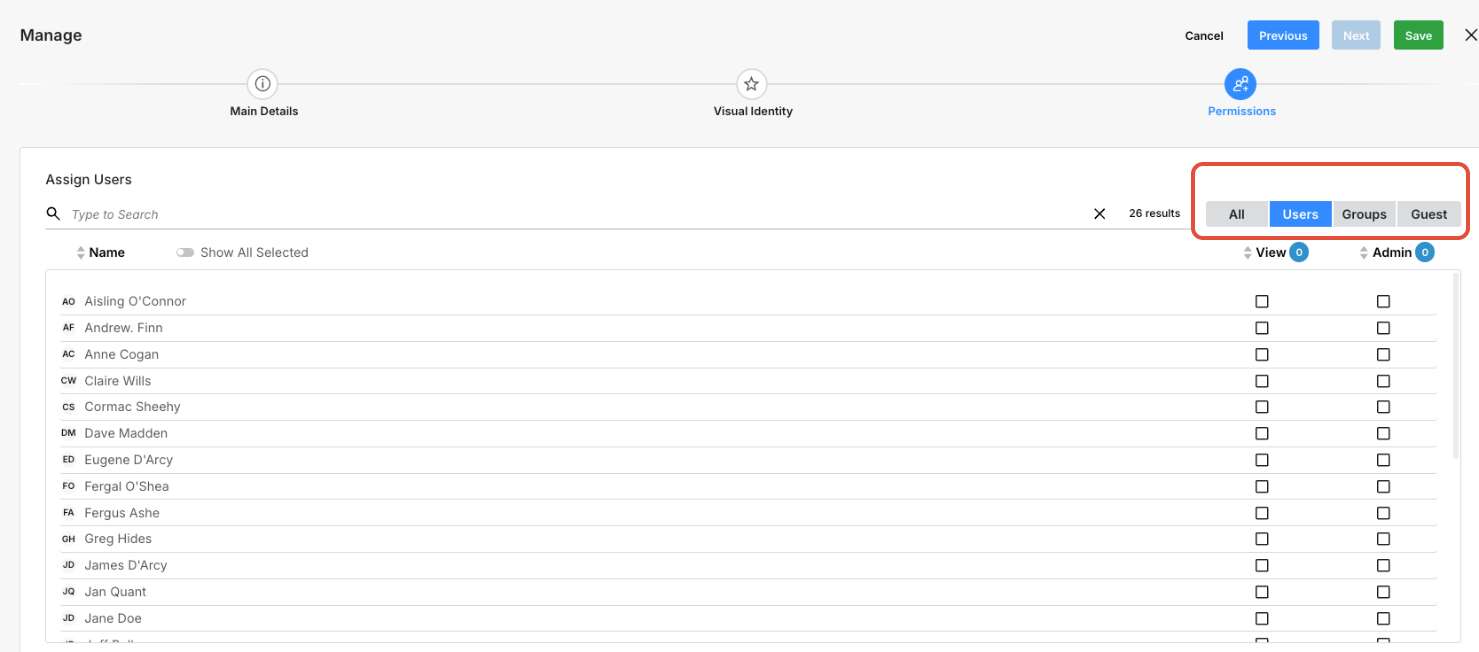
The permissions area controls which users or user groups can view or manage the section and its contents. Permissions ensure that only authorized users can access, edit, or administer assets within the section. Permissions on the section help to maintain control across both organizational and event levels.
- You can grant access to users, groups, guests, or all of the above.
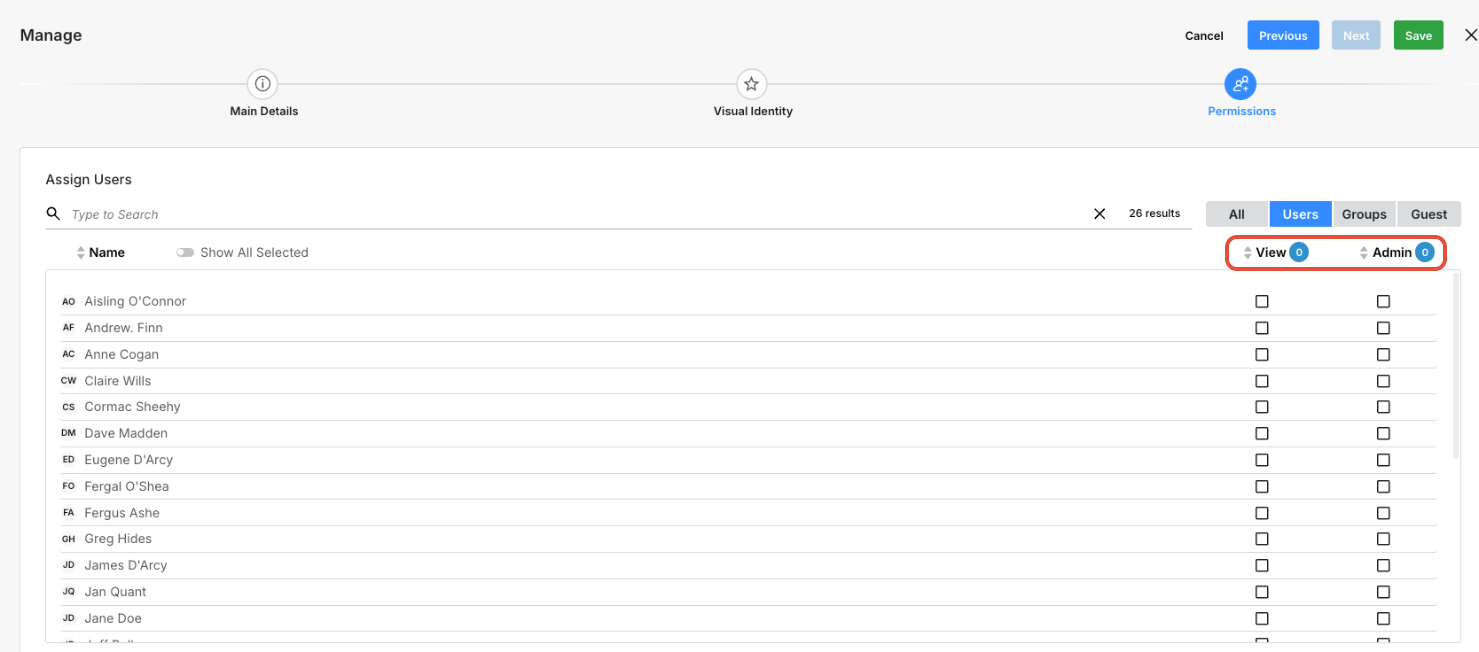
- Access levels include both view and admin options to provide tight control over who can access and edit sections.
- Click Save.
Organizational Rights
In the Organizational Rights step, you can:
Select one or more user groups
Tag those groups to the Section
Control which teams have access
Only users who belong to the assigned groups will be able to access that Section (subject to their overall permissions).
- Once you create the section, navigate back to reopen it.
- Locate the step labeled Organizational Rights.
- Clicking this step allows you to tag and assign groups to the section.
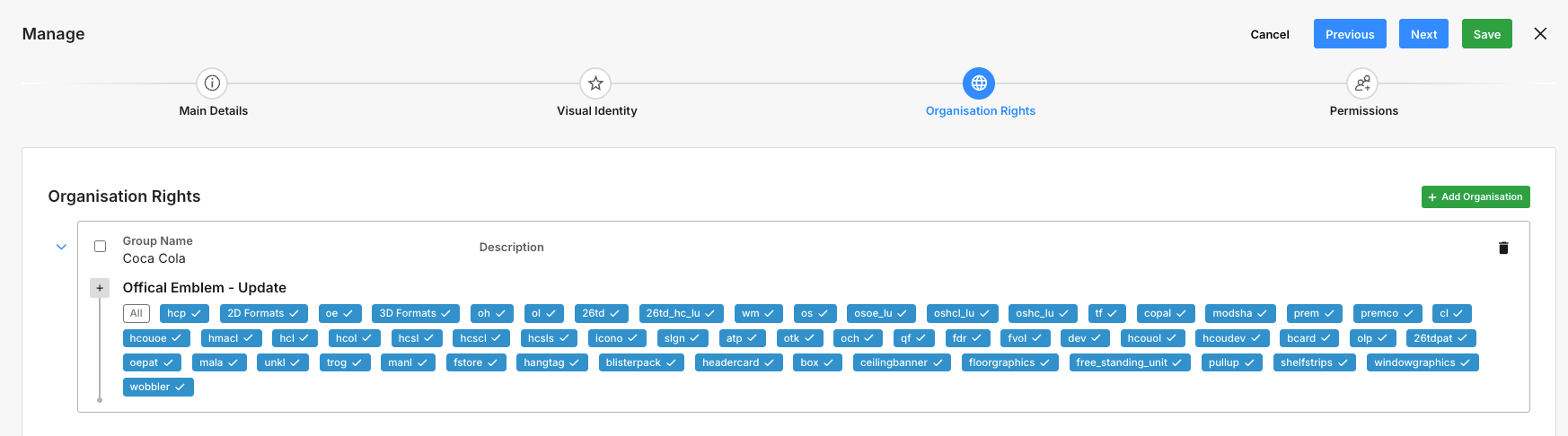
- Choose the tags you want to include in the organizational rights.
In Summary
The DAM provides an intuitive front-end display
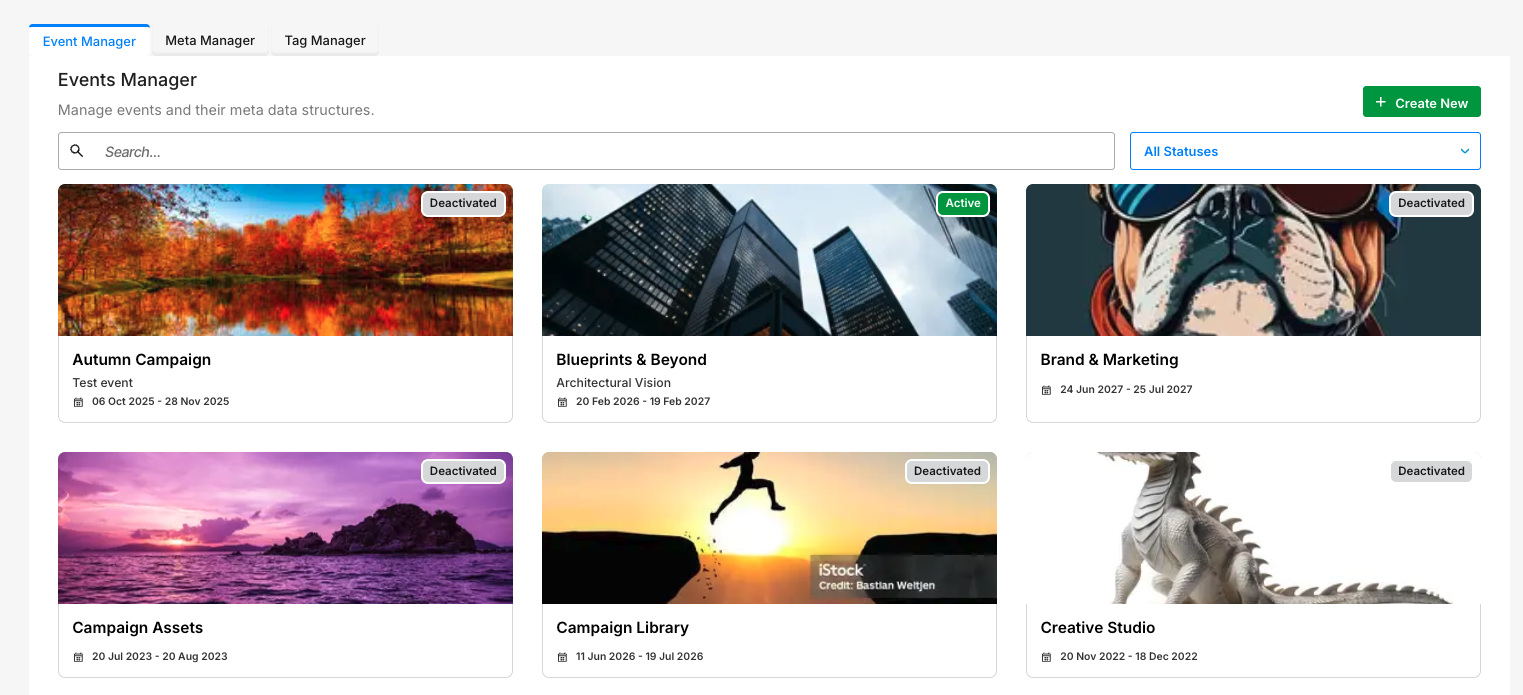
The DAM provides a modern, card-based layout that makes browsing and managing events simple and intuitive. Each event card displays a hero image, key details, and color-coded tags at a glance, allowing you to quickly identify event status—such as Draft, Live, or Archived—while benefiting from a visually driven, easy-to-navigate experience.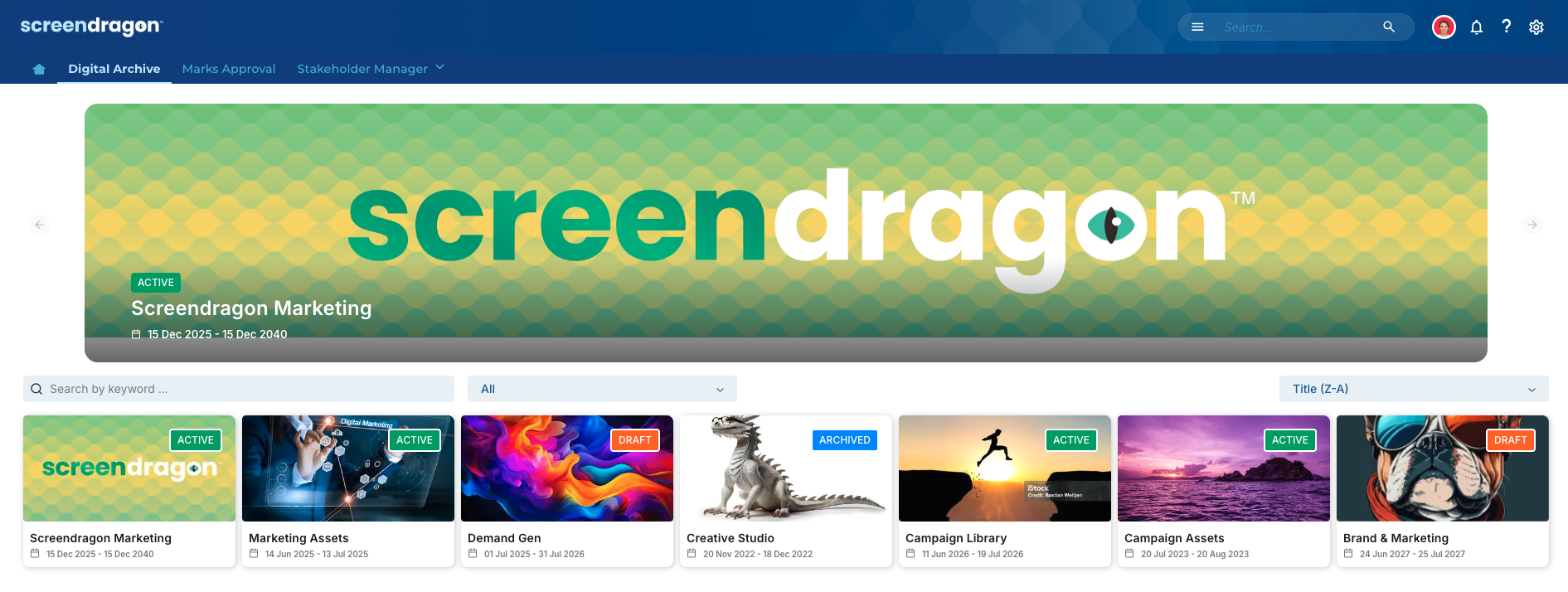
Was this article helpful?
That’s Great!
Thank you for your feedback
Sorry! We couldn't be helpful
Thank you for your feedback
Feedback sent
We appreciate your effort and will try to fix the article