Managing Asset Versions
TABLE OF CONTENTS
- What Is Asset Versioning?
- Viewing Asset Versions
- Uploading a New Version
- Switching Between Versions
- Version History and Audit Trail
- How Versions Affect Metadata and Usage
- Permissions and Governance
Asset versioning in Screendragon DAM allows teams to update, track, and manage changes to files over time—without losing history or creating duplicate assets. Versioning ensures everyone is working with the most current file while maintaining a complete audit trail of previous versions.
This article explains how asset versions work and how to manage them in the DAM.
What Is Asset Versioning?
An asset version represents a new iteration of the same file. Instead of uploading a new asset each time a file changes, you can upload a new version to the existing asset.
Common use cases include:
- Updated creative files
- Revised copy or layouts
- Format or resolution changes
- Minor corrections or refinements
Versioning keeps all iterations organized in one place.
Viewing Asset Versions
To view an asset’s versions:
- Open the asset in the DAM.
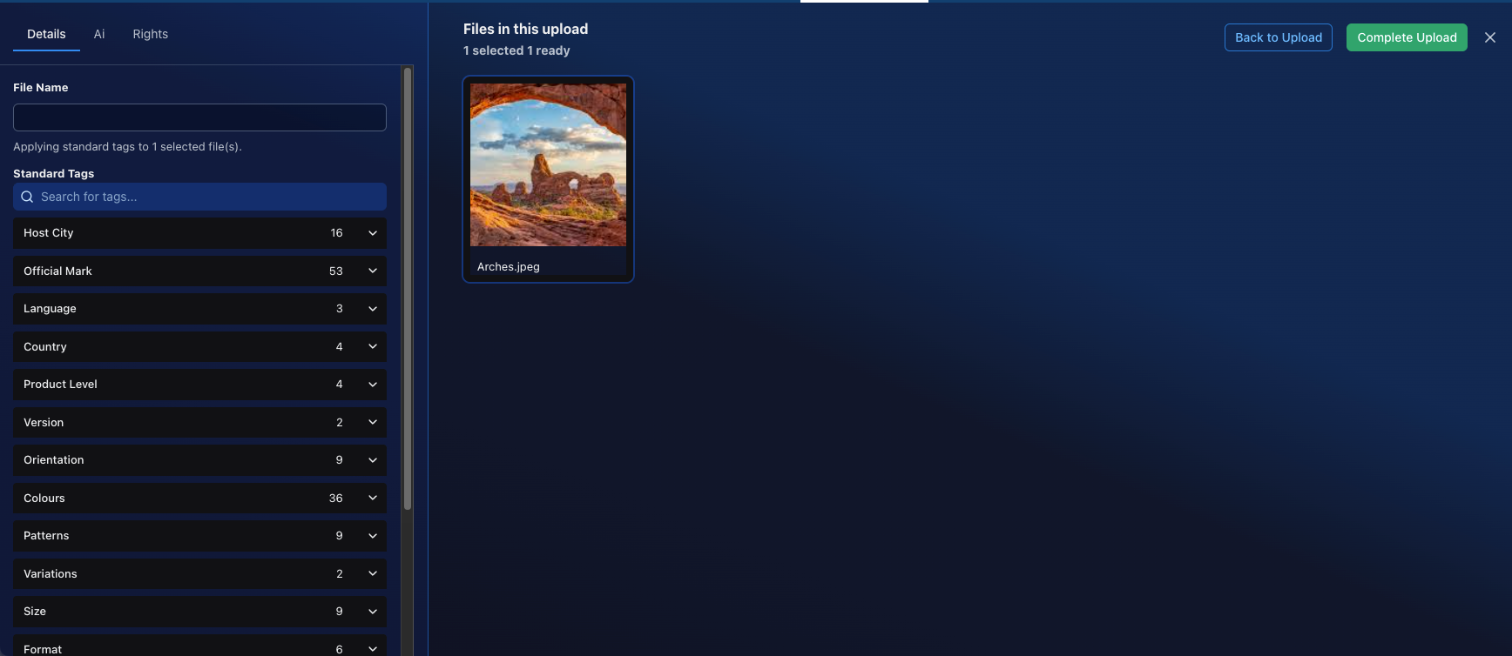
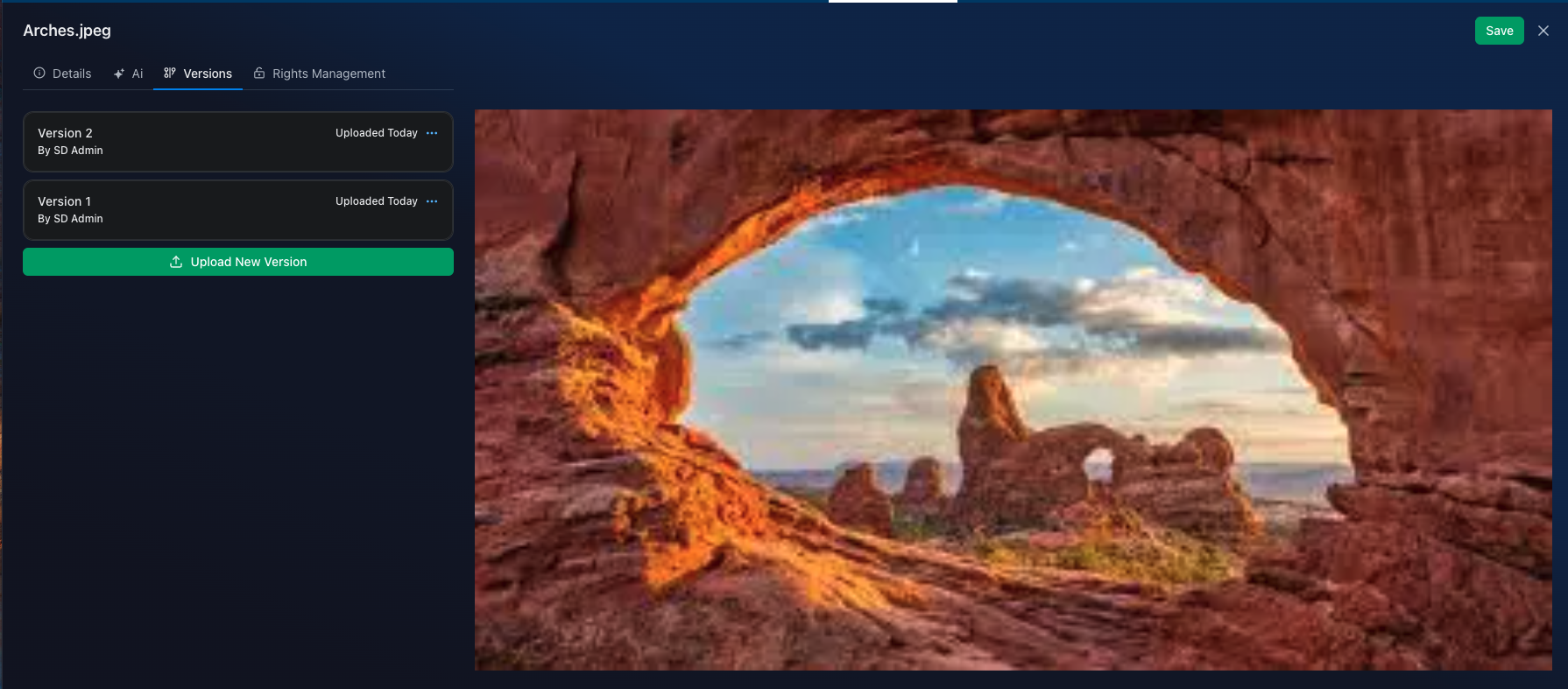
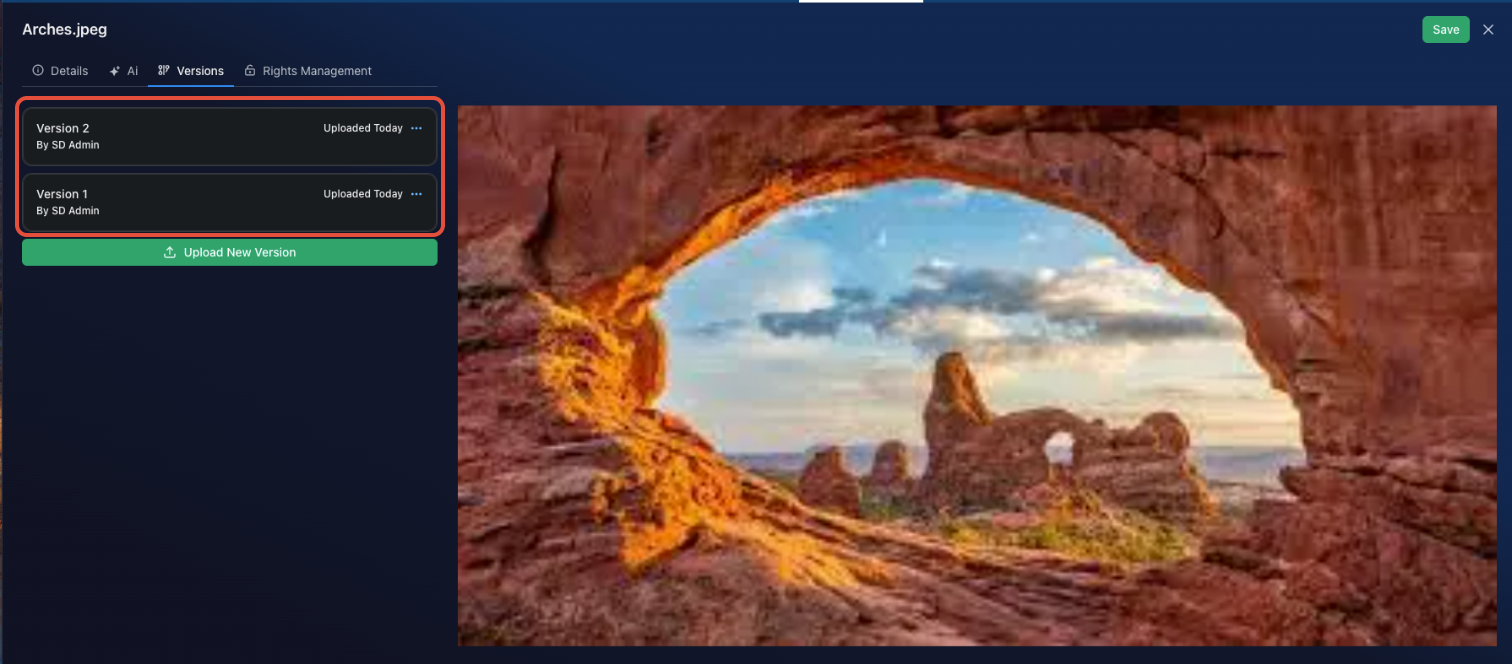
- Navigate to the Versions section within the asset details panel.
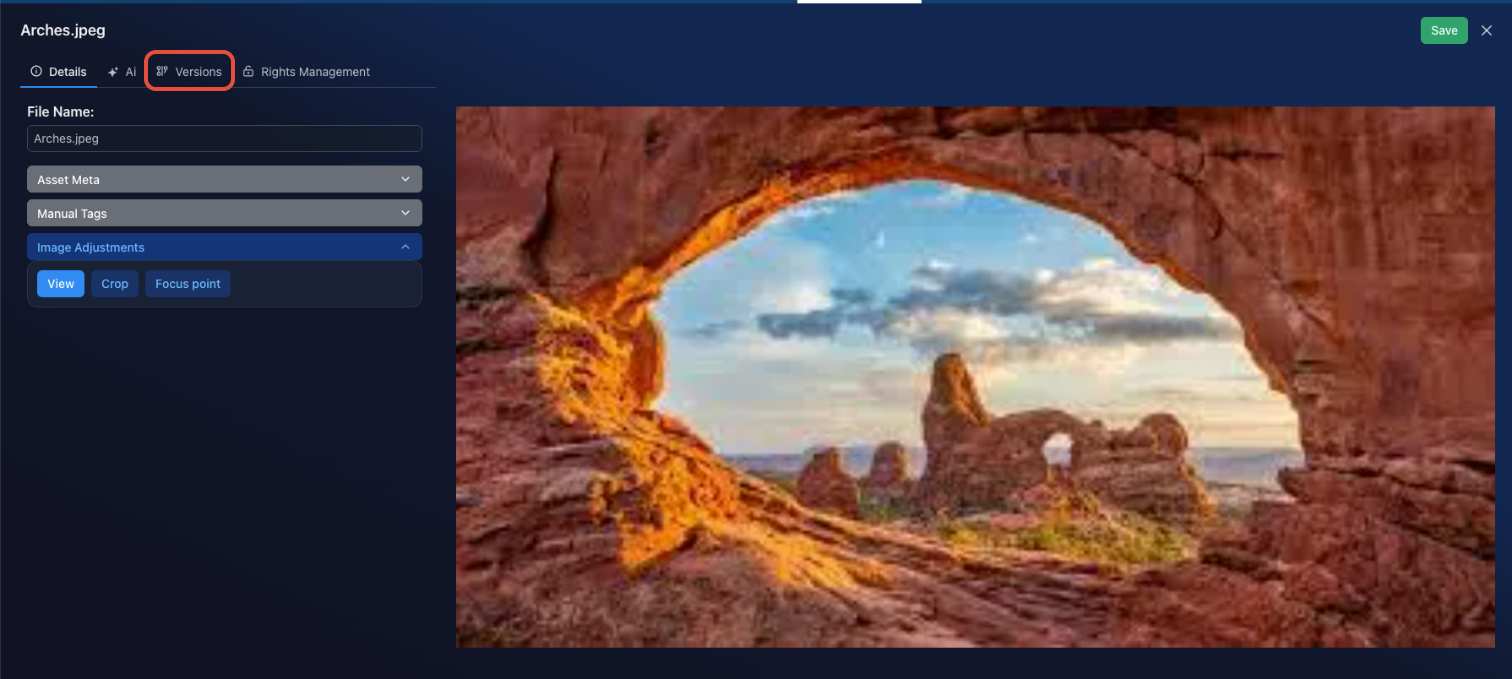
Here you can see:
- The current (active) version
- Previous versions
- Version numbers or labels
- Upload dates and timestamps
- The user who uploaded each version
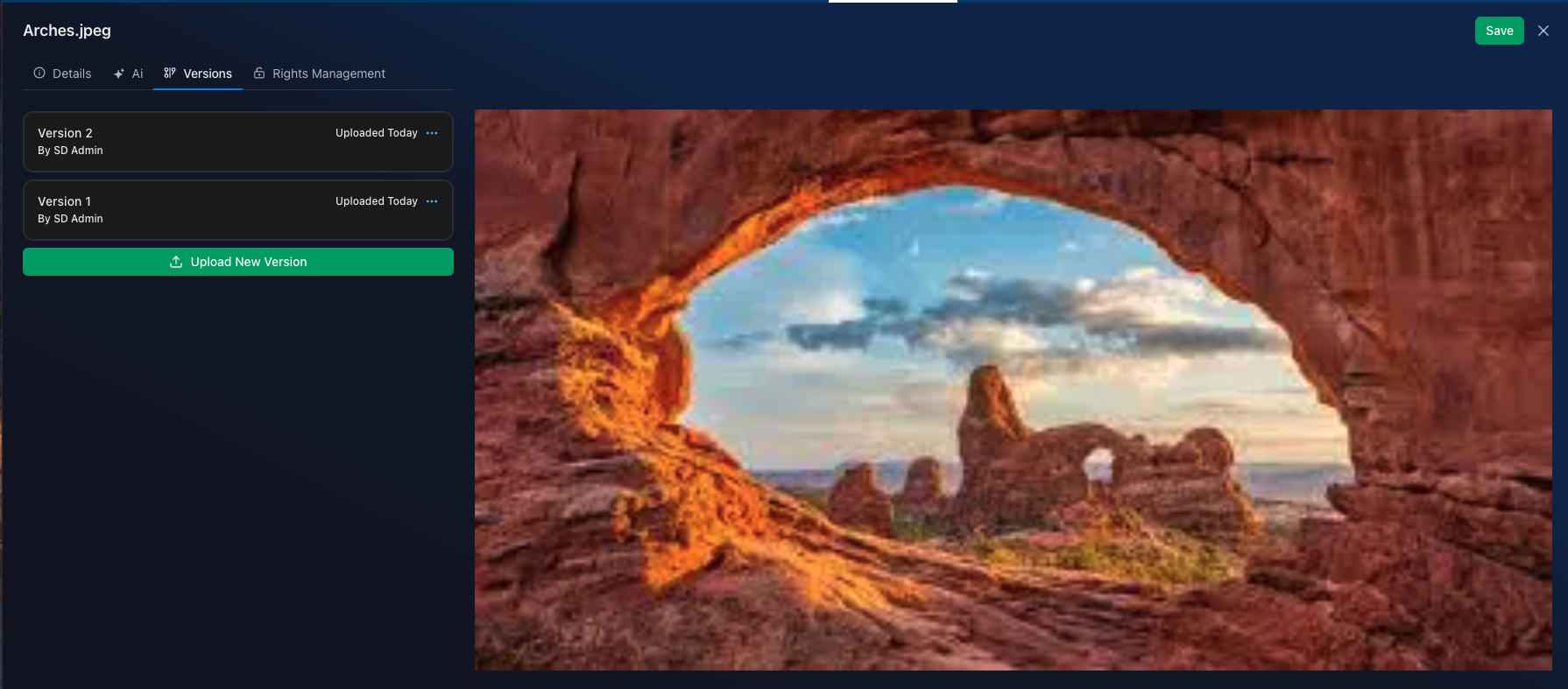
The latest version is always shown as the active version by default.
Uploading a New Version
To add a new version to an existing asset:
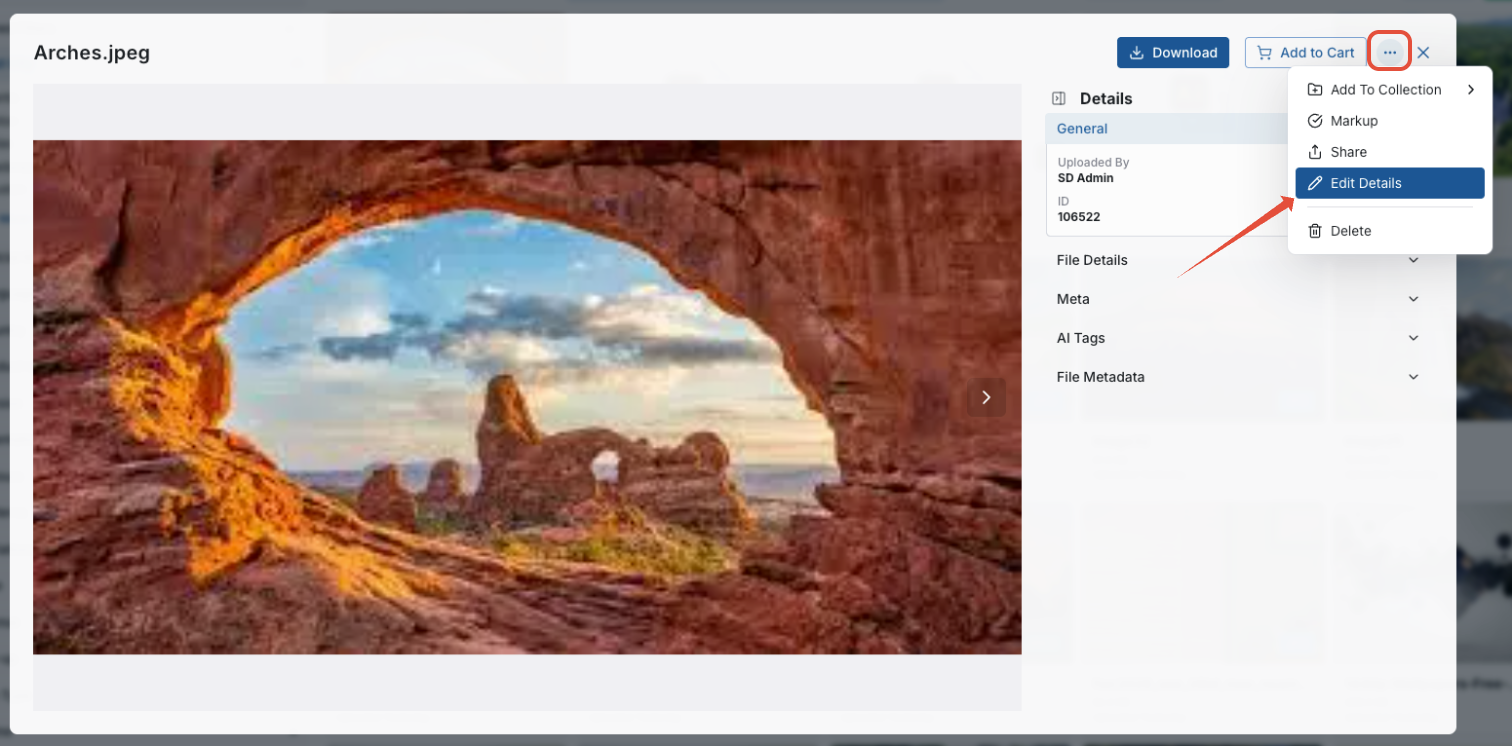
- Locate the asset you want to update in the asset folder.
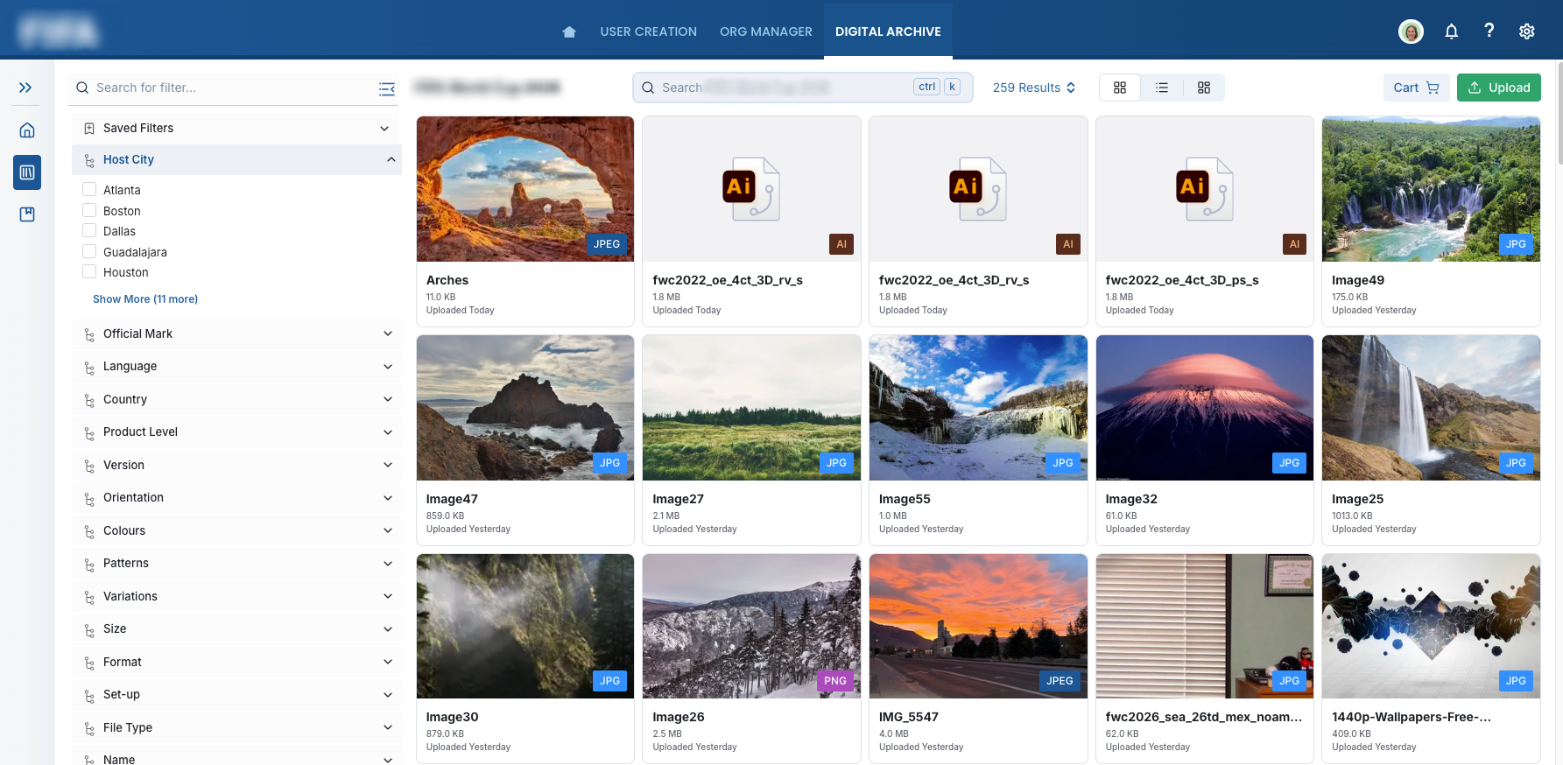
- Navigate to the dropdown link and click Edit Details.
- Select Upload New Version.
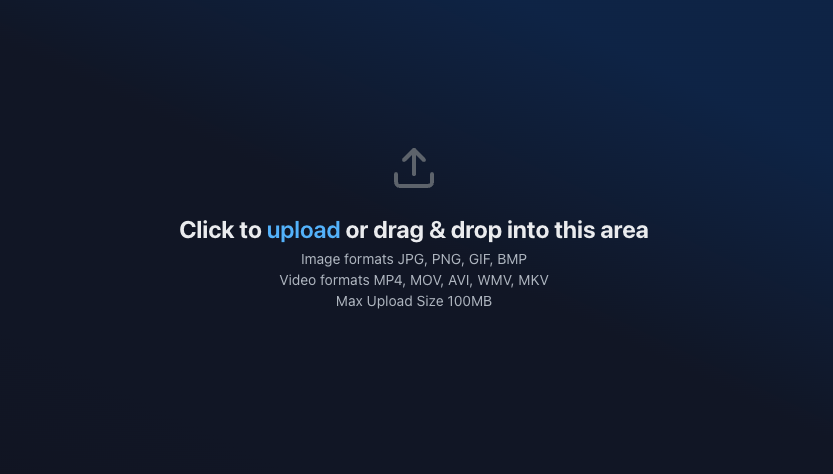
- Upload the updated file.
Once uploaded:
- The new file becomes the active version. The highest numbered version is the most recent.
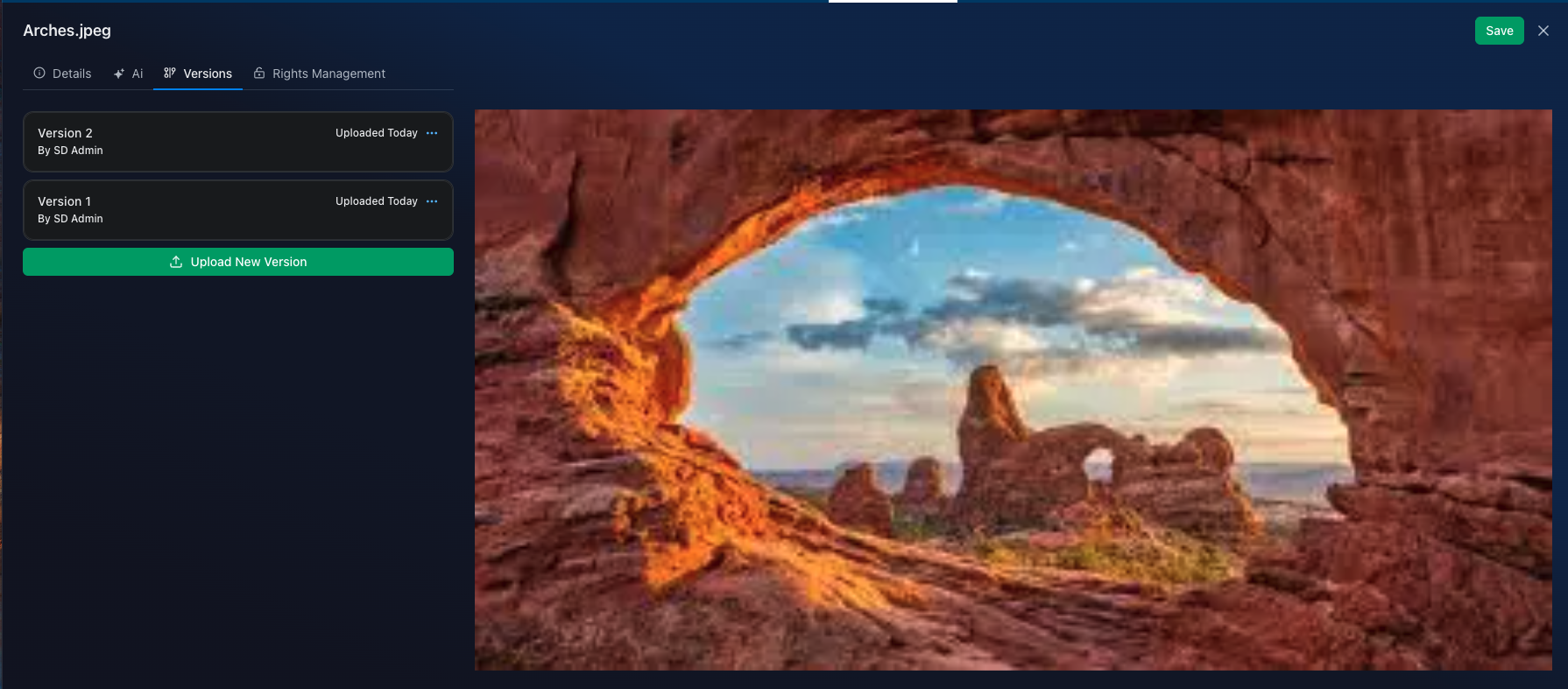
- Previous versions are retained for reference.
- Asset metadata remains consistent across versions (unless updated).
Switching Between Versions
Users with the appropriate permissions can:
View or download previous versions
Compare versions where supported
Restore a previous version as the active version
Restoring an older version does not delete newer versions—it simply changes which version is active.
Version History and Audit Trail
Each version includes an audit trail that captures:
Who uploaded the version
When the version was added
Any related comments or notes (if enabled)
This provides transparency and accountability across teams.
How Versions Affect Metadata and Usage
Metadata is typically shared across all versions of an asset
Usage rights, permissions, and expiration rules continue to apply
Links and references to the asset remain intact when versions change
This ensures that updating a file does not disrupt workflows, approvals, or downstream usage.
Permissions and Governance
Not all users can upload or restore versions
Version management permissions are role-based
Read-only users can view versions but cannot modify them
This helps protect approved or locked assets while allowing controlled updates.
Was this article helpful?
That’s Great!
Thank you for your feedback
Sorry! We couldn't be helpful
Thank you for your feedback
Feedback sent
We appreciate your effort and will try to fix the article