Viewing Metadata Tags on Assets in Screendragon DAM
Metadata tags help users quickly understand, find, and manage assets in the Screendragon DAM. Once configured and applied, these tags are visible throughout the user interface and play a key role in search, filtering, and asset details.
Where Metadata Tags Appear
Metadata tags can be viewed in several areas of the DAM, depending on configuration and user permissions.
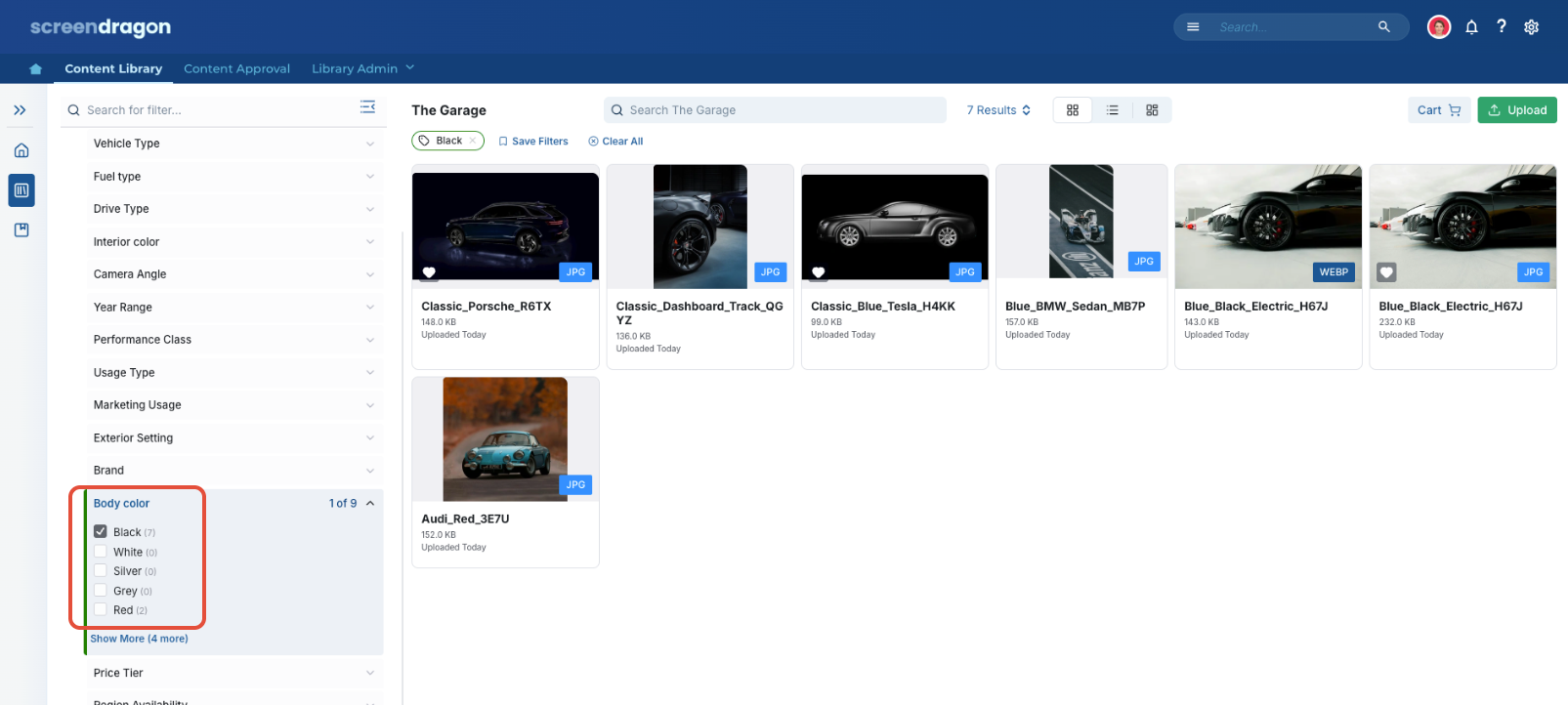
- Asset Cards (Library View) Tags appear as filter options in the filter panel.
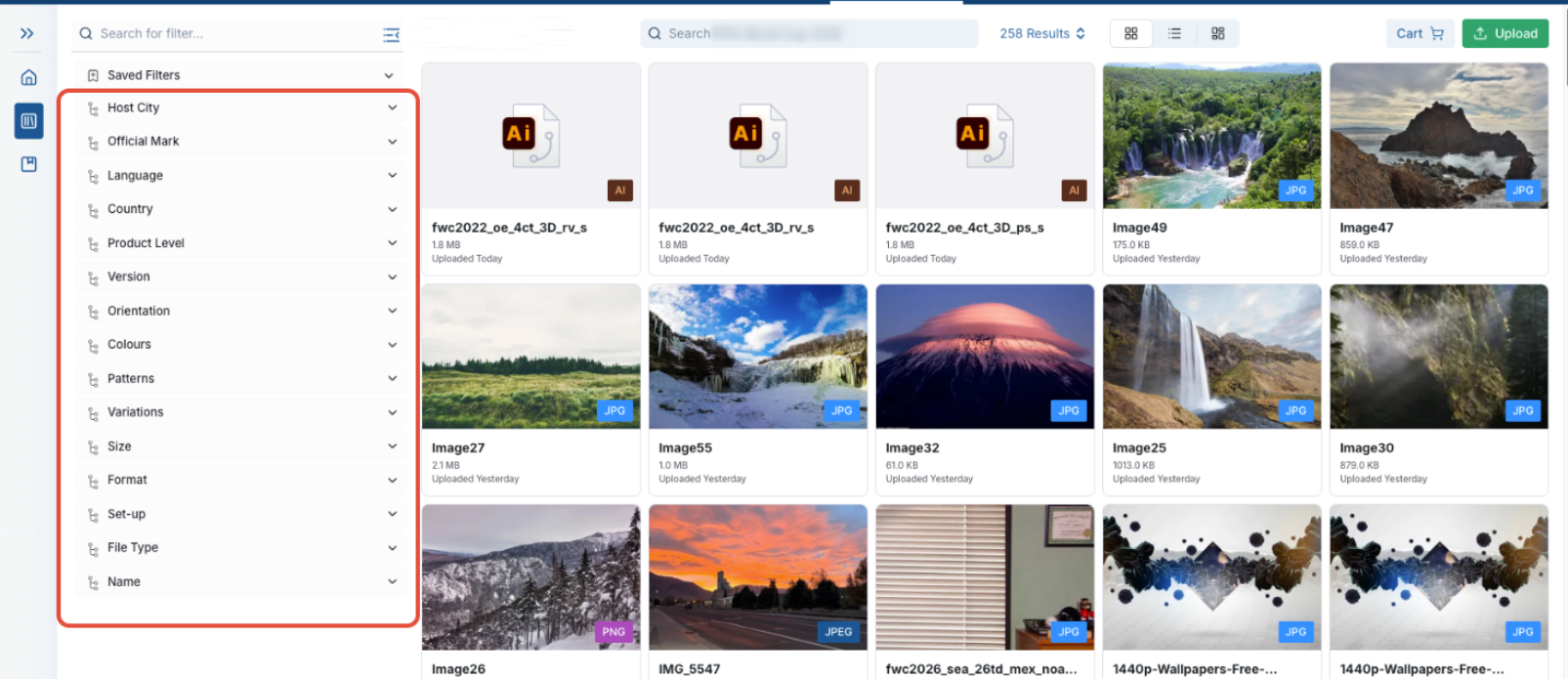
- Applied metadata tags appear directly on asset cards.
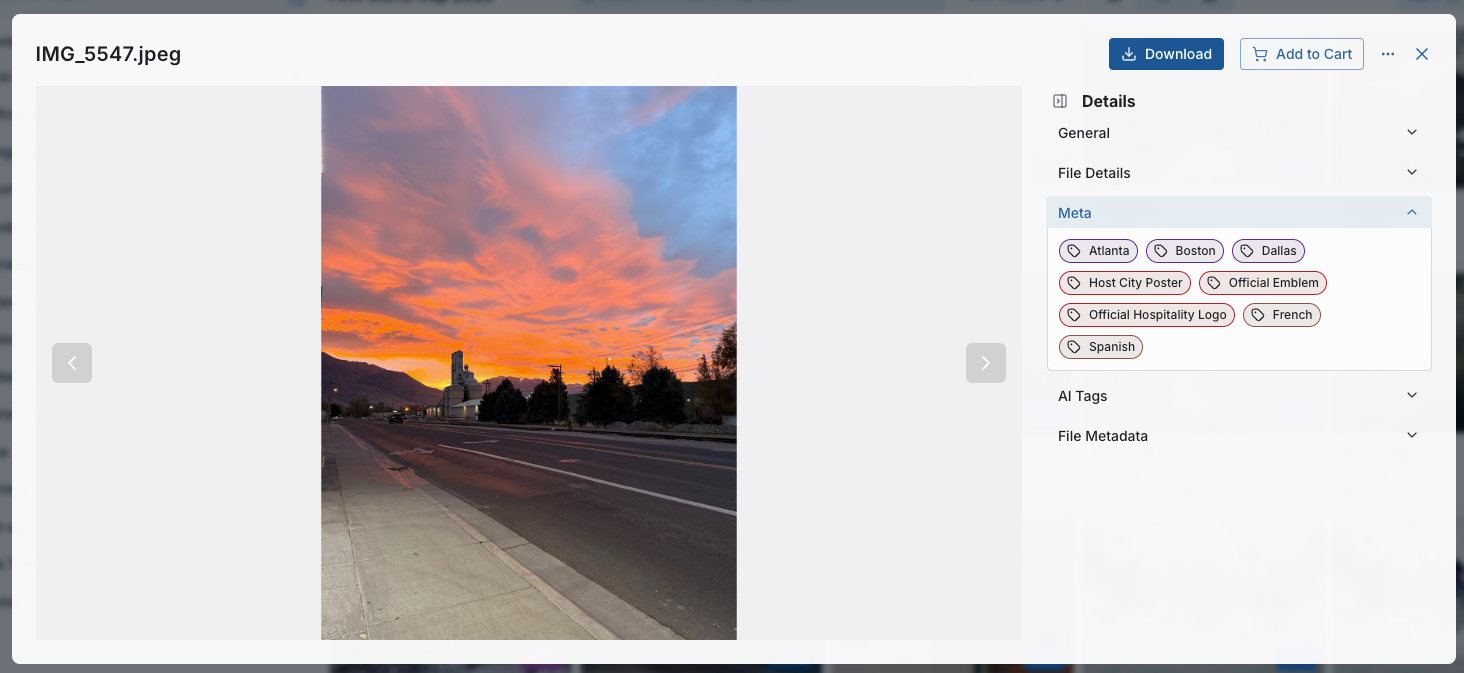
- Tag the item to help visually differentiate categories.
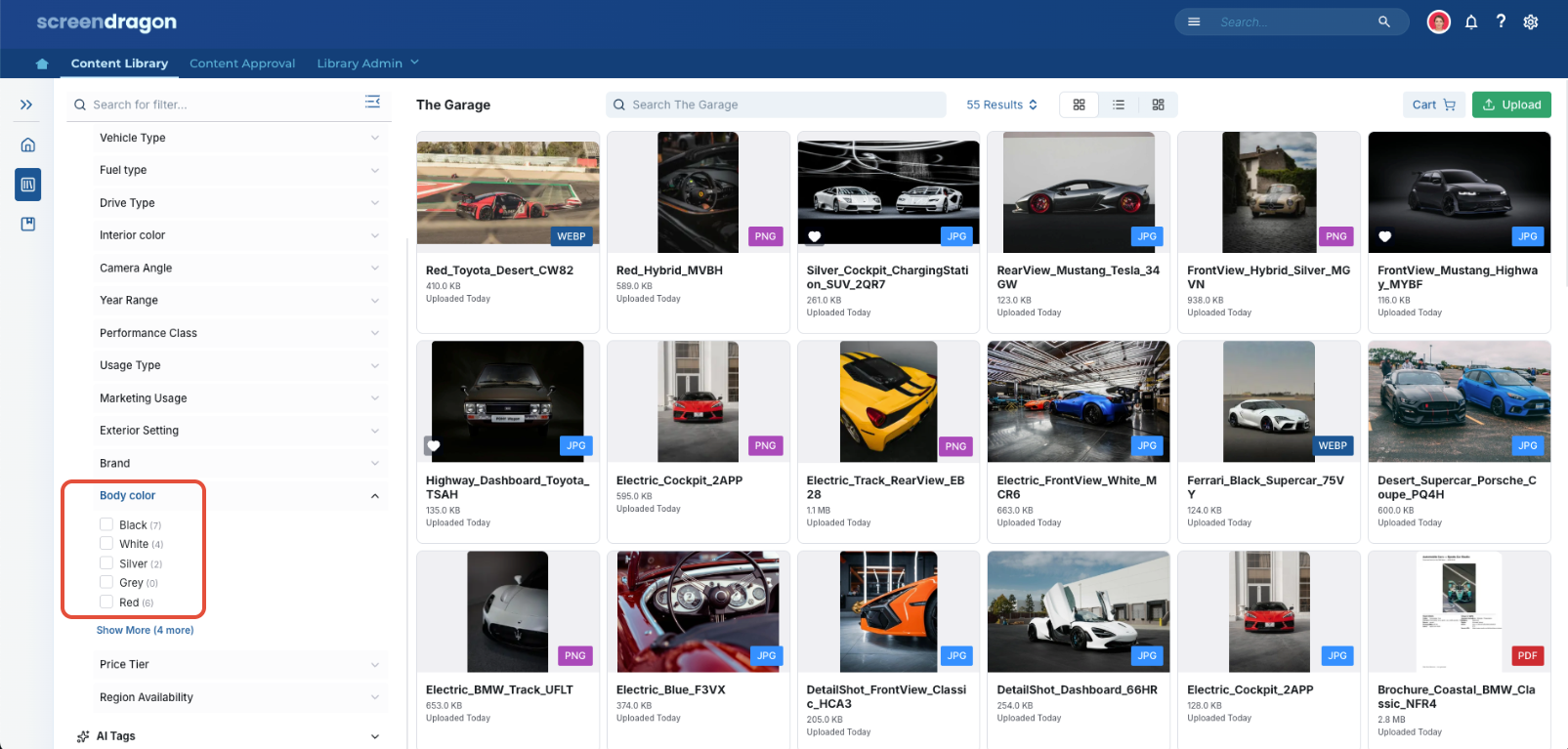
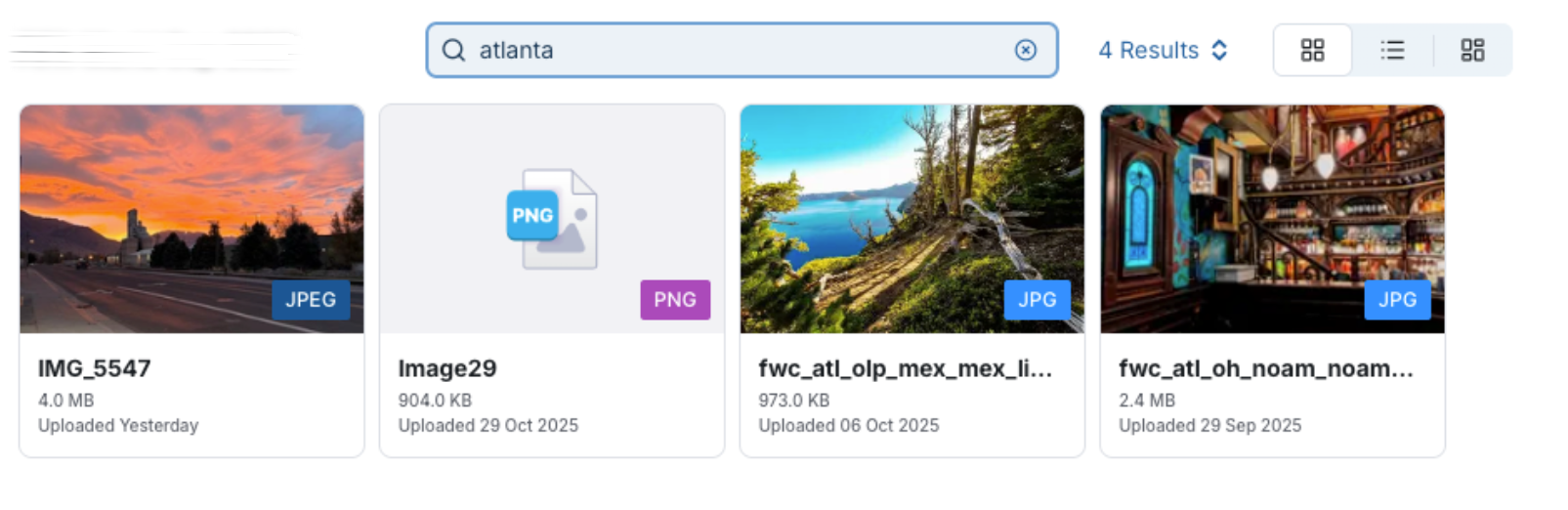
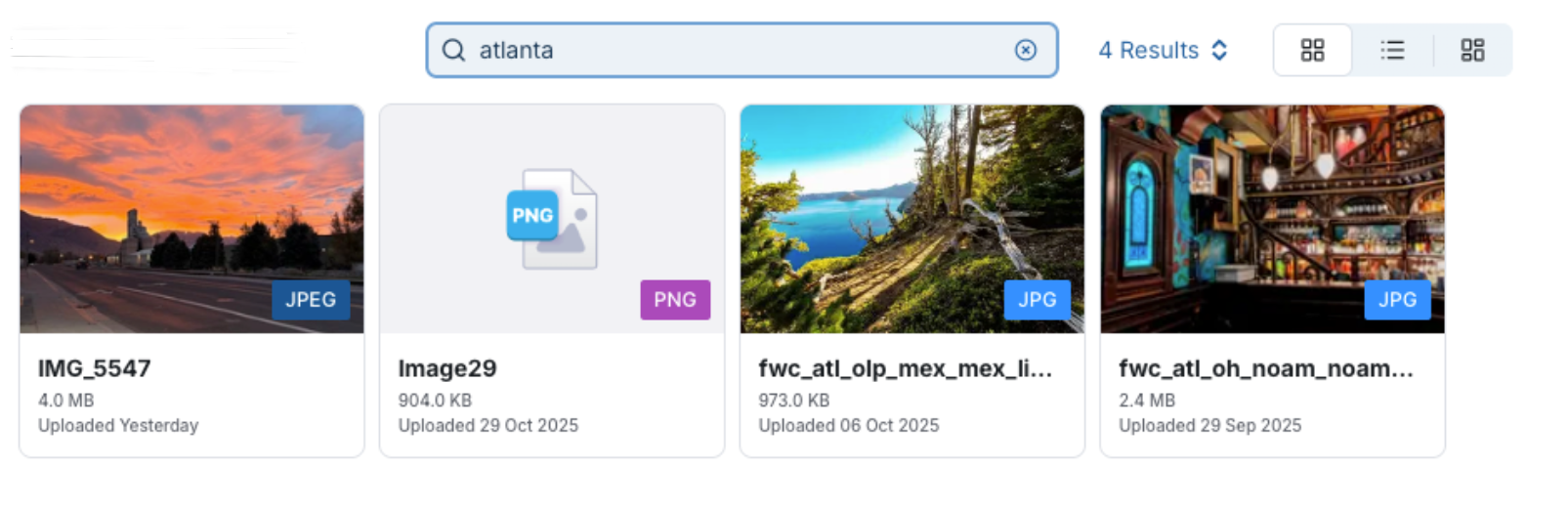
- Text fields are searchable using keywords. This allows users to quickly identify key attributes without opening the asset.
Upload and Edit Screens
When uploading or editing an asset, metadata tags appear as input fields based on their configured type.
- Dropdown tags appear as selectable lists
- Multi-select tags allow multiple values to be chosen
- Date tags use a date picker
- Text tags allow free-form entry

Viewing Metadata Tags on Assets in Screendragon DAM
Metadata tags help users quickly understand, locate, and manage assets in the Screendragon DAM. Once set up and applied, these tags are visible across the user interface and are crucial for search, filtering, and detailing assets.
Where Metadata Tags Show Up
Metadata tags can be found in various sections of the DAM, depending on the configuration and user permissions.
- Asset Cards (Library View) Tags are presented as filtering options in the filter panel.
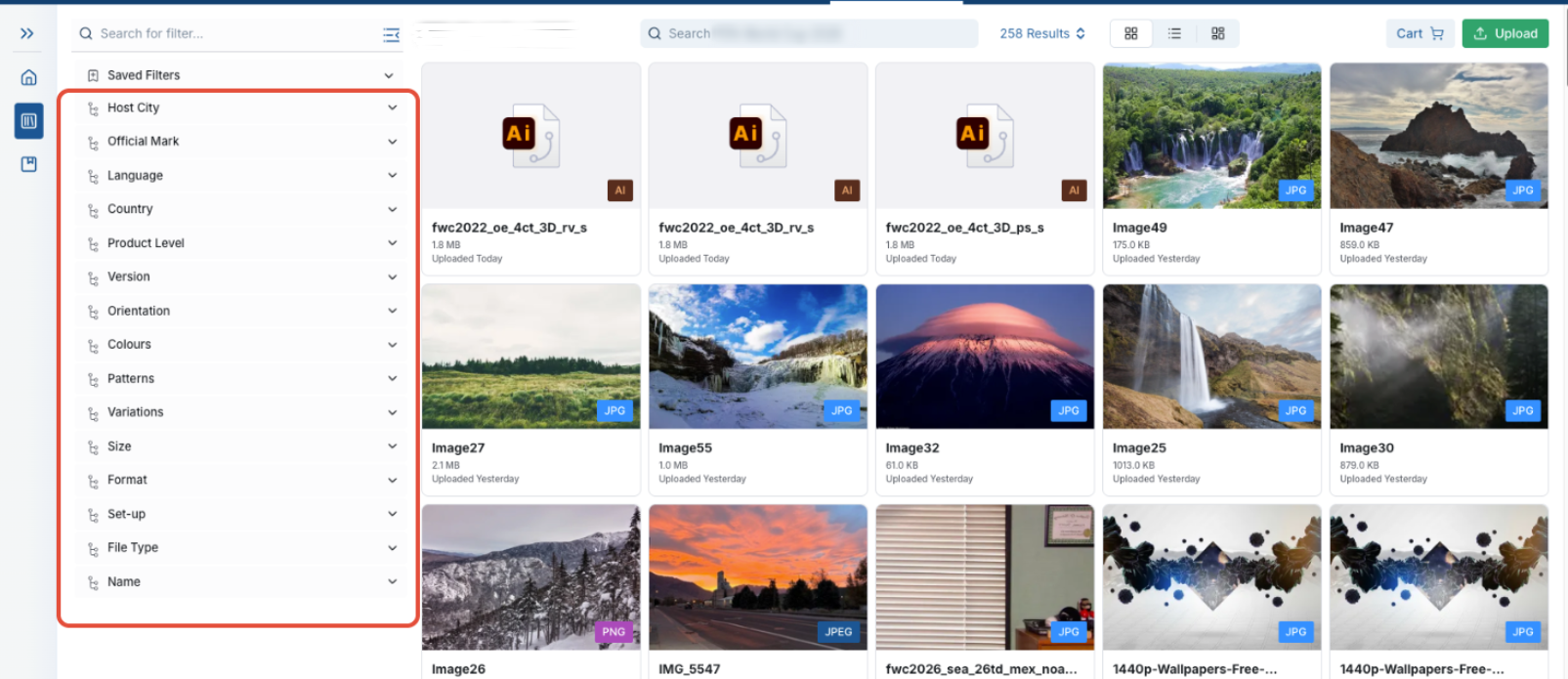
- Displayed metadata tags appear directly on asset cards.
- The colors of tags (if set) assist in visually distinguishing categories
- Text fields can be searched using keywords. This feature allows users to quickly identify important attributes without opening the asset.
Upload and Edit Screens
While uploading or editing an asset, metadata tags are displayed as input fields contingent on their configured type.
- Dropdown tags are shown as selectable lists
- Multi-select tags permit the selection of multiple values
- Date tags utilize a date picker
- Text tags provide an option for free-form entry
Was this article helpful?
That’s Great!
Thank you for your feedback
Sorry! We couldn't be helpful
Thank you for your feedback
Feedback sent
We appreciate your effort and will try to fix the article