Proofing in Screendragon
TABLE OF CONTENTS
- Proofing in Screendragon
- How Proofing Works
- Proofing the Document
- Proofing Actions
- Collect Comments and Markups Directly on the Proof
- Adding Markups
- Best Practices
Screendragon’s proofing tools allow teams to review, comment on, and approve creative assets directly within the platform. By keeping feedback attached to the asset itself, proofing helps eliminate scattered emails, reduce version confusion, and ensure everyone is working from the latest file.
Proofing supports collaborative review across internal teams, clients, and external partners. Users can leave contextual comments, track revisions, and manage approval workflows—all in one place. This creates a clear audit trail of feedback and decisions, helping teams move work forward with confidence and transparency.
Whether you’re reviewing early concepts or final deliverables, Screendragon’s proofing experience streamlines collaboration and keeps approvals aligned with your project workflows.
How Proofing Works
Proofing in Screendragon is centered around keeping feedback, versions, and approvals connected to the asset itself.
At a high level, the process works as follows:
- Upload an asset to a project, task, or workflow.
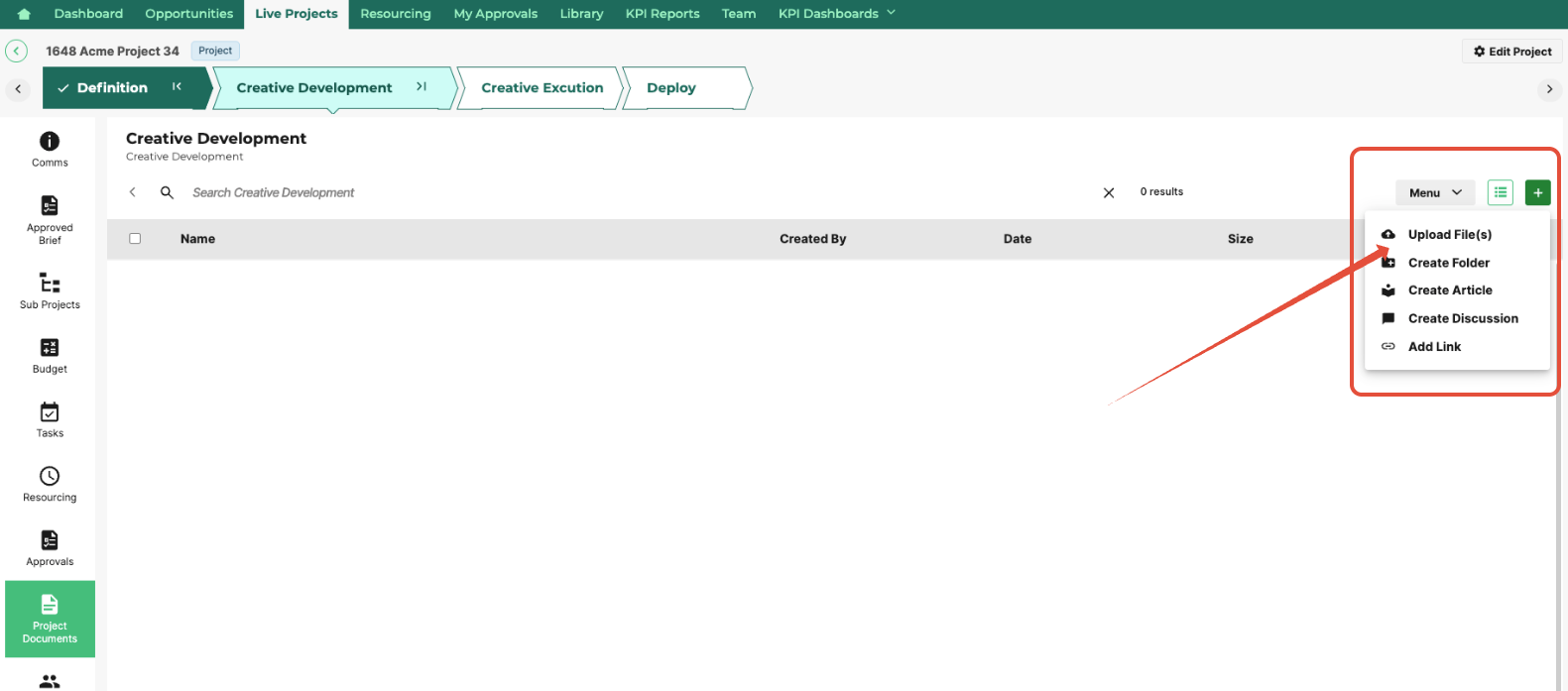
- This creates a proof from the file. Enter details in the fields such as date published and date for expiration. You can also toggle the ability to block downloading the asset or email a notification.
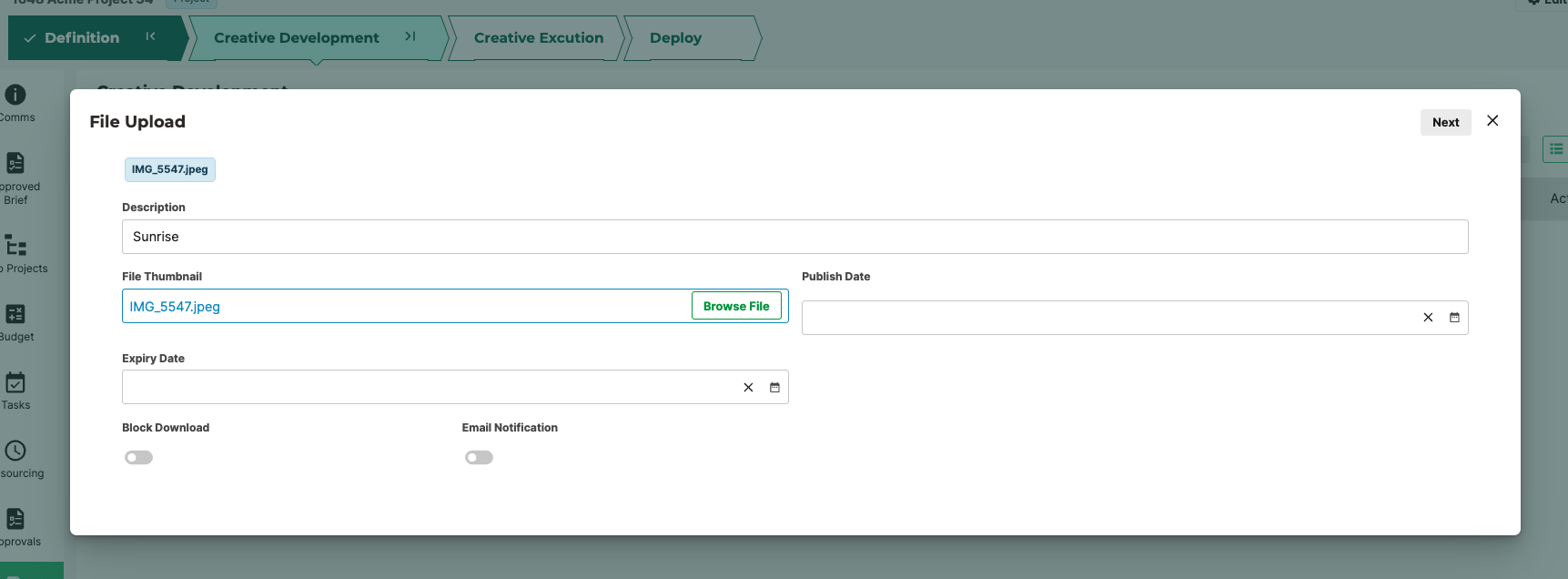
- Include the appropriate metadata for the file or image.
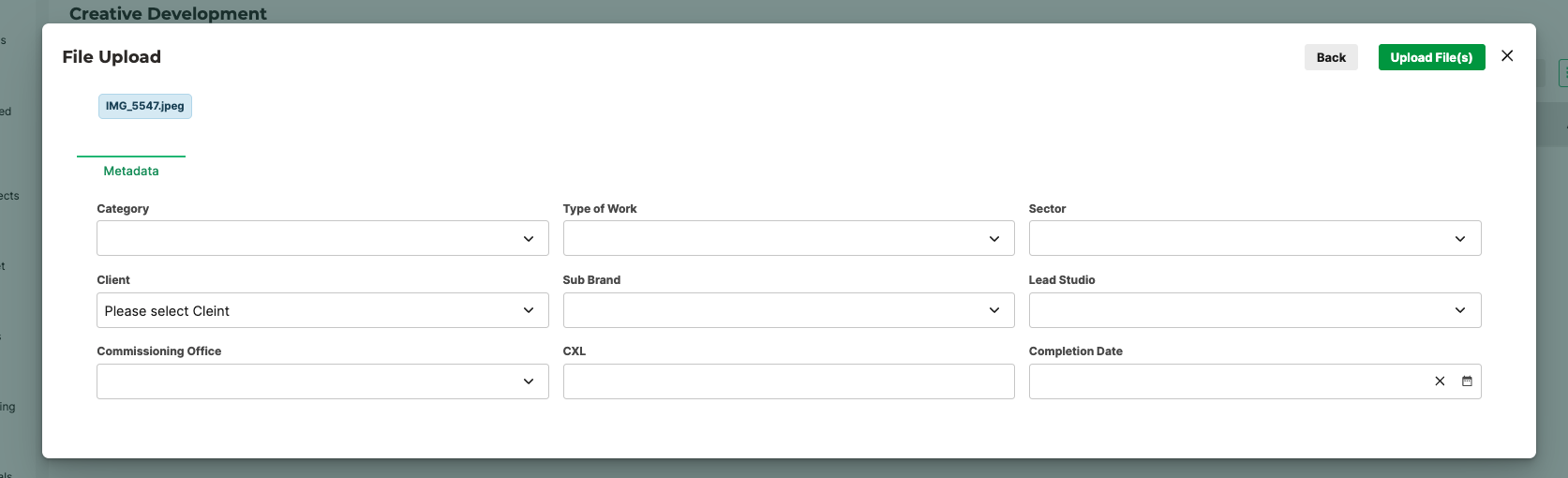
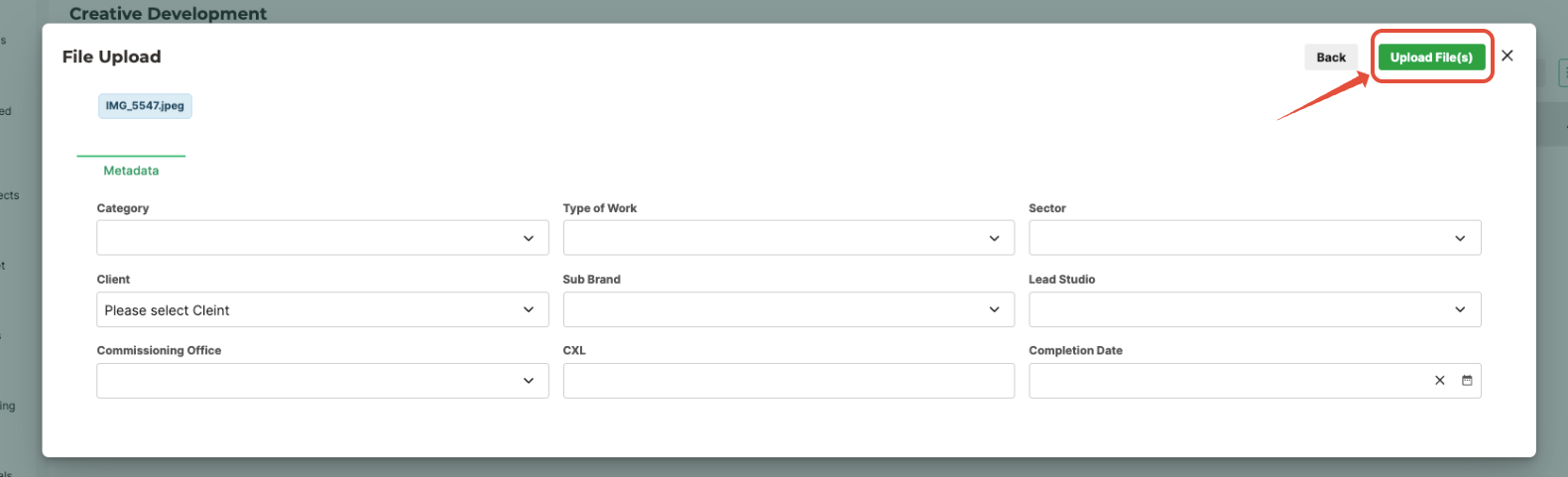
- Click Upload Files(s).
- Once the file is added, click Actions > File Share.
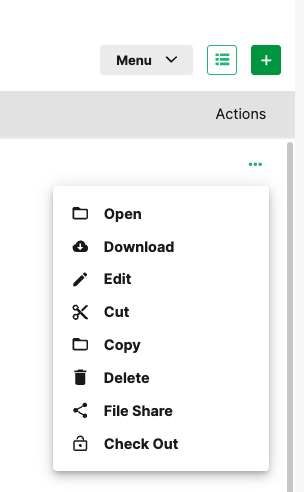
- Copy the URL, or click Email to share the link.

Proofing the Document
- Navigate to the file you want to proof.

- Click Actions > Open.
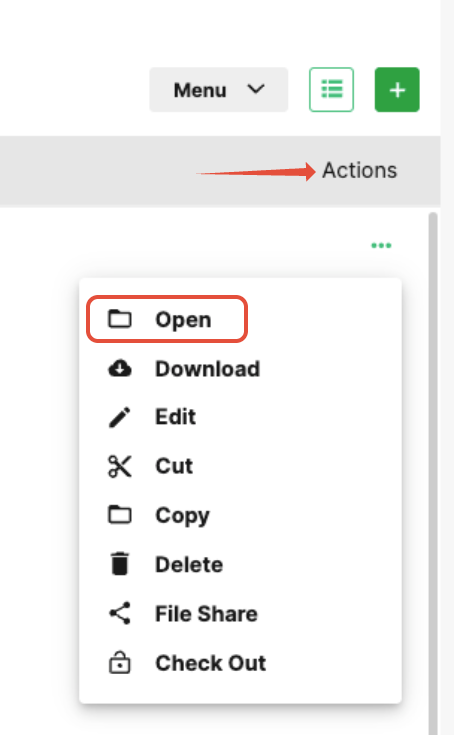
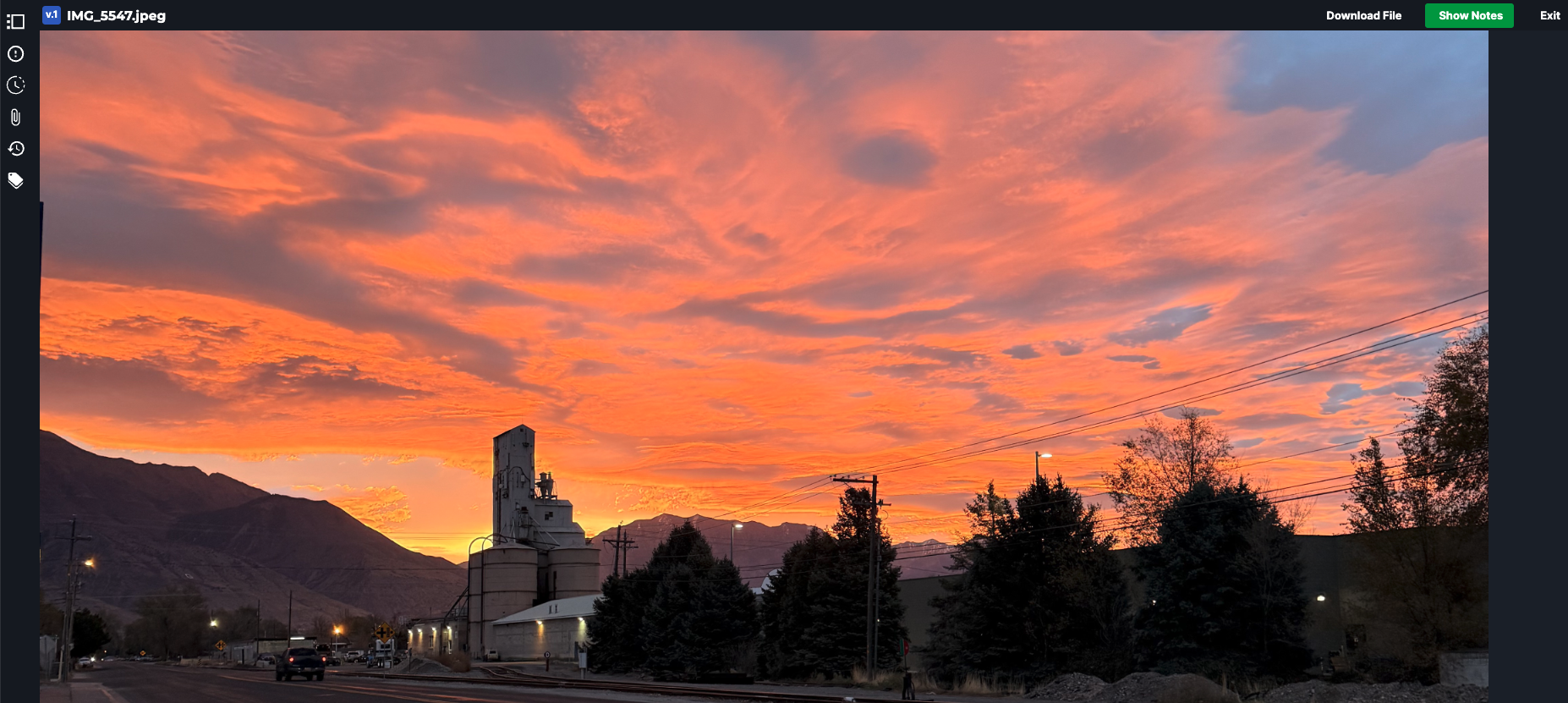
- Once the proof is open, several actions are available.
Proofing Actions
Proofing Actions display the available actions for a proof, such as reviewing, commenting, approving, rejecting, or uploading a new version, depending on the user’s role and permissions.
- Thumbnail: Shows a visual preview of the file, allowing users to quickly identify the asset and confirm they are reviewing the correct version.
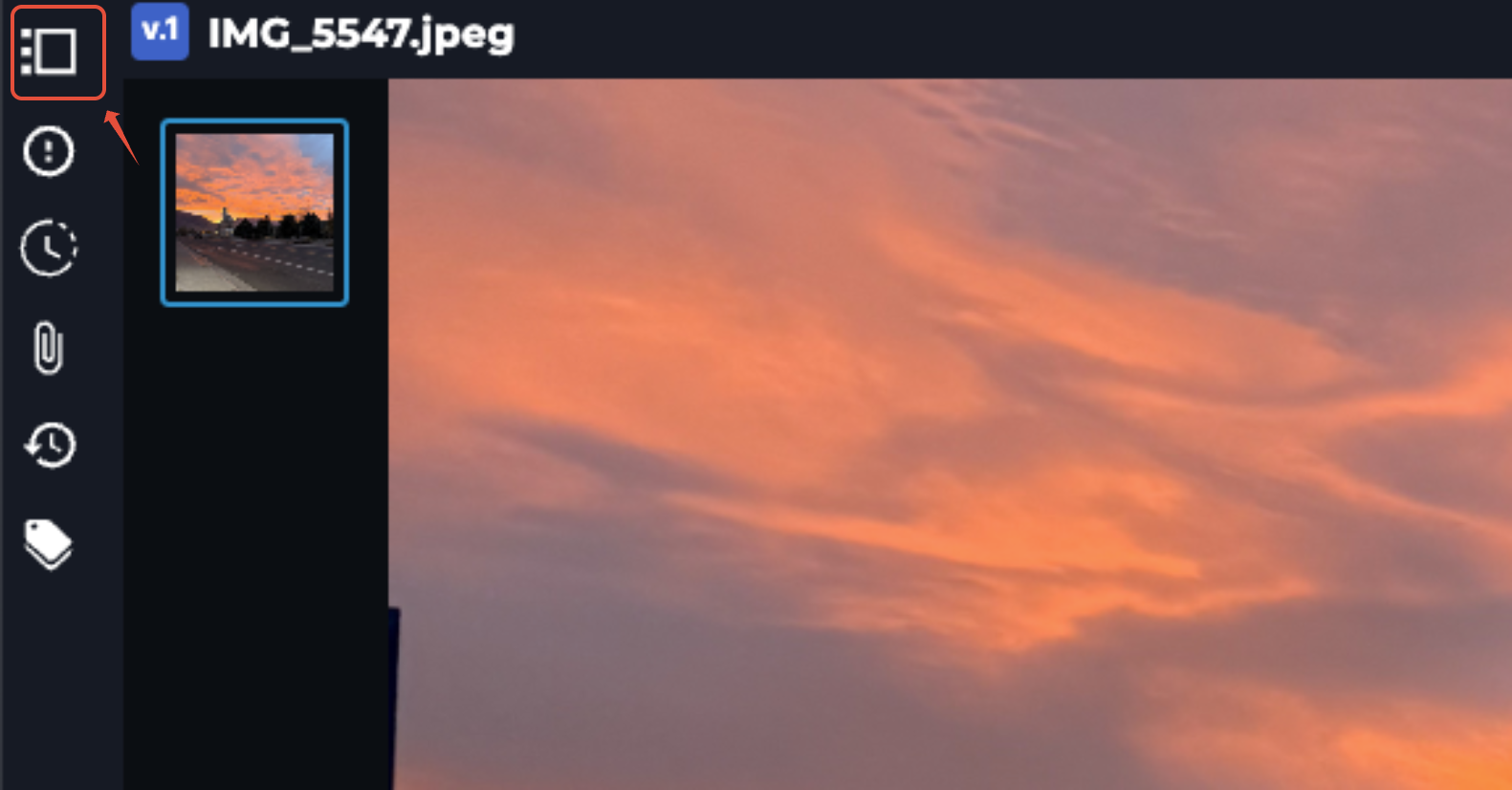
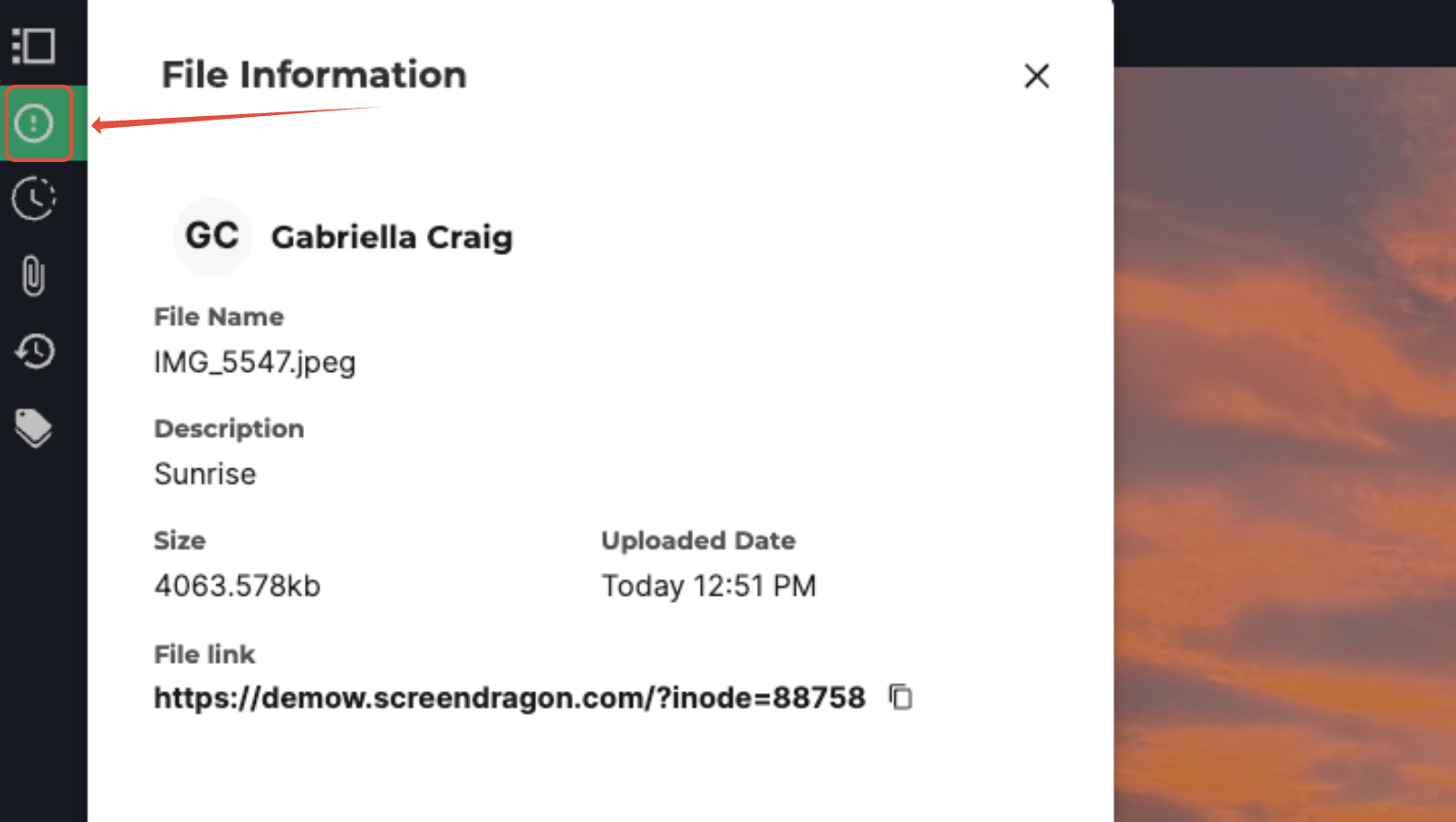
- File Information: Provides key details about the file, including file name, type, size, upload date, and the user who uploaded it.
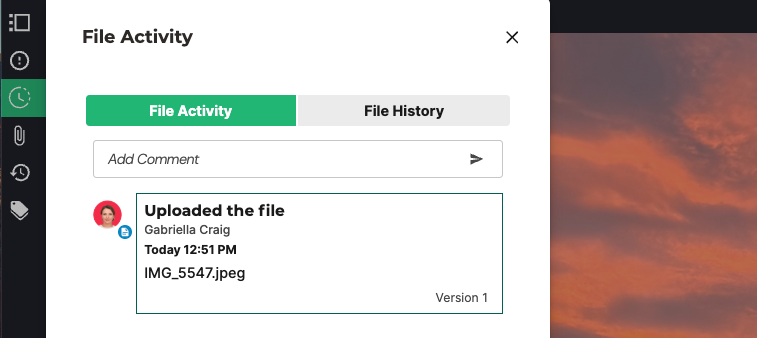
- File Activity: Displays a chronological log of actions on the file, such as uploads, comments, approvals, rejections, and version updates, creating a clear audit trail.
- Associated Files: Lists any files linked to the proof, such as source files, reference materials, or related assets, making supporting content easier to access in one place.
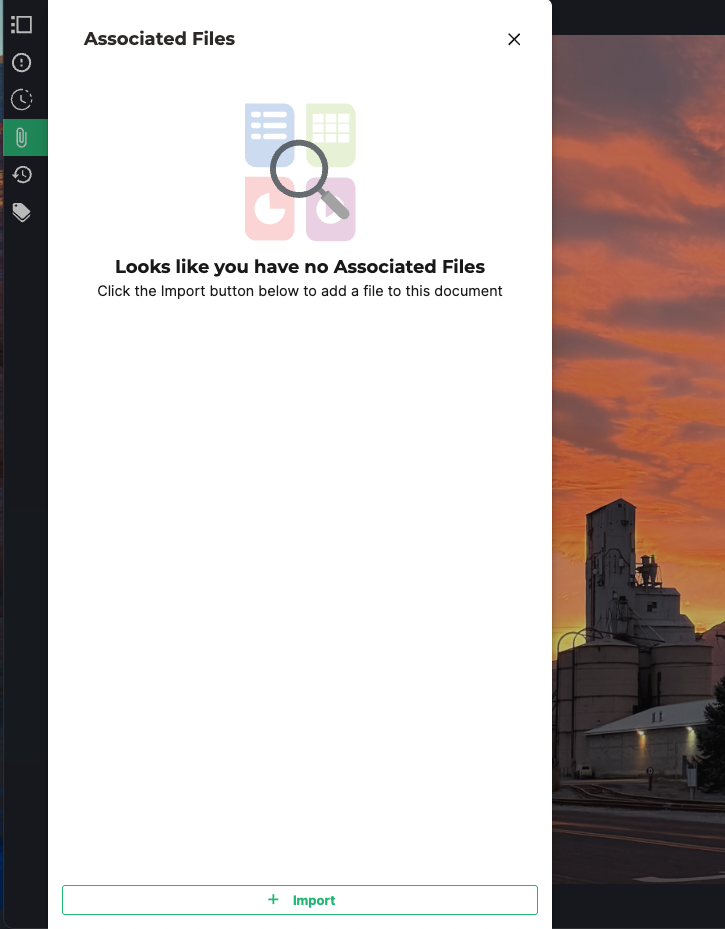
Click Import to associate a file with the existing proof. Then type the file name to search for it, and then add it to the proof.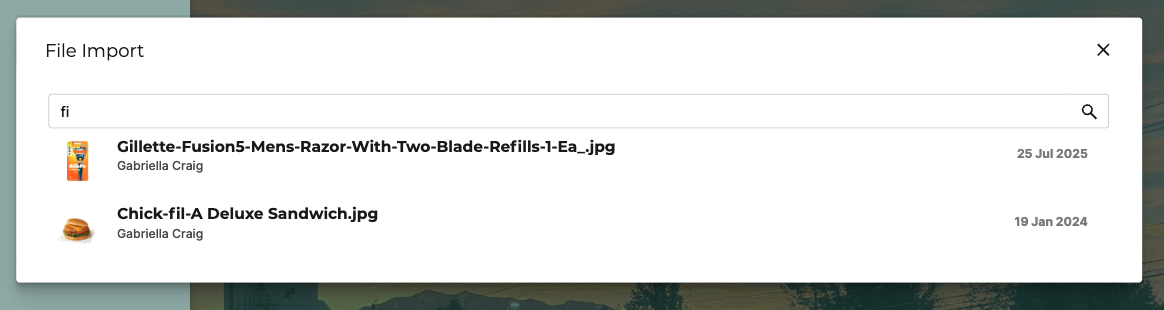
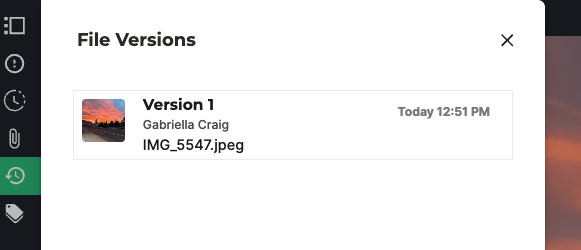
- File Versions: Shows all versions of the file uploaded to the proof, allowing users to review changes over time and ensure feedback applies to the correct version.
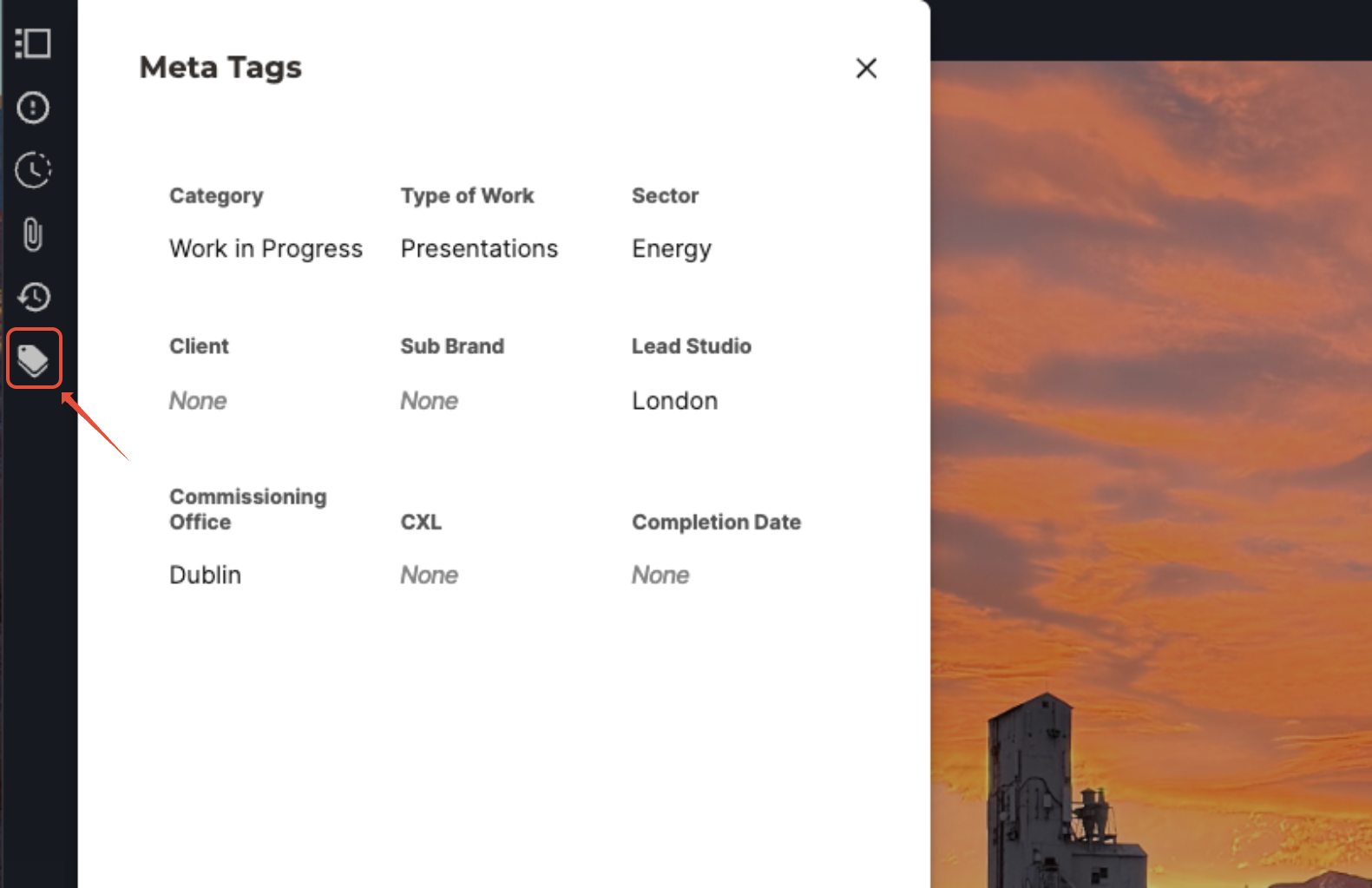
- Meta Tags: Displays when files are tagged with descriptive metadata to improve organization, searching, filtering, and reporting across projects and libraries.
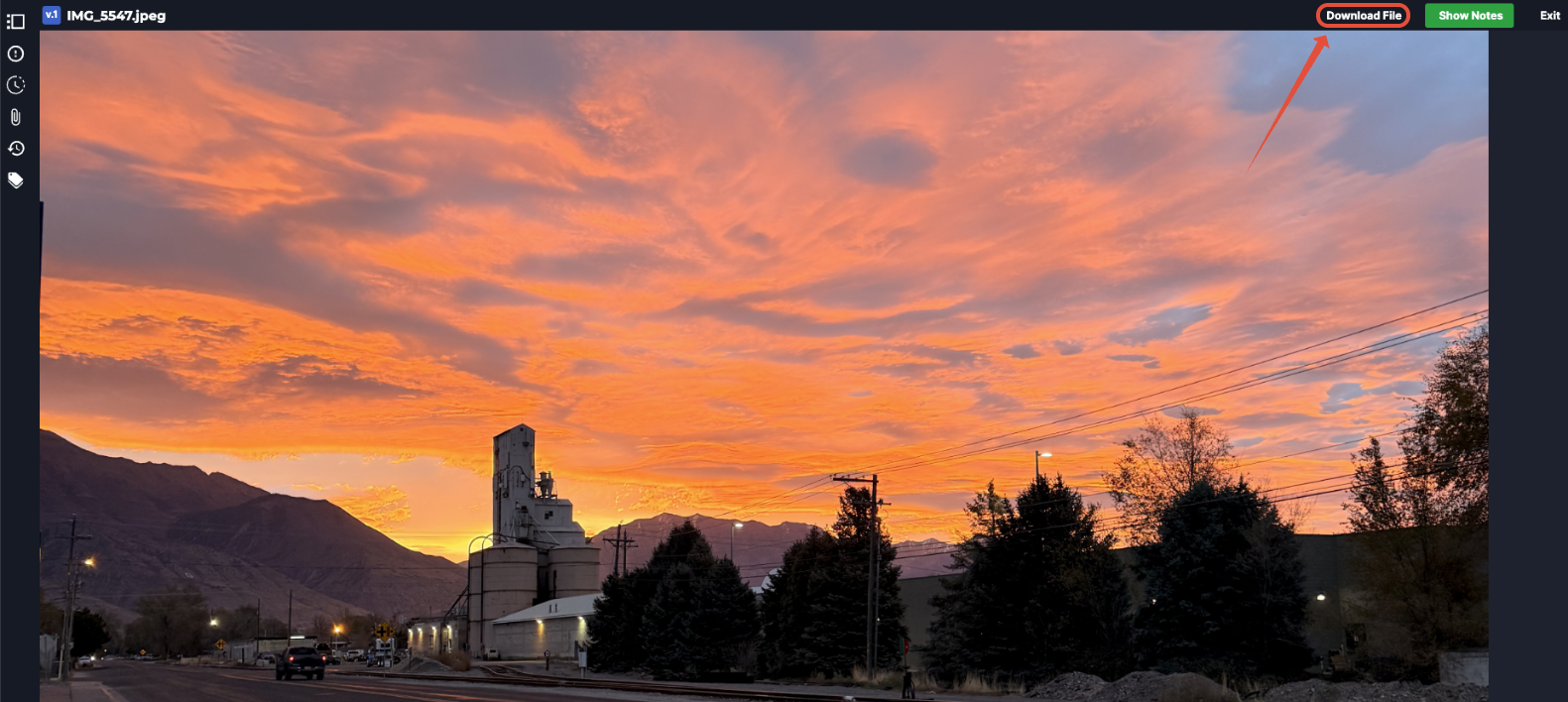
- Download the File: Allows users to download the current version of the file to their device for offline review or reference.
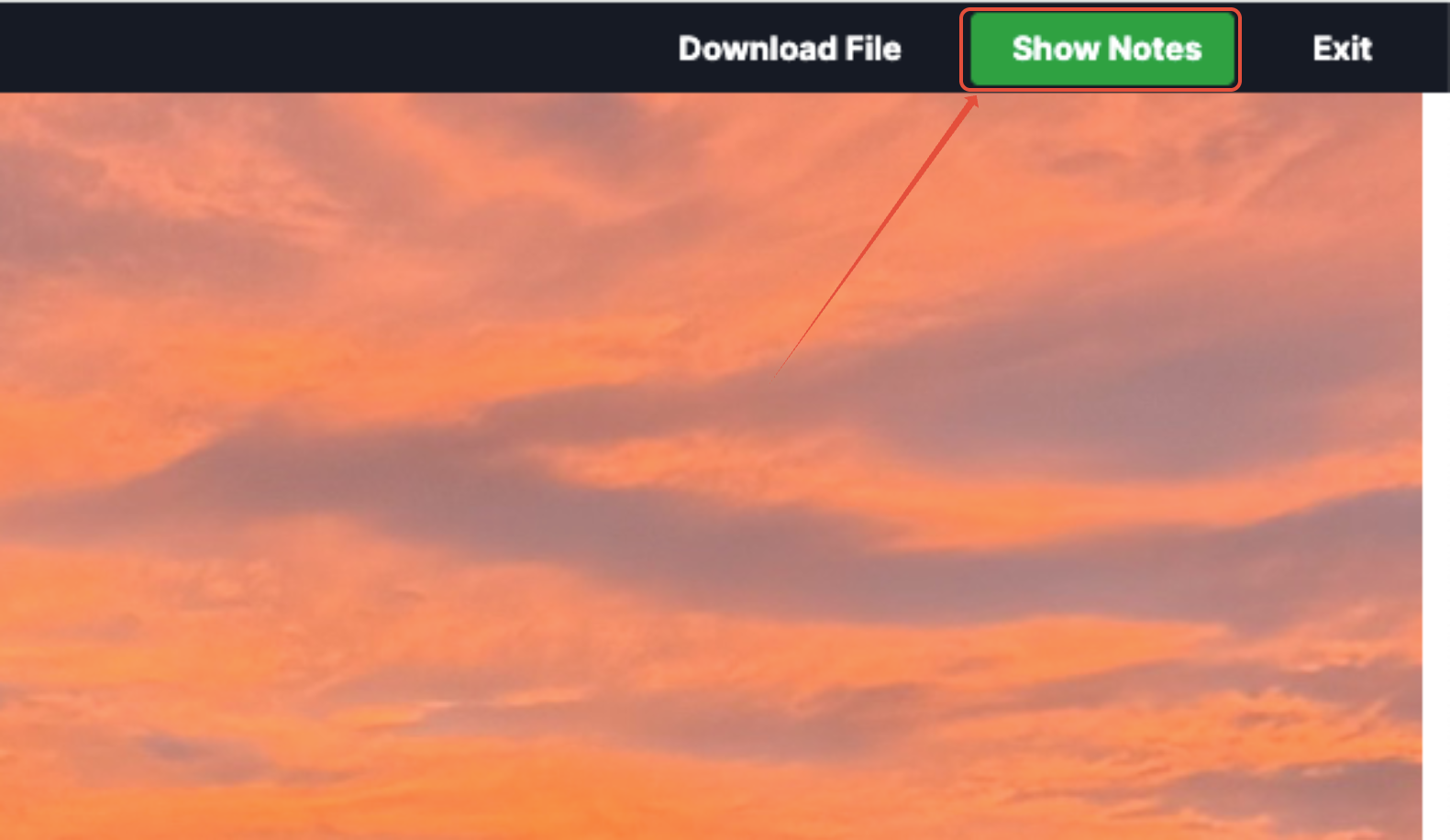
- Show Notes: Displays all comments, annotations, and discussions related to the proof, helping users review feedback and track conversations in context.
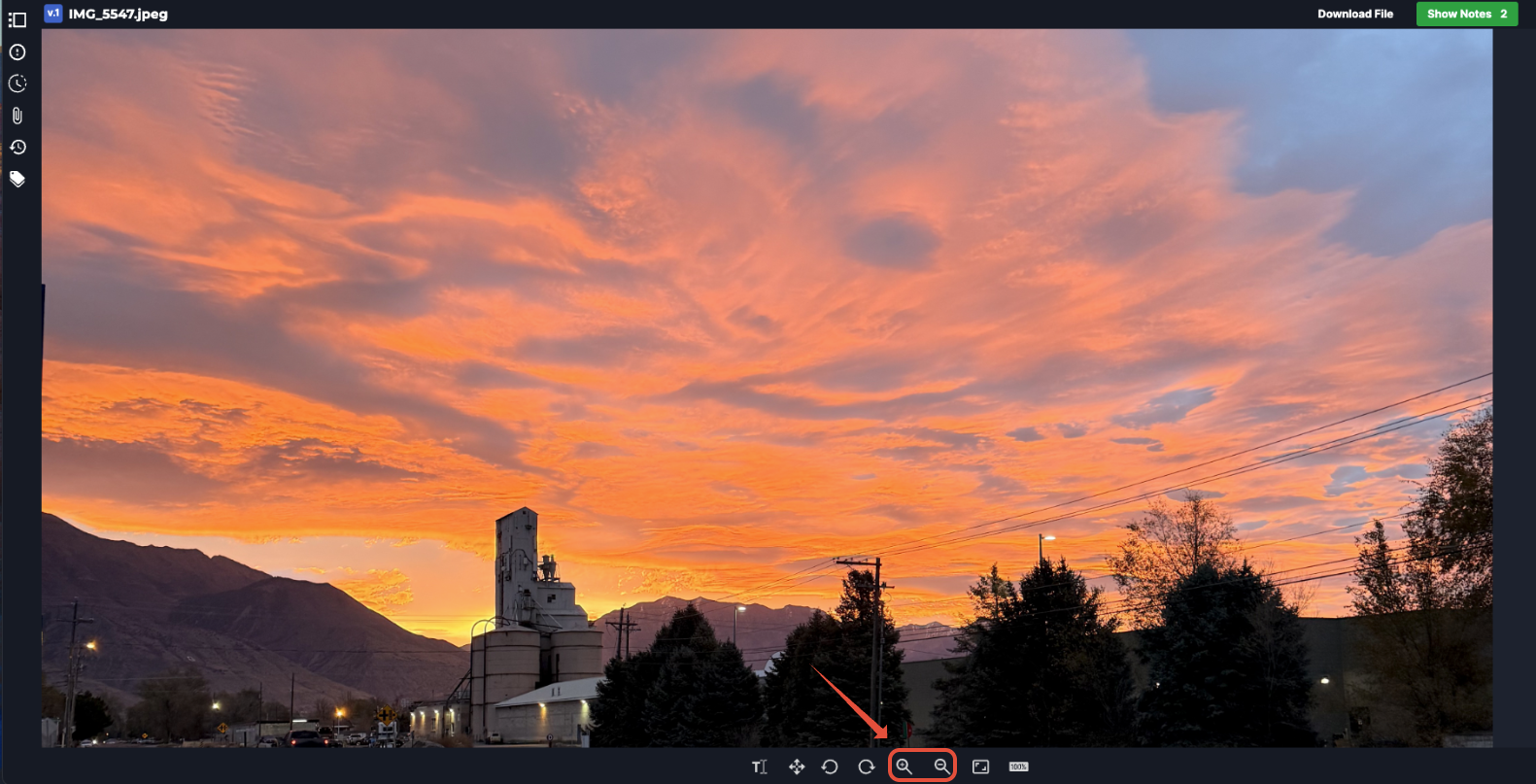
- Zoom In/Zoom Out: Adjusts the proof's zoom level to allow closer inspection of details or a broader view of the asset.
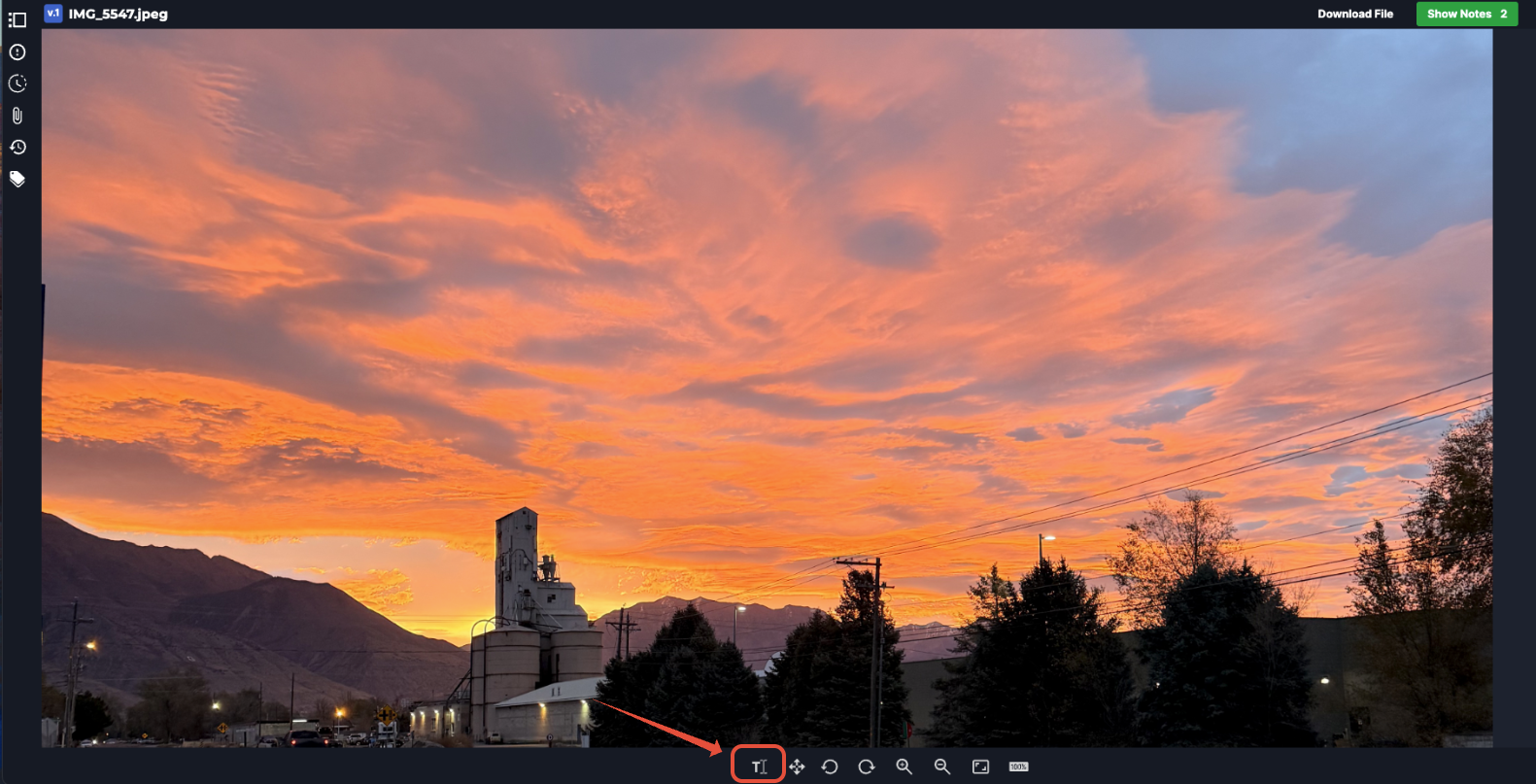
- Select: Activates selection mode, allowing users to select existing annotations or comments to view, edit, or respond to them.
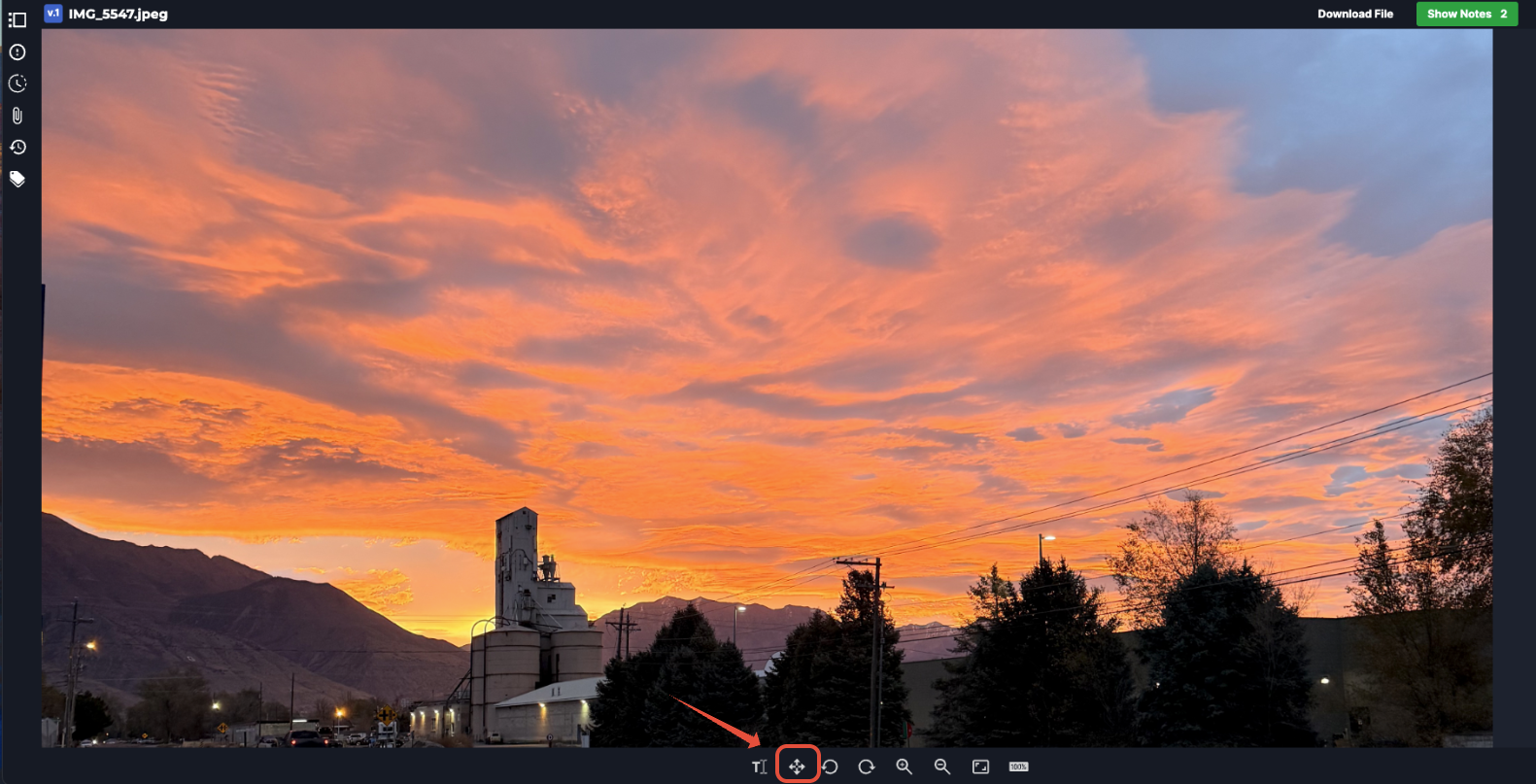
- Move: Enables panning across the proof when zoomed in, allowing users to reposition the view without changing the zoom level.
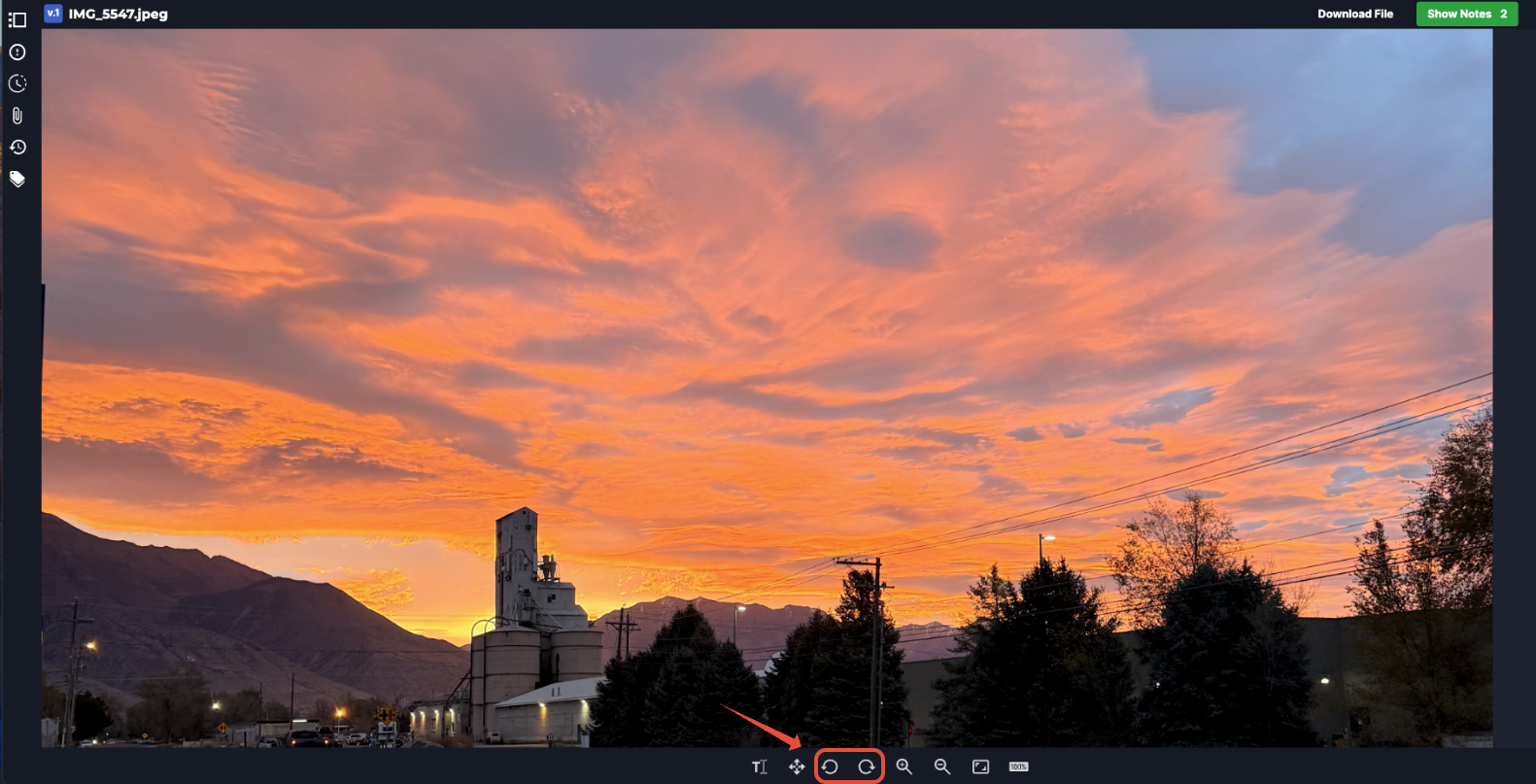
- Rotate: Rotates the proof view to improve readability or orientation, without altering the original file.
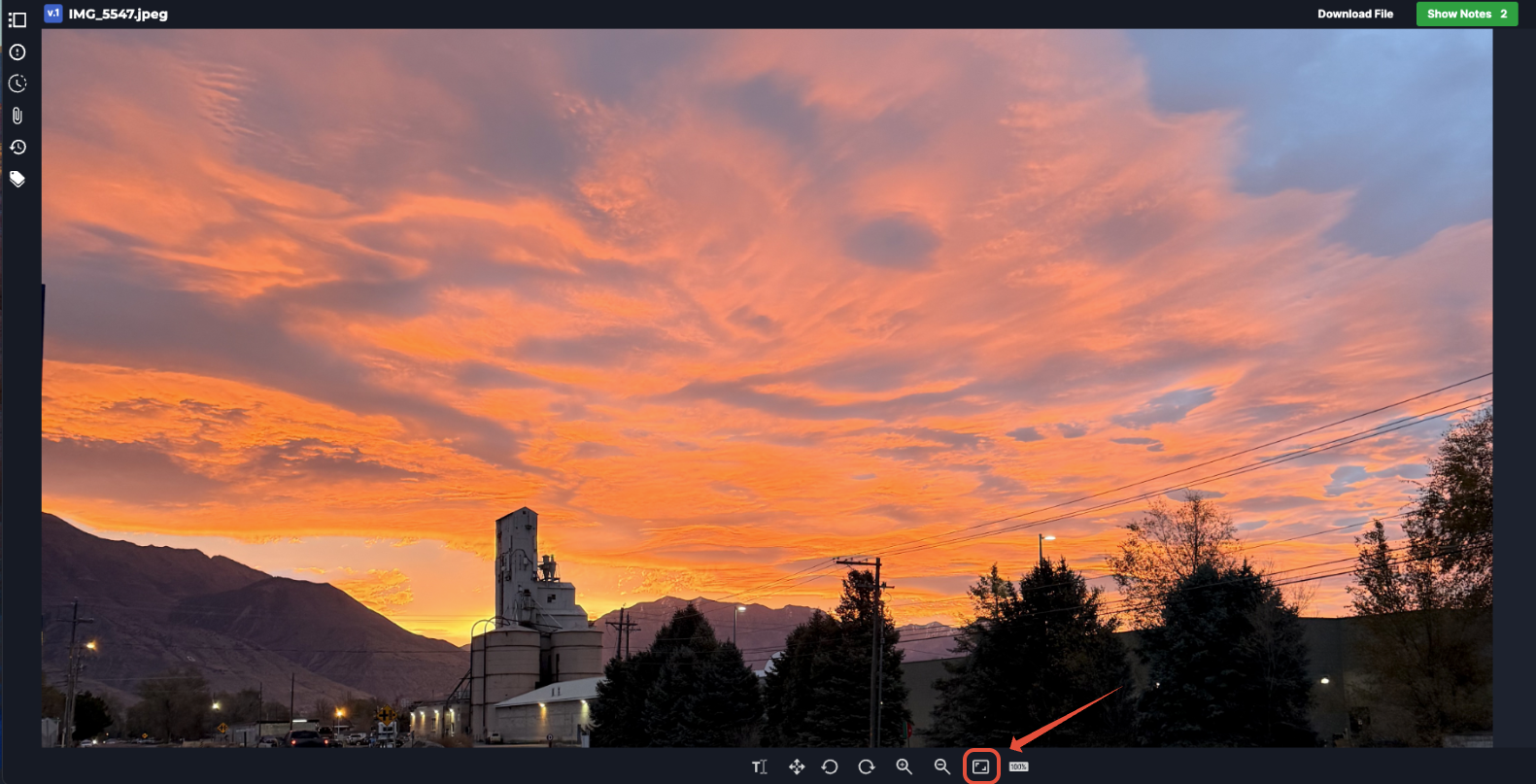
- Fit to Screen: Resizes the proof to fit within the available viewing area.
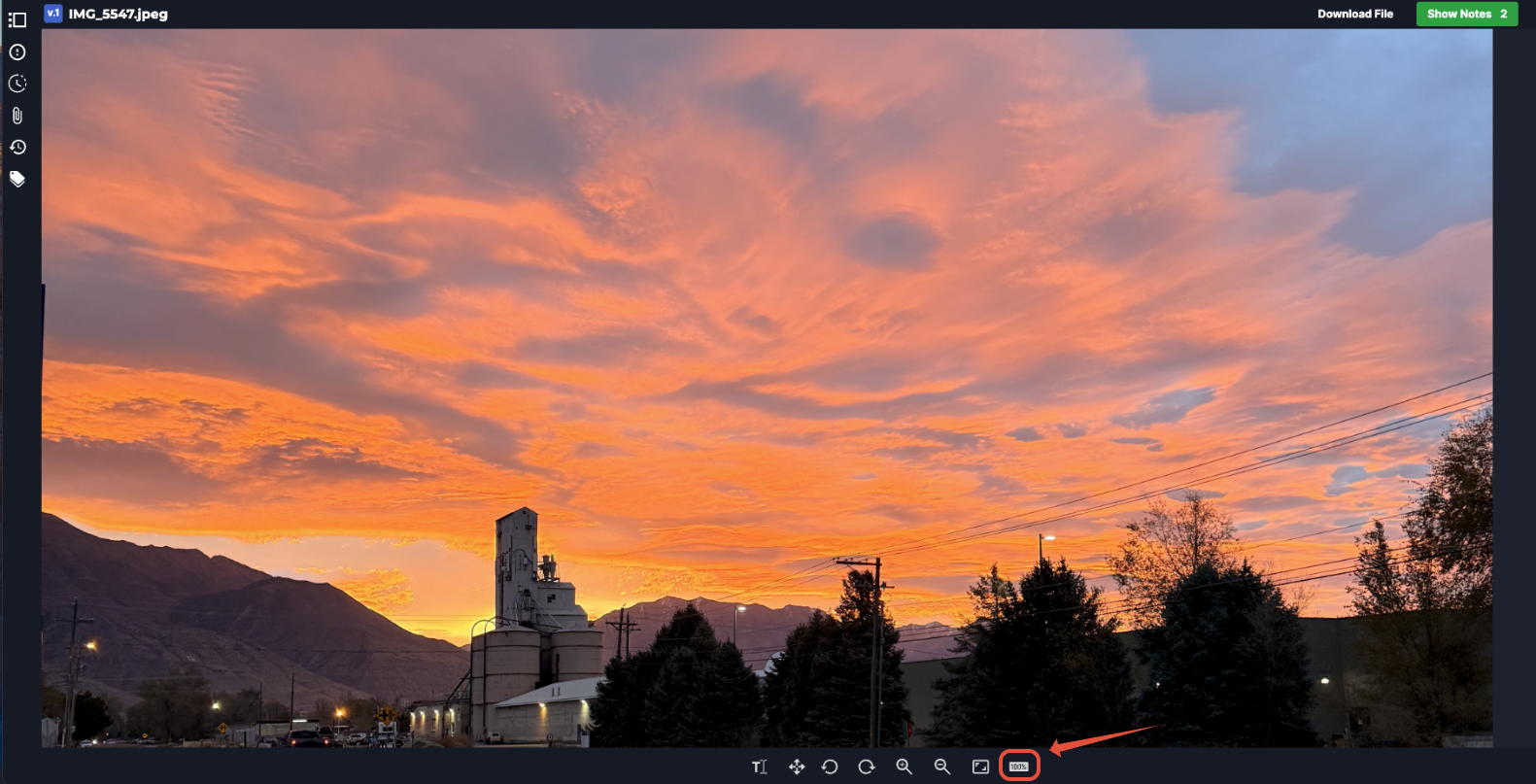
- Actual Size: Displays the proof at 100% (original size), preserving the asset's true scale.
Collect Comments and Markups Directly on the Proof
Screendragon allows reviewers and approvers to leave comments and visual markups directly on the proof, keeping feedback clearly tied to the specific area of the asset under discussion. This eliminates ambiguity, reduces back-and-forth, and ensures feedback is easy to understand and act on.
Comments and markups are captured in real time and remain associated with the proof and its versions, creating a complete review history in one place.
Adding Comments
Users can add comments directly to the proof to provide feedback, ask questions, or suggest changes.
Comments can be:
- Placed in a specific area of the proof for precise context
- Used for general feedback when no visual reference is needed
- Replied to, creating threaded discussions
- Marked as resolved once feedback has been addressed
Adding Markups
- Click Show Notes.
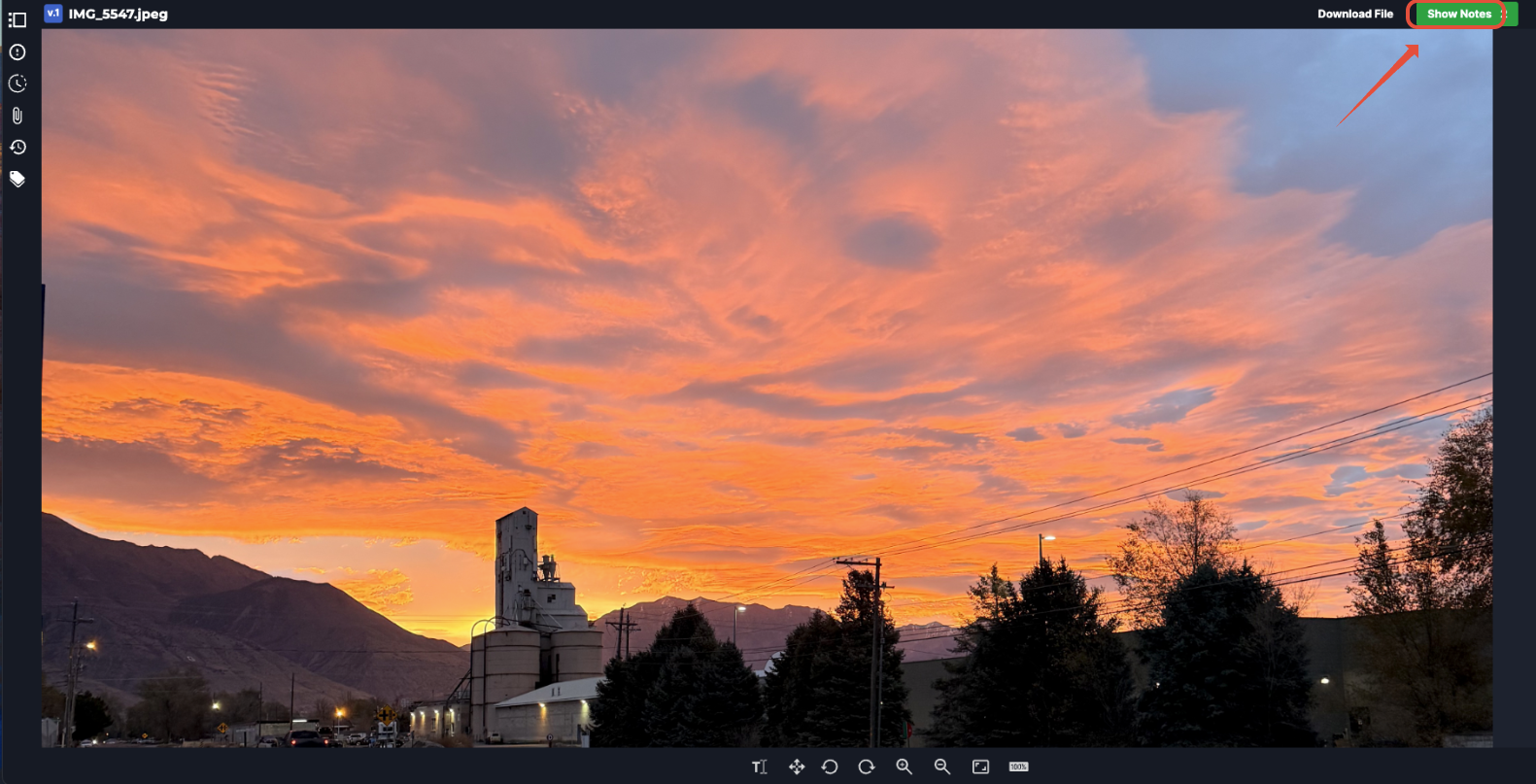
- Then click Add Note.

- Use the drop-down to begin drawing shapes or highlights. Choose a color.
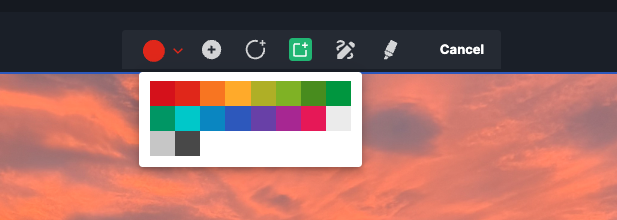
- Use the circle with the + icon to select the area you want to comment on, then drag to highlight it.
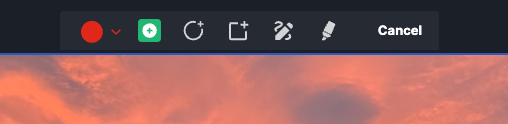
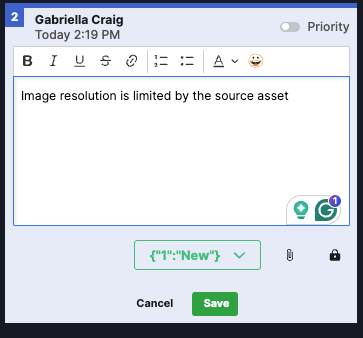
- Enter your comment in the comment field.
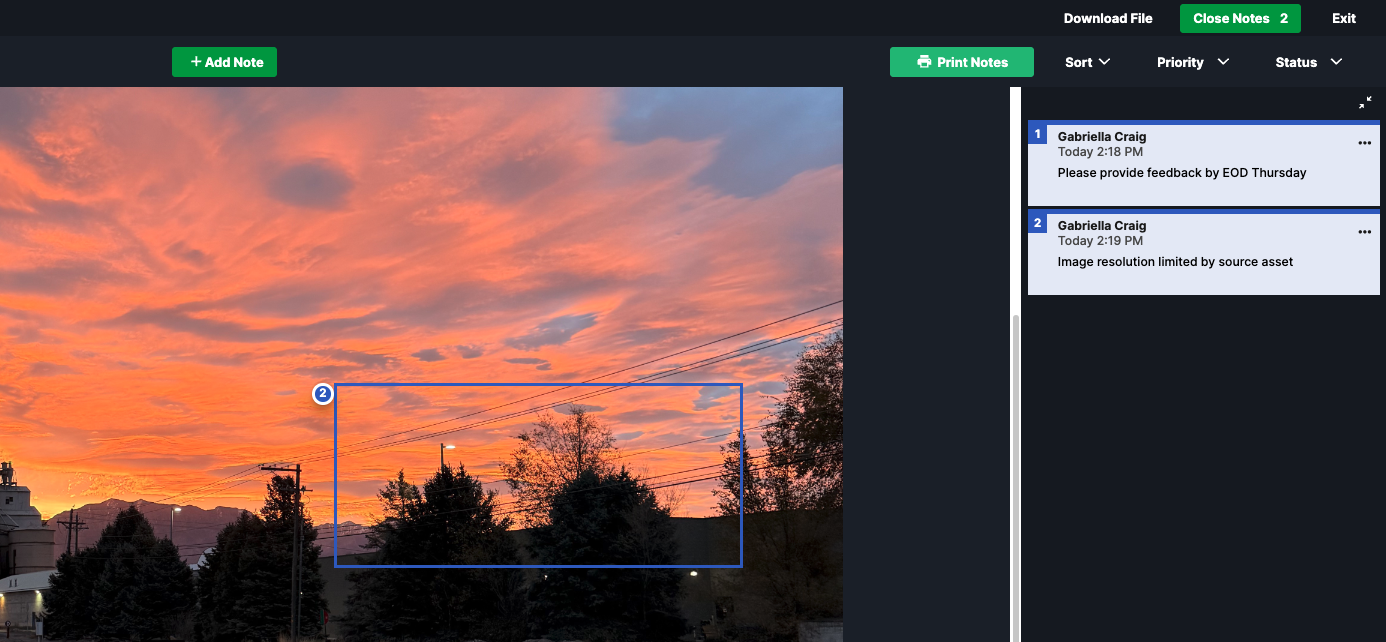
- Navigating directly from a comment to its location in the proof lets you resolve comments as updates are made and review feedback across multiple versions of the file.
- Use the circle and square icons to point to specific elements.
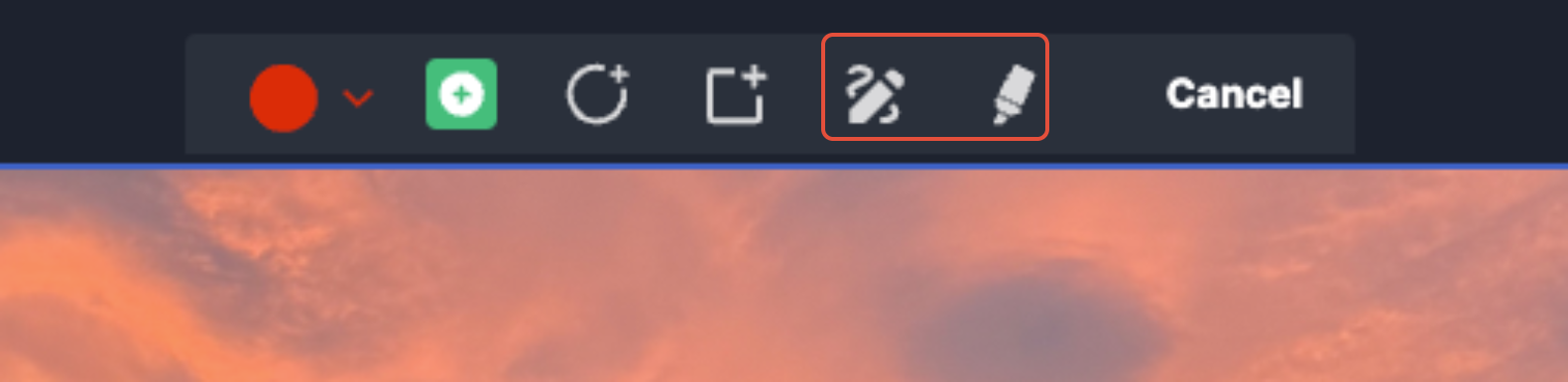
- Select the highlight and drawing tools to annotate text or design details.
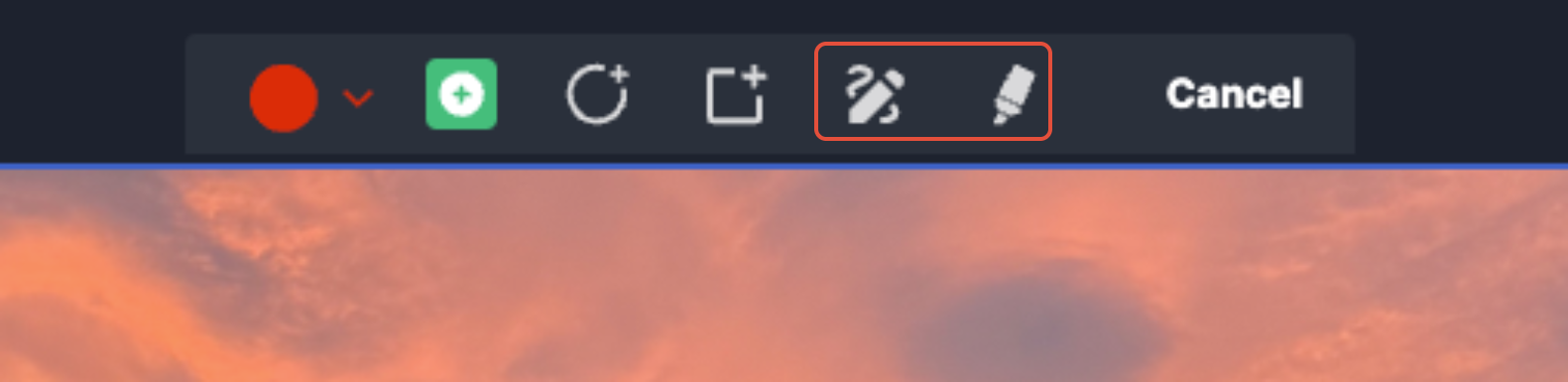
Markups help communicate feedback quickly and clearly, especially for layout, design, and visual changes.
Best Practices
- Add comments directly on the relevant area whenever possible
- Be specific and concise in feedback
- Resolve comments once changes are complete
- Keep all discussion within the proof to preserve context
Was this article helpful?
That’s Great!
Thank you for your feedback
Sorry! We couldn't be helpful
Thank you for your feedback
Feedback sent
We appreciate your effort and will try to fix the article