Home Page
Form Builder
TABLE OF CONTENTS
- Form Builder Best Practices
- Workflow & Iteration
- Save, Publish, and Version Control
- User Experience & Form Design
- Scalability & Future-Proofing
- Design for future extension
The Form Builder is a permissions-controlled administrative capability for building powerful online forms used across the system.
Some typical use cases for this feature are:
- Project Initiation/Set-up Forms
- Content Meta Data Forms
- User Profile Forms
- Task Forms
- Item Level Forms
The Form Builder can create highly advanced forms with dependencies and data groupings. Once created, Admins can easily edit them to adapt to changing process needs.
To access the Form Builder, click Form Builder on the Administrator Tools page.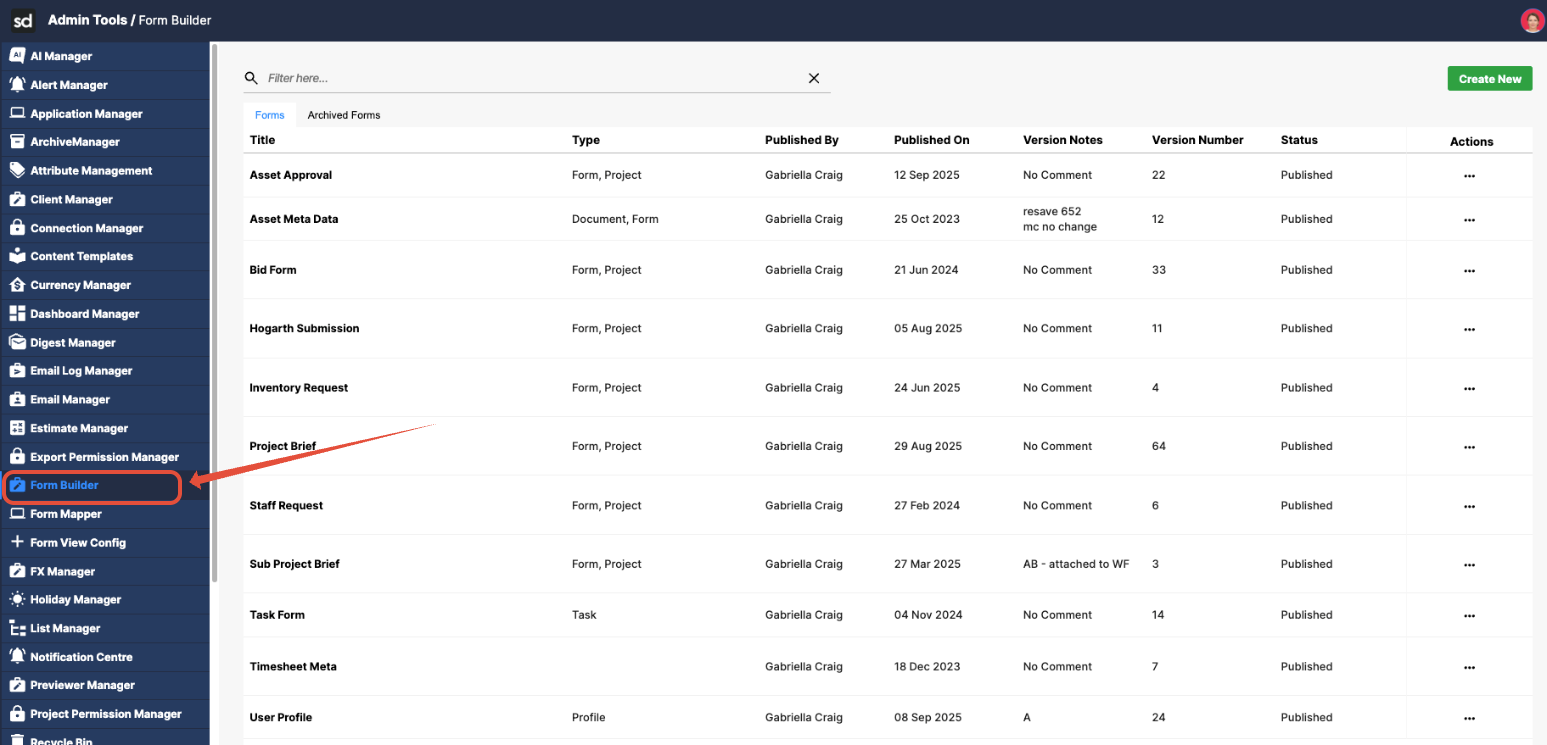
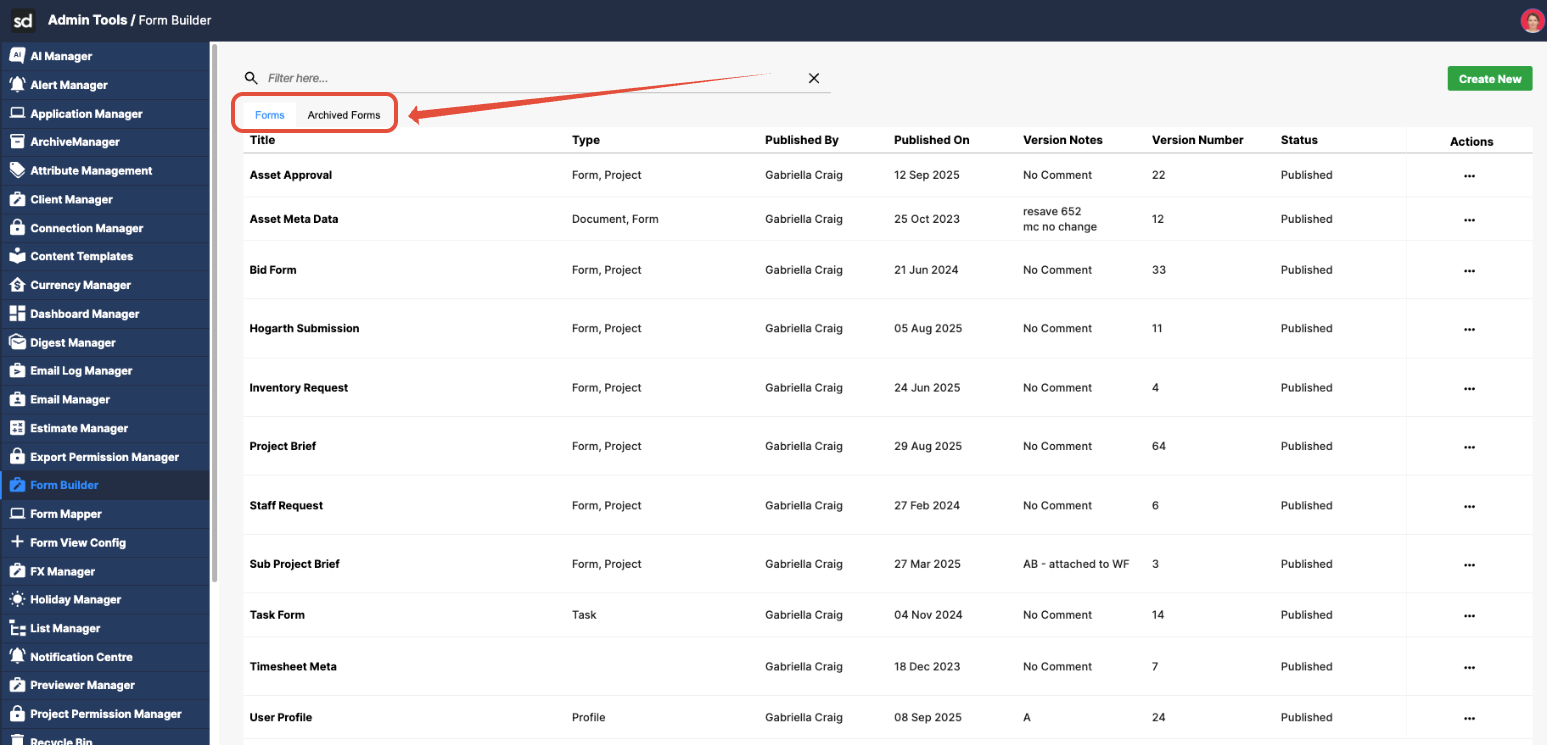
There are two tabs: one for current forms and another for archived forms that are no longer in use.
To open a form, click on a title or use the action Edit Form. 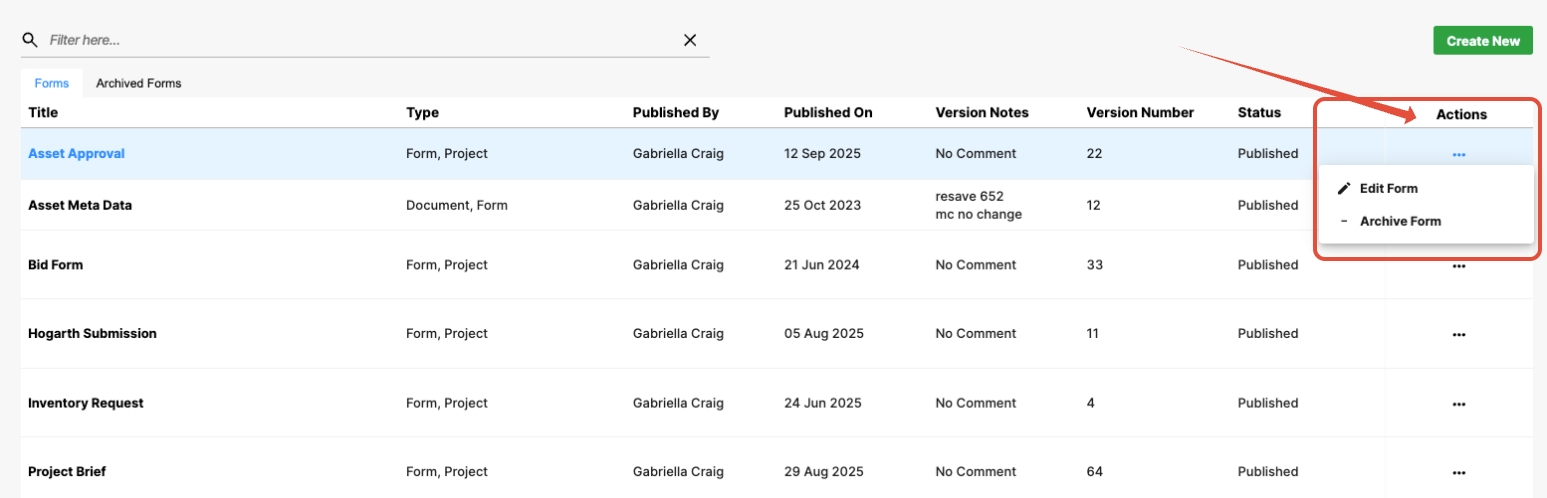
Click Archive Form from the drop-down list to archive a form.
Form Builder Best Practices
Once you’re comfortable with the core features of the Form Builder and start combining multiple tools, rules, layouts, and dependencies, it’s crucial to develop good habits that keep your forms reliable, efficient, and easy for users to complete.
The best practices below reflect the approach used by experienced configurators when building production-ready forms. Use them as practical guidelines to maintain quality, avoid common pitfalls, and ensure your forms continue to function effectively as requirements evolve.
Workflow & Iteration
- Work in small increments. Add configuration gradually and test as you go. Building in smaller batches makes it much easier to spot and resolve issues than trying to troubleshoot a large set of changes all at once.
- Use the Form Builder Previewer appropriately. The Previewer is ideal for checking layouts and confirming basic logic. However, it’s not intended for validating more advanced behavior—such as permissions, visibility rules, user-based logic, or multi-step dependencies—which may not behave exactly as they do in the live environment. For these scenarios, always test directly in the front end to ensure everything works as expected.
Avoid opening the same form in multiple Form Builder tabs
- Having the same form version open across multiple tabs can easily lead to overwriting newer work or publishing an outdated configuration. Keep one tab per form to avoid conflicts.
Save, Publish, and Version Control
- Save and publish regularly.
Frequent saves help protect your work from browser crashes or accidental closures. The Save for Later option can also be used to capture progress as you work safely. - Always include a comment when saving or publishing
Brief comments that explain what changed help you stay organized and make it easier for others to understand the purpose of your updates. - Add notes to complex elements.
When adding dependencies, conditional logic, or advanced rules, include notes directly on the element. This provides helpful context for future configurators—and for you when revisiting the form later.
User Experience & Form Design
- Design forms with the end user in mind. Your users must complete these forms, so prioritize clarity, readability, and flow.
- Use headings and structure. Use the instruction fields as headings to break the form into clear sections.
- Provide guidance via help text, prompts, and default values to make the form easier to understand and complete.
- Lay out the fields thoughtfully by grouping related fields, avoiding clutter, and sizing fields appropriately.
- Don’t make a date field span the entire page.
- Avoid layouts that feel visually unbalanced or difficult to read.
- Avoid fields jumping on the page. Conditional show/hide rules can cause fields to move around when they appear or disappear. This can happen because of:
- Dependencies within a row
- User-based visibility rules
- Mixed field widths
- Plan layouts carefully to minimise movement so users can build familiarity while completing the form.
Efficiency & Performance in Configuration
Aim for efficient rule design
- There is always more than one way to configure something, but some ways are significantly more efficient than others.
Efficient rules lead to better performance and reduce complexity as the form grows.
Example:
If a field only needs to display when Region = Europe, use a single Show rule for Europe instead of separate Hide rules for every other region.
Optimise for maintainability
Avoid hard-coding values that will change over time, such as:
- Specific years
- Brand names
- Variable lists that evolve
Consult Screendragon configuration experts for guidance on scalable approaches.
Scalability & Future-Proofing
Think in terms of multipliers.
- If a user requests “Marketing Reviewer 1” and “Marketing Reviewer 2,” consider whether they may eventually need 3, 4, or 5 reviewers.
- In such cases, a single field within a group or collection can be far more scalable than multiple fixed fields.
Choose structure over duplication
- A small compromise in layout is often worth the long-term payoff of a cleaner, more flexible configuration.
Design for future extension
- Build forms so new categories, options, or business data can be added with minimal rework.
Planning for growth early reduces complexity later.
Was this article helpful?
That’s Great!
Thank you for your feedback
Sorry! We couldn't be helpful
Thank you for your feedback
Feedback sent
We appreciate your effort and will try to fix the article