Home Page
Block Dates
TABLE OF CONTENTS
The Block Dates configuration allows administrators to control which dates a user can select when filling in date fields. This feature ensures project timelines align with submission requirements by preventing users from selecting dates that are too close to the submission date.
How It Works
When configuring a Date field, you can specify a range of blocked days before and/or after the project submission date.
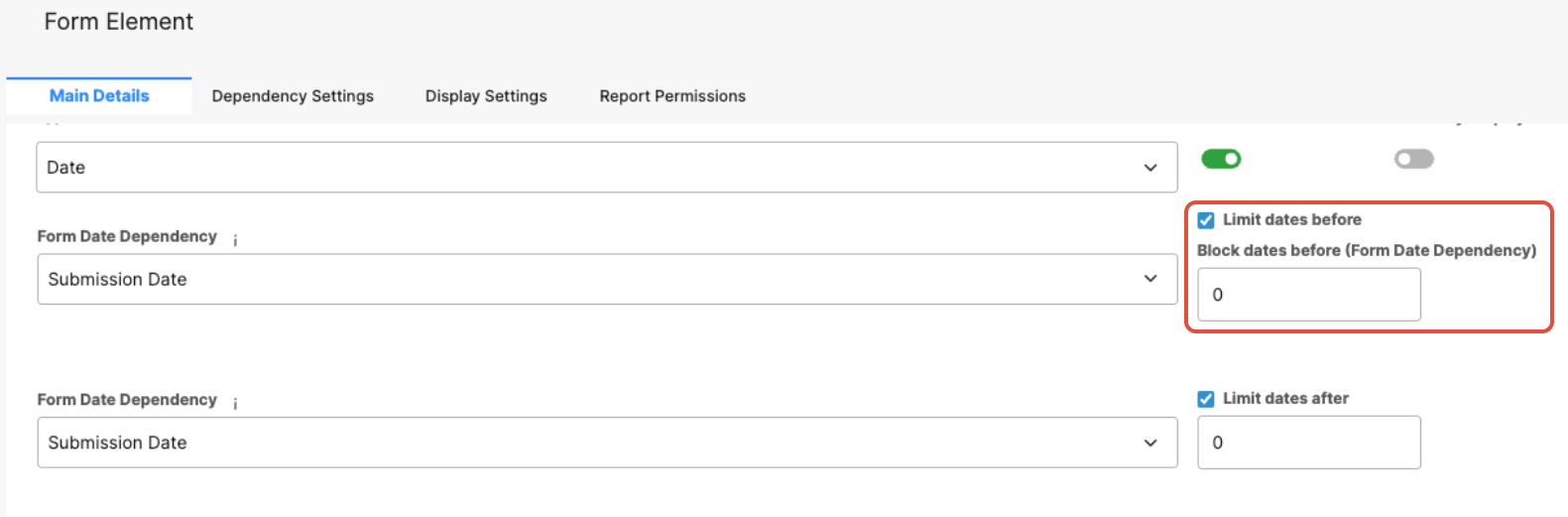
Limit dates before: Prevents users from selecting a date that falls within the specified number of days before the submission date.
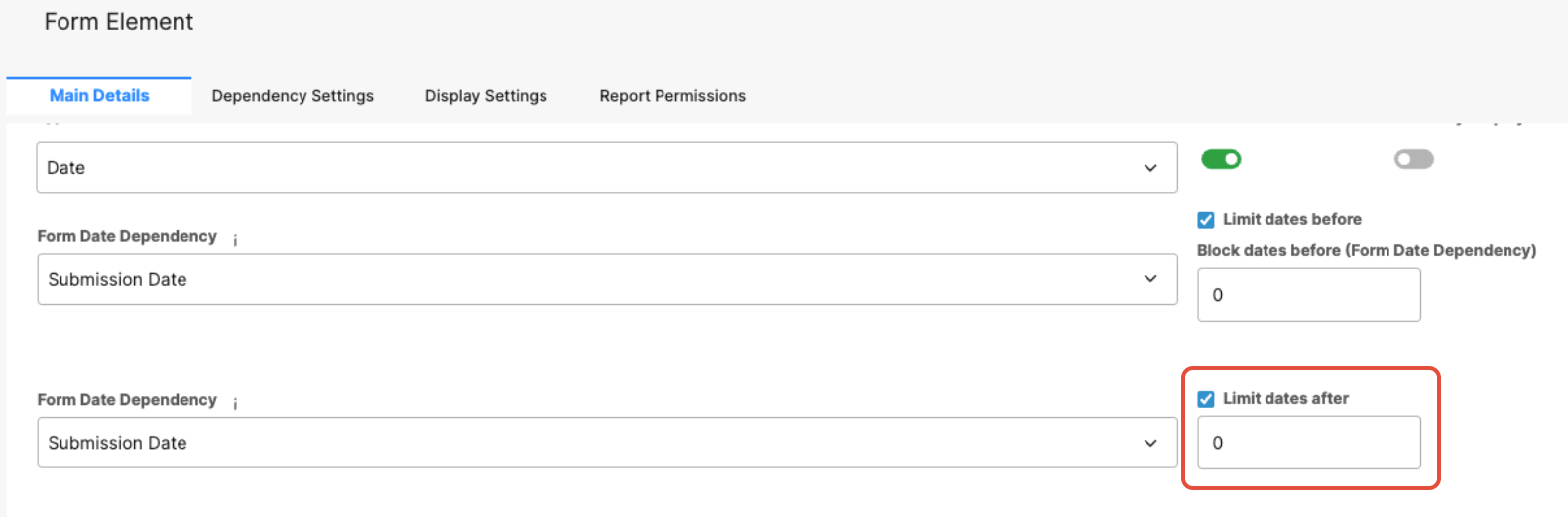
Limit dates after: Prevents users from selecting a date that falls within the specified number of days after the submission date.
If a user attempts to select a date within the restricted range, an error message will display, informing them that the date is invalid.
Configuration Steps
From the Admin Tools area, navigate to the Form Builder.
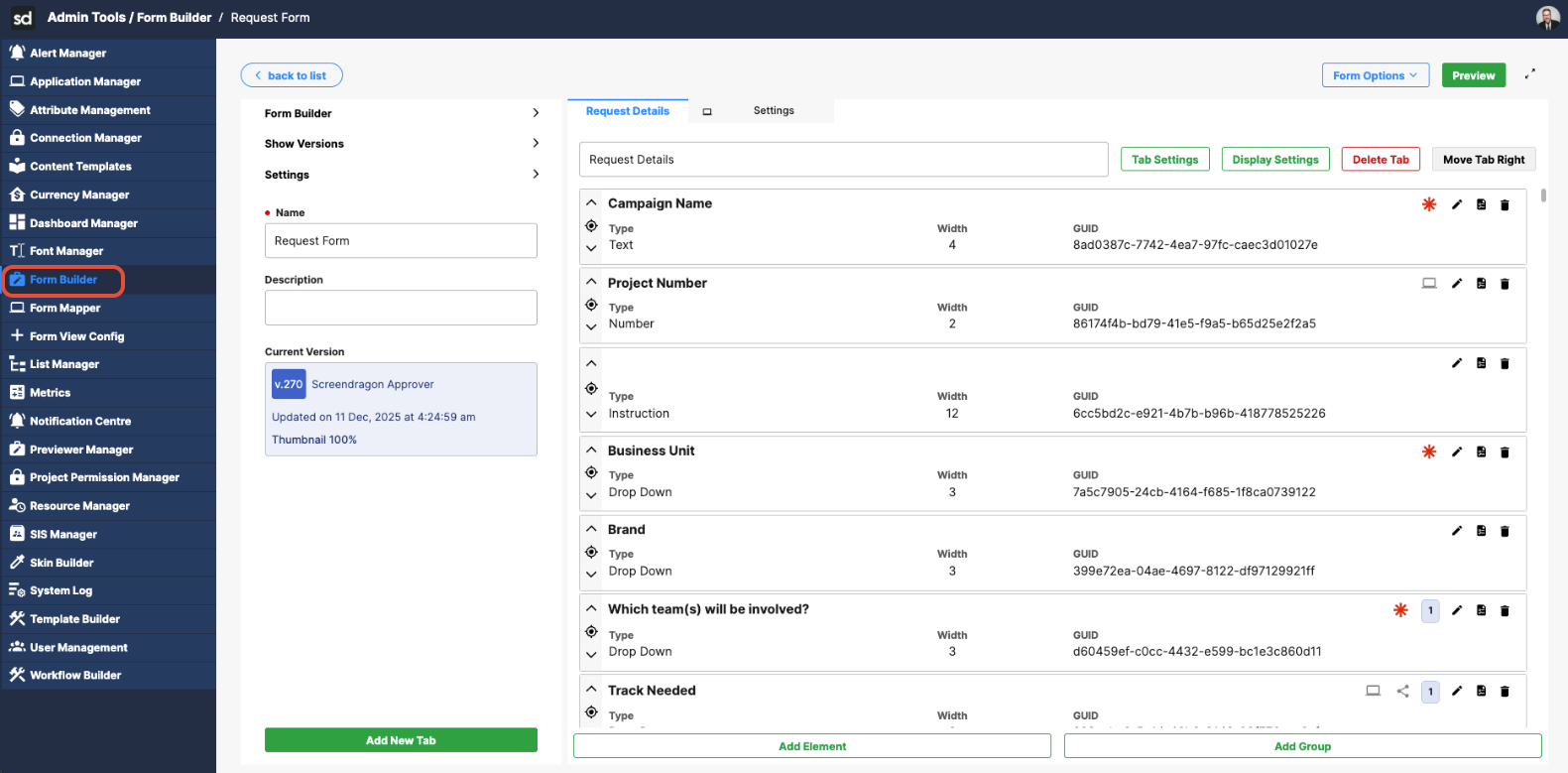
Create a new element or open the form or workflow step that contains a Date field.
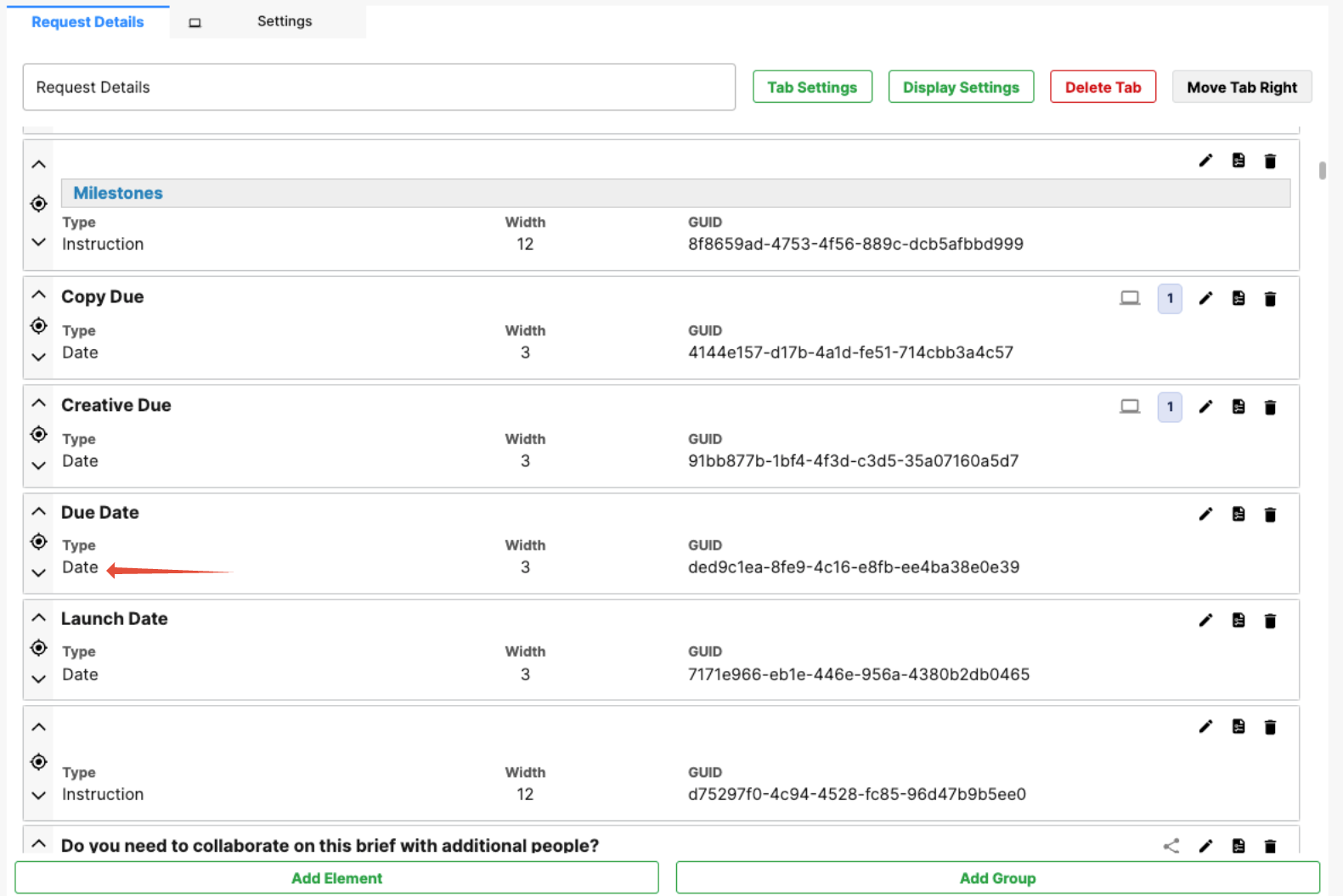
In the field settings, select one or both of the following options:
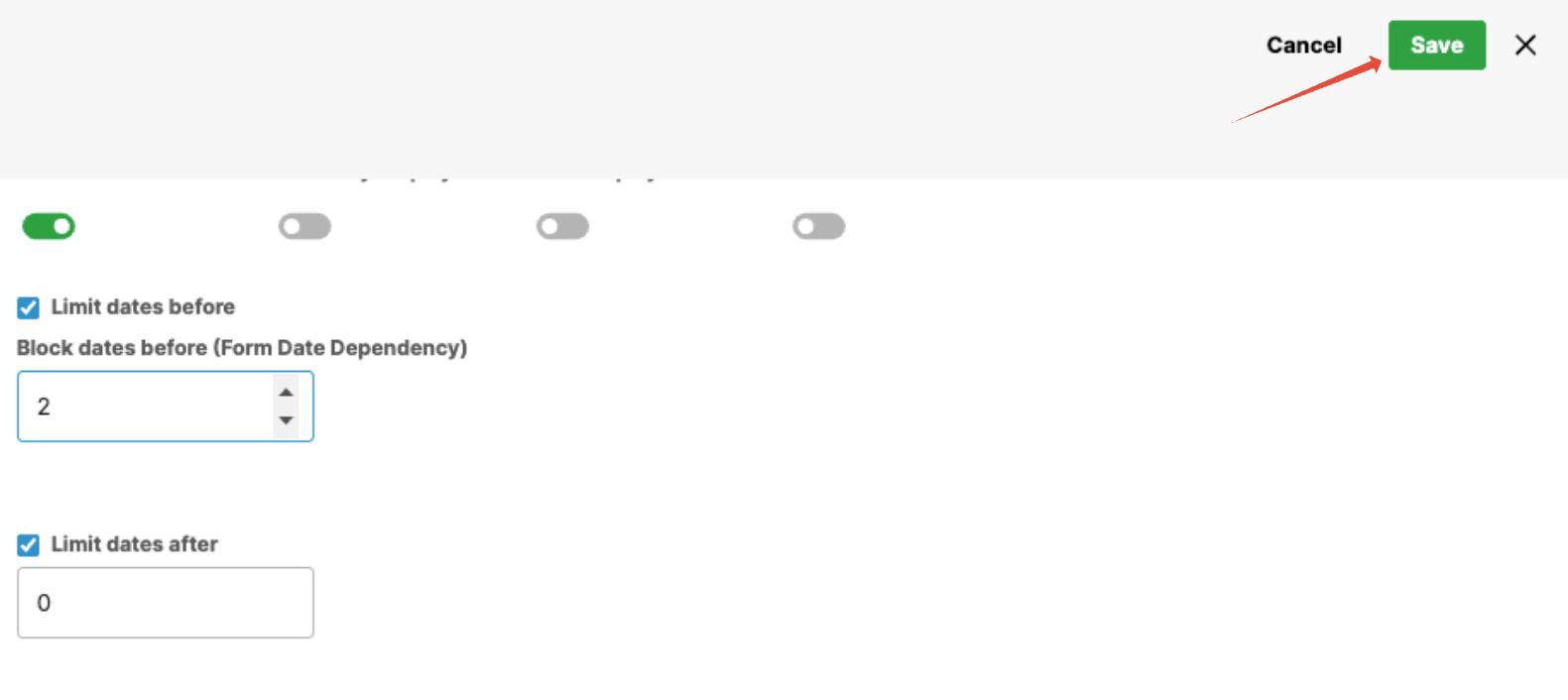
Limit dates before – Check this box and enter the number of days to block before the submission date.
Limit dates after – Check this box and enter the number of days to block after the submission date.
Save your changes.
Was this article helpful?
That’s Great!
Thank you for your feedback
Sorry! We couldn't be helpful
Thank you for your feedback
Feedback sent
We appreciate your effort and will try to fix the article