AI-Powered Search and Tagging
AI-powered search and tagging in Screendragon DAM helps teams find and organize assets faster by automatically analyzing content and surfacing relevant results. By combining intelligent tagging with natural-language search, Screendragon reduces manual effort and improves discoverability across your asset library.
AI-powered search and tagging uses machine learning to analyze asset content and generate metadata automatically. This includes identifying objects, themes, and patterns within assets and using that information to improve search accuracy.
AI tagging works alongside your existing metadata—enhancing, not replacing, manual tags and structured fields.
How AI Tagging Works
When an asset is uploaded to the DAM, Screendragon’s AI analyzes the file and automatically applies suggested tags based on its content.
Depending on asset type, this may include:
Objects or subjects within images
Visual themes or scenes
Common keywords related to the content
These AI-generated tags help assets surface in search results even when manual metadata hasn’t been added.
Viewing and Using AI-Generated Tags
AI-generated tags appear in the asset’s metadata details alongside other metadata fields.
Tags are displayed as labels
Users can use them for filtering and searching
Depending on permissions, users may edit, remove, or add additional tags
AI tags remain visible unless removed or overridden.
- Navigate to the asset you want to tag.
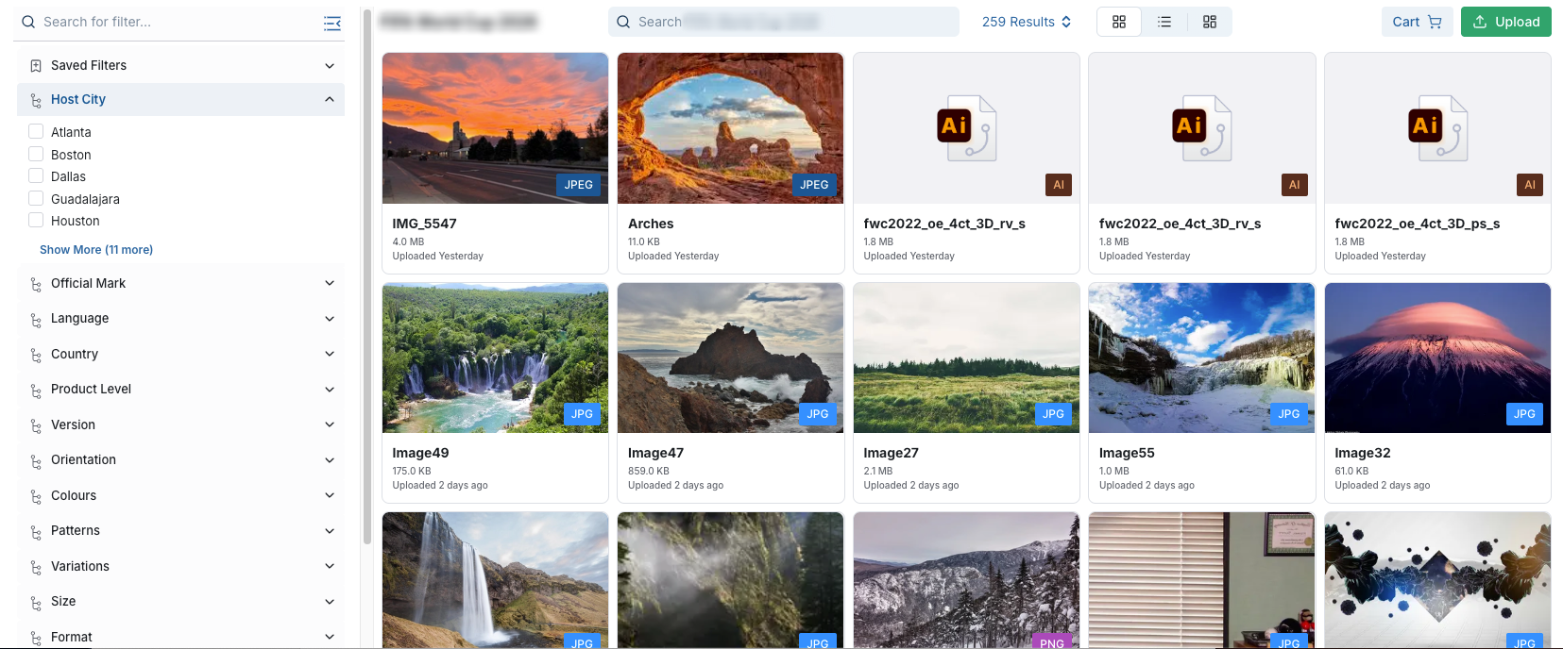
- Click the actions icon (...) and then click Edit Details.

- Click the AI tab.
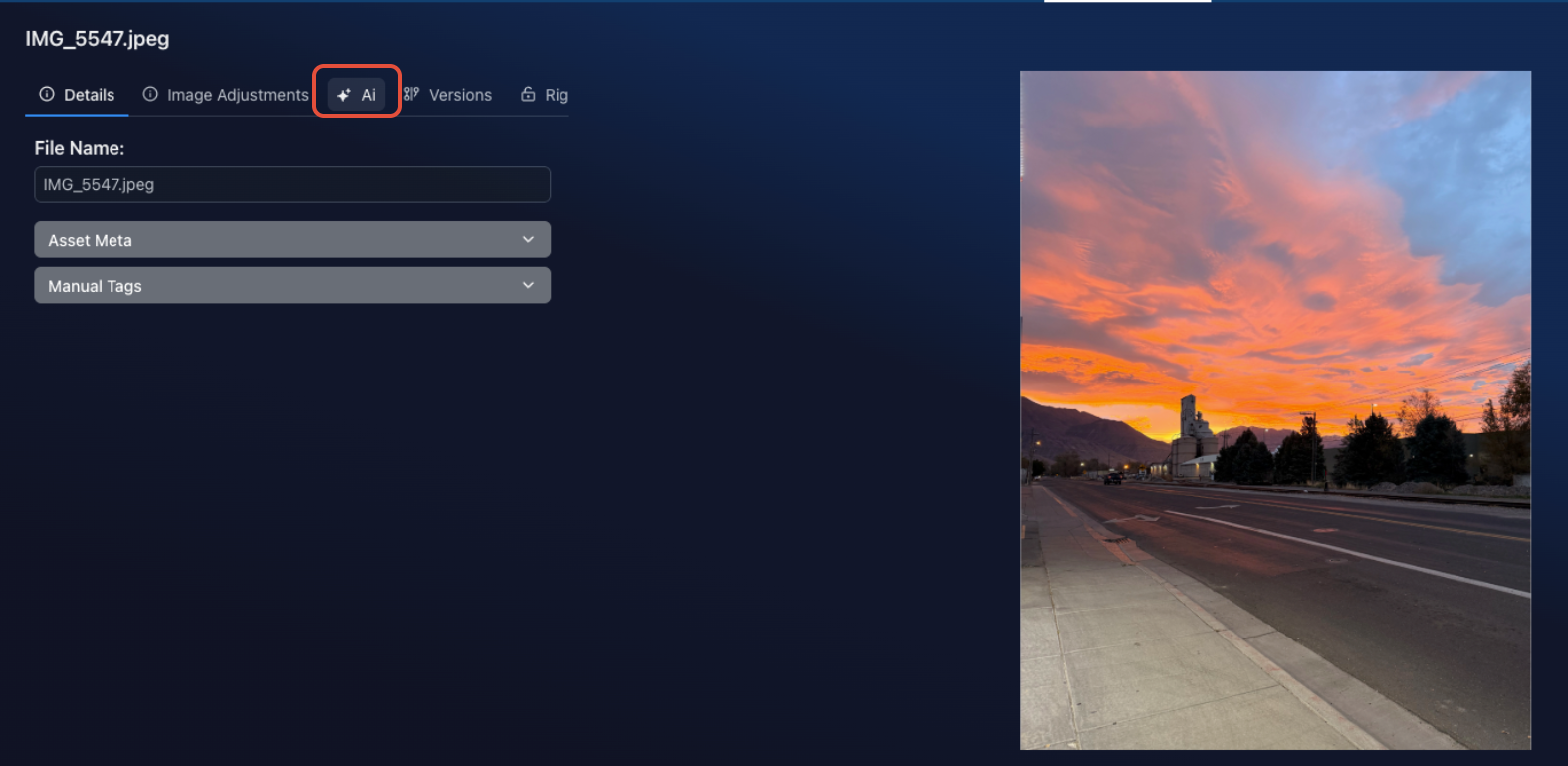
- Select the tags you want to include on the image.
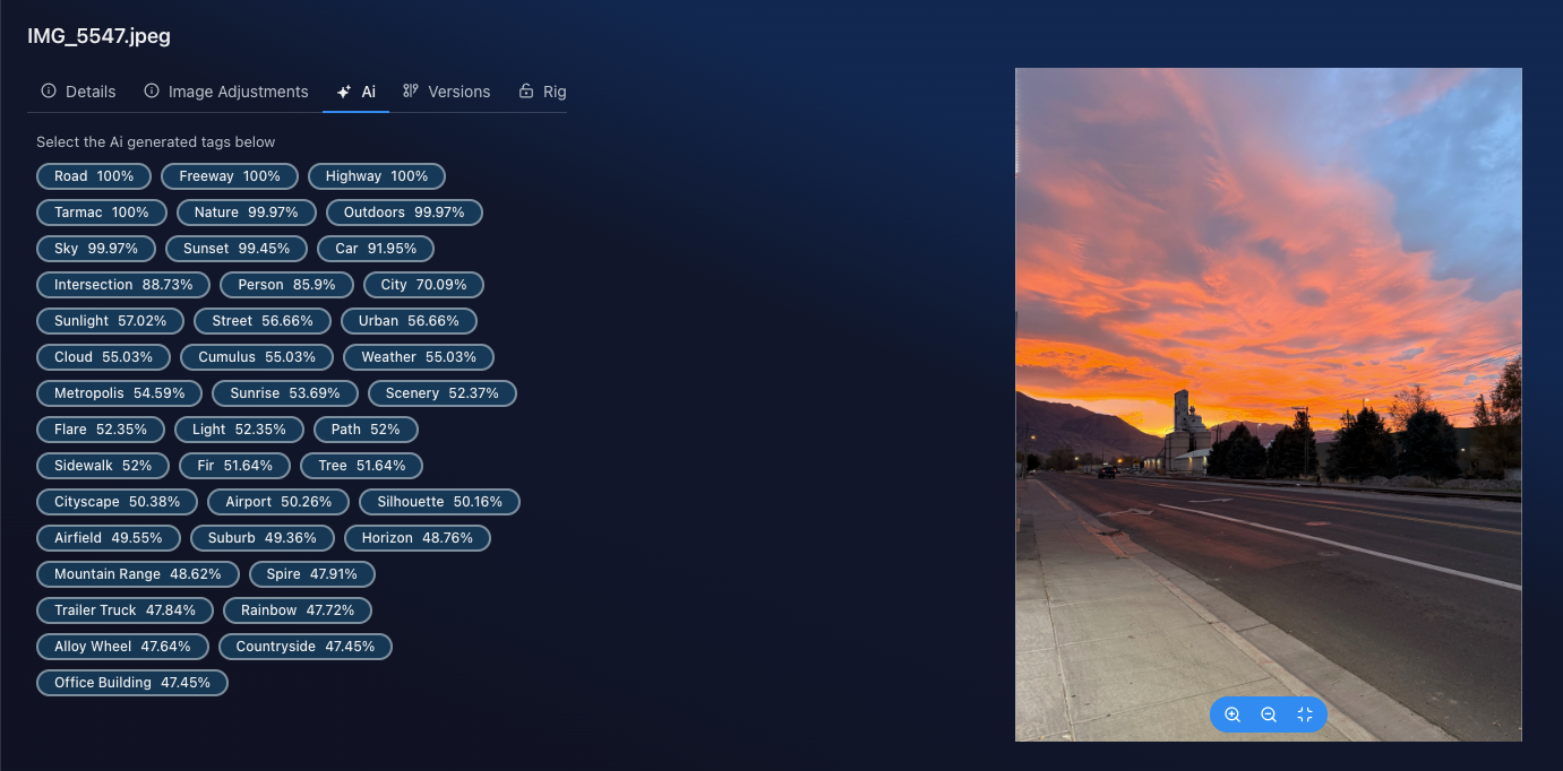
- AI interprets intent and context to return the most relevant keywords. Select the tags that best fit the asset.
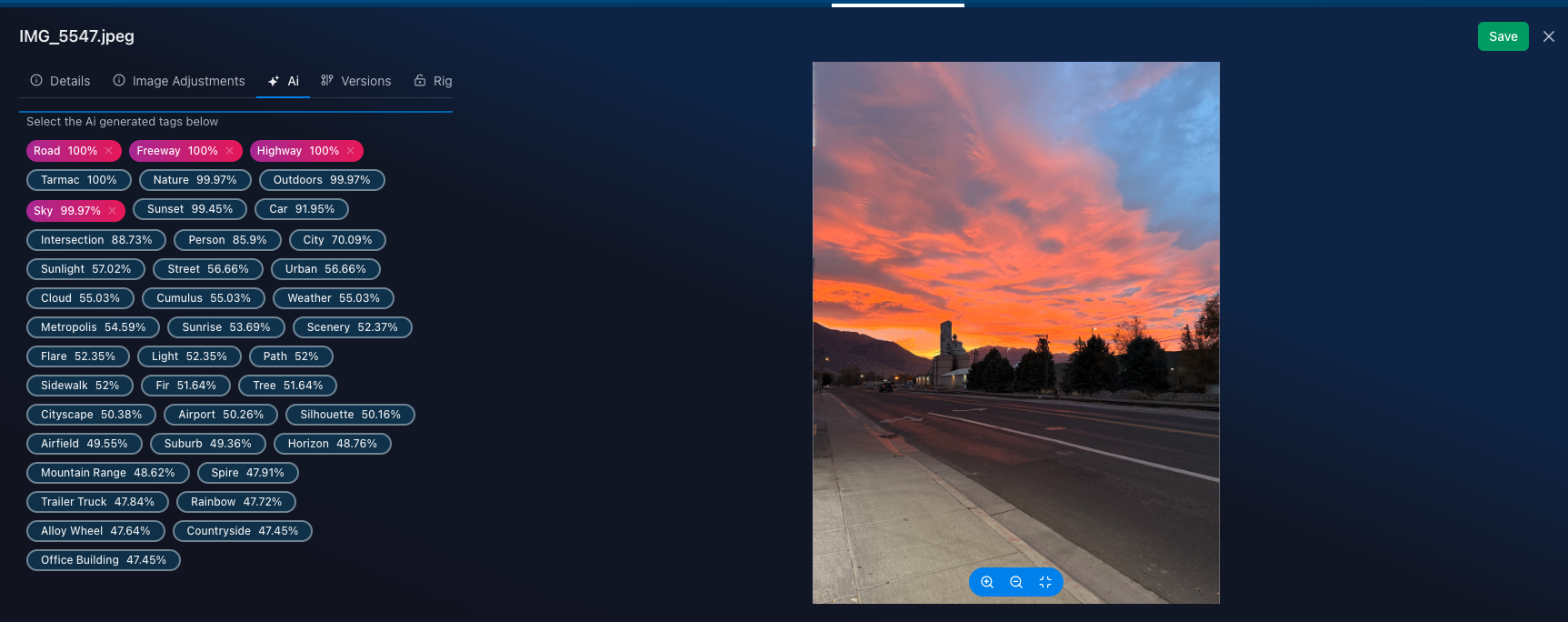
Click Save.
Searching with AI-Powered Search
AI-powered search allows users to find assets using natural language or descriptive keywords rather than exact metadata matches.
- Navigate to the search bar and enter the descriptive language tags you want to search.
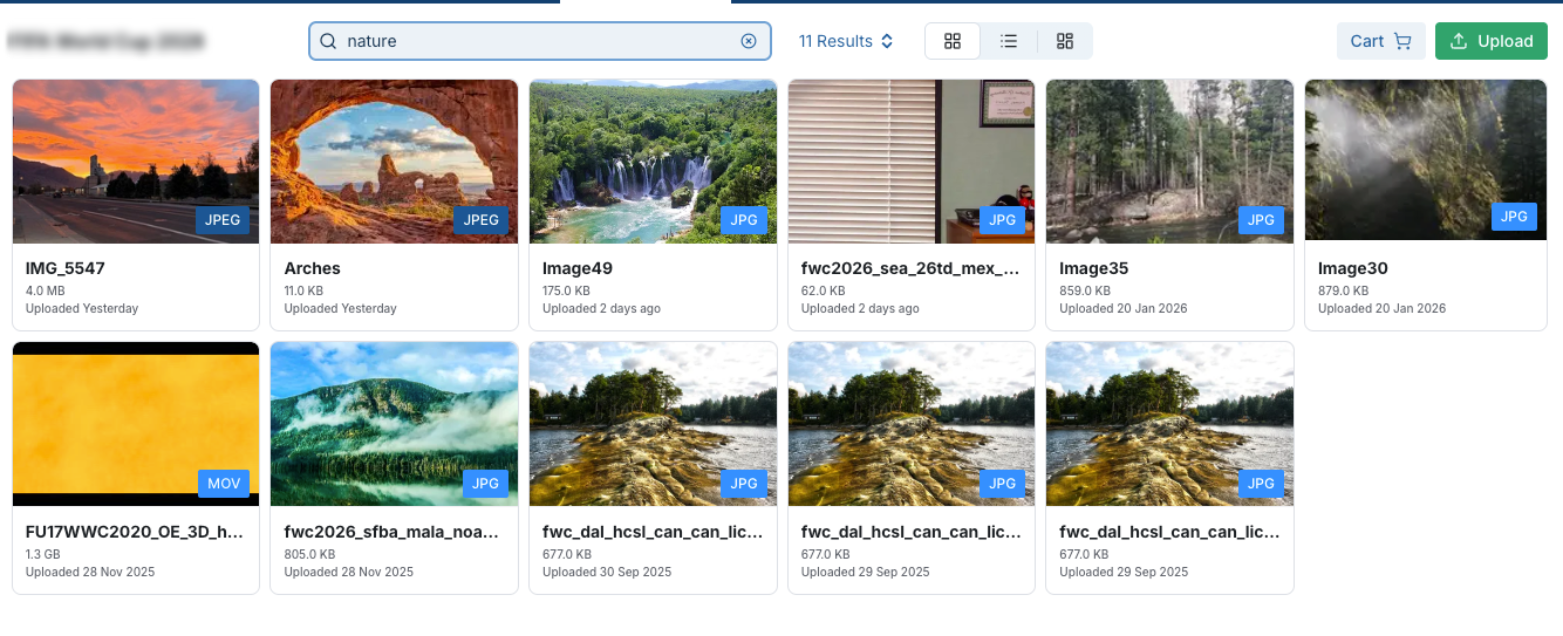
- This narrows the set of assets that match the tag description, allowing you to find the items you need faster and more efficiently.
Next: Combining AI Search with Filters
Was this article helpful?
That’s Great!
Thank you for your feedback
Sorry! We couldn't be helpful
Thank you for your feedback
Feedback sent
We appreciate your effort and will try to fix the article