Creating Custom Metadata Fields
TABLE OF CONTENTS
- What Are Custom Metadata Fields?
- Who Can Create Metadata Fields?
- How to Create a Custom Metadata Field
- Meta Tags
- Next Step: Viewing Metadata Tags on Assets in Screendragon DAM
Custom metadata fields allow you to capture, organize, and govern asset information in a way that reflects your business, brand, and workflows. By defining your own metadata fields, you can make assets easier to find, filter, report on, and reuse across teams.
This article walks through how to create and manage custom metadata fields in the Screendragon DAM.
What Are Custom Metadata Fields?
Custom metadata fields are user-defined data fields attached to DAM assets. They allow you to store structured information such as campaign details, usage rights, regions, content types, or any other business-specific attributes that aren’t covered by default metadata.
Common examples include:
- Campaign Name
- Brand or Product Line
- Region or Market
- Usage Rights or Expiry Date
- Content Type (Social, Web, Print, Video)
Who Can Create Metadata Fields?
Creating and managing custom metadata fields requires administrator permissions. If you do not see the metadata configuration options, contact your system administrator.
How to Create a Custom Metadata Field
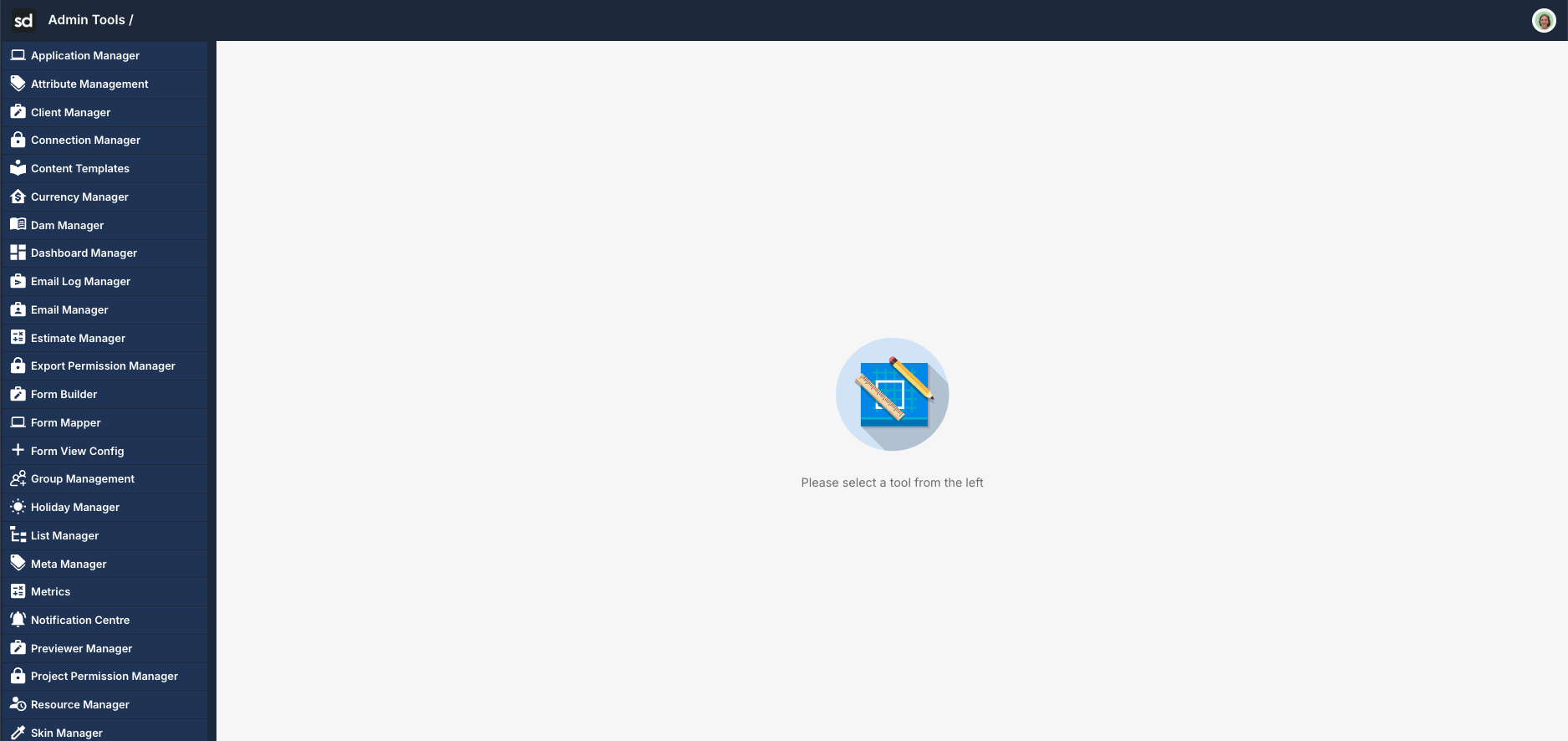
- Navigate to the Admin Tools configuration area.
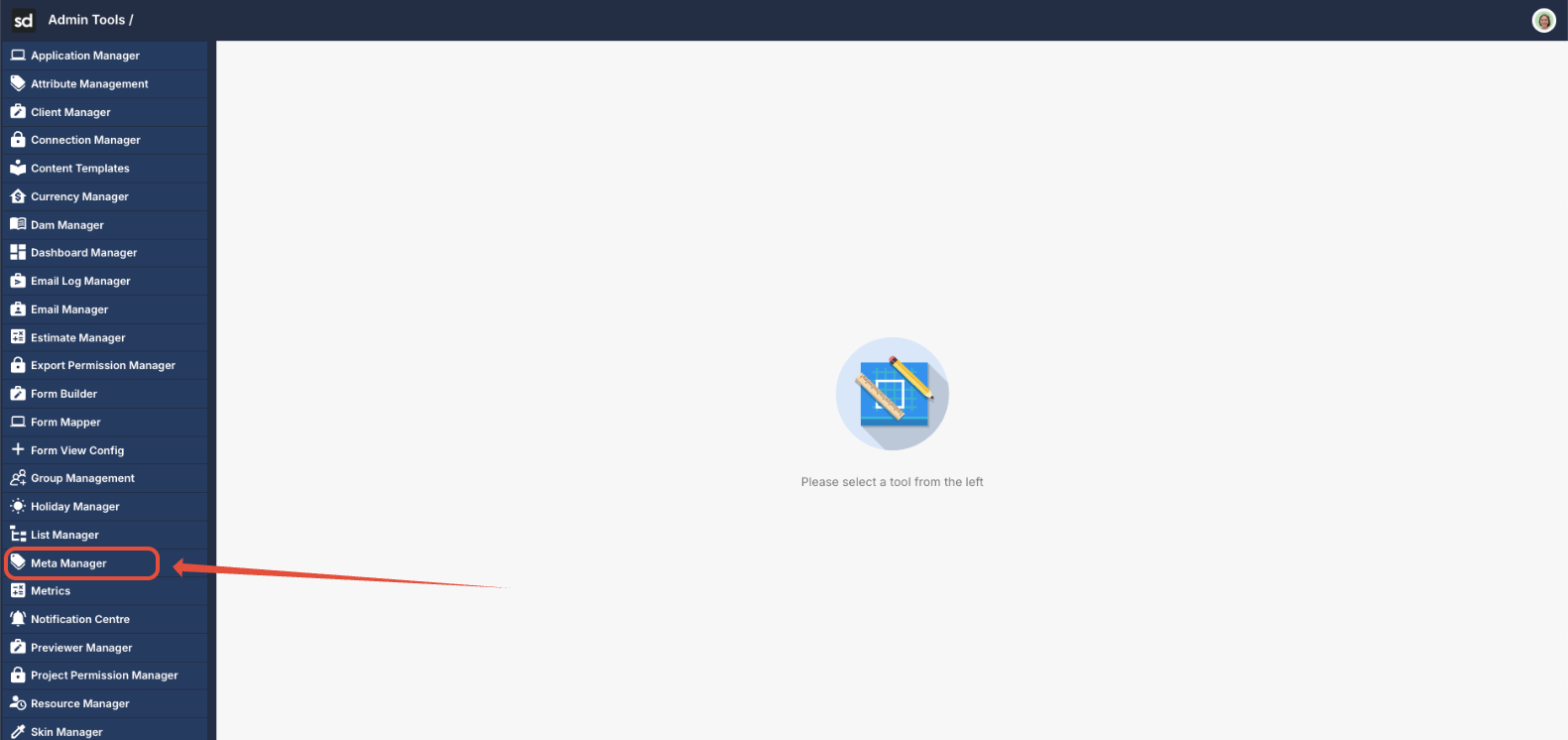
- Open Meta Manager (only available if you have the DAM configuration set up).
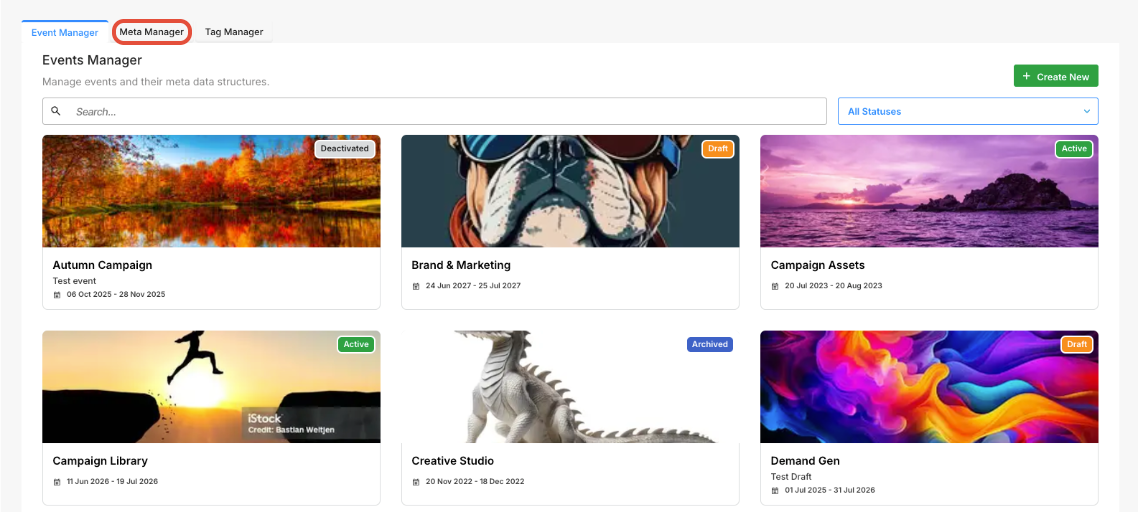
- Navigate to the Meta Manager tab.
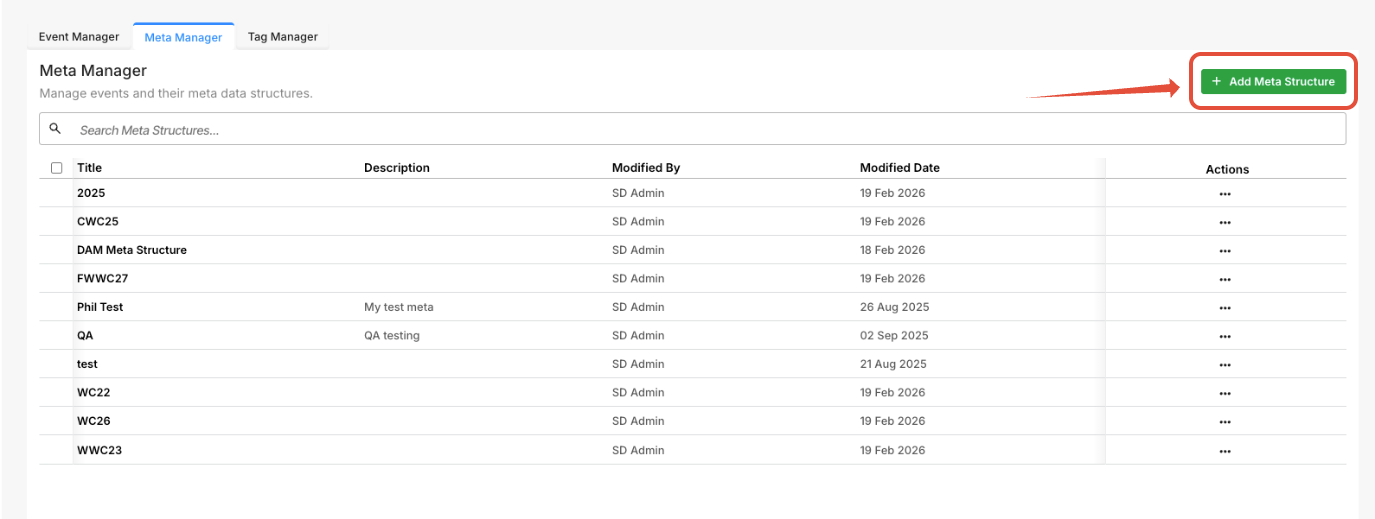
- Click Add Meta Structure.
- Complete the field configuration options:
Field Name
The internal name used for configuration and reporting.
Description
The user-facing label that is displayed in the DAM interface.
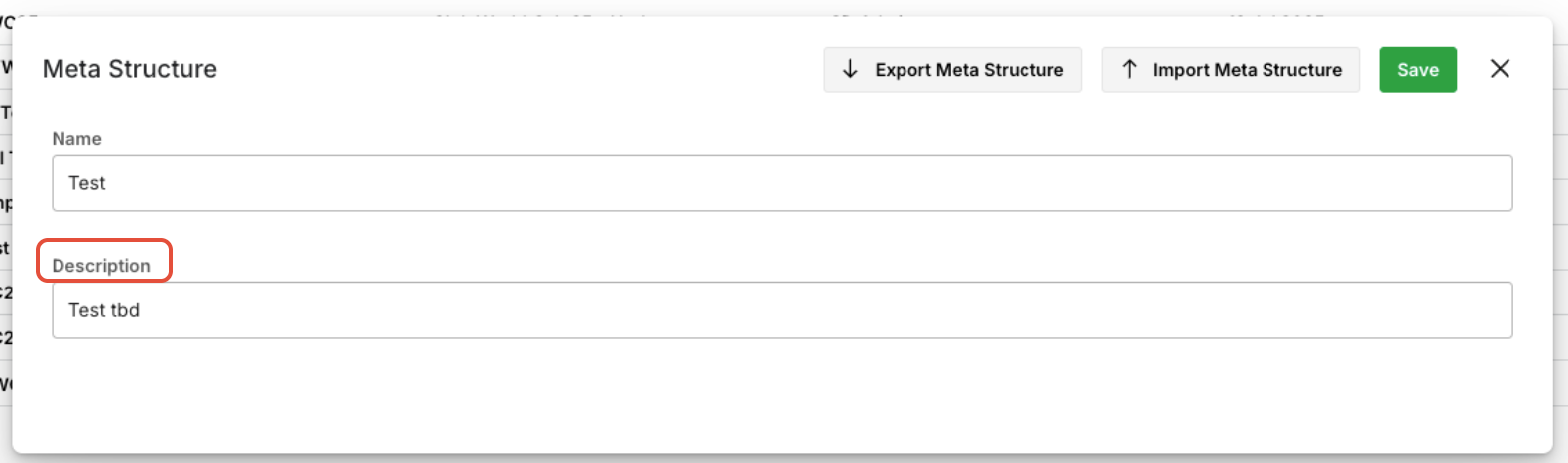
Enter Data
Click the name of the Meta Structure you just created. This is located in the Title column.
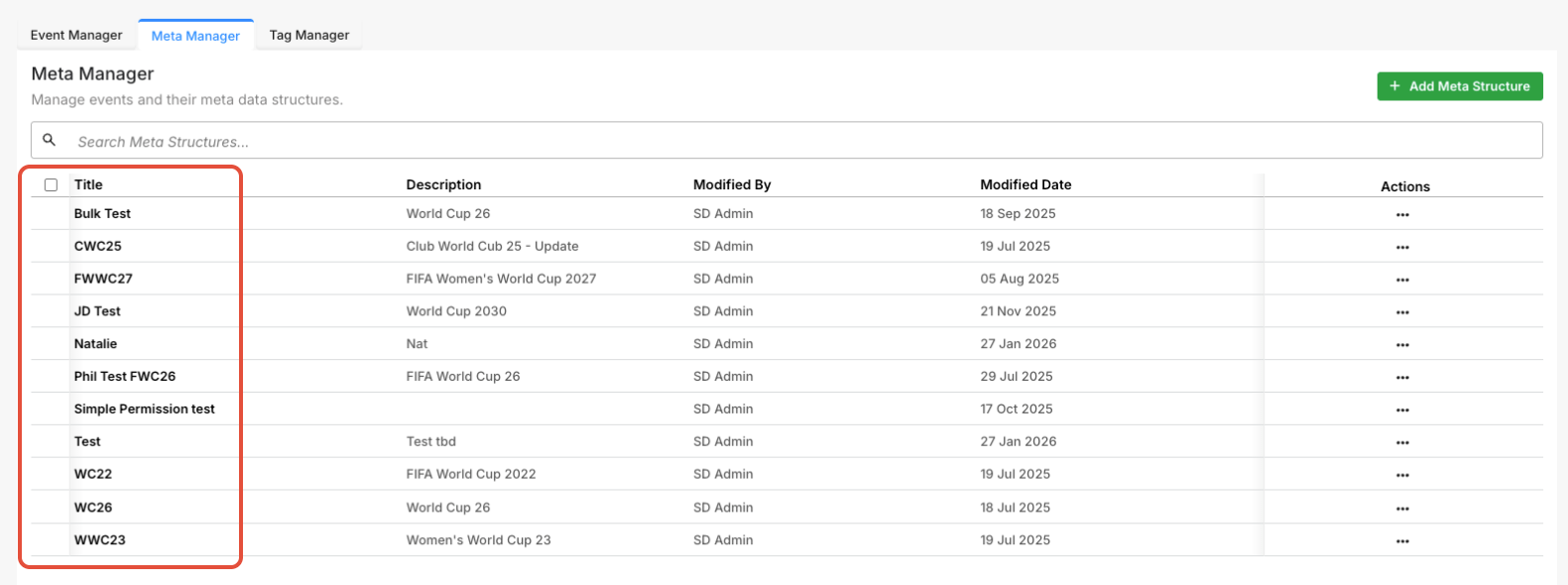
Add Structure Tag
Click the + Add Meta Structure to include the data you need.

Meta Tags
This section defines the individual metadata tags that can be applied to assets. These tags help categorize, filter, and manage assets consistently across the DAM.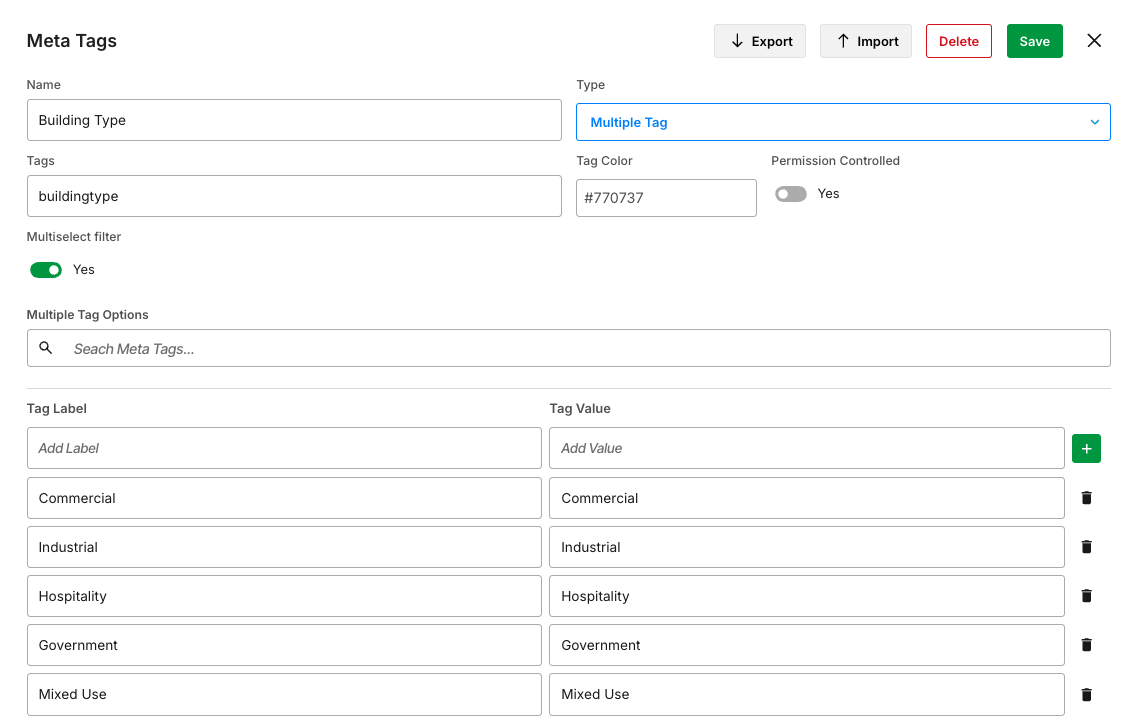
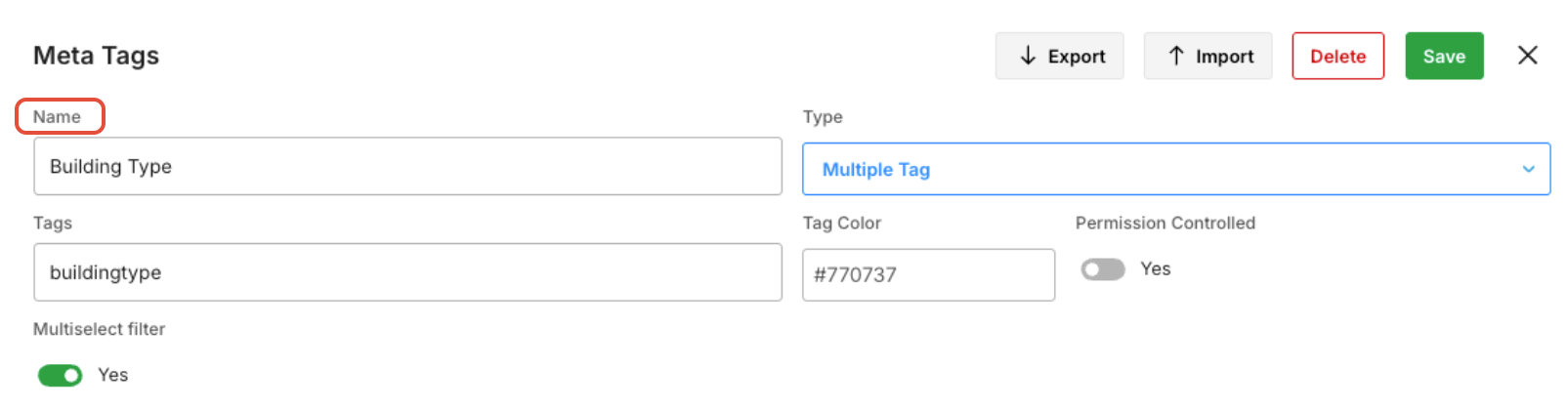
Name
This is the internal name of the metadata tag. This is used for configuration and reporting and should be clear and descriptive.
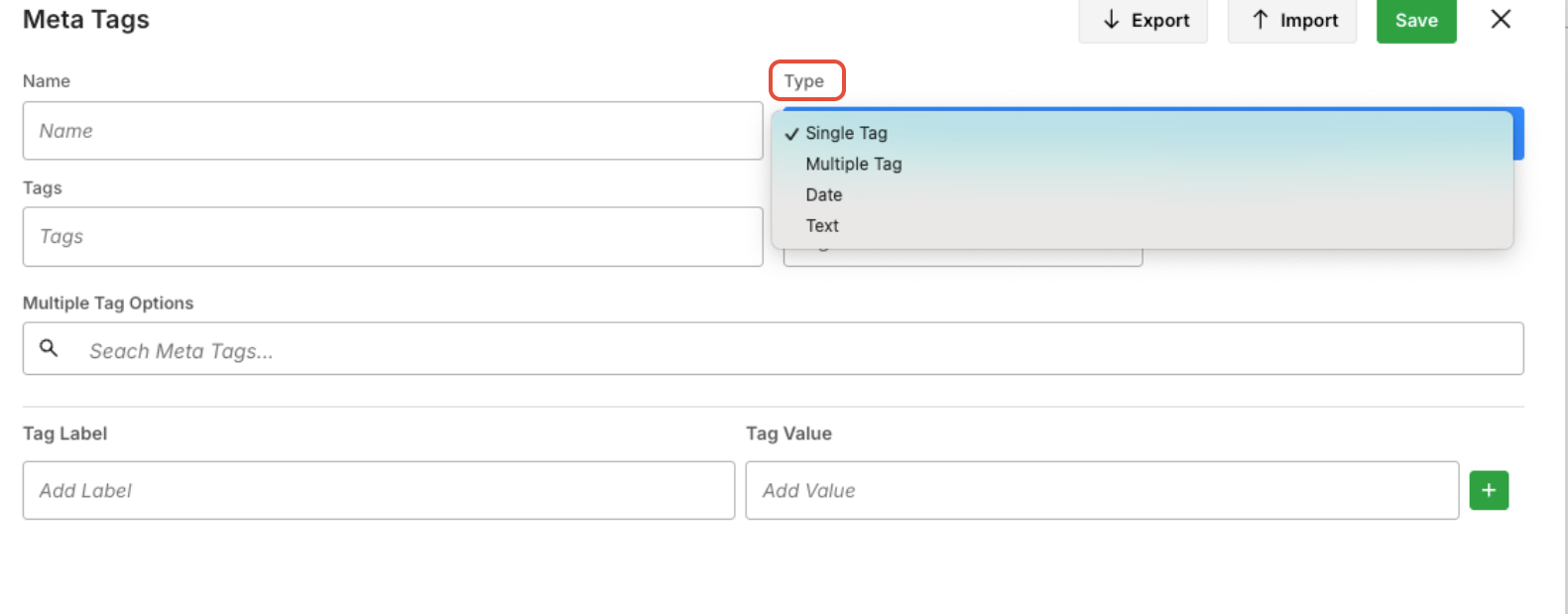
Type
Defines how the tag is presented and selected on an asset.
Available options include:
Dropdown (Single Select) – Users can select one value
Dropdown (Multi-Select) – Users can select multiple values
Date – Allows users to select a date value using a date picker.
Text – Allows users to enter free-form text.
Choose the type based on whether assets should have one or multiple values for this tag.
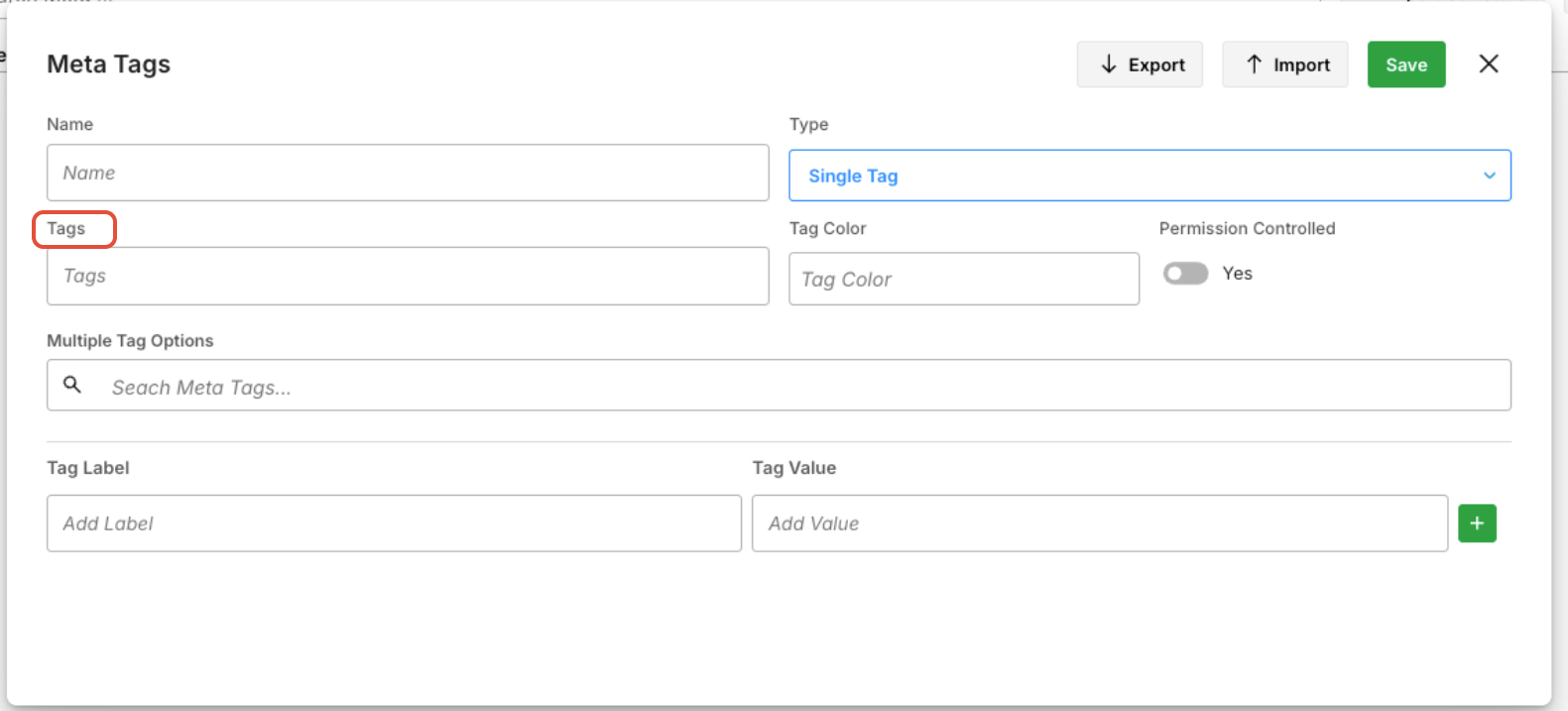
Tags
The list of selectable values available for this metadata tag. These are the options users can choose from when tagging an asset.
Example:
Campaign A, Campaign B, Campaign C
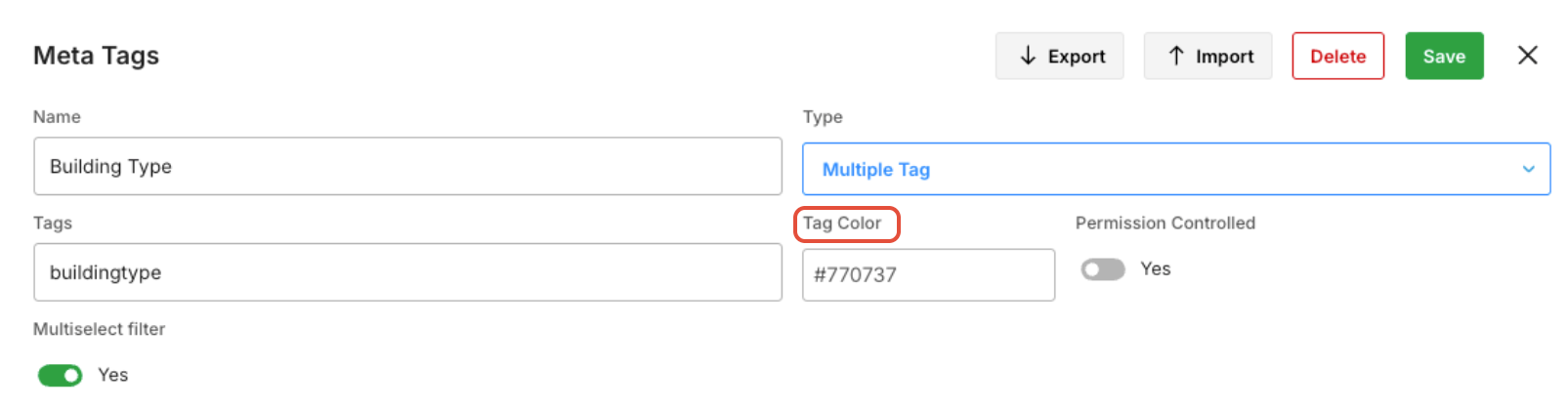
Tag Color
Specifies the color used to display the tag in the DAM interface. Tag colors help visually distinguish categories and improve scannability when viewing or filtering assets. Enter the HEX code in the Tag Color field.
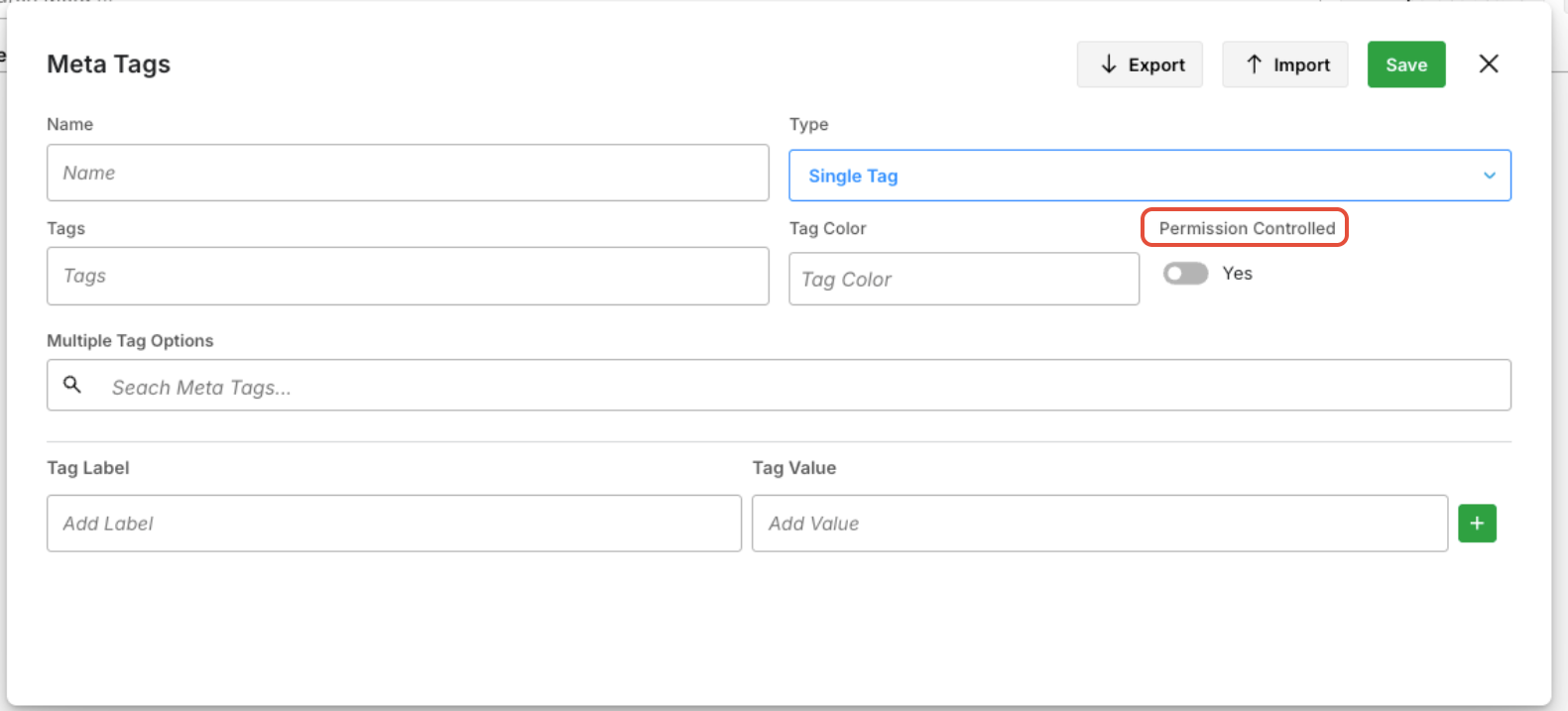
Permission Controlled
Determines whether visibility or usage of this tag is restricted by user permissions.
When enabled, only users with the appropriate permissions can view or apply this tag to assets.
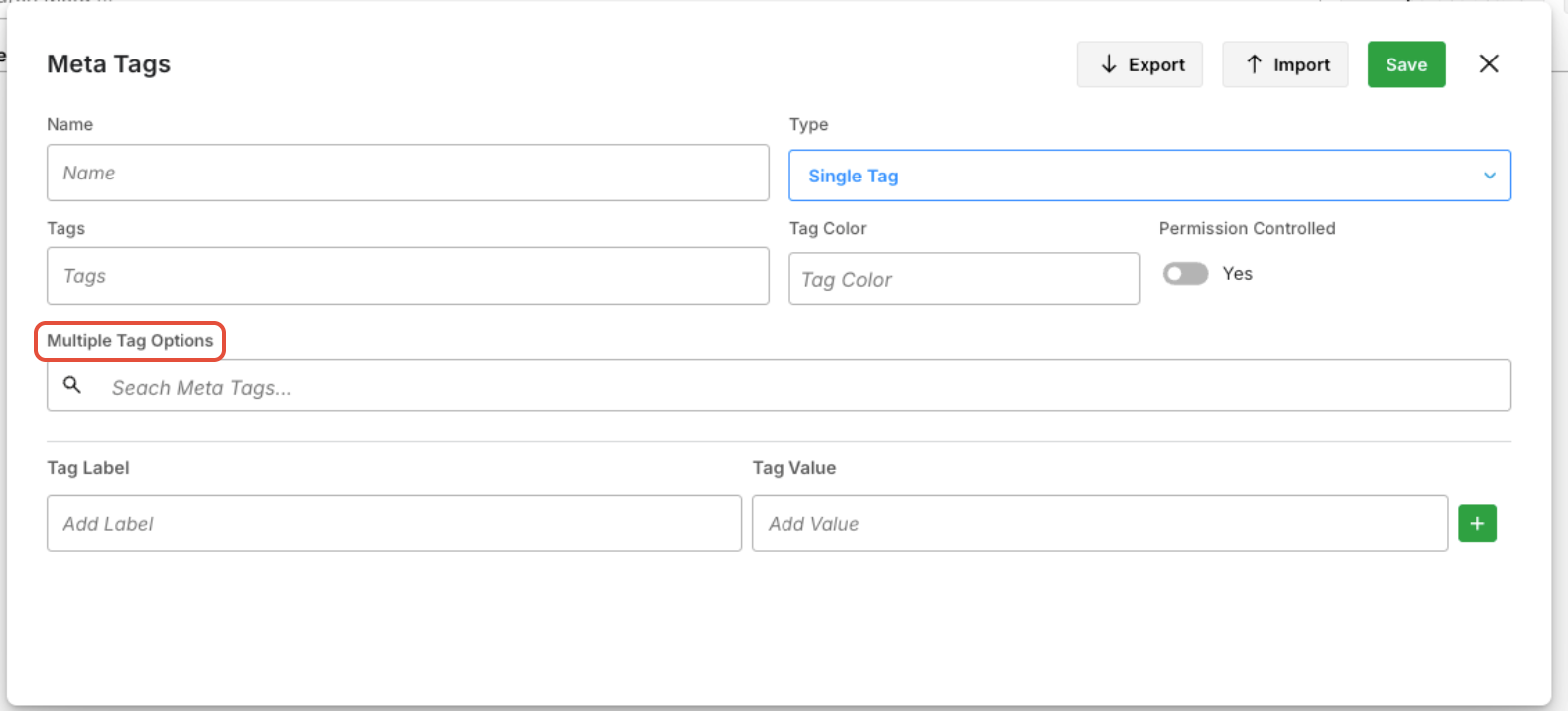
Multiple Tag Options
Allows users to select multiple tag values for this metadata field (applicable to multi-select dropdowns).
This is useful when assets belong to multiple categories, campaigns, or regions.
Tag Label
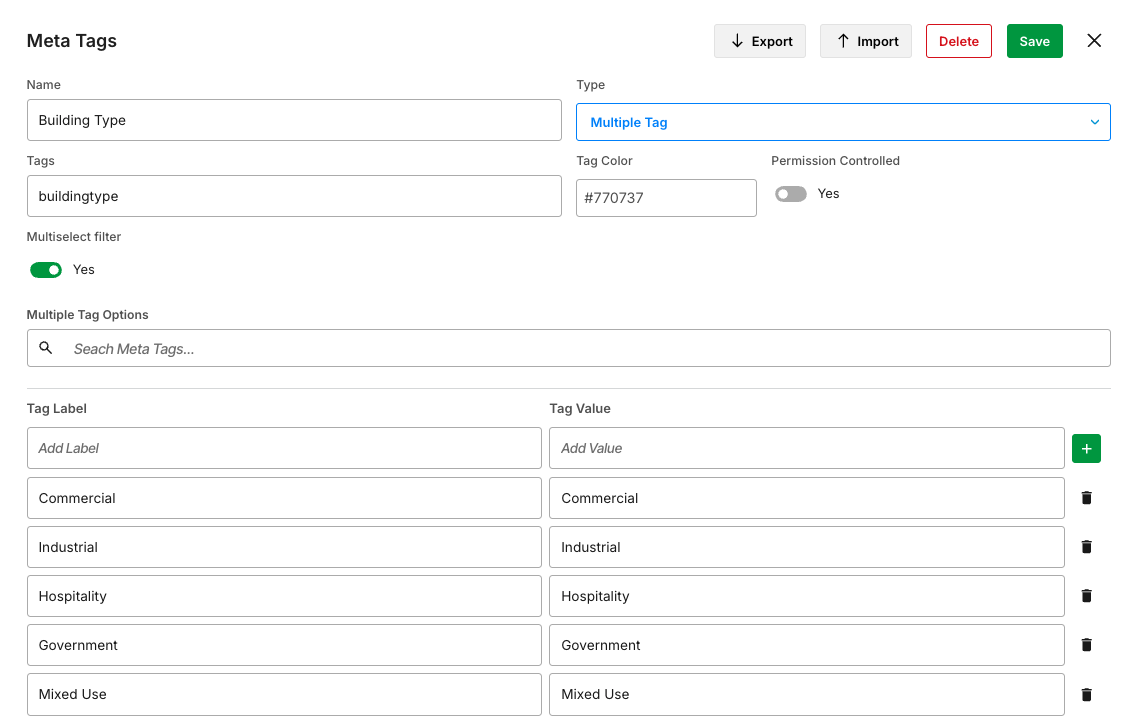
The user-facing label is shown in the DAM interface. This should be clear and meaningful to end users.
Tag Value
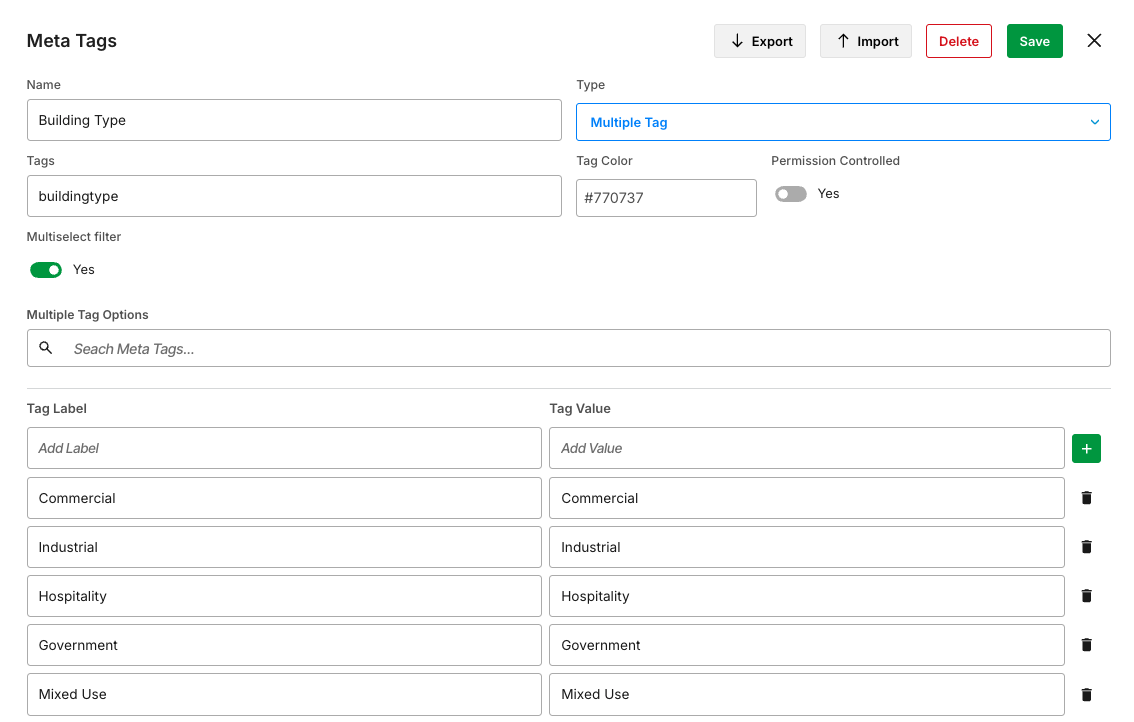
The actual value stored on the asset when a tag is applied. Tag values are used for search, filtering, and reporting.
Each tag label may have one or more tag values, depending on the configuration.
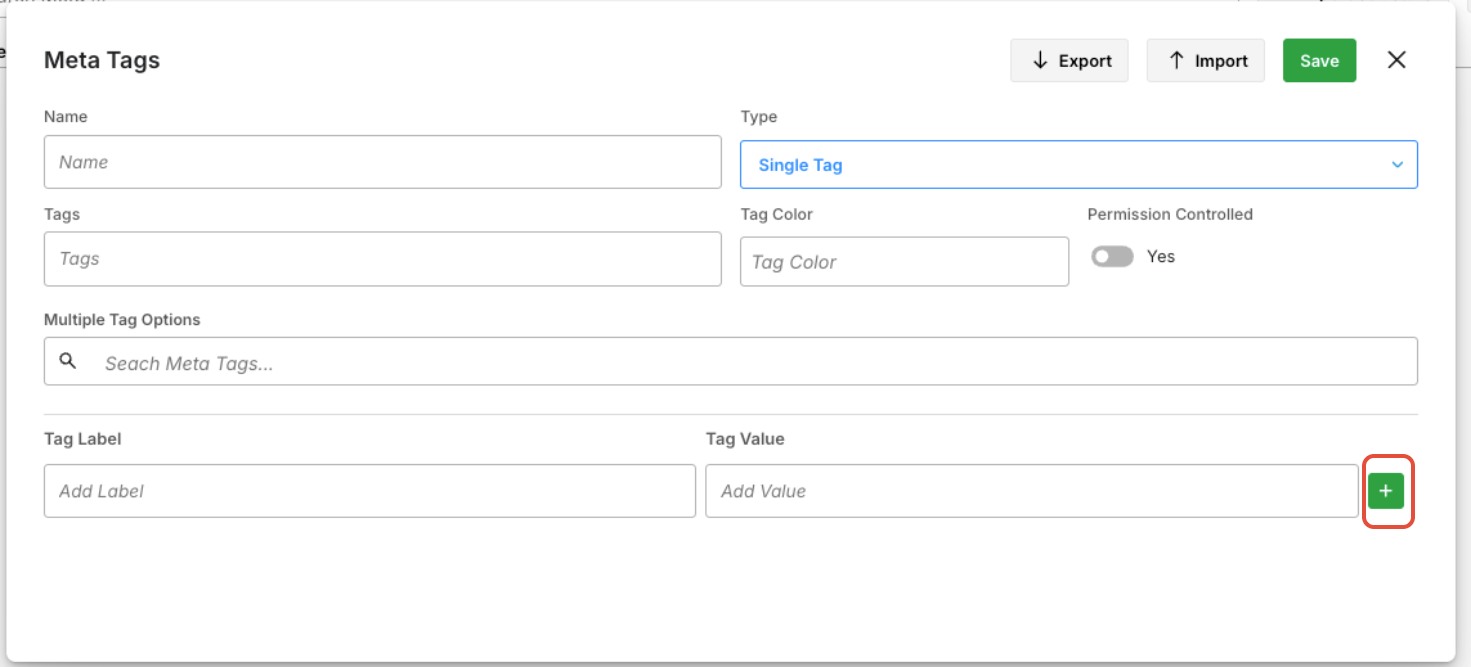
You can continue to add Tag Labels by clicking the + icon.
Click Save.
Once saved, the field becomes available for use on assets, depending on its configuration.
How Metadata Improves the User Experience
From a front-end perspective, metadata tags help users:
- Quickly understand asset context
- Find approved and relevant content faster
- Avoid incorrect or expired asset usage
- Collaborate more effectively across teams
Well-designed metadata makes the DAM easier to navigate and more valuable for everyday work.
Notes & Best Practices
- Keep metadata labels clear and user-friendly
- Use colors sparingly to avoid visual clutter
- Ensure the required metadata aligns with real user workflows
Next Step: Viewing Metadata Tags on Assets in Screendragon DAM
Was this article helpful?
That’s Great!
Thank you for your feedback
Sorry! We couldn't be helpful
Thank you for your feedback
Feedback sent
We appreciate your effort and will try to fix the article