AI Search with Filters
TABLE OF CONTENTS
- AI Search
- Filter Panel – Saved Filters
- Creating Custom Search Filters
- Saving Searches and Filters
- Best Practices
AI-powered search in Screendragon helps users find assets using natural language and visual understanding. When combined with structured filters, it becomes a powerful way to quickly narrow results and locate exactly the right content.
AI-powered search works best when combined with structured filters.
Users can:
Search using natural language
Refine results using metadata filters (e.g., campaign, region, usage rights).
Save filtered searches for future use
This approach provides both flexibility and precision.
AI Search
- Navigate to the folder containing your files.
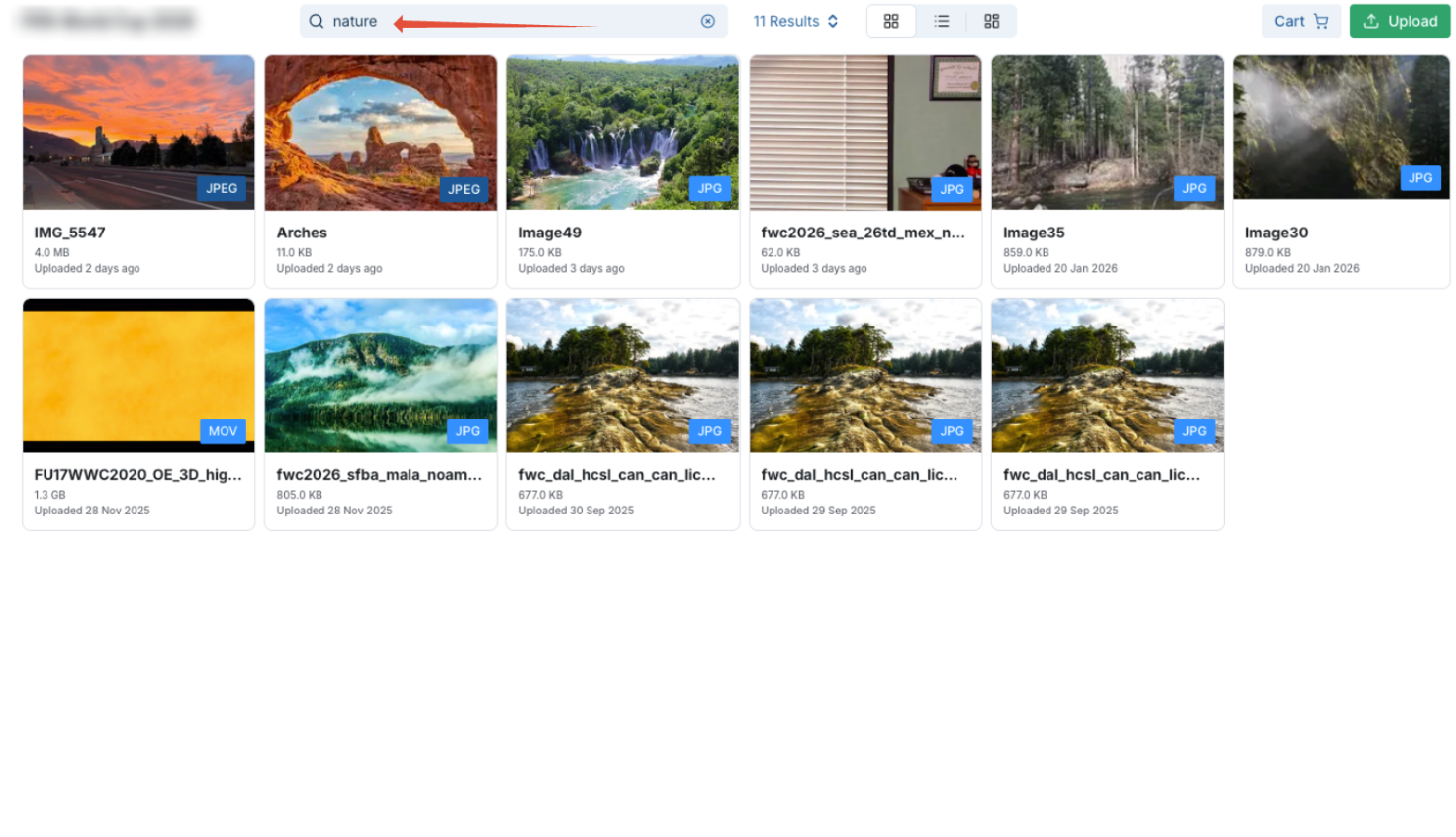
- Click in the search bar and enter the metadata tag you want.
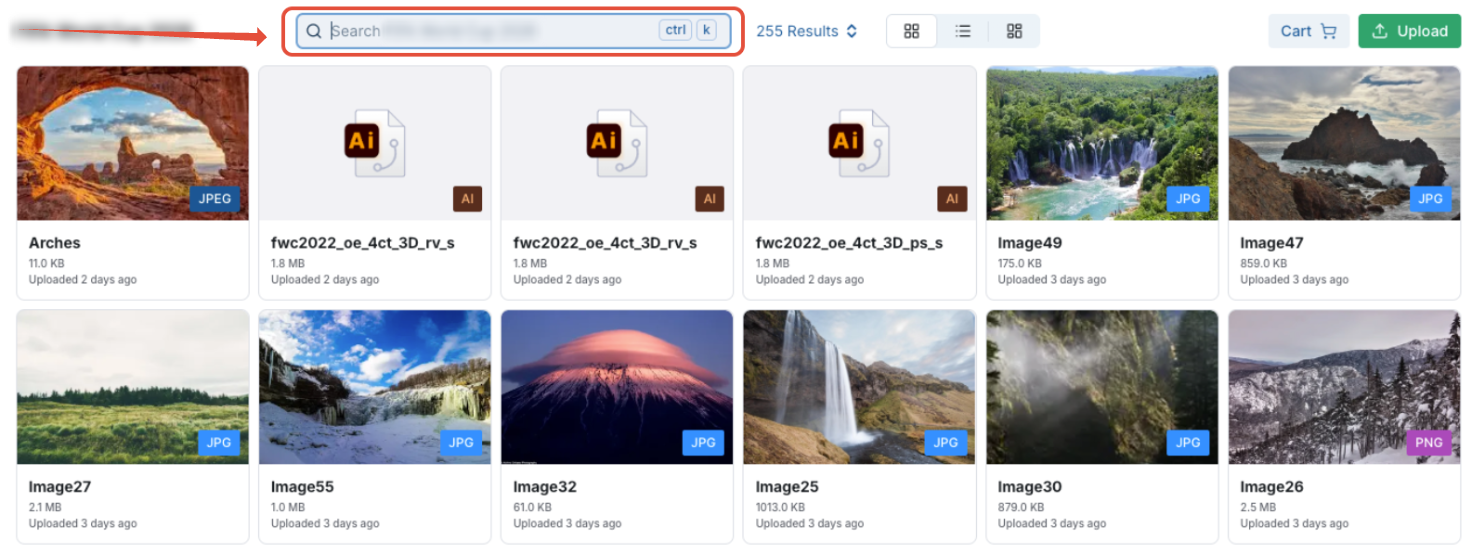
- Select from the filtered results to locate the assets you need.
Filter Panel – Saved Filters
Saved Filters allow users to store frequently used filter combinations and reapply them with a single click.
Key Behaviors
Users can save a filter set from the active filter panel by selecting Save Filter.
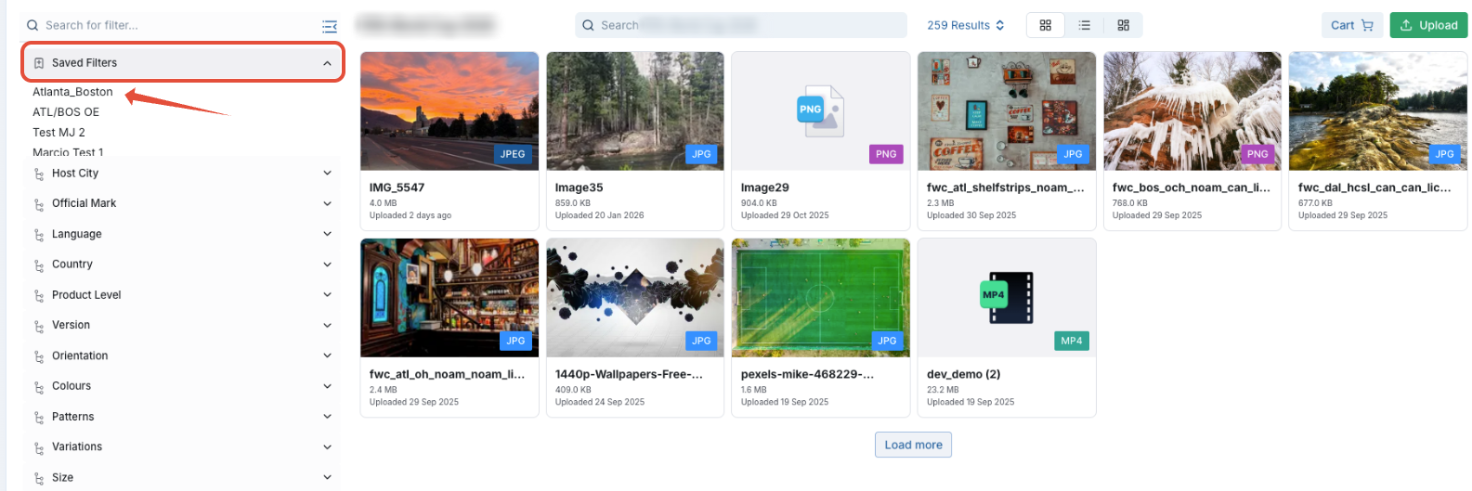
Saved Filters appear at the top of the filter panel under a dedicated section.
Saved Filters are persistent and user-specific unless configured for shared visibility.
Filters can be renamed or deleted from the Saved Filters menu.
Applying a Saved Filter automatically updates the asset results in real time.
Use Cases
Repeating campaign-based searches
Quickly returning to specific asset types (e.g., "Approved Social Graphics")
Filtering by metadata (regions, brands, usage rights)
Creating Custom Search Filters
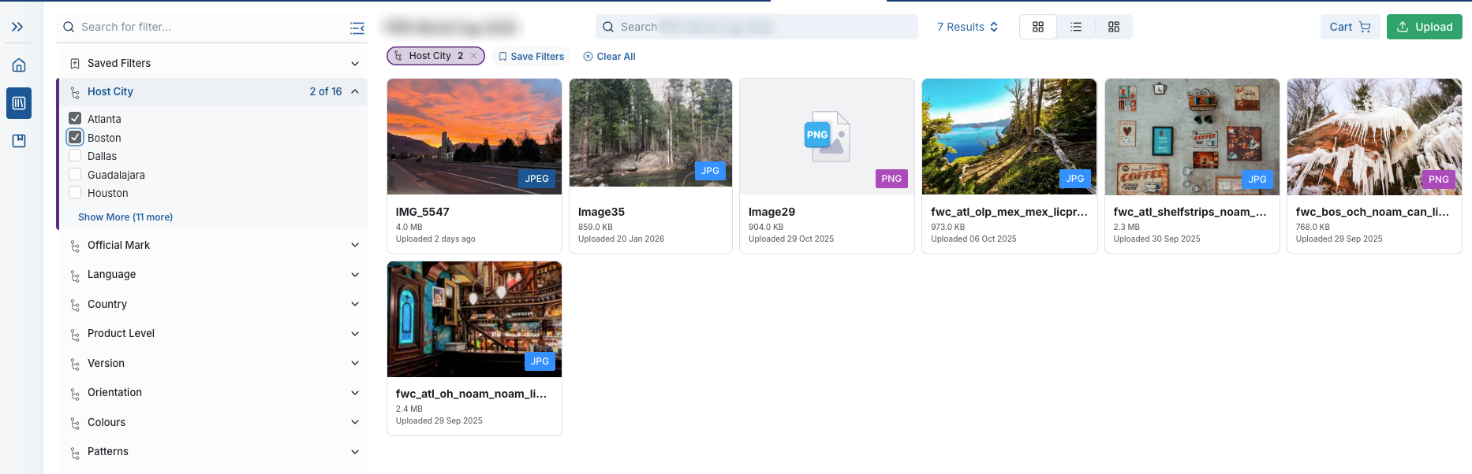
- Navigate to the Filter column.
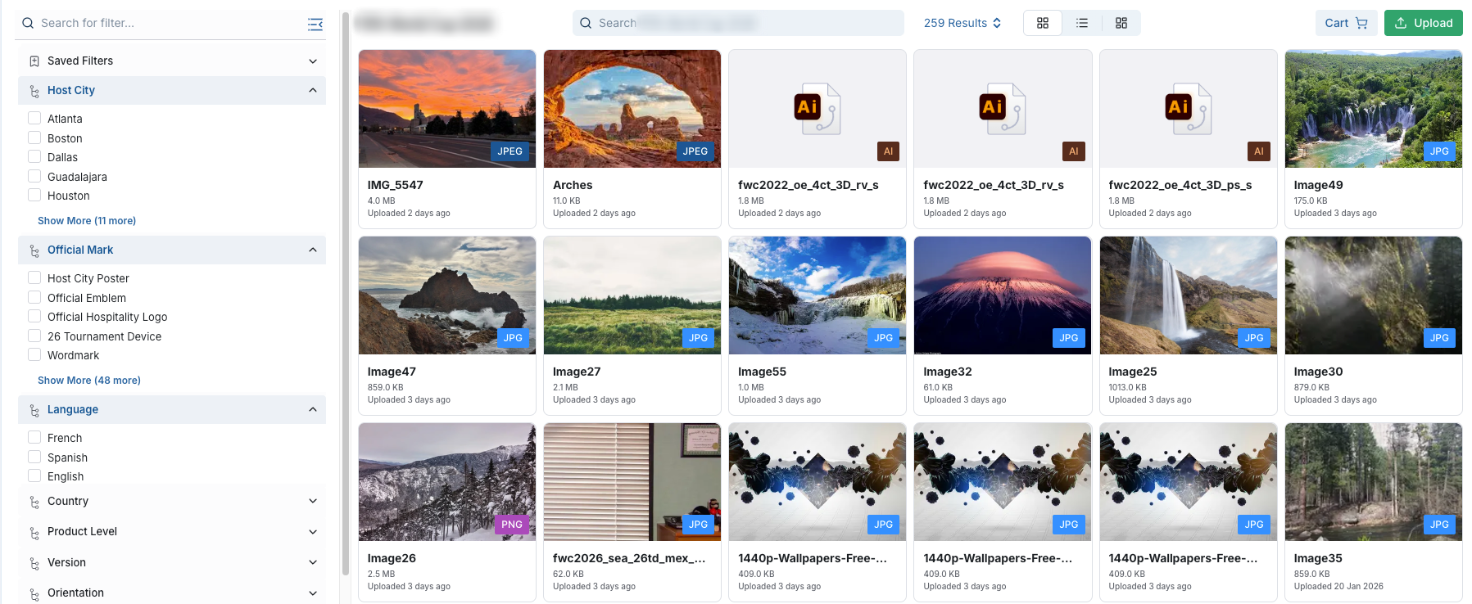
- Select the filter criteria you want to apply to your custom filter. Click each checkbox until you’ve defined the criteria you need.
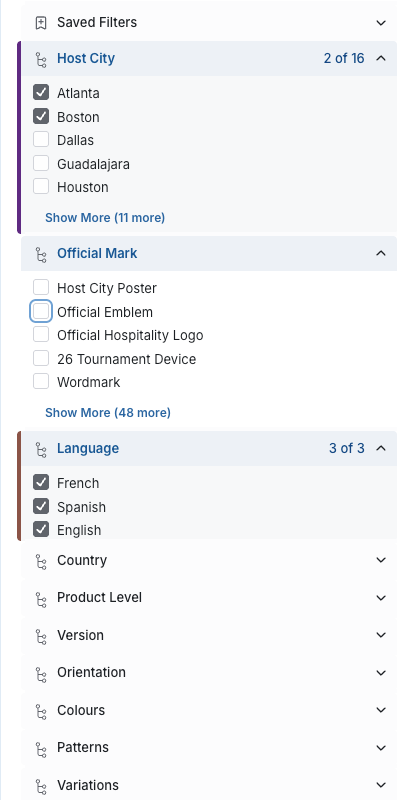
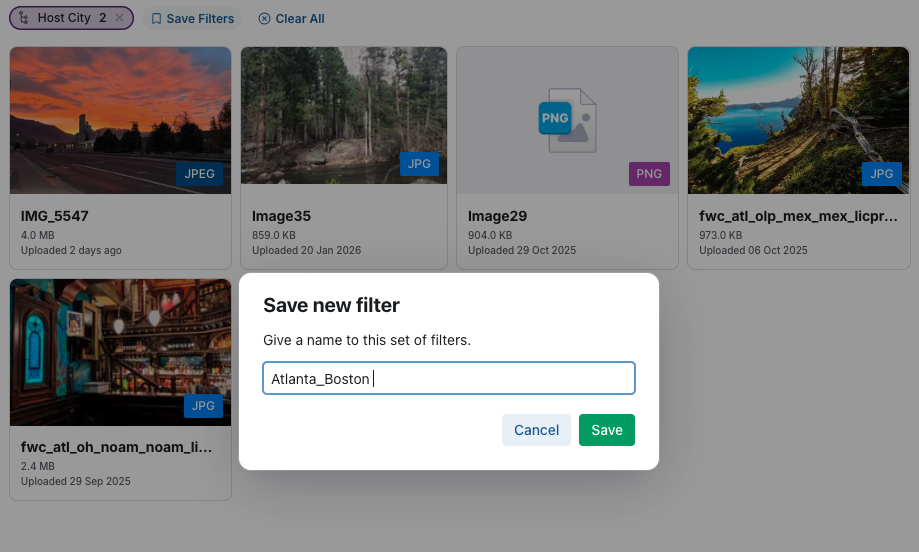
- Once you’ve found a useful combination of AI search and filters, you can save it for future use. To do this, navigate to Save Filters.
- Give the filter a unique name and click Save.
- Next, navigate to the Saved Filters dropdown and click to see the unique filter you just created. It is now saved for future use.
Saving Searches and Filters
Saved searches help teams:
Access frequently used asset sets
Maintain consistency across projects
Reduce repetitive searching
Best Practices
Use AI search first to explore broadly, then filter down
Apply usage rights filters early to avoid restricted assets
Use controlled metadata fields for consistent filtering
Save commonly used search/filter combinations
Was this article helpful?
That’s Great!
Thank you for your feedback
Sorry! We couldn't be helpful
Thank you for your feedback
Feedback sent
We appreciate your effort and will try to fix the article