Time Zone support ensures dates and times are displayed consistently across the platform based on your selected time zone. This includes reports, Resource Planner filters, and user display settings, helping teams collaborate more effectively across different regions.
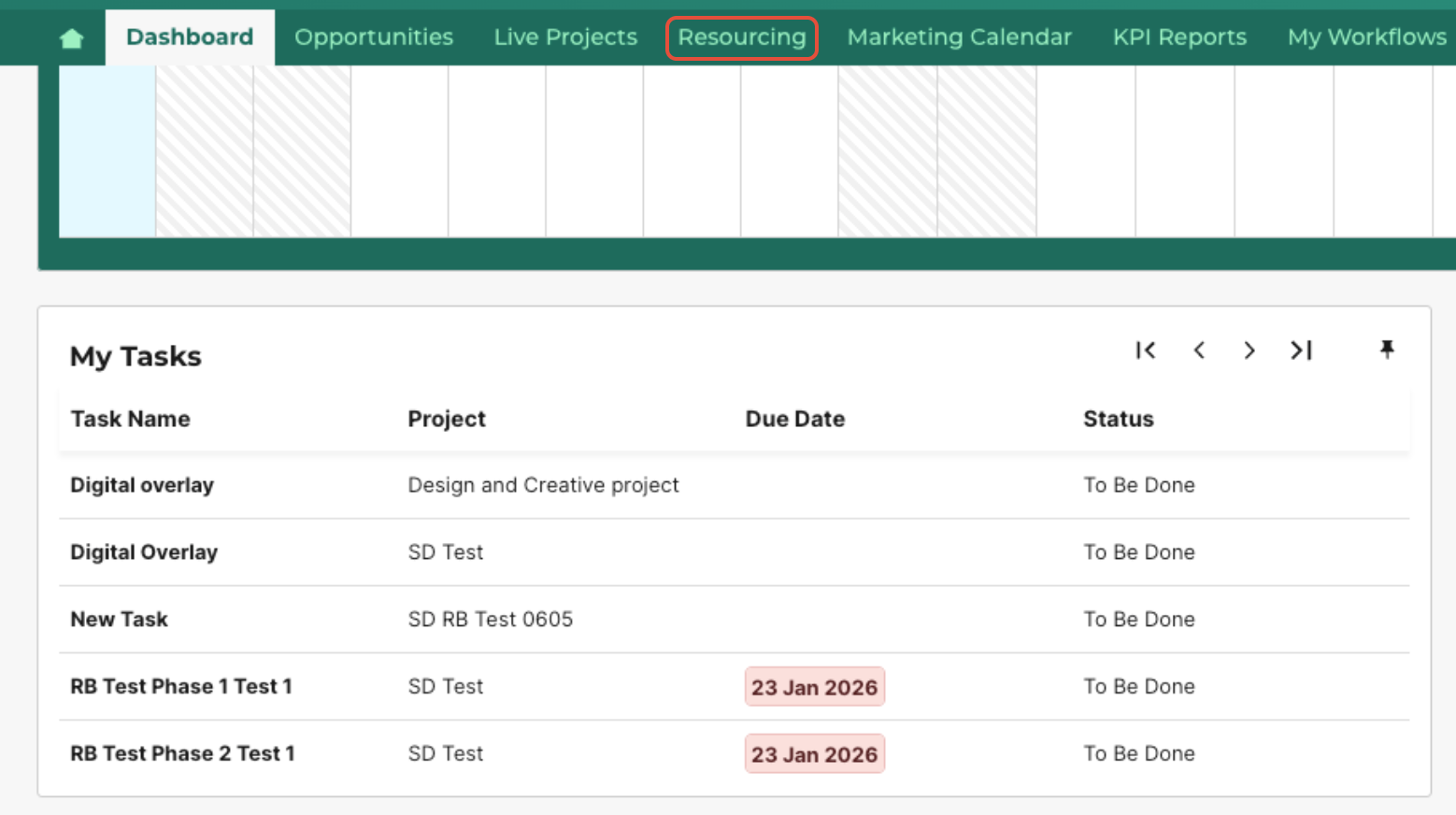
- Navigate to Resourcing to see how the configured user settings, including working hours and time zones, are reflected in the resource planner. Click here for information on configuring user settings.
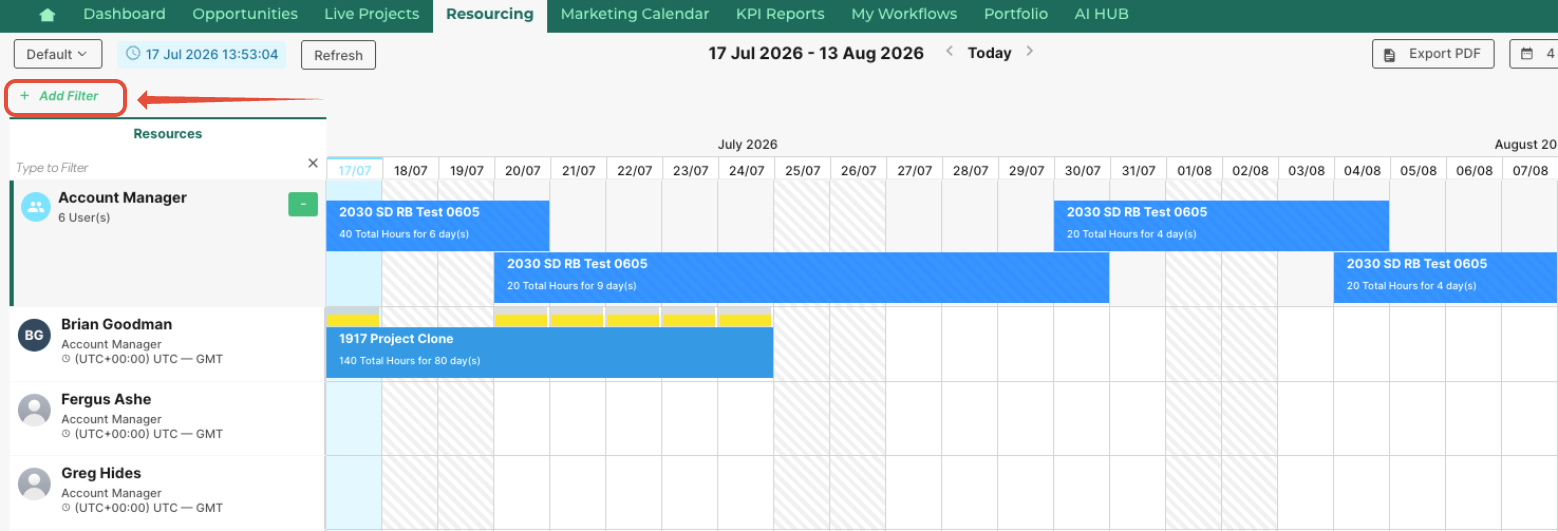
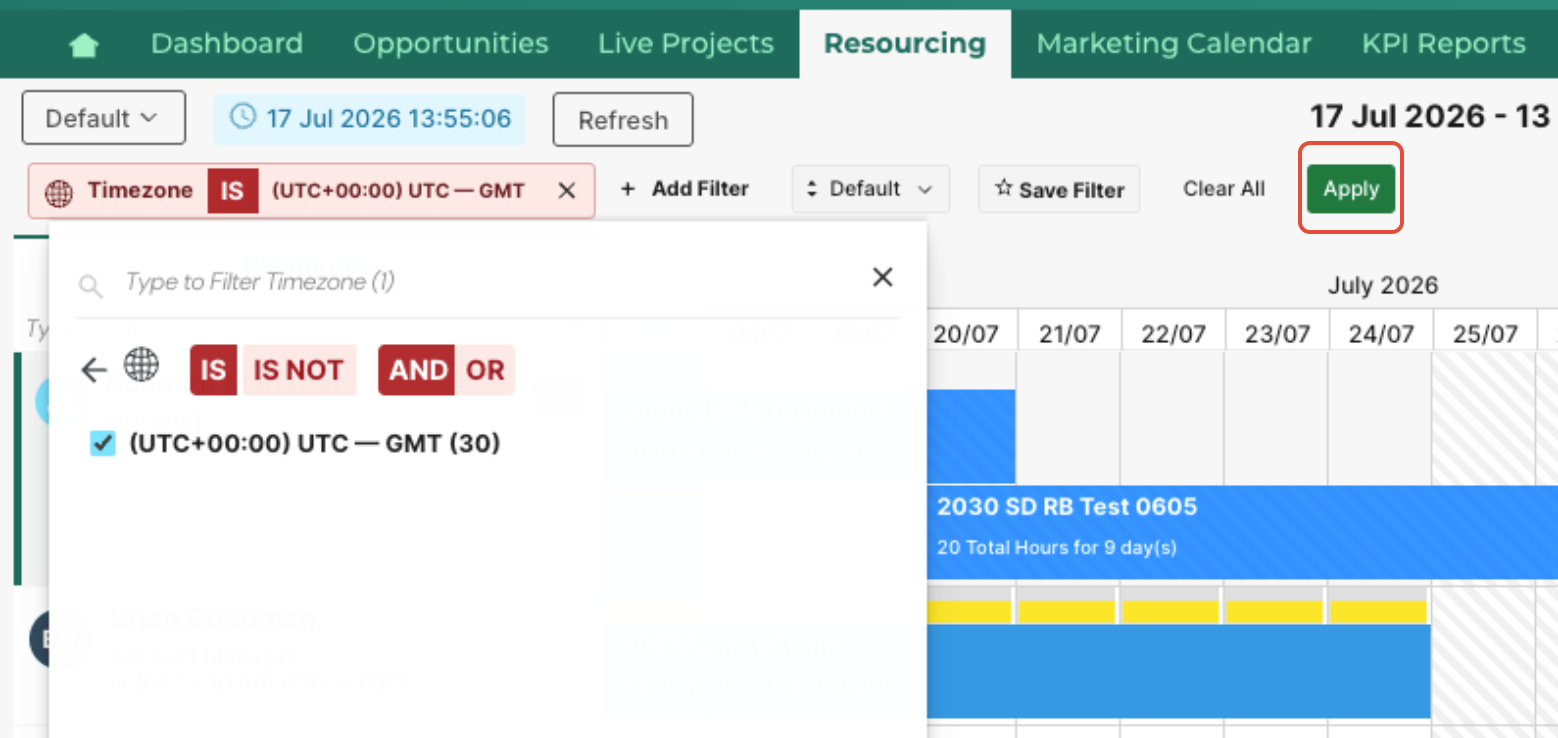
- To filter resources by timezone, click Add Filter.
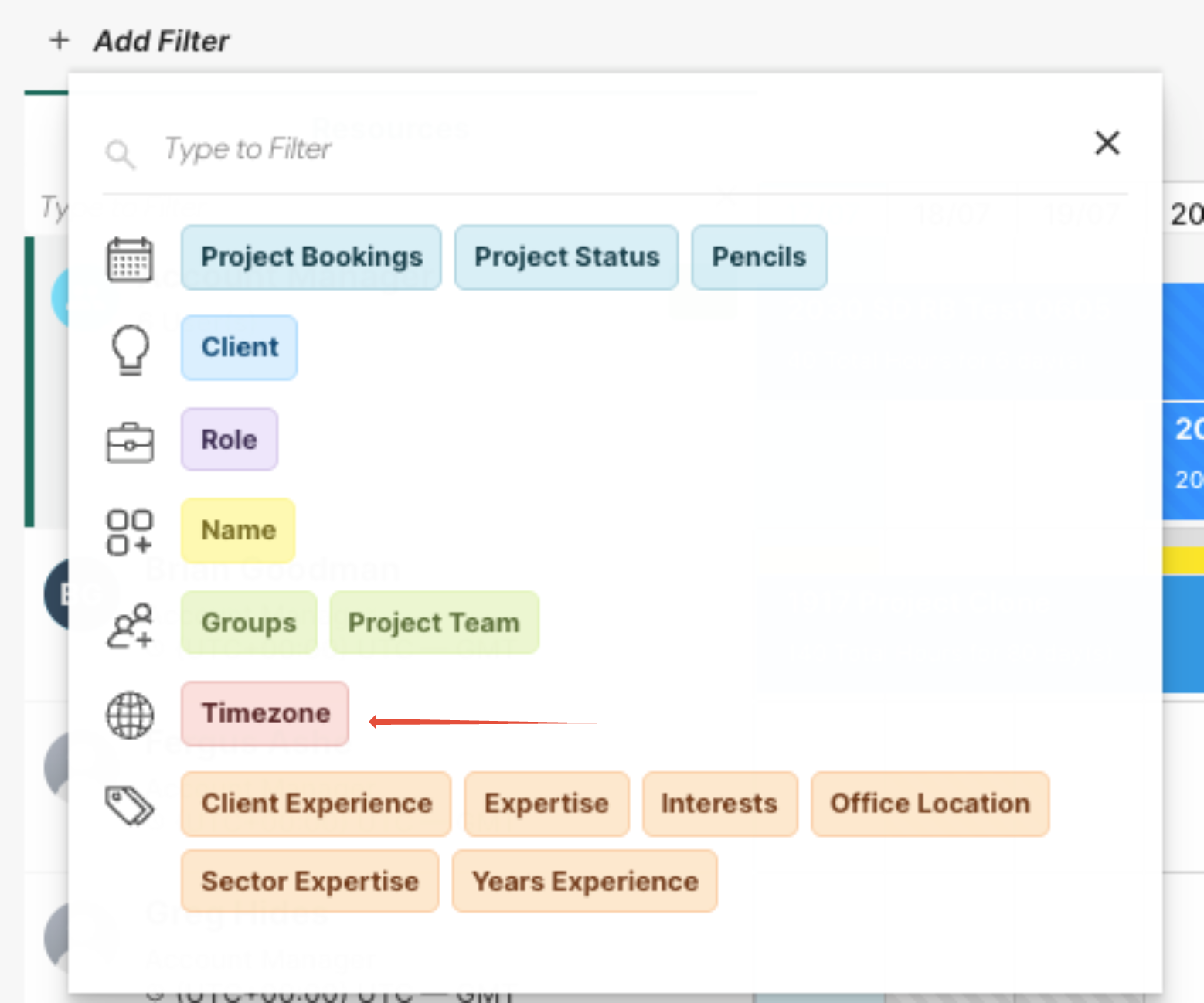
- Then select Timezone. This allows you to view users by geographical location, helping to manage global teams.
- Then choose the time zone(s) you want displayed on the user in the resource manager.
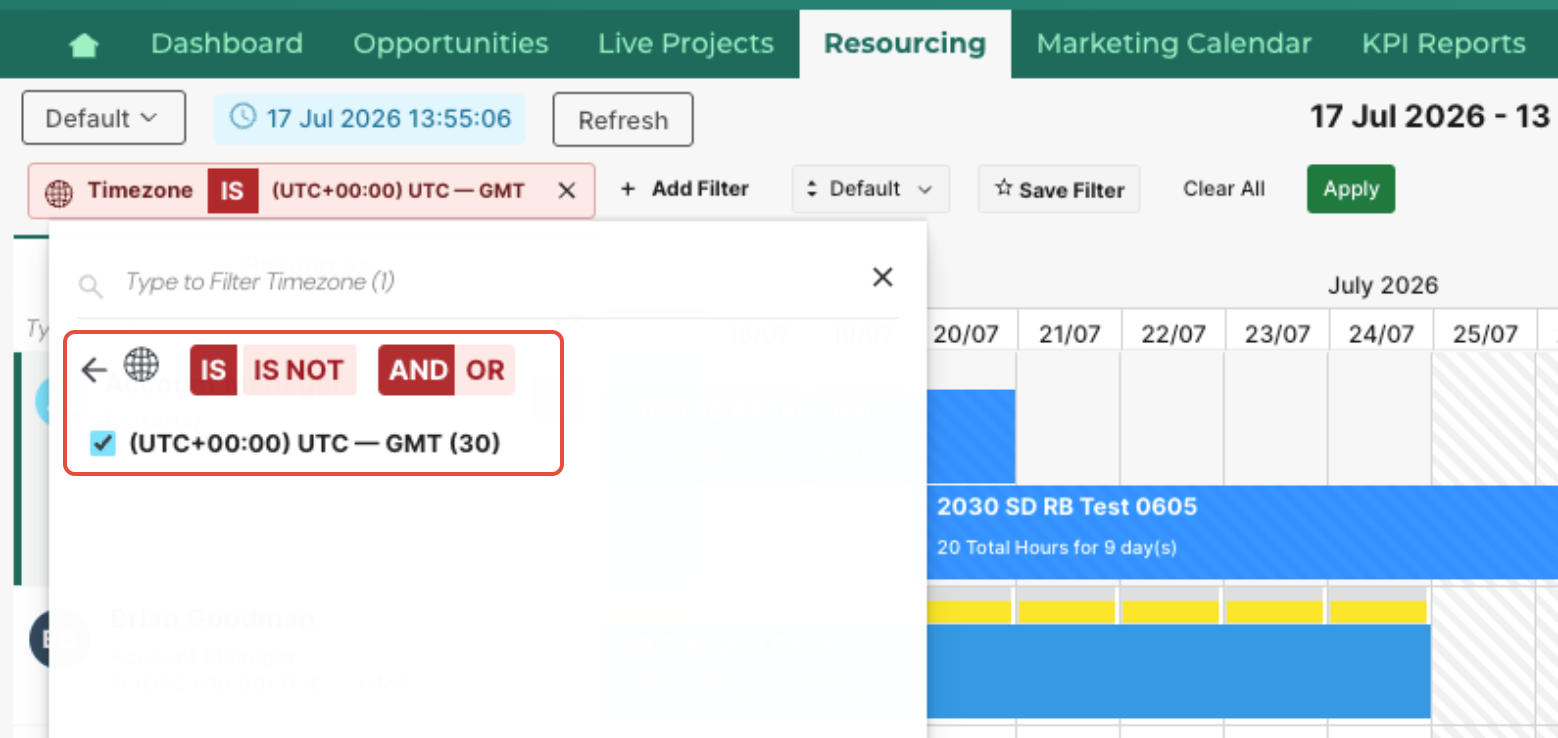
- Click Apply.
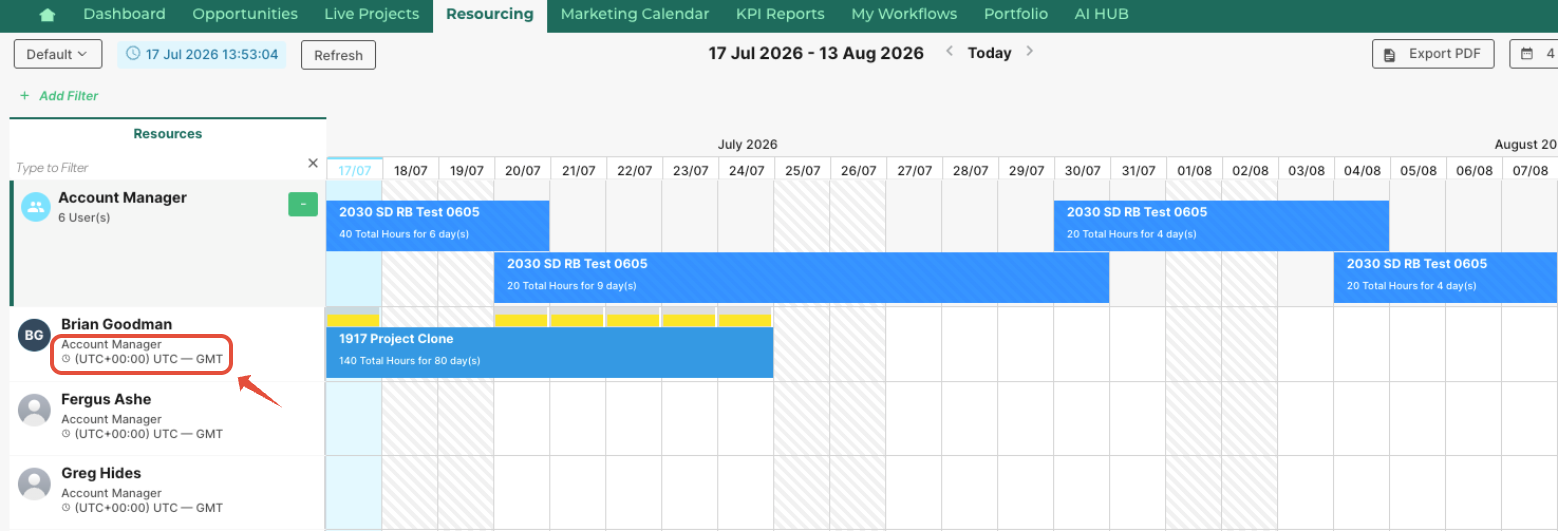
- You can now view users' time zones next to their name on the Resource Planner.
Was this article helpful?
That’s Great!
Thank you for your feedback
Sorry! We couldn't be helpful
Thank you for your feedback
Feedback sent
We appreciate your effort and will try to fix the article