Home Page
Left Panel and Background Image Configuration
TABLE OF CONTENTS
- Home Page
- Left Panel Option
- Left Panel Buttons
- Background Image Configuration
- Configuration Steps
- Example Use Cases
The Left Panel and Background Image configurations allow administrators to enhance the visual layout of forms in View Mode. These settings let you display a file or image alongside the form and include interactive buttons for quick actions, such as editing, cloning, or triggering workflows.
Left Panel Option
The Left Panel displays an image or file beside a form in View Mode, using the file uploaded to the Main Form File element in the Form Builder. It can also include configurable interaction buttons (Edit, Clone, Workflow).
Left Panel Buttons
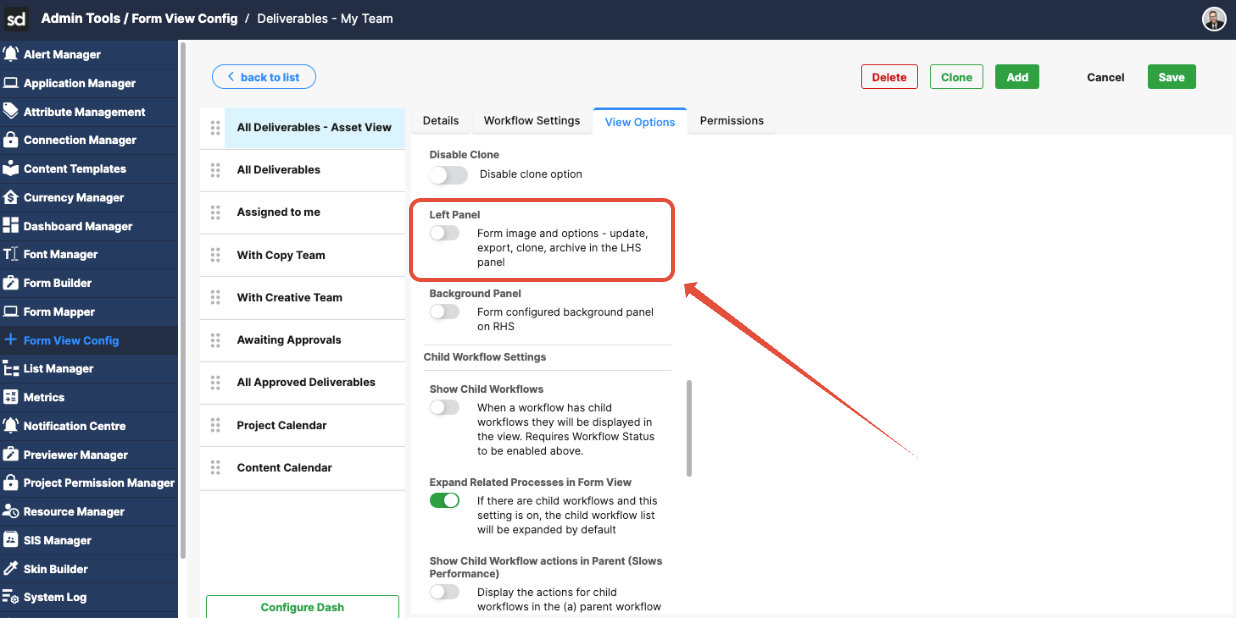
To locate the Left Panel
- Navigate to Admin Tools and click Form View Config.
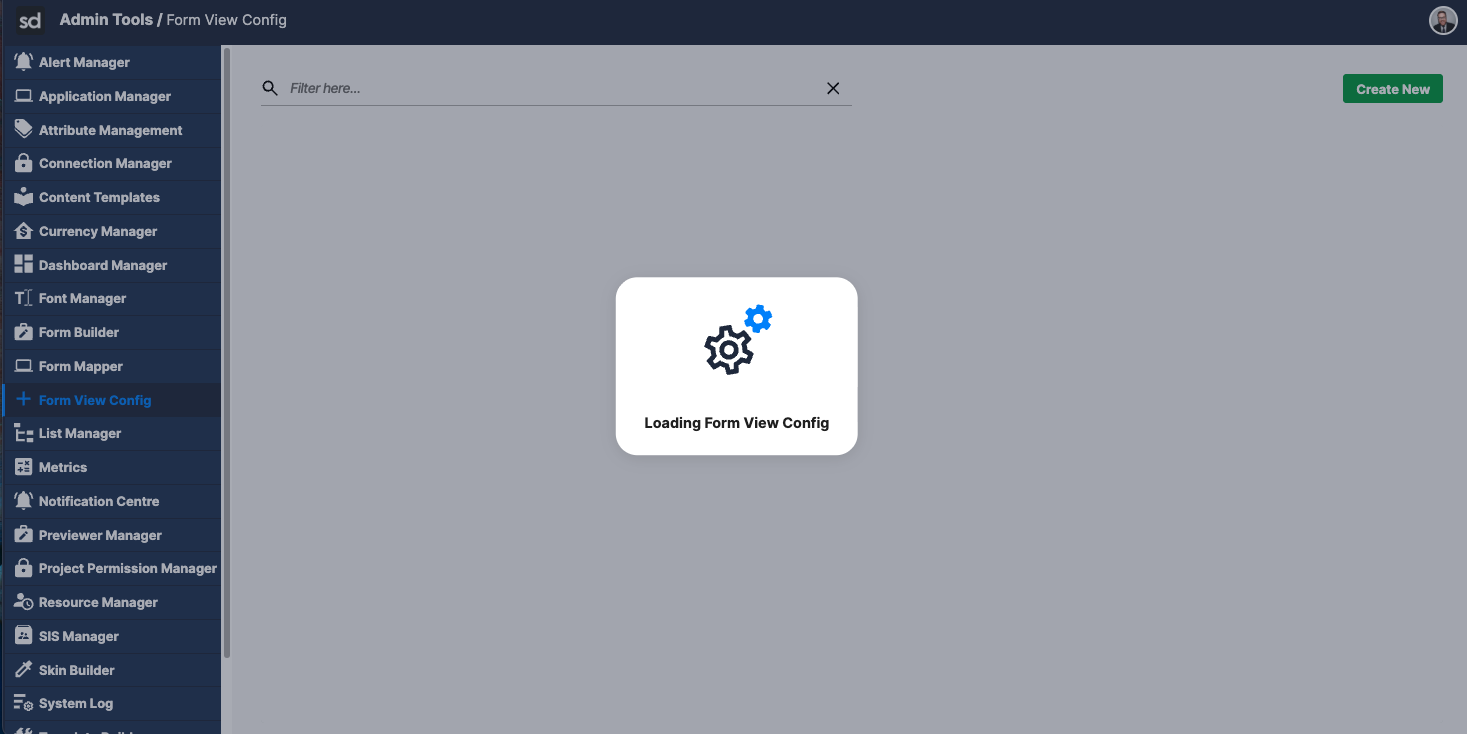
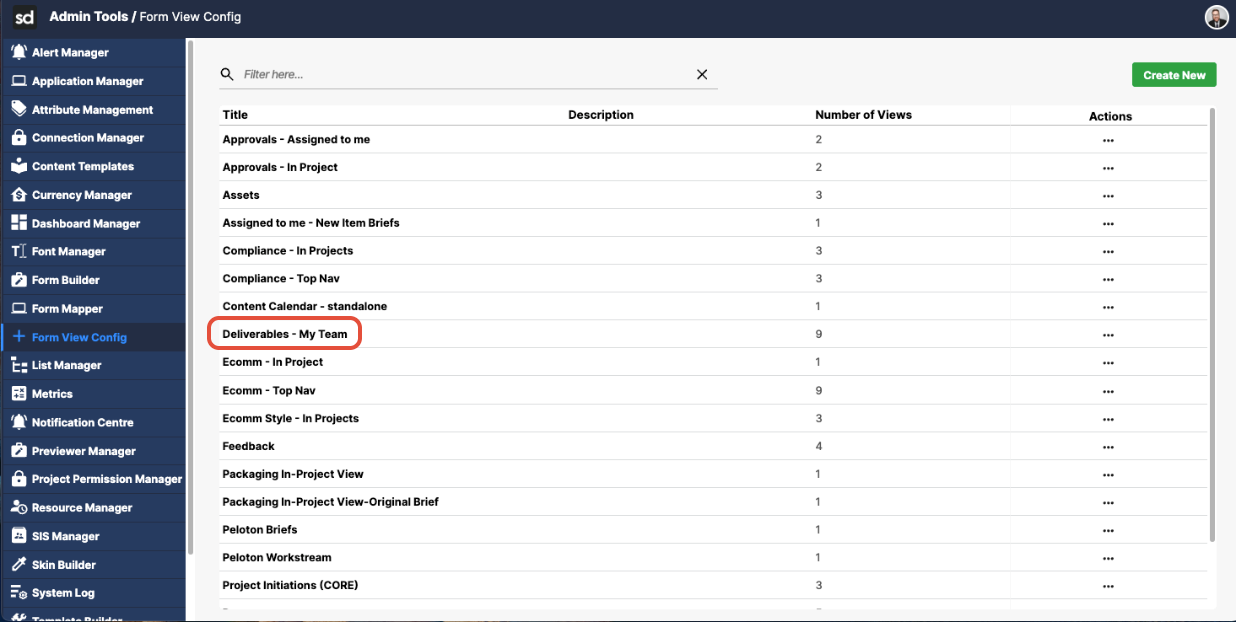
- Click a form from the list.
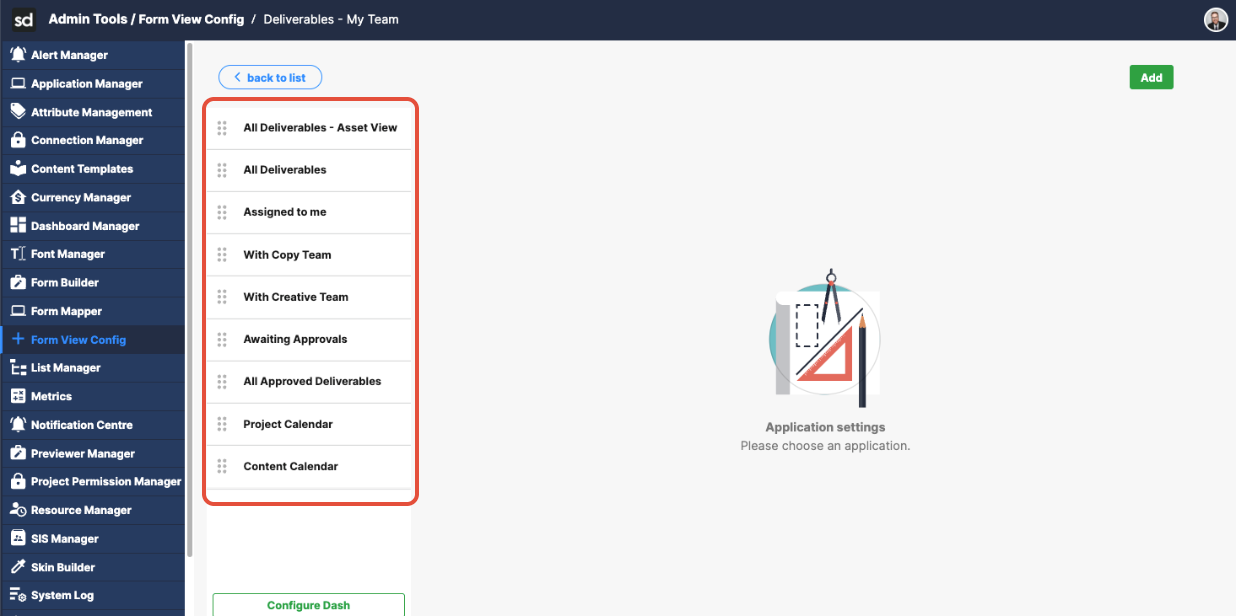
- Then click the Application where you want to enable the Left Panel.
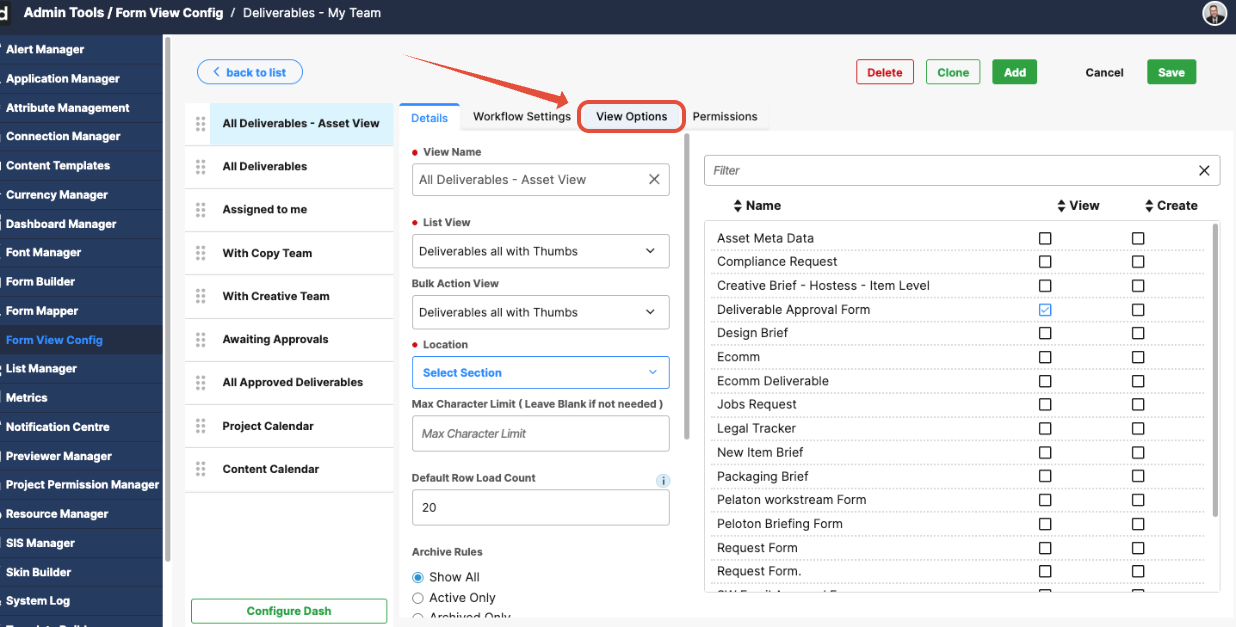
- Then click View Options.
- Scroll to and toggle the Left Panel option.
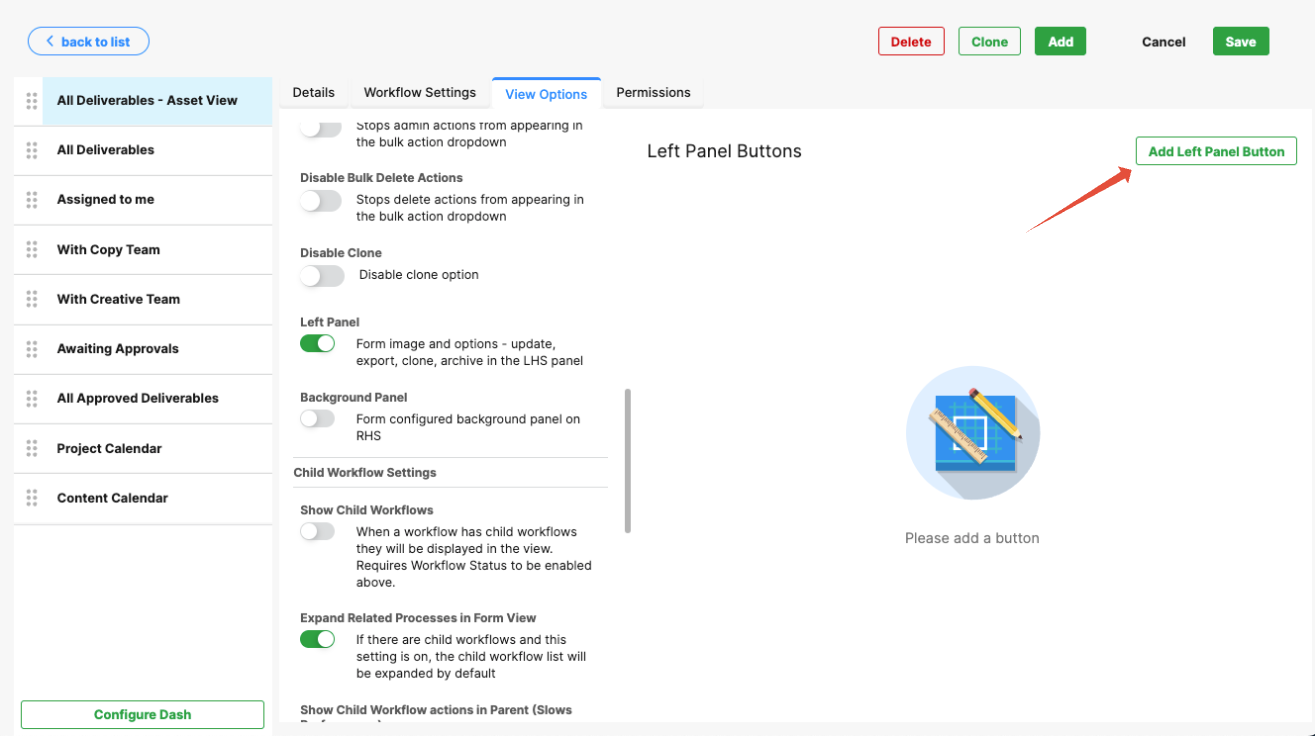
- Click the Add Left Panel Button.
You can configure up to four interaction buttons to appear in the Left Panel.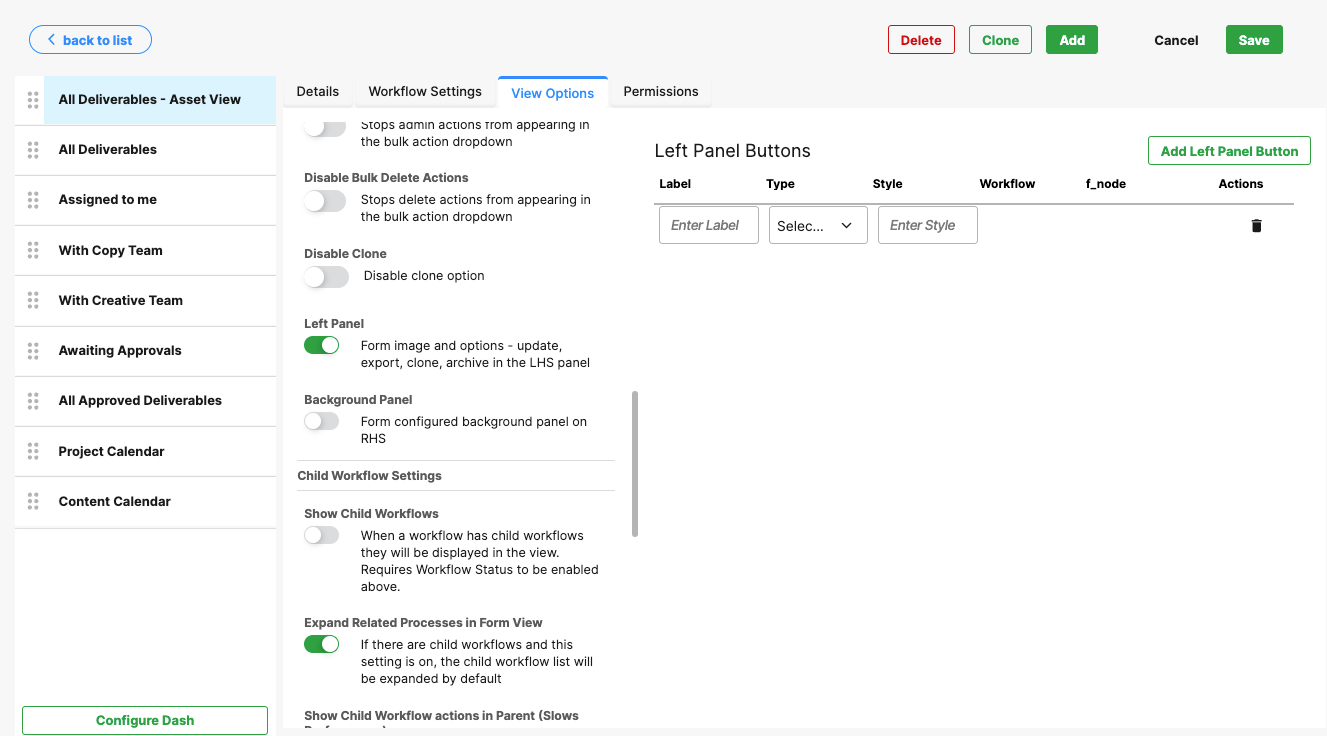
Label – The name displayed on the button.
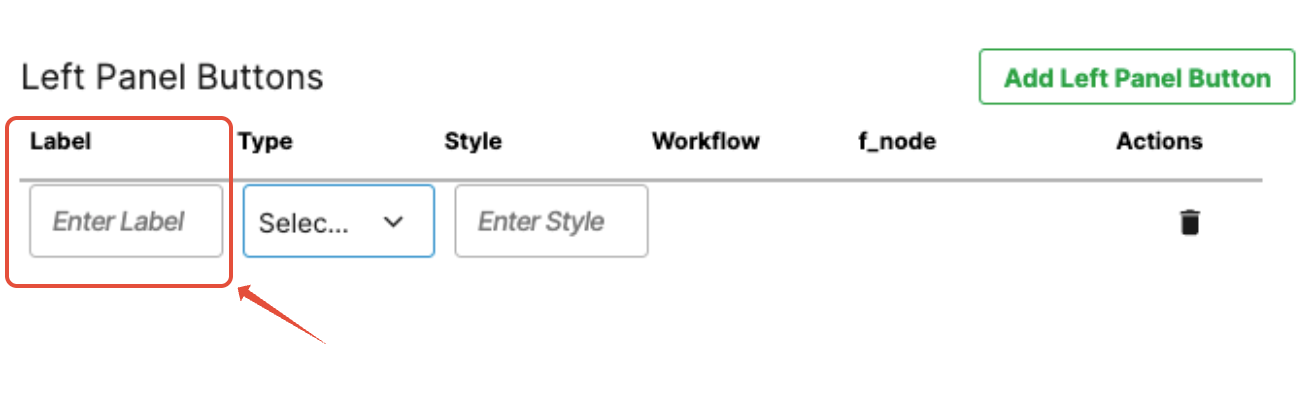
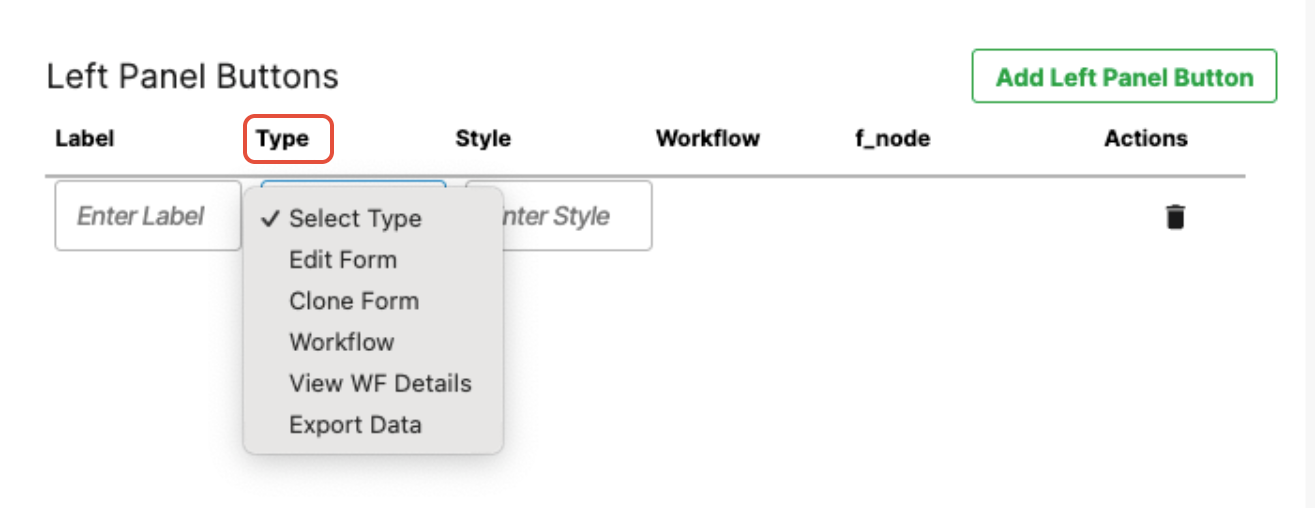
Type – The button function:
Edit – Opens the form in edit mode, allowing users to update or modify form data.
Clone – Duplicates the form, allowing users to create a new record using the existing form’s data as a starting point.
Workflow – Triggers a selected workflow action associated with the form, allowing users to move the item through a workflow or initiate workflow-related processes.
View WF Details – Opens the workflow details panel, allowing users to view workflow status, steps, history, and progression for the selected item.
Export Data – Exports the form data for the selected item, typically allowing users to download or extract data for reporting or external use.
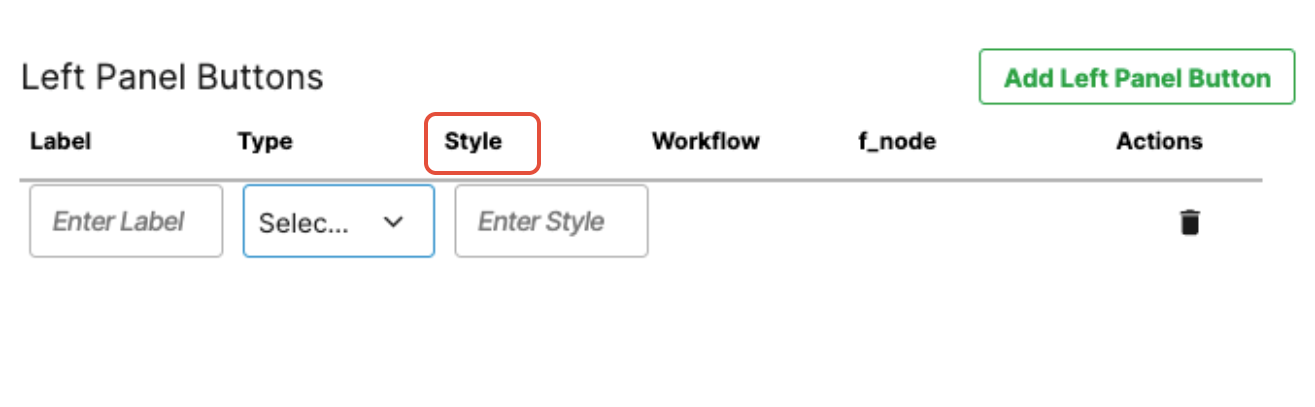
Style – Apply a design class to control the button’s appearance.
Note: If you select Workflow, you must specify which workflow the button should action.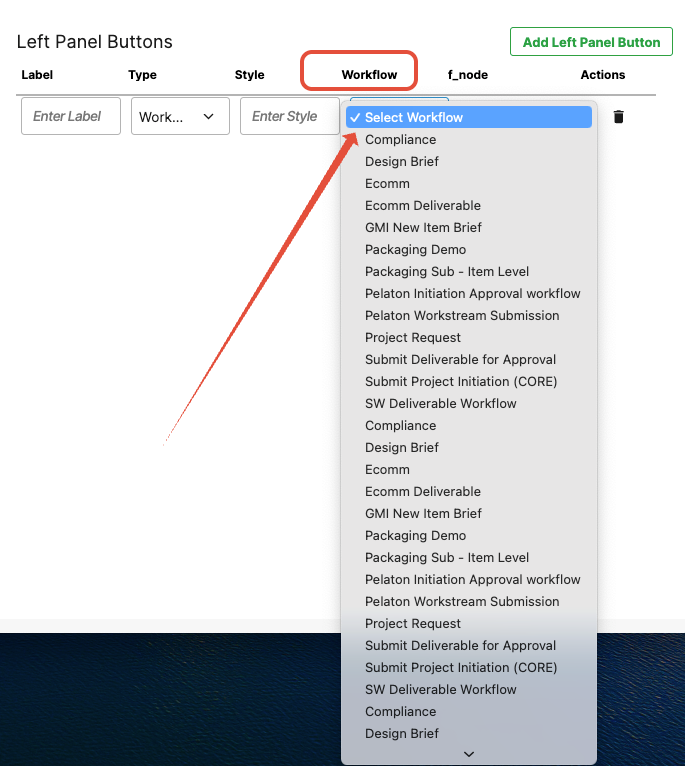
Background Image Configuration
What It Does
The Background Image feature allows you to configure context-sensitive images that display on the right-hand side of a form in View Mode. These images can change dynamically based on the value of a form field.
Configuration Steps
- In Form View Settings, toggle Show Background Panel to ON.
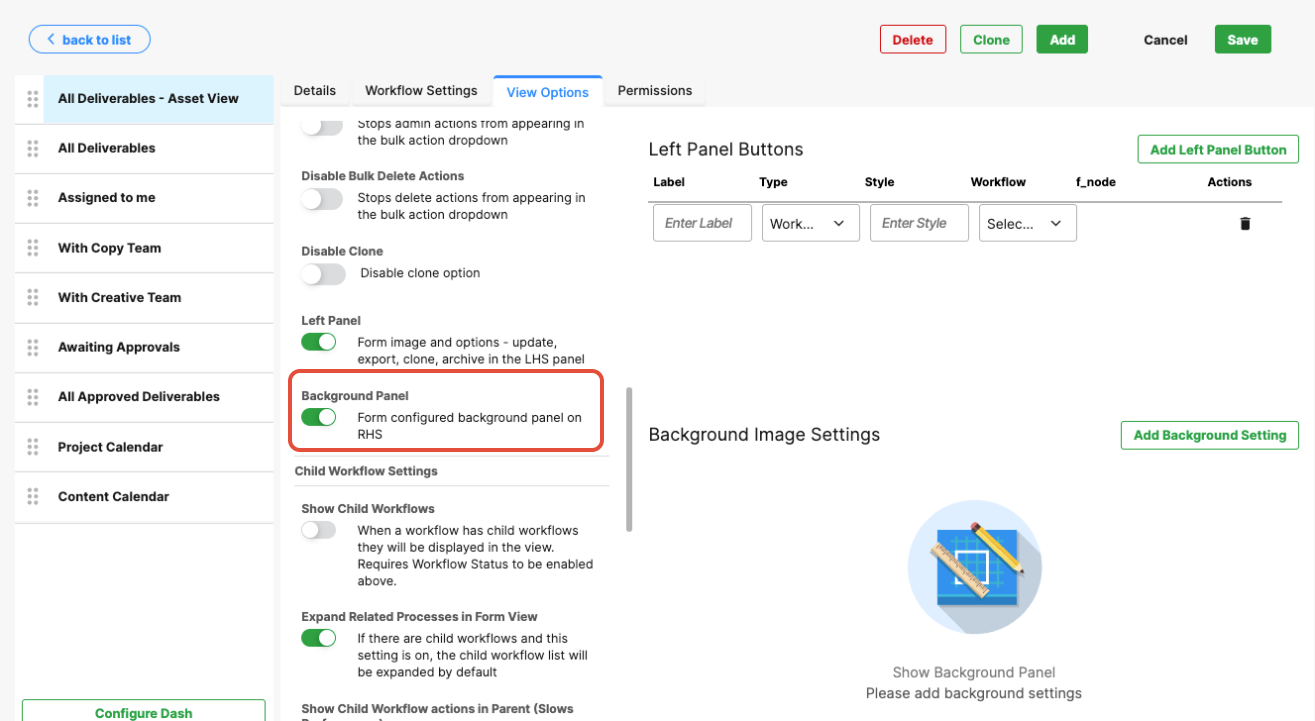
- The background configuration tools will now be visible.
- The background configuration tools will now be visible.
- Click Add Background Setting.
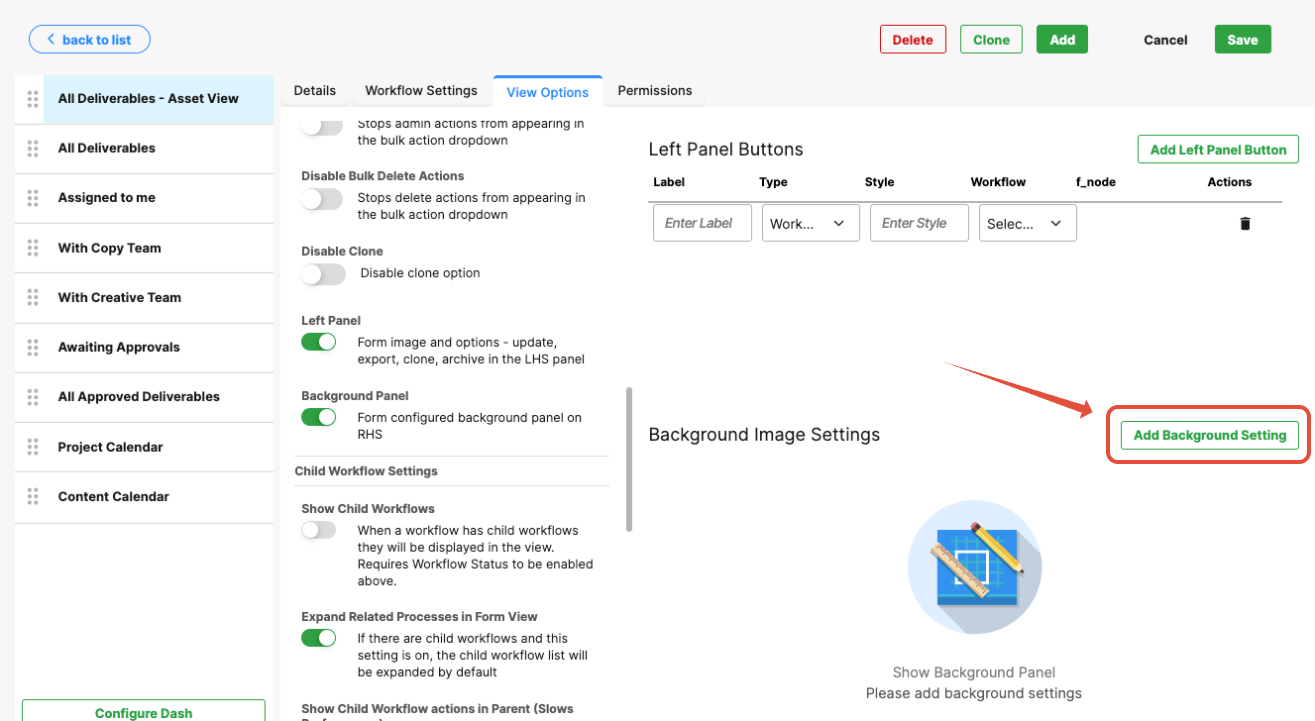
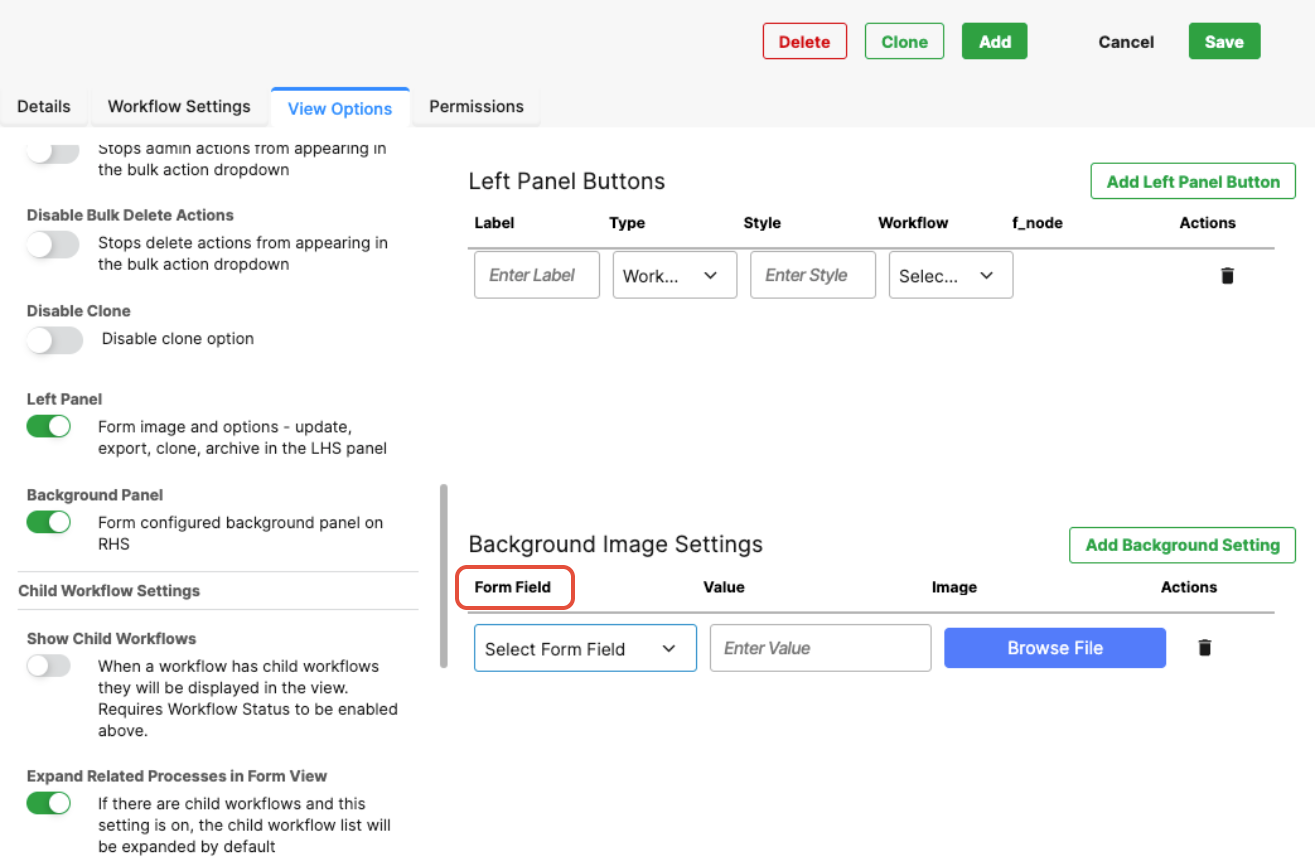
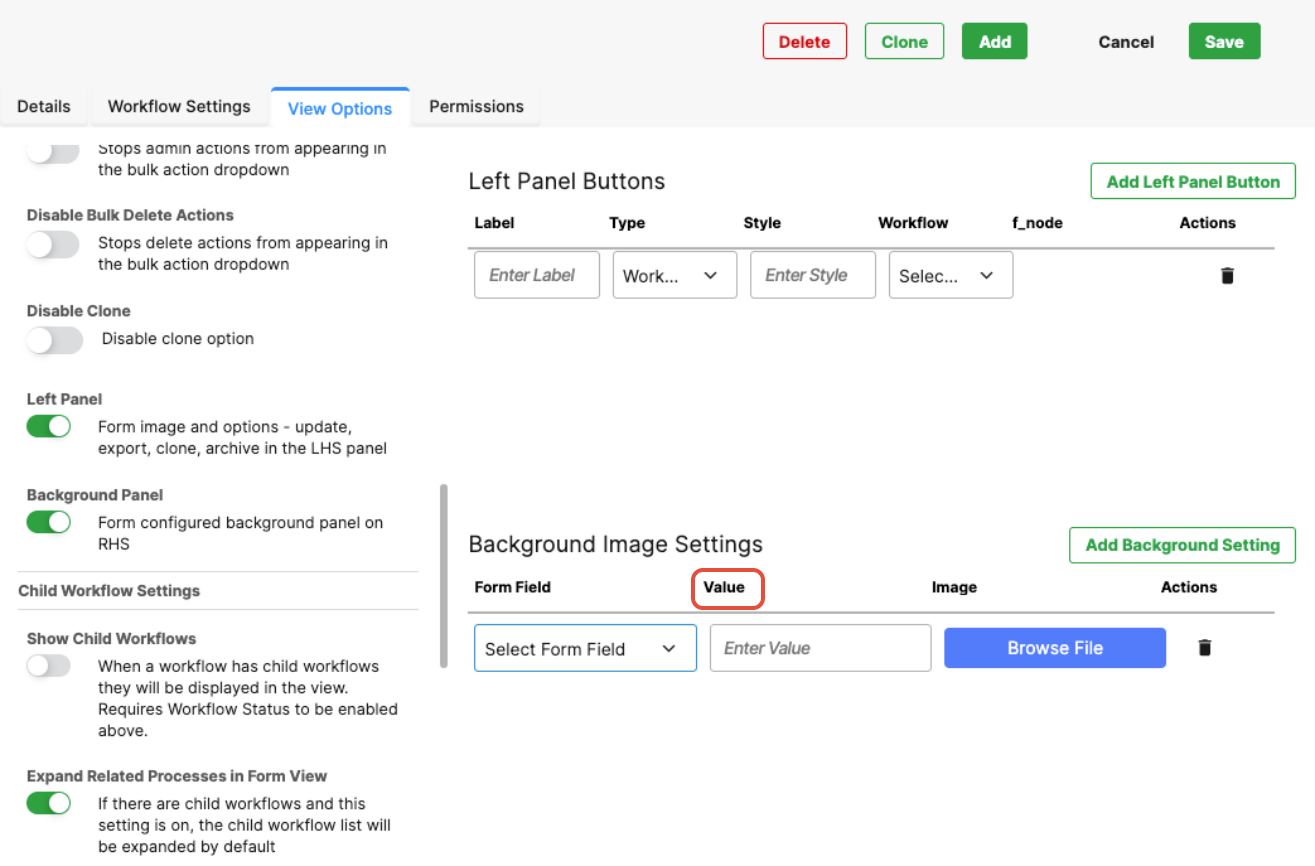
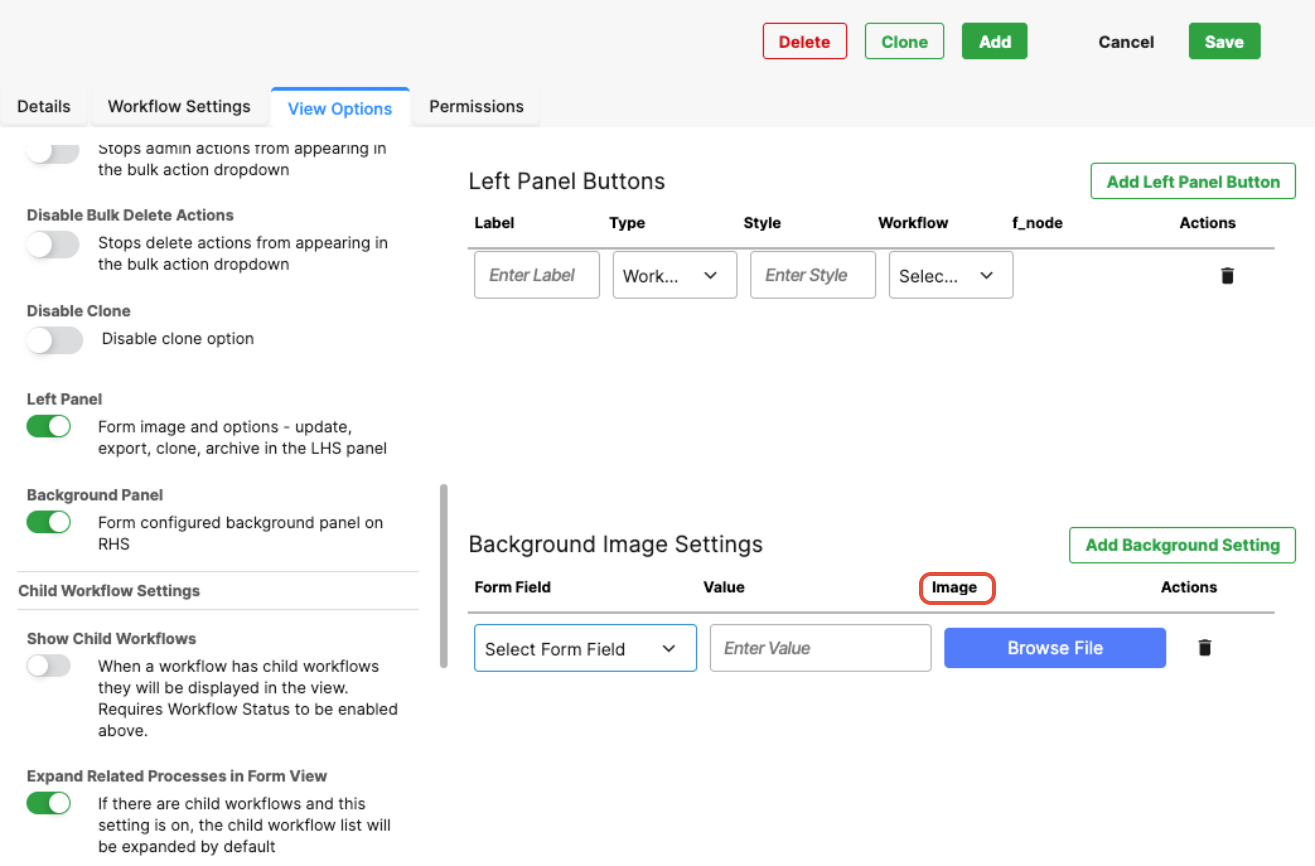
- Complete the following fields:
- Form Field – Select a form element that contains multiple values (e.g., a dropdown).
- Value – Enter a specific value from the selected form element. Spelling and case must match exactly.
- Image – Click Browse File to upload the background image.
- Form Field – Select a form element that contains multiple values (e.g., a dropdown).
- Save your changes.
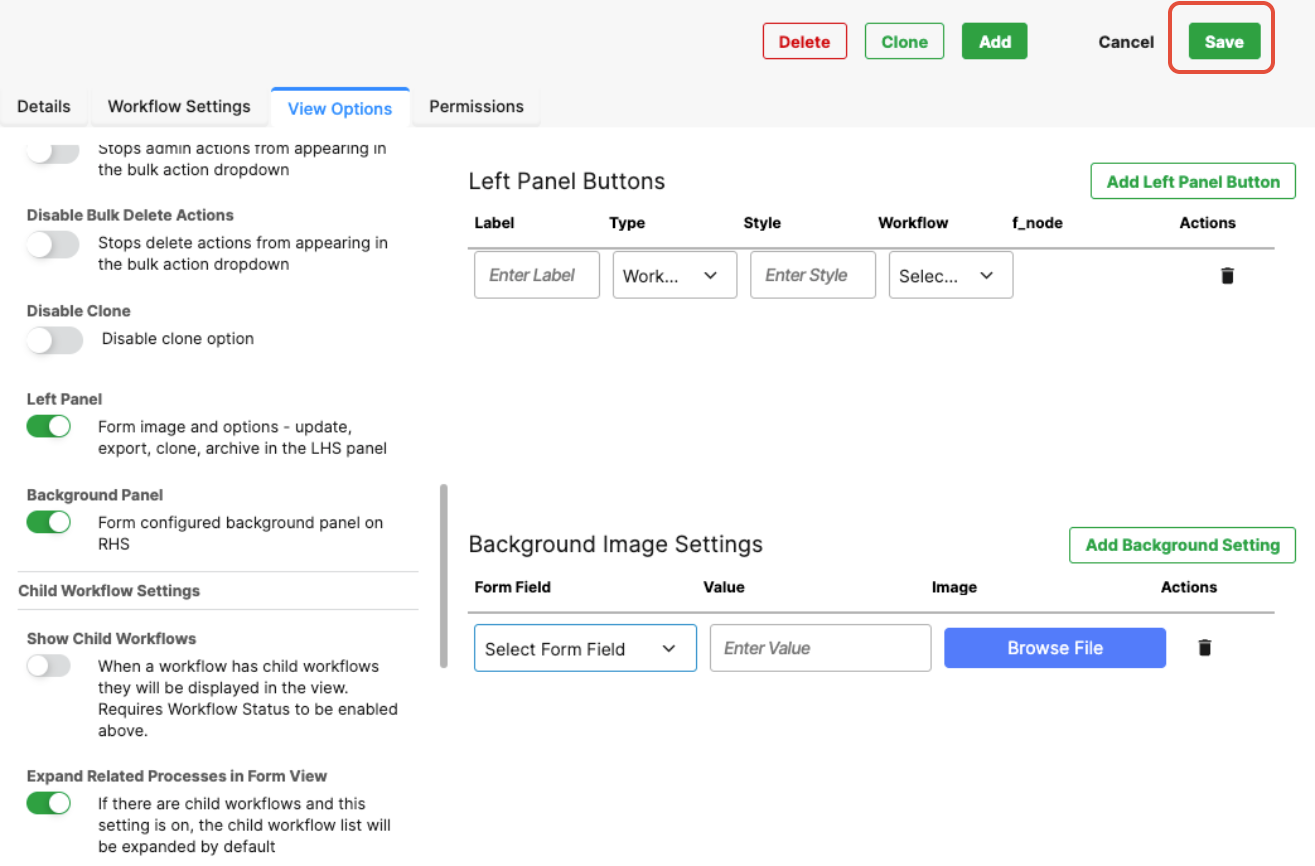
- In View Mode, the background image appears on the right-hand side of the form when the selected field’s value matches the configuration.
Example Use Cases
Left Panel: Display a hero image or uploaded project document alongside the form for immediate context.
Left Panel Buttons: Add quick-access buttons to edit or clone the form, or trigger a workflow directly from the view screen.
Background Image: Display different background images depending on selected values (e.g., show a country flag when a region is selected).
Was this article helpful?
That’s Great!
Thank you for your feedback
Sorry! We couldn't be helpful
Thank you for your feedback
Feedback sent
We appreciate your effort and will try to fix the article