Home Page
Troubleshooting
TABLE OF CONTENTS
- Home Page
- Confirm the Correct Form View Config Is Applied
- Check Form List Assignment
- Review Workflow Location Settings
- Validate Workflow Filters and Options
- Check Workflow Status Filters
- Validate Permissions
- Confirm Front-End UI Settings
- Refresh and Retest
- Quick Checklist
If a form view is not visible on the front end, use the steps below to identify and resolve the issue.
Confirm the Correct Form View Config Is Applied
Issue: The expected view does not appear in the UI.
What to check:
Navigate to Admin Tools → Application Manager.
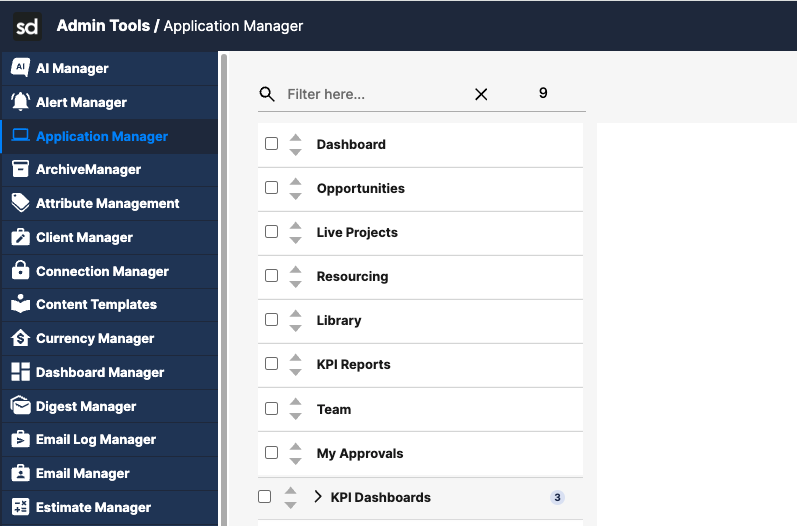
Open the relevant application section.
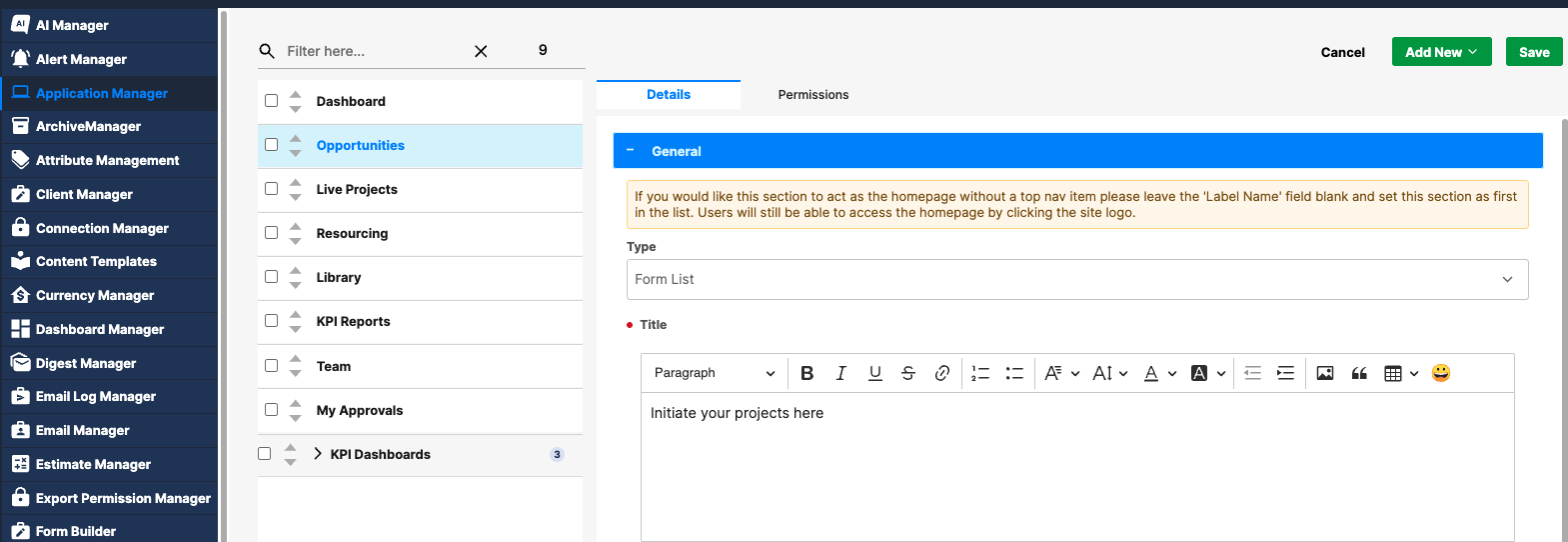
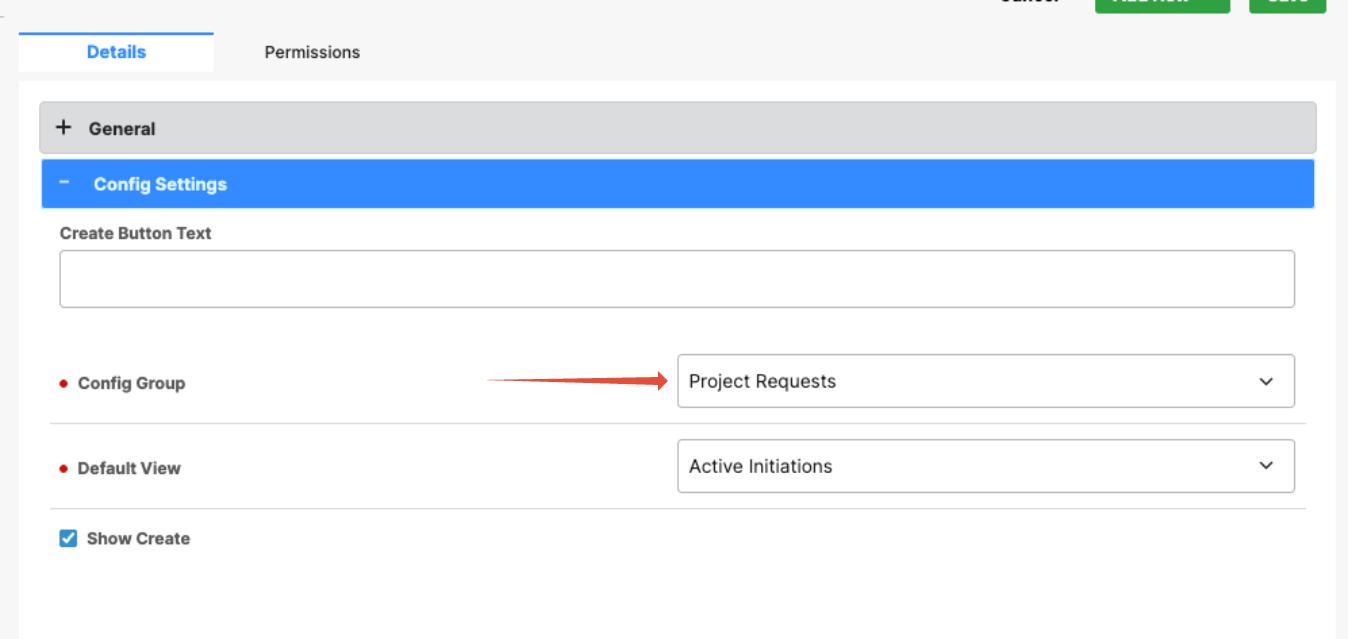
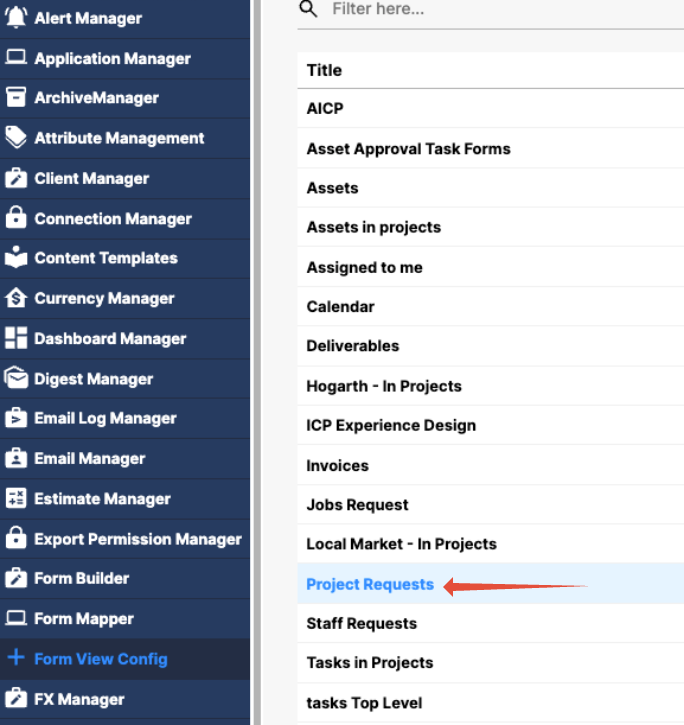
In Details → Settings, confirm the Config Group matches the intended Form View Config.
 Common cause:
The application section is pointing to a different Form View Config than expected.
Verify the View Exists and Is Not Deleted
Issue: Other views appear, but a specific view is missing.
What to check:
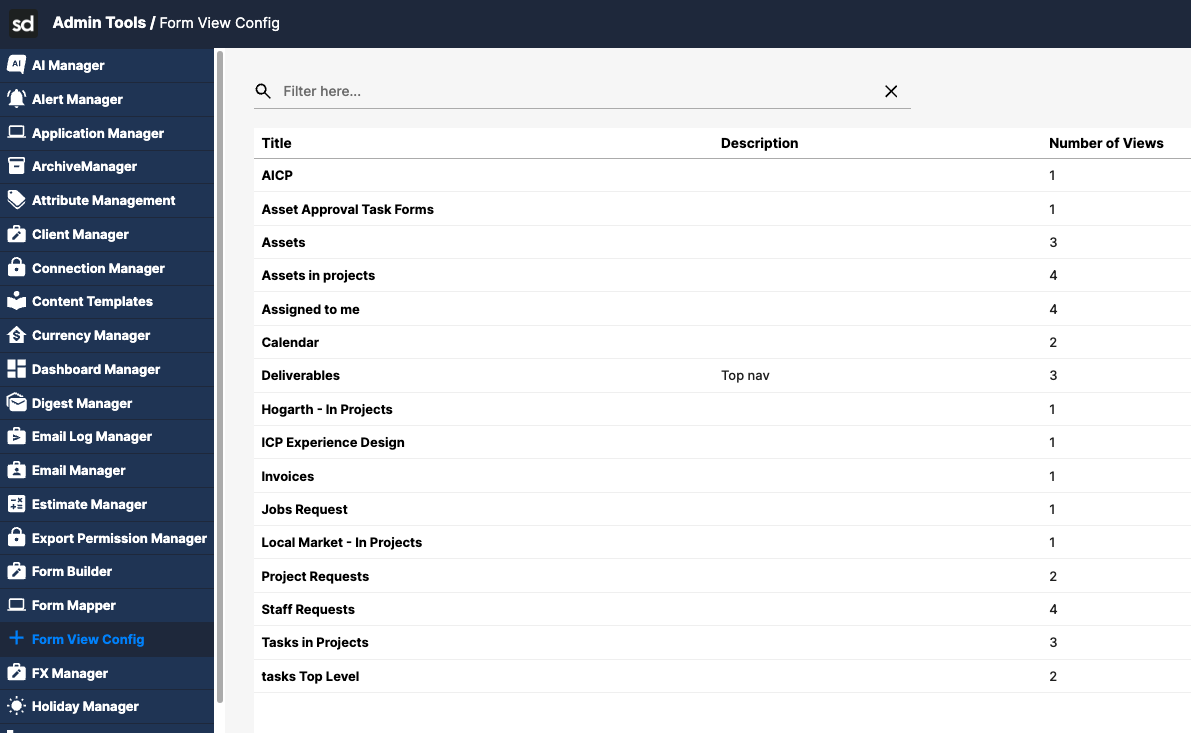
Open Admin Tools → Form View Config.
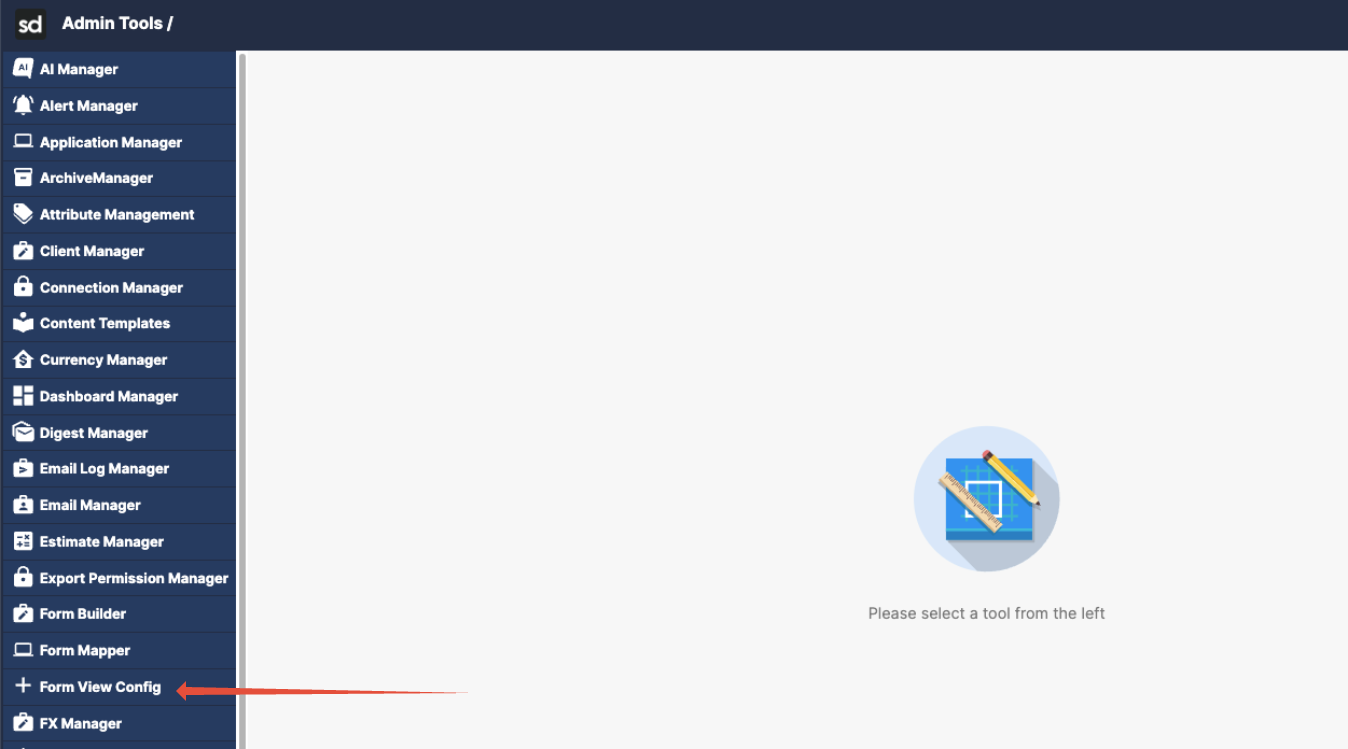
Select the relevant configuration.
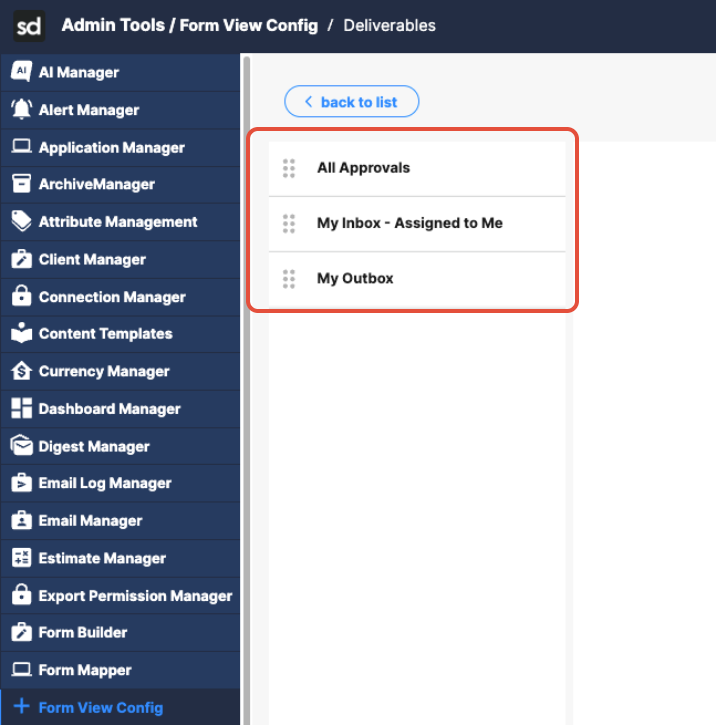
Confirm the view:
Exists in the view list
Has not been deleted or renamed
Common cause:
The view was removed or renamed during cleanup or cloning.
Check Form List Assignment
Issue: The view appears but shows no forms.
What to check:
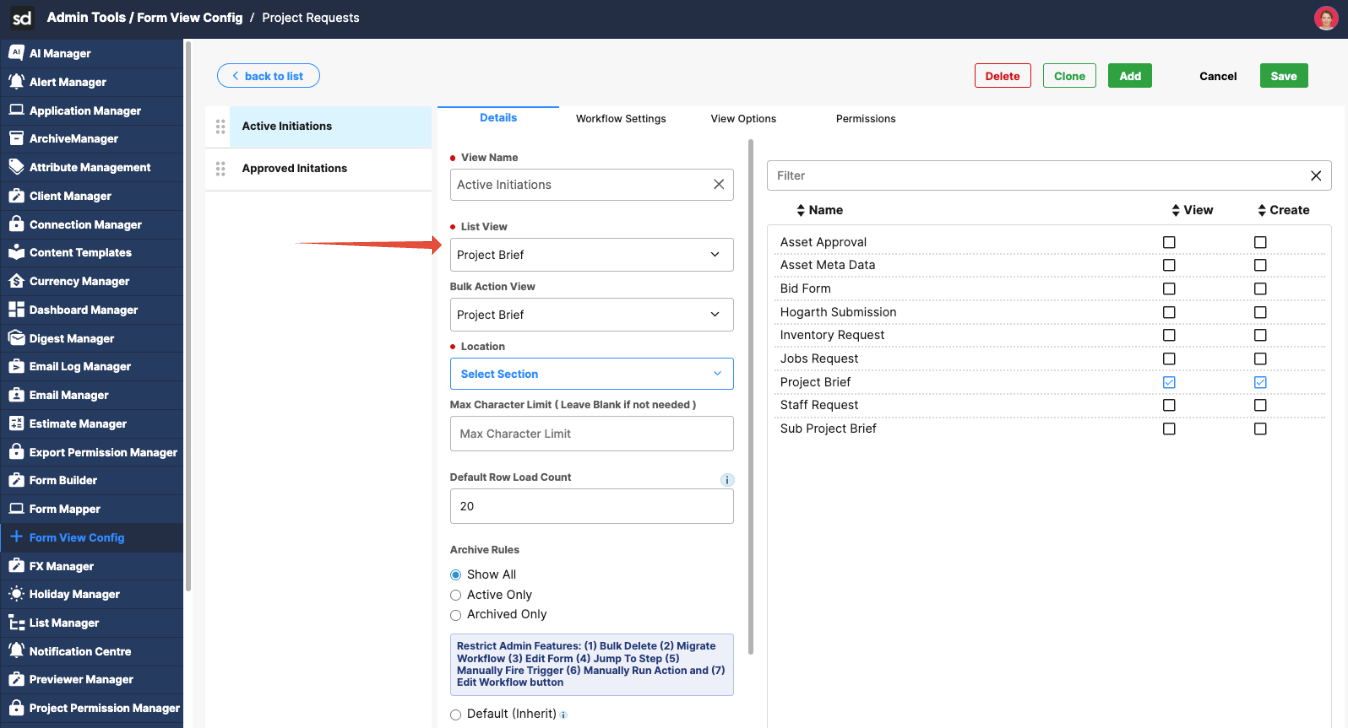
Open the view and go to the Details tab.
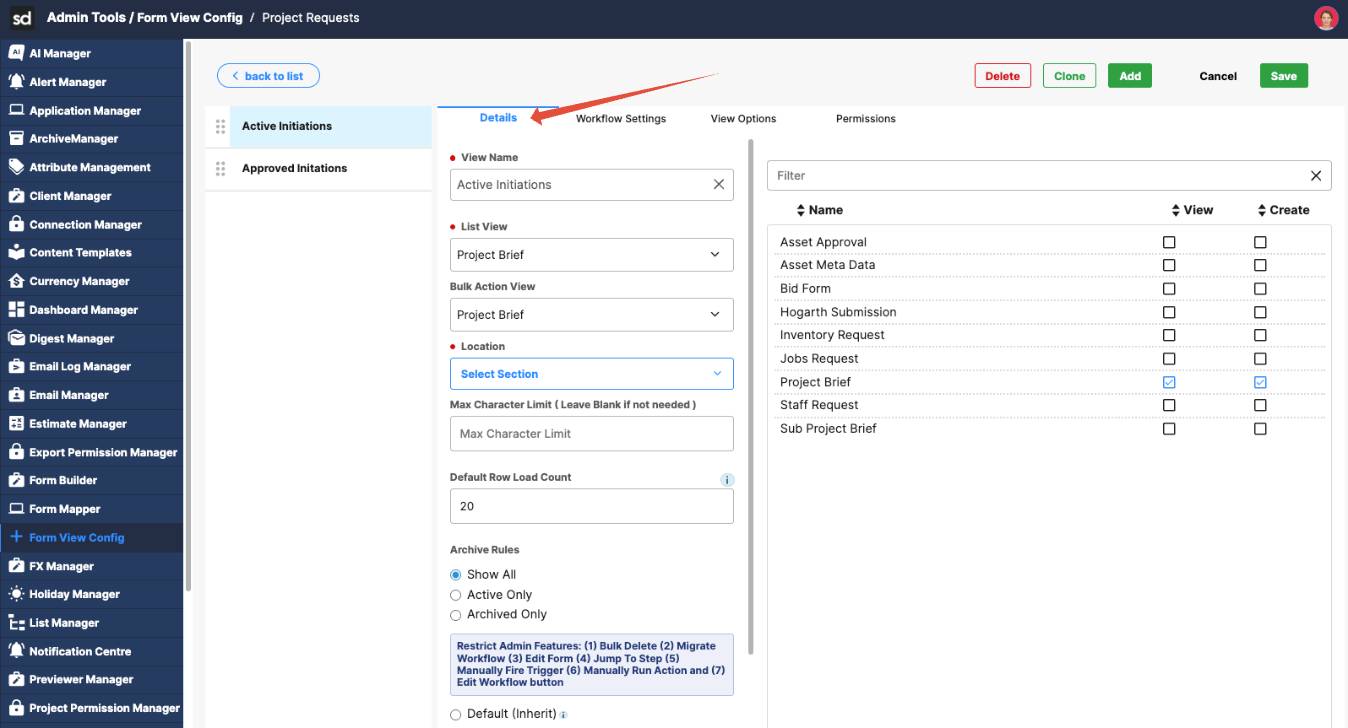
Confirm a Form List View is selected.
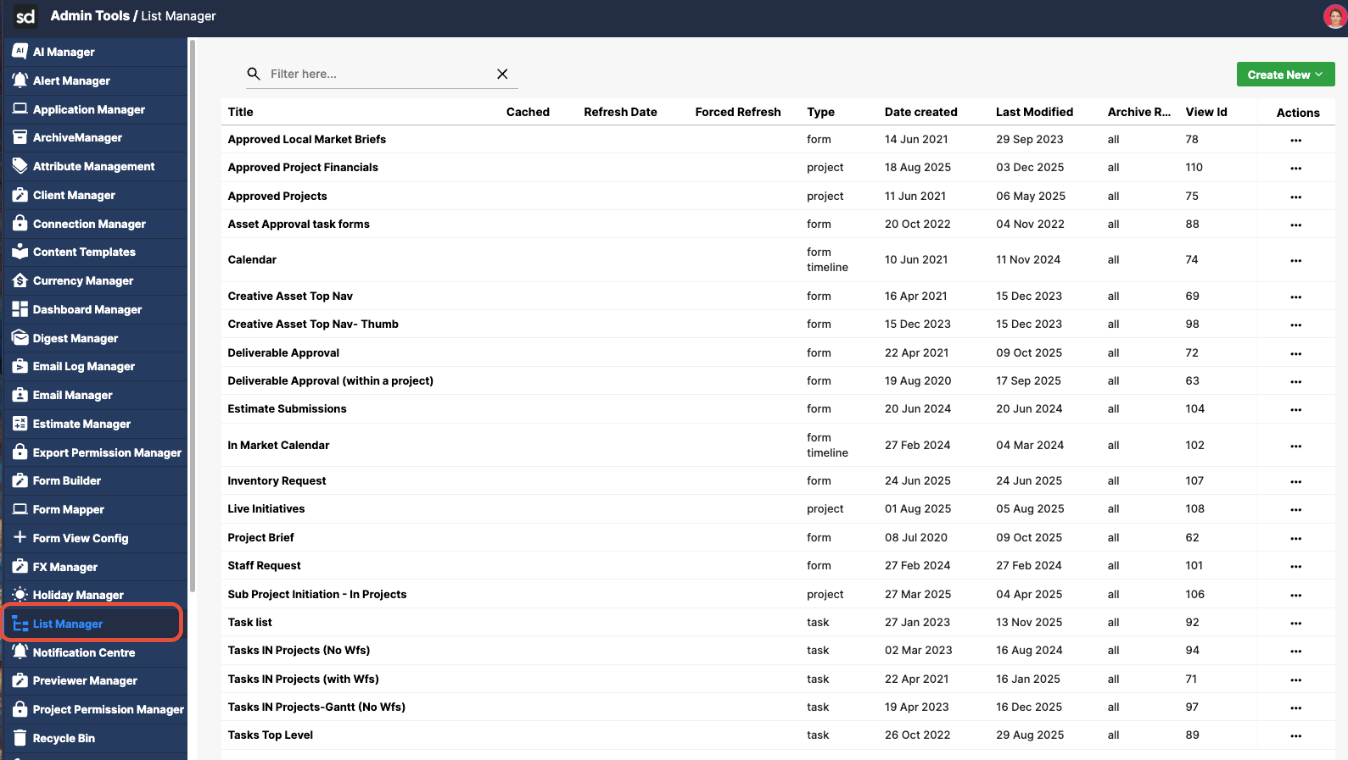
Next, Navigate to the List Manager.
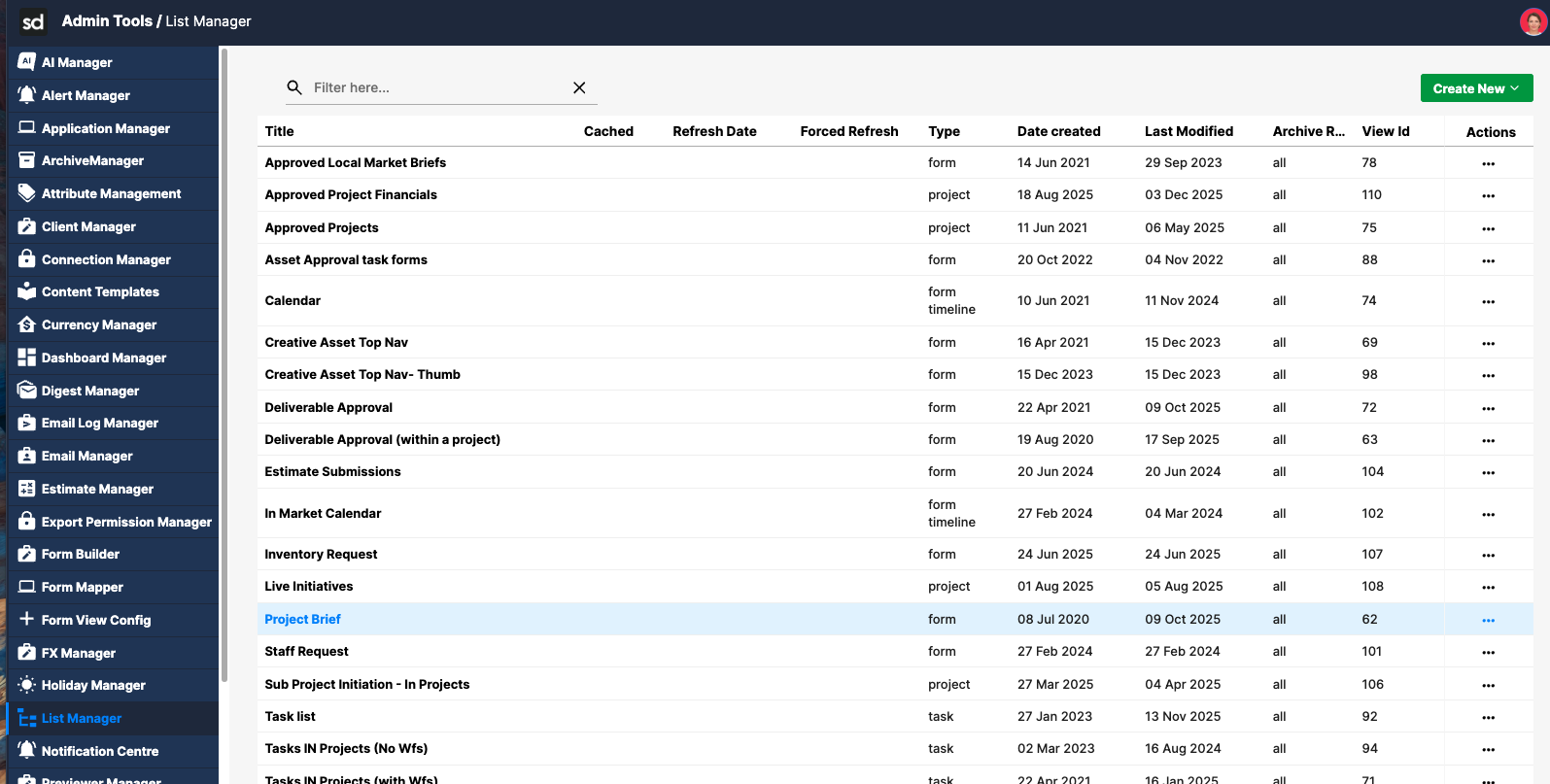
Locate the Form from the list titles.
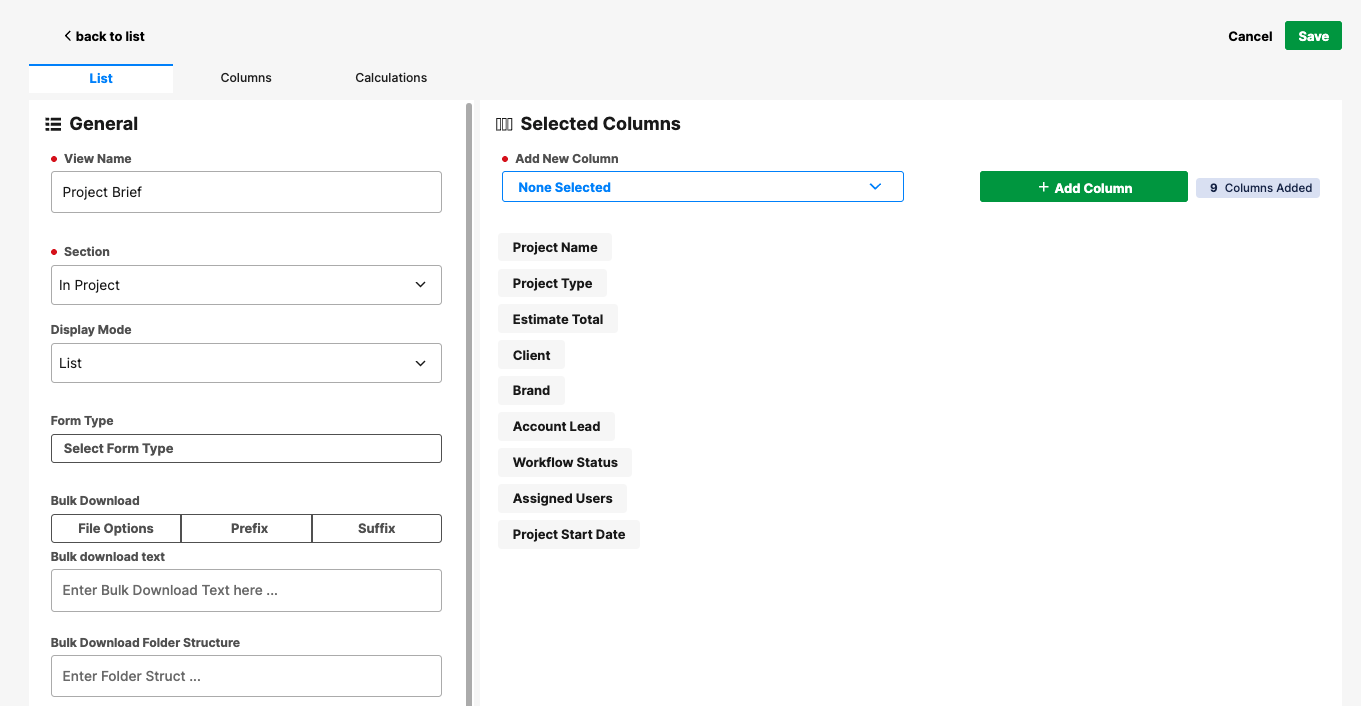
Verify the referenced Form List contains data.
Common cause:
The view is pointing to an empty or incorrect Form List.
Review Workflow Location Settings
Issue: Forms exist but are not visible in the view.
What to check:
Navigate to View Form Config, then under the Details tab, review Locations.
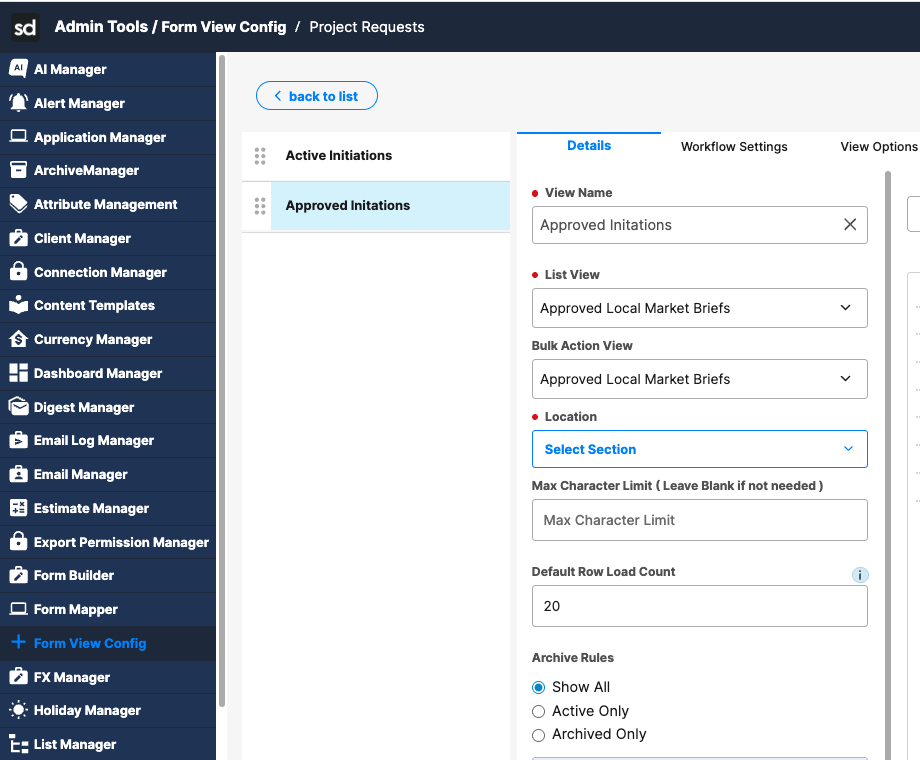
Ensure the workflows you expect to see are included.
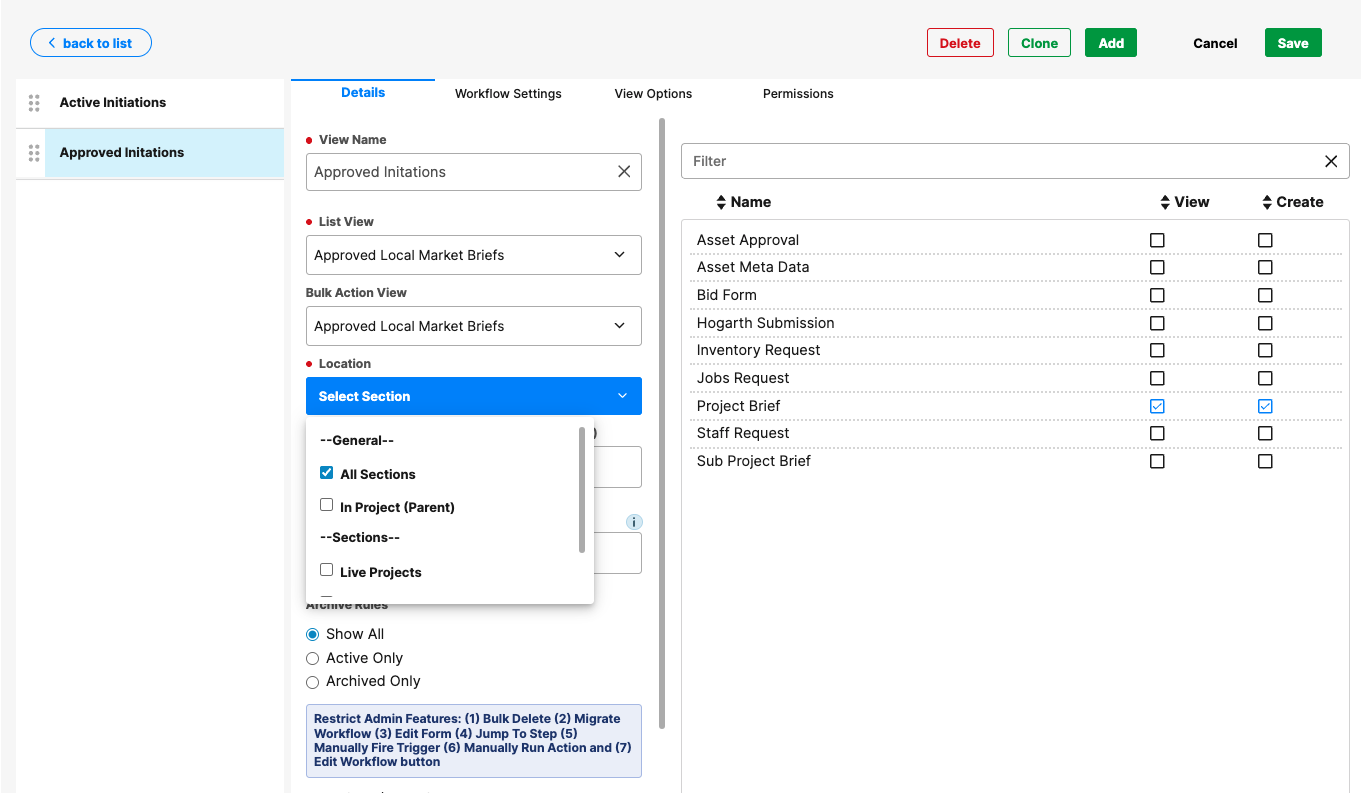
Common cause:
Forms exist in a workflow location that is not selected in the view configuration.
Validate Workflow Filters and Options
Issue: Only some forms appear, or expected workflows are missing.
What to check:
- Open the Workflow Settings tab.
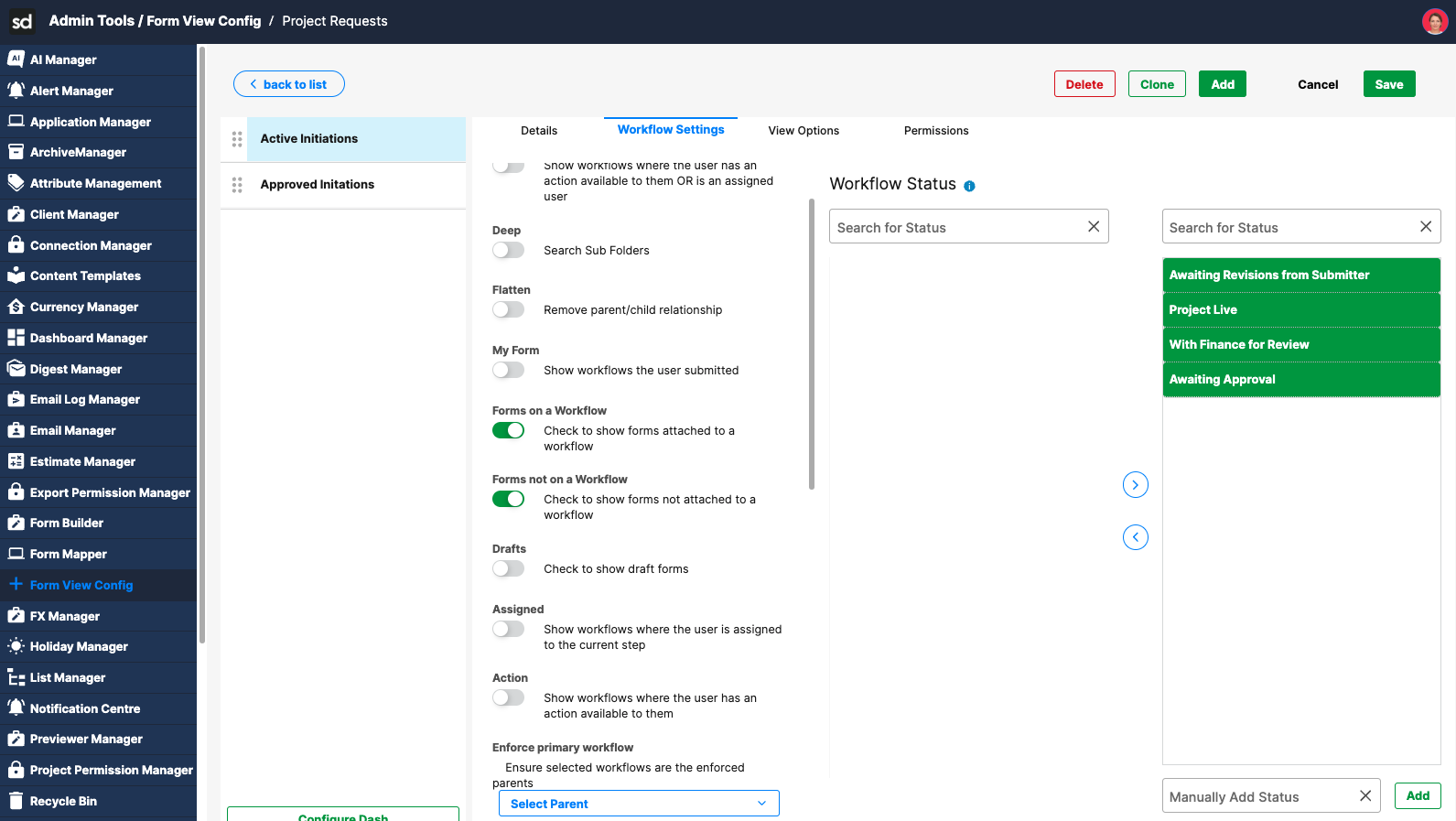
- Review enabled options such as:
- Pending
- My Form
- Assigned
- Action
- Drafts
- Forms on / not on a workflow
Common cause:
Filters are too restrictive and exclude valid workflows.
Check Workflow Status Filters
Issue: Forms in certain statuses are missing.
What to check:
Review selected Workflow Statuses.
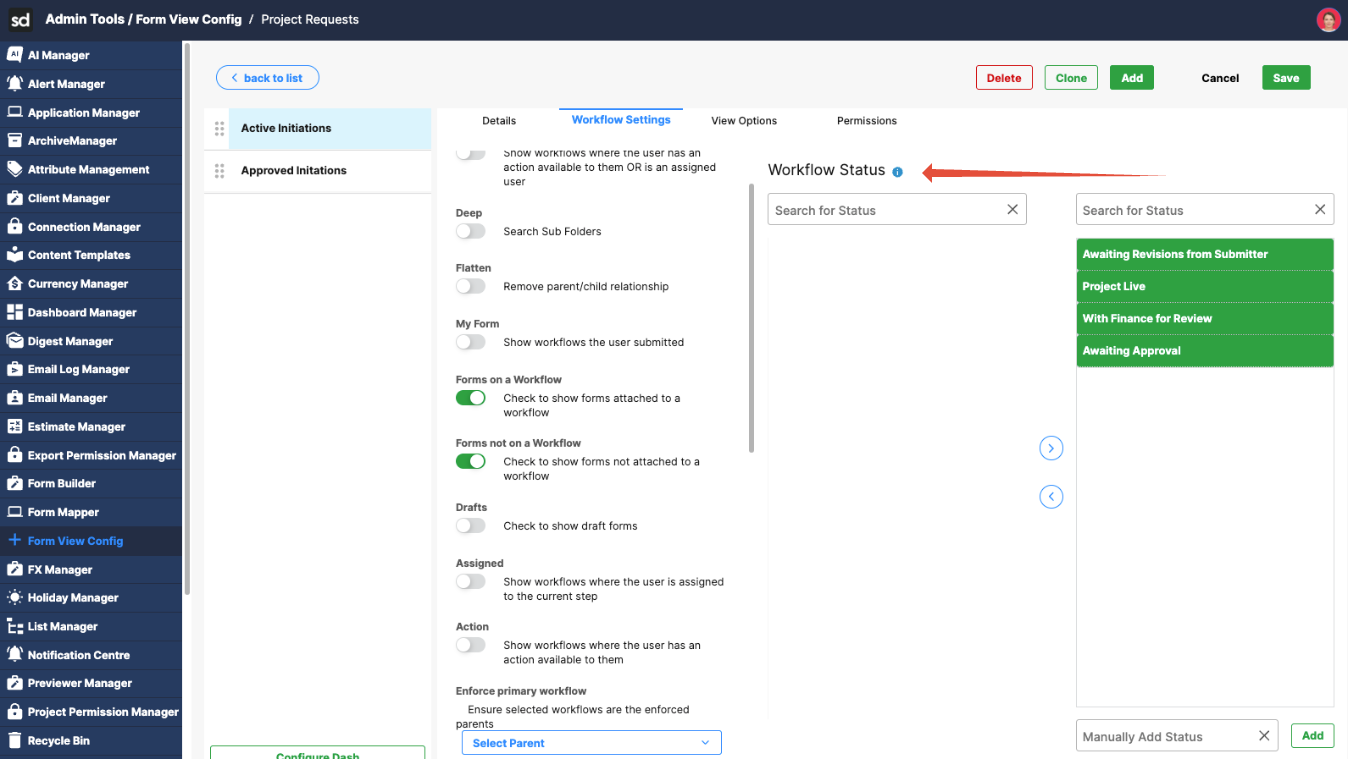
Look for:
Deprecated statuses
Manually entered legacy statuses
Confirm that the form’s current workflow status is included.
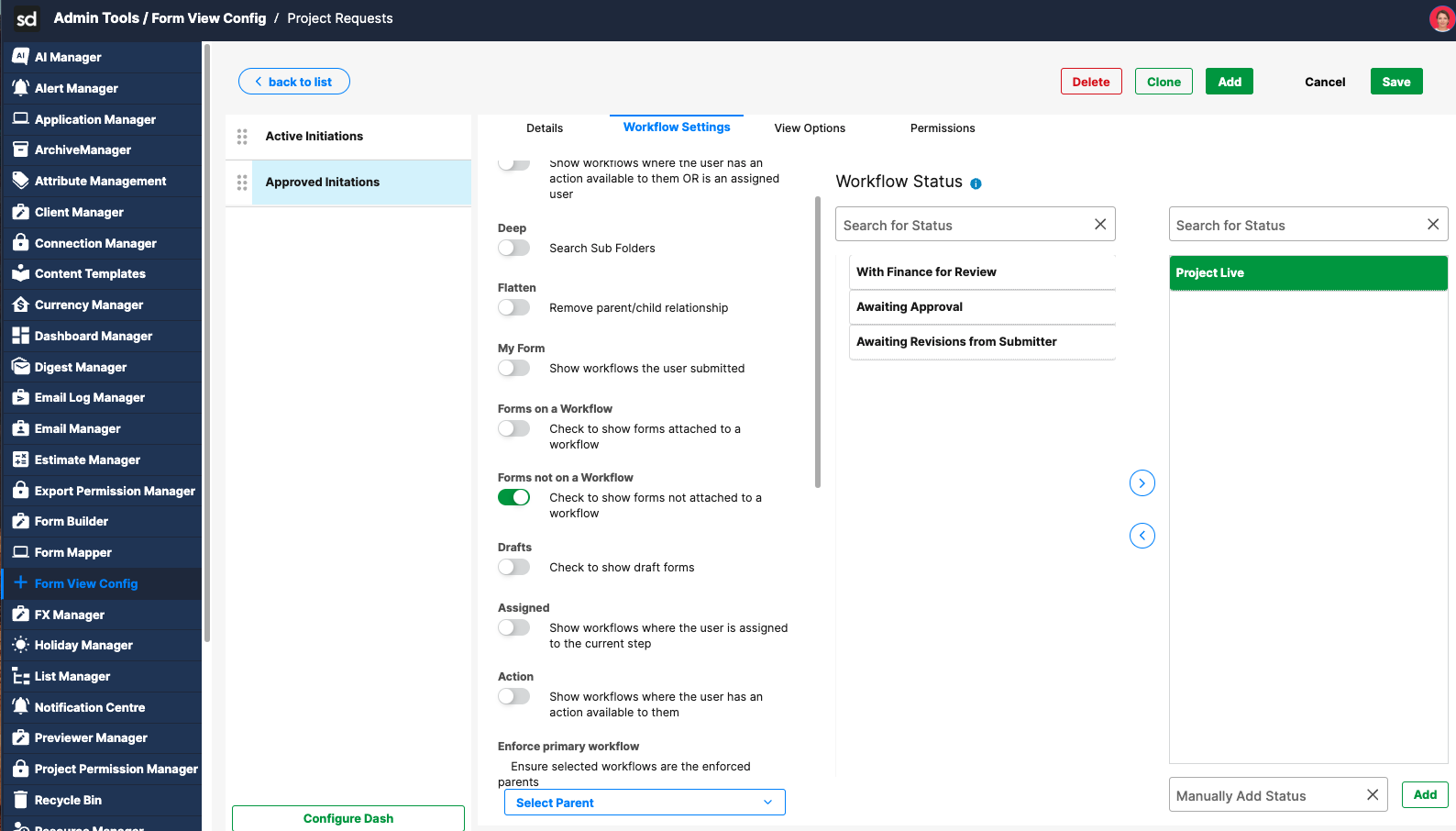
Common cause:
The status is not selected or has been deprecated.
Validate Permissions
Issue: The view appears for some users but not others.
What to check:
Open the Permissions tab for the Form View Config.
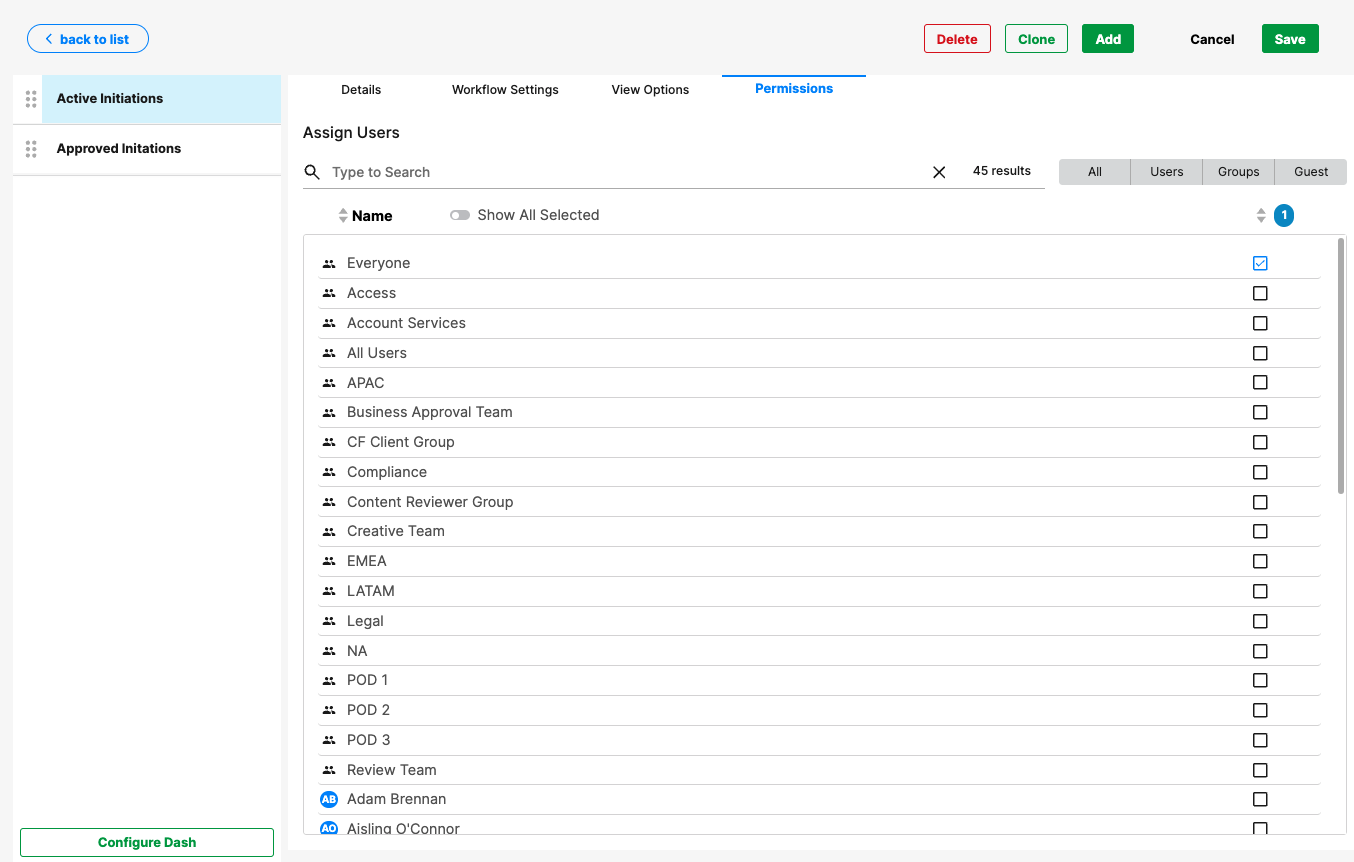
Confirm the user:
Has access to the view
Has permission to see the underlying forms and workflows
Common cause:
Permission restrictions prevent the view or its data from being displayed.
Confirm Front-End UI Settings
Issue: The view exists but cannot be selected or interacted with.
What to check:
In the View Options tab, review settings such as:
Hide Create Button
Left Panel
Show Background Panel
Confirm that no UI options unintentionally hide key elements.
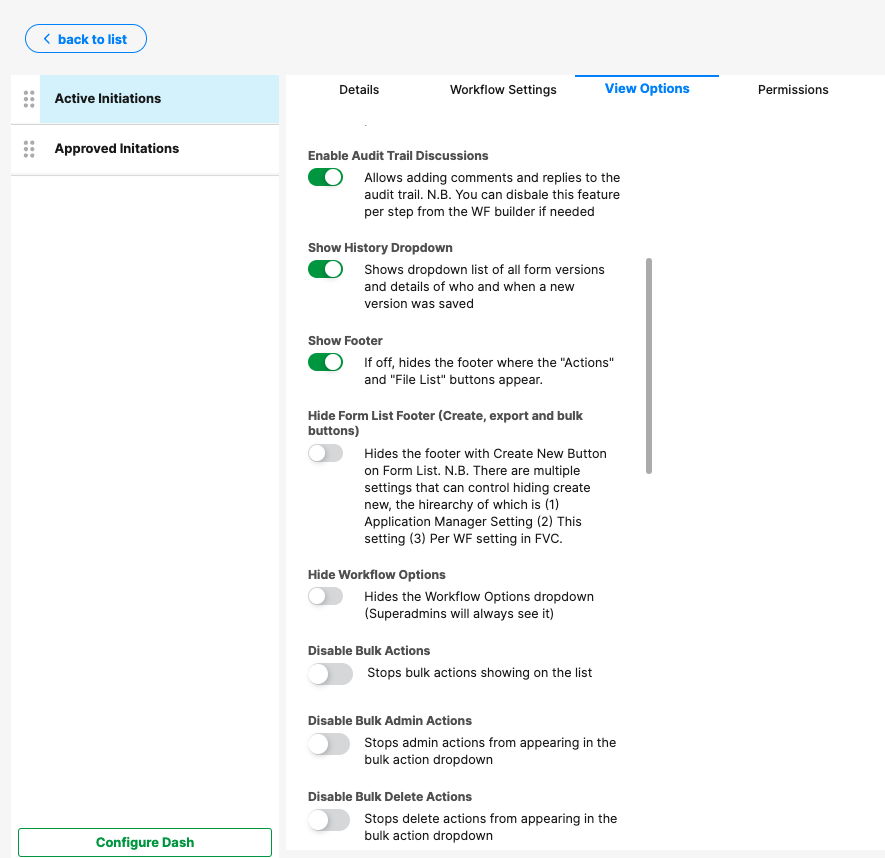
Common cause:
UI settings hide controls or panels needed to access the view.
Refresh and Retest
Issue: Changes were made, but are not reflected immediately.
What to do:
- Refresh the browser.
- Log out and log back in if needed.
- Reopen the application section and filter menu.
Common cause:
Cached UI state or session data.
Quick Checklist
Before escalating, confirm:
Correct Form View Config is applied
View exists and is configured correctly
Form List contains data
Workflow locations, statuses, and date ranges include expected forms
User permissions allow access
Was this article helpful?
That’s Great!
Thank you for your feedback
Sorry! We couldn't be helpful
Thank you for your feedback
Feedback sent
We appreciate your effort and will try to fix the article