Home Page
Editing For View Config
TABLE OF CONTENTS
- Editing For View Config
- Managing Form Views
- Delete View – Click Delete to permanently remove a view.
- Editing an Existing View - Permissions Tab
- Actions
- Summary
- Editing an Existing View: Details Tab
Form Lists created in the List Manager are referenced within Form View Configurations to control how forms are displayed, filtered, and interacted with by users.
Each Form View Config can contain multiple views, and each view can reference a different Form List if required. This allows administrators to tailor form visibility, workflows, and UI behavior for different user roles or use cases.
To make changes, click the name of an existing view in the list.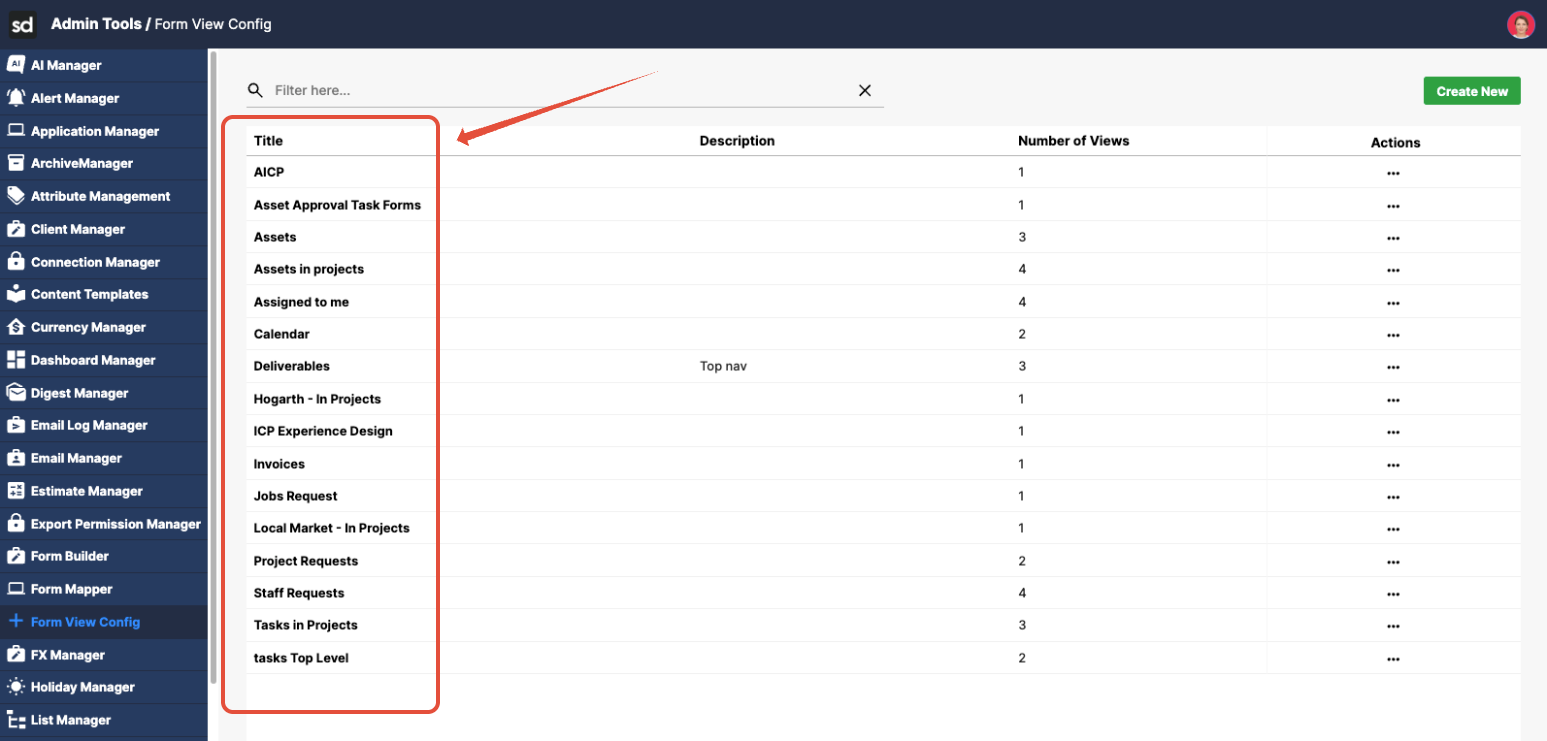
Managing Form Views
Within a Form View Configuration, administrators can manage multiple views using the following options:
- Select the application you want to edit or manage.
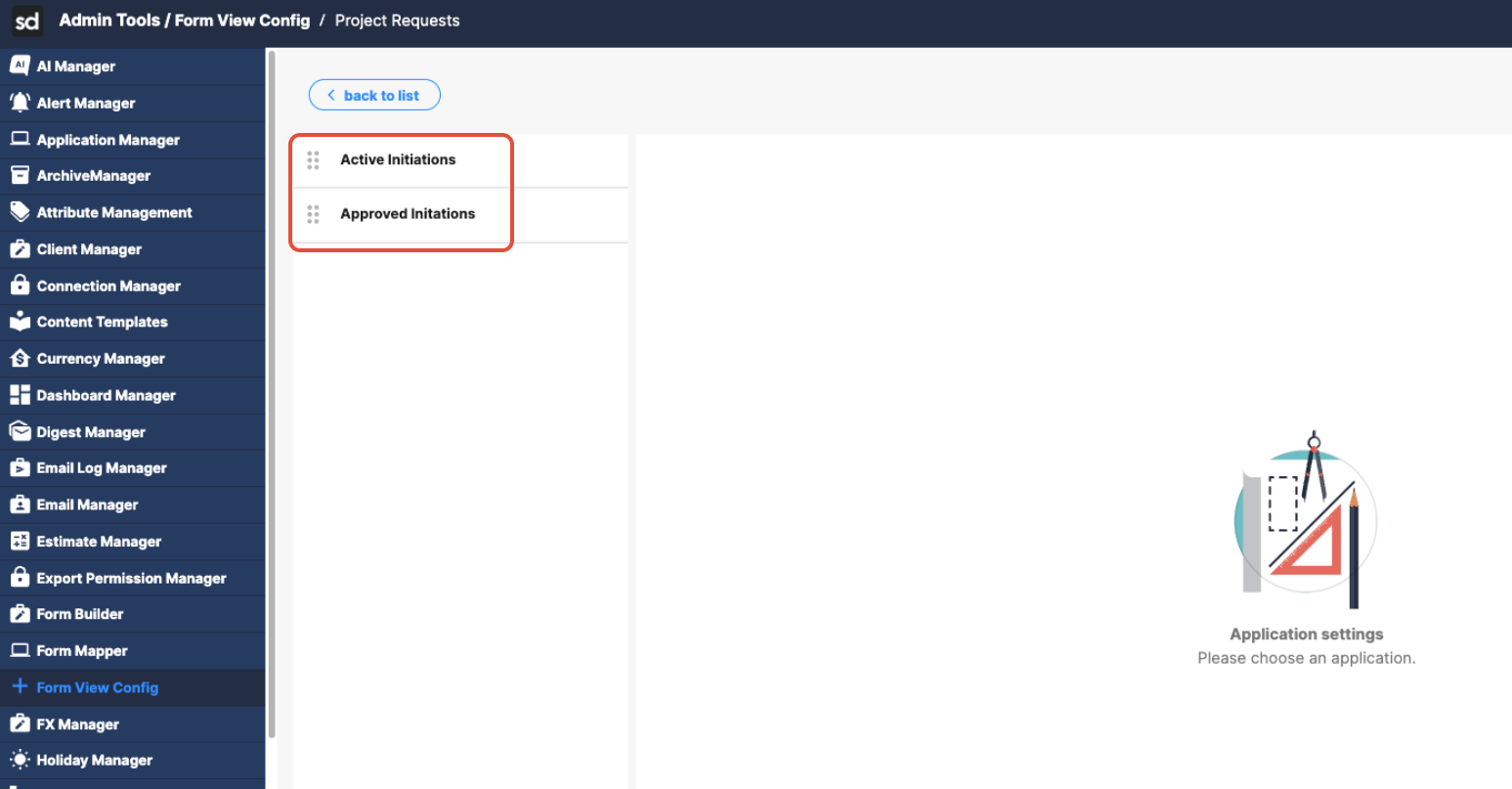
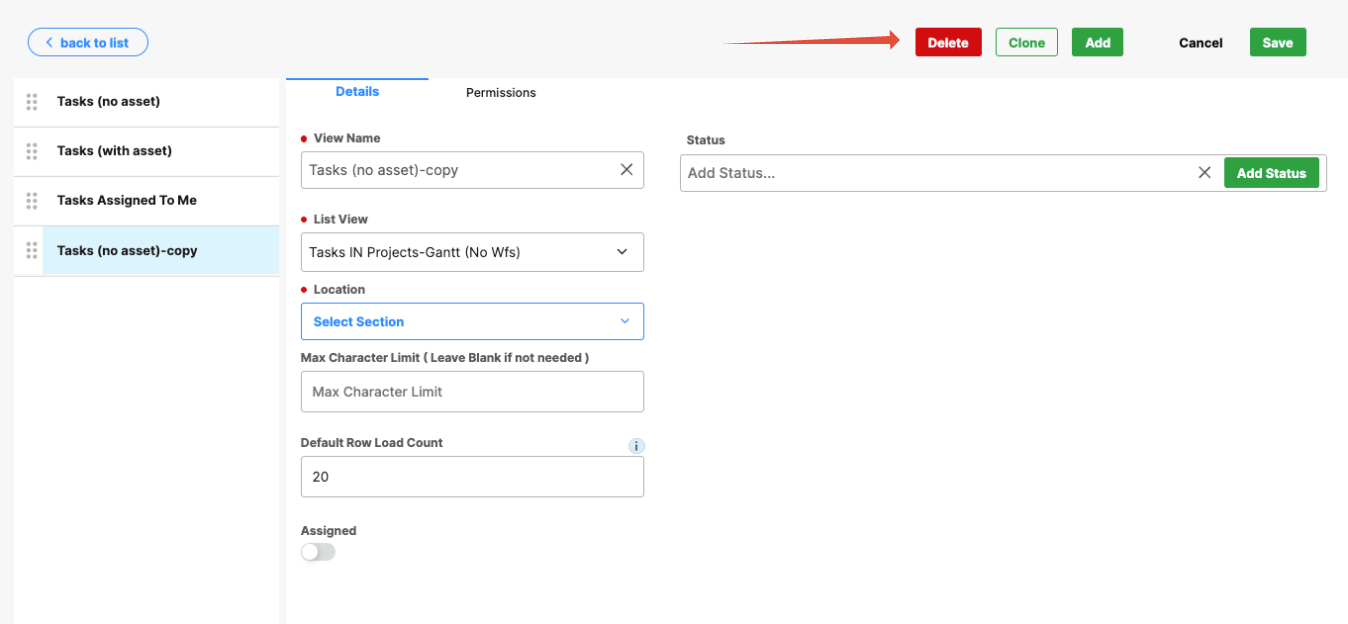
- Click the Details tab to manage the view's core settings.
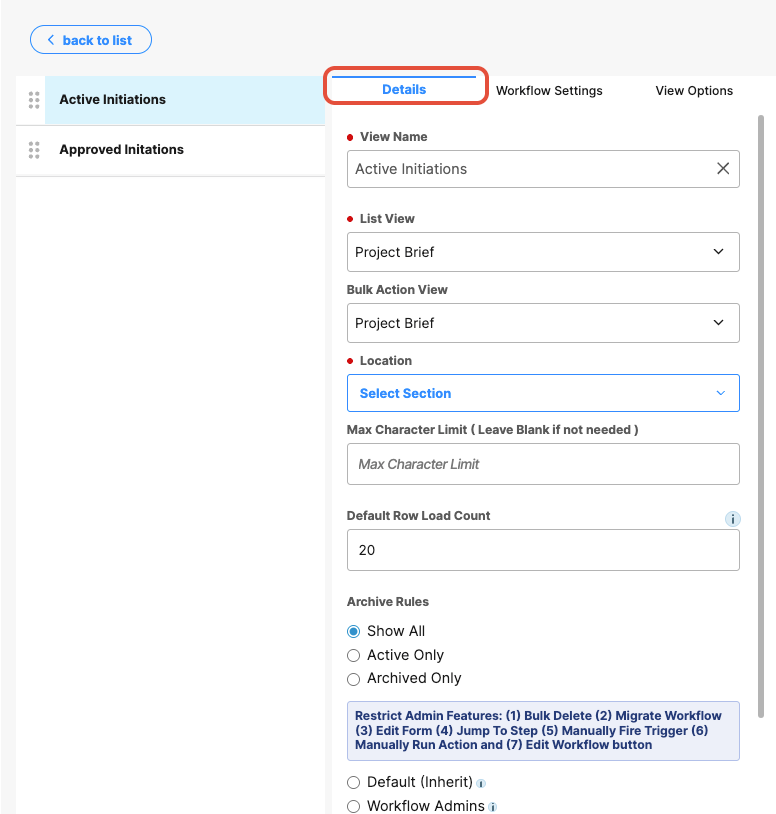
- View Name – The label users see when they select from a drop-down on the front end. It is important to use clear naming that users can rely on to differentiate between lists.
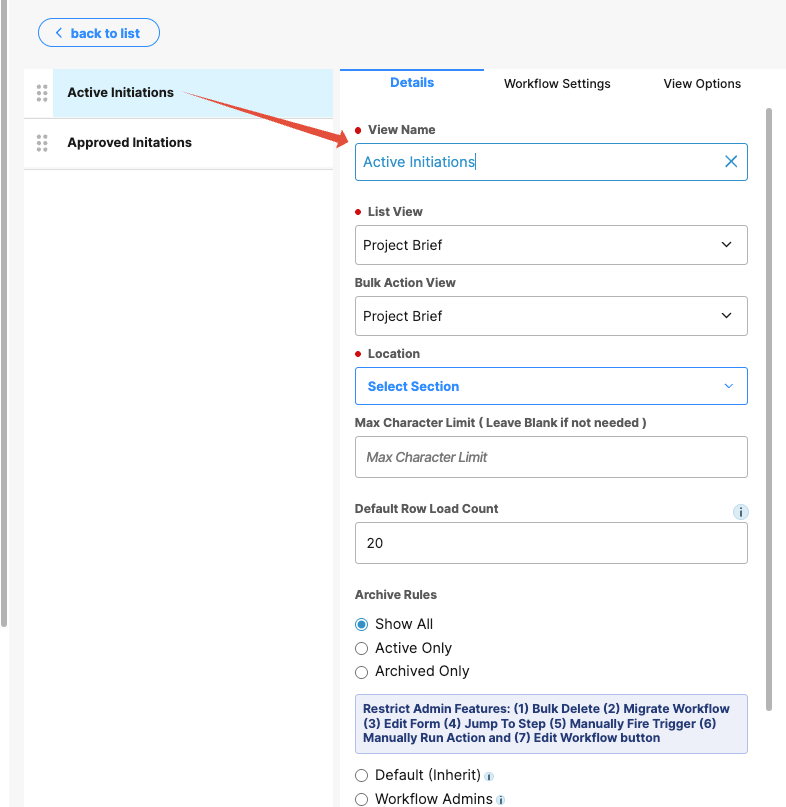
- List View – Displays all configured form views. Click a view name to include it.
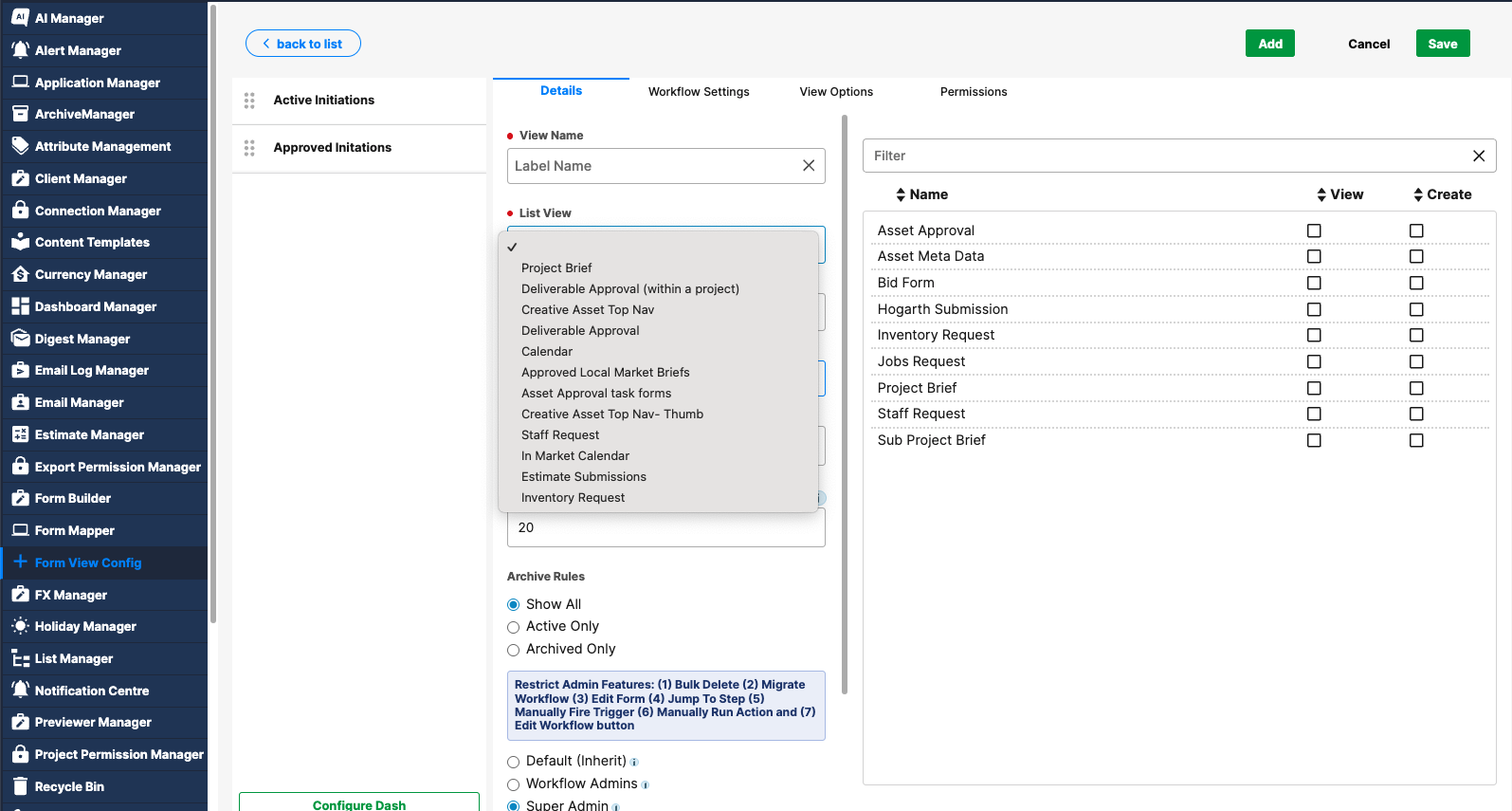
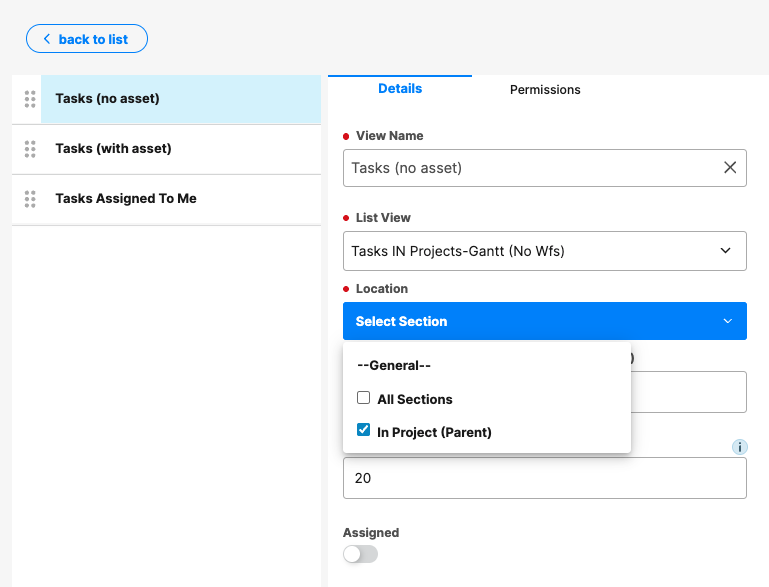
- Location – The Location setting controls where the view appears:
- All sections- Only specific projects
- Specific workflow areas
Example: A Content Approvals view may need to appear across the entire system or only within specific projects.
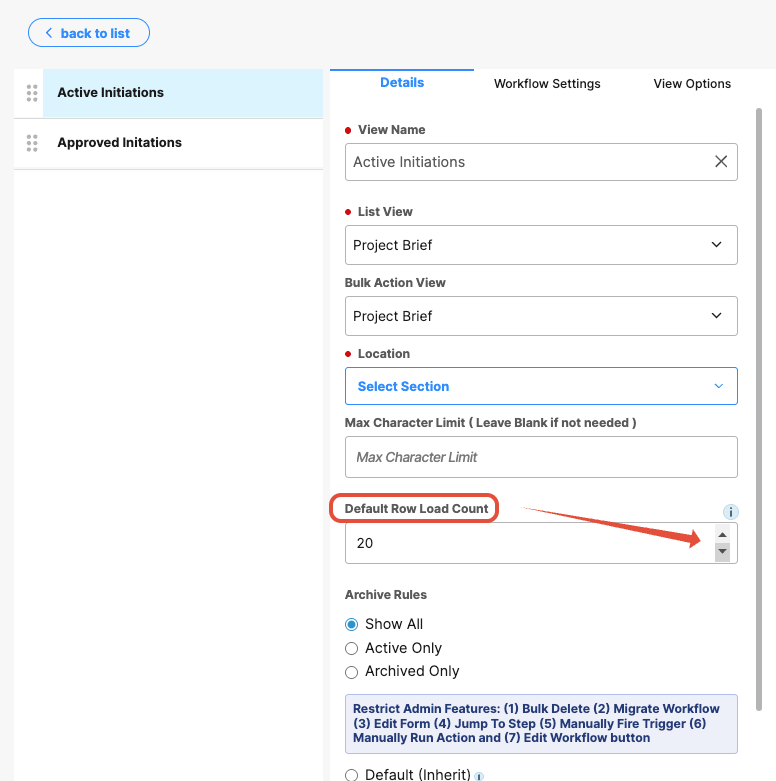
- Default Row Load Count – This is where you set the number of items loaded initially. The default is 20, but you can adjust it by clicking the arrows or entering the number of rows you want to see.
- View/Create Forms – On the right side of the Details tab, you can control which form types are available within the view.
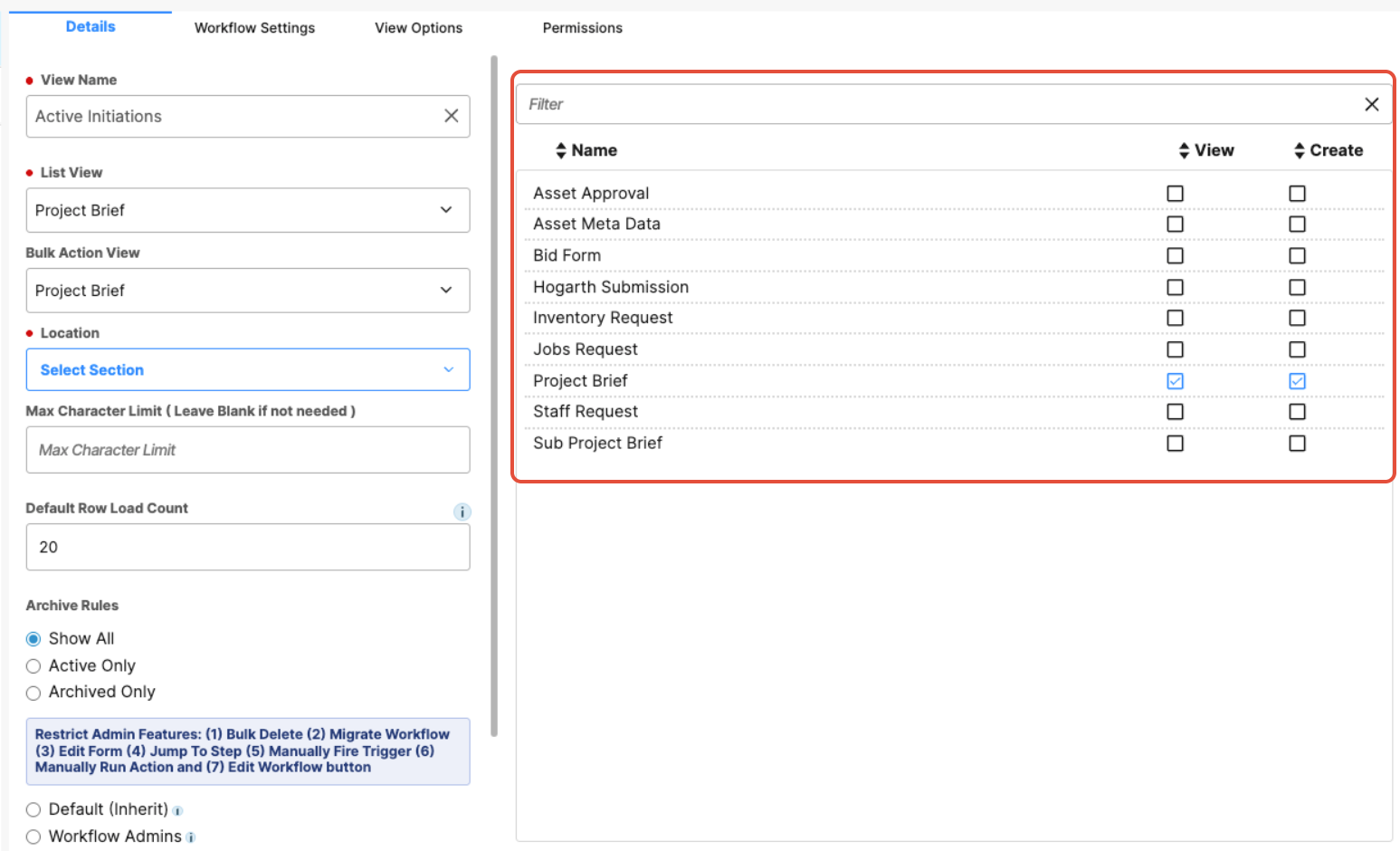
- View checkboxes determine which form types are visible in the list.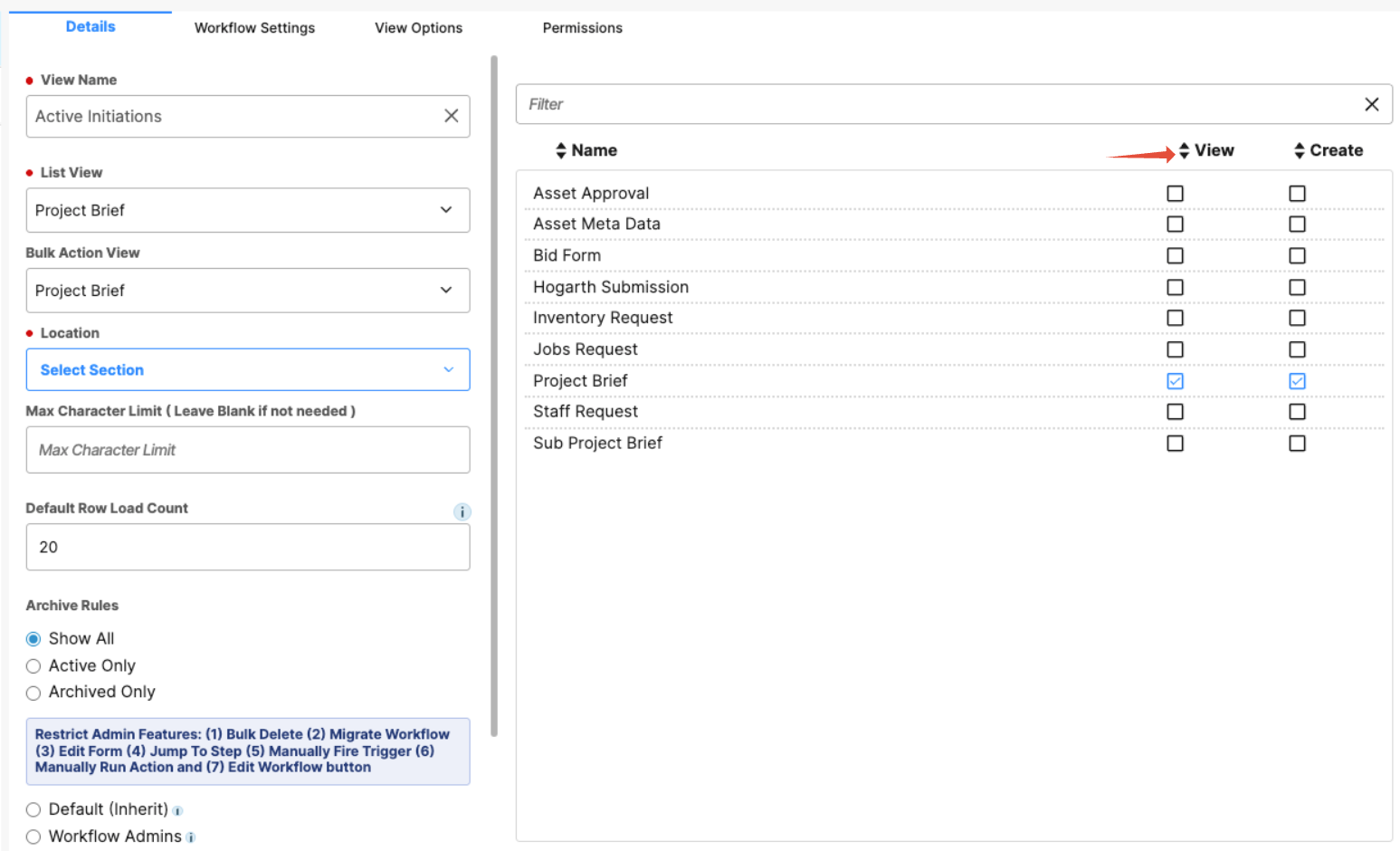
- Create checkboxes to determine which form types users can create directly from the list.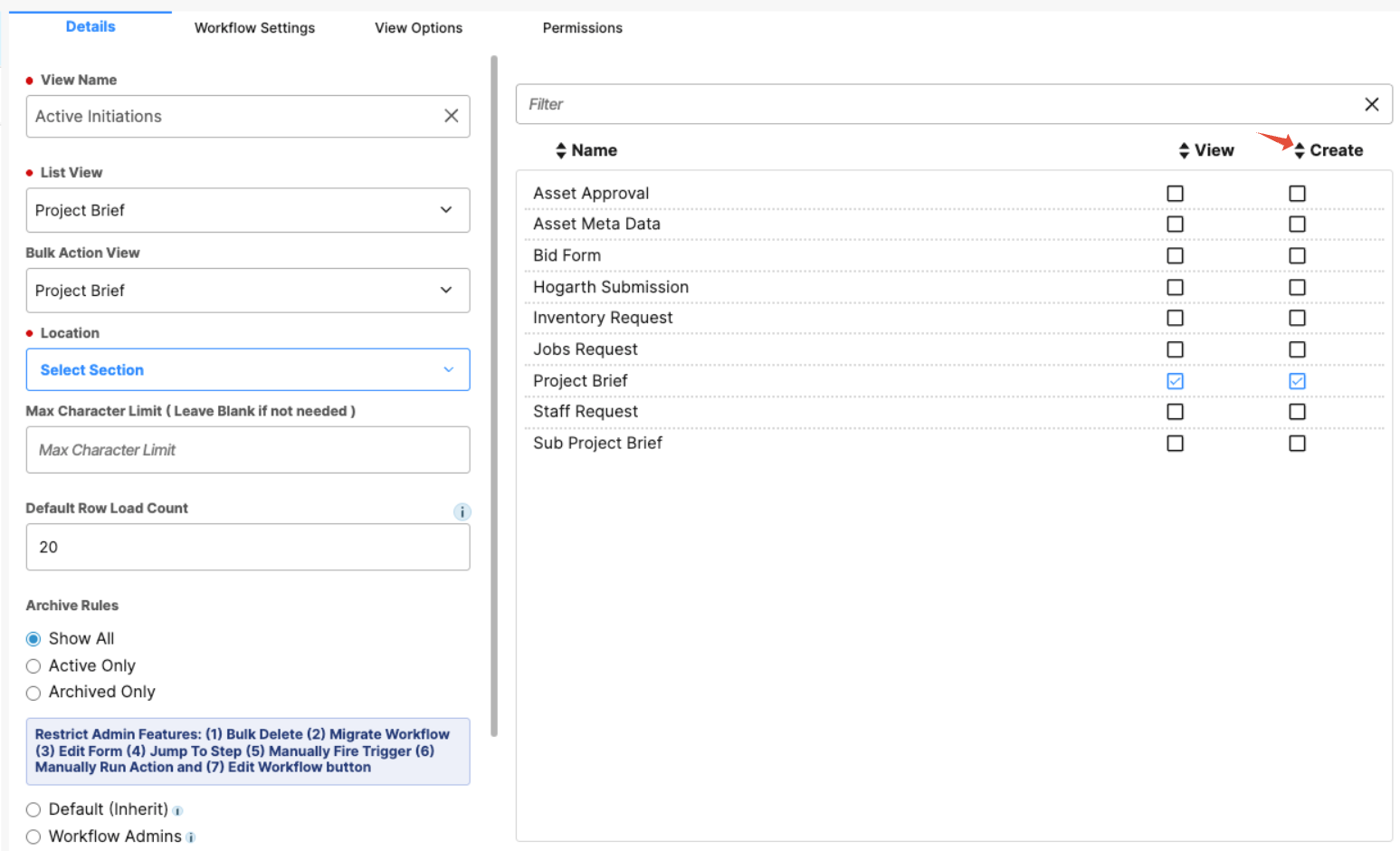
This configuration allows you to tailor views for different use cases, such as:
- A view where users can see all workflow items, but are restricted to only create a single type
- A manager-only view that includes additional form types for creation
- Separate views for user groups with distinct views and create permissions - Cloning Views – Duplicate an existing view to reuse the settings.
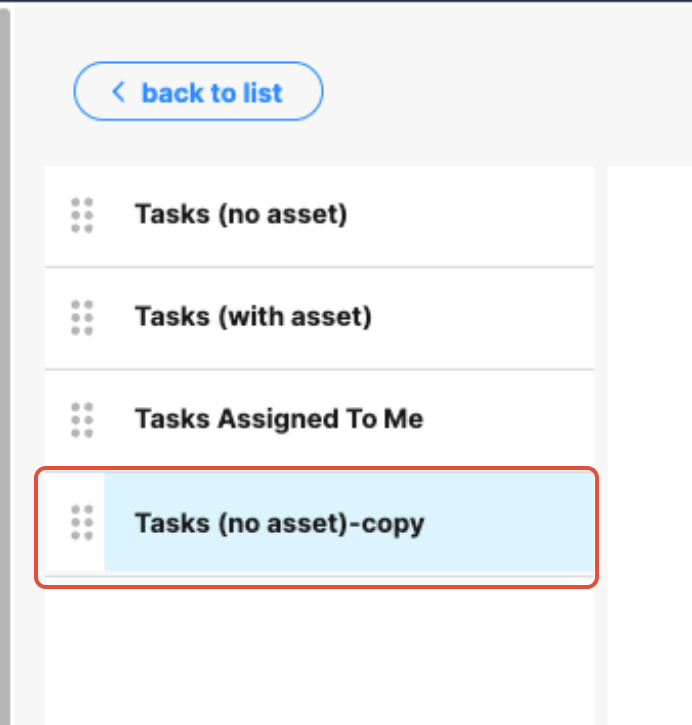
Instead of creating a view from scratch, use the Clone button while a view is selected. This creates a copy of the existing configuration.
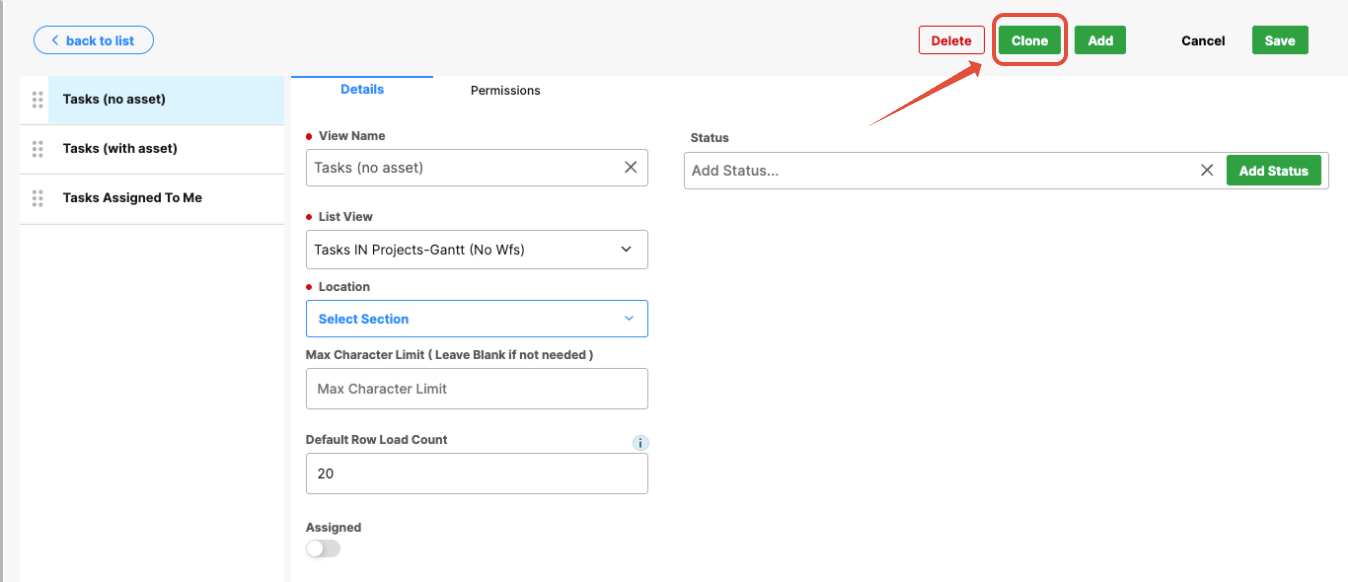
You can then rename the view, adjust the settings, and reorder it as needed. Cloning helps reduce errors and ensures consistency across views.
Delete View – Click Delete to permanently remove a view.
Editing an Existing View - Permissions Tab
The Permissions tab controls which users can access the view.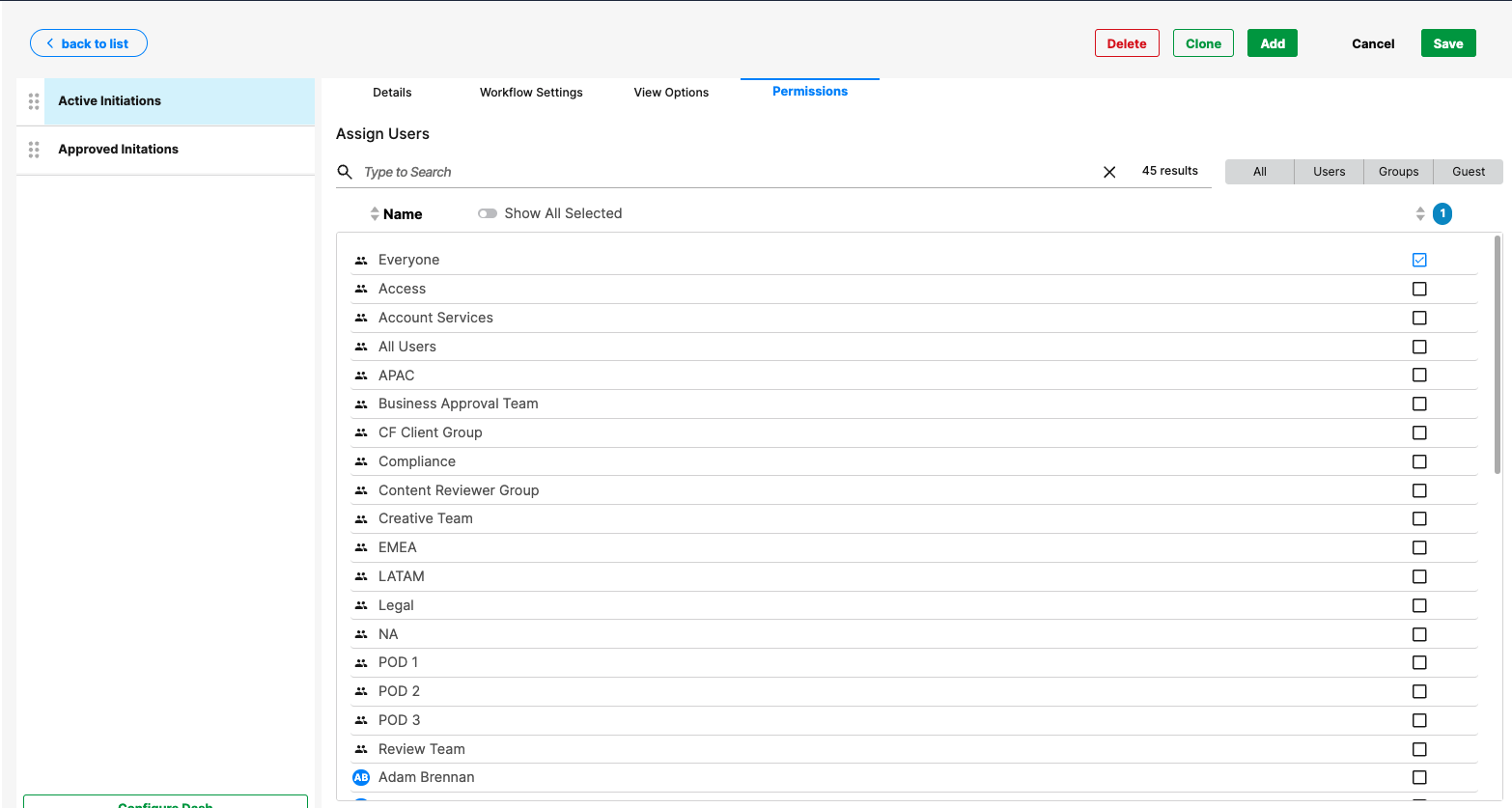
This allows you to:
- Provide tailored views for different user groups
- Hide specialized or restricted views
- Create multiple variations of the same data for different user types
- Users see only the views they are authorized to access, keeping the front-end experience clean, relevant, and personalized
Actions
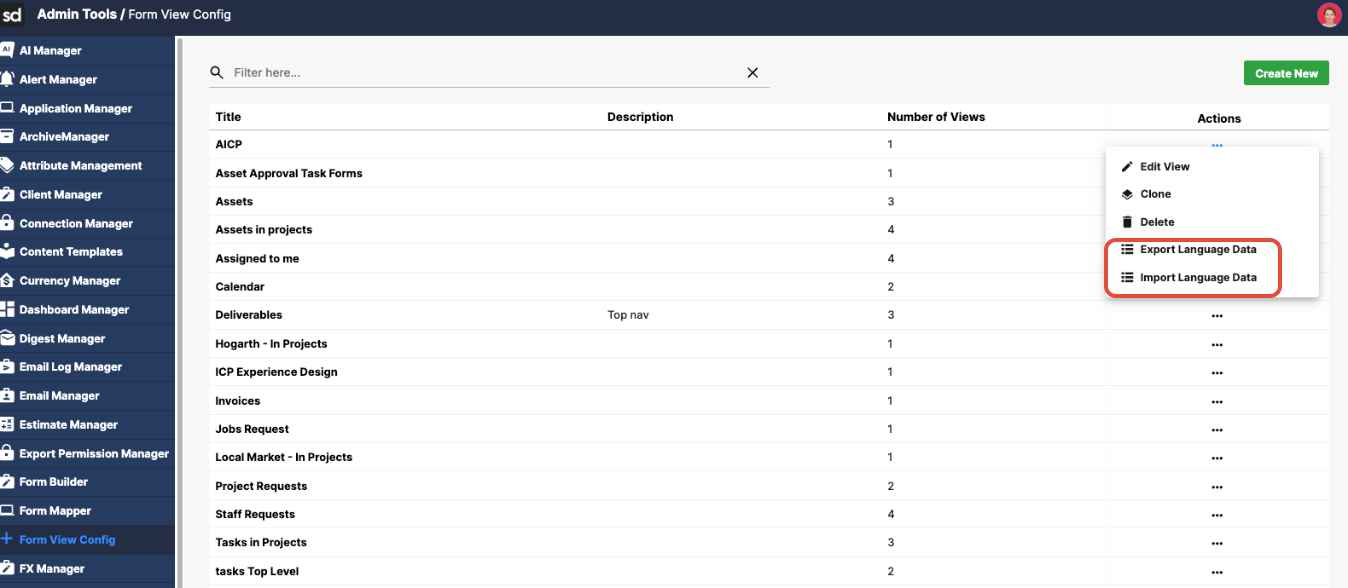
- Use the Actions to Export Language Data – Export localization strings to an Excel file.
- Use the Actions to Import Language Data – Import localization strings from an Excel file.
Summary
Editing an Existing View: Details Tab
The Details tab defines the core configuration of a view. Settings on this tab control how the view is labeled, which forms it displays, where it appears in the system, and which forms users can view or create.
Best practices:
Use clear, descriptive names.
Avoid internal or technical naming conventions.
Choose names that help users easily distinguish between different lists.
Was this article helpful?
That’s Great!
Thank you for your feedback
Sorry! We couldn't be helpful
Thank you for your feedback
Feedback sent
We appreciate your effort and will try to fix the article