Home Page
Before making changes to a form view, identify which Form View Configuration (Form View Config) powers the screen you see on the front end.
This process allows you to safely locate the correct configuration and understand where and how it is applied.
- Navigate to Admin Tools.
- Open the Application Manager.
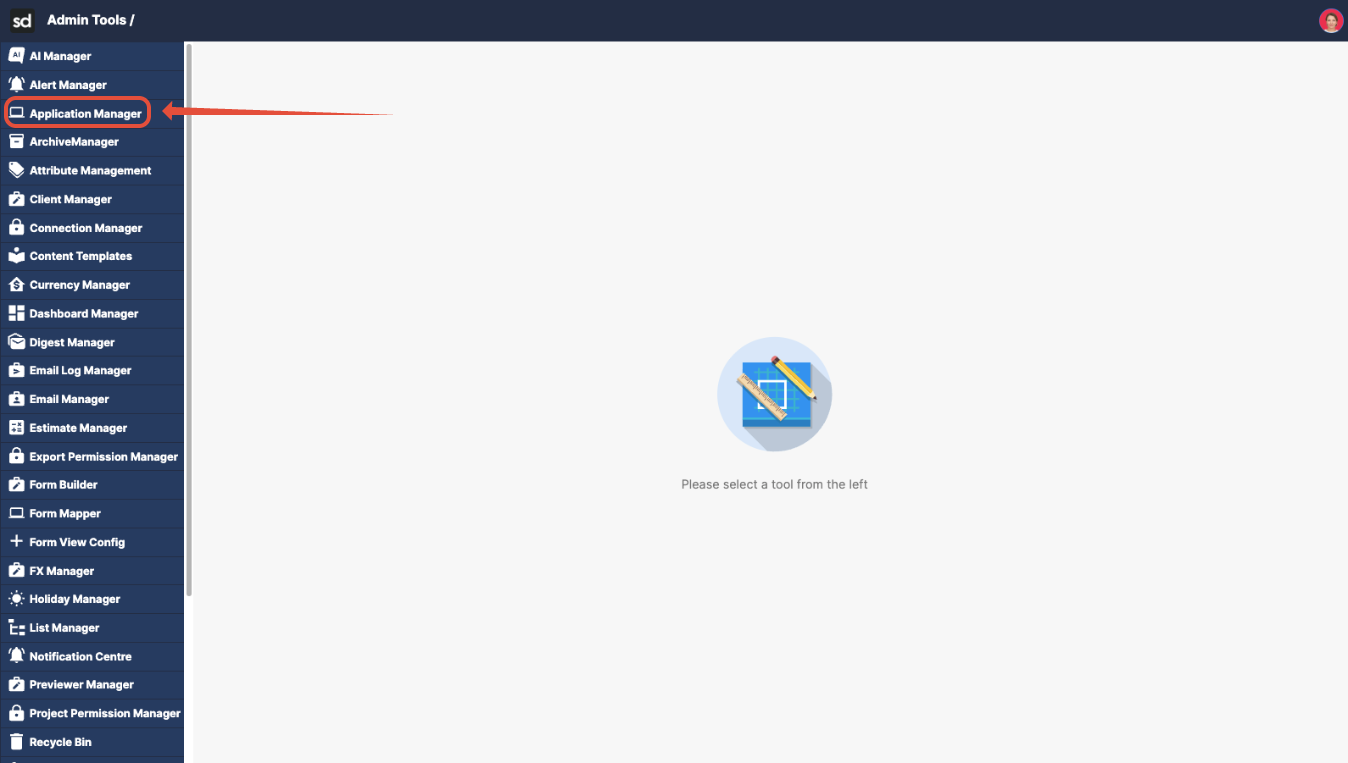
- Identify the application section that corresponds to the front-end area you are investigating (for example, Opportunities).
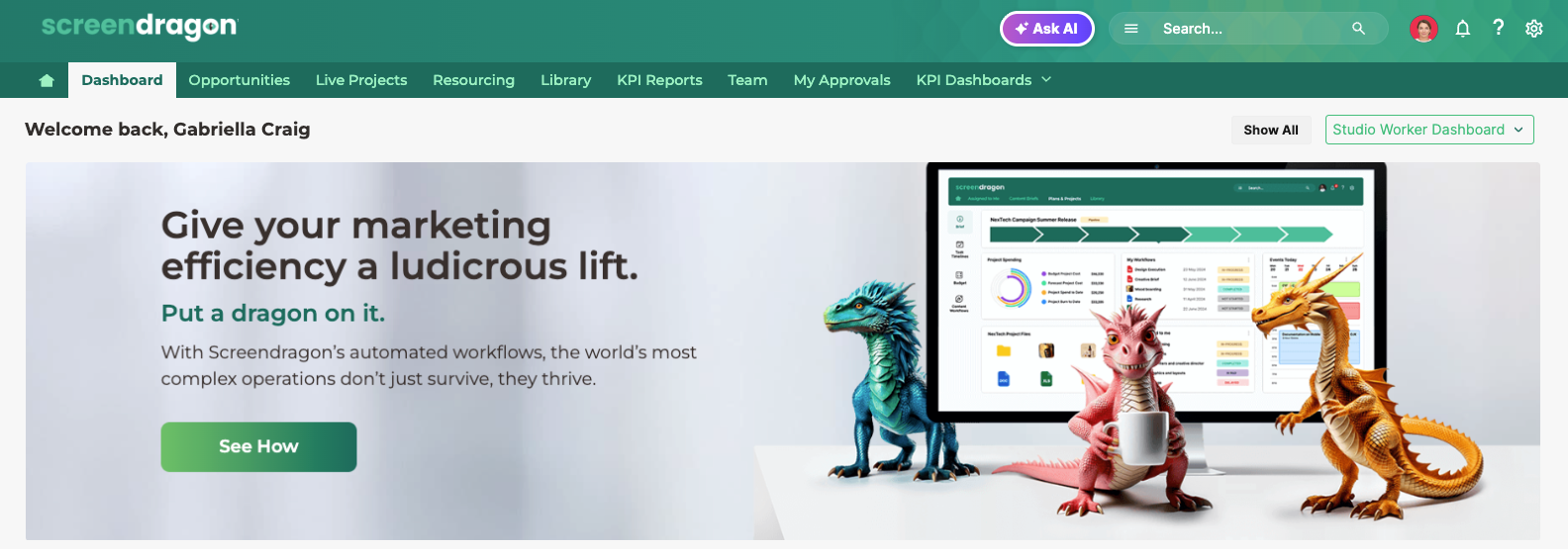
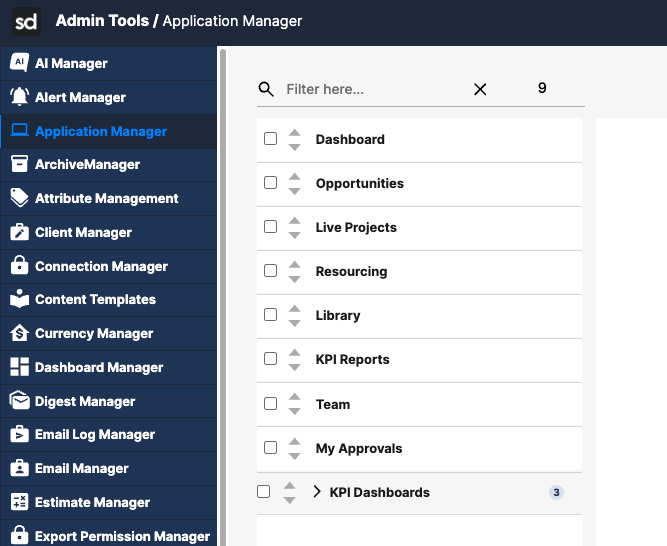
- Select the relevant application section (Opportunities).
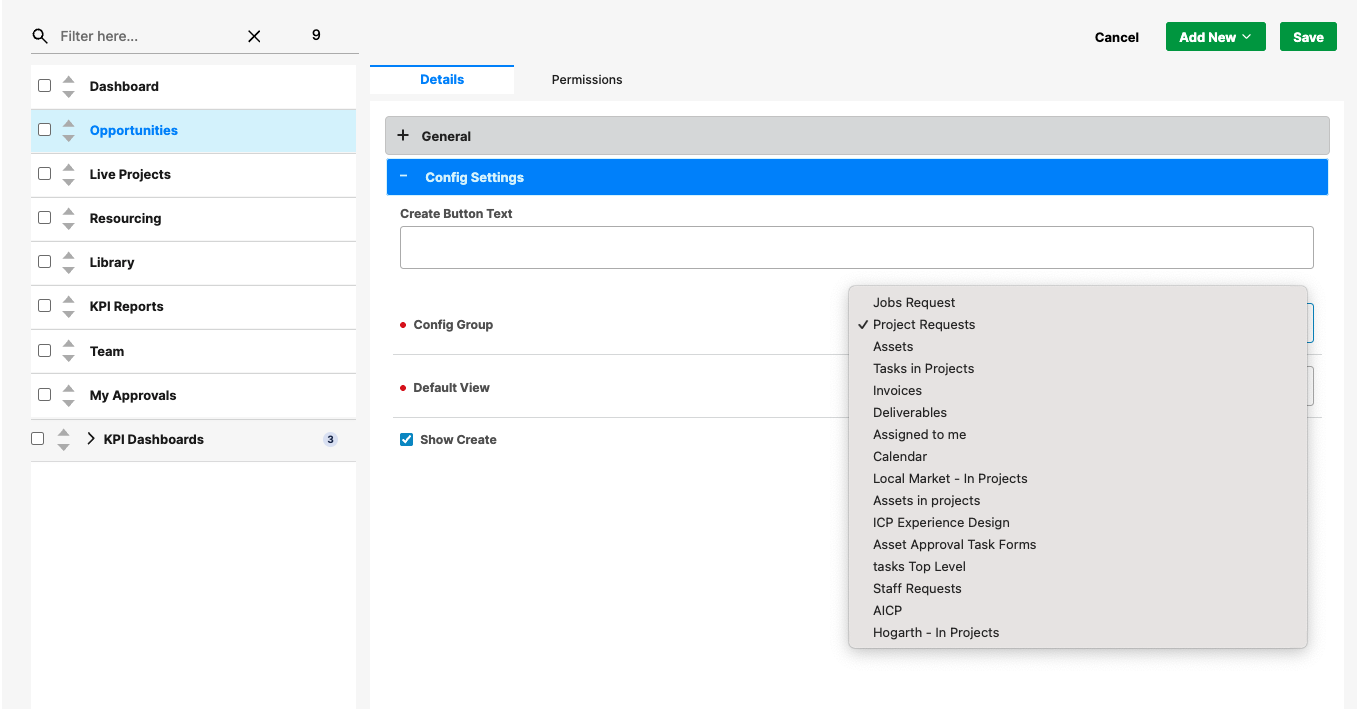
- Under the Details tab, click Settings.
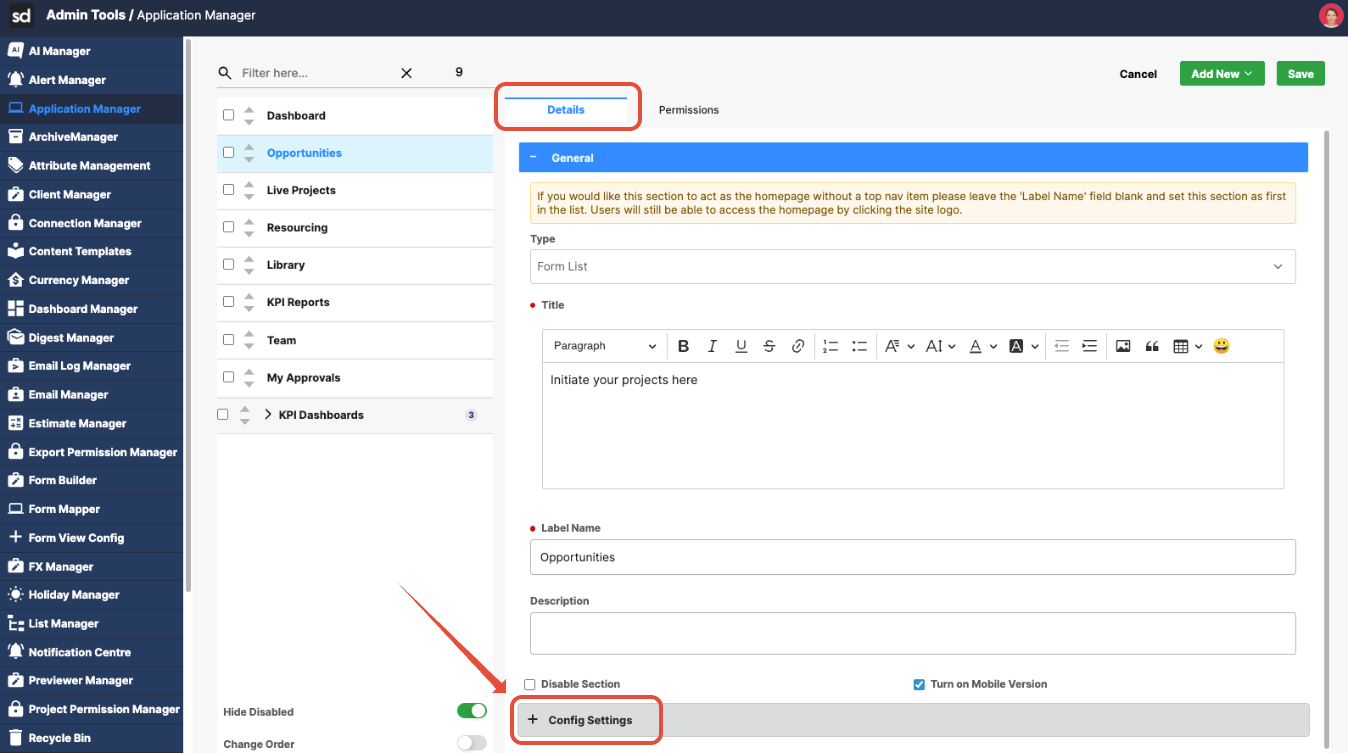
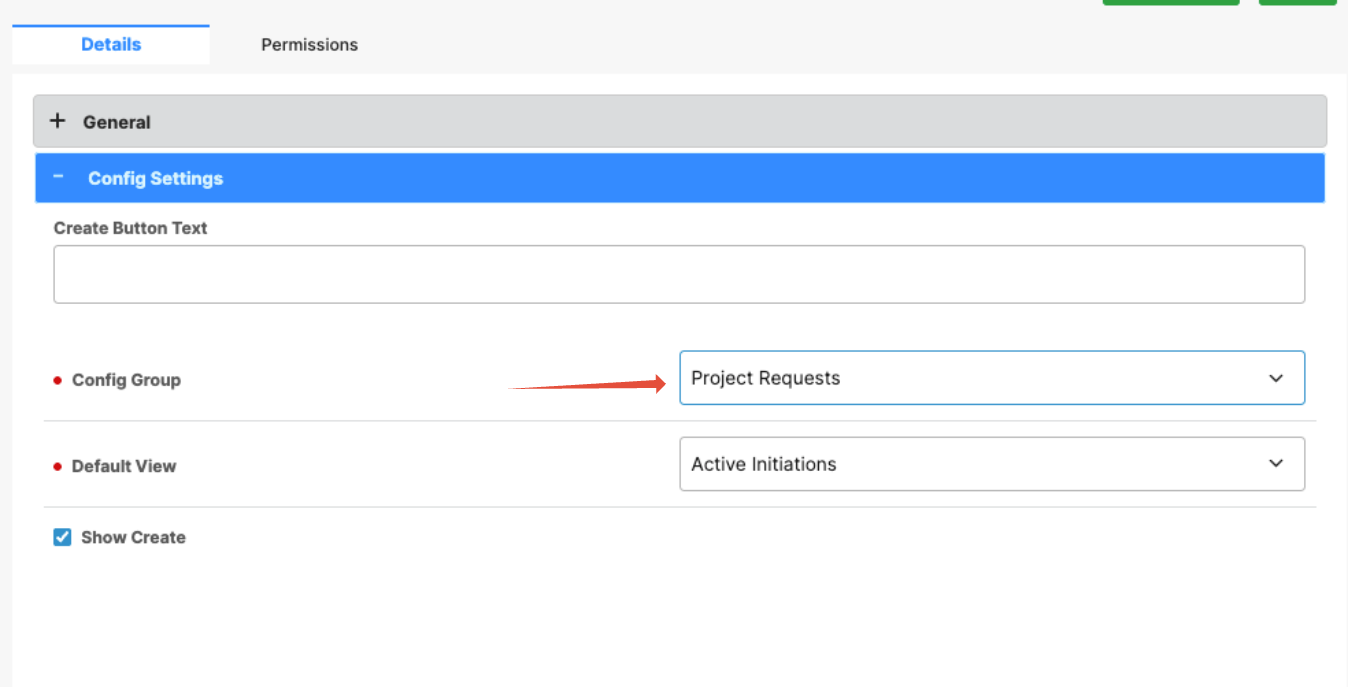
- Locate the Config Group dropdown. Note the Form View Config selected for this section is Project Requests.
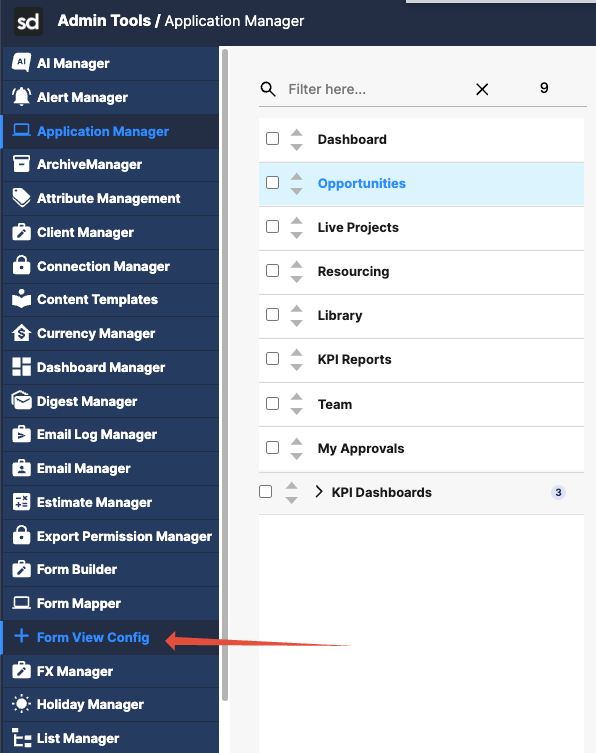
- Next, navigate to Form View Config in Admin Tools..
- Find the configuration whose name matches the value selected in the Config Group dropdown. (Project Requests)
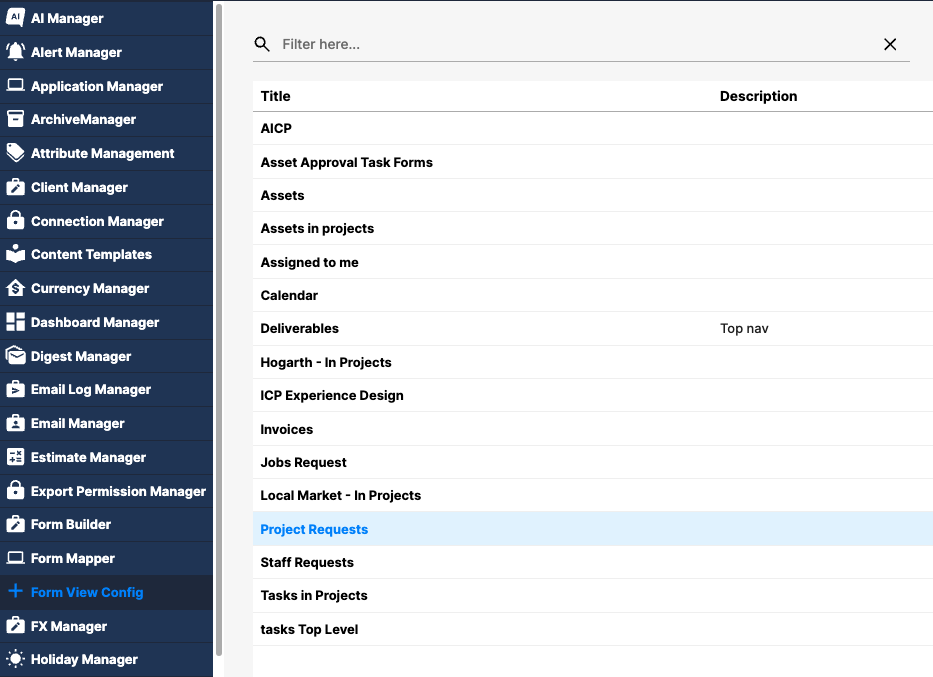
- Click the configuration title to open it.
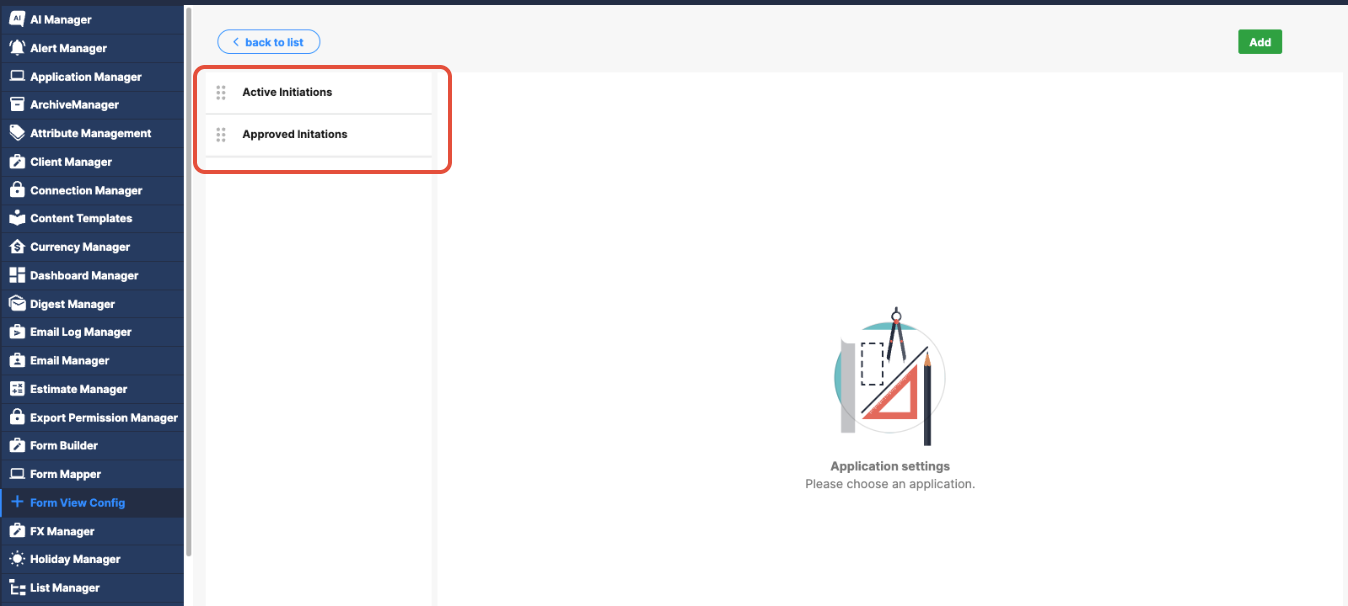
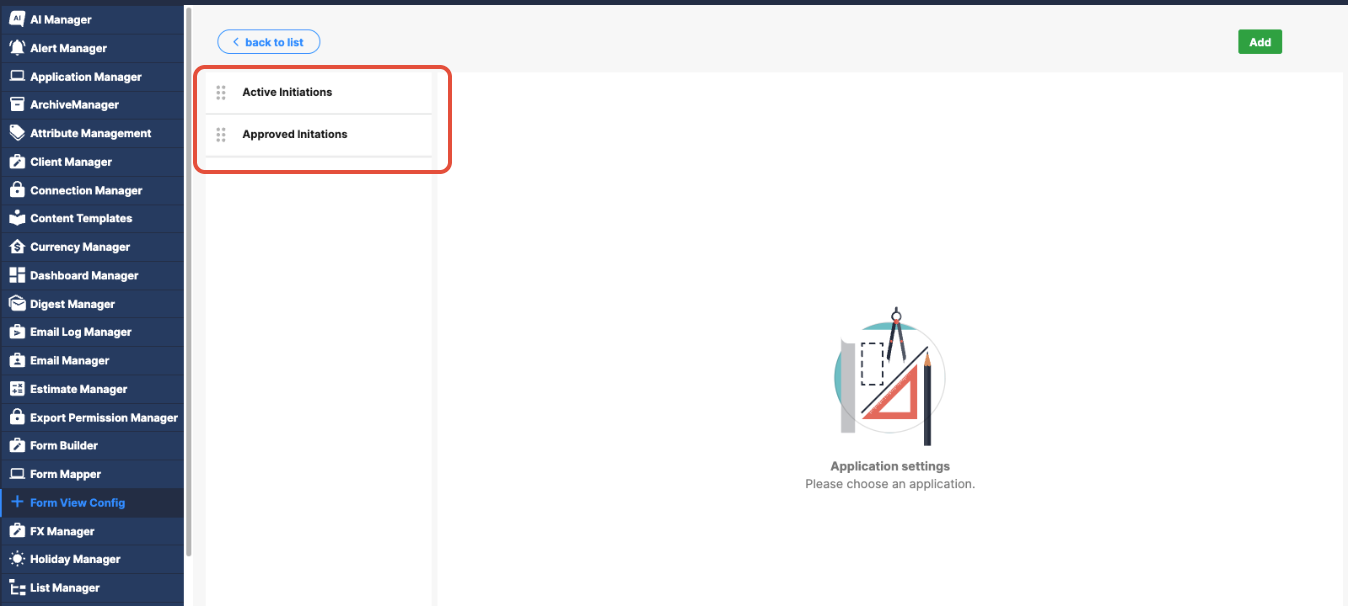
- Once the configuration is open, you can see all views included in the Form View Config.
Selecting a view shows where the form is applied on the front end, the settings that control layout, filters, and workflow behavior, and any permissions applied to that view - You can safely update the view configuration as needed.
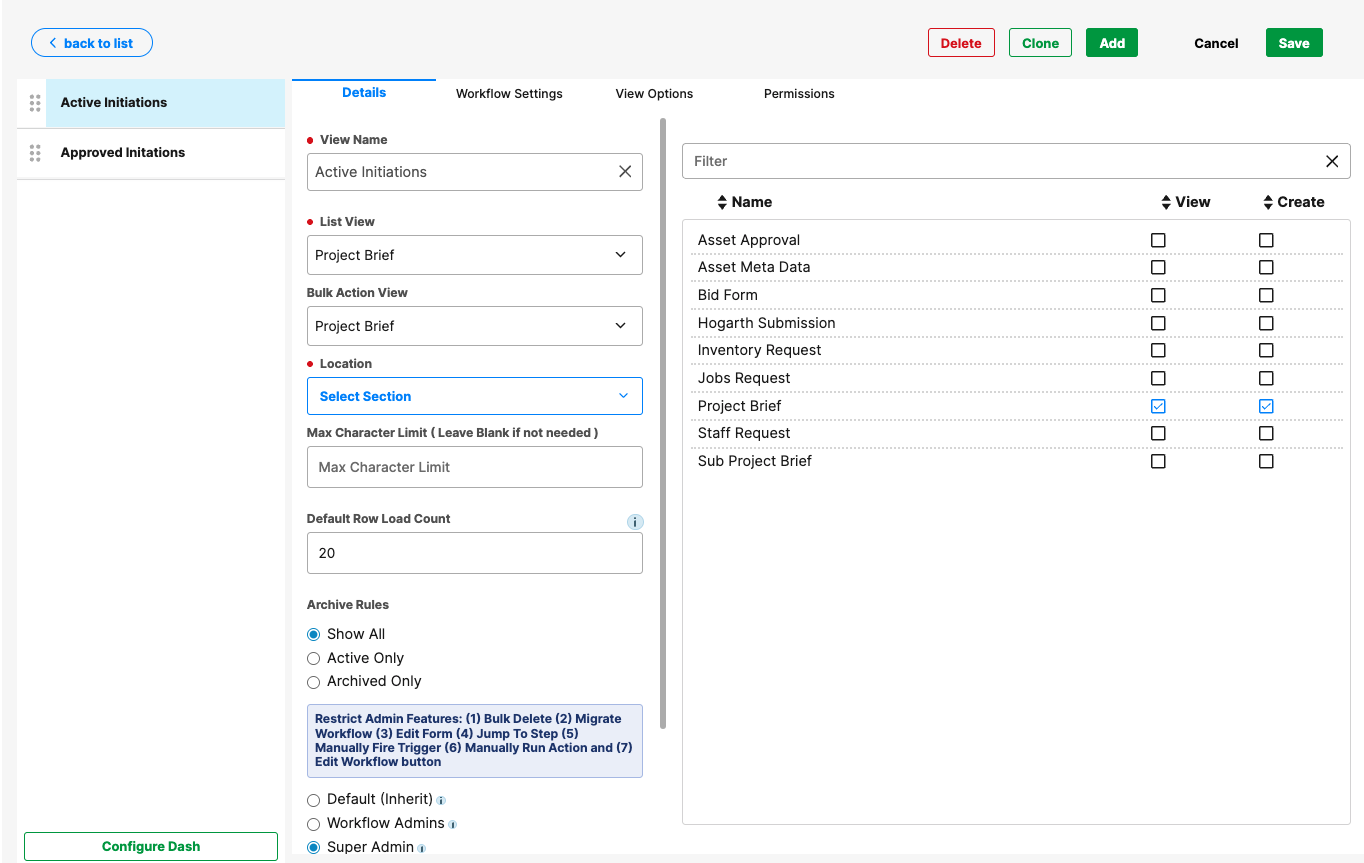
Example Summary
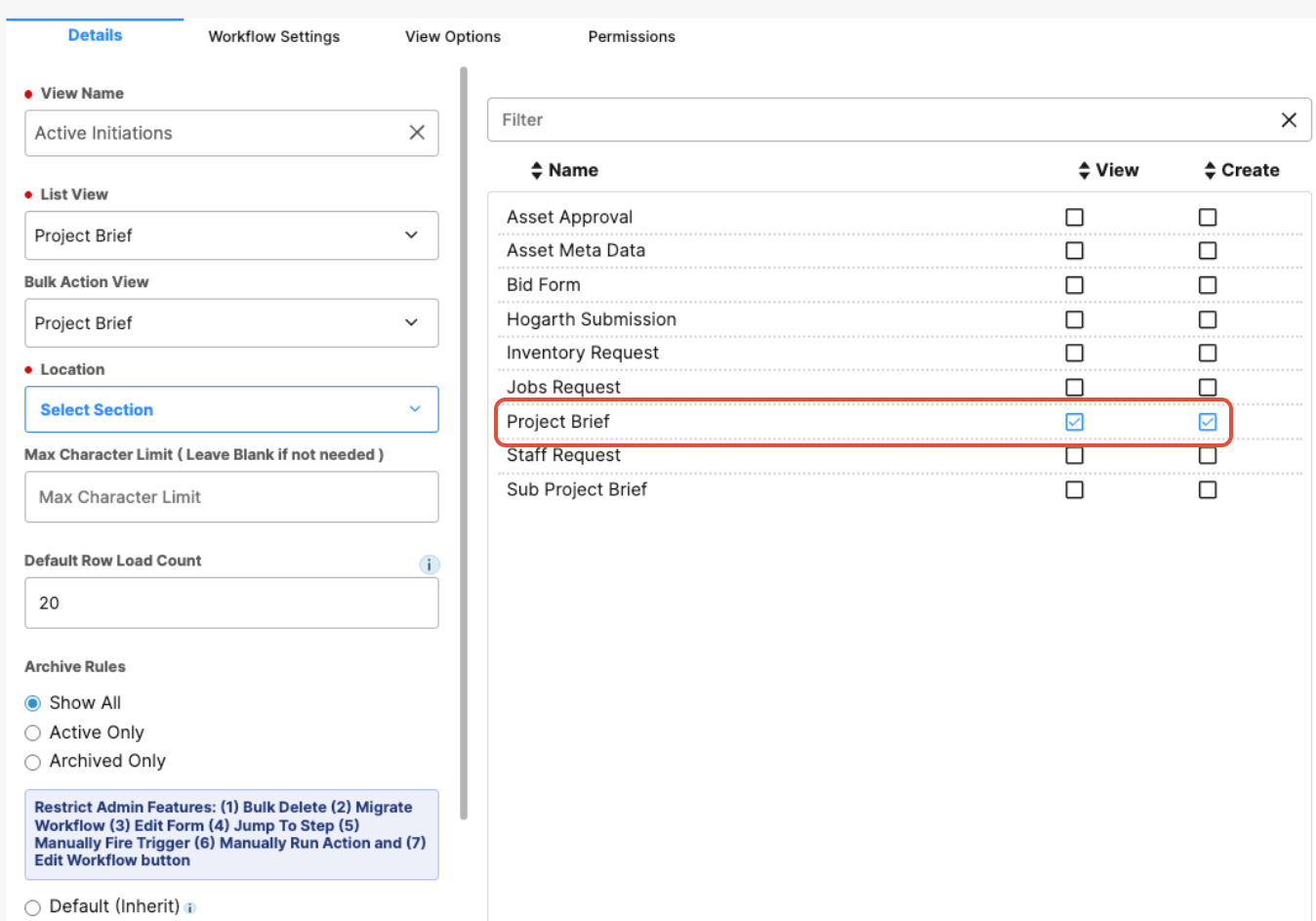
In the example above, the Form View Config named Project Brief contains two views:
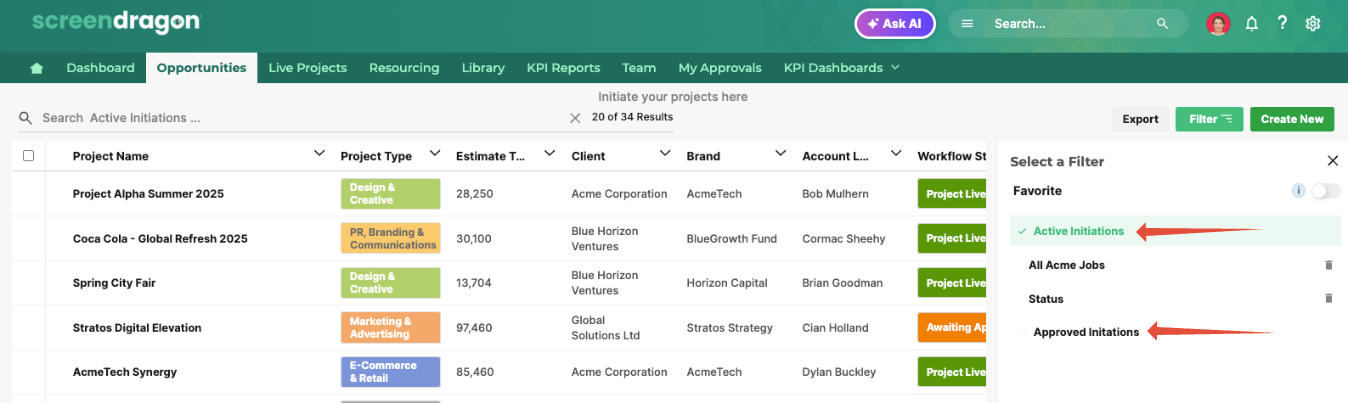
- Active Initiatives
- Approved Initiatives
These views are applied to the Project Brief form.
When navigating back to the front end:
The configuration is located under the Opportunities application heading.
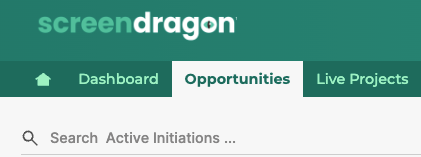
Clicking the filter within Opportunities reveals the views.
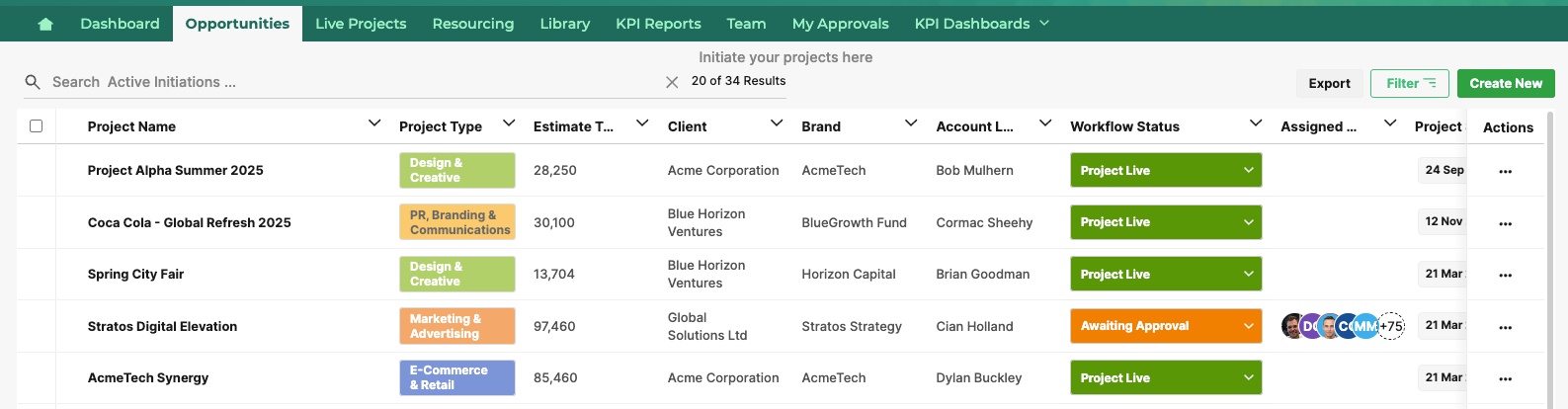
This confirms exactly where the Project Brief Form View Config is being used.
Understanding this mapping enables you to identify the correct configuration, avoid unintended changes, and confidently update form behavior on the front end.
Was this article helpful?
That’s Great!
Thank you for your feedback
Sorry! We couldn't be helpful
Thank you for your feedback
Feedback sent
We appreciate your effort and will try to fix the article