Favorites and Selection
TABLE OF CONTENTS
Favorites in Screendragon DAM make it easy to quickly access the assets you use most. By marking assets as favorites, you can create a personal collection of frequently used or important files, saving you time and avoiding repeated searches.
In addition, Screendragon lets you select multiple assets at once, making it simple to organize, download, or manage files in bulk. Whether you’re gathering assets for a project or preparing content for delivery, favorites and multi-asset selection help streamline your workflow and keep your most important content within easy reach.
Favorites
The Favorites feature lets users bookmark frequently used assets for quick retrieval.
Users can mark an asset as a Favorite via the asset card or asset detail page.
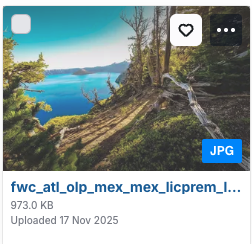
Favorited assets are stored in a user-specific My Favorites view within the library collections.
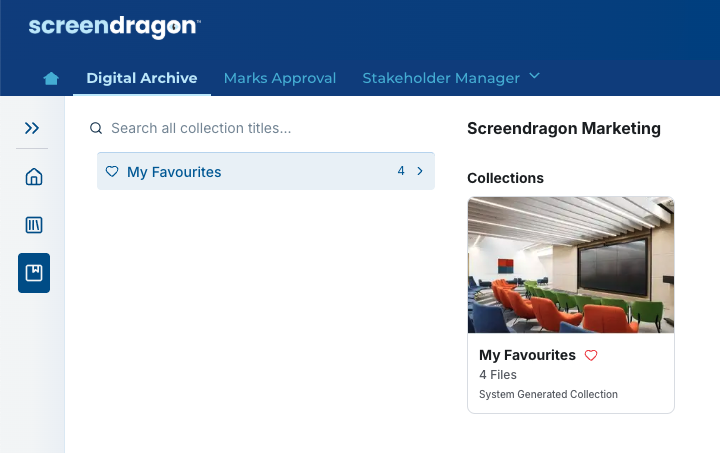
Removing a favorite does not affect the underlying asset or other users’ Favorites.
Selection
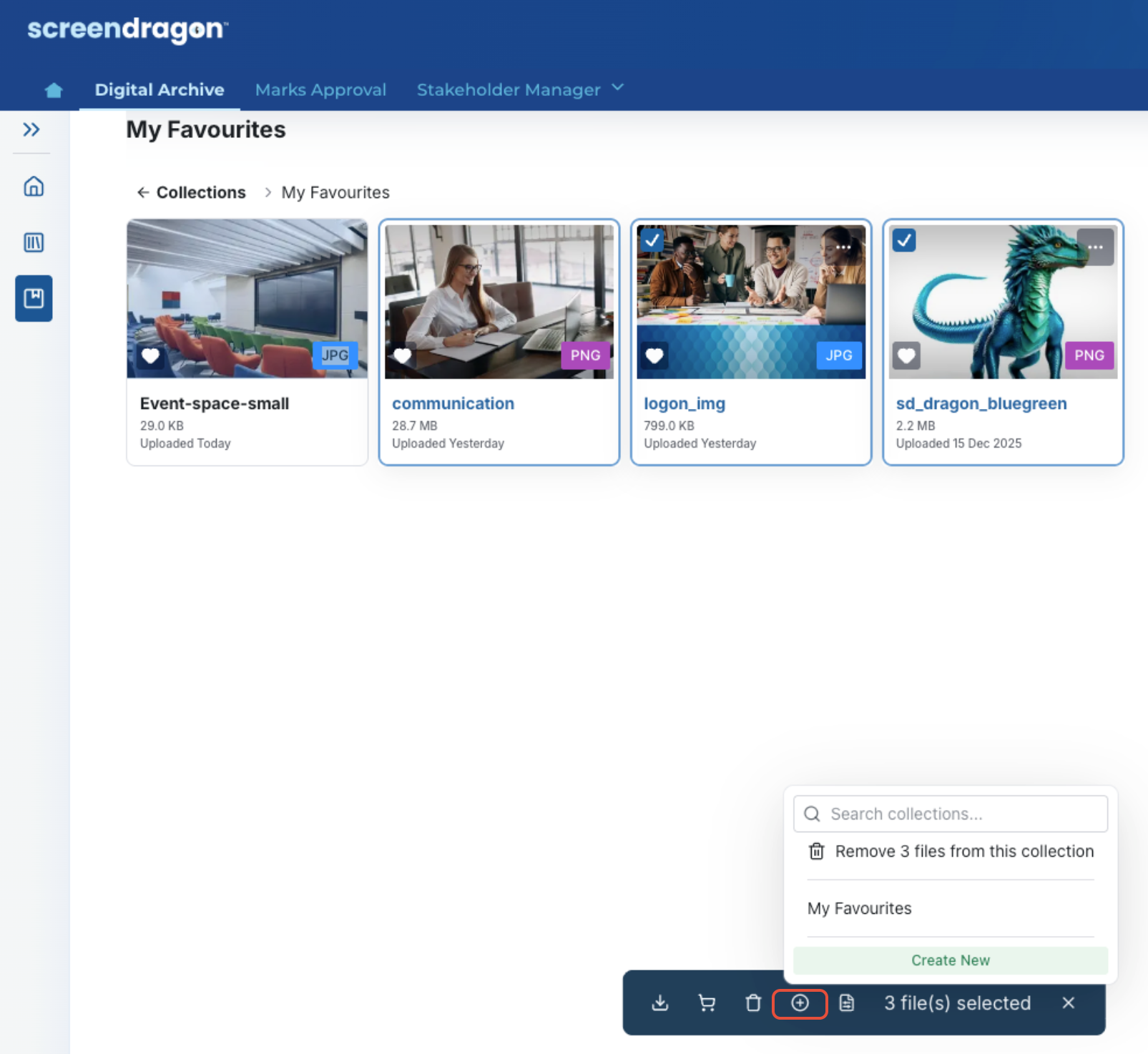
Selection options can support bulk actions such as downloading, adding to a collection, or sharing (subject to permissions).
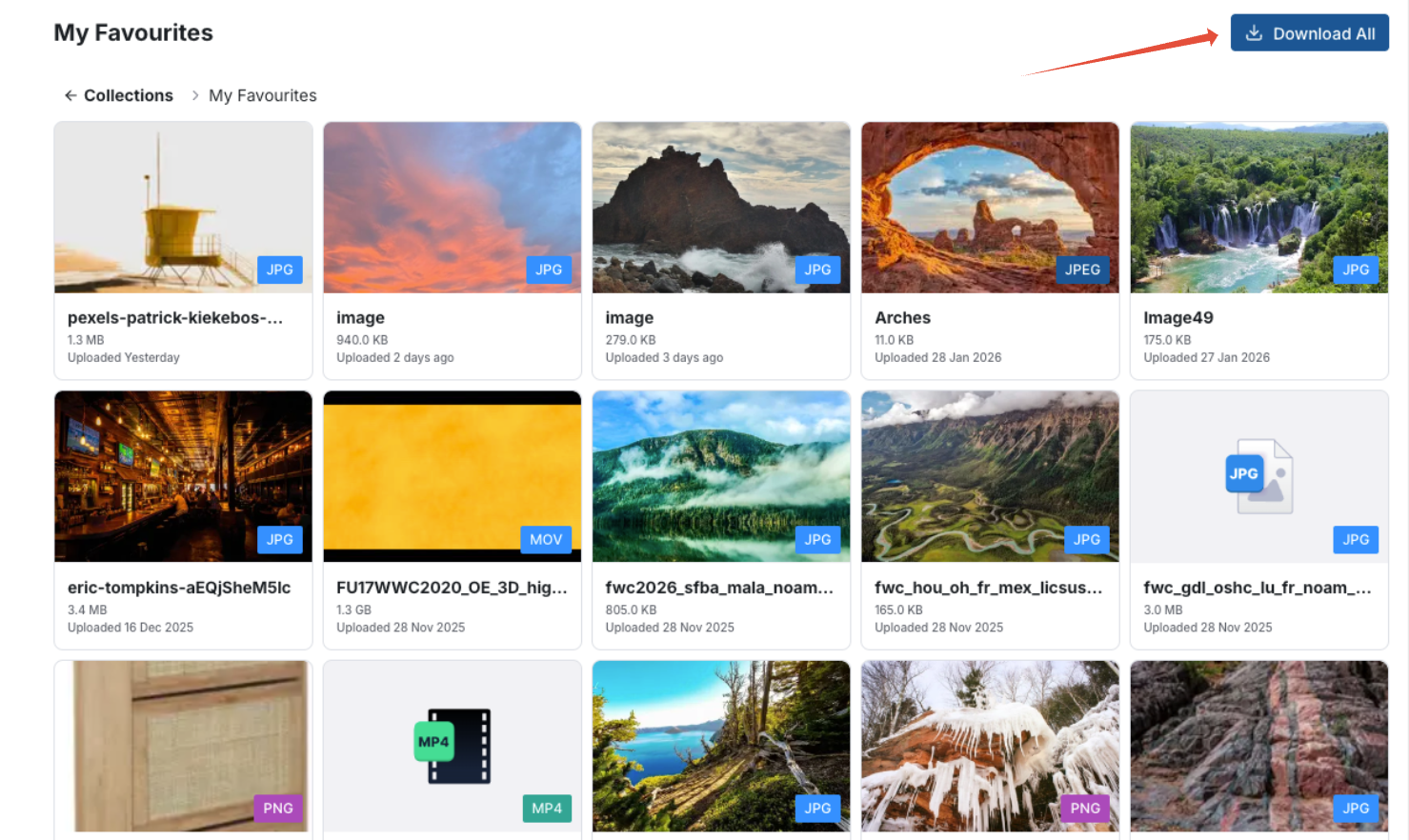
Click Download All to download all favorites to a zip file.
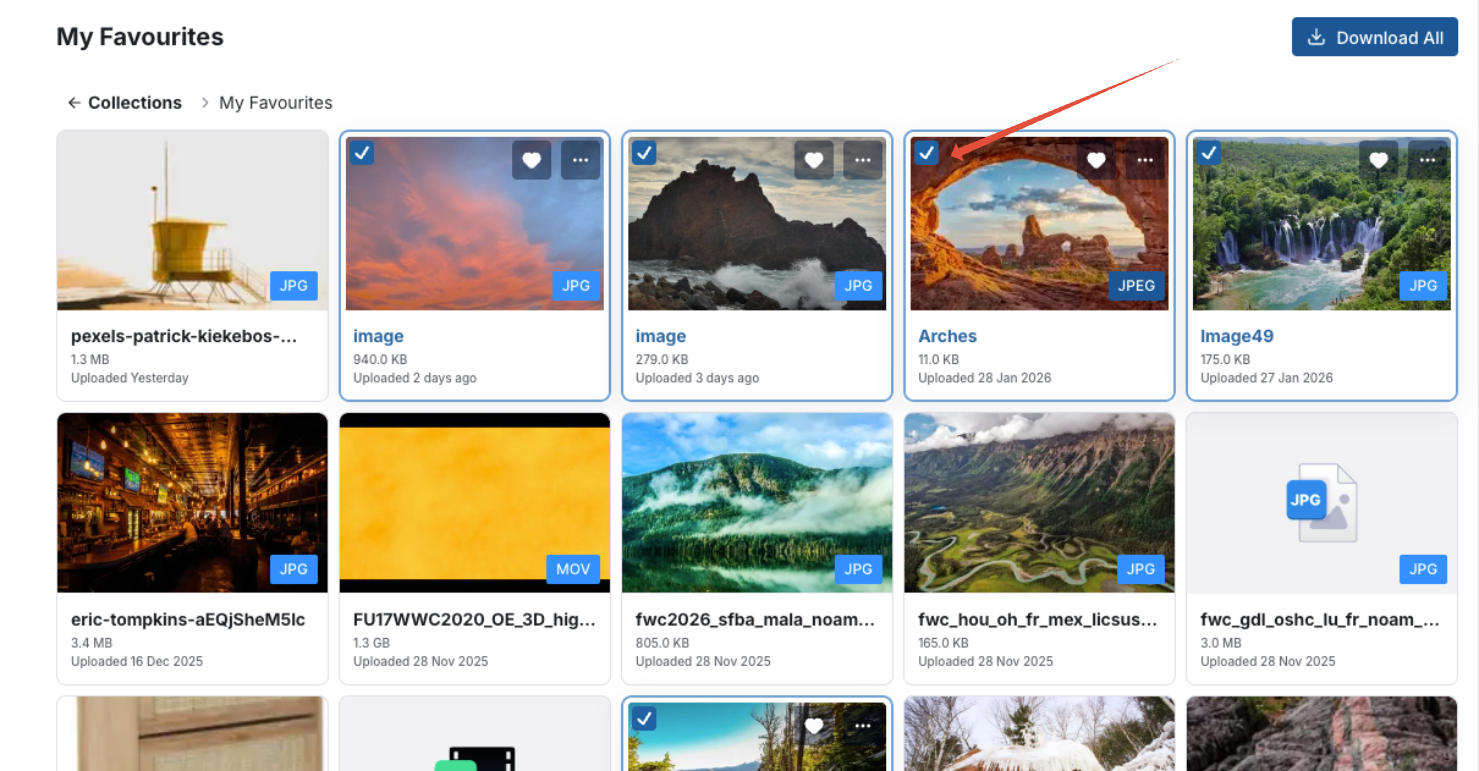
To download an image, click the box on the image you want to download. You can choose one image or multiple.
Navigate to the selection options at the bottom of the screen.
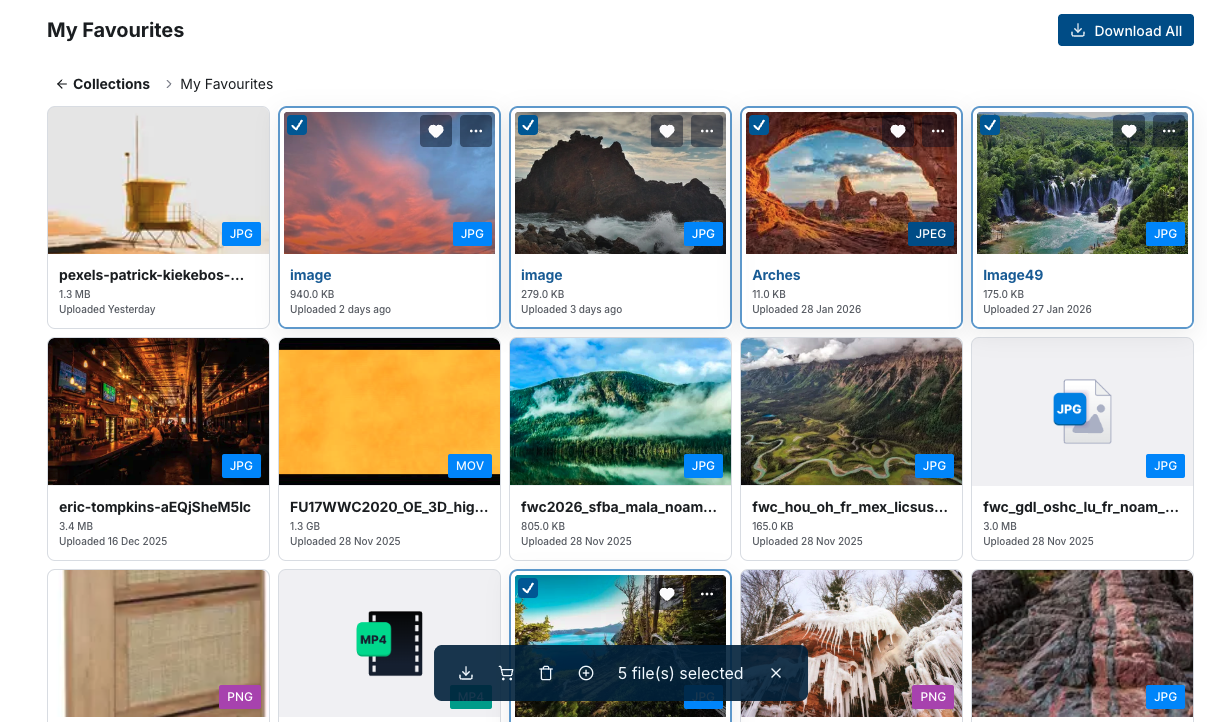
Click Download and choose where you want your image to land on your computer.

Another option is to add assets to your cart. This is useful when you want to gather one or more assets in a single place until you’re ready to download or use them. The cart acts as a temporary holding area, making it easy to keep track of the assets you plan to edit or work with later.

Click the Trash icon to delete assets.

The Plus icon lets you move assets to a different collection.
Use Cases
Use Favorites to:
Keep track of campaign assets that are still in progress
Quickly access frequently reused brand materials
Create personal shortcuts to commonly used creative resources
Use asset selection to:
Select multiple assets for bulk download or sharing
Organize assets for use in projects or campaigns
Move or manage multiple assets at the same time
Prepare groups of assets for editing, approval, or distribution
Was this article helpful?
That’s Great!
Thank you for your feedback
Sorry! We couldn't be helpful
Thank you for your feedback
Feedback sent
We appreciate your effort and will try to fix the article