Managing Asset Details
TABLE OF CONTENTS
- Managing Asset Details
- Edit Asset Details
- Title
- Original Filename
- Description
- File Metadata
- Owner
- Transfer Ownership
- Preview the Asset
- Save Your Changes
The Details tab contains the core information associated with an asset in the Screendragon DAM. From here, you can update the asset title and description, review file metadata, and view or transfer ownership.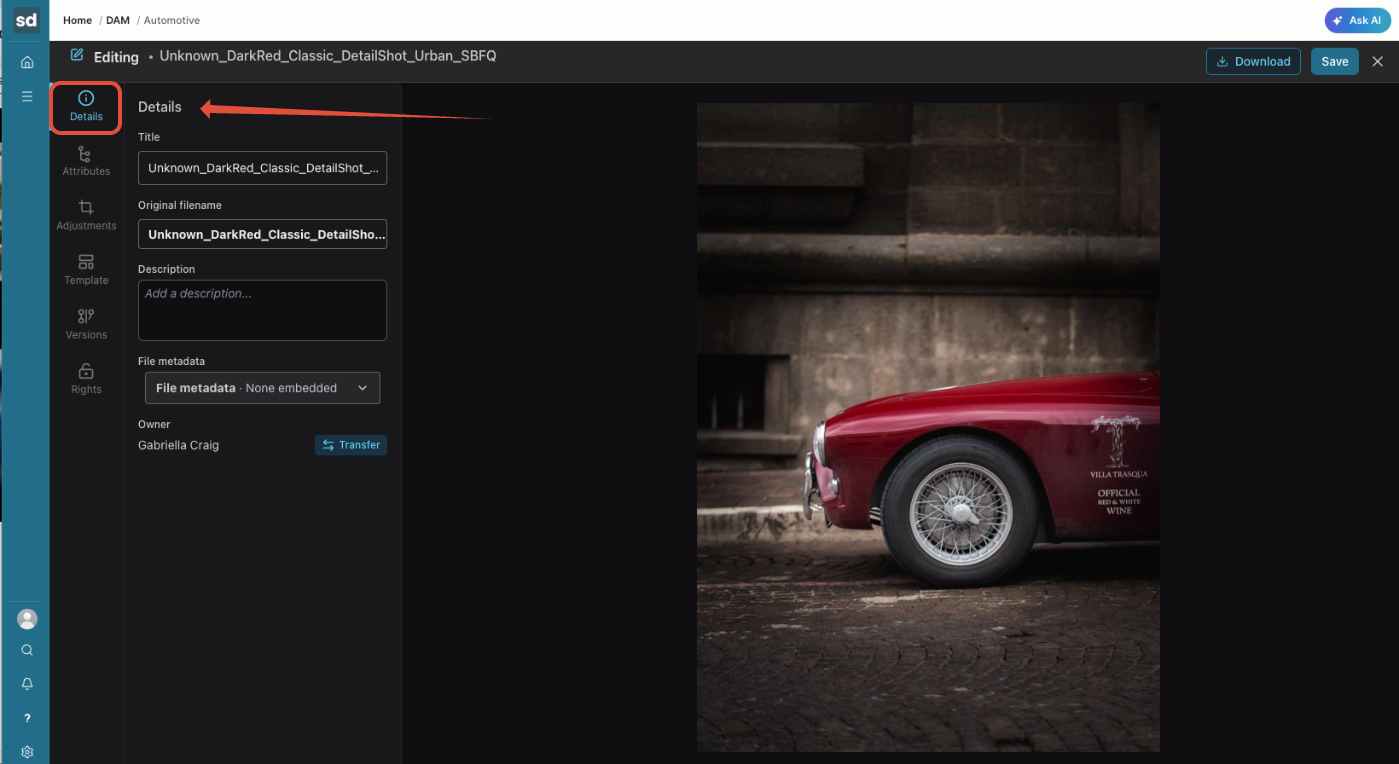
Edit Asset Details
The Details panel contains the following fields and options.
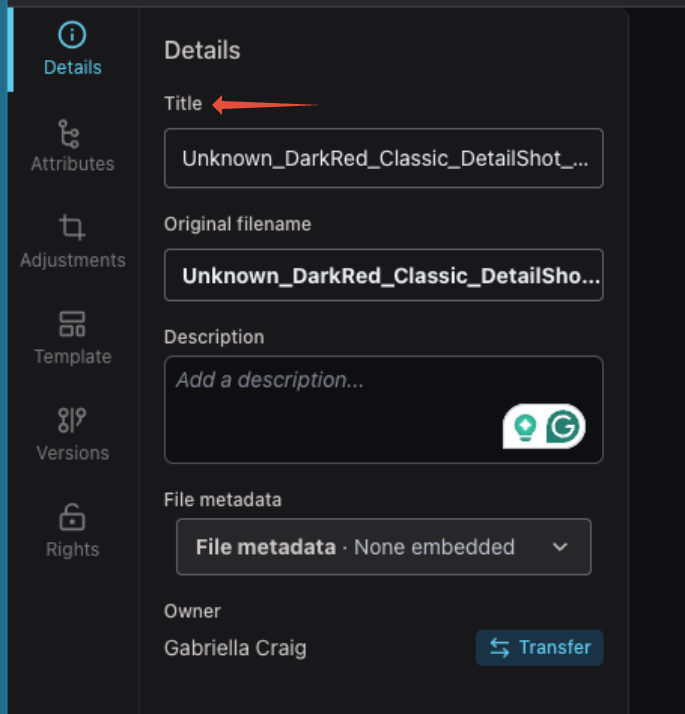
Title
The Title is the display name used to identify the asset within the DAM.
Update the title as needed to give the asset a clear, meaningful name that makes it easier for users to identify and find.
Note: Changing the title does not change the asset's original filename.
Original Filename
Original filename displays the file name when it was originally uploaded to the DAM.
This provides a reference to the source file and helps distinguish the original filename from the asset's editable display title.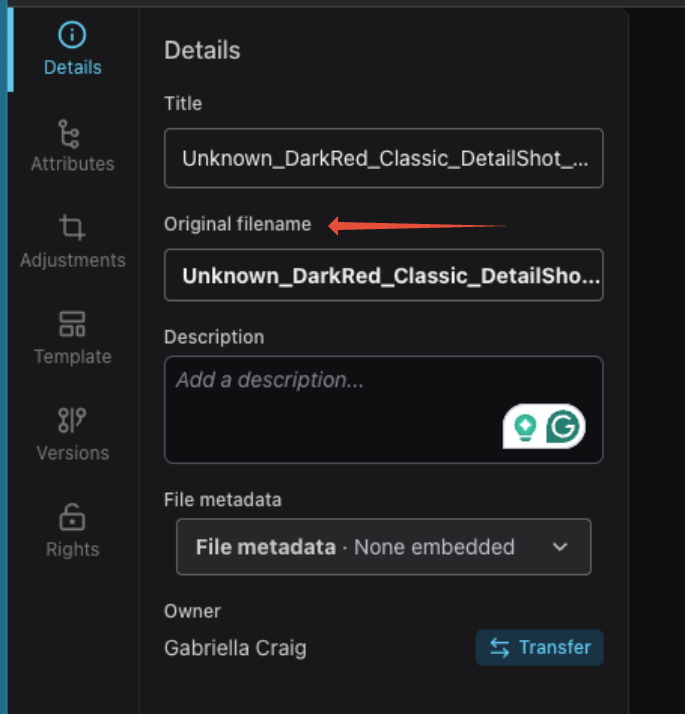
Description
Use Description to provide additional context about the asset.
A useful description might include information about:
- The purpose or subject of the asset
- Where or how it should be used
- Campaign or project context
- Other information that may help users understand or locate the asset
Adding a meaningful description can also make it easier for users to identify the correct asset when browsing or searching the DAM.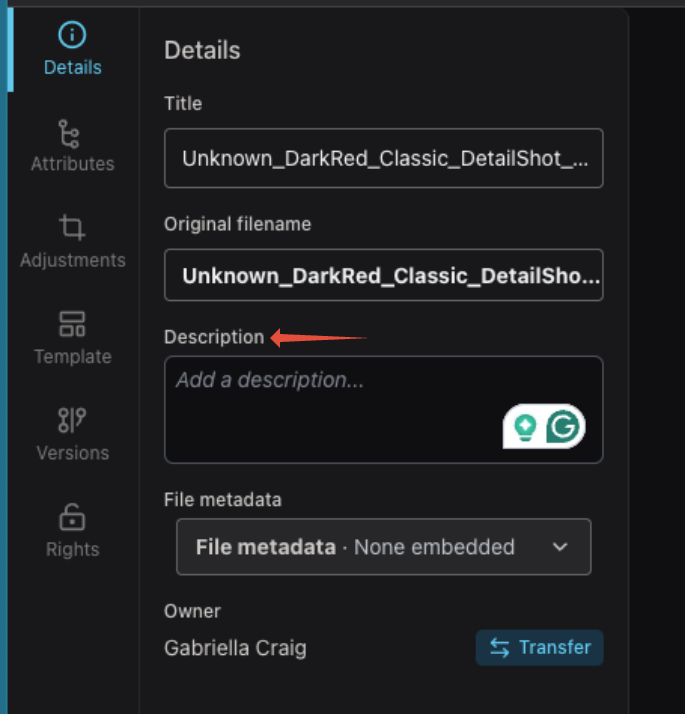
File Metadata
The File metadata section displays metadata embedded within the original file.
Select the File metadata dropdown to review available embedded metadata. If the file does not contain embedded metadata, None embedded is displayed.
The metadata available may vary depending on the file type and the information embedded in the source file.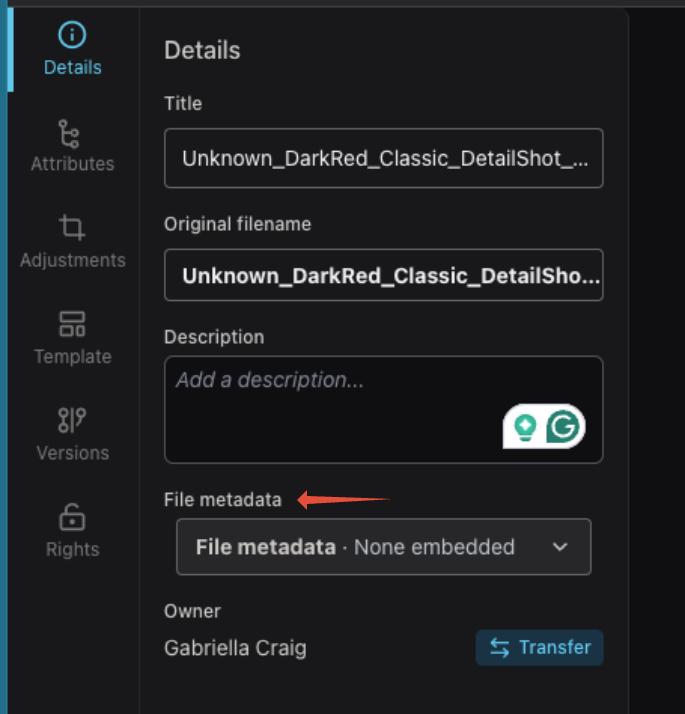
Owner
The Owner field identifies the current asset's owner.
Asset ownership can help identify the person responsible for managing or maintaining the asset.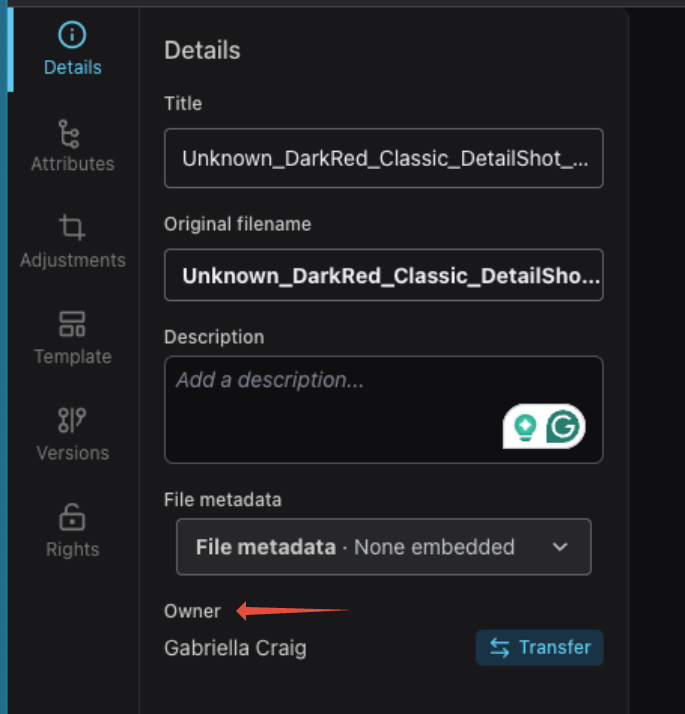
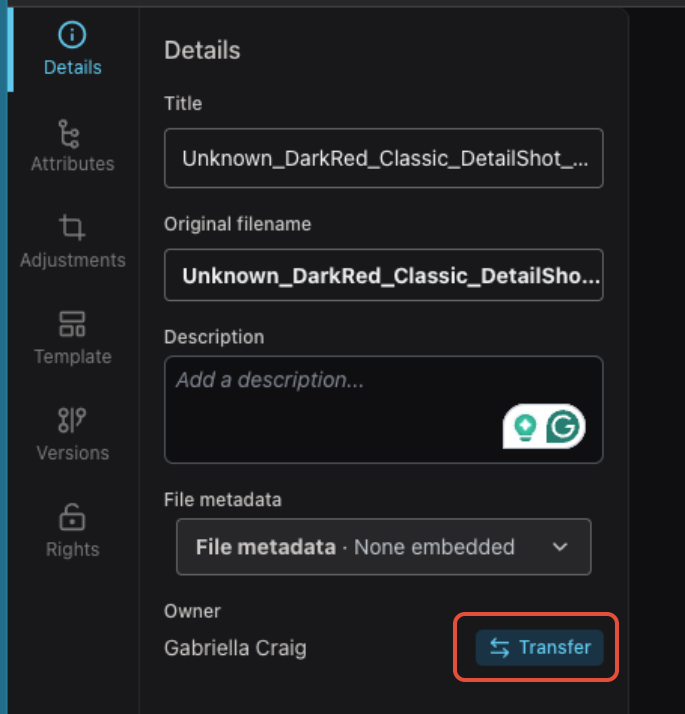
Transfer Ownership
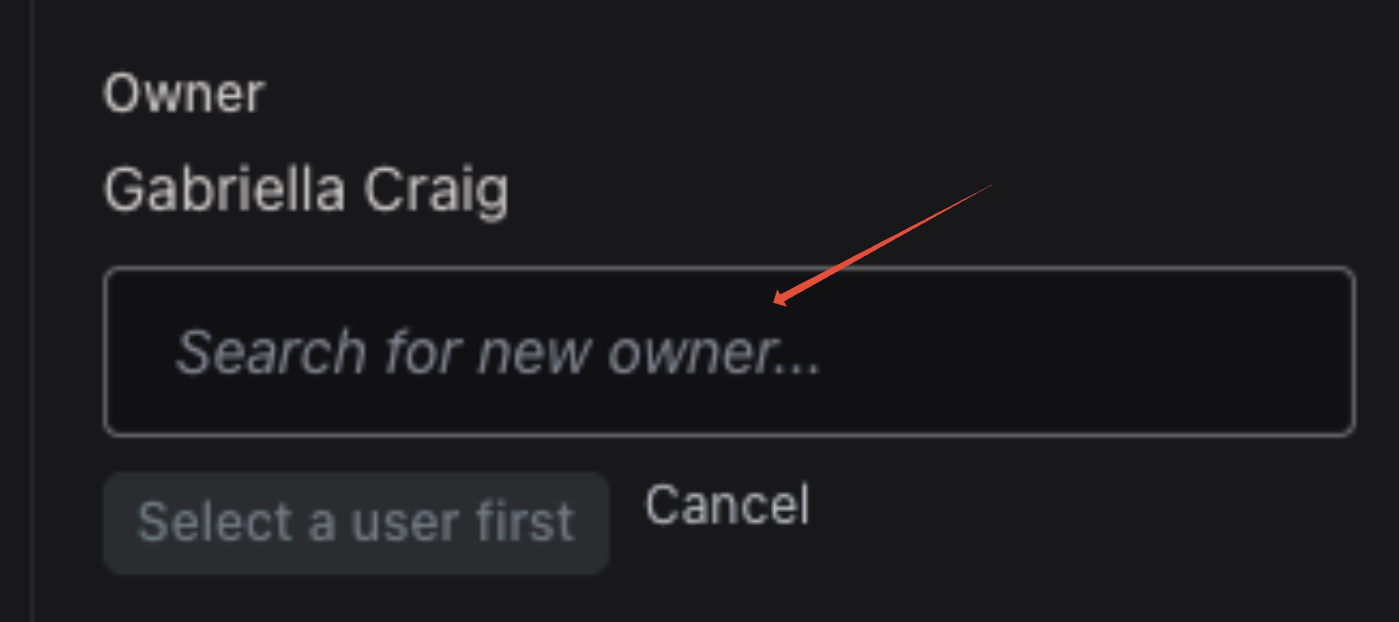
To assign ownership of the asset to another user:
- Click Transfer next to the current owner's name.
- Select the new owner.
- Confirm the transfer as prompted.
Once transferred, the selected user becomes the asset's new owner.
Preview the Asset
The asset preview is displayed alongside the Details panel, allowing you to review the asset while updating its information.
The preview does not need to be opened separately, making it easier to confirm you are editing the correct asset.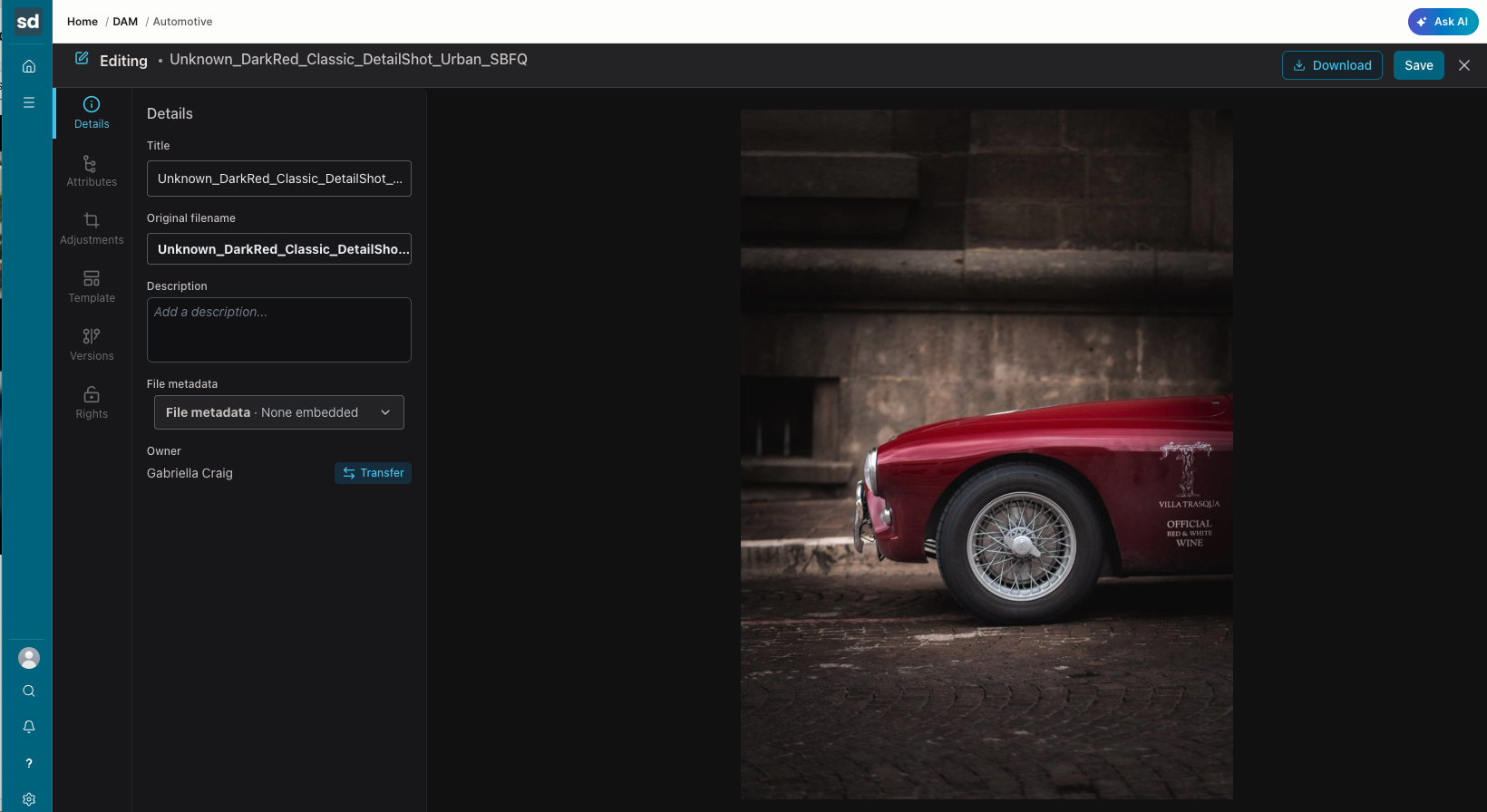
Save Your Changes
When you have finished updating the asset, click Save in the upper-right corner.
To leave the editing view without making additional changes, click the X.
You can also select Download to download a copy of the asset directly from the editing view.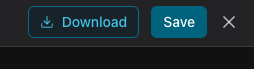
Was this article helpful?
That’s Great!
Thank you for your feedback
Sorry! We couldn't be helpful
Thank you for your feedback
Feedback sent
We appreciate your effort and will try to fix the article