TABLE OF CONTENTS
- Access Rights Management
- Time-Based Rights
- Embargo Date
- Expiration Date
- Auto-Archive on Expiry
- Notify Before Expiry
- Licensing Rights
- License Type
- License Owner
- License Documentation
- In Territories
- On Channels
- For Audiences
- Usage Notes
- Saving Rights Information
Rights Management helps you control when and how assets in the DAM are used. You can set availability dates, automatically archive assets when their rights expire, receive notifications before expiration, and record licensing information associated with an asset.
You manage rights information from the Rights tab when editing an asset.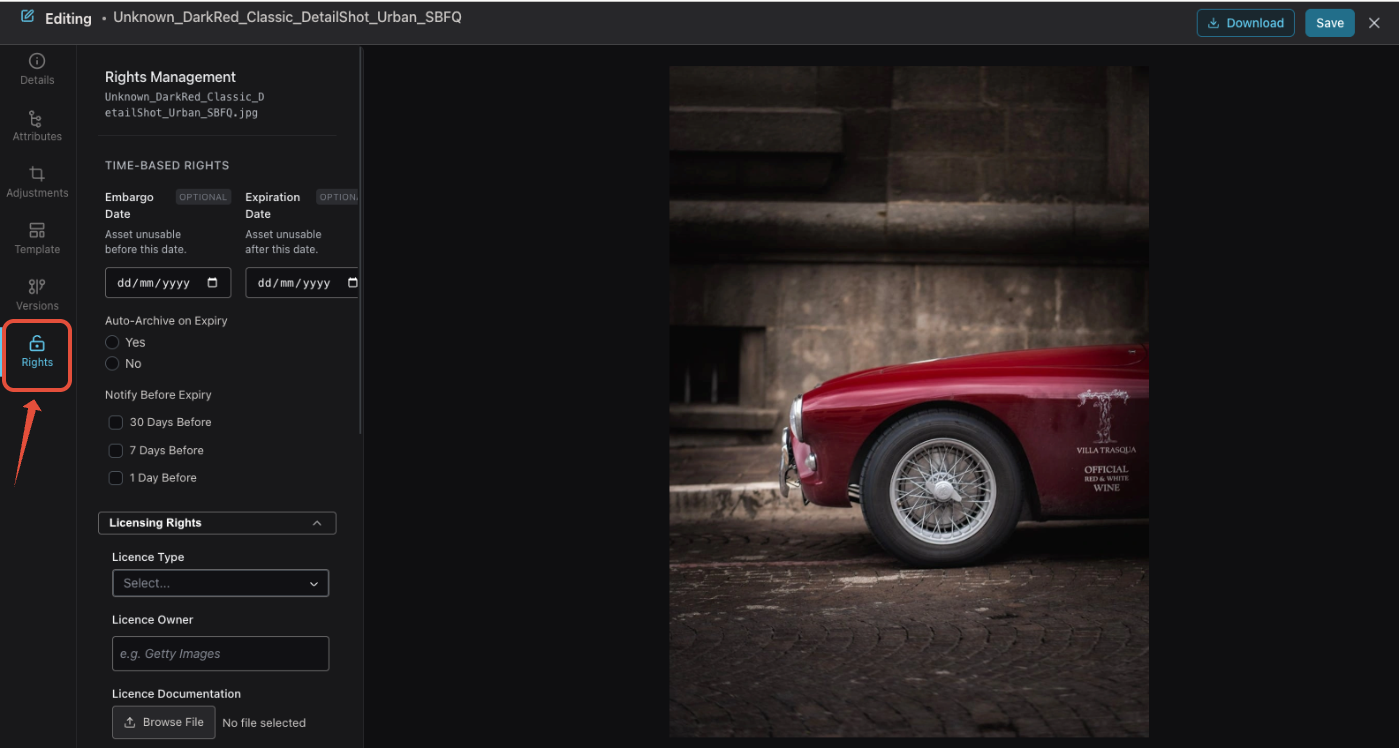
Access Rights Management
To manage the rights for an asset:
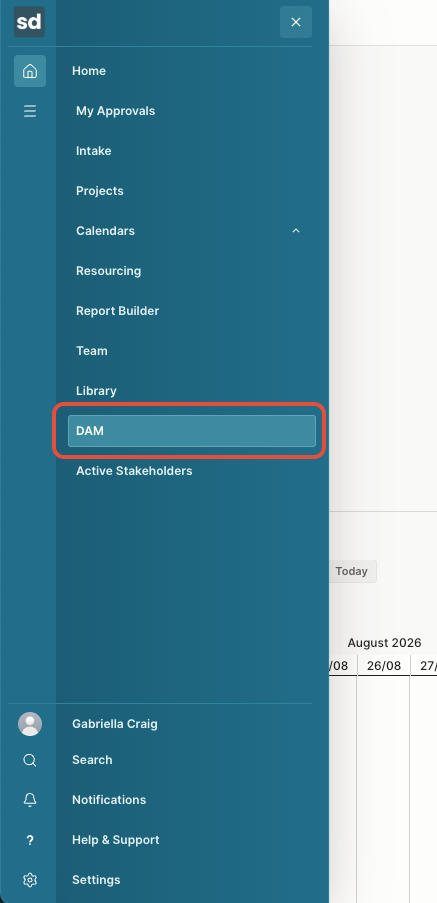
- From the navigation menu, click DAM.
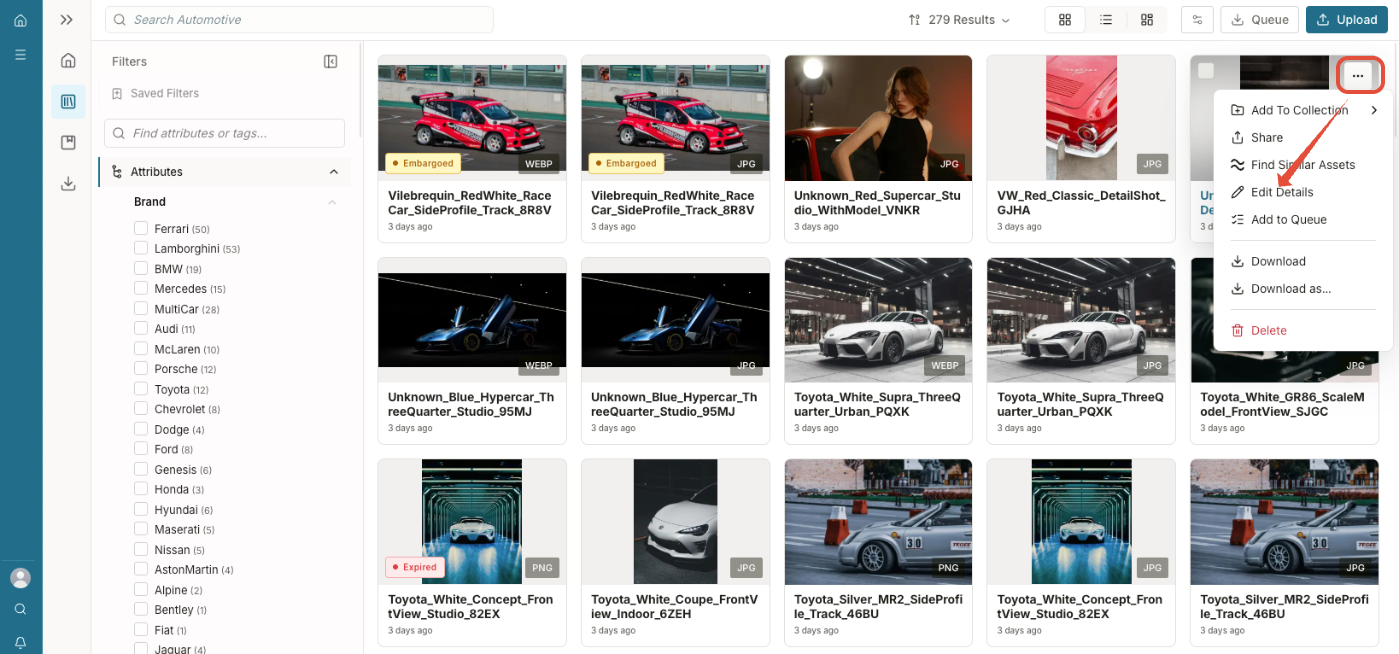
- Choose the asset and hover to see Edit Details. (3 dots)
- Select Rights from the left navigation.
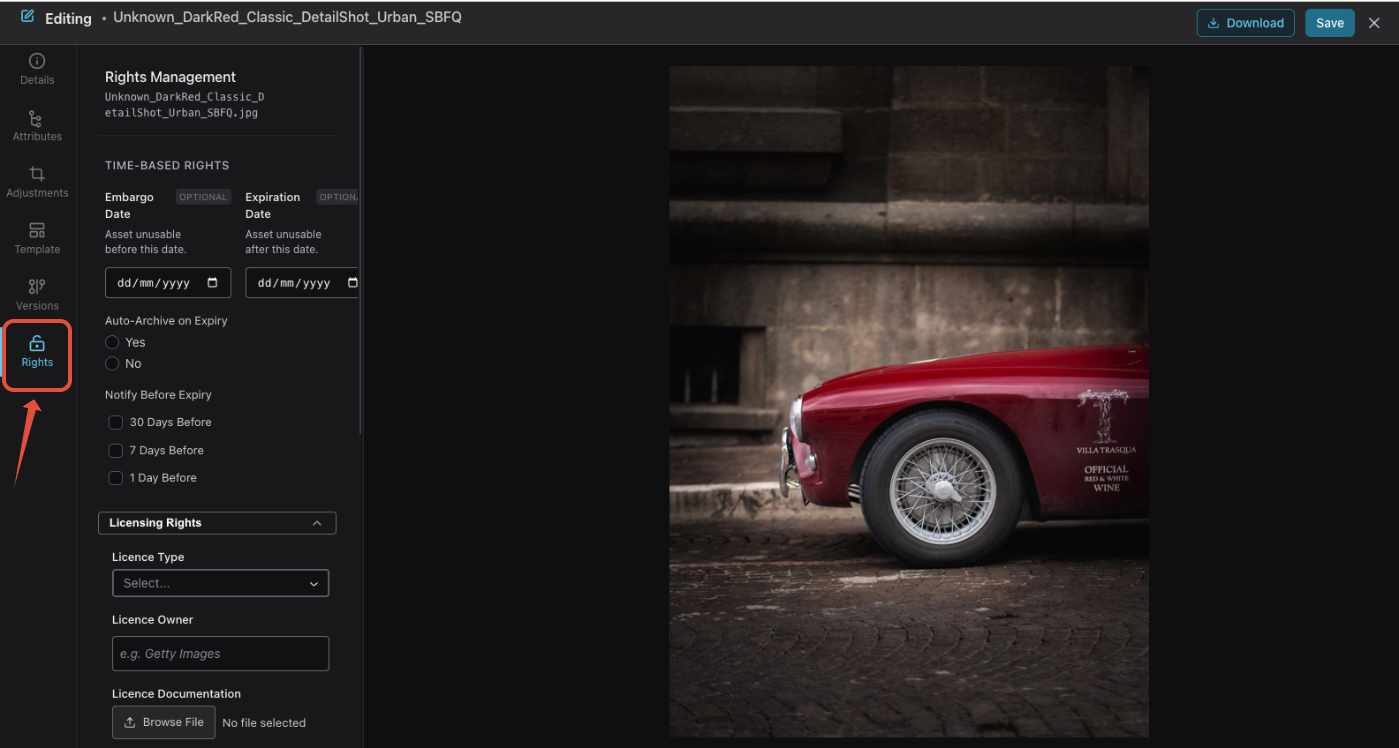
- Configure the appropriate time-based and licensing rights.
- Click Save to apply your changes.
Time-Based Rights
Use Time-Based Rights to control when an asset can be used and what should happen when its usage period expires.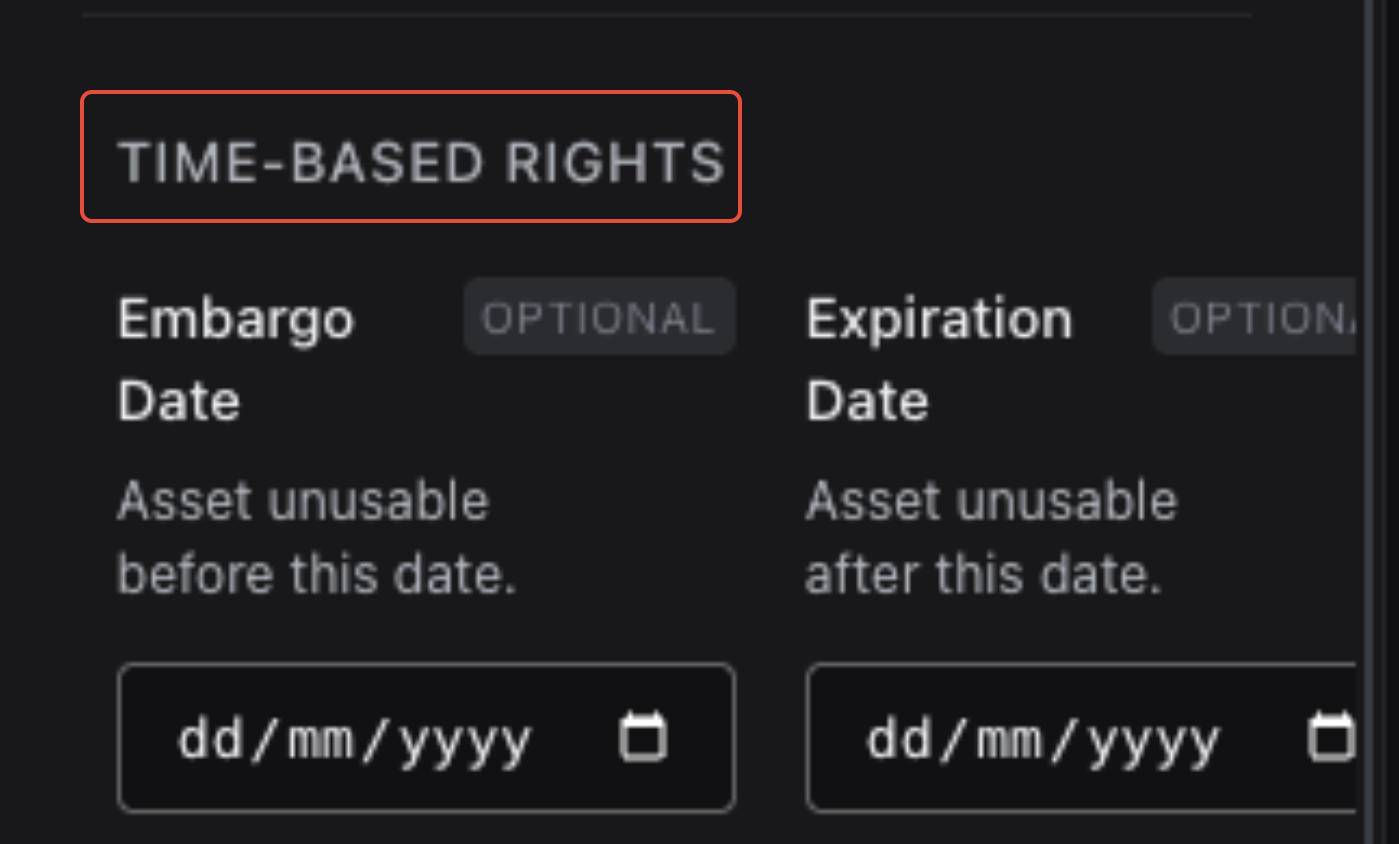
Embargo Date
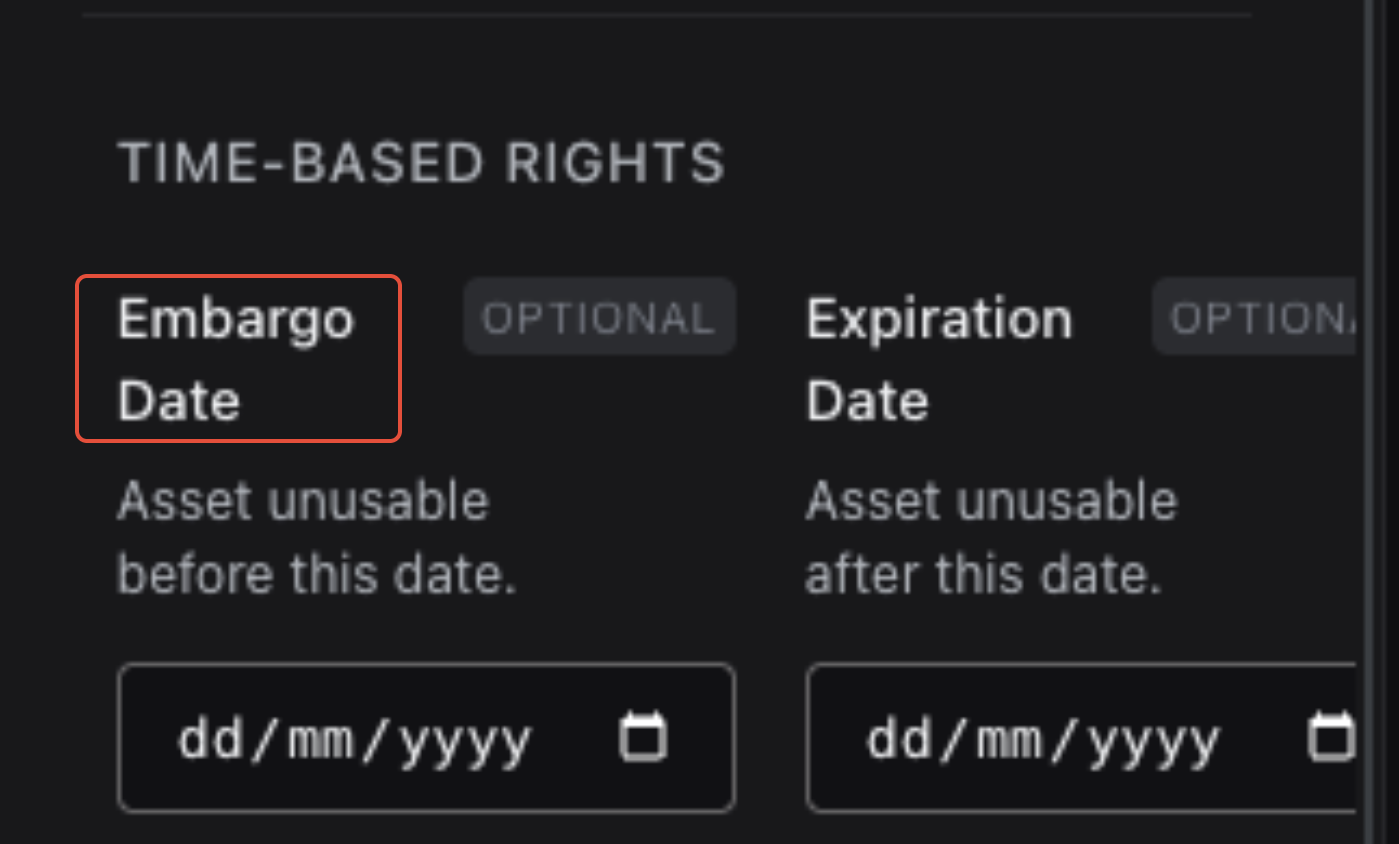
Enter an Embargo Date when the asset should not be available for use before a specific date.
The asset is considered unusable until the specified date.
Leave this field blank if the asset does not have an embargo period.
Expiration Date
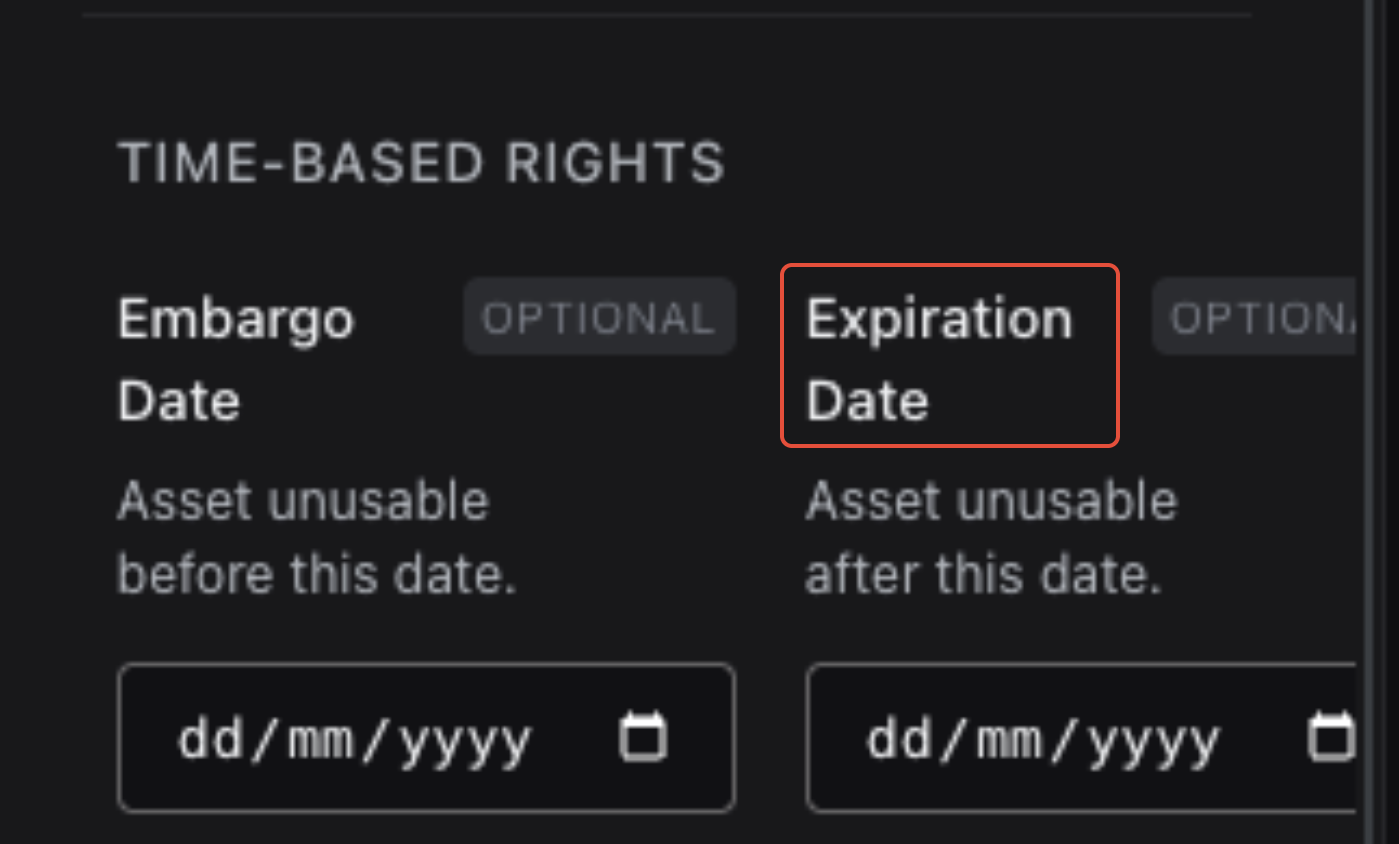
Enter an Expiration Date when the asset's usage rights end on a specific date.
The asset is considered unusable after this date.
Leave this field blank if the asset does not have an expiration date.
Auto-Archive on Expiry
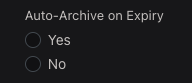
When an expiration date has been configured, use Auto-Archive on Expiry to determine whether the asset should automatically be archived once its rights expire.
Select:
- Yes — Automatically archive the asset when its expiration date is reached.
- No — Do not automatically archive the asset when its expiration date is reached.
Notify Before Expiry
Use Notify Before Expiry to configure advance notifications before an asset's expiration date.
You can select one or more notification intervals:
- 30 Days Before
- 7 Days Before
- 1 Day Before
This gives teams advance notice that an asset's usage rights are approaching expiration so they can take the appropriate action.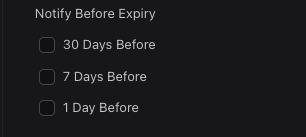
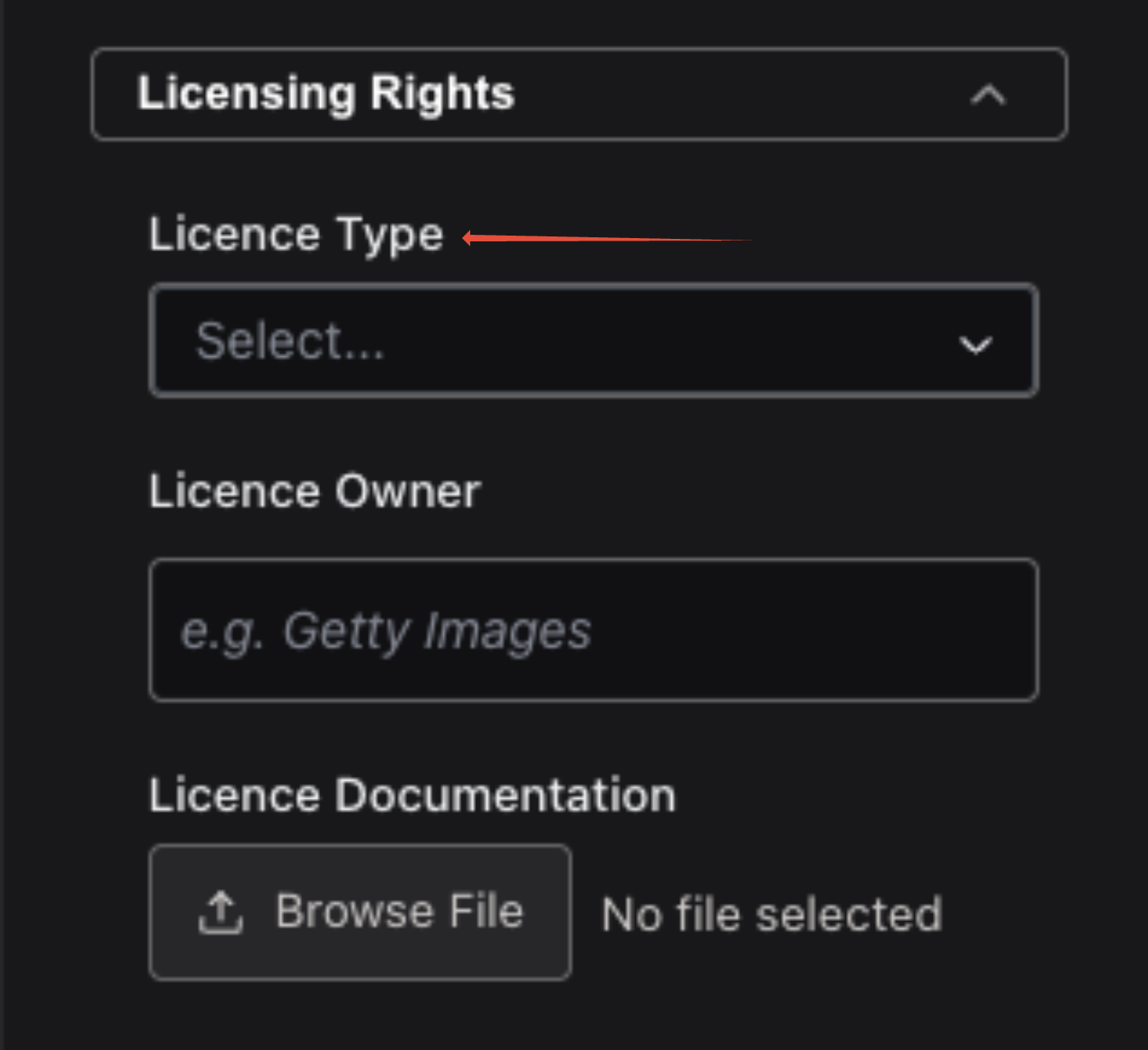
Licensing Rights
Expand Licensing Rights to record information about the license associated with the asset.
License Type
Select the appropriate type of license from the License Type dropdown.
This helps identify the conditions under which the asset has been licensed for use.
License Owner
Enter the name of the organization or rights holder that owns or provides the license.
For example:
Getty Images
License Documentation
Use License Documentation to upload supporting documentation related to the asset's licensing rights.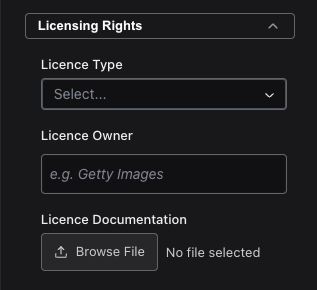
Click Browse File and select the appropriate document from your computer.
This provides a convenient way to keep licensing agreements and other supporting documentation associated with the asset.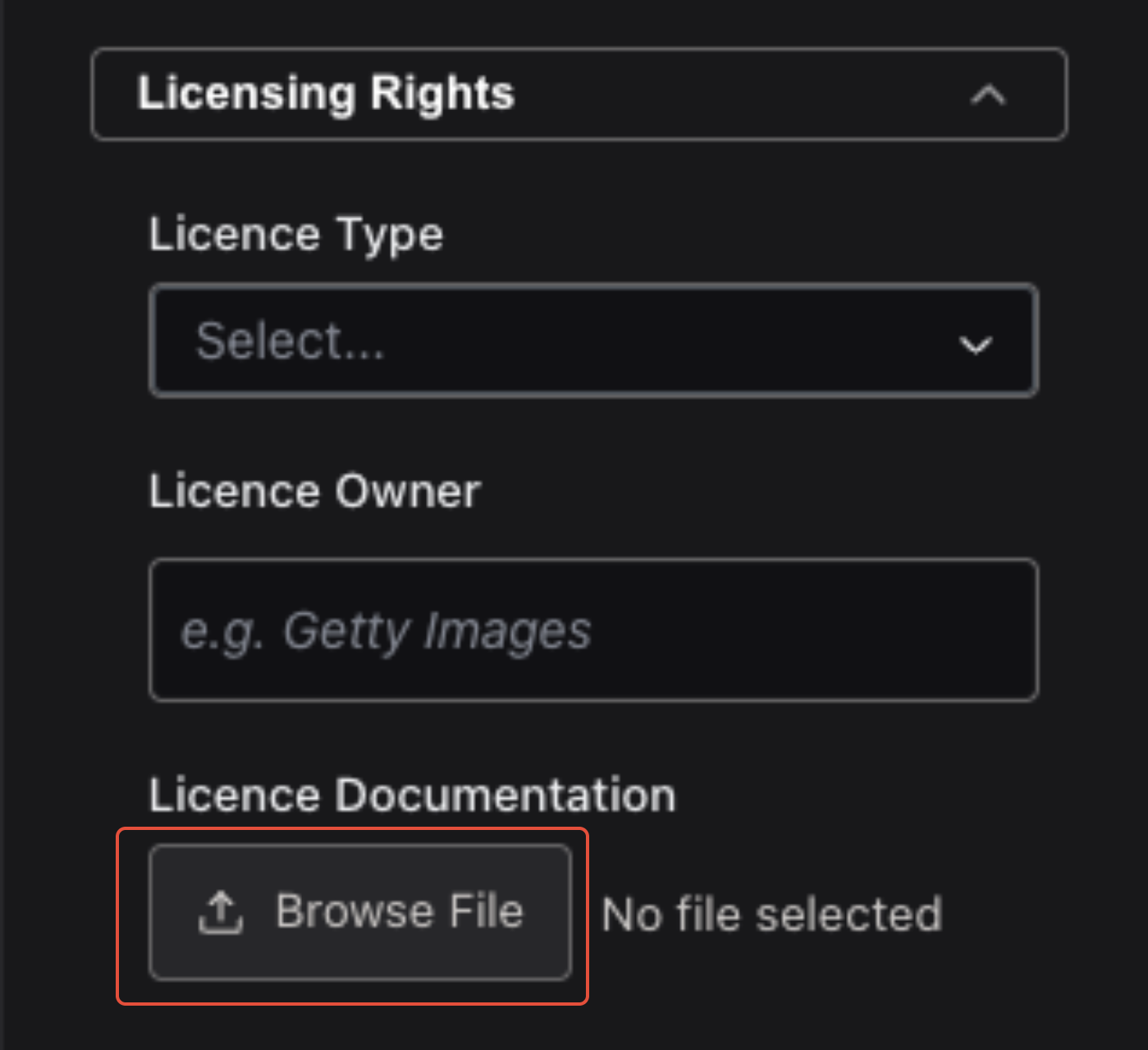
In Territories
Use In Territories to specify the geographic markets where the asset is cleared for use.
Select the appropriate territory from the dropdown. If Global is selected, the asset is cleared for use in all territories.
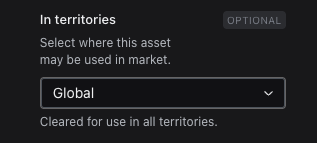
Use this field when licensing or usage rights restrict an asset to particular geographic locations or markets.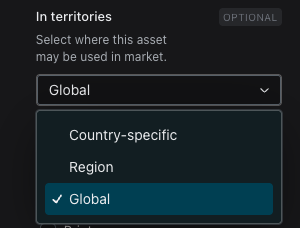
On Channels
Use On Channels to identify the channels where the asset is cleared for use.
Select one or more of the following:
- Print — The asset may be used in printed materials.
- Digital — The asset may be used across approved digital channels.
- Social Media — The asset may be used on social media platforms.
- Broadcast — The asset may be used in television, video, or other broadcast media.
- Outdoor — The asset may be used for outdoor advertising and related placements.
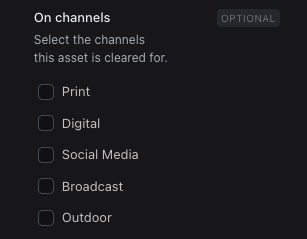 You can select when an asset is licensed for more than one type of use.
For Audiences
Use For Audiences to specify who the asset is legally licensed to be consumed by.
Use this when an asset's licensing terms restrict its use to a particular audience or audience type.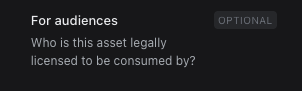
Usage Notes
Use Usage Notes to record additional information about the asset's rights or licensing restrictions that may not be captured by the other Rights Management fields.
For example, you can include:
- Specific usage restrictions
- Additional licensing conditions
- Contract or agreement references
- Exceptions or special requirements
- Other information users should know before using the asset
Clear usage notes help teams understand any additional conditions to consider when selecting and using the asset.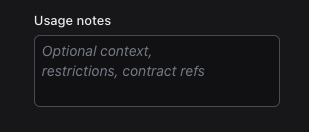
Note: These fields are optional. Complete the fields that are relevant to the asset's licensing agreement and permitted usage.
Saving Rights Information
When you have finished configuring the asset's rights, click Save in the upper-right corner of the page.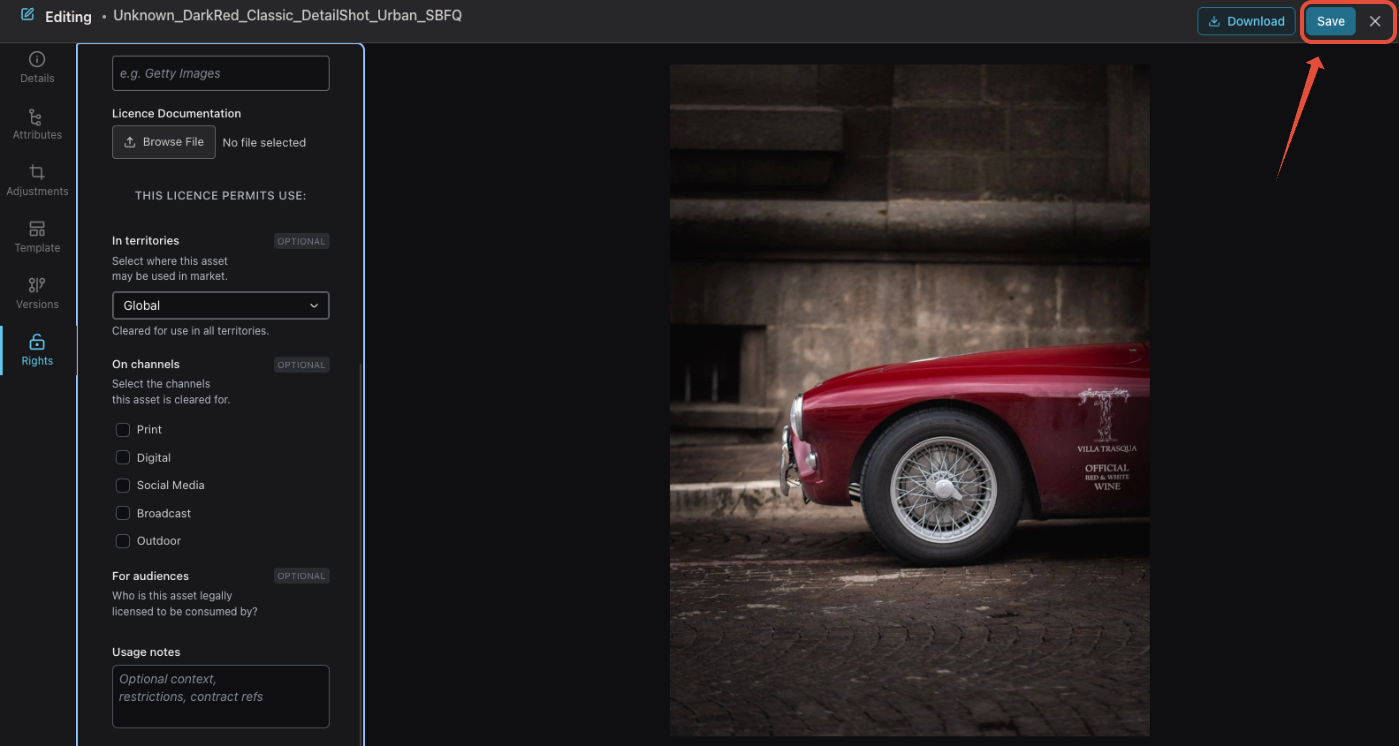
Keeping rights information up to date helps teams understand whether an asset is approved for use, identify upcoming expiration dates, and maintain important licensing information alongside the asset itself.
Was this article helpful?
That’s Great!
Thank you for your feedback
Sorry! We couldn't be helpful
Thank you for your feedback
Feedback sent
We appreciate your effort and will try to fix the article