Bookings in the Resource Manager can be displayed with visual weighting, so their height reflects the number of hours assigned per day.
How it works
If desired, bookings can appear in the Resource Planner as floating blocks, with their height scaled relative to the hours per day.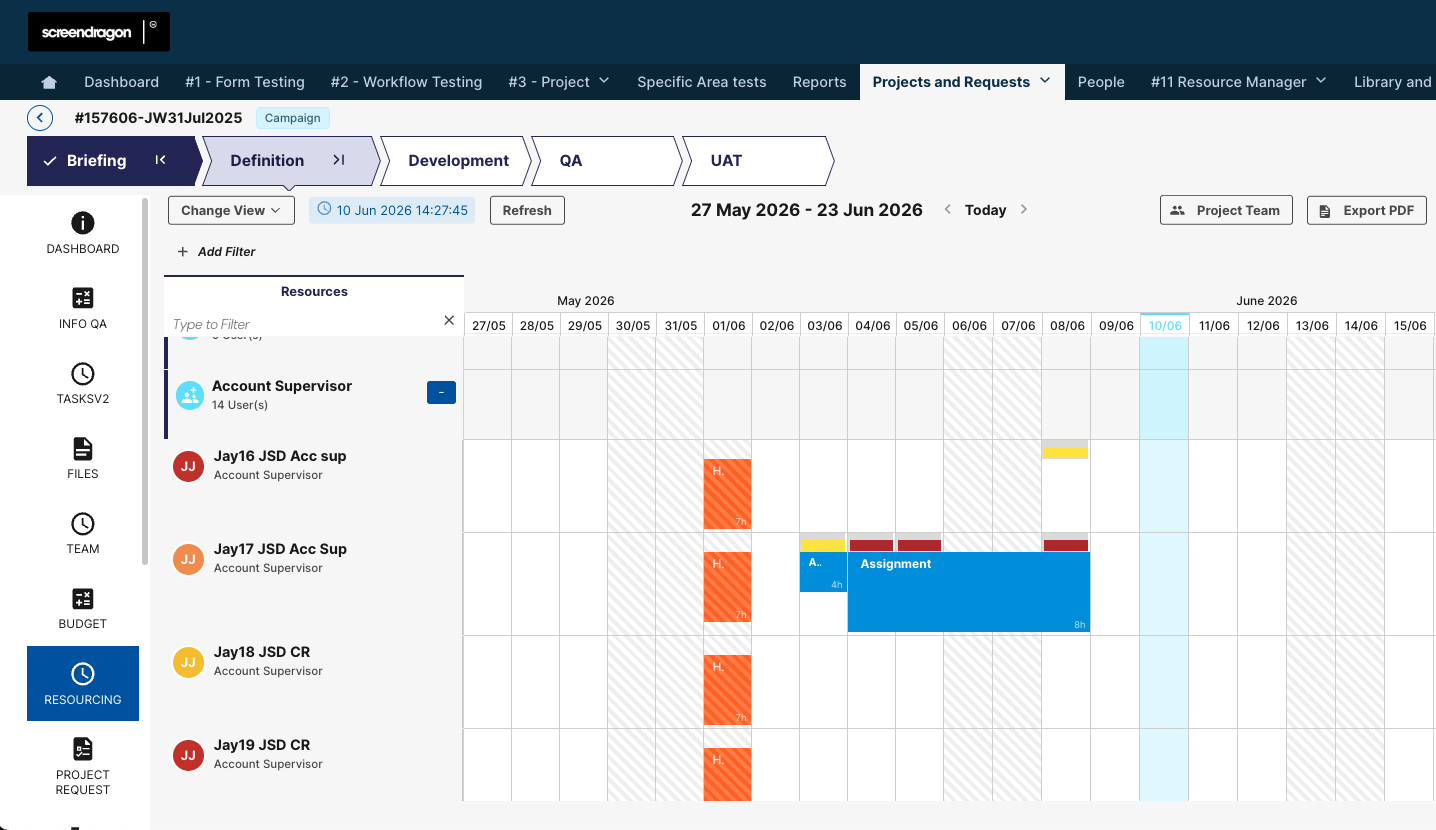
Users can also resize bookings vertically from the bottom edge to update the hours per day directly from the Resource Manager view.
This creates a more visual way to understand booking effort and make quick adjustments without opening each booking individually.
Enabling Weighted Bookings
Admin access is required to set up Weighted Bookings.
- Navigate to the Admin Settings.

- Navigate to Resource Manager.
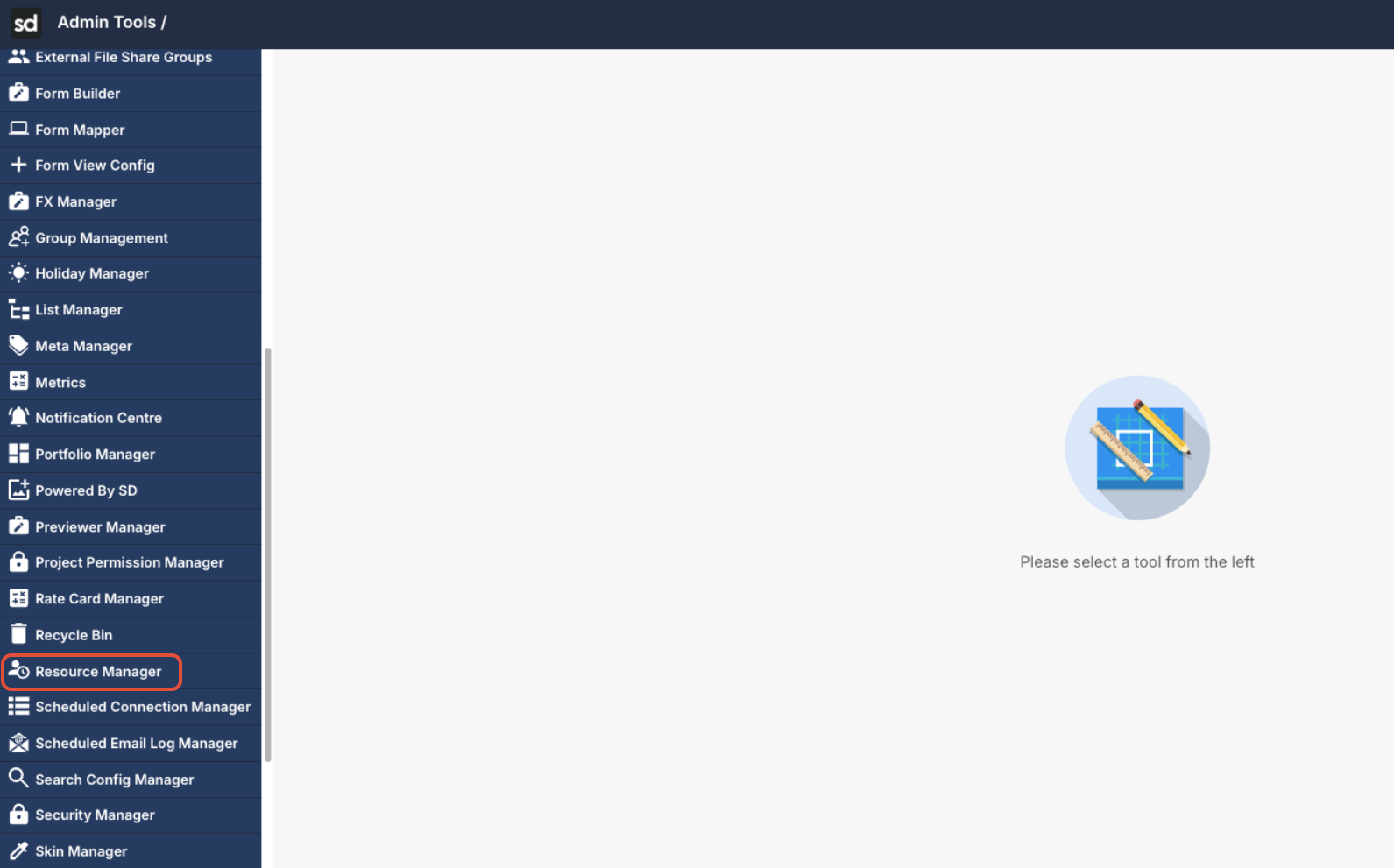
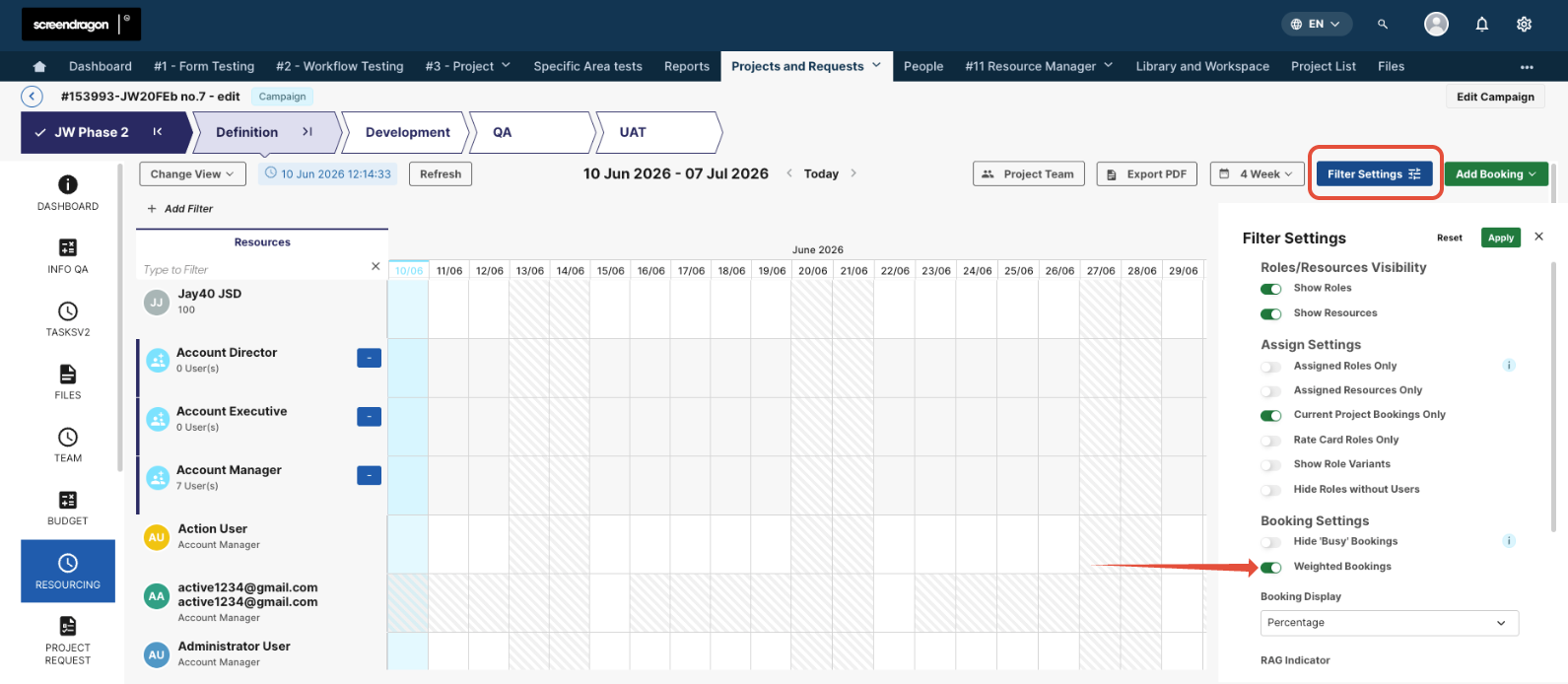
- Under the Filter Settings Tab, scroll to Weighted Bookings.
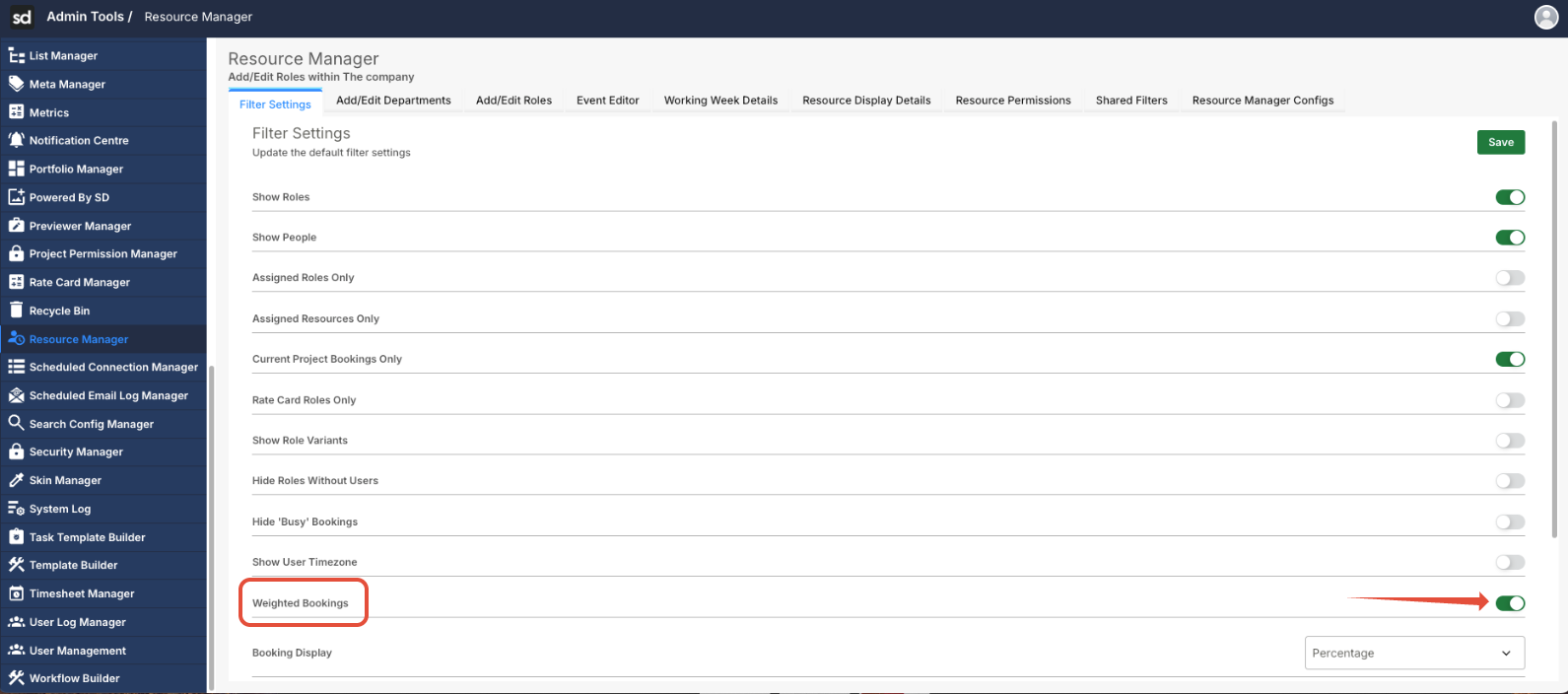
- Toggle the setting on.
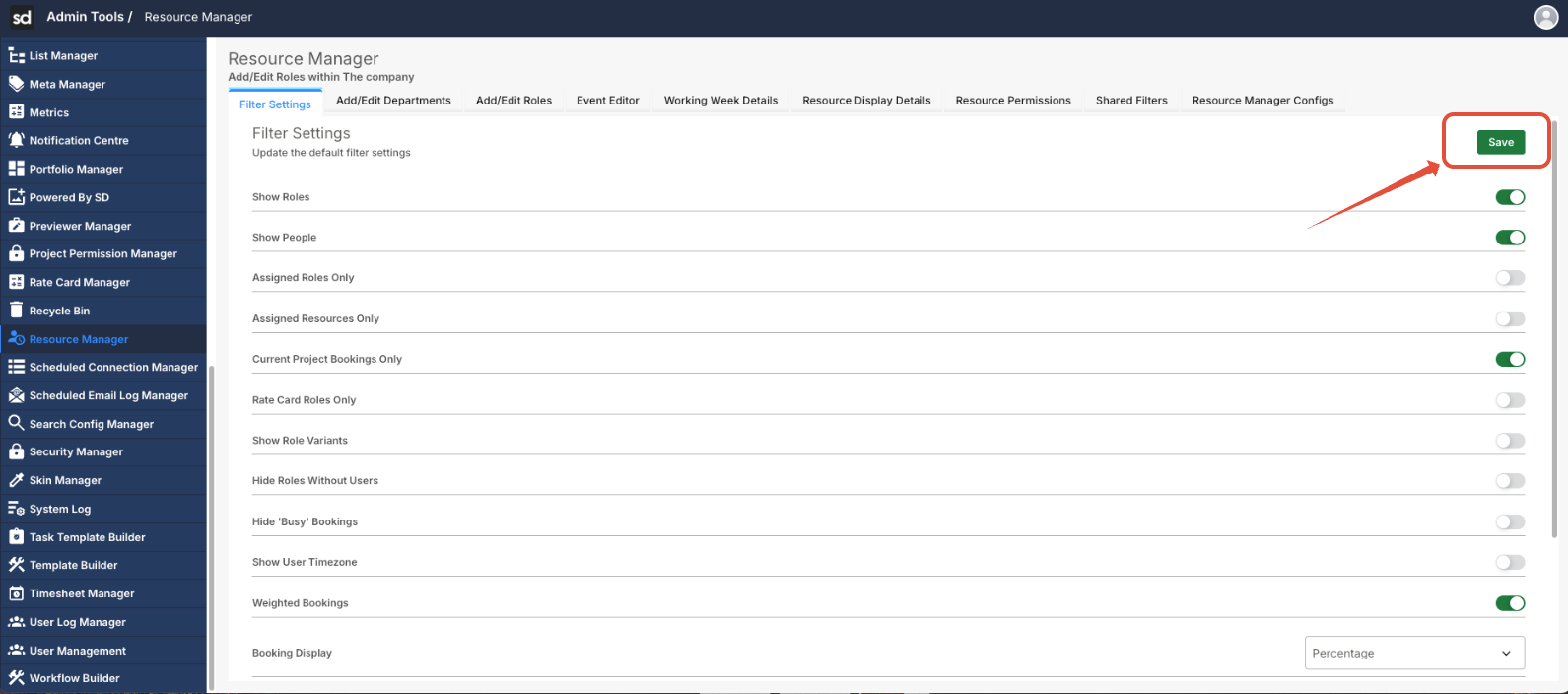
- Click Save.
- Once enabled, navigate to the main page in your Screendragon instance.
- Click the Resource Planner. (Located in either the top-level navigation or within a project where resourcing is enabled.)
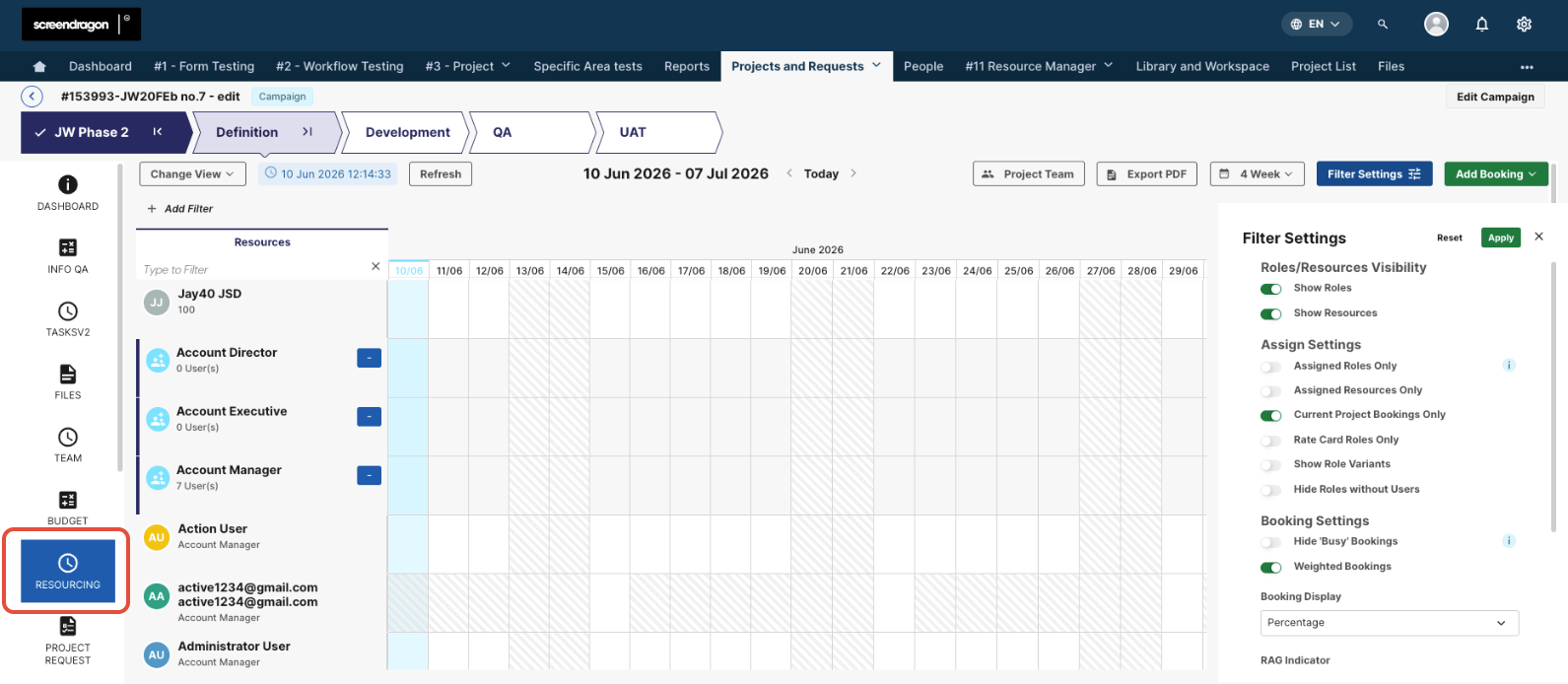
- Click Filters. The weighted bookings option appears here; you can toggle it on or off as you build out your resource plan.
Was this article helpful?
That’s Great!
Thank you for your feedback
Sorry! We couldn't be helpful
Thank you for your feedback
Feedback sent
We appreciate your effort and will try to fix the article