External File Share Proofing
This allows external stakeholders, such as clients, agencies, vendors, or reviewers, to review shared assets and provide formal approval decisions without requiring a Screendragon user account.
Reviewers can view shared assets, add comments and annotations (if enabled), and submit an Accept or Reject decision directly from the proofing interface. This helps streamline approval workflows while maintaining a complete audit trail of all external feedback and decisions.
Enabling External File Sharing (Admin Access)
To share a file with someone outside your organization, you need to enable this under Settings.
- Navigate to the settings area and click the gear.

- On the left menu, navigate to the Preview Manager.
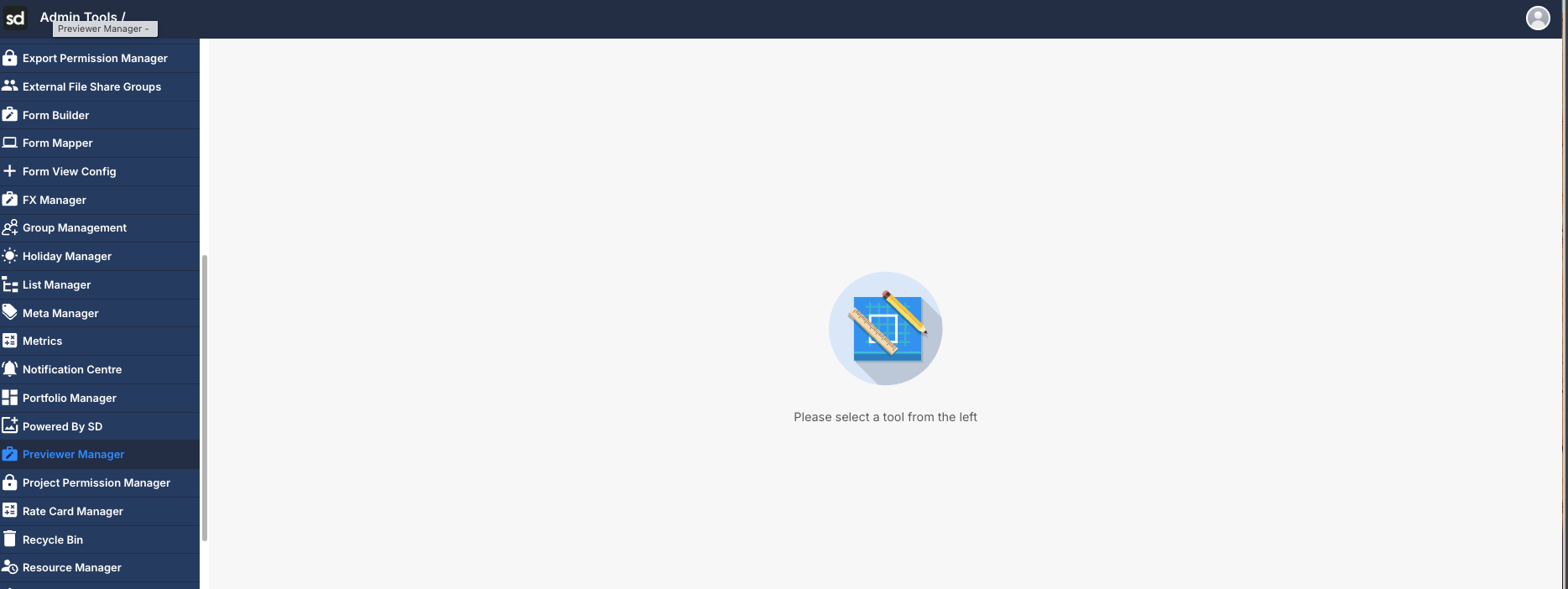
- Click Create New. You can also click an existing view to edit.
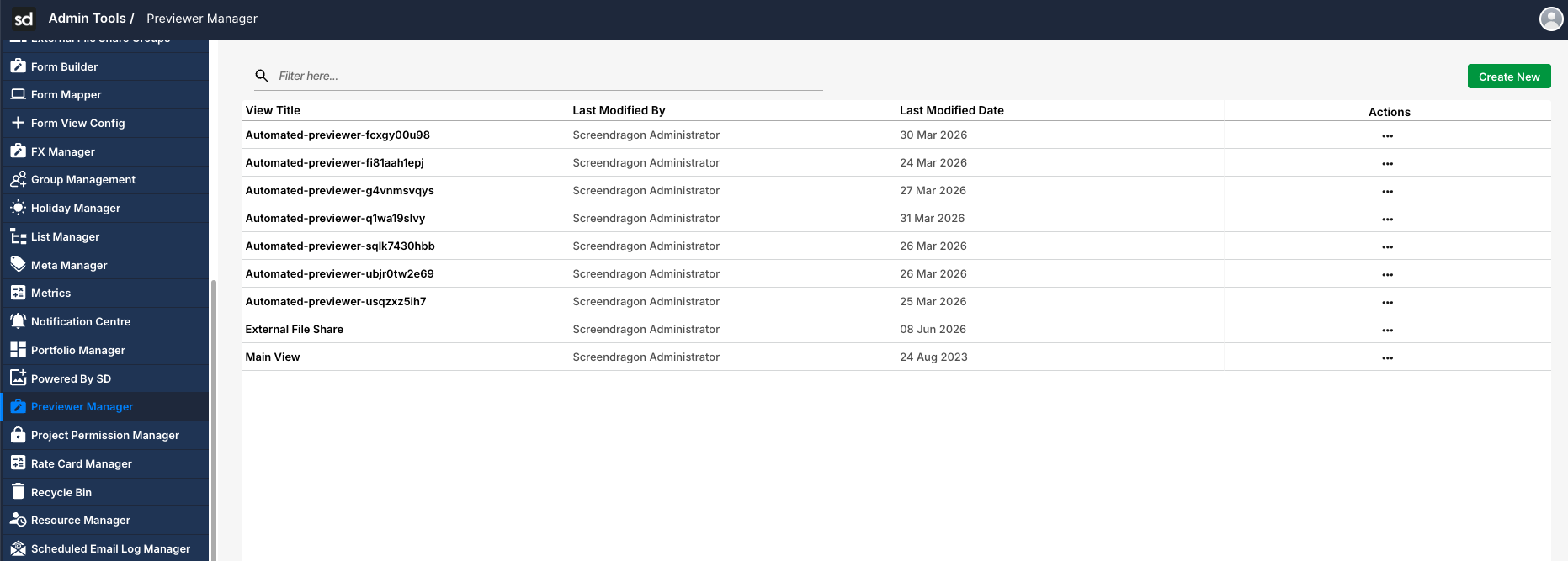
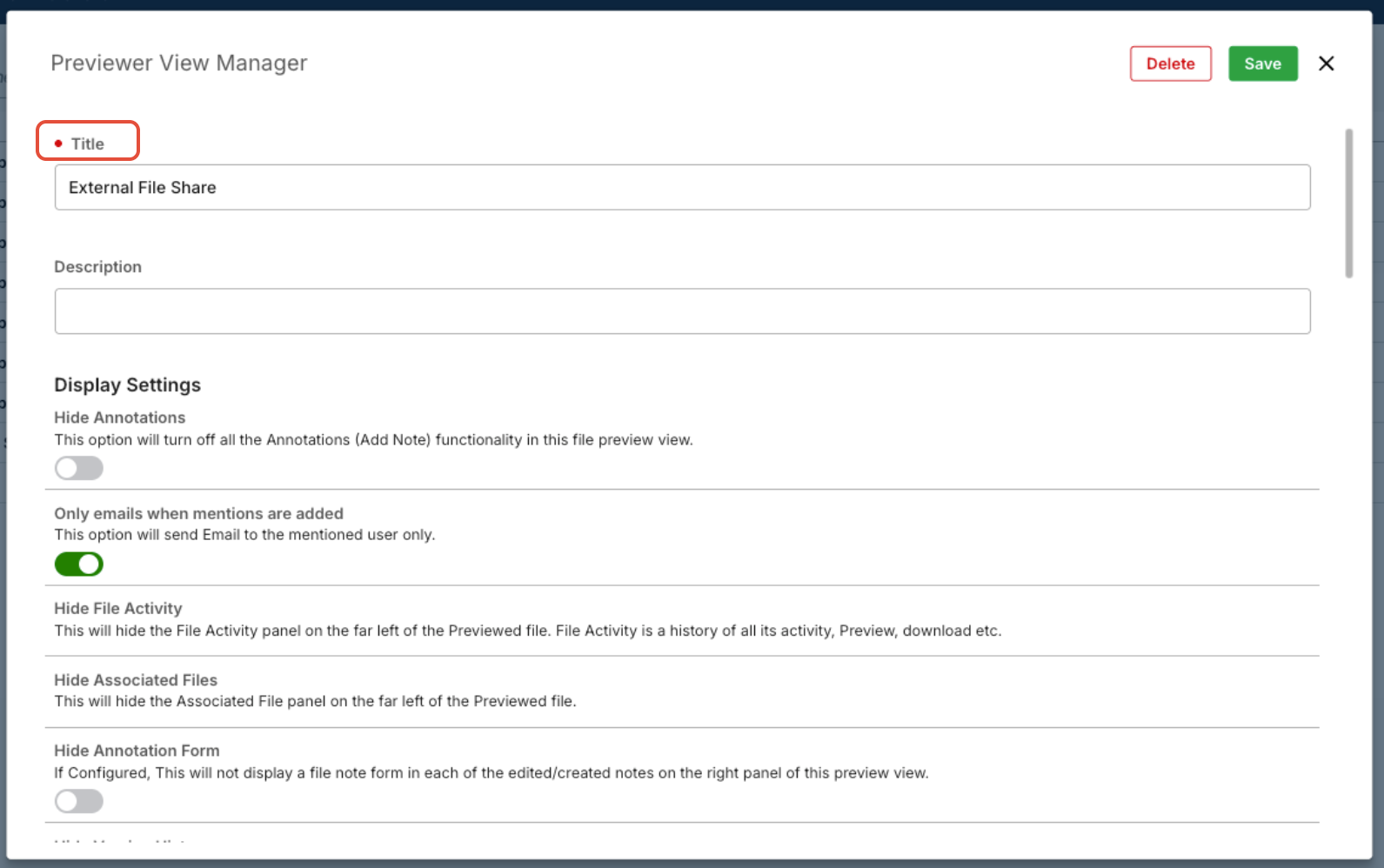
- Give the view a Title/Name.
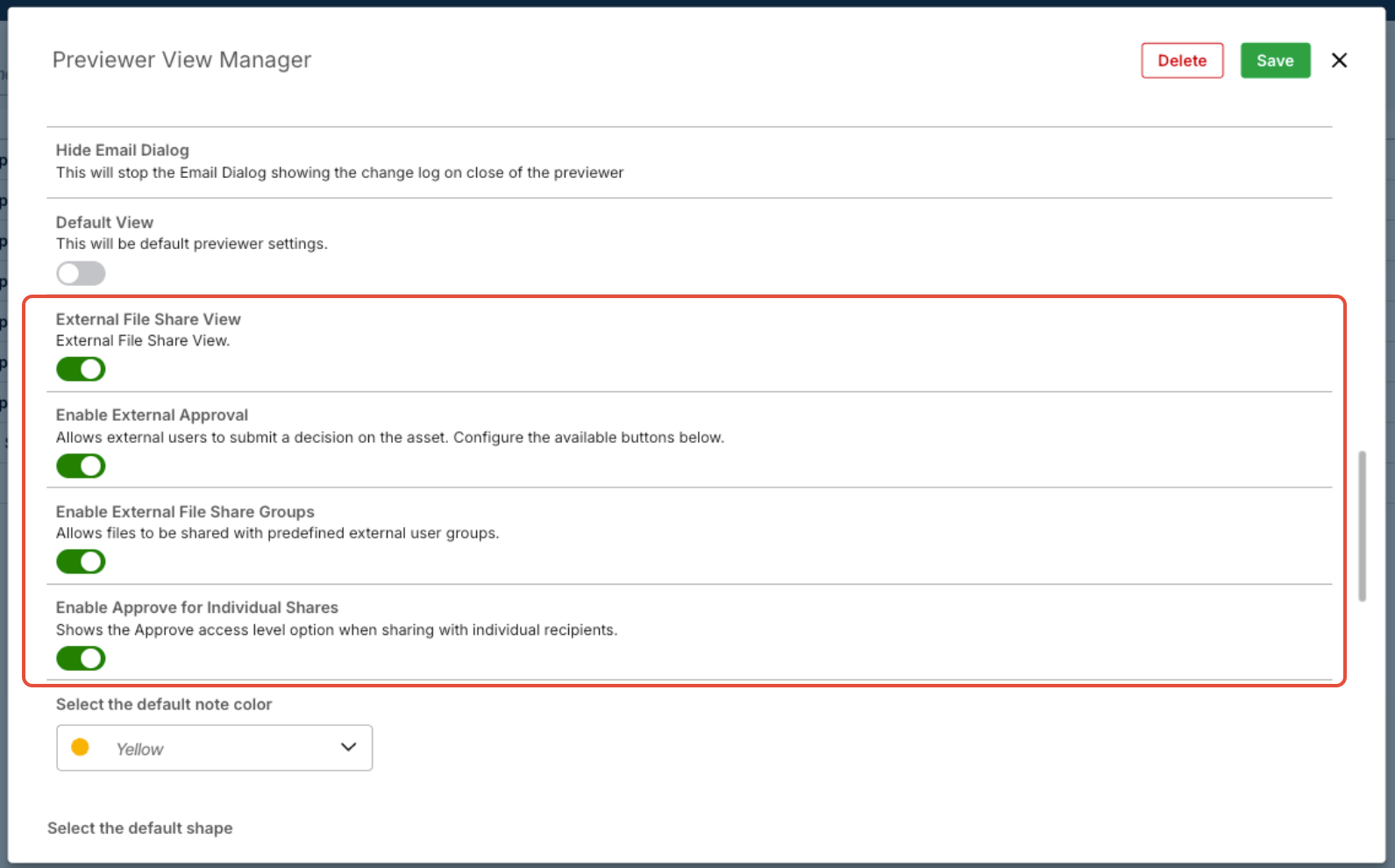
- Scroll until you see the External File Share toggles.
- Continue scrolling to customize the labels and button colors to reflect your needs.
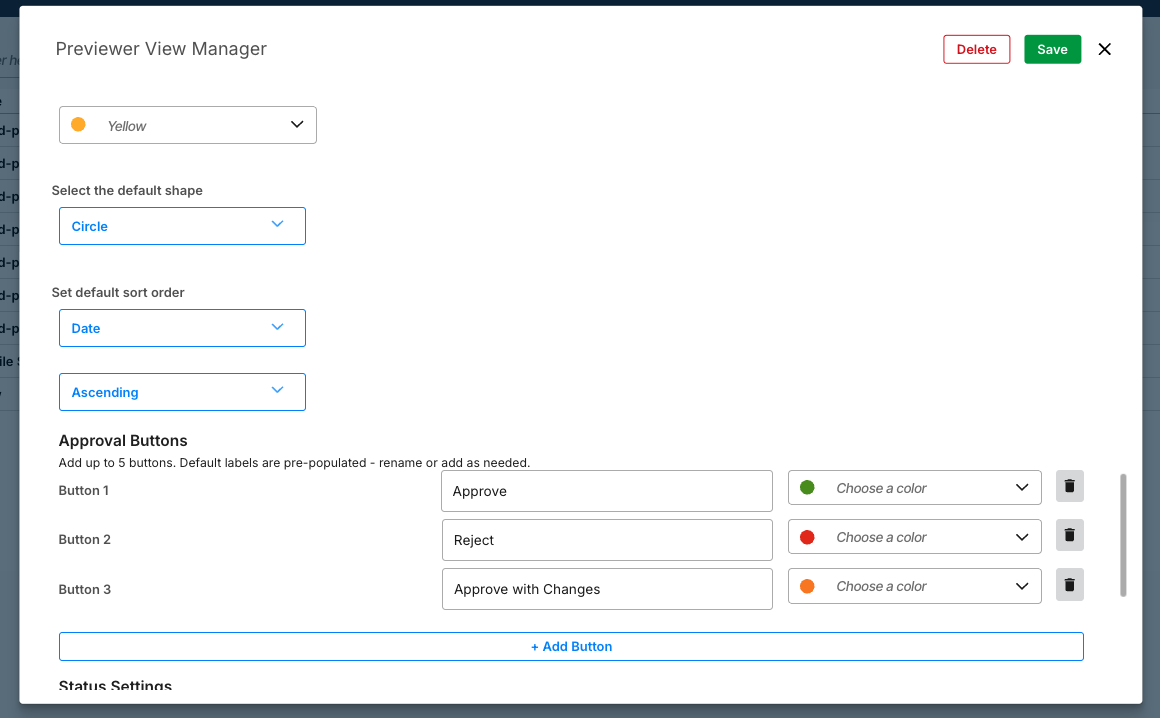
- Click Save.
Sharing a proof via External File Sharing
- Navigate to the project where the assets are stored.
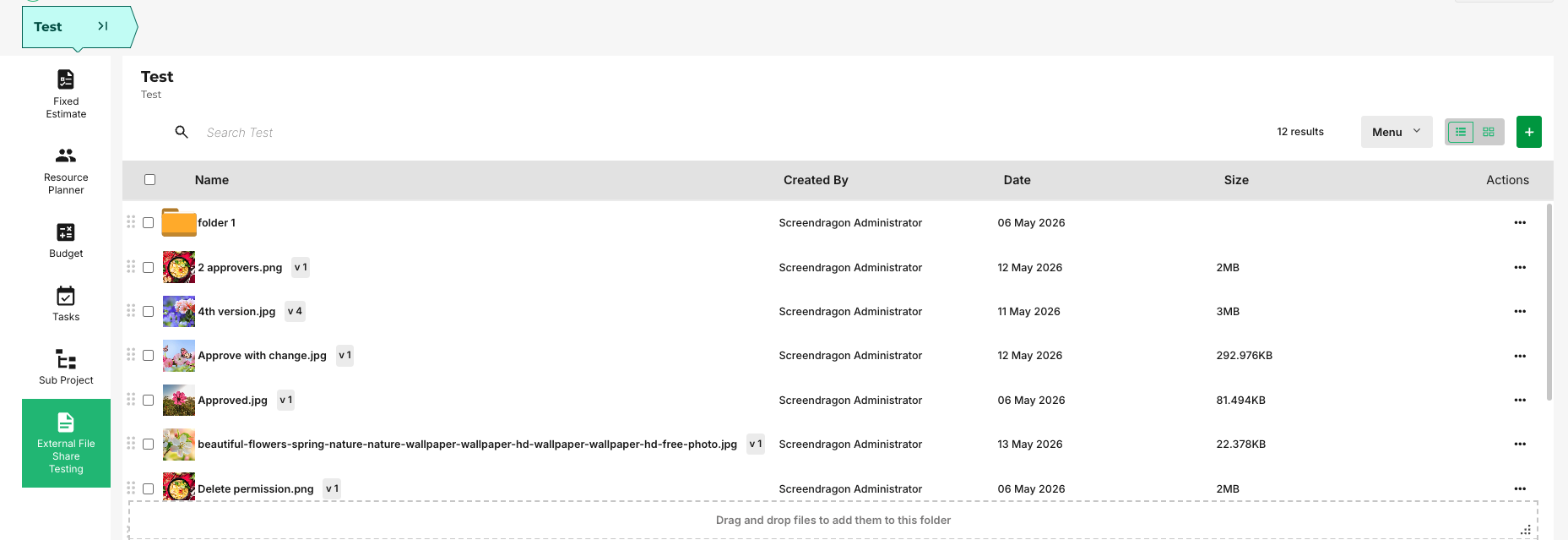
- Click the Actions icon.
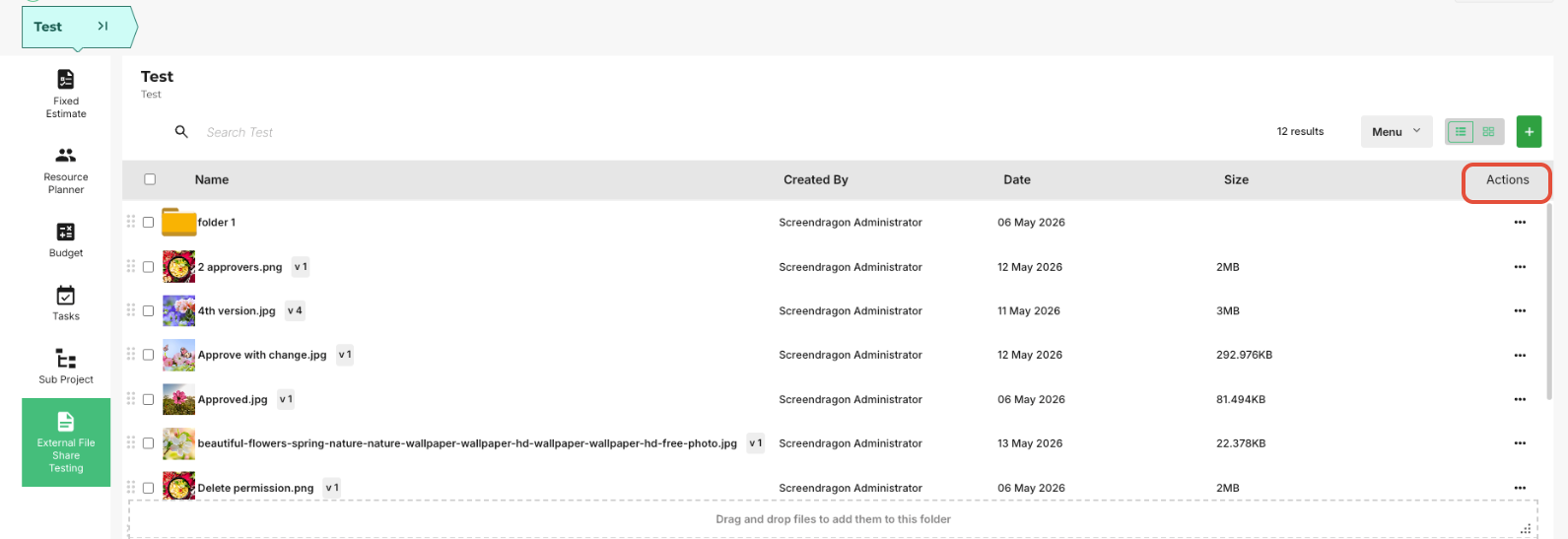
- Then, click External File Share.
- Enter the first and last name of the person with whom you are sharing the file, as well as their email.
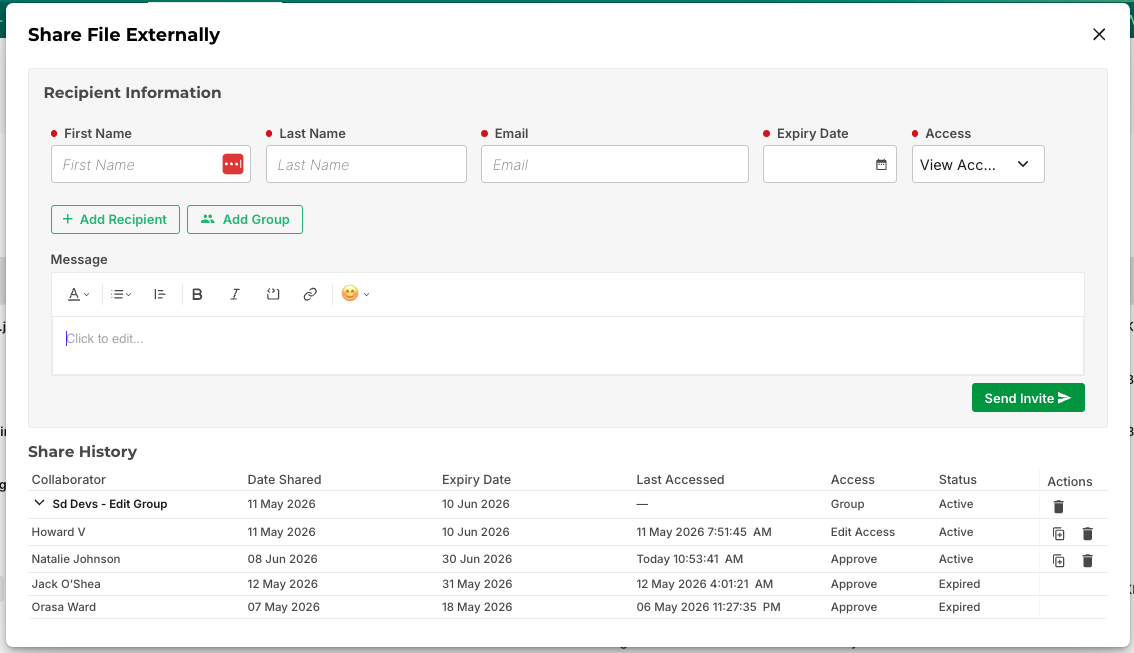
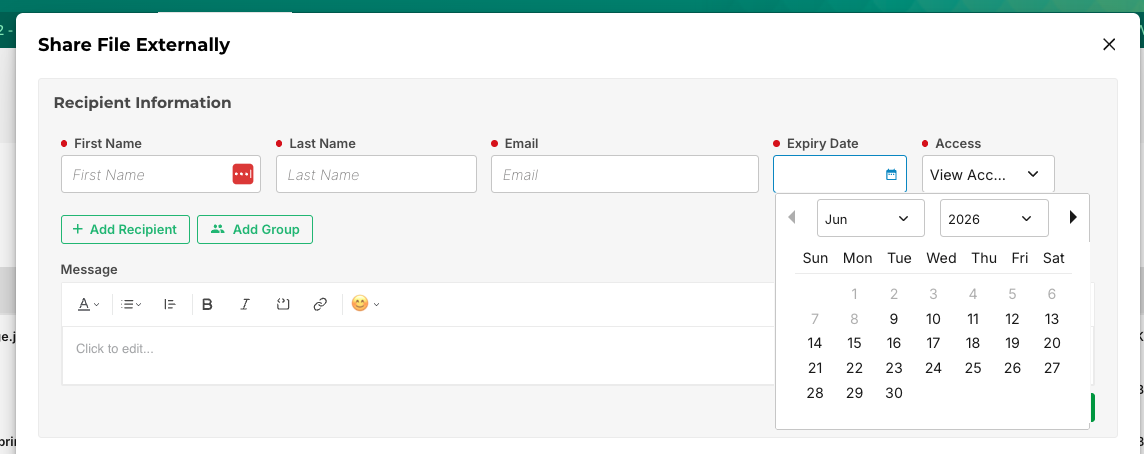
- Set the Expiry Date. This date determines when the recipient's access to the shared files will automatically expire.
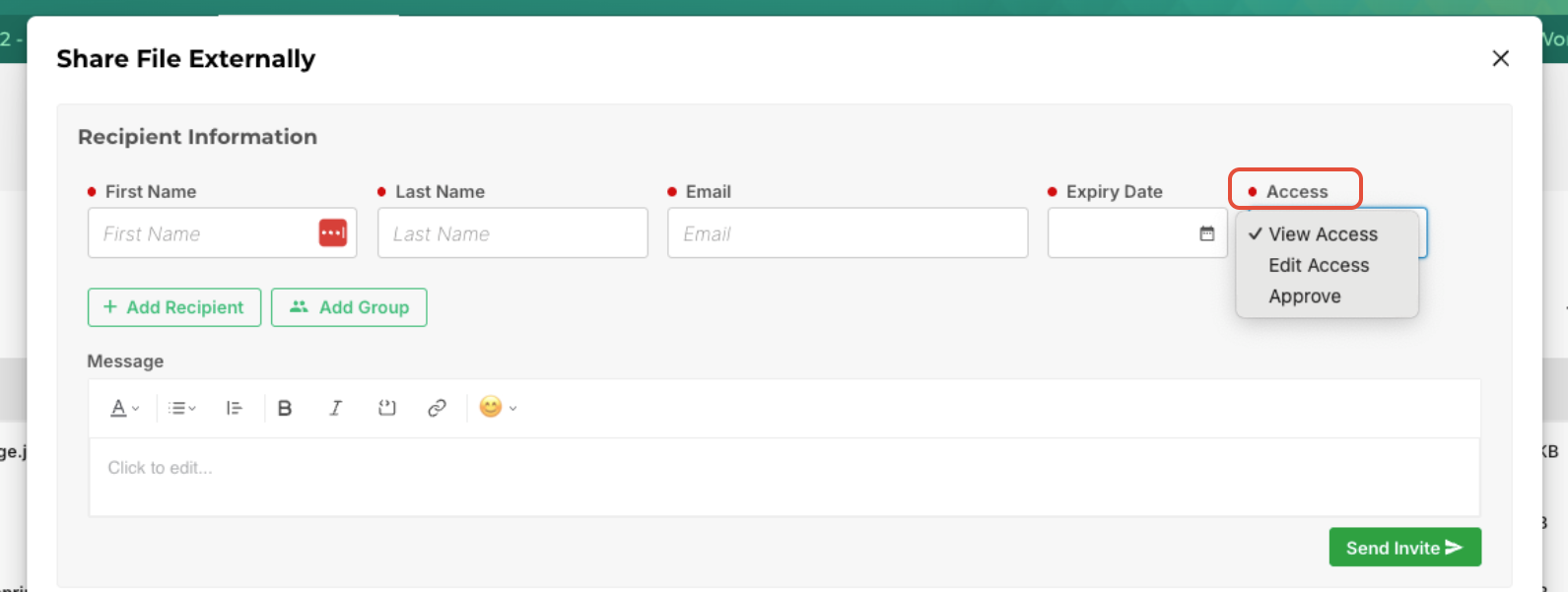
- Choose the Access Level you want them to have from the drop-down.
- In the message area, include any details you want the recipient to have.
- Click Send Invite.
Accessing a Shared Proof
- When an asset is shared externally for proofing, reviewers either receive a secure link via email or a direct share.
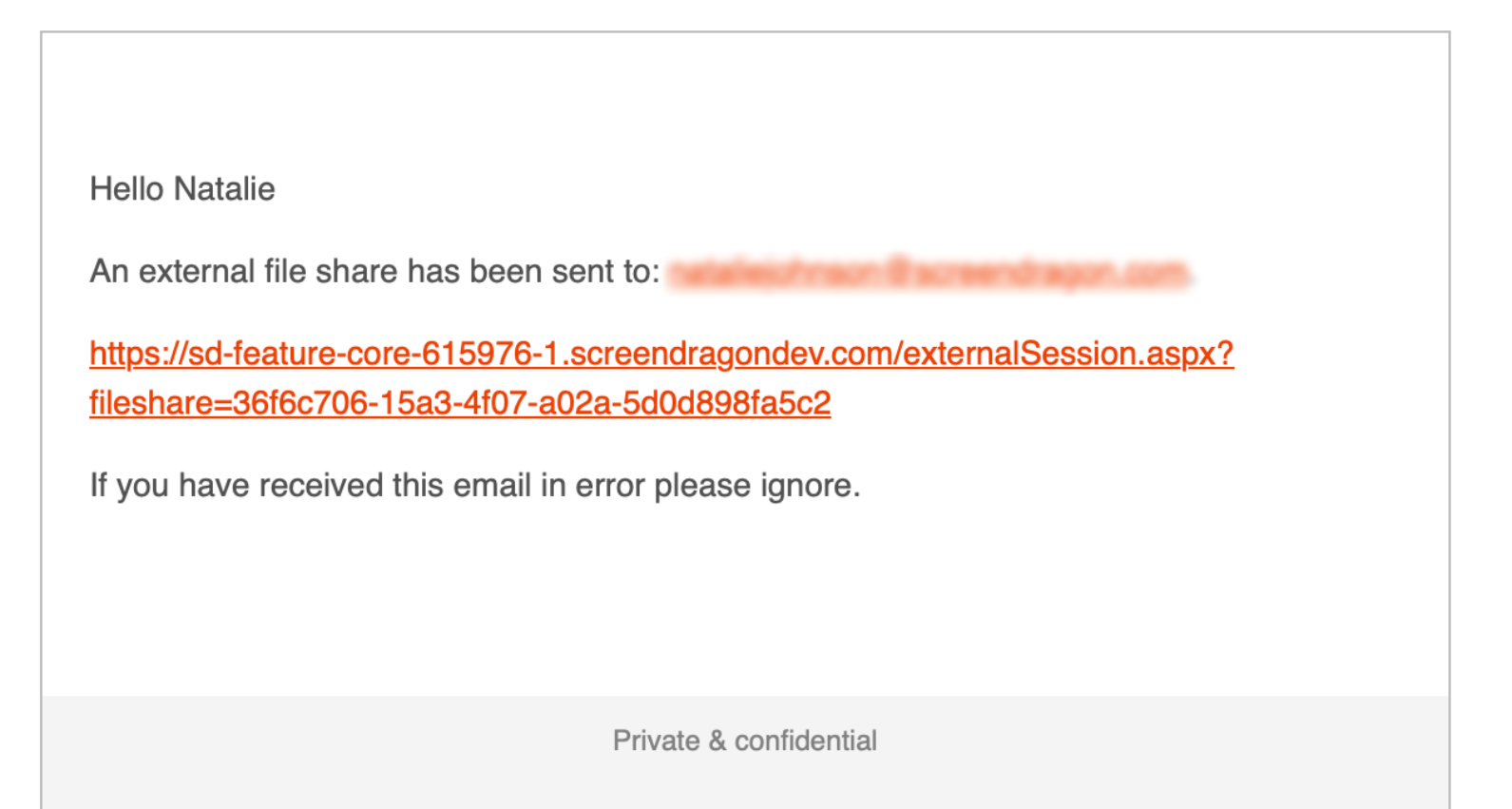
- Open the link to preview the asset in the proof viewer. Enter your credentials, complete the reCAPTCHA verification, and click Submit.
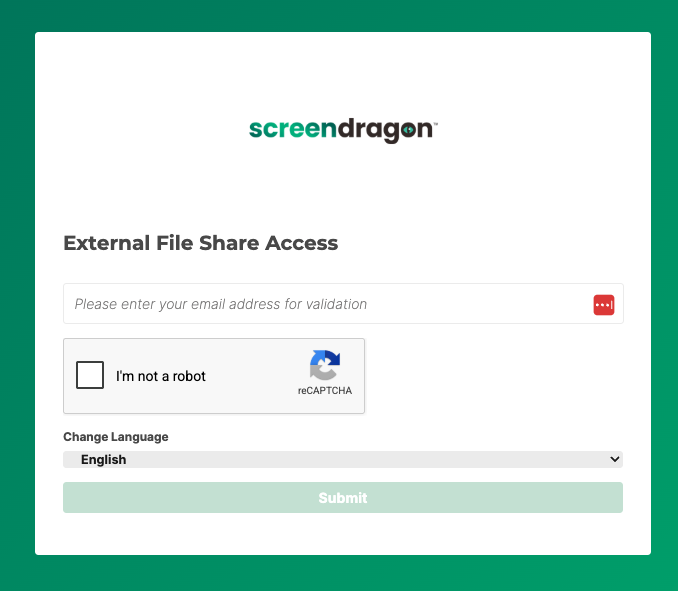
Note: Access permissions and available proofing actions are determined by the settings configured when the share was created.
Accepting an Asset
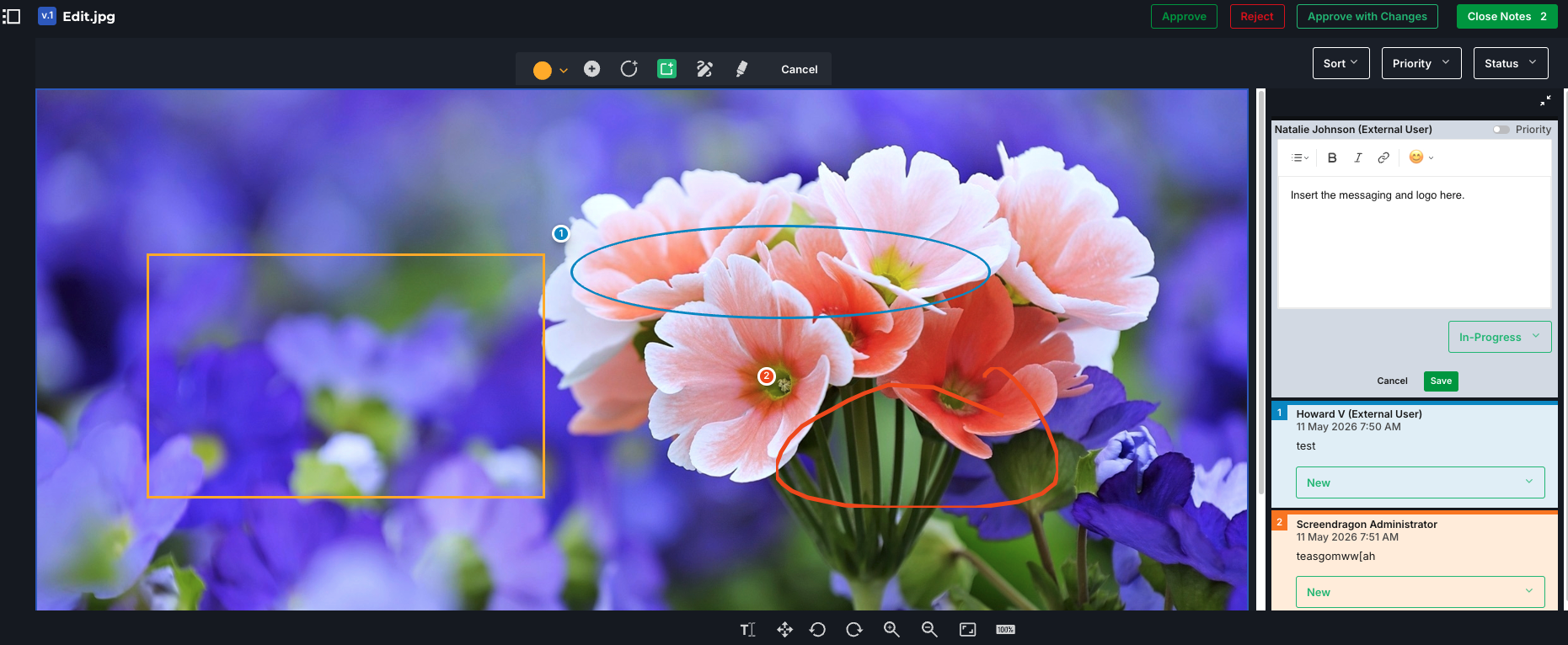
- Once logged in, the proof automatically opens.
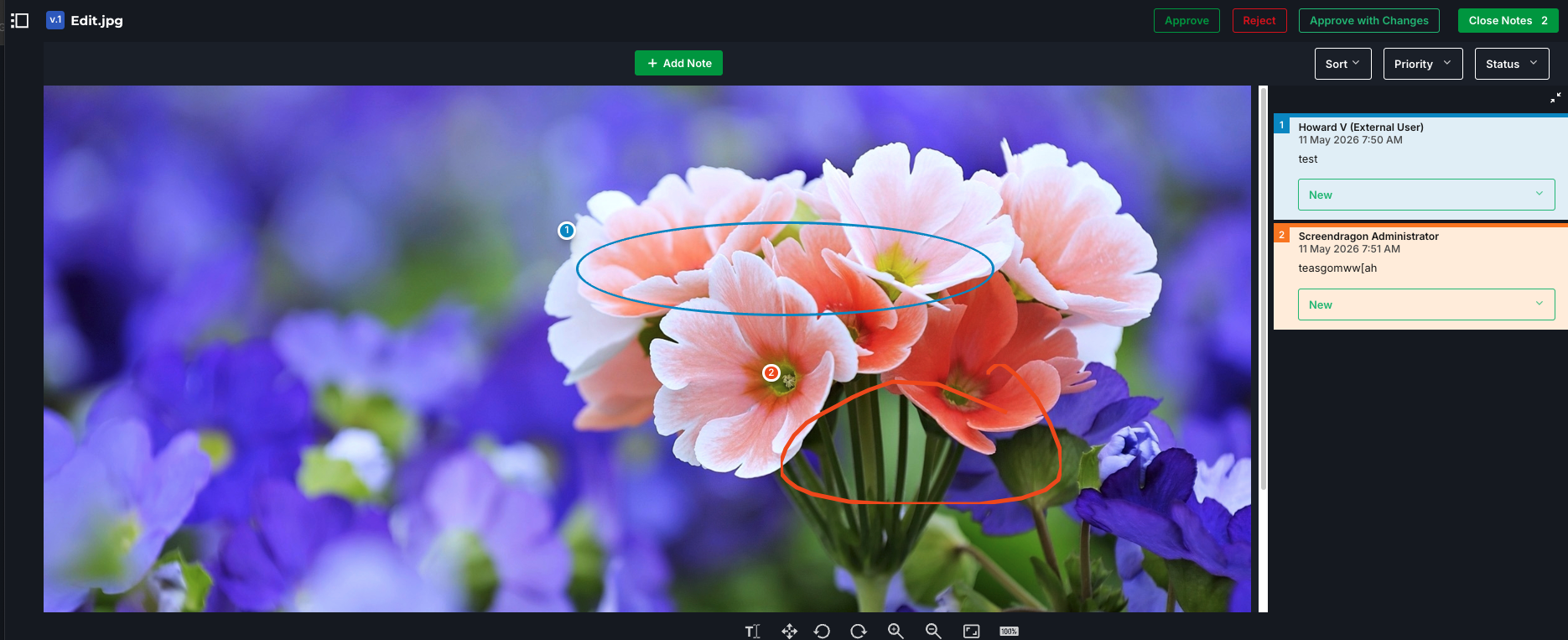
- Review the asset content along with any notes or markups.
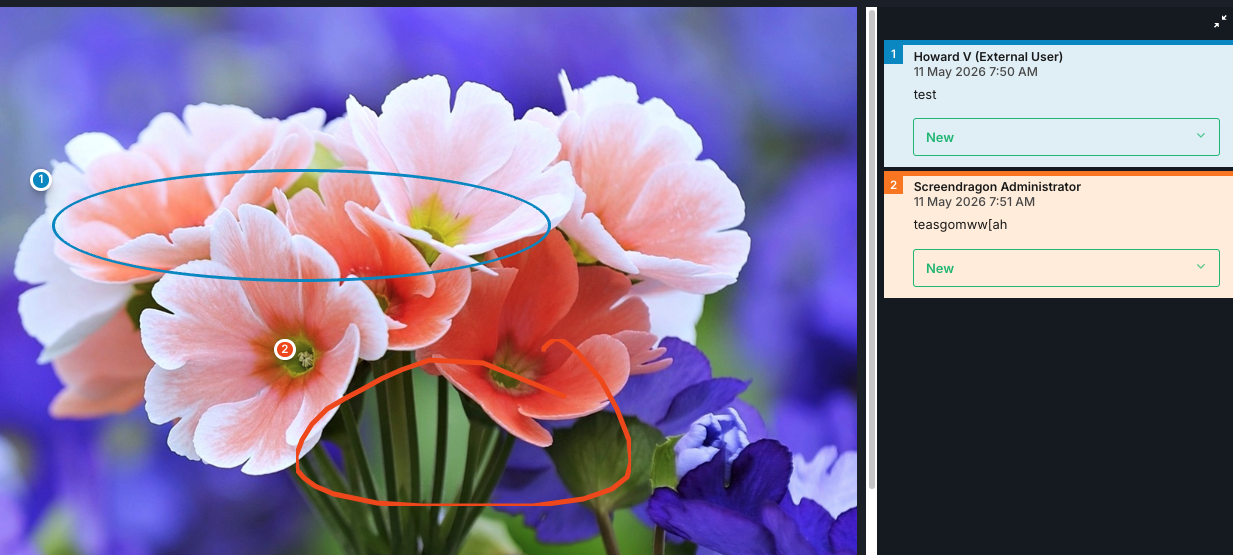
- Click Approve. Enter any additional comments and click Save.
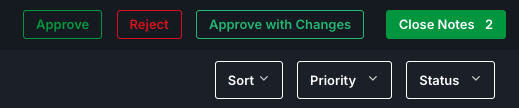
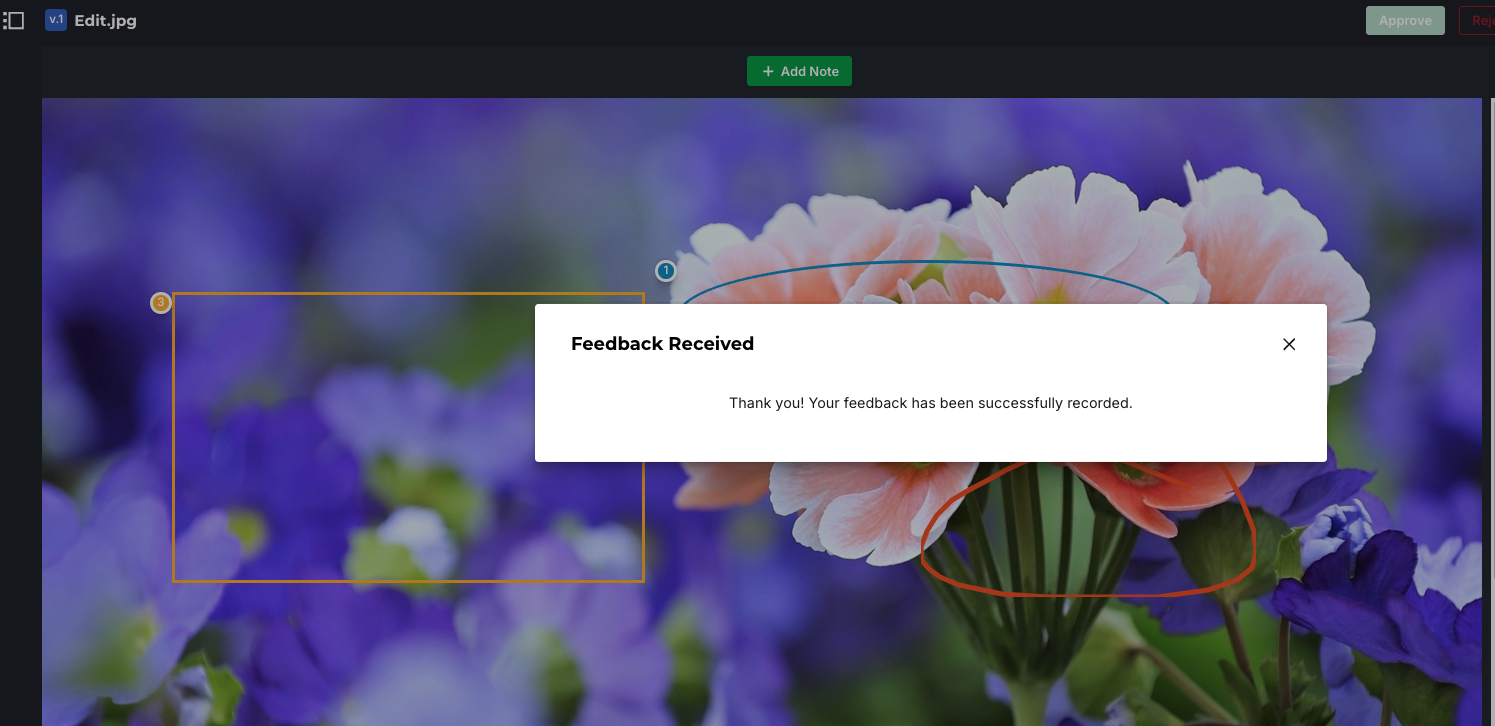
- A confirmation message appears.
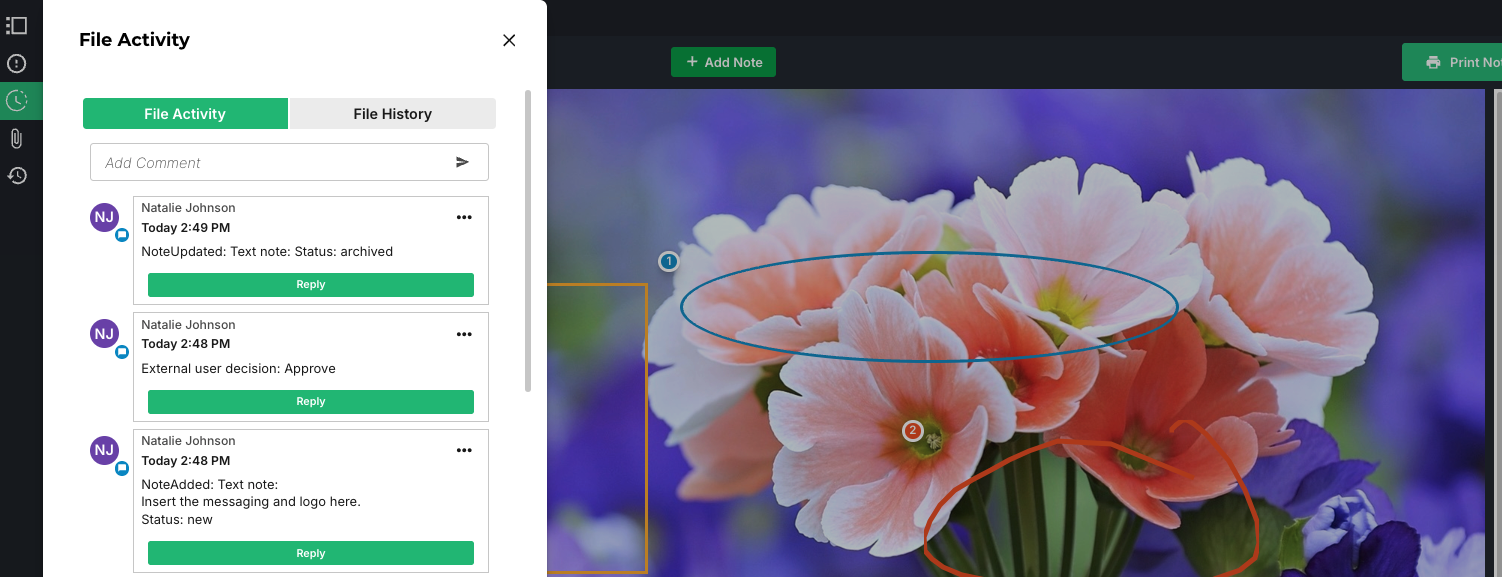
- The approval decision is recorded against the proof.
Rejecting an Asset
If changes are required before approval:
- Open the proof.
- Review the asset content.
- Click Reject.
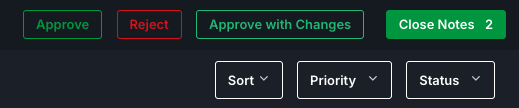
- Enter any additional comments and click Save.
Approving an Asset with Changes
If the asset is generally approved but requires minor updates that do not need another review cycle, you can select Approve with Changes.
- Open the proof.
- Review the asset content.
- Click Approve with Changes.
- Enter comments outlining the required updates.
- Confirm your decision.
Audit Trail
All external approval actions are logged for reporting and compliance purposes, including:
- Reviewer name
- Approval decision
- Date and time of submission
- Comments provided
- Asset version reviewed
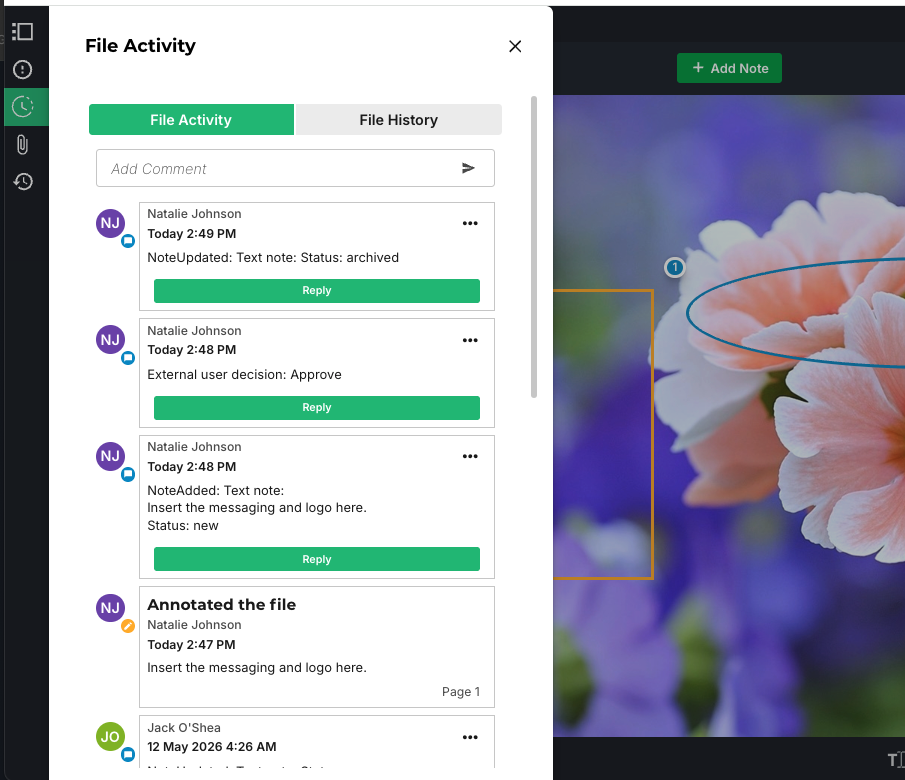
This ensures a complete history of all external proofing activity is maintained throughout the asset lifecycle.
Was this article helpful?
That’s Great!
Thank you for your feedback
Sorry! We couldn't be helpful
Thank you for your feedback
Feedback sent
We appreciate your effort and will try to fix the article