Attribute Management
Home Page
TABLE OF CONTENTS
The Attribute Management admin tool provides centralized control over the lists of values that populate form fields such as dropdowns, radio buttons, and checkboxes.
The Attribute Management tool also serves as a controlled source of metadata, reducing inconsistencies such as variations in naming conventions (e.g., US / USA / United States). This standardization enhances the system’s ability to filter, categorize, and group attributes with greater accuracy and efficiency.
As with all administrative tools, it can be accessed by selecting the cog icon located in the upper-right corner of the main interface.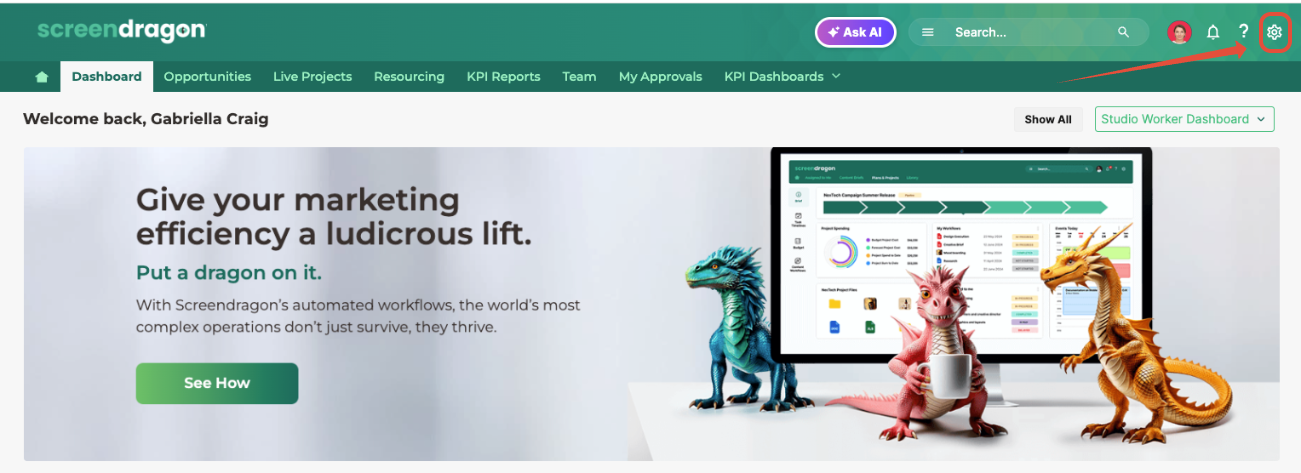
This action opens the Admin Tools page in a new browser tab. From the left-hand navigation panel, select Attribute Management to proceed.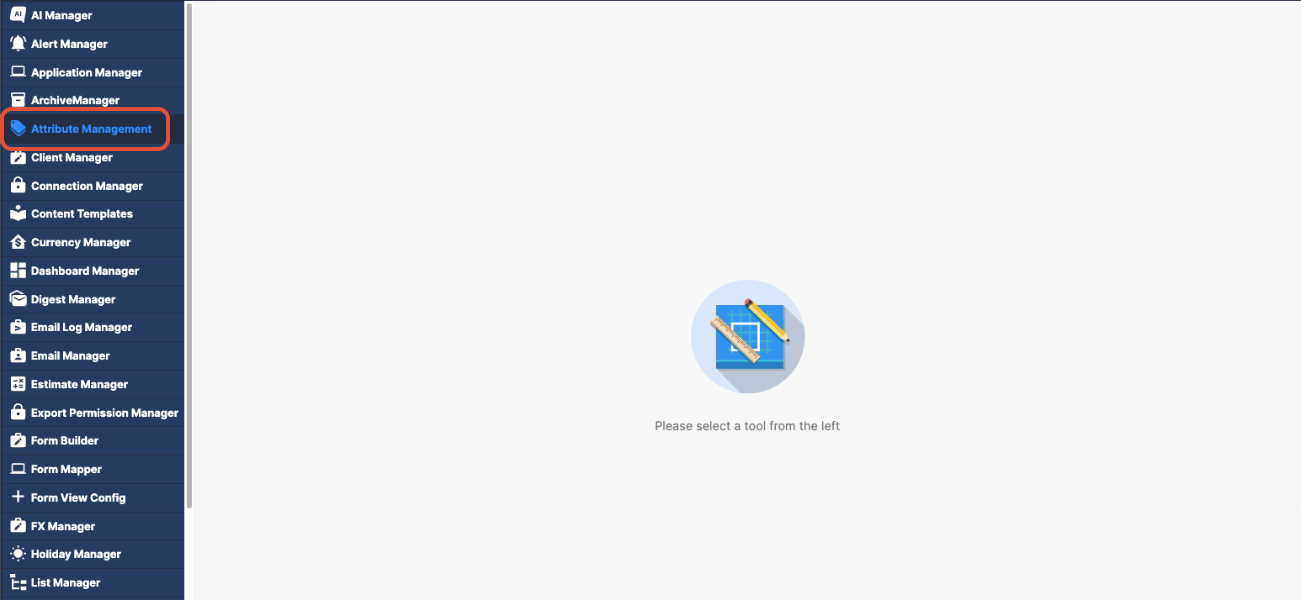
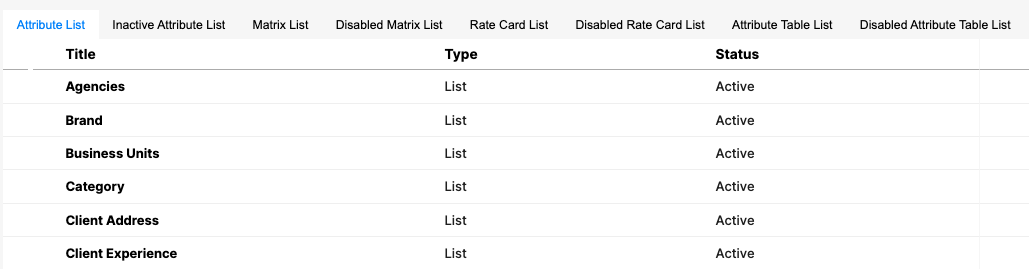
Within the Attribute Management interface, multiple tabs are available—each representing a distinct category or type of attribute data utilized throughout the system.
The interface includes multiple tabs, each corresponding to a specific category of attribute data:
Attribute List
Inactive Attribute List
Matrix List
Disabled Matrix List
Rate Card List
Disabled Rate Card List
Attribute Table List
Disabled Attribute Table List
Step 1: Create an Attribute List
Step 2: Create an Attribute Matrix
Step 3: Adding Attributes to a Matrix
In Summary
The Attribute Manager enables administrators to centrally manage meta attributes used throughout the system. This centralized control ensures consistency and accuracy in attribute data, reducing discrepancies (e.g., variations in country names such as US, USA, United States) and enhancing the system's ability to perform efficient filtering and grouping operations.in country names (e.g., US, USA, United States) and strengthening the system's ability to perform efficient filtering and grouping.
Key Features
- Centralized Attribute Management: Simplifies administration by providing a single source of truth for meta attribute definitions.
- Data Consistency: Minimizes variations and inconsistencies across the system by controlling attribute values.
- Enhanced Filtering and Grouping: Optimizes system performance when filtering or grouping data based on attributes.
Accessing the Attribute Manager
- Navigate to the Administrator Tools page.
- Click on the Attribute Management button.
Attribute Manager Tabs
The Attribute Manager interface is organized into the following tabs:
- Attribute List: Displays all active attributes available for use.
- Inactive Attribute List: Shows attributes that are currently archived but can be reactivated.
- Matrix List: Lists attribute matrices used for complex attribute configurations.
- Disabled Matrix List: Contains matrices that are temporarily disabled.
- Rate Card List: Displays the rate card attributes.
- Disabled Rate Card List: Shows the attributes of disabled rate cards.
- Attribute Table List: Provides data on attribute tables.
- Disabled Attribute Table List: Contains disabled attribute tables.
This structured layout facilitates efficient management, review, and modification of system meta attributes.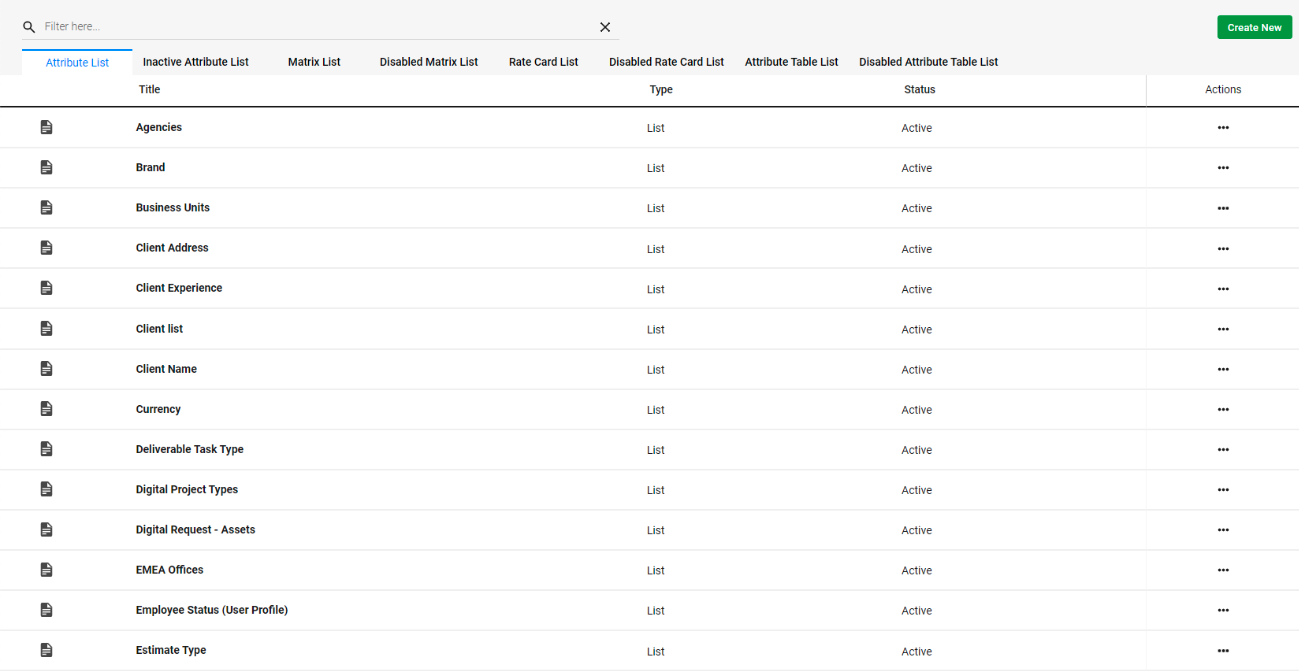
Next: Attribute List
Was this article helpful?
That’s Great!
Thank you for your feedback
Sorry! We couldn't be helpful
Thank you for your feedback
Feedback sent
We appreciate your effort and will try to fix the article