Each cell within the matrix represents a combination of attribute values that can be referenced in forms or reports. These must be configured by adding attributes to the matrix you created.
To Add an Attribute to a Matrix
Open the desired matrix by clicking its name, or select Edit Matrix from the dropdown menu.
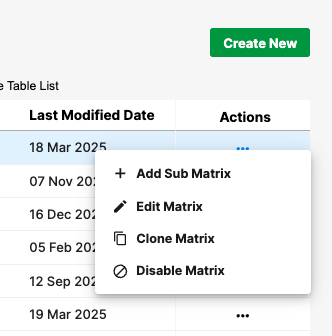
Available Actions:
Add Matrix – Create a new attribute matrix.
Edit Matrix – Modify the matrix configuration or update relationships.
Clone Matrix – Allows you to duplicate the existing matrix.
Disable Matrix – Moves the matrix to the Disabled Matrix List tab.
Define the rows and columns of the matrix by selecting existing attribute lists for each axis.
For example, a matrix might align Regions (rows) with Departments (columns) to control valid combinations.
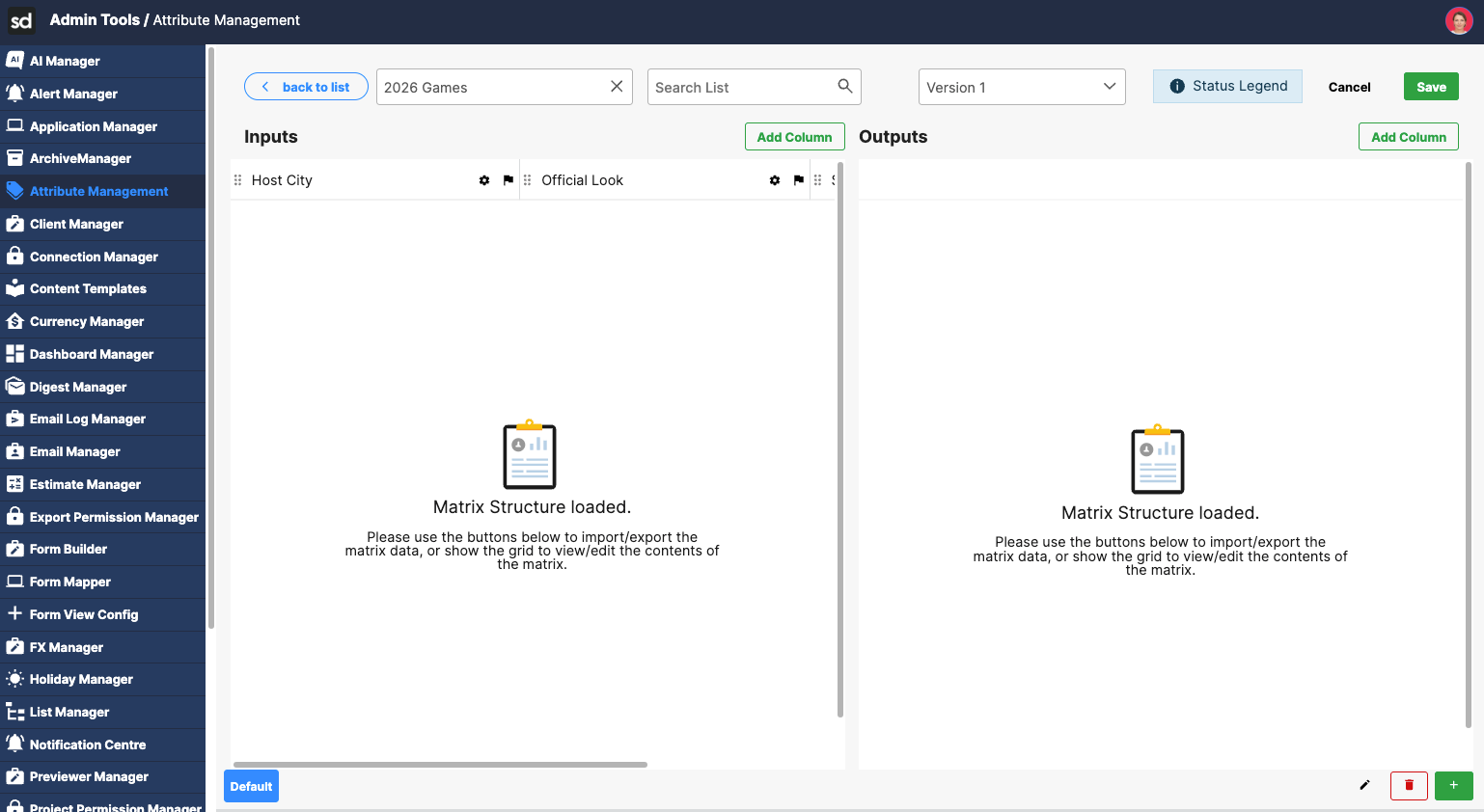
Populate the intersection cells with specific attribute values as needed.
Click Save to confirm the configuration.
Each cell within the matrix represents a valid combination of attribute values that can be referenced in forms or reports.
Editing or Archiving a Matrix
From the Matrix List, select the matrix you wish to modify.
Click the Edit Matrix icon to update existing attributes or relationships.
Make the desired changes to the rows, columns, or intersections.
Click Save to apply updates.
To deactivate a matrix without deleting it, choose Move to Archive List. This transfers it to the Disabled Matrix List for future reference.
Importing and Exporting Matrices
The Import/Export functionality allows administrators to update or replicate matrices efficiently using Excel templates:
Export – All: Downloads the existing matrix with all defined relationships.
Export – Empty: Generates a blank template to populate manually.
Import: Uploads an Excel file containing new or revised matrix data.
Each template includes help notes to guide proper formatting and ensure successful import.
Usage in Forms and Workflows
Attribute Matrices can be referenced within the Form Builder to create dependent dropdowns or selection fields — where the options available in one field dynamically adjust based on selections in another. They can also be used to define conditional logic or filtering rules in workflows and reporting dashboards, ensuring accurate alignment between related data points.
Was this article helpful?
That’s Great!
Thank you for your feedback
Sorry! We couldn't be helpful
Thank you for your feedback
Feedback sent
We appreciate your effort and will try to fix the article