Date fields in reports can be displayed using localized formatting to match your organization's regional standards. This ensures that dates appear in a familiar format across reports, exports, and shared views, making them easier to read and reducing ambiguity for users in different locales.
When enabled, the system automatically formats date values according to the configured locale while preserving the underlying date values for reporting and filtering.
When a report contains one or more date fields, the system formats each date according to the configured locale. This formatting is applied when viewing reports within the application, exporting reports, and accessing shared report views.
For example:
| Locale | Display Format | Example |
|---|---|---|
| United States | MM/DD/YYYY | 07/09/2026 |
| United Kingdom | DD/MM/YYYY | 09/07/2026 |
| Germany | DD.MM.YYYY | 09.07.2026 |
| ISO Standard | YYYY-MM-DD | 2026-07-09 |
To Enable:
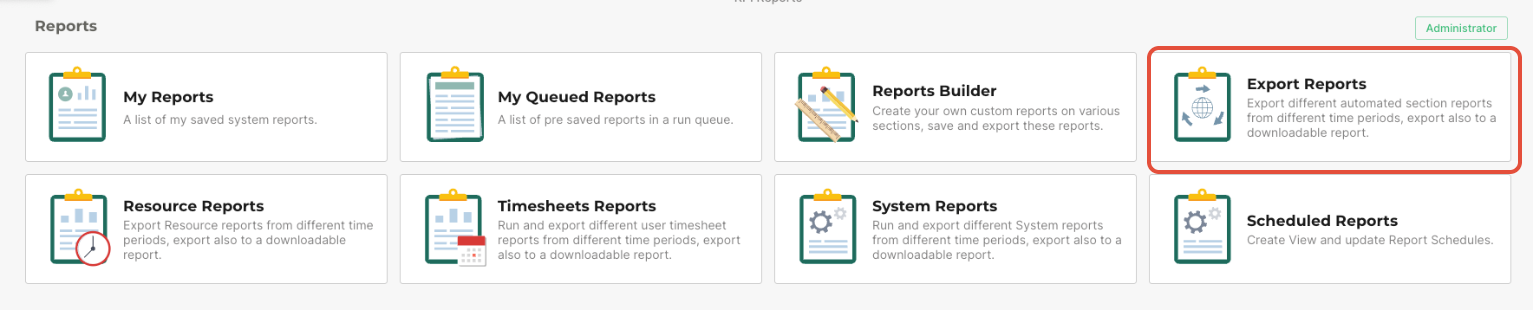
- Navigate to the reporting area and click Export Reports.
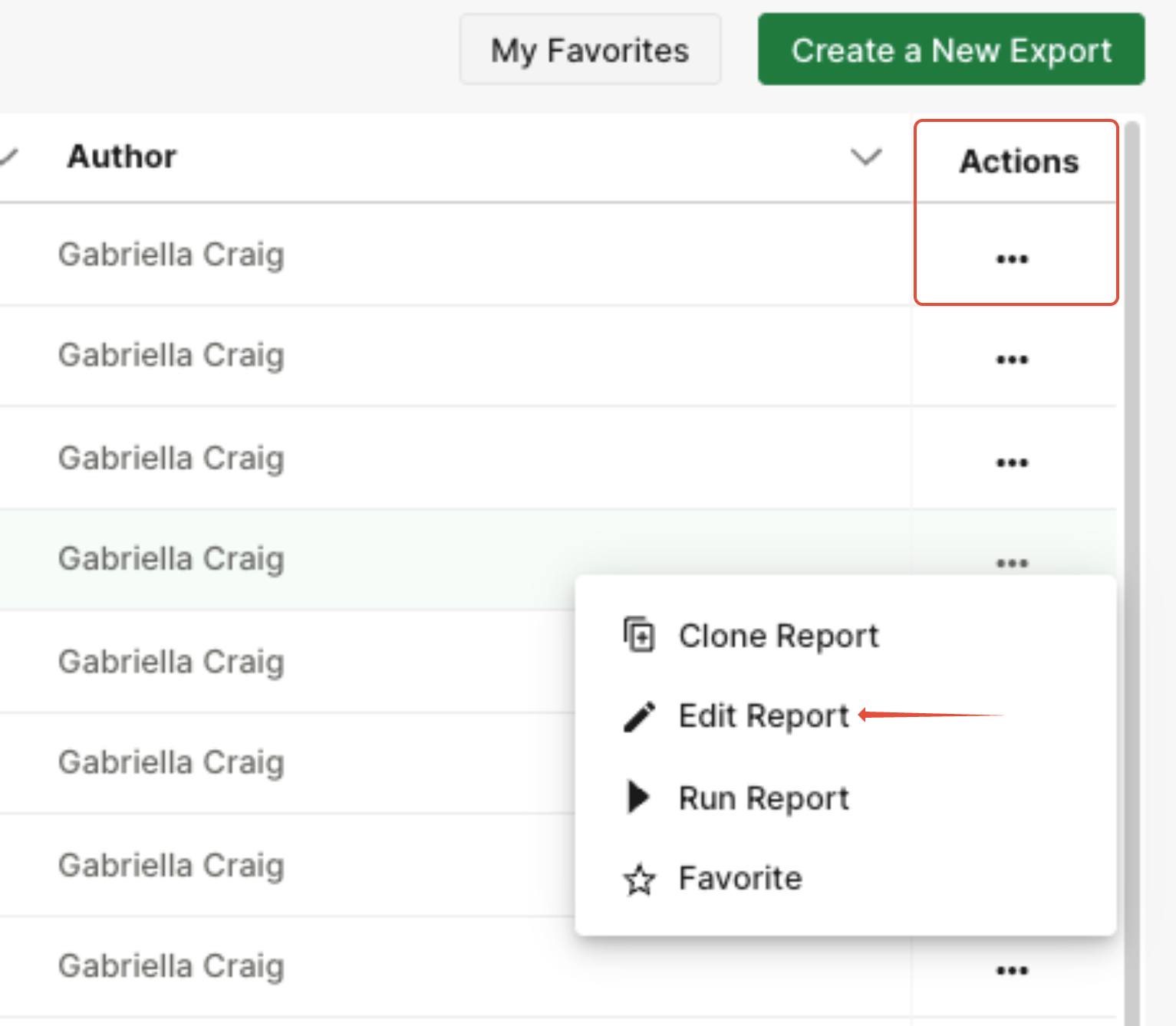
- Select the report you want to modify from the list, click the Actions icon (three dots), and choose Edit Report.
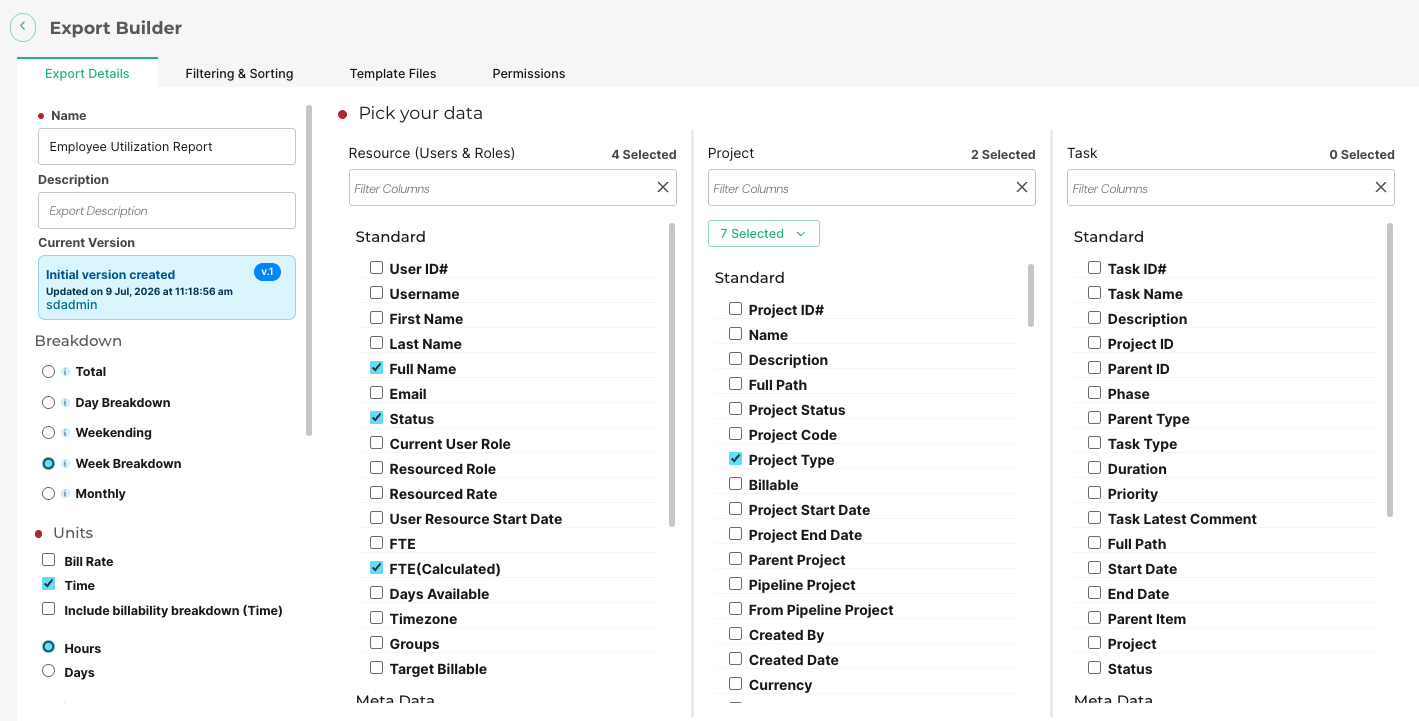
- Navigate to Template Files.
- Toggle Override Site Date Format.
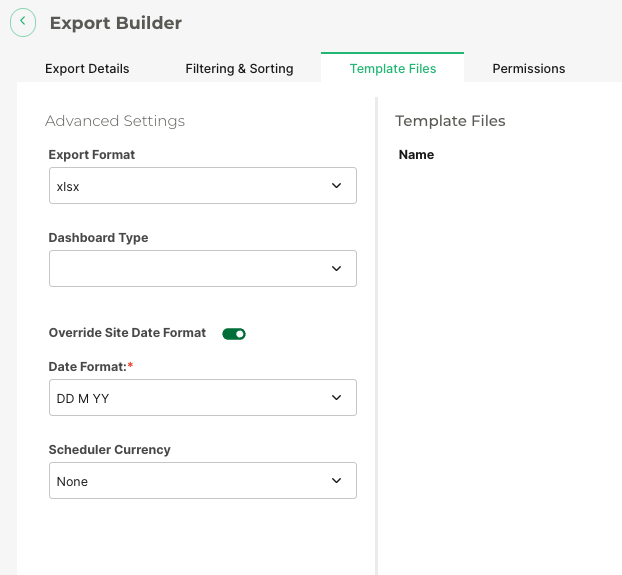
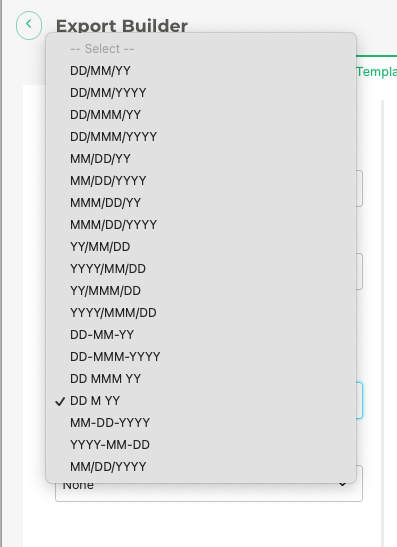
- Select the preferred date format from the list.
Notes
- Date formatting affects only how dates are displayed and does not modify the stored data.
- Sorting, filtering, and calculations continue to use the underlying date value.
- Users viewing the same report may see dates formatted differently depending on the configured locale, if applicable.
Was this article helpful?
That’s Great!
Thank you for your feedback
Sorry! We couldn't be helpful
Thank you for your feedback
Feedback sent
We appreciate your effort and will try to fix the article