The Currency Manager allows administrators to define the currencies available on the platform and configure the exchange rates used to convert financial totals across projects, estimates, and budgets.
Once currencies are created, they can be used in multi-currency projects, enabling teams working across regions to view financial values in their preferred currency while maintaining consistent reporting.
Accessing the Currency Manager
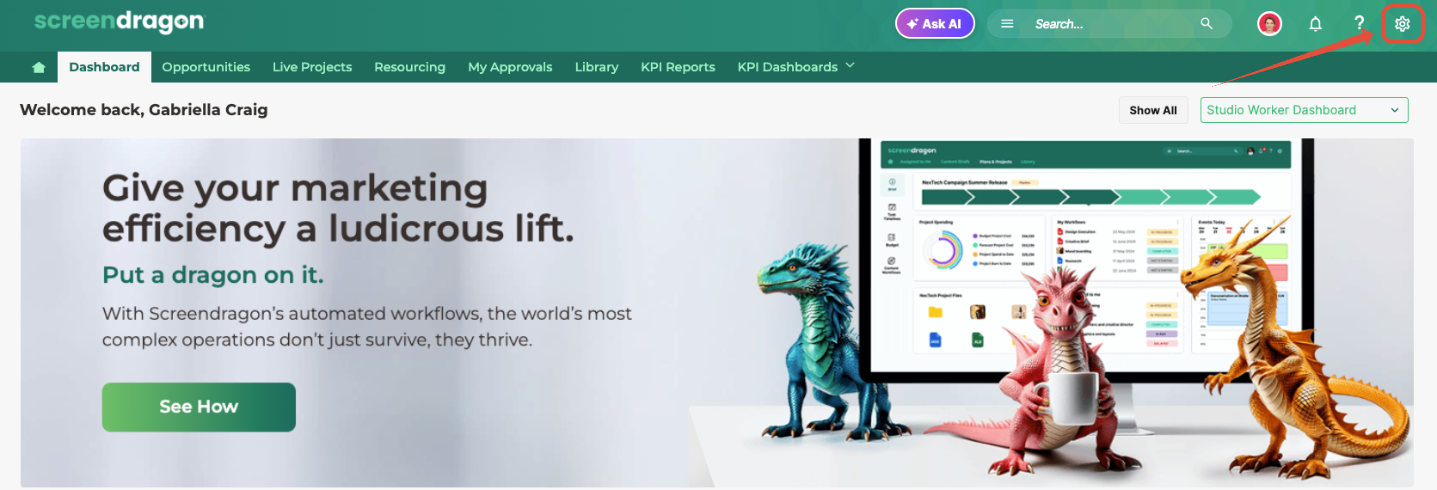
- Navigate to Admin Tools.
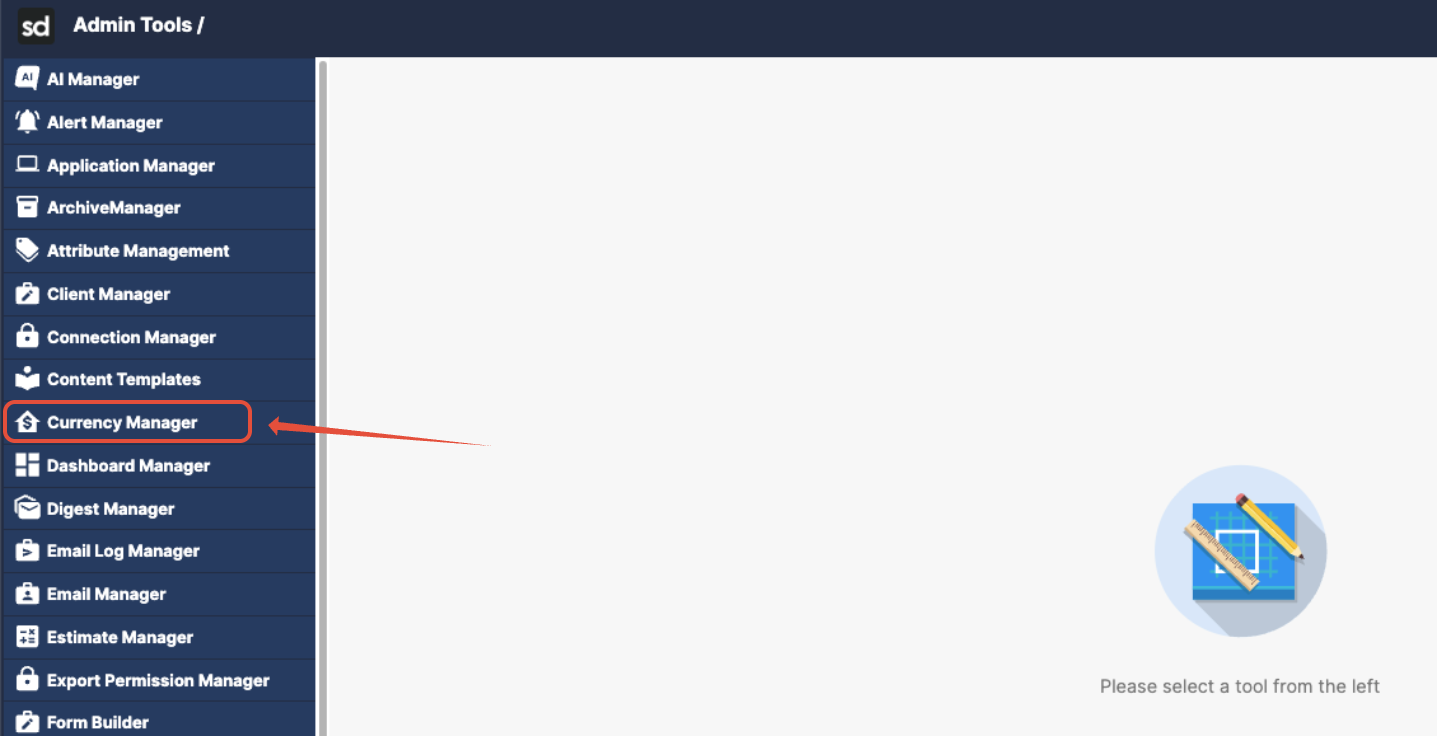
- Select Currency Manager.
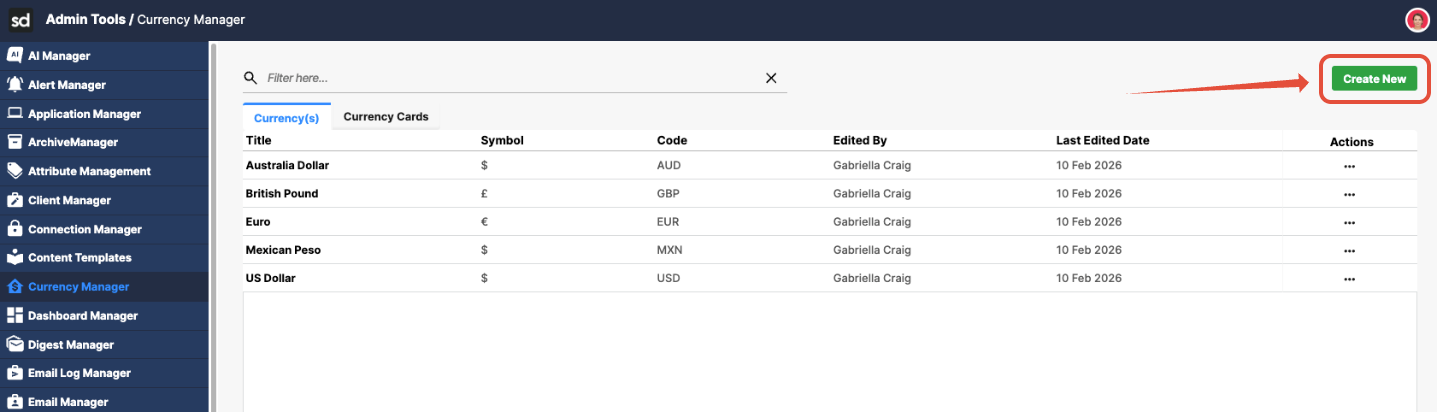
- Click Create New to add a new currency.
Creating a New Currency
Follow these steps to create a currency that can be used across projects and financial modules.
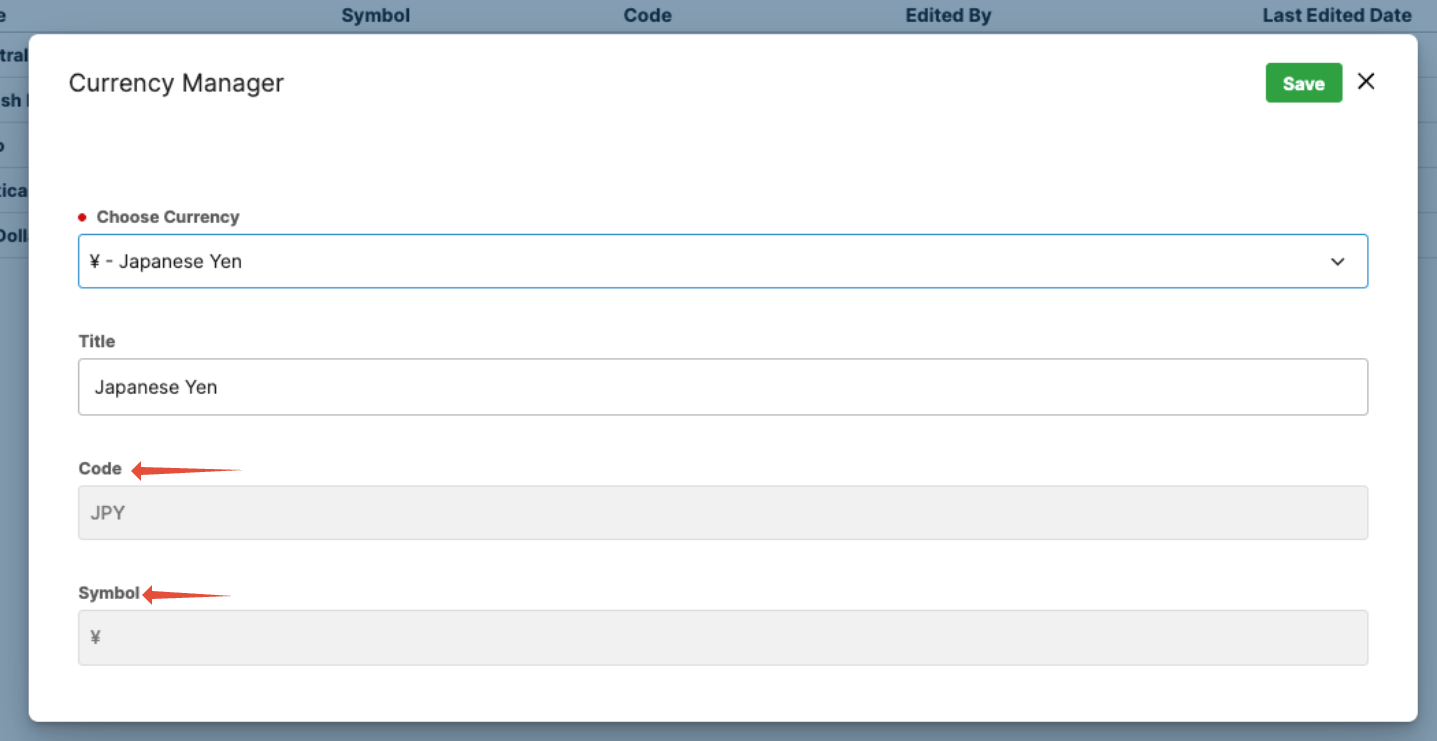
- Choose the currency type. From the Choose Currency dropdown, select the currency you want to create.
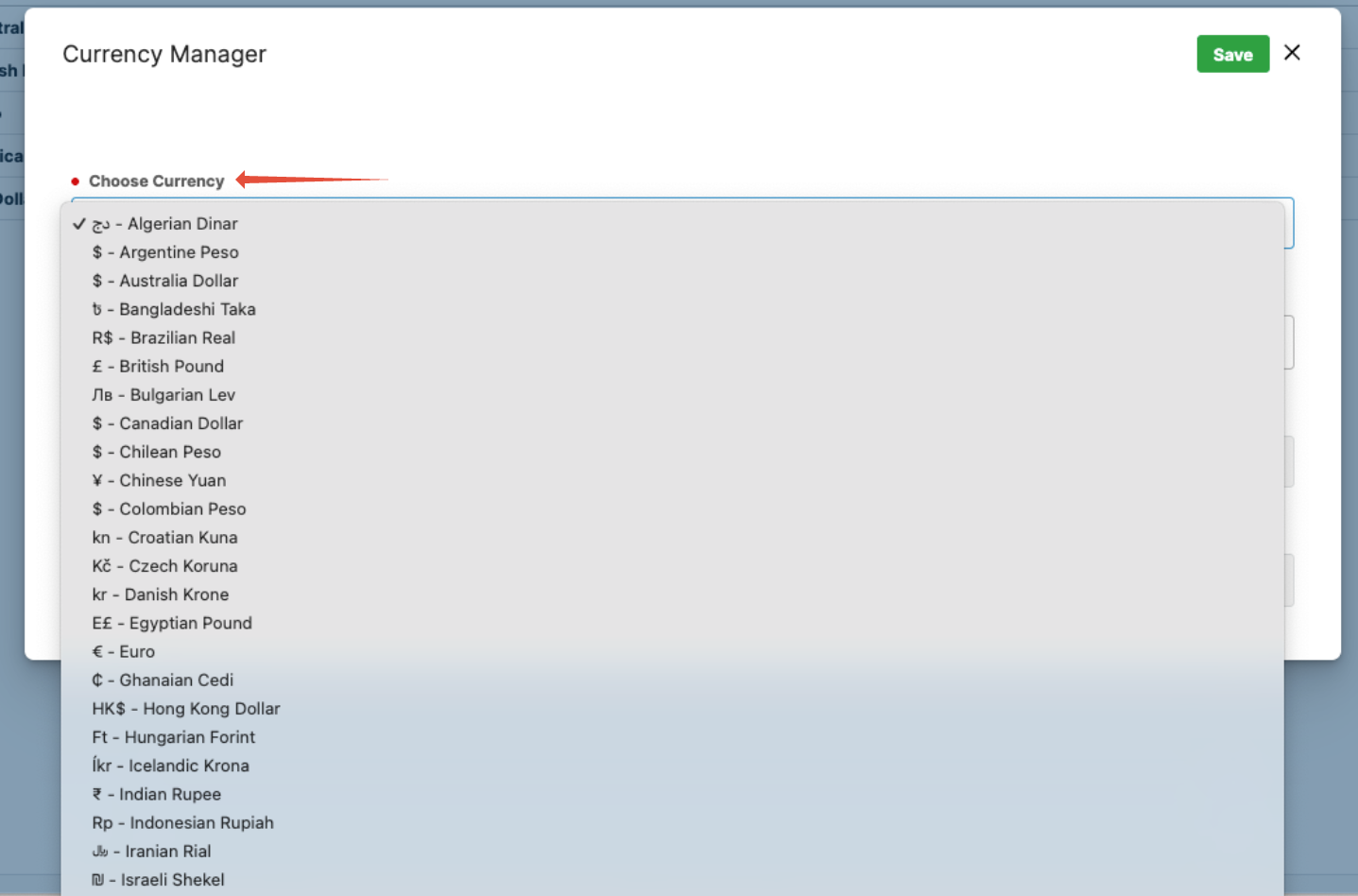
- The Currency Code automatically populates (for example, USD or EUR). The Currency Symbol automatically populates (for example, $, €, £). This ensures standardized formatting across the platform.
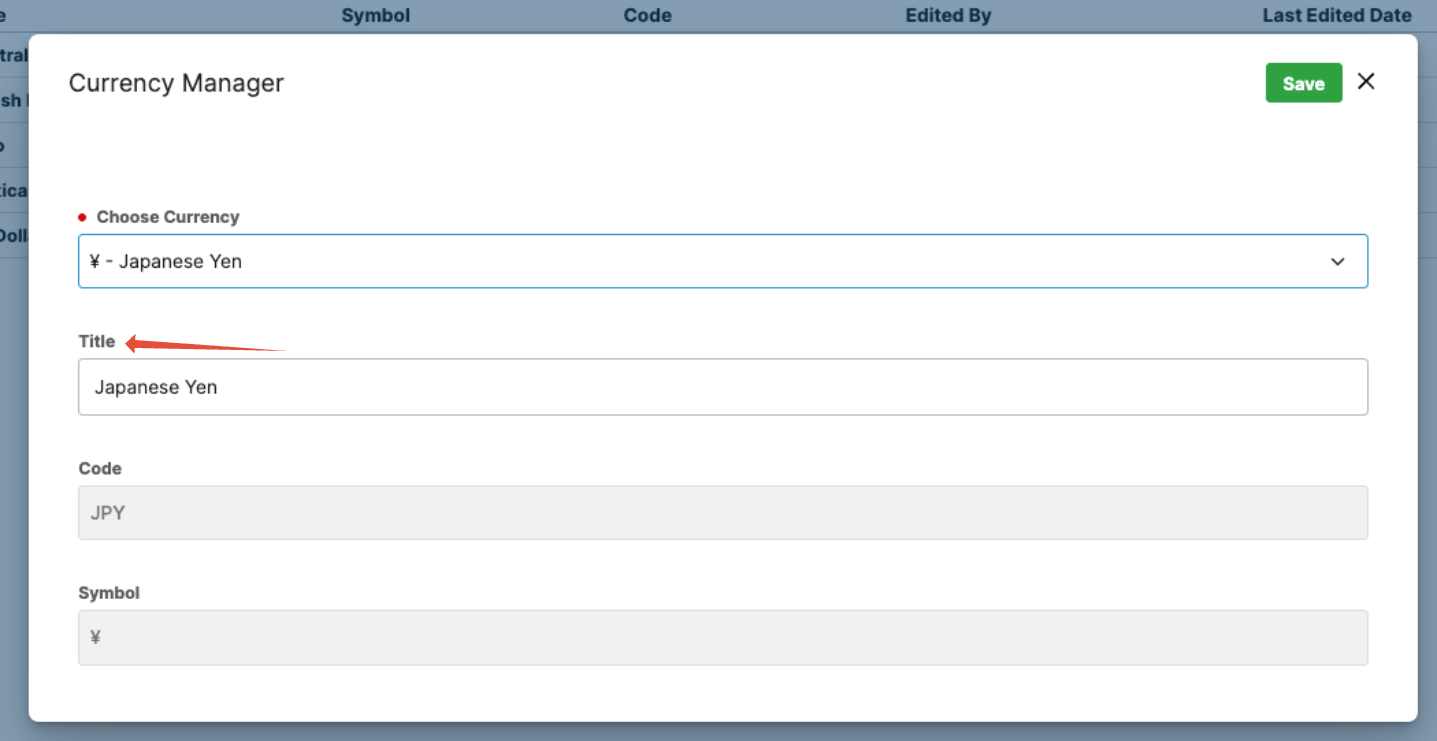
- In the Title field, enter a name for the currency.
Example:
- US Dollar
- Euro
- British Pound
This title is the label users will see when selecting currencies within projects and financial fields.
Click Save to create the currency.
Once saved, the currency becomes available for use in:
- Projects
- Estimates
- Budgets
- Financial reports
Using the Multi-Currency Card
After currencies are created, administrators can configure conversion rates using the Multi Currency Mode card.
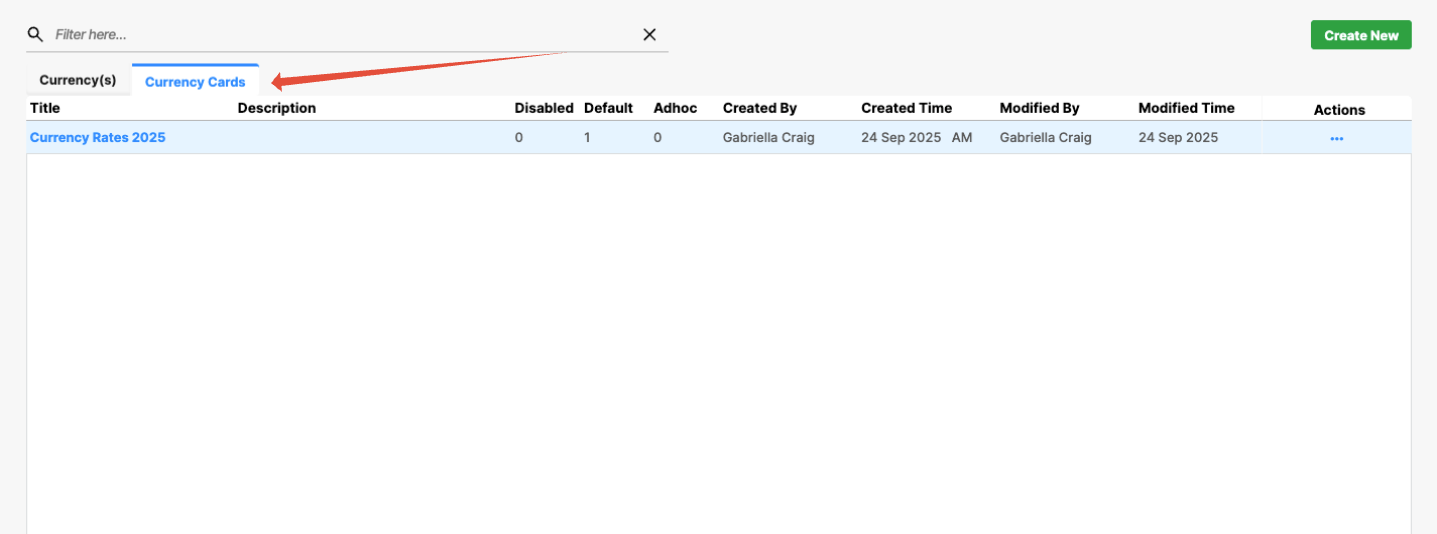
The currency card defines the conversion relationship between each currency in the system.
- Rows represent the source currency (the currency being converted from).
- Columns represent the target currency (the currency being converted to).
- Each cell contains the exchange rate used for the conversion.
Creating a New Currency Card
- From the interface, click Create New.
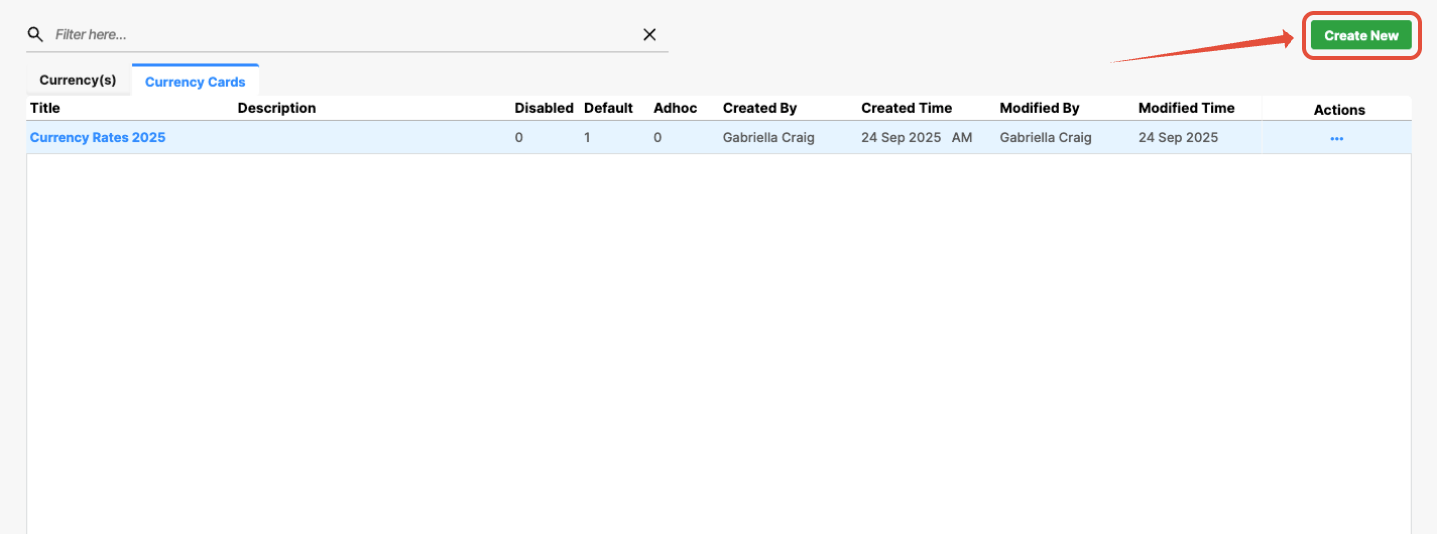
- You can see the currencies you created in the columns on the card. The next step is to define those currencies.
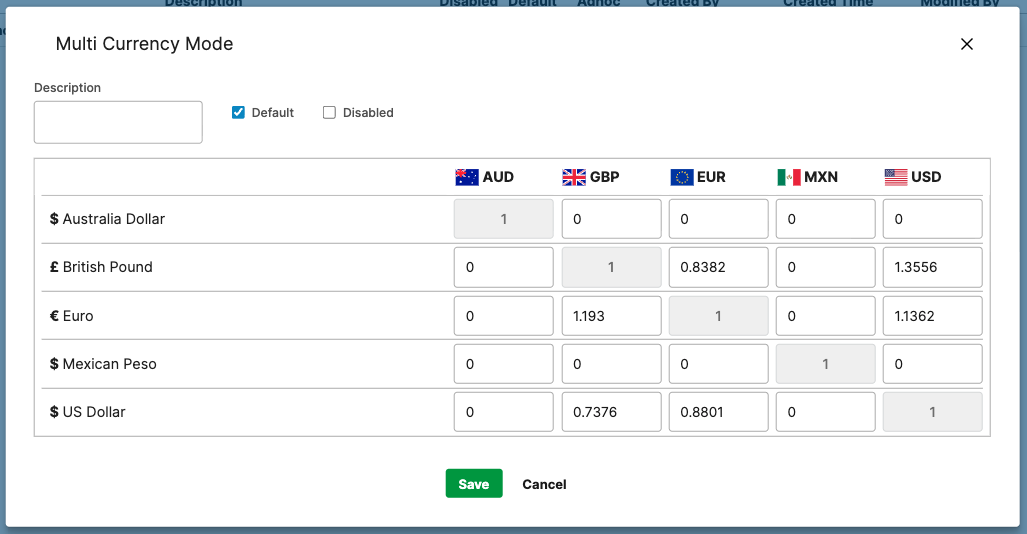
For Example
If converting British Pounds to US Dollars: GBP to USD = 0.7376
This means:
1 GBP = 0.7376 USD
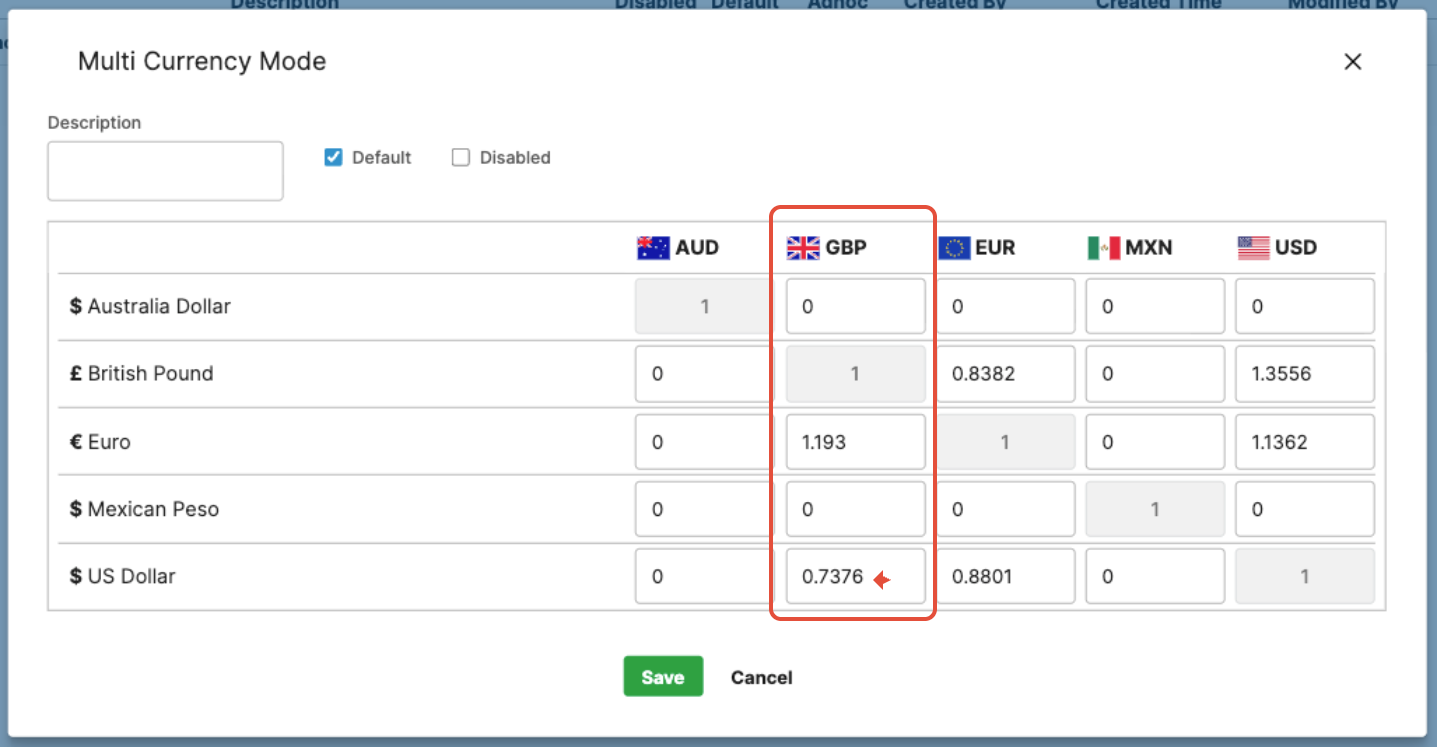
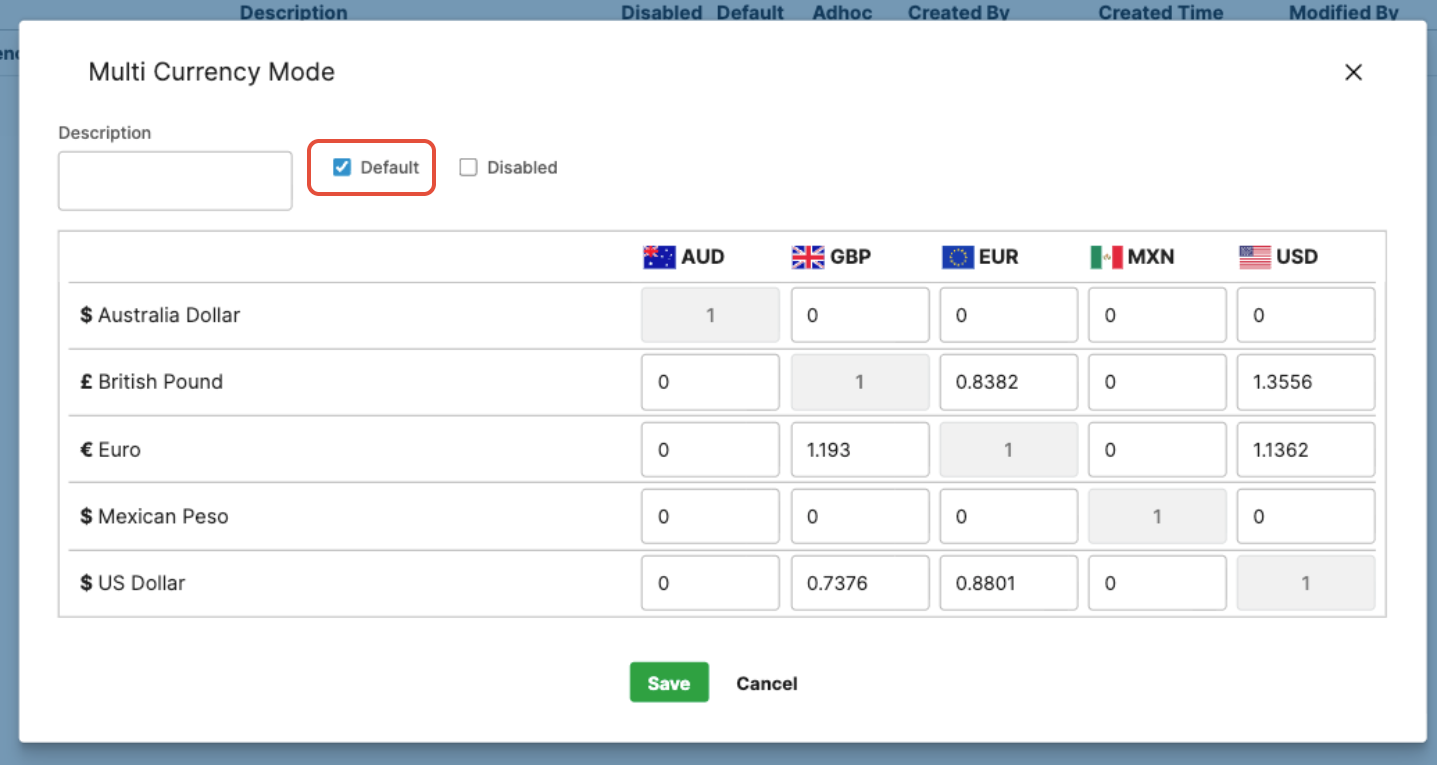
Default Currency
The Default checkbox designates the currency used as the system’s primary currency for calculations and reporting.
Most organizations set this to their corporate or finance currency.
Disabled Currency
If a currency is no longer needed, it can be Disabled, preventing its use in new projects while preserving historical data.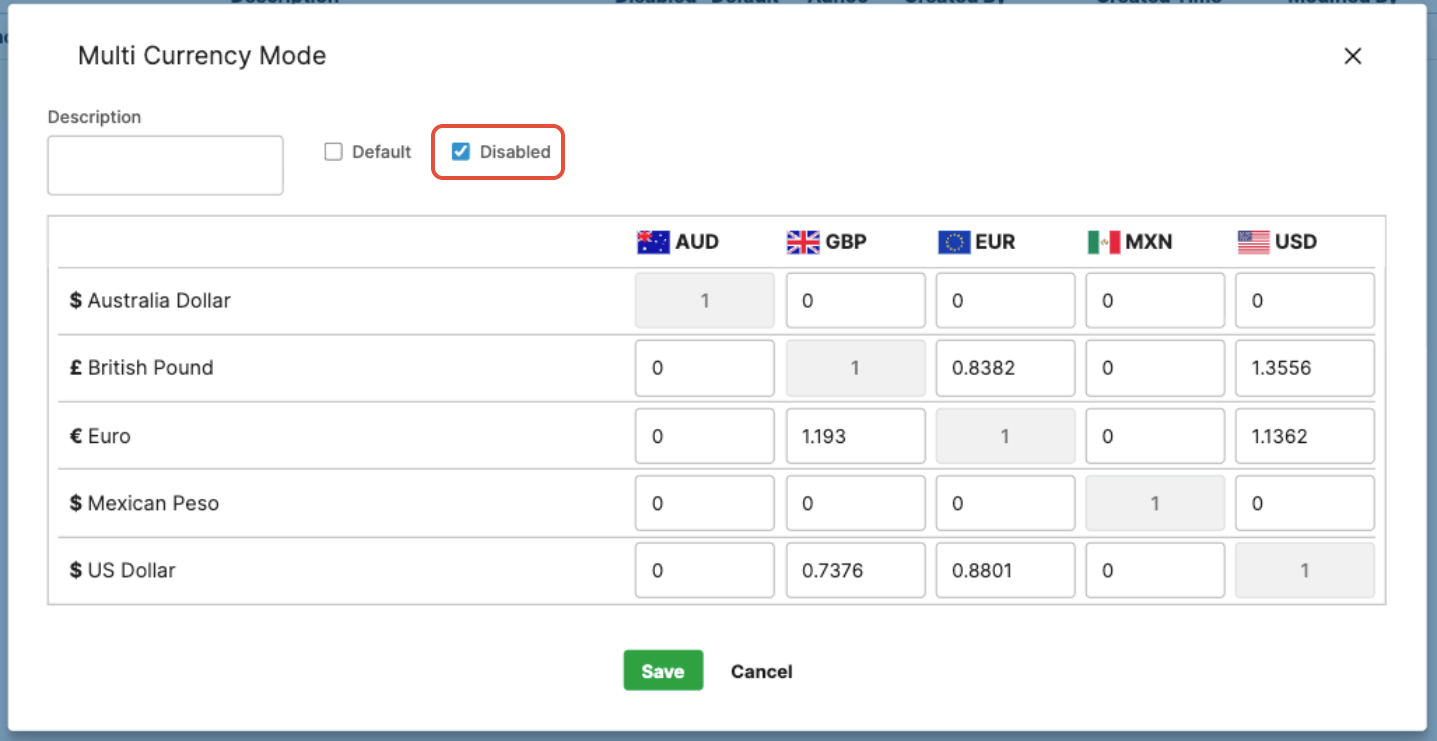
Was this article helpful?
That’s Great!
Thank you for your feedback
Sorry! We couldn't be helpful
Thank you for your feedback
Feedback sent
We appreciate your effort and will try to fix the article