Home Page
Dependencies & Display Settings
TABLE OF CONTENTS
- Home Page
- What Are Dependencies?
- Dependencies
- Dependencies define conditional rules between fields. They allow you to:
- How to Create an Element with Dependencies
- Creating a New Dependency
- Identifying Dependencies in the Element List
- Control Types
- Creating a Basic Dependency (Single Rule, Multiple Actions)
- Execution Order & Evaluation Behavior
What Are Dependencies?
Dependencies and Display Settings provide powerful configuration options within forms and workflows. These features allow administrators to dynamically show, hide, or modify fields and tabs based on user input, permissions, or system rules.
By using these tools, you can create smarter, more intuitive forms that adapt to end users' needs and ensure consistent workflow logic.
Dependencies
Dependencies define conditional rules between fields. They allow you to:
Show or hide elements or tabs based on another field’s input.
Make a field mandatory or optional depending on previous selections.
Automatically apply tags or default values.
This ensures the form only displays what’s relevant to the user.
Dependencies can range from:
- Simple: “If Yes, show Additional Comments.”
- Complex: multi‑layered rules that reshape sections of a form based on business logic: product, brand, type, etc.
How to Create an Element with Dependencies
Open the Dependency Settings
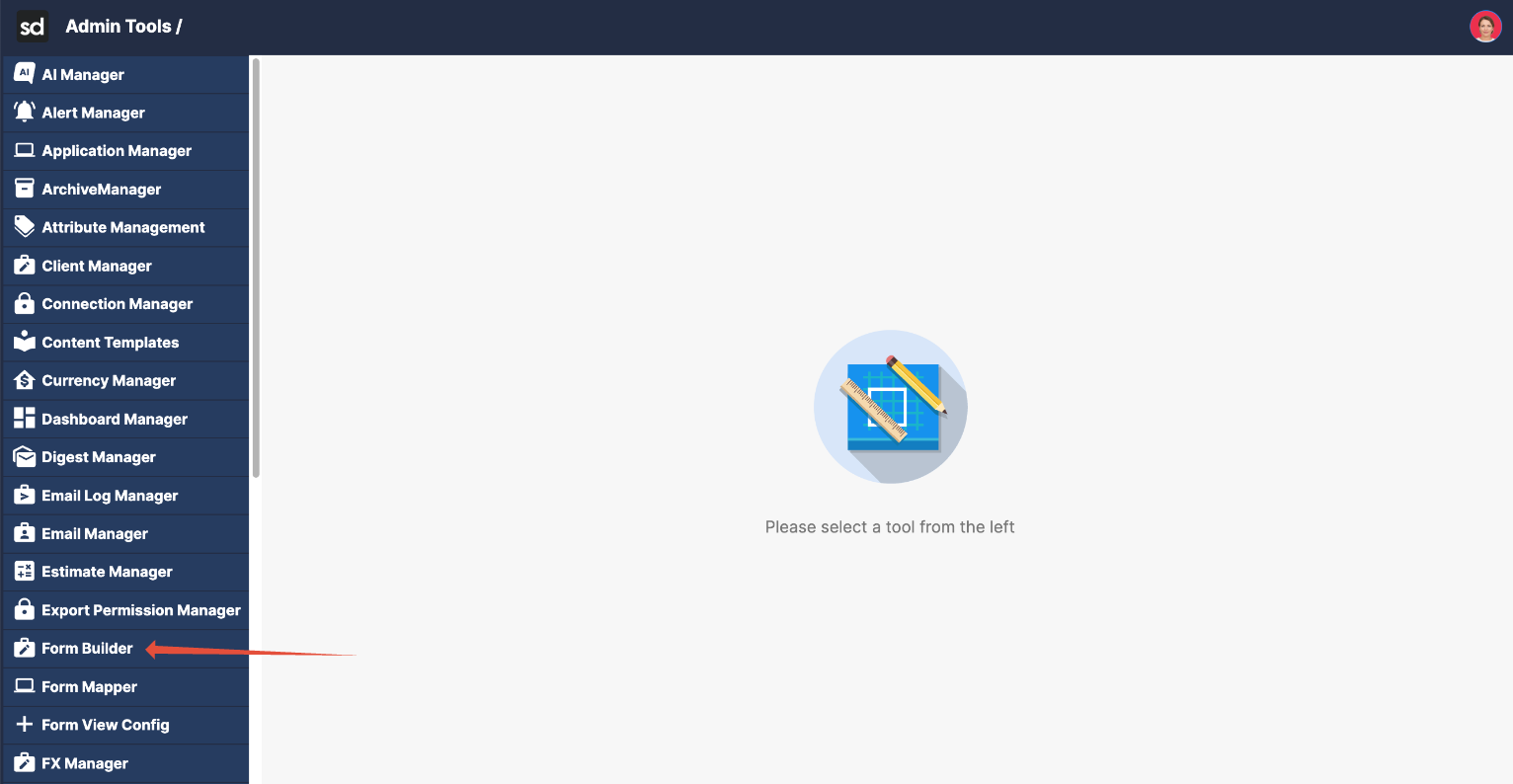
Navigate to the Form Builder located in the Admin Tools.
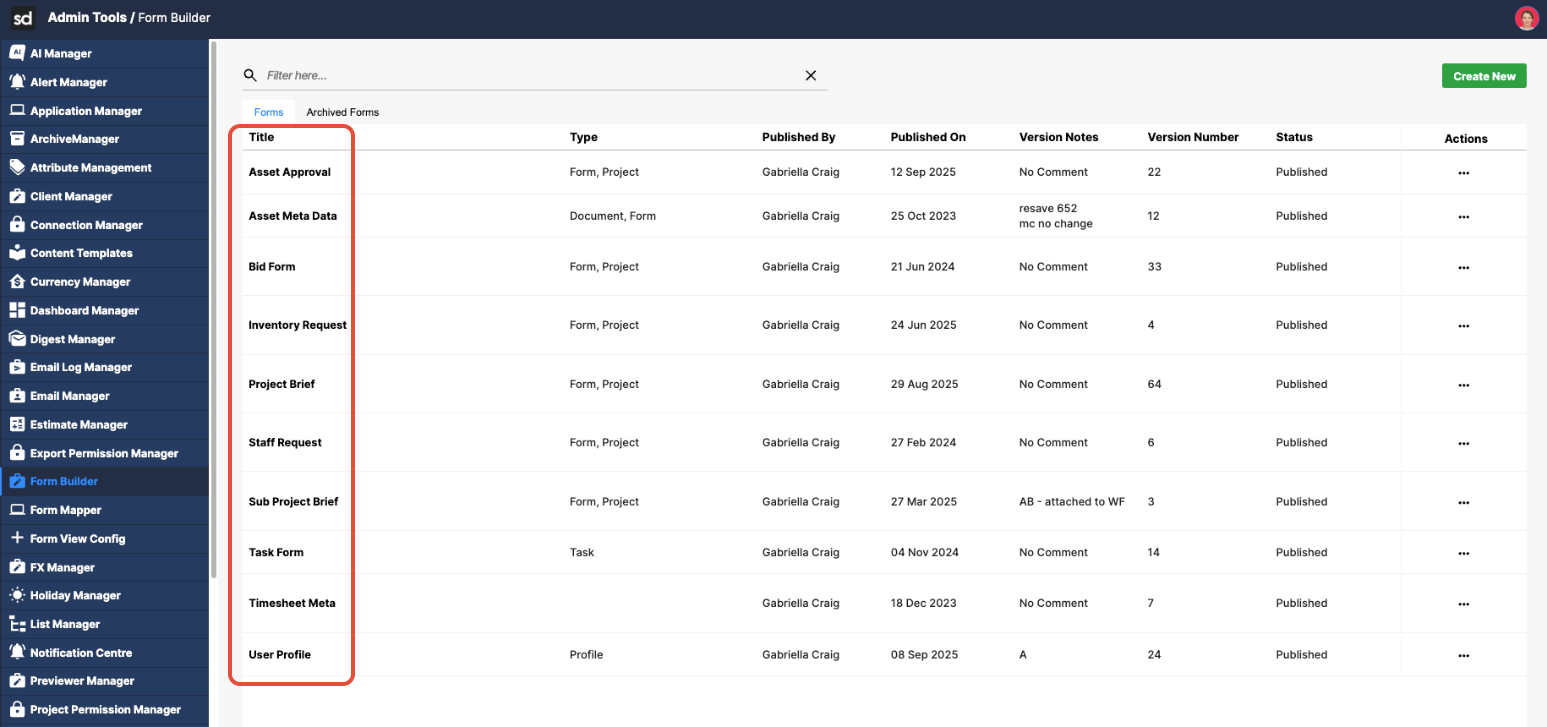
Click the title of the form for which you want to create the dependency.
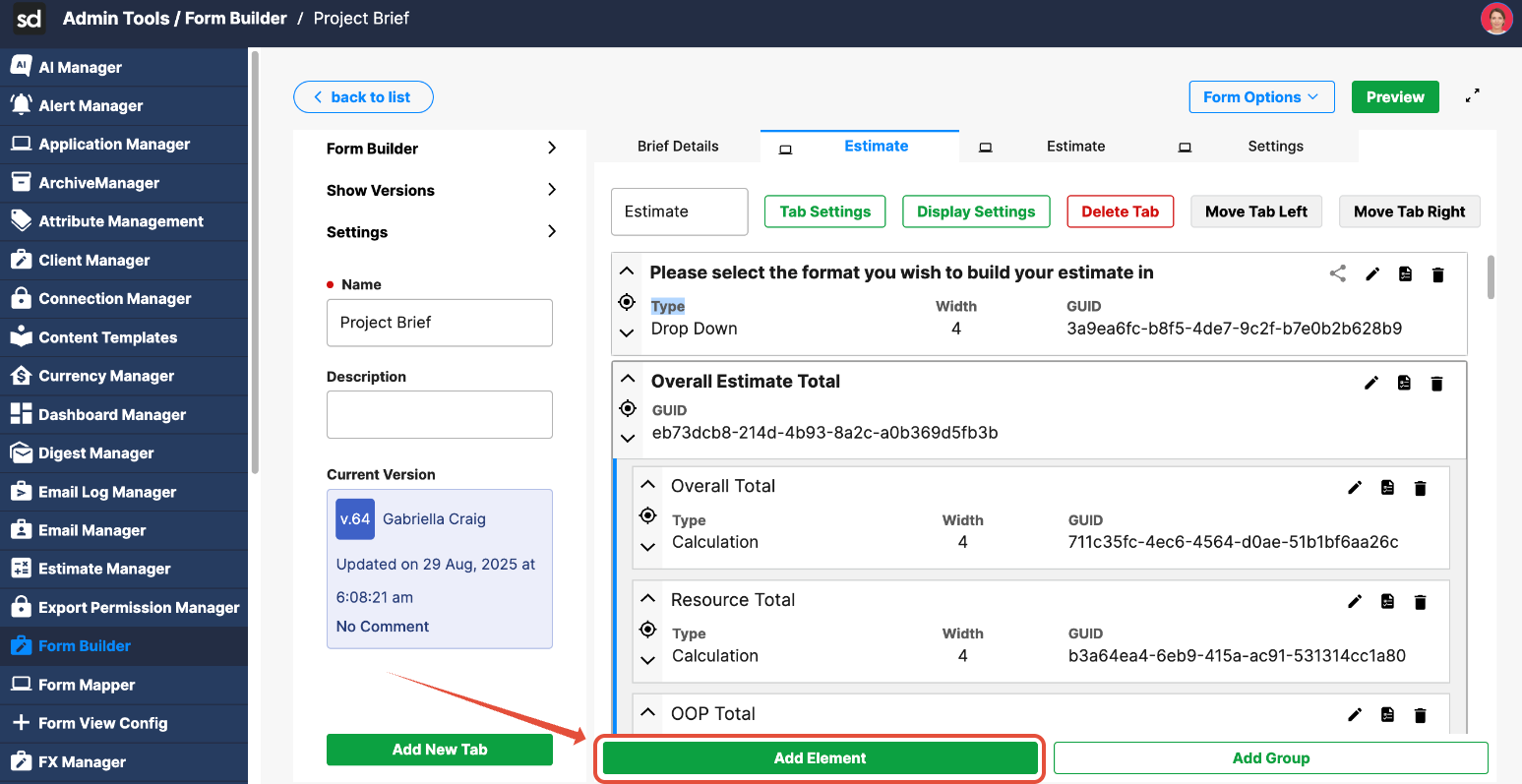
Click Add Element.
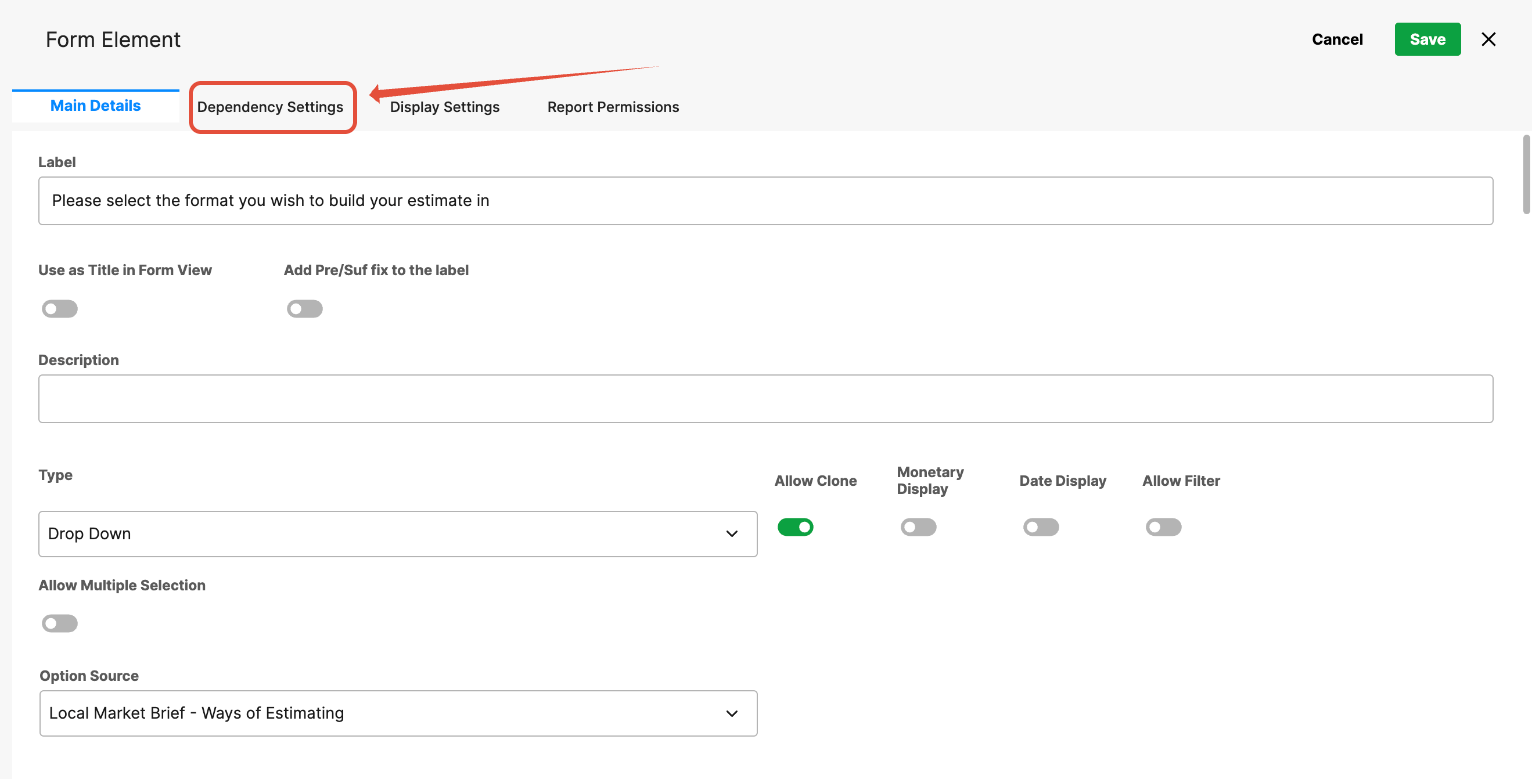
When you open an element in the Form Builder, you’ll see:
- Main Details – this is the base configuration
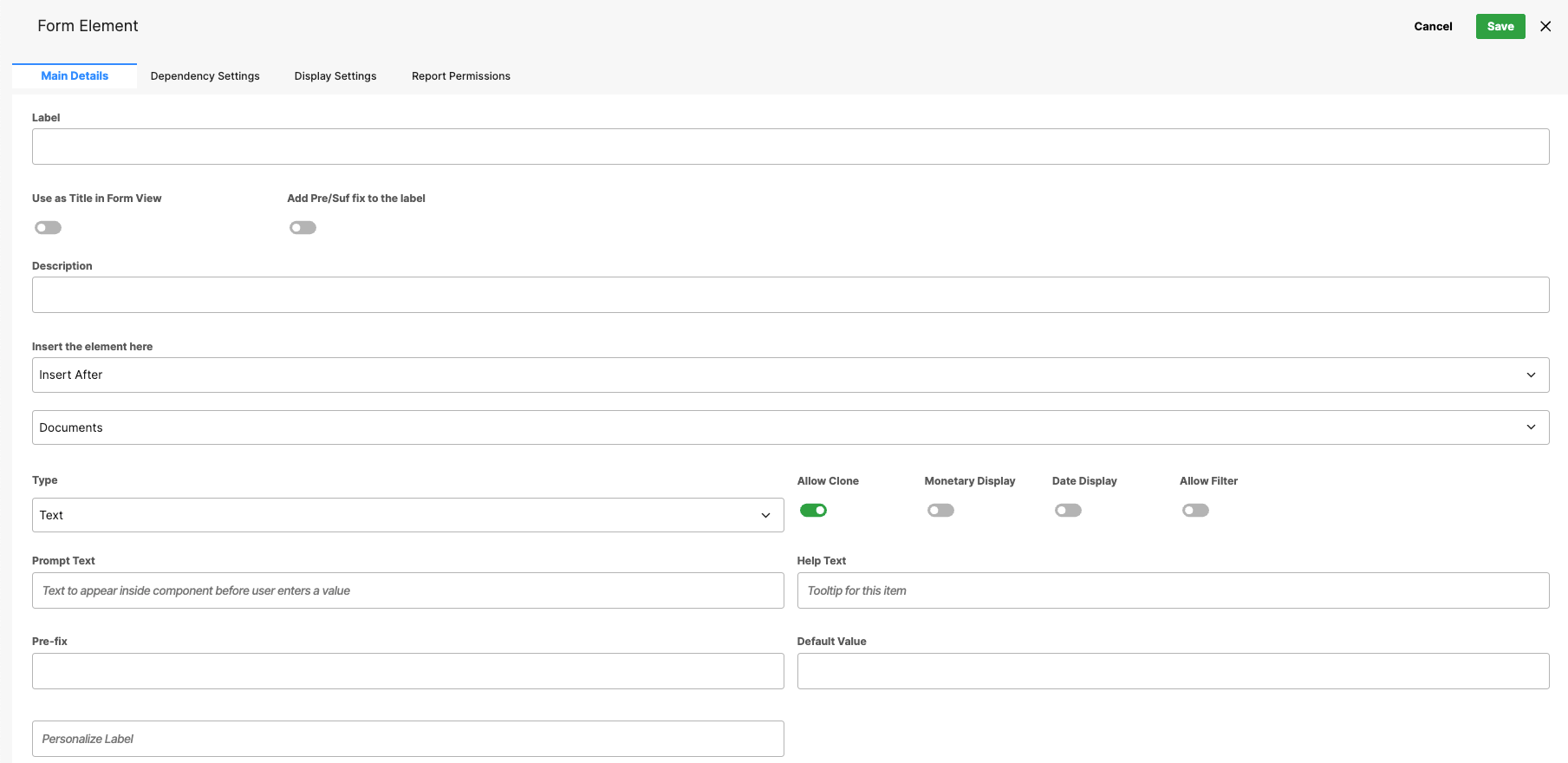
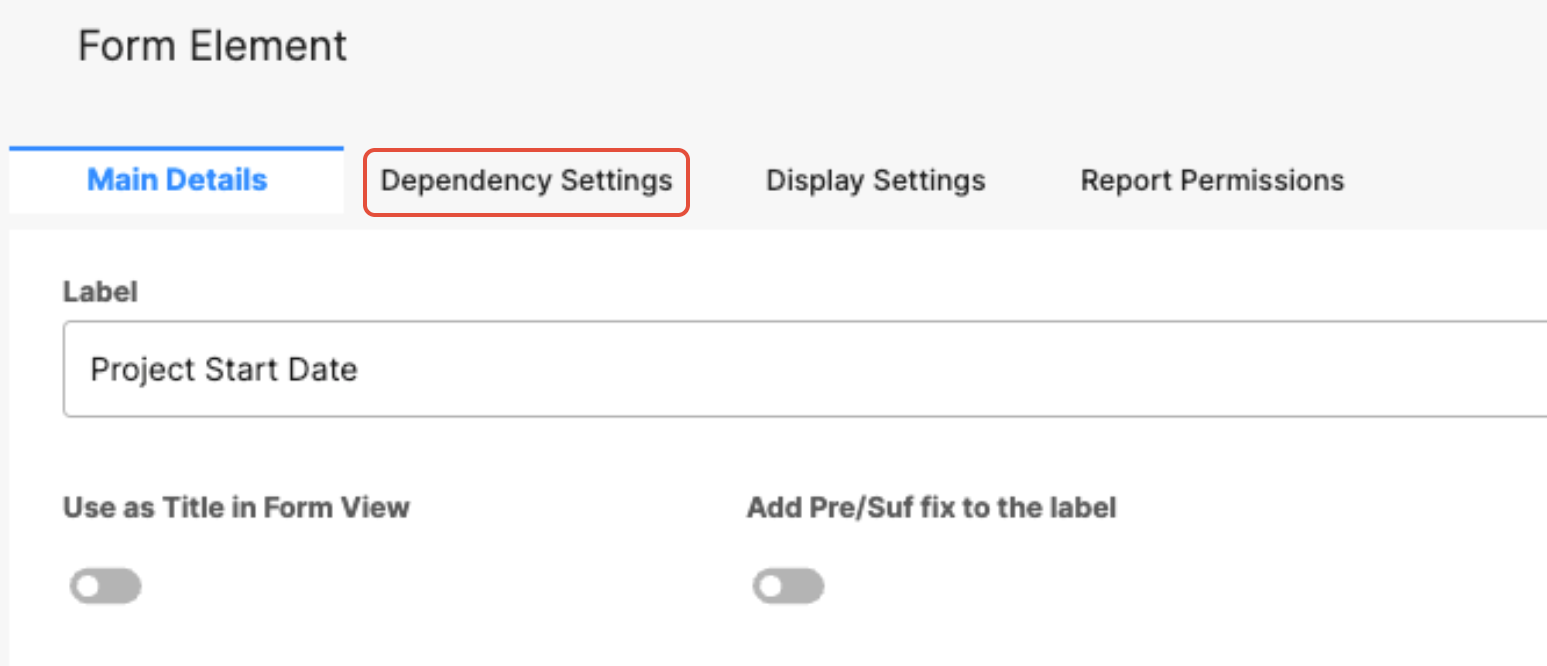
- Dependencies – the second tab; add and manage rules here.
Creating a New Dependency
Click the Dependency Settings tab.
Add a New Dependency
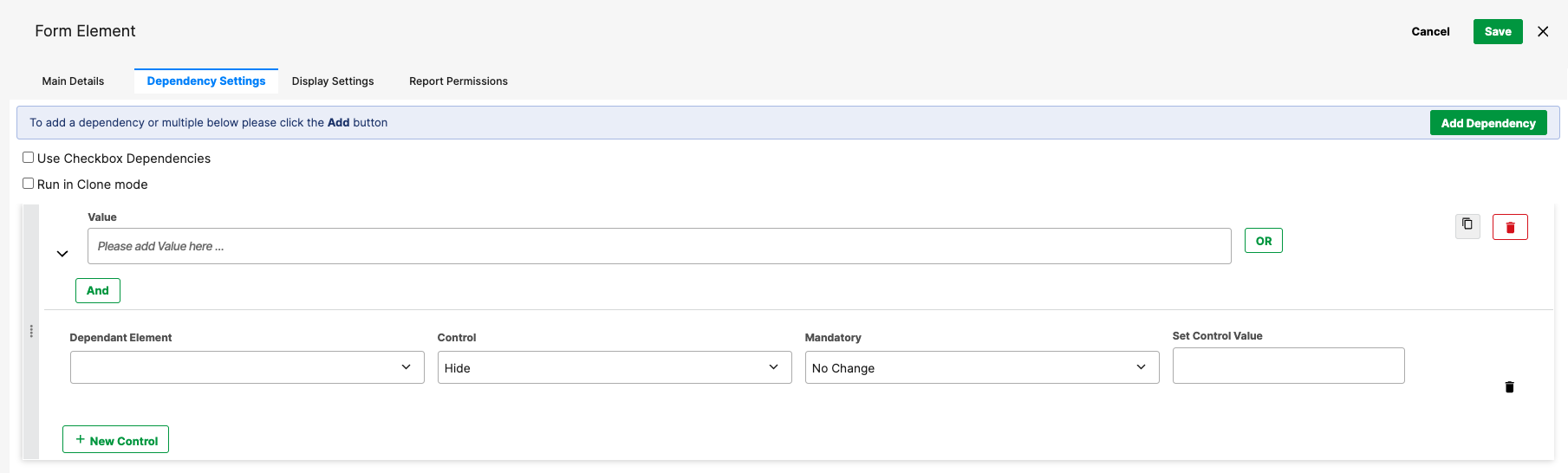
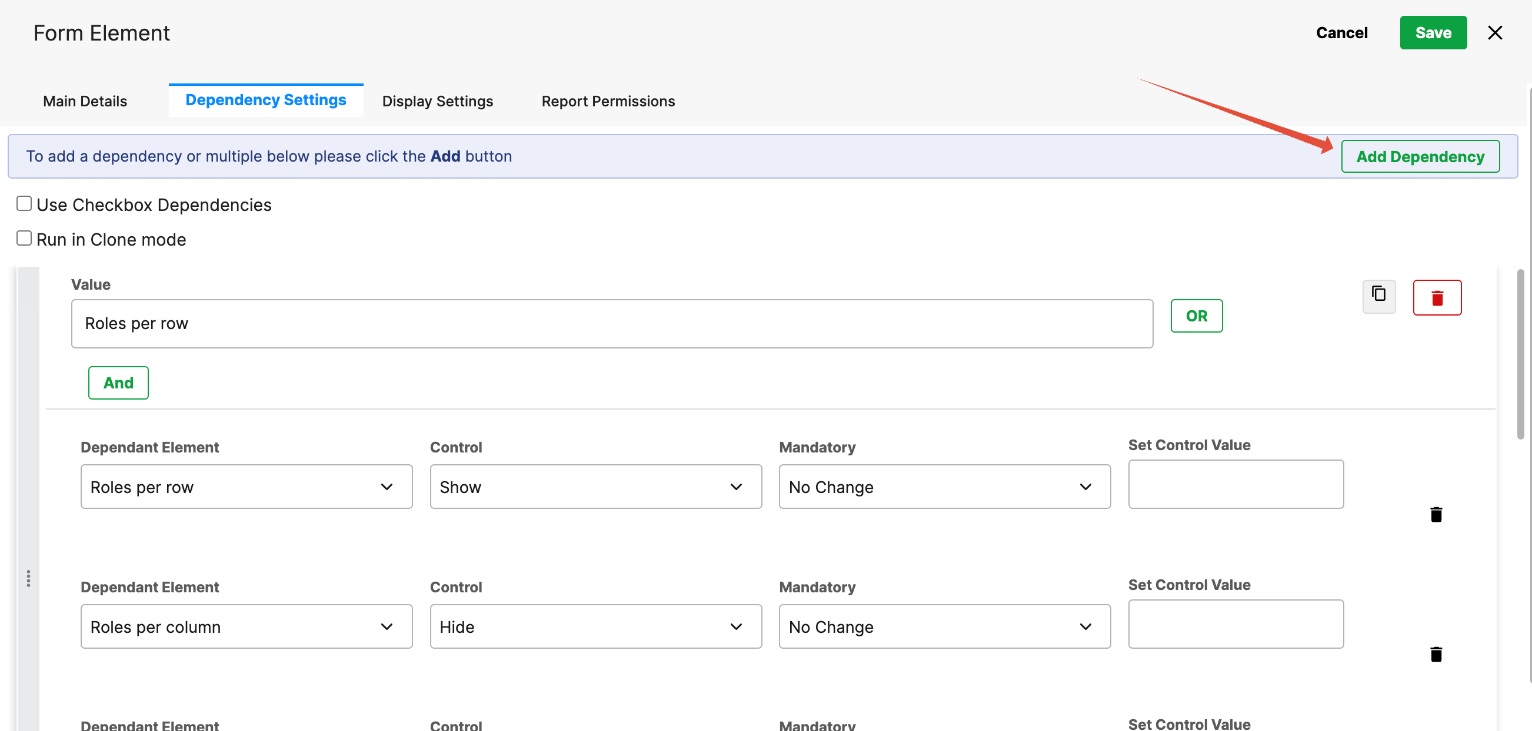
Click Add Dependency.
Configure Dependency Details:
Value – Enter the input value on which the dependency is based.
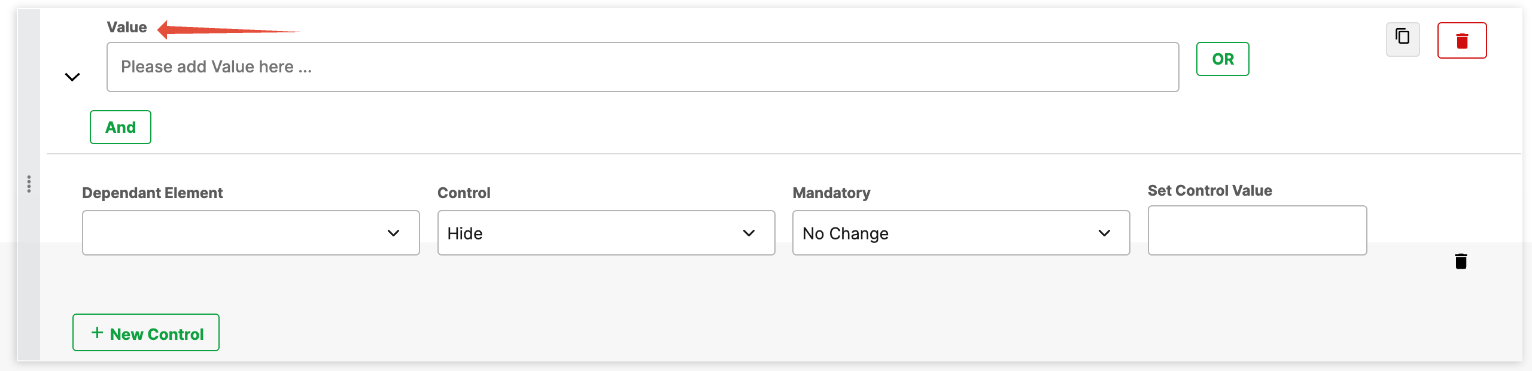
Dependent Element – The field or tab affected by this dependency.
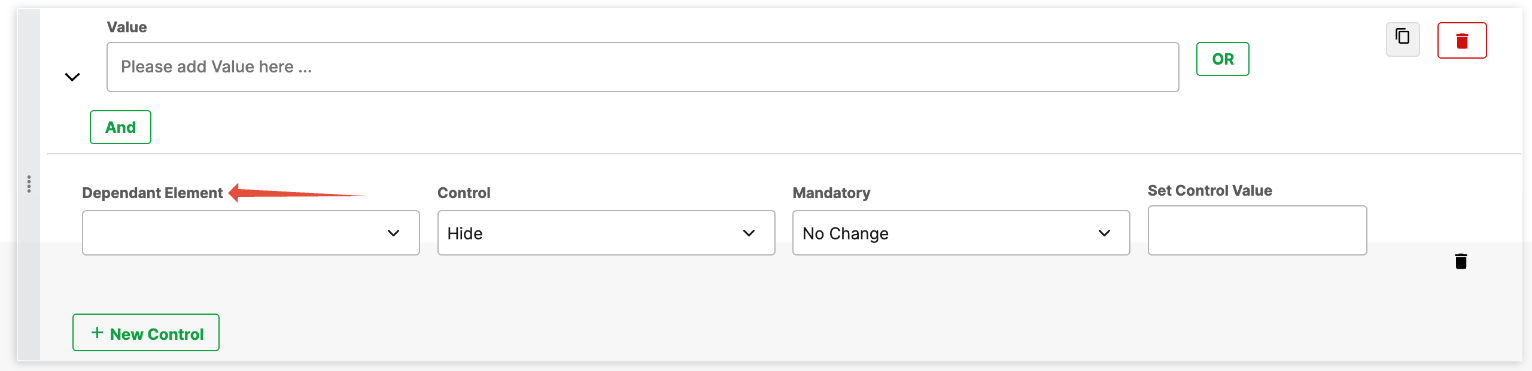
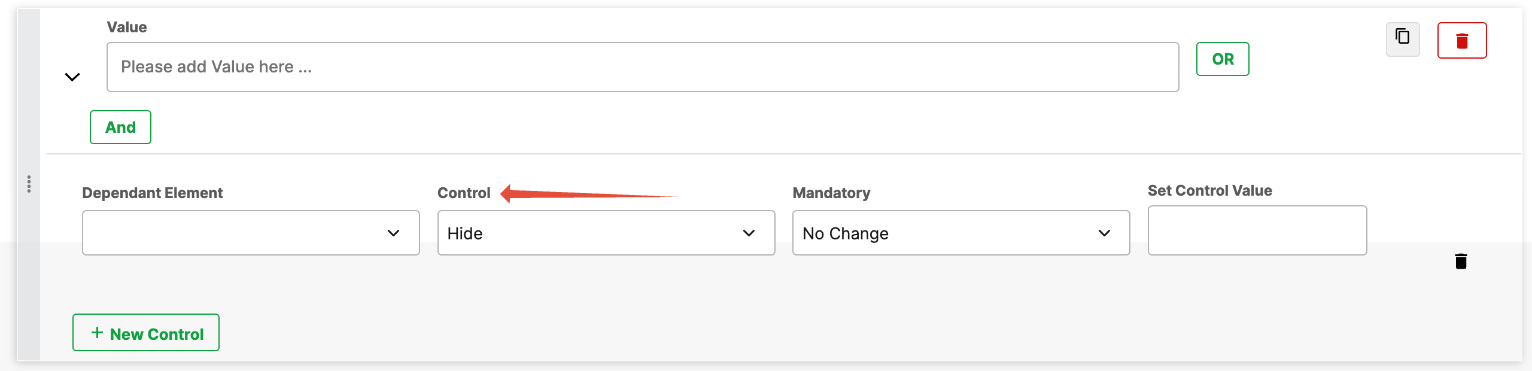
Control – Choose whether the dependent element is shown or hidden based on the value.
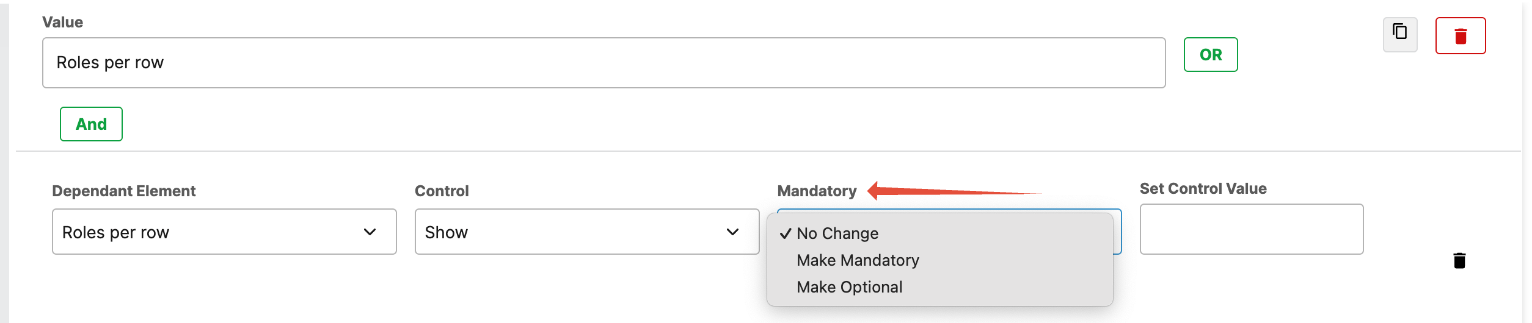
Mandatory – Switch a field between mandatory and optional depending on the user’s input.
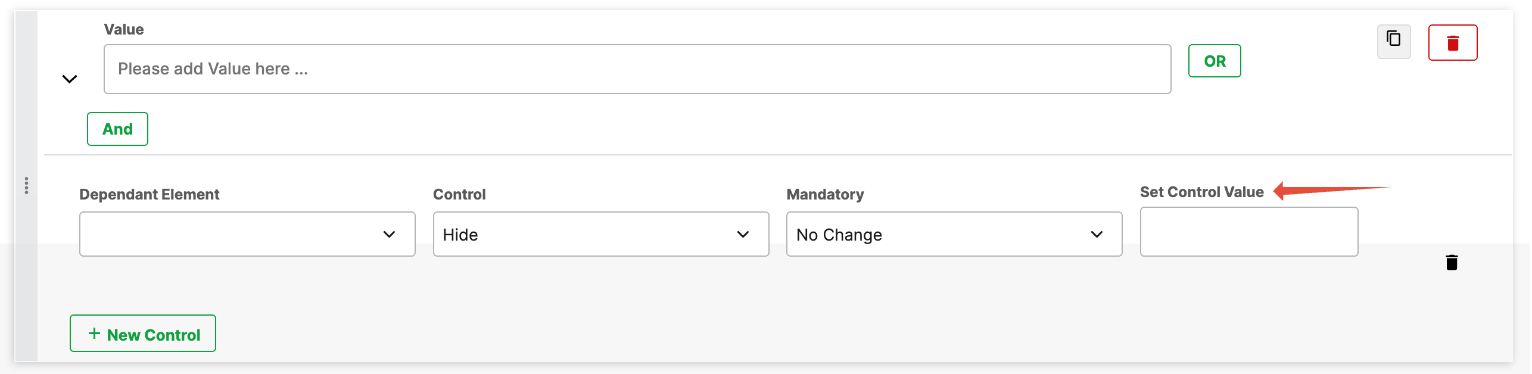
Set Control Value – Define a default value that is automatically displayed when the condition is met.
A wildcard
*can be used to apply rules broadly.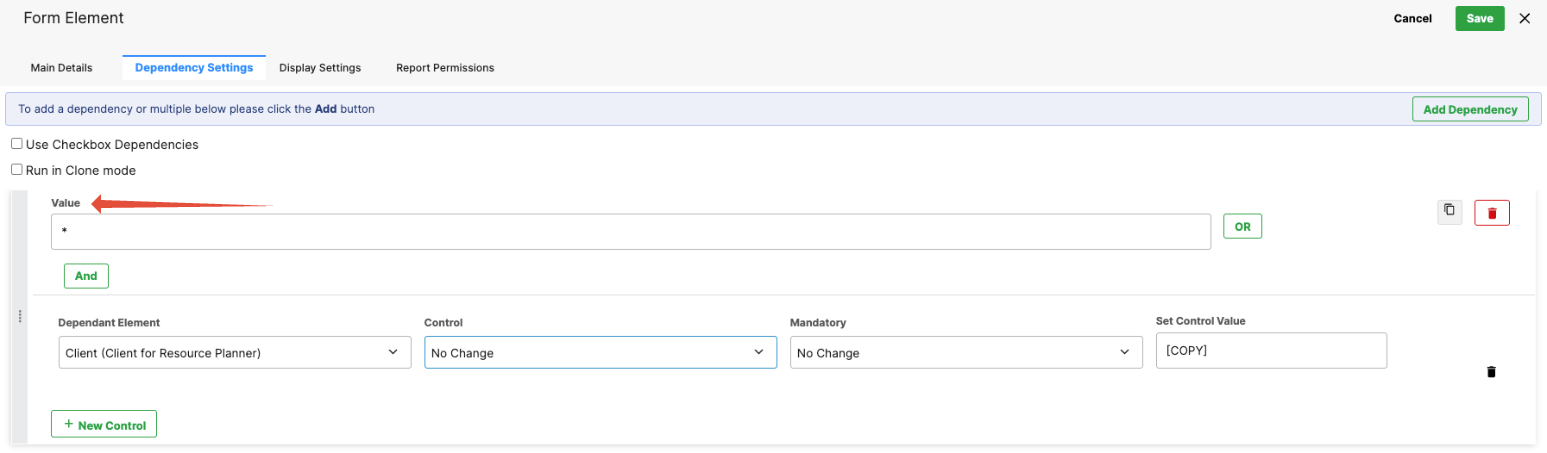
A Note about Wildcards:
Using Wildcards and Blank Values in Dependencies
Always account for blank values
- When building dependencies, include a rule where the value is left empty. This defines how the form should behave when the controlling field is blank—such as on initial load or after a user clears a selection.
Use the wildcard (*) to handle “all other values”
- Rather than creating rules for every possible option, use the wildcard * to cover any value not explicitly defined. This keeps rules simpler, easier to maintain, and less error-prone.
Example: Country and County fields- Controlling field: Country (Ireland, France, Germany, etc.)
- Target field: County (only applicable when Ireland is selected)
Dependency rules on Country:
- If value = Ireland → Show County
- If value = * → Hide County
- (Optional) If value = blank → Hide County
This approach handles all scenarios without needing to list every non-Ireland country.
Avoid “dead ends” in logicIf a selection causes a field to appear, make sure changing that selection—or clearing it—reverses the behavior. Pair positive rules (such as “show”) with wildcard and/or blank rules so the dependency works correctly as users move forward and backward through the form.
A Note about Dependencies:
- You can collapse tiles to improve readability on long lists.
- Use the four‑dot drag handle to reorder tiles.
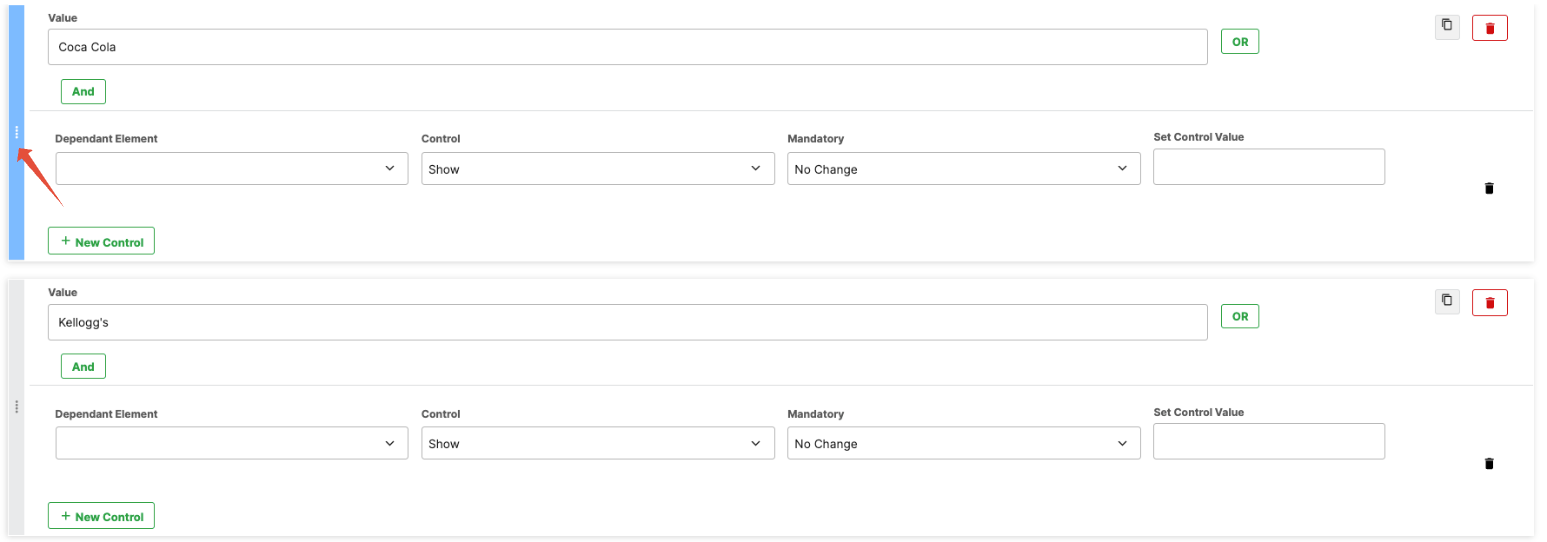
- Order matters: rules execute top → bottom within that element.
- Tip: You can add dependencies to individual elements or tabs. The behavior of Hide, Show, and Read Only is the same; only the scope differs.
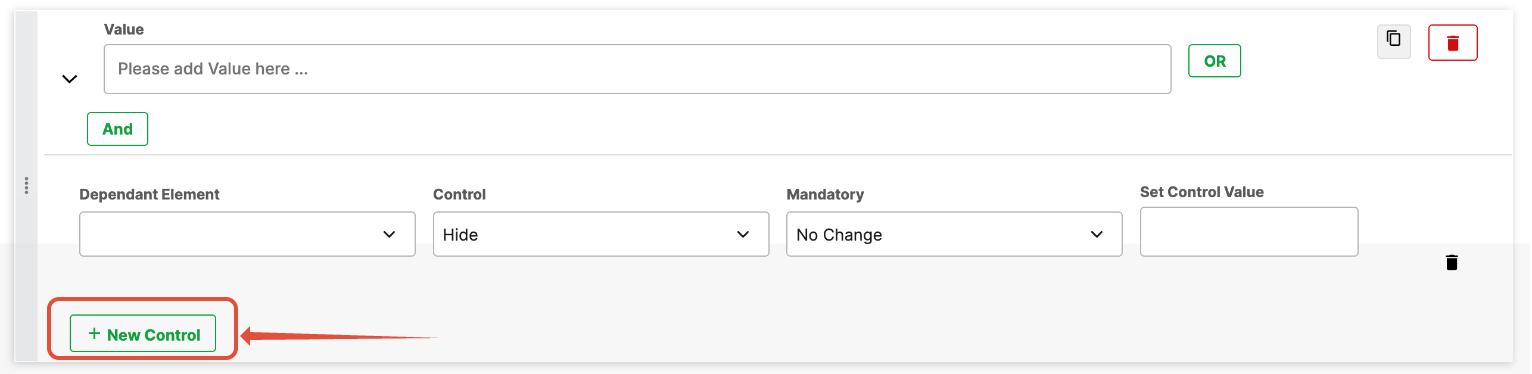
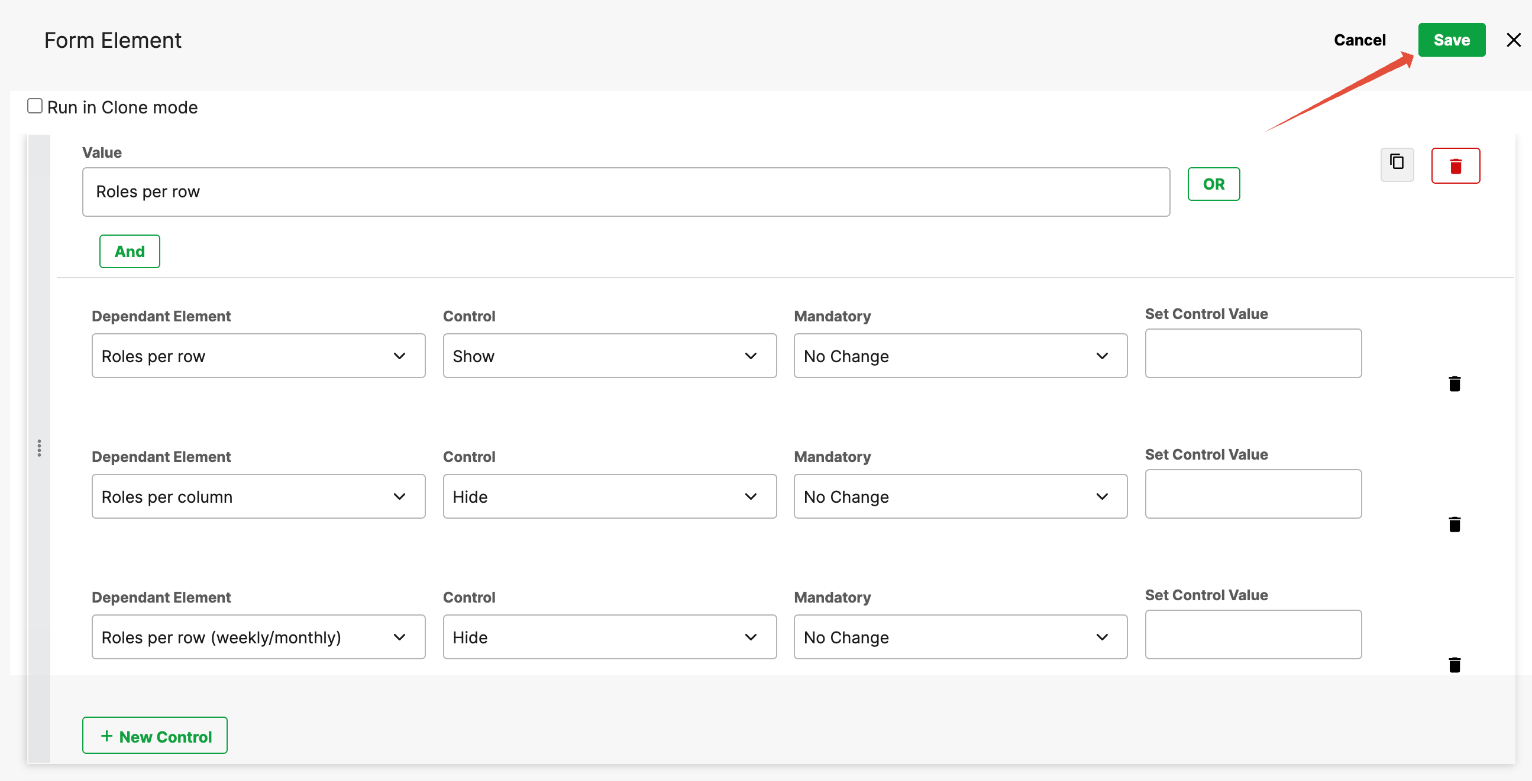
Add Multiple Controls
Click + New Control to apply multiple rules to the same value.
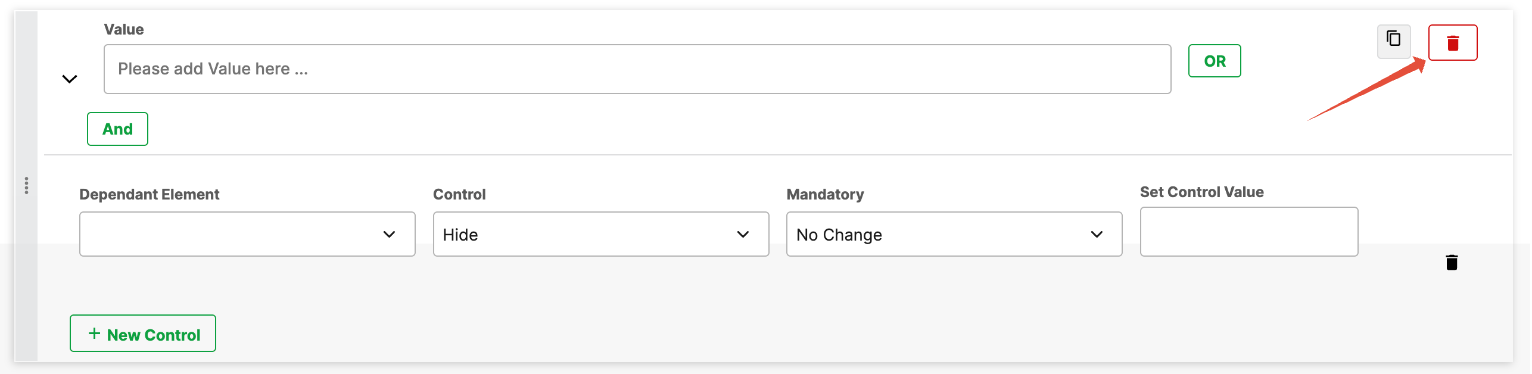
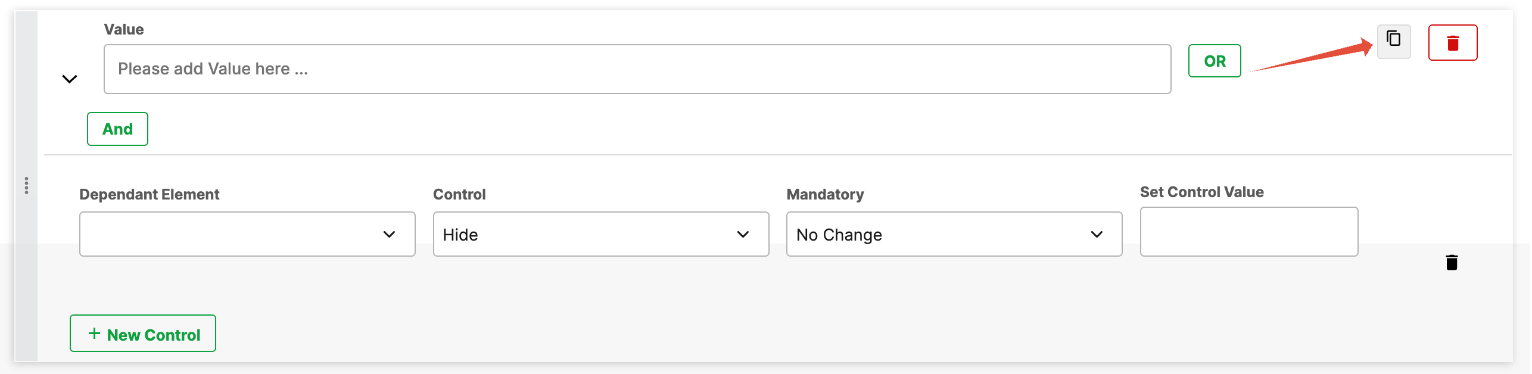
Manage Dependencies
Delete: Click the trash can icon to remove a dependency.
Duplicate: Clone an existing dependency to quickly set up similar rules.
Save
Click Save to apply the dependency rules.
Identifying Dependencies in the Element List
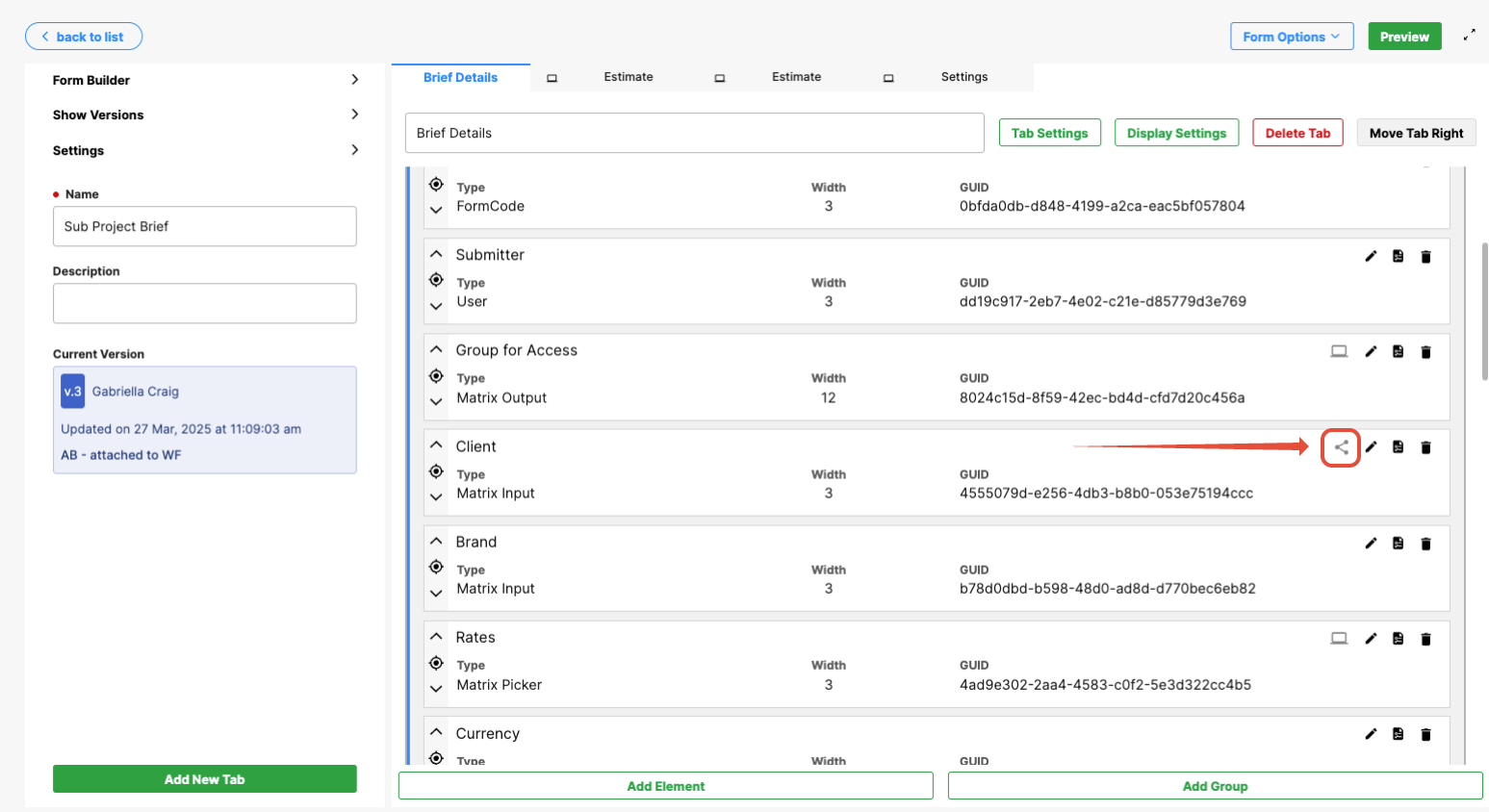
In the top‑level element list of the Form Builder:
- A field with its own dependencies configured (i.e., it controls others) shows a three‑dot icon.
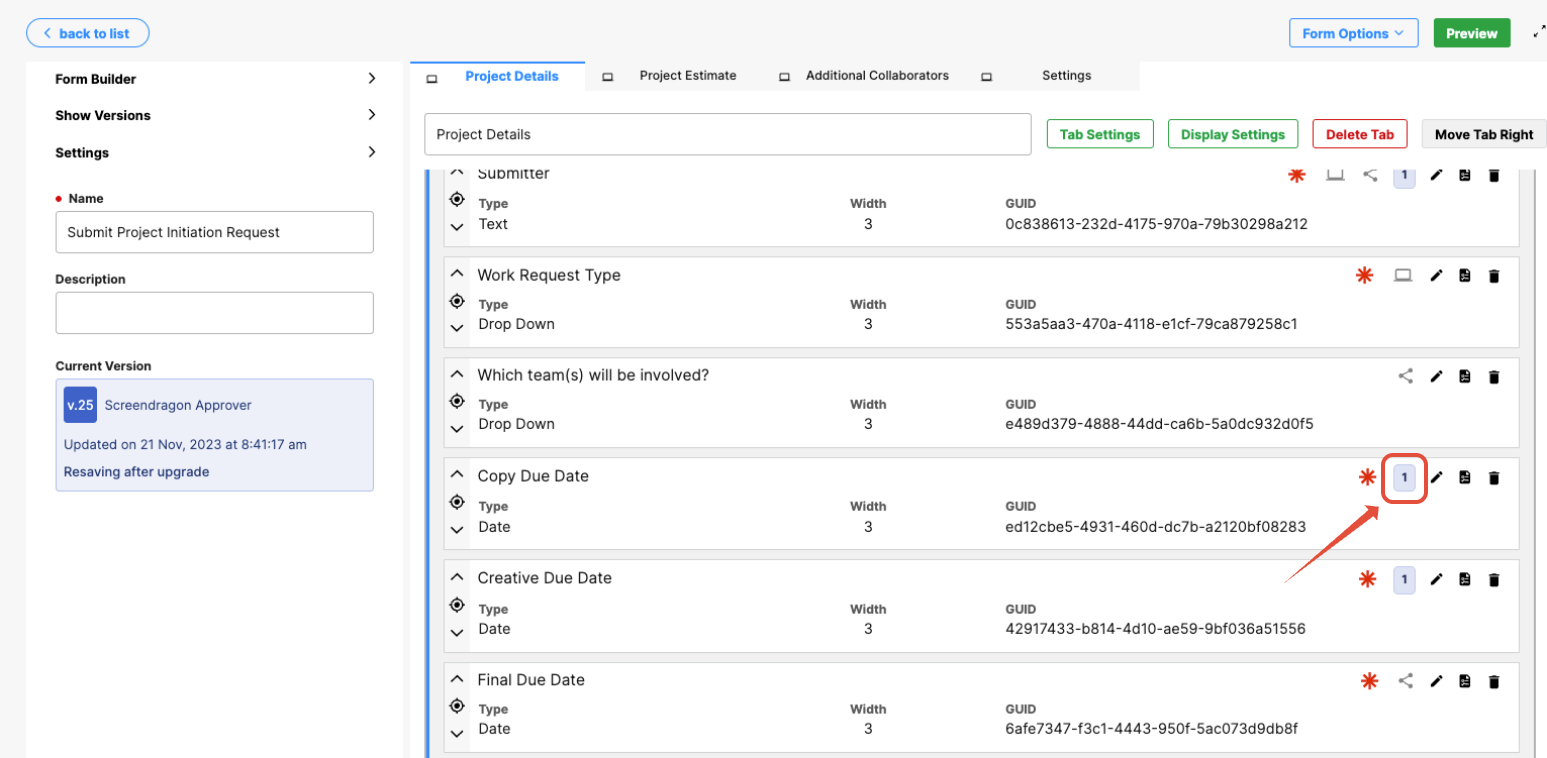
- A field controlled by other dependencies displays a numeric badge indicating how many dependencies target it. Click the field, then open Dependencies to inspect the rules.
Control Types
When you click the dependency field, you can see where you control its visibility. A field may be shown by default or hidden by default (depending on your base configuration). Dependencies then invert that default as needed. For example, you might hide a field by default, then show it only when a specific condition is met; or show it by default and hide it under certain conditions.
Control Types include:
Hide: Completely removes the element from view. The user can’t see or interact with it while the rule is true.
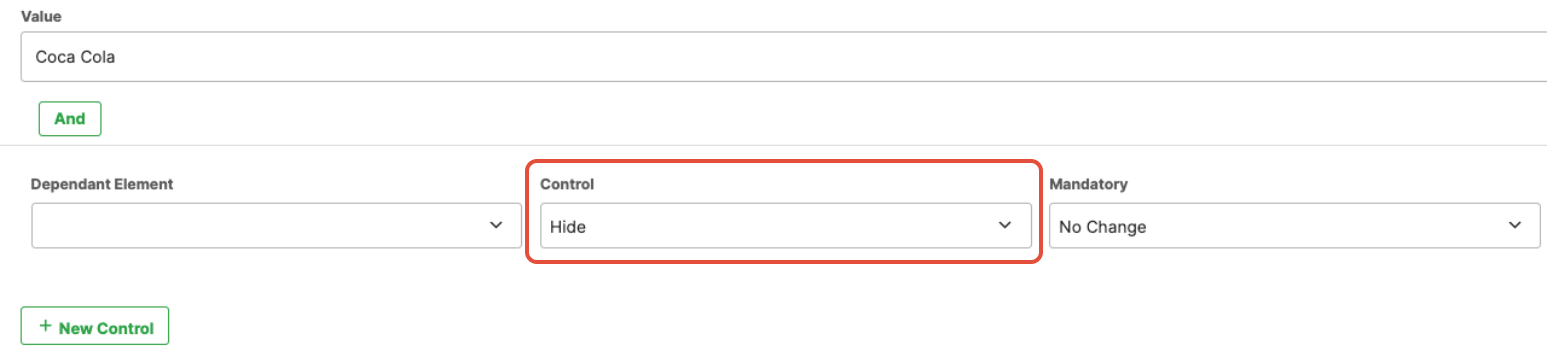
Show: Ensures the element is visible when the rule is true.

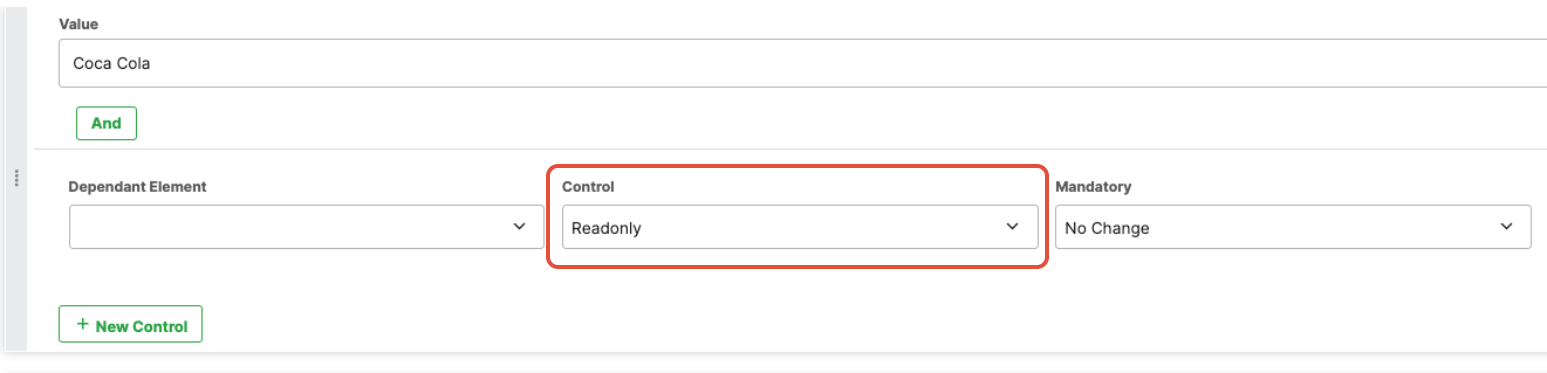
Read Only: The element remains visible but is locked; users can’t edit it. If it already has a value, that value stays visible and locked while the rule is true.
System (Hidden but available for calculations, etc.): A System control is hidden from end users but remains available for internal logic, calculations, and dependencies. These controls are commonly used to store values, perform background calculations, or support conditional behavior without adding visible fields to the form.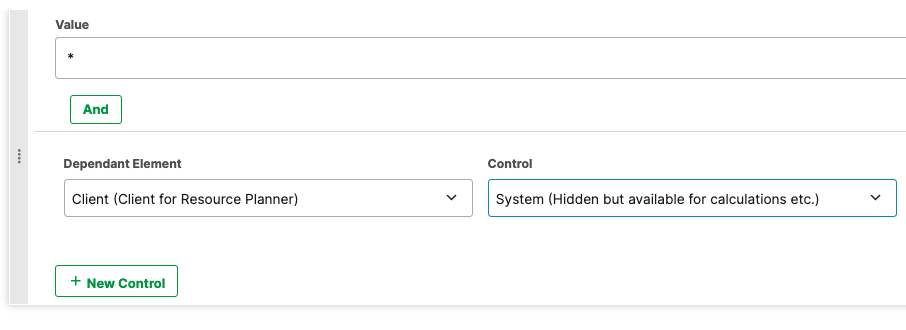
Set Tag Value: The Set Tag Value control automatically applies or updates a tag based on defined rules or conditions. This is useful for categorization, automation, reporting, or triggering downstream workflows without requiring manual user input.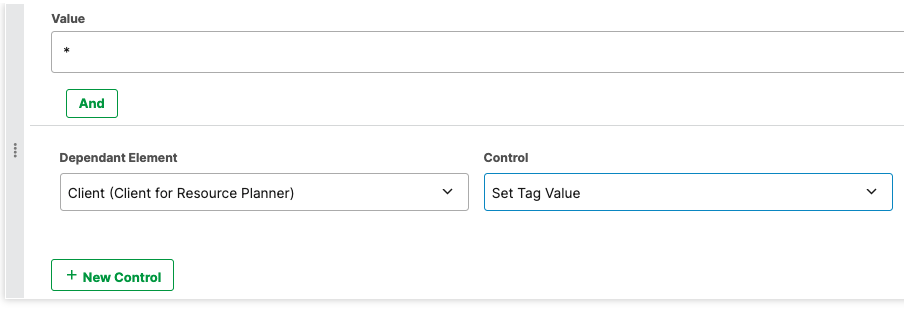
No Change: The No Change control explicitly indicates that an existing value should remain unchanged. It is typically used in conditional logic or update actions where other fields may be modified, but a specific value needs to be preserved.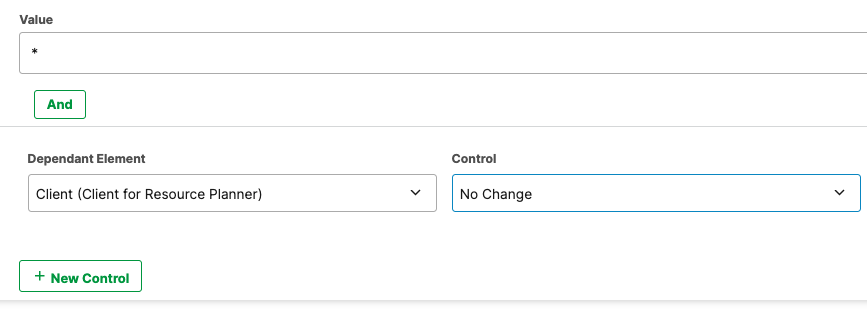
Calculation: The Calculation control performs automatic calculations using values from other fields in the form. It updates dynamically as input values change and can be used for totals, percentages, scoring, or any derived values required for workflow logic or reporting.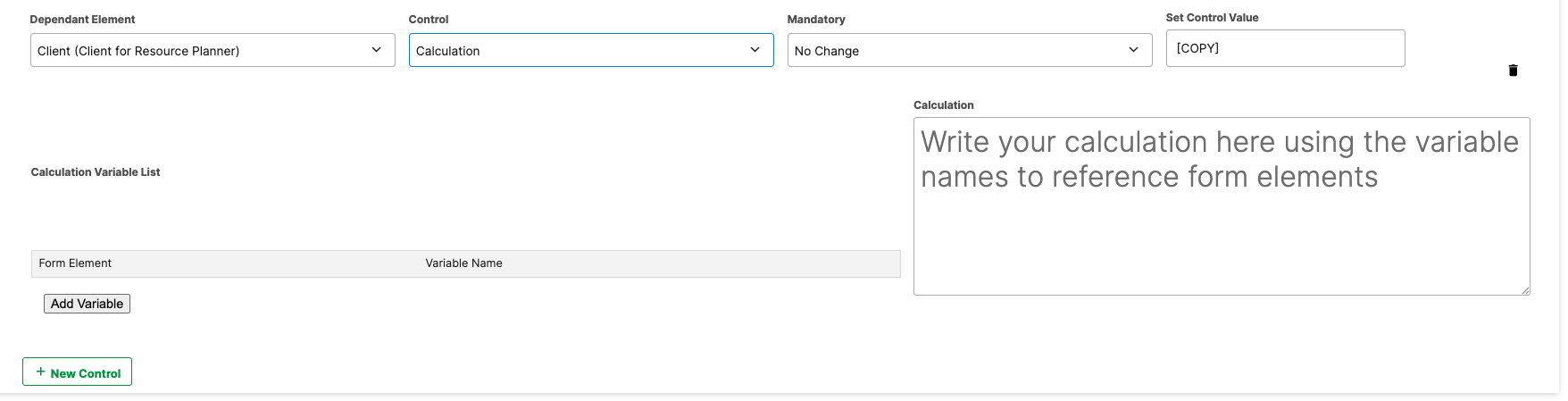
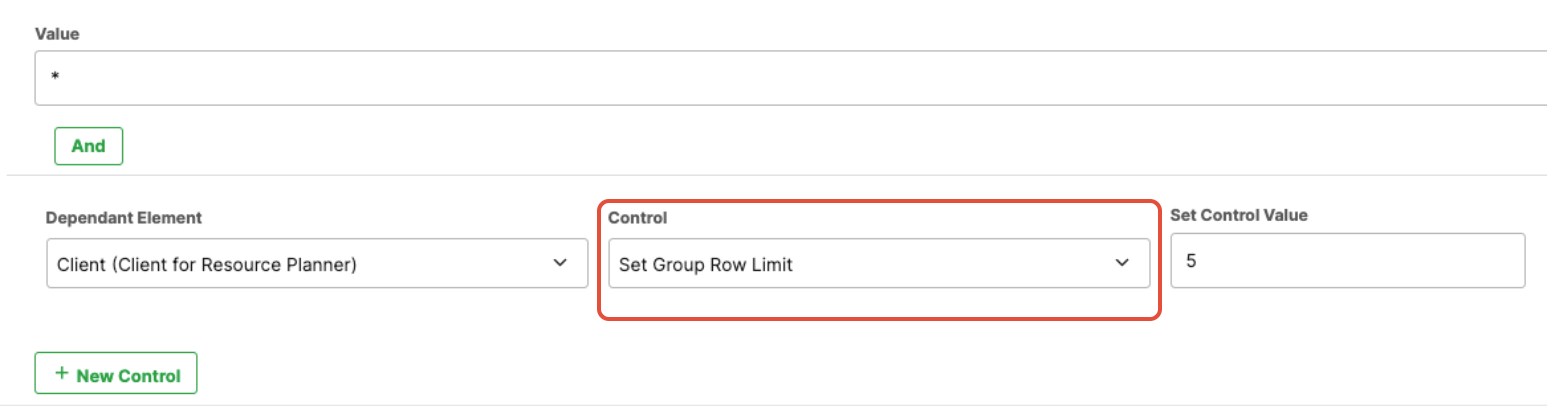
Set Group Row Limit: The Set Group Row Limit control defines the maximum number of rows that can be added to a group. This helps enforce data limits, maintain consistency, and prevent users from adding more entries than intended.
Creating a Basic Dependency (Single Rule, Multiple Actions)
- Open the Dependencies Settings tab on the controlling field (the field whose value you evaluate).
- Click Add Dependency.
- Configure the tile:
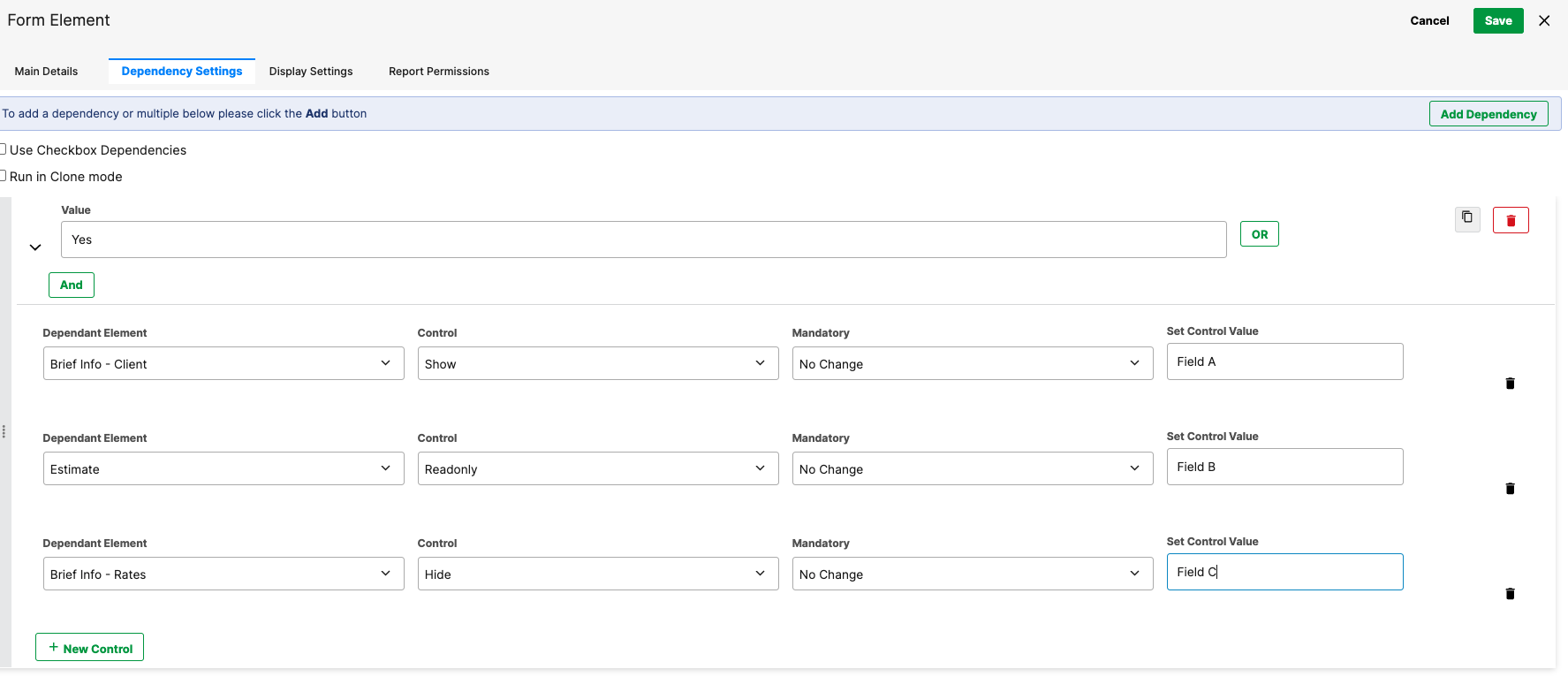
Value: the trigger value (e.g., Yes).
Dependent Element(s): which fields to act on.
Control: choose Hide, Show, or Read Only.
A single rule can target multiple dependent elements (acts like an AND on the outcome). For example: if Yes, then Show Field A, Hide Field B, Read Only Field C.
Execution Order & Evaluation Behavior
Dependencies are evaluated from top to bottom within each element.
The form evaluates dependencies:
- When the form first loads
- Whenever a user interacts with a controlling field
Although a form can contain many rules, each dependent element is only acted on once per evaluation pass. If a rule higher in the list already updates an element, any lower rules targeting that same element are skipped during that pass.
Form order matters
On initial load, dependency evaluation follows the order of the form (for example, Tab A is evaluated before Tab B). This can affect which rules run first.
Example: Multiple fields controlling the same target
- Top field: Rule hides Additional Comments
- Middle field: Rule shows Additional Comments
If the user interacts with the middle field and its condition is met, the rule runs during that interaction and shows Additional Comments—even if it was previously hidden by another rule.
If the user then interacts with the top field again, its rule evaluates during that new interaction and can hide the field once more.
These rules don’t conflict with each other. Each user interaction triggers a fresh evaluation pass, and within each controlling element, rules are still processed from top to bottom.
Was this article helpful?
That’s Great!
Thank you for your feedback
Sorry! We couldn't be helpful
Thank you for your feedback
Feedback sent
We appreciate your effort and will try to fix the article