Display Settings
TABLE OF CONTENTS
- Display Settings
- Adding Display Settings
- System Hidden Fields
- Rule Order and How It Works
- Multiple Rules Can Apply
- Dependencies vs Display Settings
- Caution when Using “Hide”
- Summary of Best Practices
Within the Form Builder, you’ll see Display Settings on each tab. These settings can be applied at the tab level or at the individual field level. 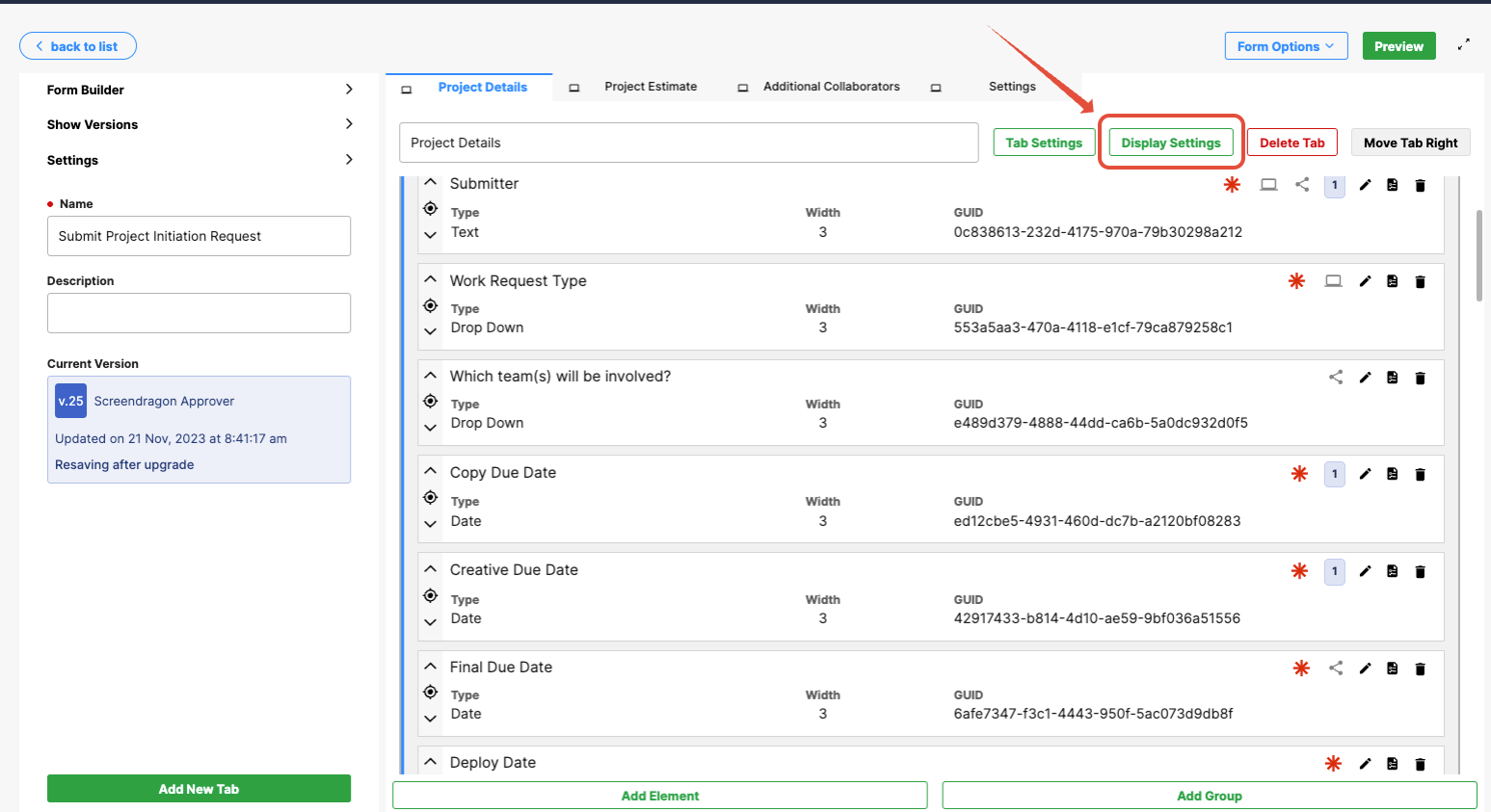
When you open a specific element in the form, you’ll notice a third tab called Display Settings. Both versions work in exactly the same way. 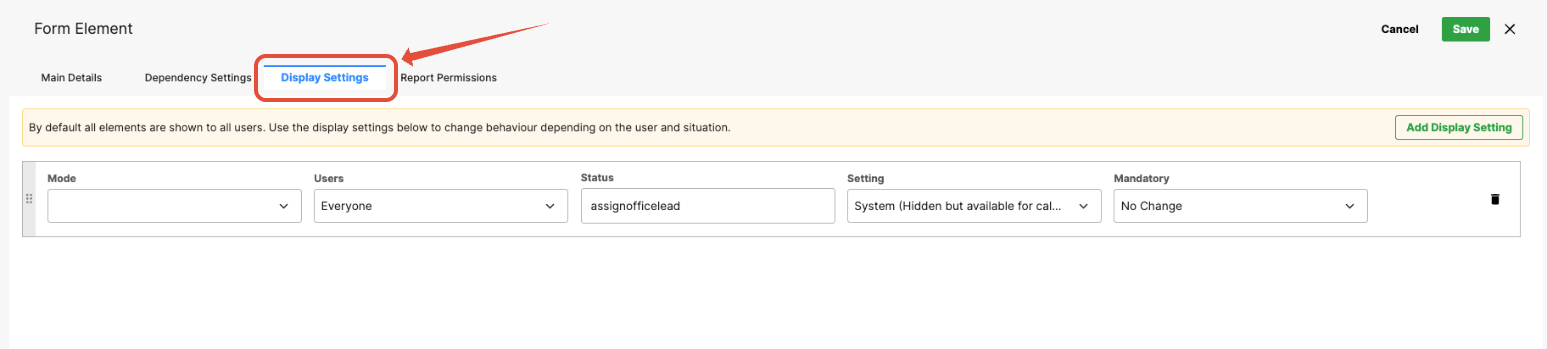
What Are Display Settings?
Display Settings control whether a field or tab is visible, hidden, or read-only. They’re different from Dependencies, which are logic-based and often trigger visibility or other changes depending on values entered elsewhere in the form.
Display Settings, on the other hand, act more like blanket visibility or editability rules—often based on the user or the form mode.
Display Settings determine how an element behaves based on user roles or system conditions. Fields can be configured as:
- Shown – Visible and editable.
- Hidden – Not visible to users.
- Read-only – Visible but not editable.
- System Hidden – Invisible to users but still populated with values (often set by dependencies or system rules).
This ensures users only see what’s relevant to them while enabling administrators to control form behavior and reporting.
Adding Display Settings
Open the form where you want to add the display settings.
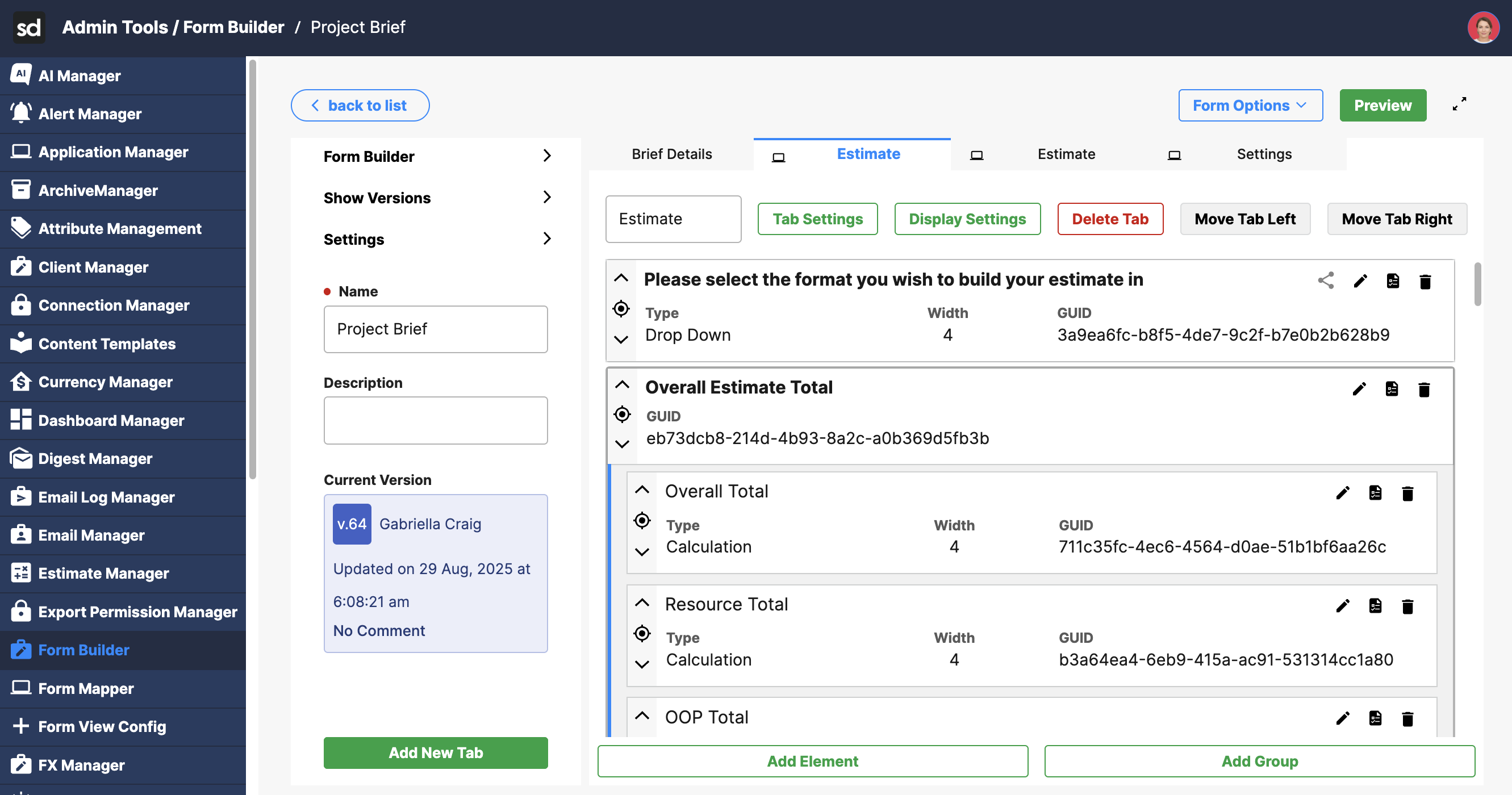
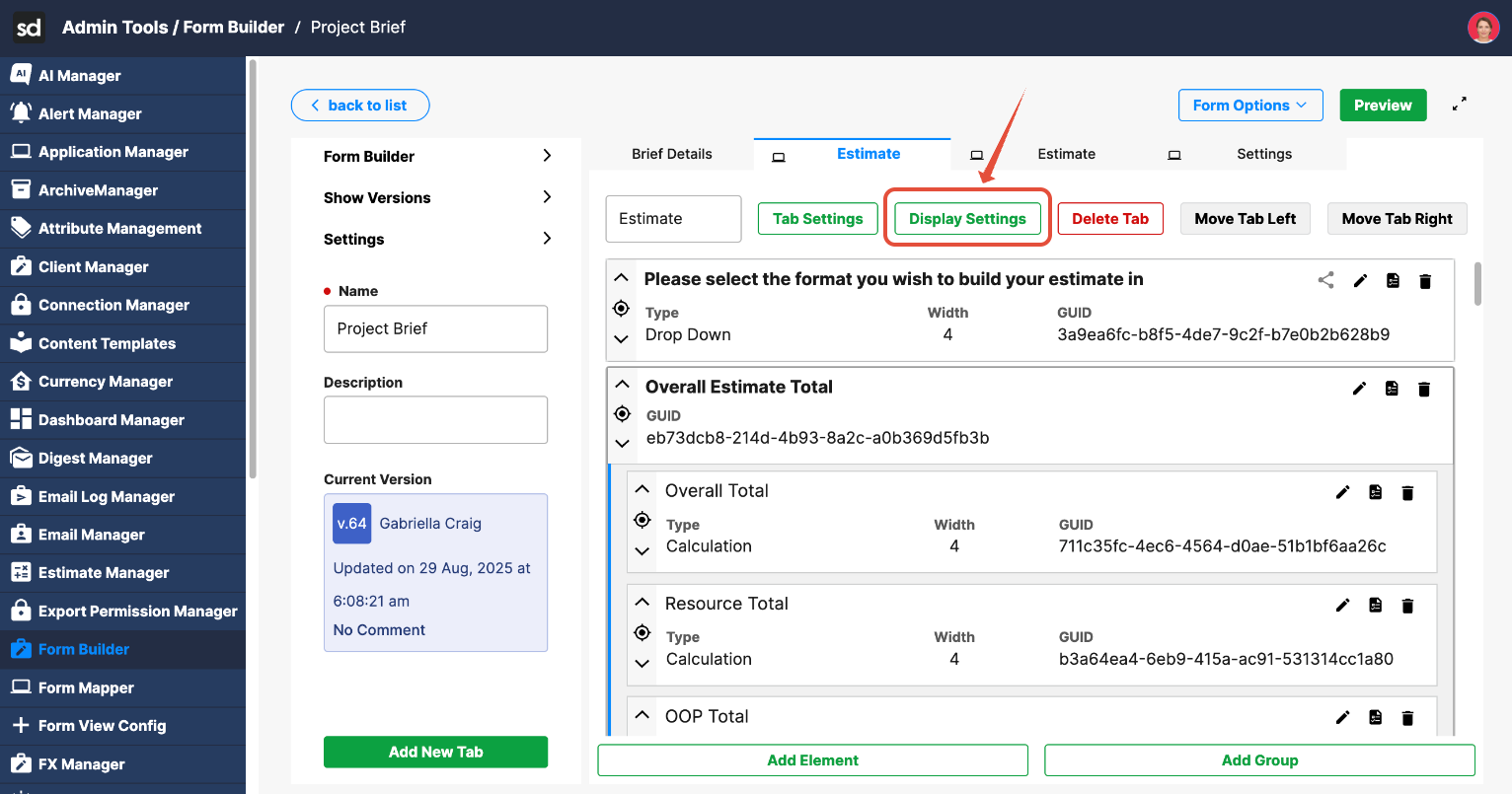
Click Display Settings.
Click Add Display Setting to add a new rule.
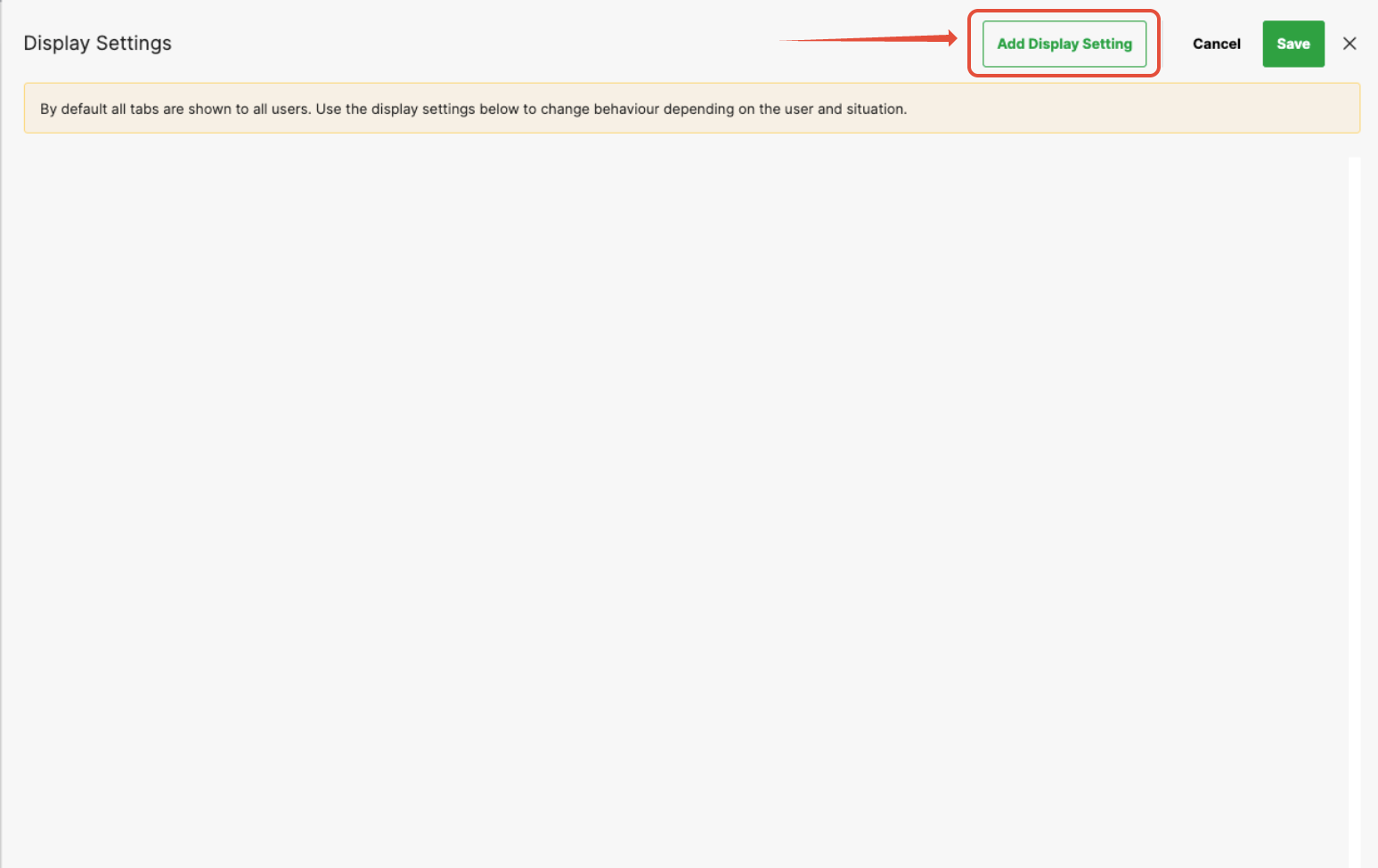
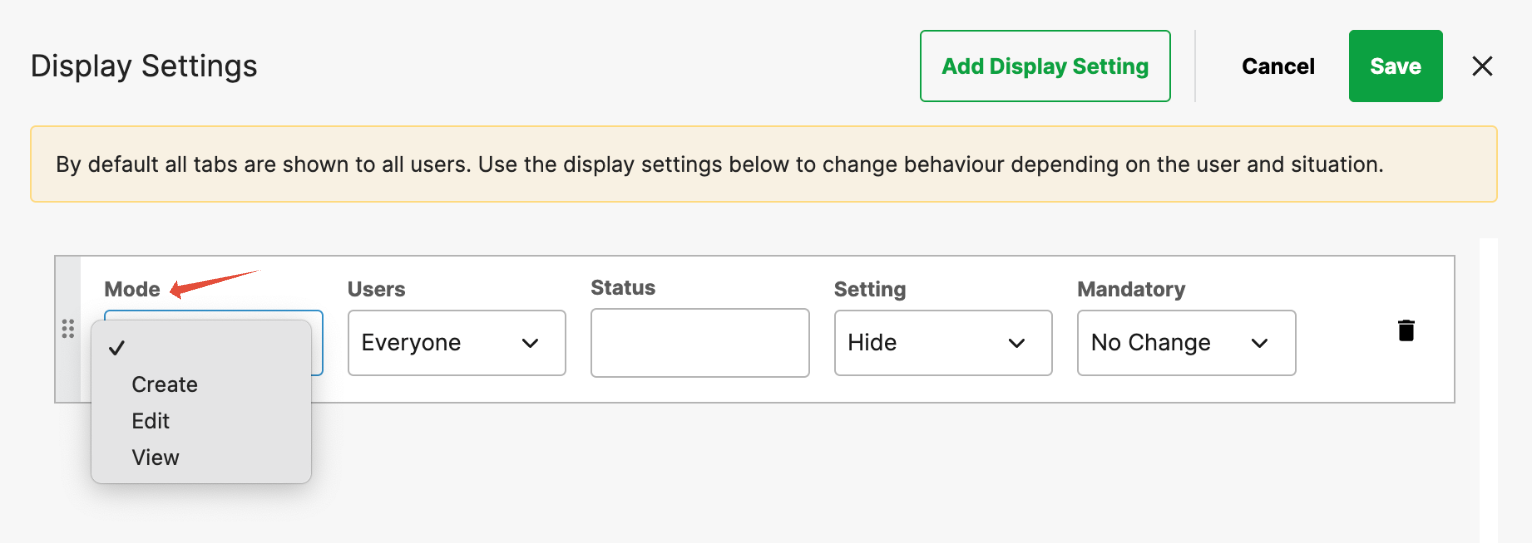
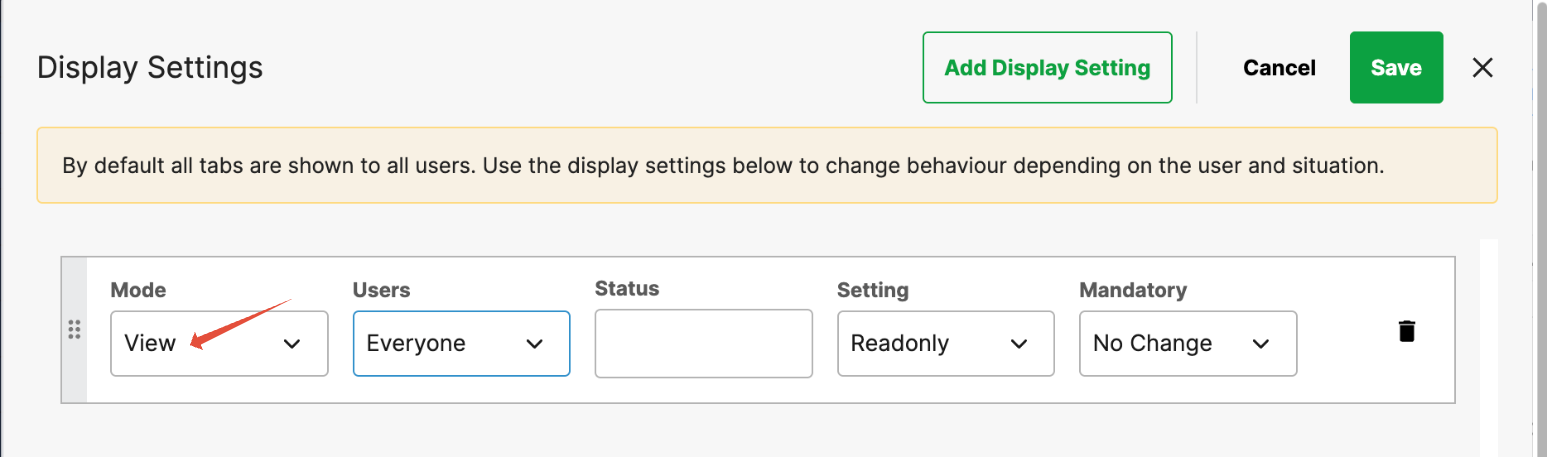
Define how the field should behave across different modes:
Create mode – When a form is being created.
Edit mode – When a form is being updated.
View mode – When a form is being viewed only.
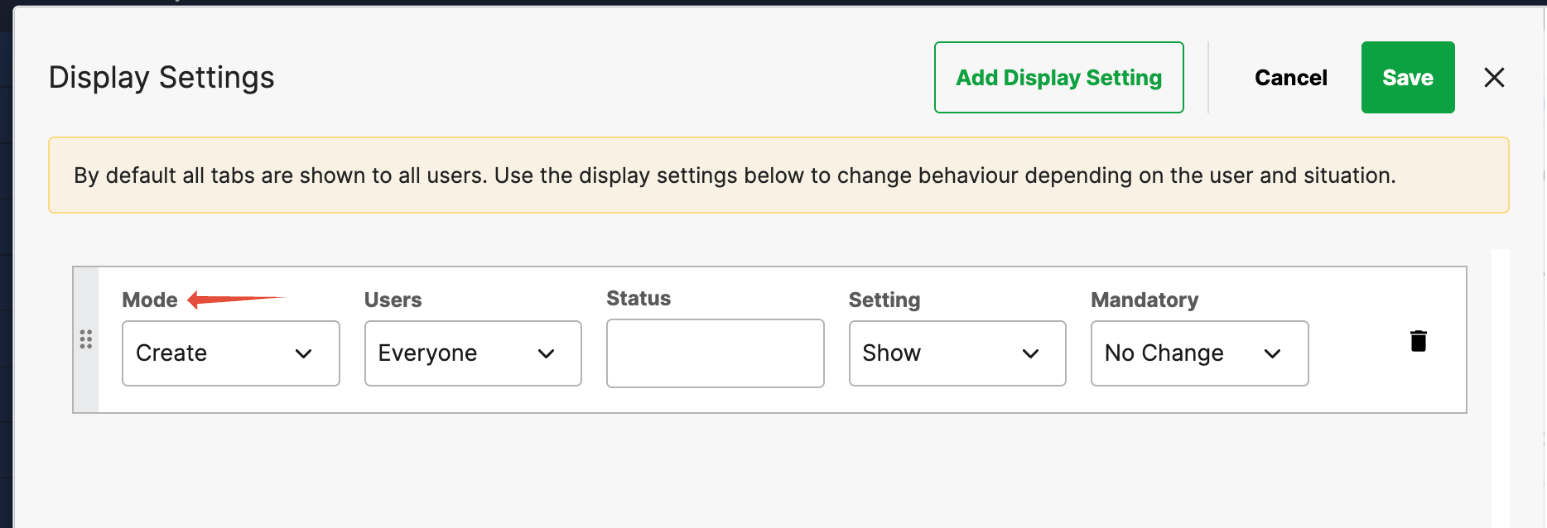
Example:
Show to everyone in Create mode.
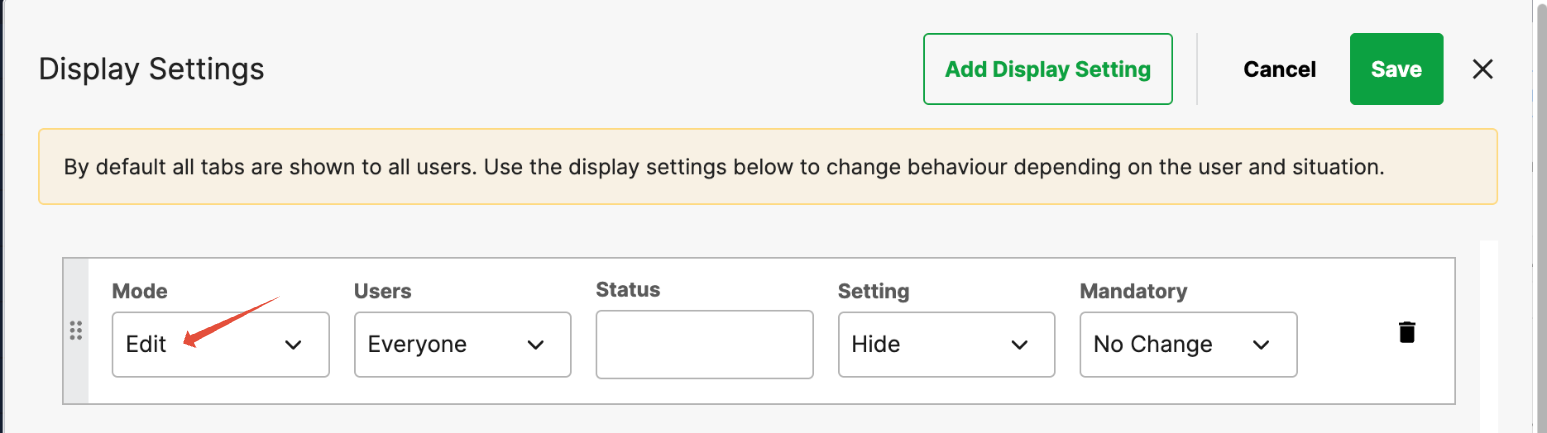
Hide from everyone in Edit mode.
Read-only for everyone in View mode.
Users
You can select specific user groups or individuals.
Leaving it as Everyone applies the rule to all users. 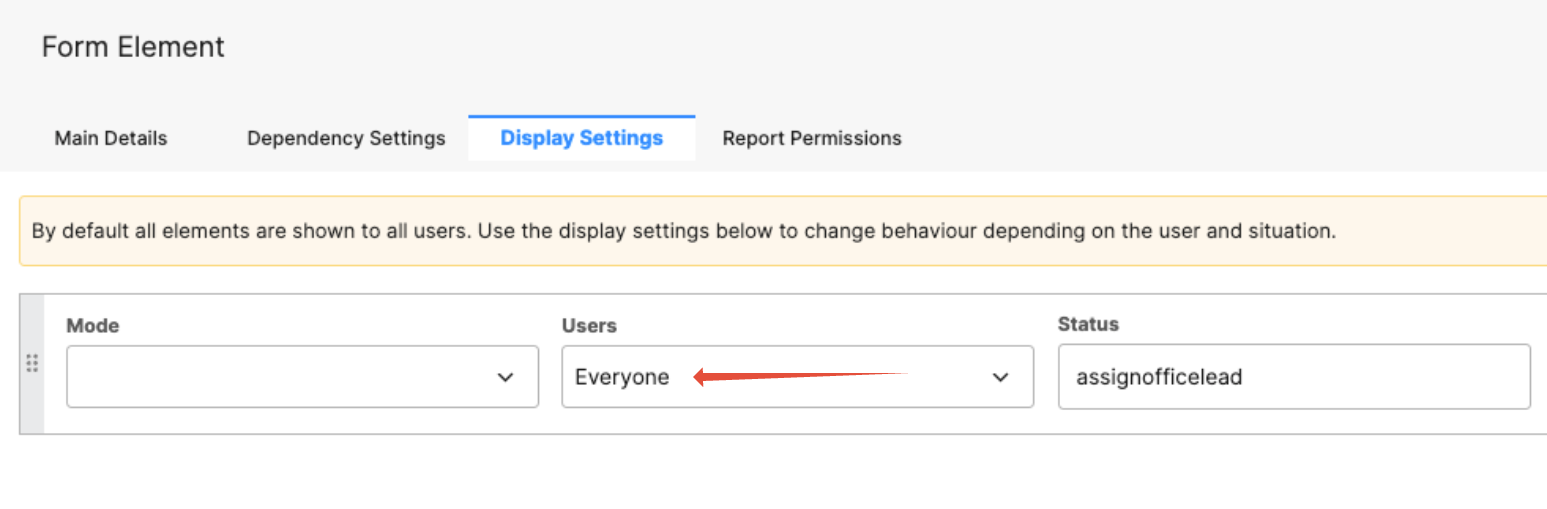
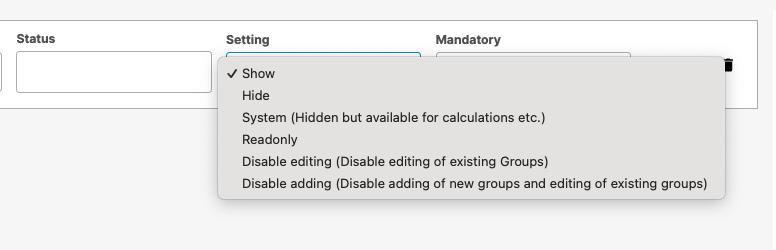
Setting (Action)
Defines what to do when the conditions are met.
Common options include:
Show – display the field or tab.
Hide – completely hide it.
Read-only – show it but prevent editing.
Make Mandatory / Make Optional – toggle whether the field is required.
System Value – lock the field to a system-calculated or predefined value.
Disable Editing / Disable Adding – advanced controls that prevent further changes or additions.
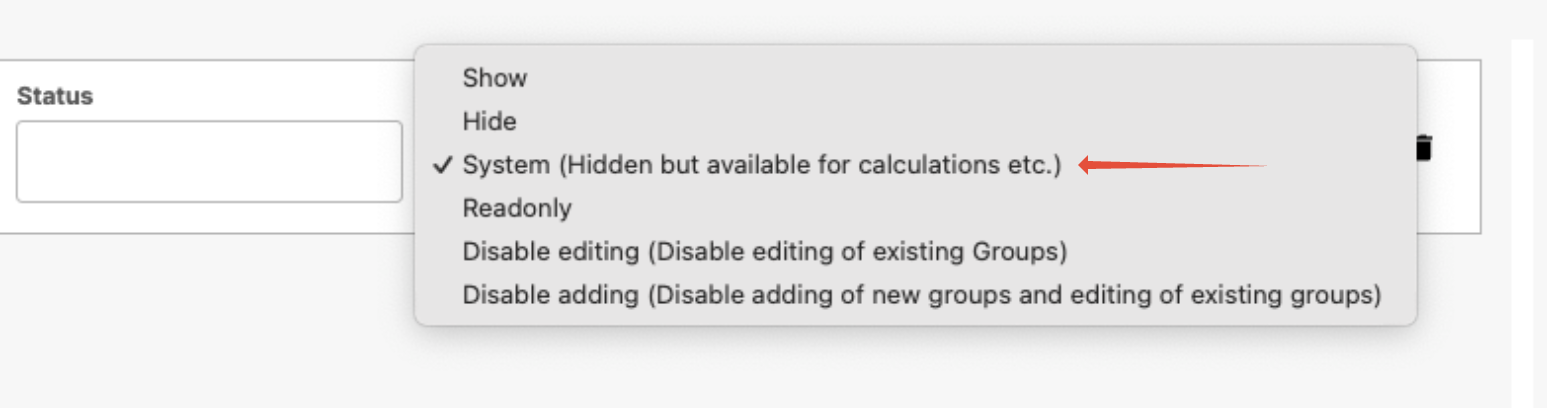
System Hidden Fields
System Hidden fields are not visible to users but are populated automatically by system logic or dependencies. They can be leveraged for calculations, workflow routing, or metadata storage.
Common Examples:
- Assigning workflow steps based on user group fields.
- Converting text-based answers into numeric values for calculations (e.g., selecting 50% stores a decimal value of
0.5). - Storing attribute values for matrix picker fields.
Rule Order and How It Works
Display Settings are evaluated from top to bottom.
Once a condition is met, that rule applies — and any rules below it are ignored for that user.
This means rule order matters. Always list specific rules first (e.g., a single user group) and general rules last (e.g., “Everyone”).
Let’s say you have a field that should be editable only by the Digital Marketing group, but still visible to everyone else.
First Rule:
Mode: leave blank (applies in all modes)
Users: Finance group
Setting: Show
Second Rule:
Mode: leave blank
Users: Everyone
Setting: Read Only

Let’s say you have a field that should be editable only by the Digital Marketing group, but still visible to everyone else.
First Rule:
Mode: leave blank (applies in all modes)
Users: Finance group
Setting: Show
Second Rule:
Mode: leave blank
Users: Everyone
Setting: Read Only
Because the Digital Marketing group rule comes first, those users can edit the field.
If you reversed the order, the “Everyone Read Only” rule would trigger first — and Digital Marketing group users would also be made read-only, since they’re part of “Everyone.”
Multiple Rules Can Apply
A user can meet the criteria for multiple rules (for example, if they belong to multiple groups).
When that happens, the system uses the first rule in the list that matches.
That’s why ordering is so important — it defines rule priority.
Dependencies vs Display Settings
Both can affect whether something is visible, but they work differently:
- Dependencies are based on logic within the form — e.g., “If Field A = Yes, show Field B.”
- Display Settings are based on contextual rules—e.g., form mode or the user’s role/group.
It’s common for them to be used together. Dependencies handle conditional logic, while Display Settings manage user access and visibility more broadly.
Caution when Using “Hide”
Be careful when using the Hide option.
- If a field is hidden for certain users and they save the form, that hidden data can be overwritten or cleared.
- If you need a field to remain visible but not editable, use Read Only instead.
If the data needs to be preserved by the system regardless of visibility, use System Value.
Summary of Best Practices
- Always order rules from most specific to most general.
- Leave Mode blank to cover all modes.
- Use Read Only instead of Hide to protect data.
- Use System Value for fields that must stay populated and uneditable.
- Keep Dependencies for logical conditions based on field values.
- Use Display Settings for broader visibility and access control based on users or modes.
Was this article helpful?
That’s Great!
Thank you for your feedback
Sorry! We couldn't be helpful
Thank you for your feedback
Feedback sent
We appreciate your effort and will try to fix the article