Report Permissions
TABLE OF CONTENTS
- Report Permissions
- Where Permissions Are Applied
- Form-Level Permissions
- Permissions and Dependencies Work Together
- Key Takeaway
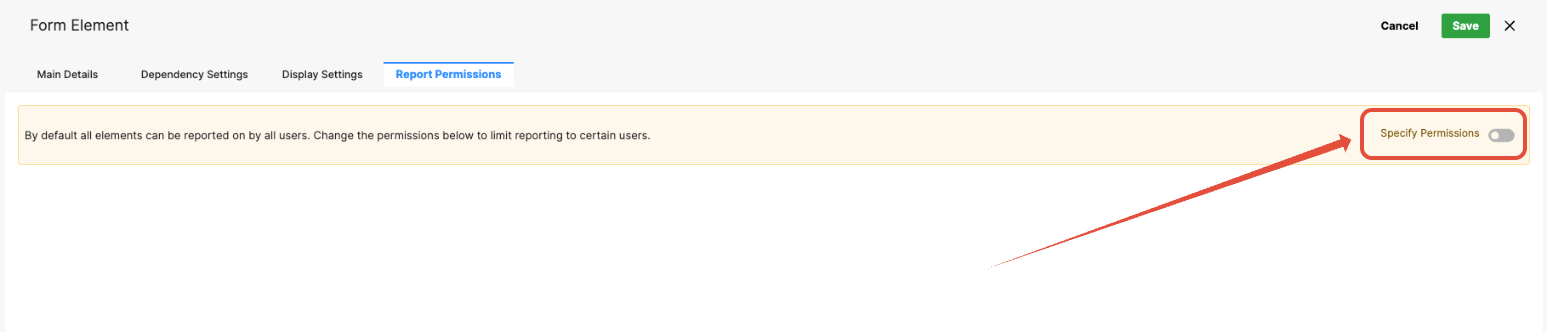
System administrators can also configure report permissions to determine which users or groups can see or export hidden fields in reports. This ensures that sensitive information is accessible only to authorized users.
By default, all elements are visible to all users. Use the Specify Permissionsdisplay settings below to control visibility based on the user or context.
Permissions only change behavior when you add rules or restrictions.
Where Permissions Are Applied
Permissions in the Form Builder can be configured in several places:
Form-level permissions – Who can access and submit the form
Element-level display settings – Which users can see or interact with specific fields
Dependency-driven behavior – How permissions and visibility change based on form input
Workflow and role context – How user roles and system context affect access
Each layer adds to the overall permission logic.
Form-Level Permissions
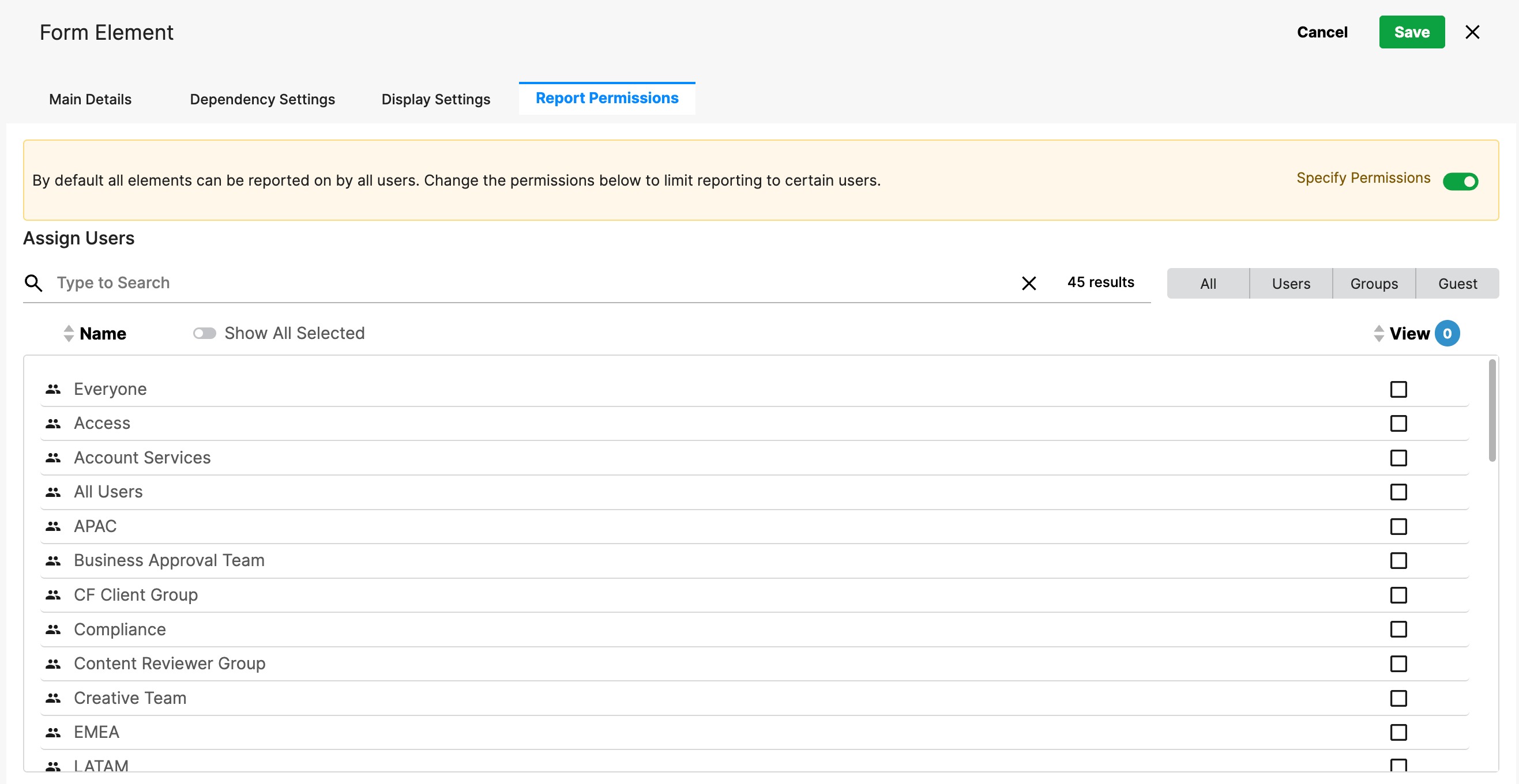
Form-level permissions determine who can access the form at all.
These permissions are typically based on:
All
User roles
Groups
Guests
If a user does not meet the form-level permission criteria, the form is not available to them.
Permissions and Dependencies Work Together
Permissions often work alongside dependencies to create dynamic behavior.
Common patterns include:
Showing fields only to specific users and only when certain values are selected
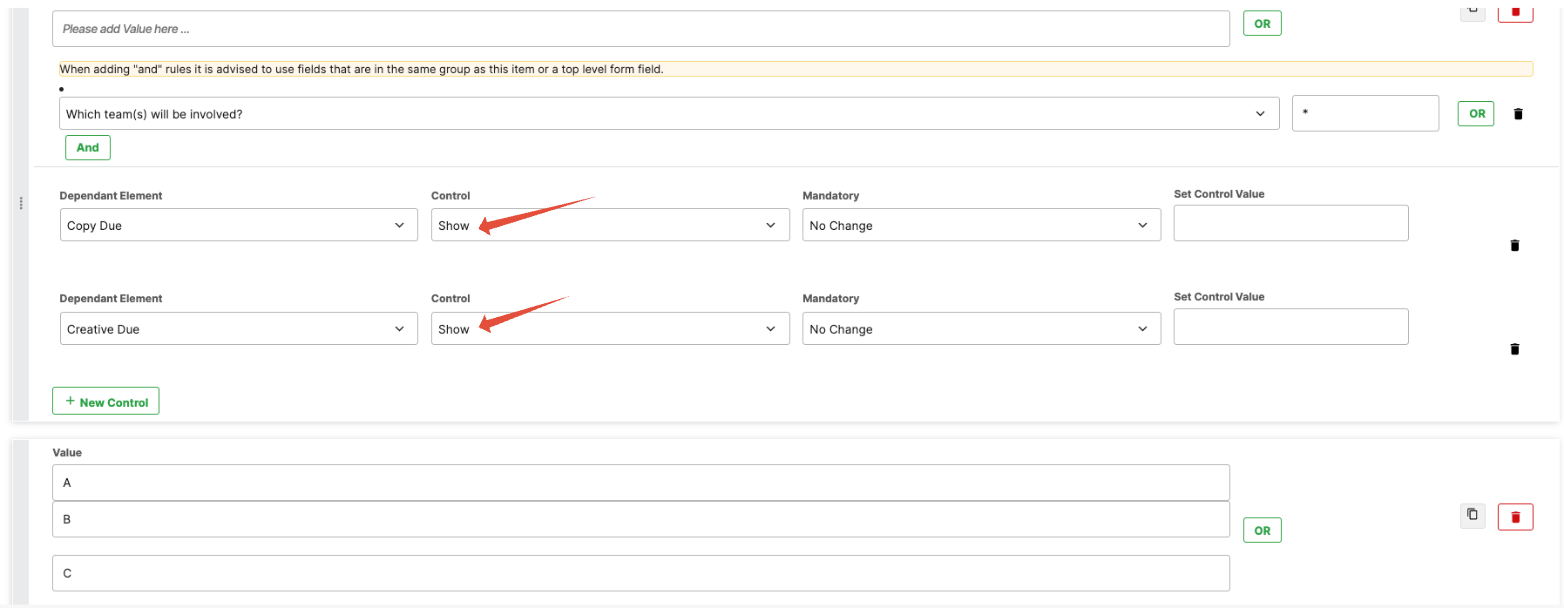
Hiding sensitive fields unless the user has the correct role
Locking fields after submission or approval
When multiple rules apply, the most recent evaluation determines the final state.
Key Takeaway
Permissions in the Form Builder are designed to be flexible and layered. By combining form-level access, element display settings, and dependencies, you can create forms that adapt to different users and scenarios—without needing to build multiple versions of the same form.
Keep permission rules simple and intentional
Use notes on elements to explain complex permission logic
Avoid overlapping or contradictory visibility rules
Always test permissions in the live front end—not just the Previewer
Consider the full user journey (submitter, reviewer, approver)
Was this article helpful?
That’s Great!
Thank you for your feedback
Sorry! We couldn't be helpful
Thank you for your feedback
Feedback sent
We appreciate your effort and will try to fix the article