TABLE OF CONTENTS
Importing and Exporting Currency Cards
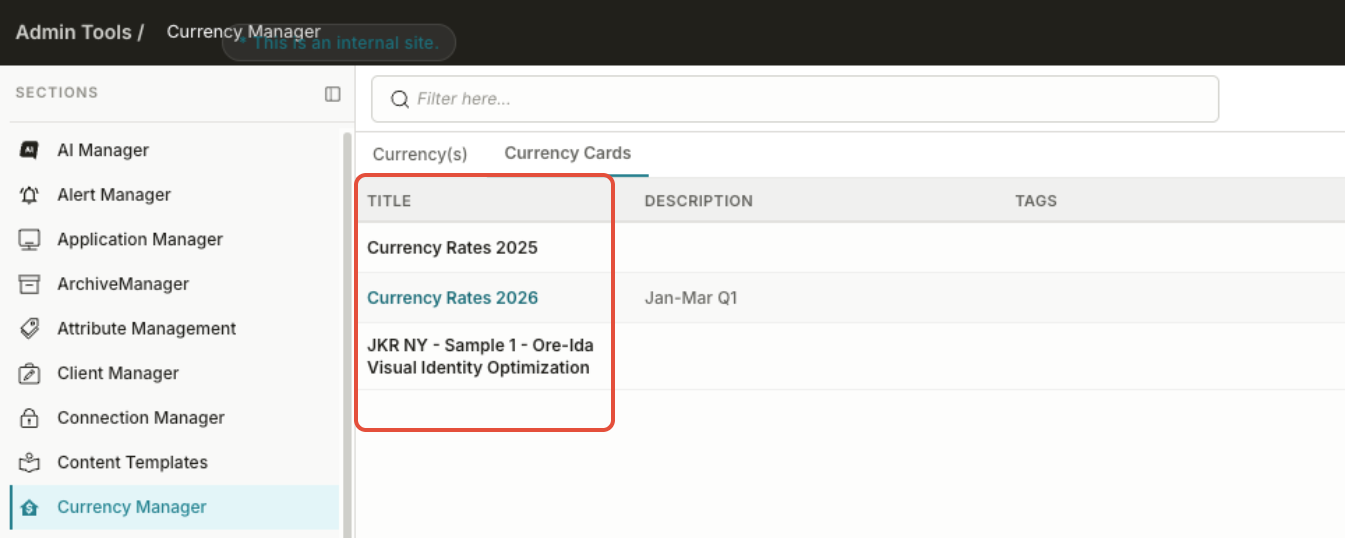
Admins can export currency cards to a file and import them back into the Admin Tool. The feature mirrors rate card import/export: same entry points, same file handling, same validation behavior.
Export
- Open Currency Cards in the Admin Tool.
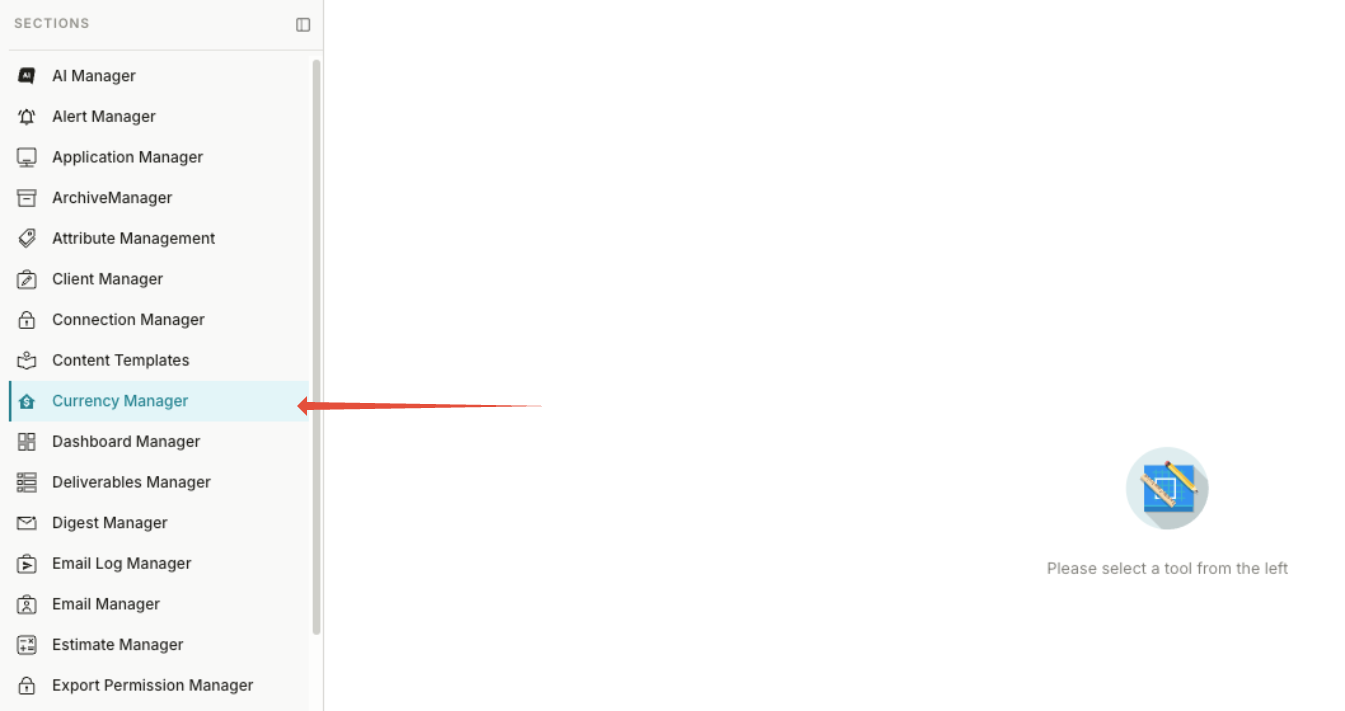
- Navigate to the Currency Cards tab.
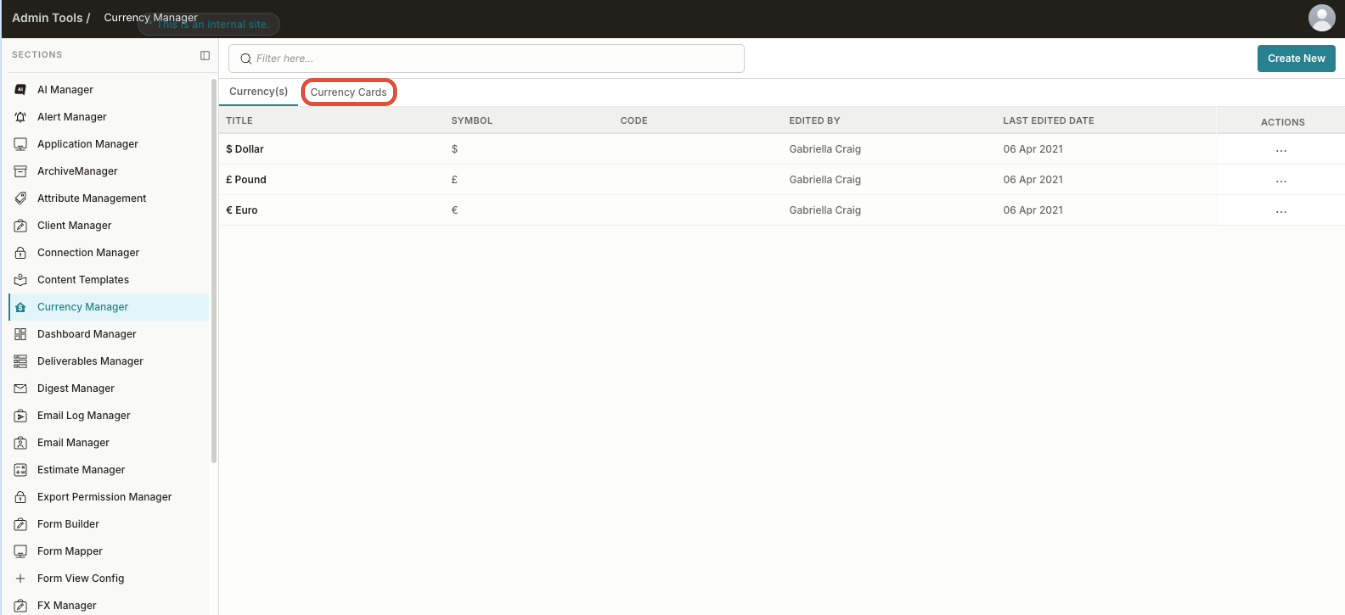
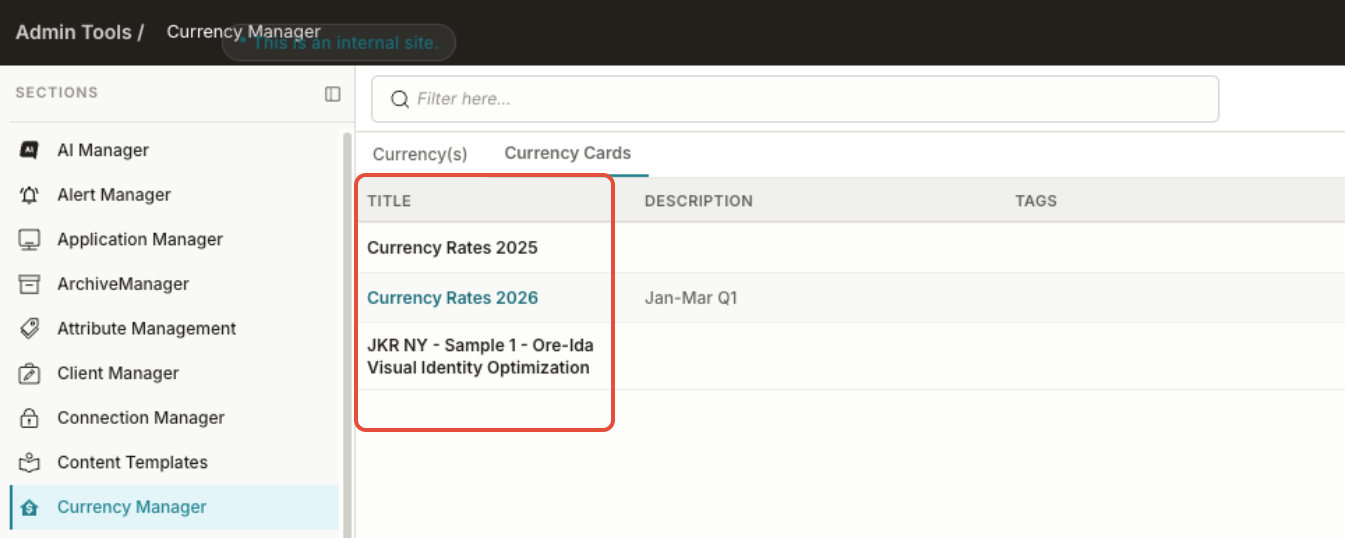
- Locate the currency card you want to export.
- Click Import/Export.
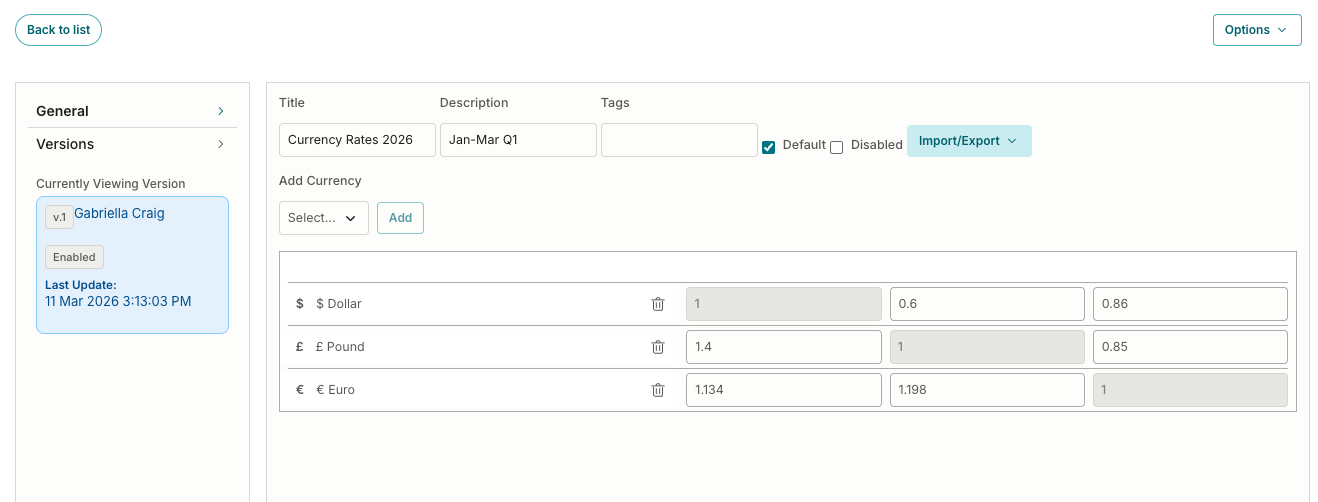
- Then click Export Currency Card.
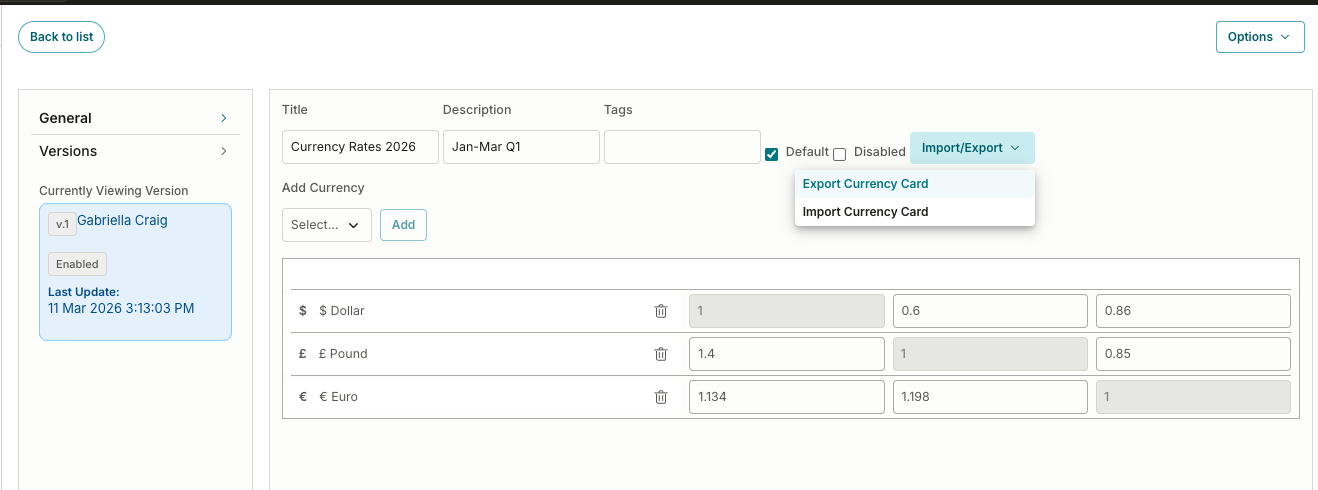
The system generates a file containing the selected currency cards and their rate data.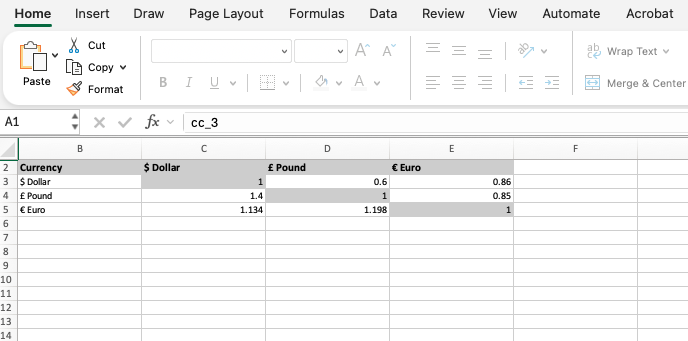
Import
- Open Currency Cards in the Admin Tool.
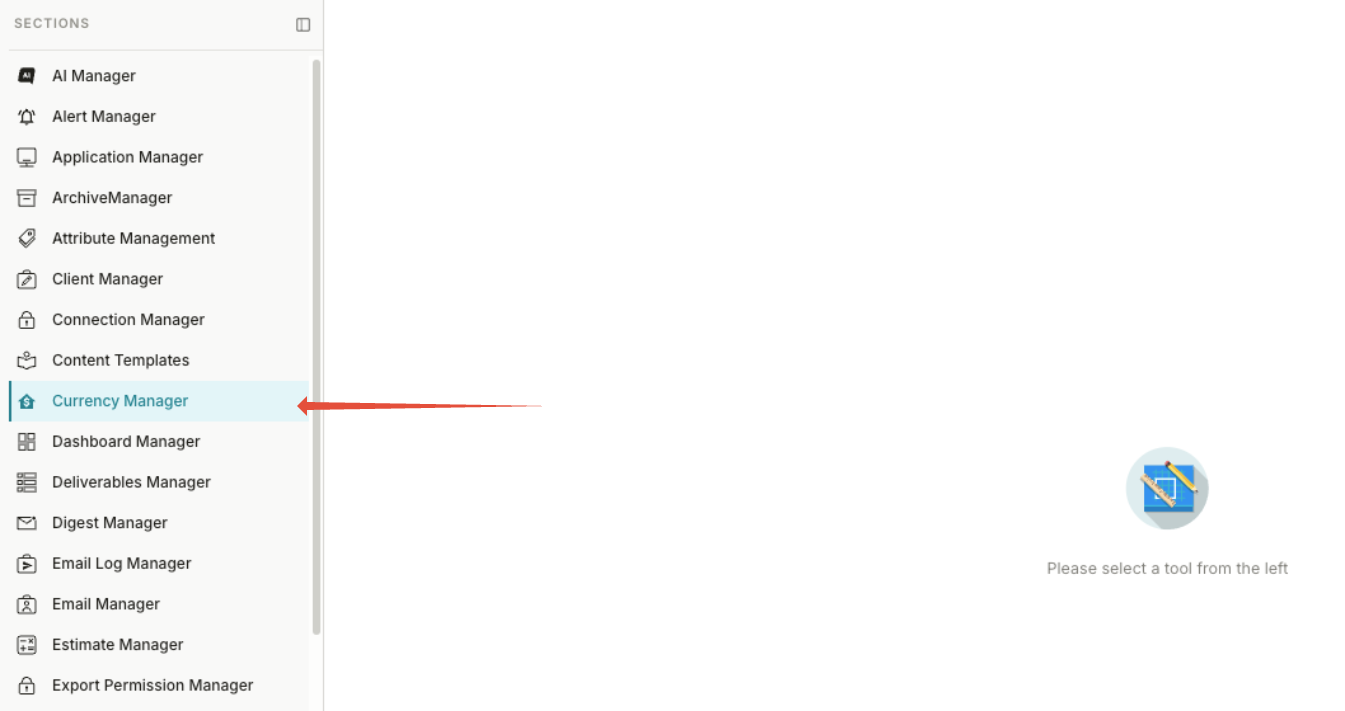
- Navigate to the Currency Cards tab and click the Currency Card you want to import to.
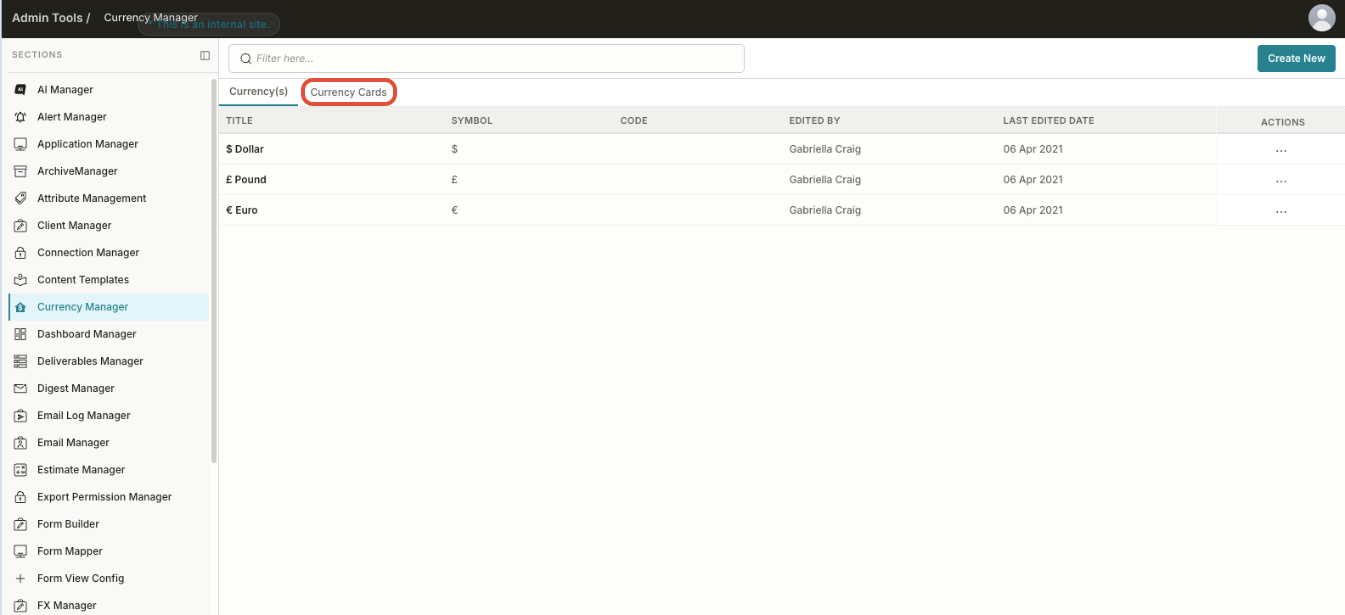
- Click Import/Export.
- Select Import and choose a file that matches the export format.
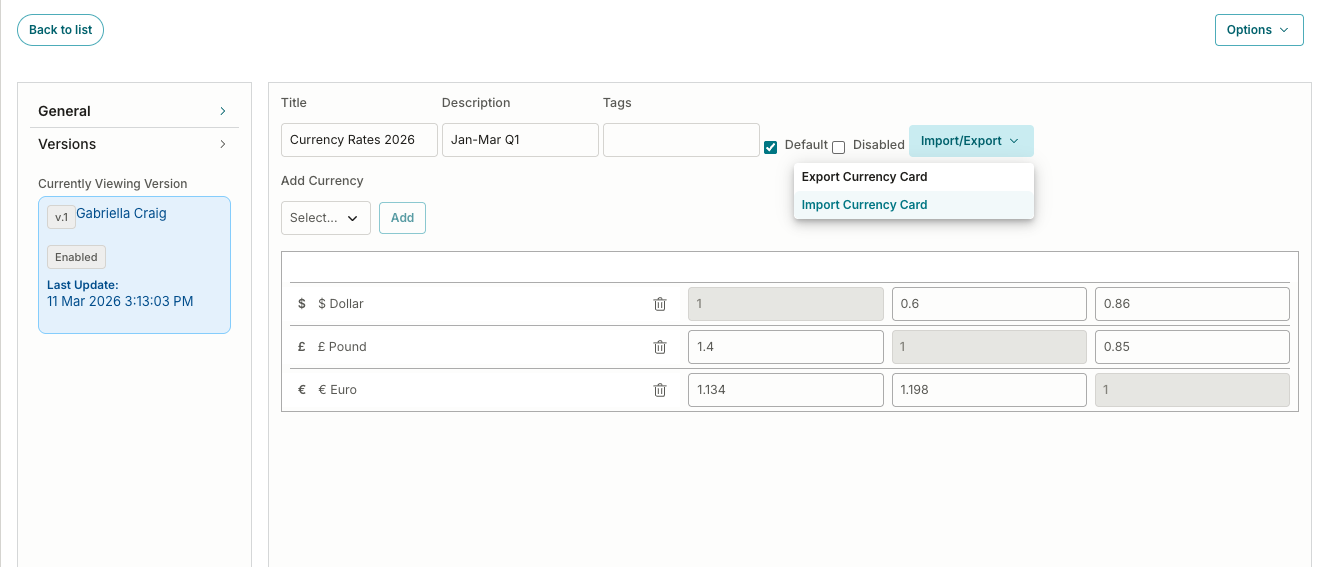
- The system validates the file and creates or updates currency cards from its contents. Errors are reported using the same handling as rate card imports.
Use cases
- Bulk creation of currency cards during client onboarding.
- Offline review or editing of rates before re-import.
- Backup of currency card configuration.
Versioning
A currency card can now hold multiple versions, and each submission is bound to the version that was the default when the submission was created. This means the client keeps one card and adds a version each time they make an update.
Version resolution rules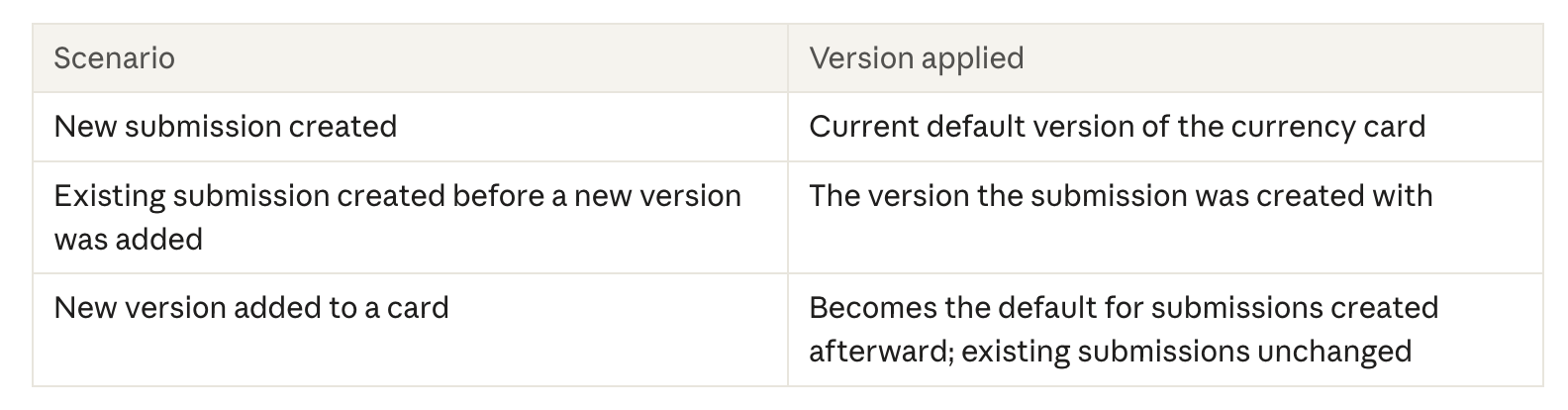
Workflow
- Open an existing currency card in the Admin Tools.
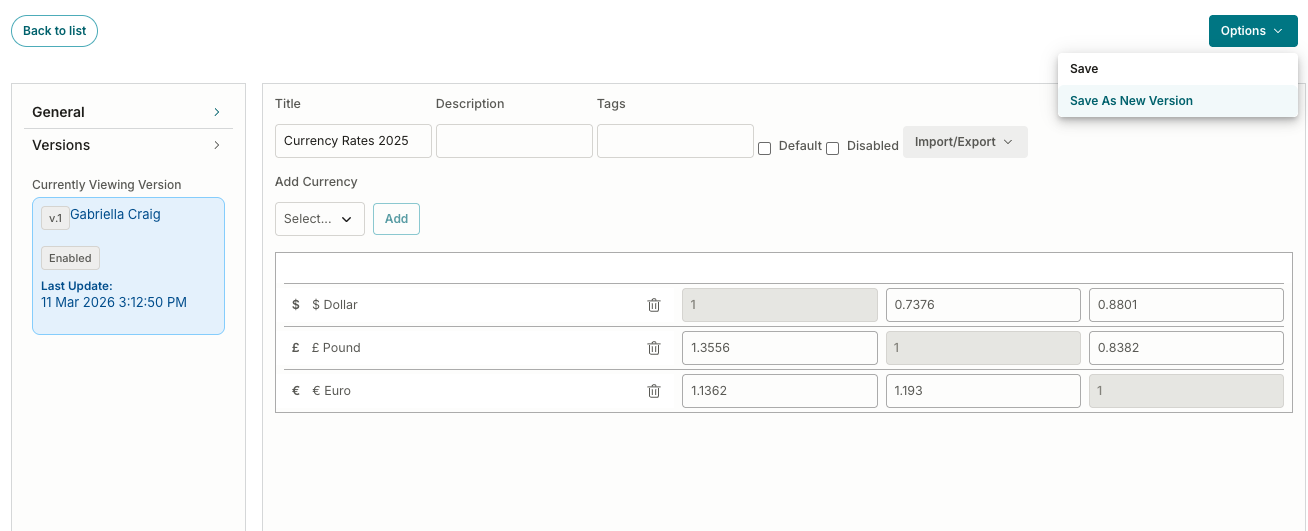
- Make changes to the currency card and then click Options.
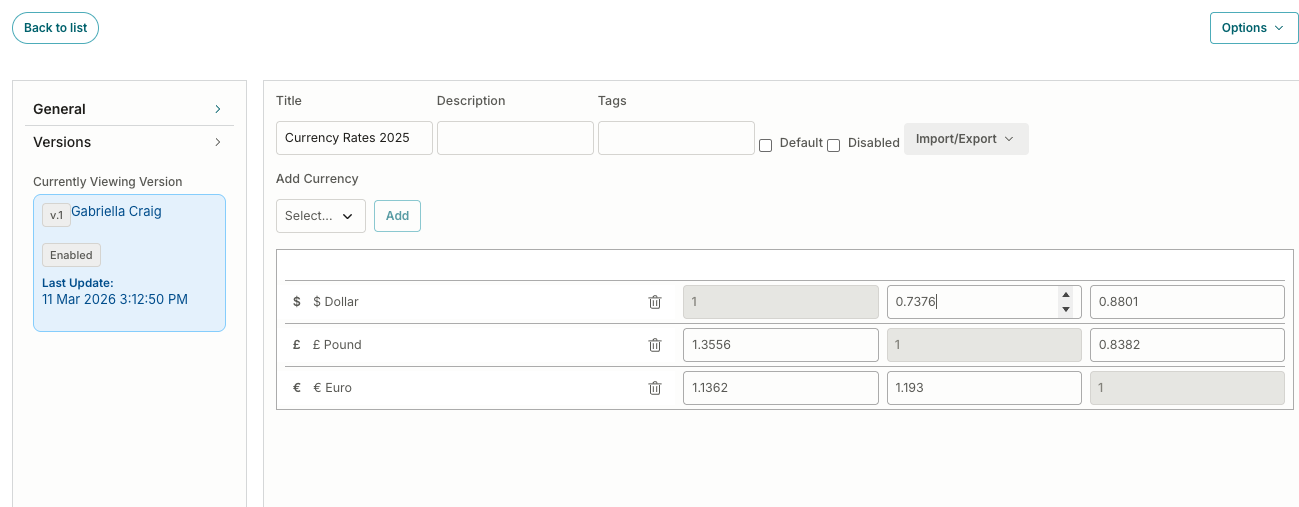
- Then click Save as New Version with the updated rates. This saves the new version as the default.
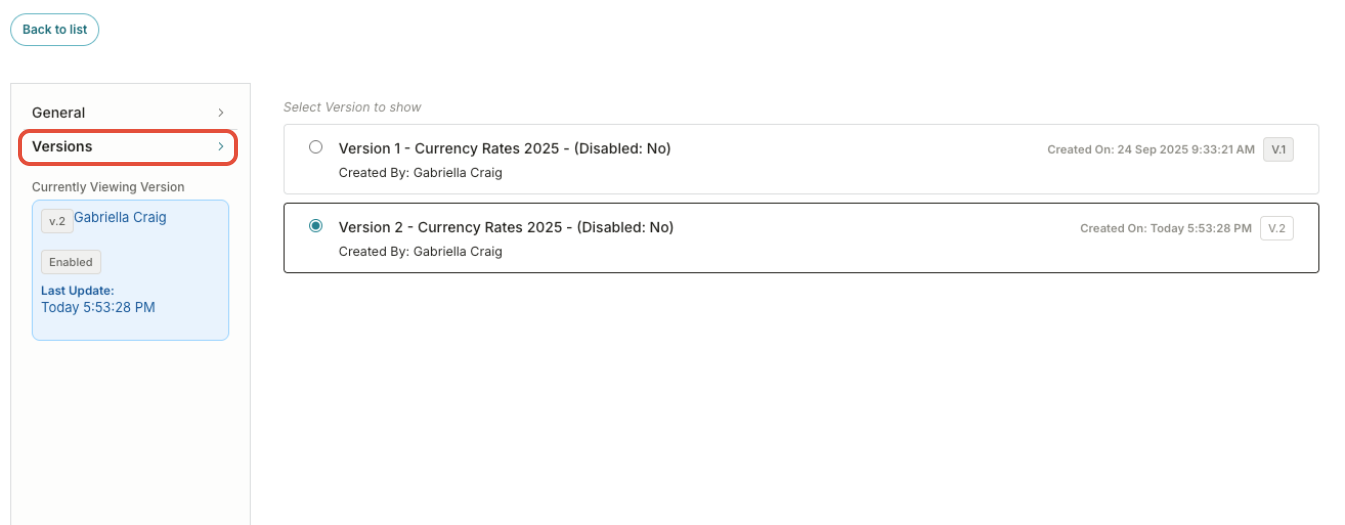
- Navigate to the Versions drop-down to see the current version and all previous versions.
Was this article helpful?
That’s Great!
Thank you for your feedback
Sorry! We couldn't be helpful
Thank you for your feedback
Feedback sent
We appreciate your effort and will try to fix the article