This guide builds on the Form Builder: Add Elements to a Form page and focuses on the additional fields available when adding elements. These elements expand how users can provide information, upload files, and interact with system data.
Text
This is the default type when adding elements to a form.
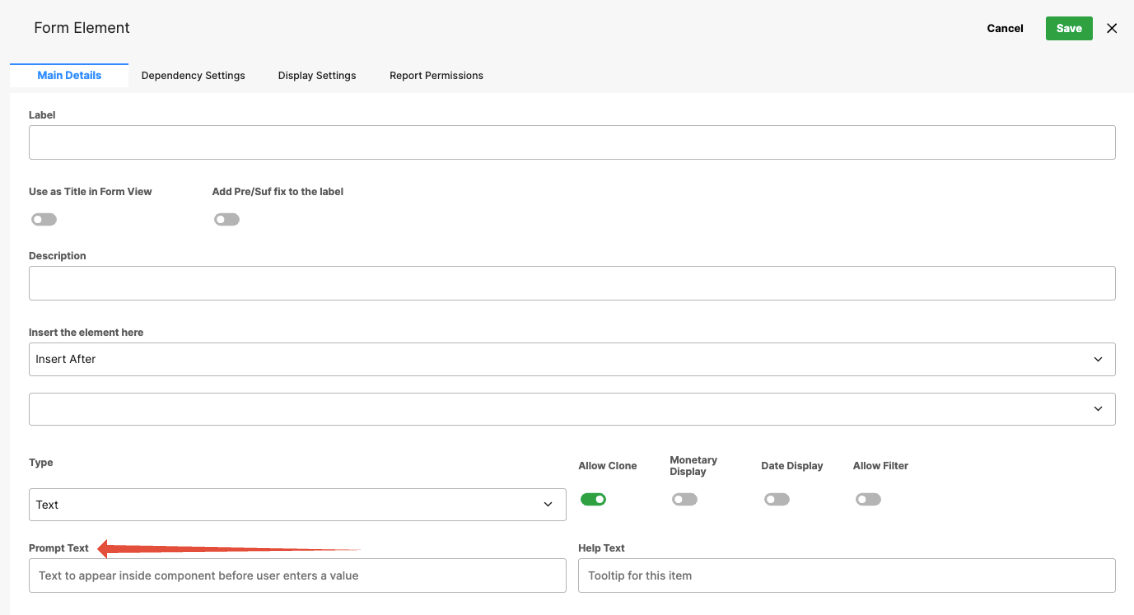
- Prompt Text – Placeholder text shown before the user enters a value.
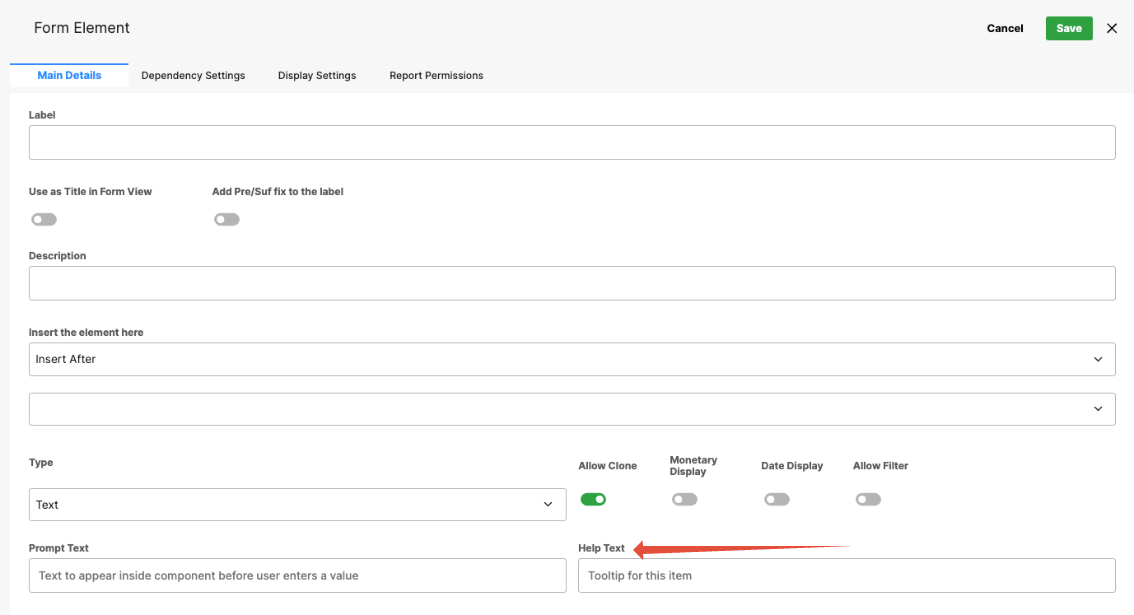
- Help Text – Tooltip guidance for the user.
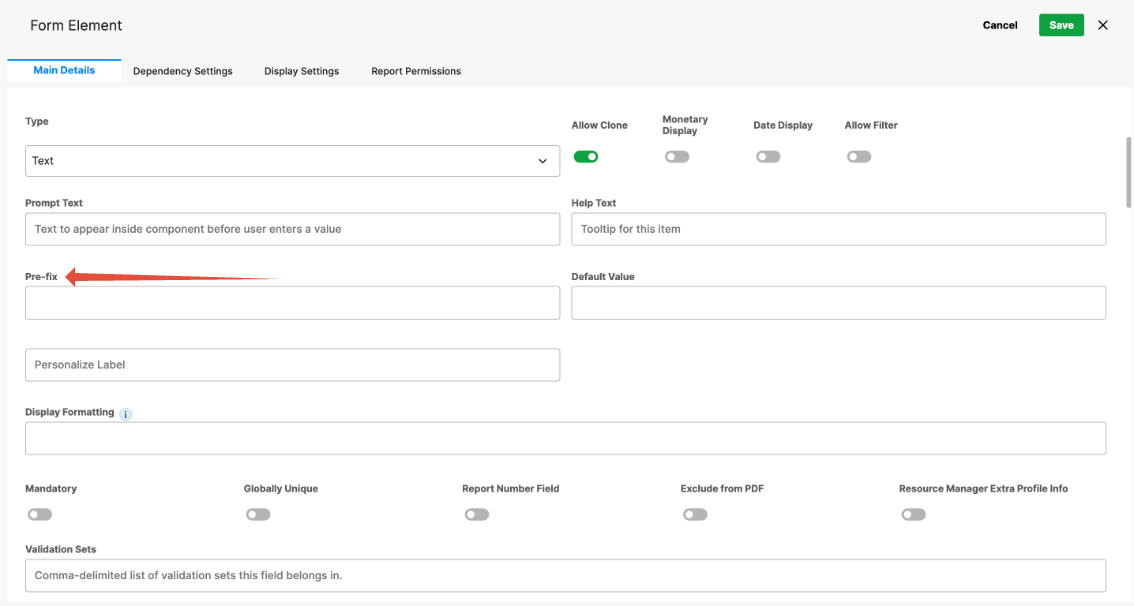
- Prefix – Text shown before the input (e.g., “$” for currency).
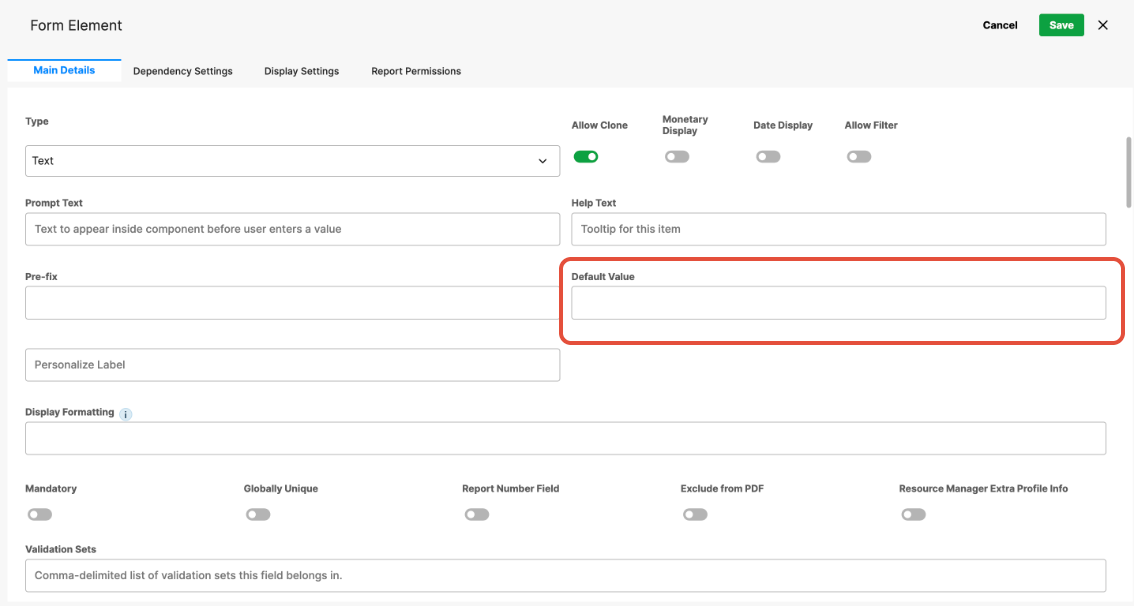
- Default Value – Specifies a value that is automatically populated in the field (string, number, date) when the form loads, which users can edit unless the field is read-only.
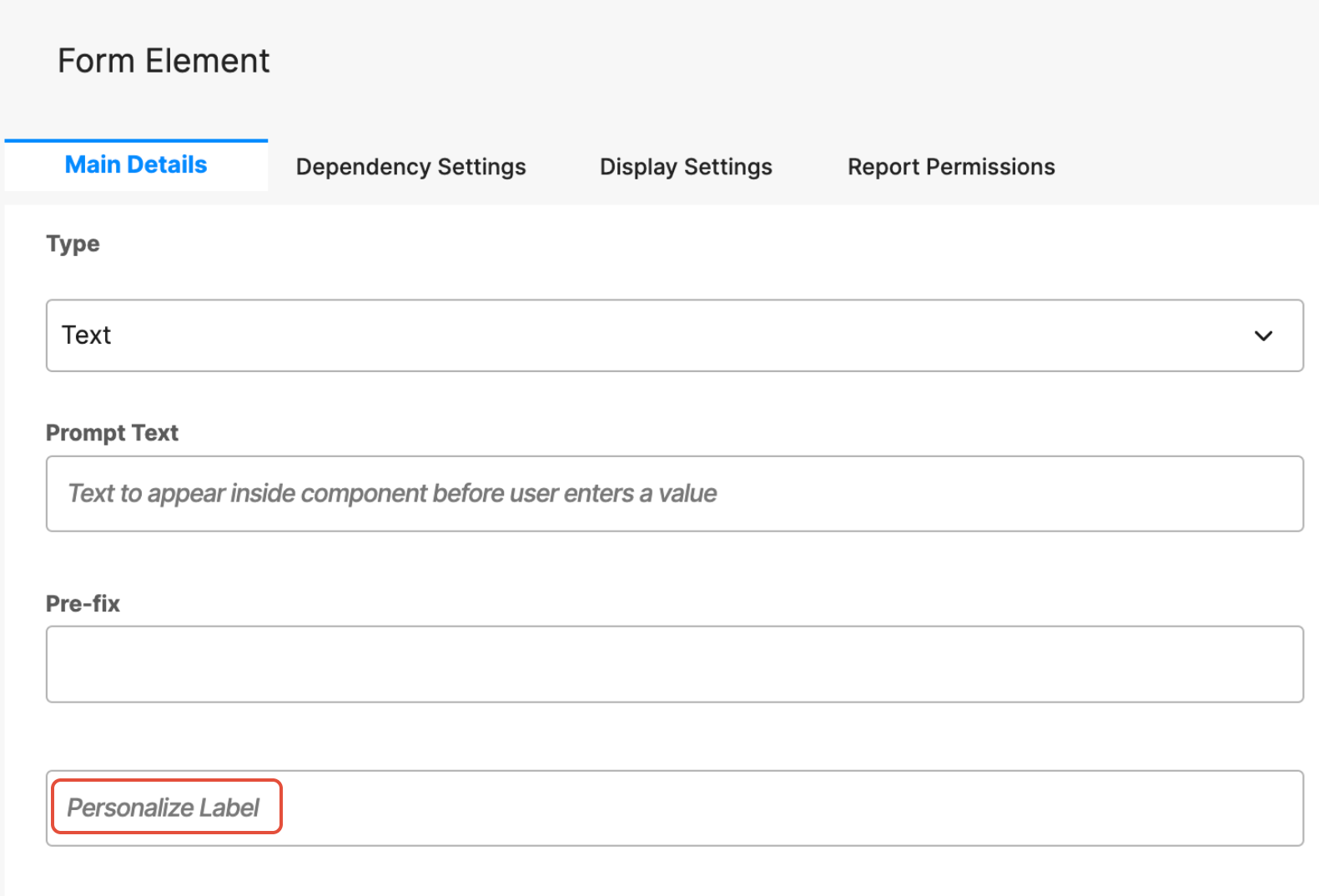
- Personalize Label – Allows the field label to change dynamically based on user context or form data, making the form more relevant and easier to understand.
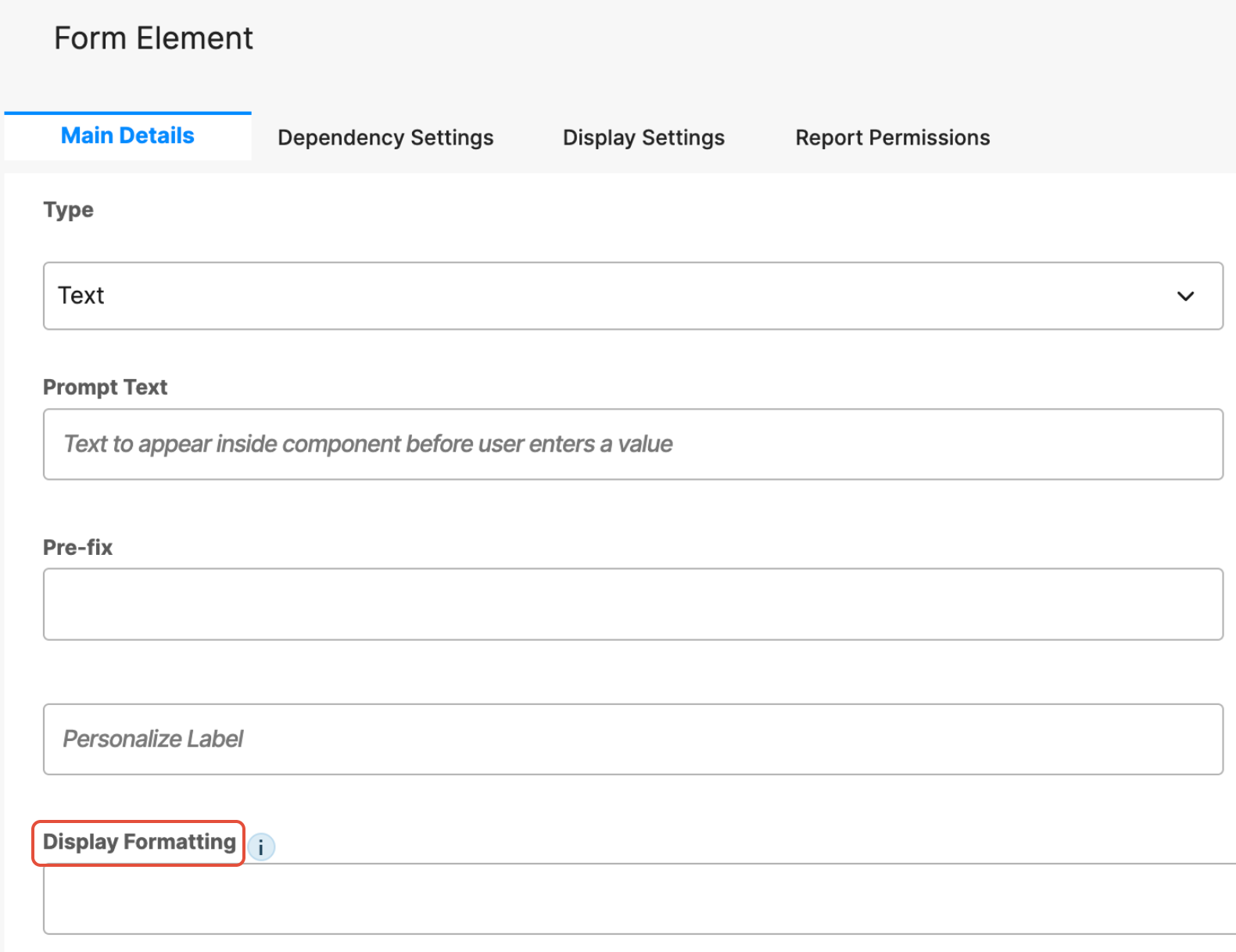
- Display Formatting – Controls how the field value is displayed to users, such as applying specific number, text, or visual formatting without changing the underlying data.
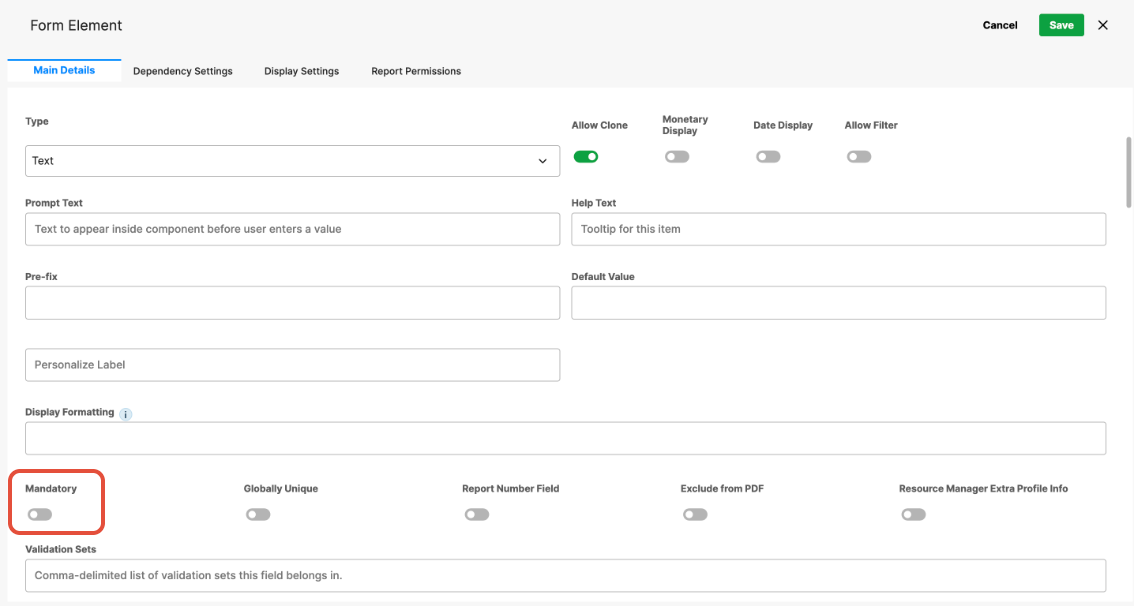
- Mandatory – (Checkbox) Requires the end user to complete this element.
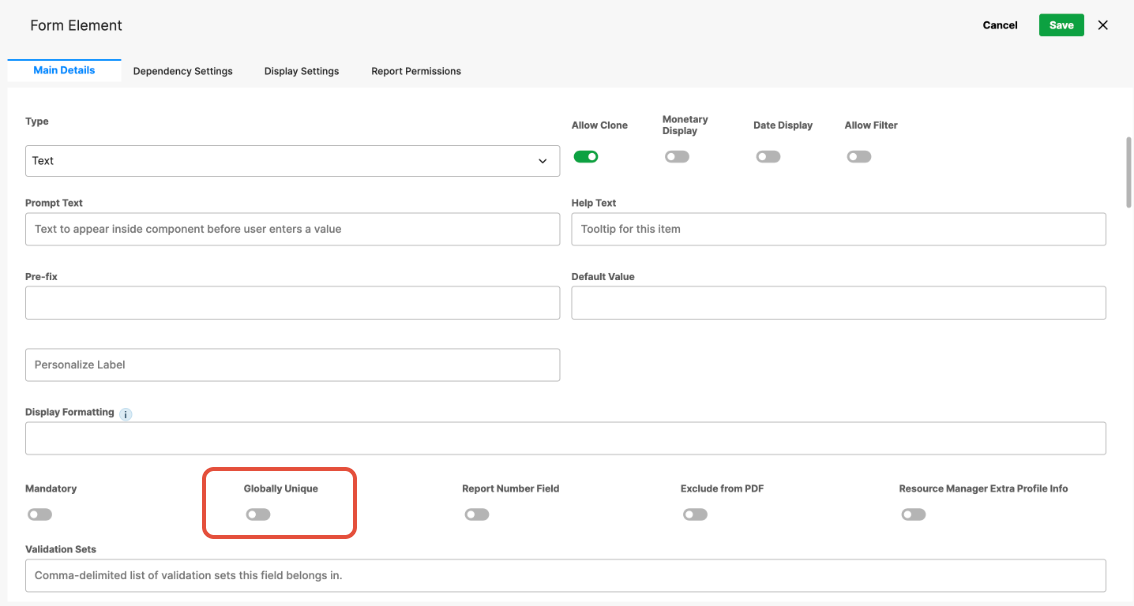
- Globally Unique – Ensures values entered here are unique across all forms of this type (e.g., unique usernames).
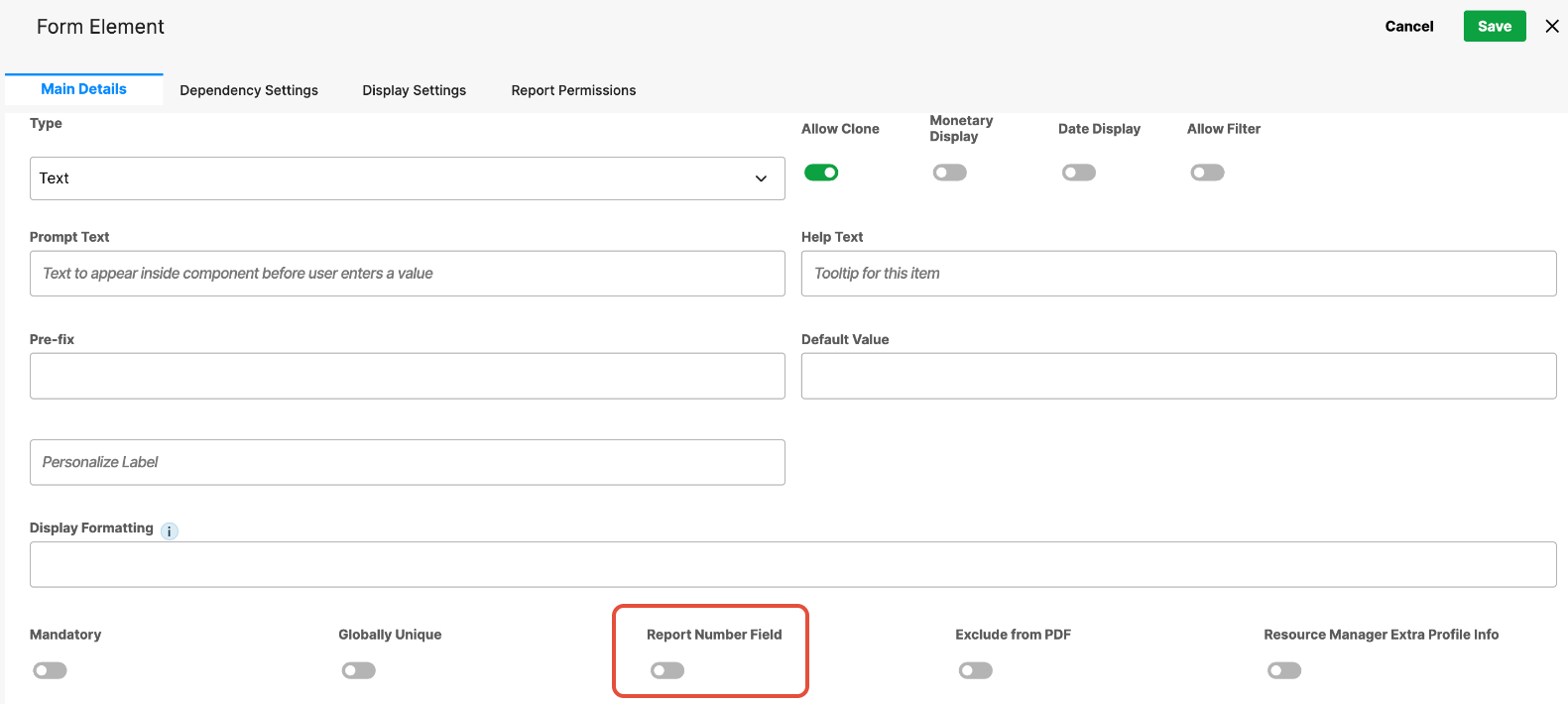
- Report Number Field – When enabled, treats the field as a numeric value for reporting, allowing it to be used in calculations, sorting, and numeric reports.
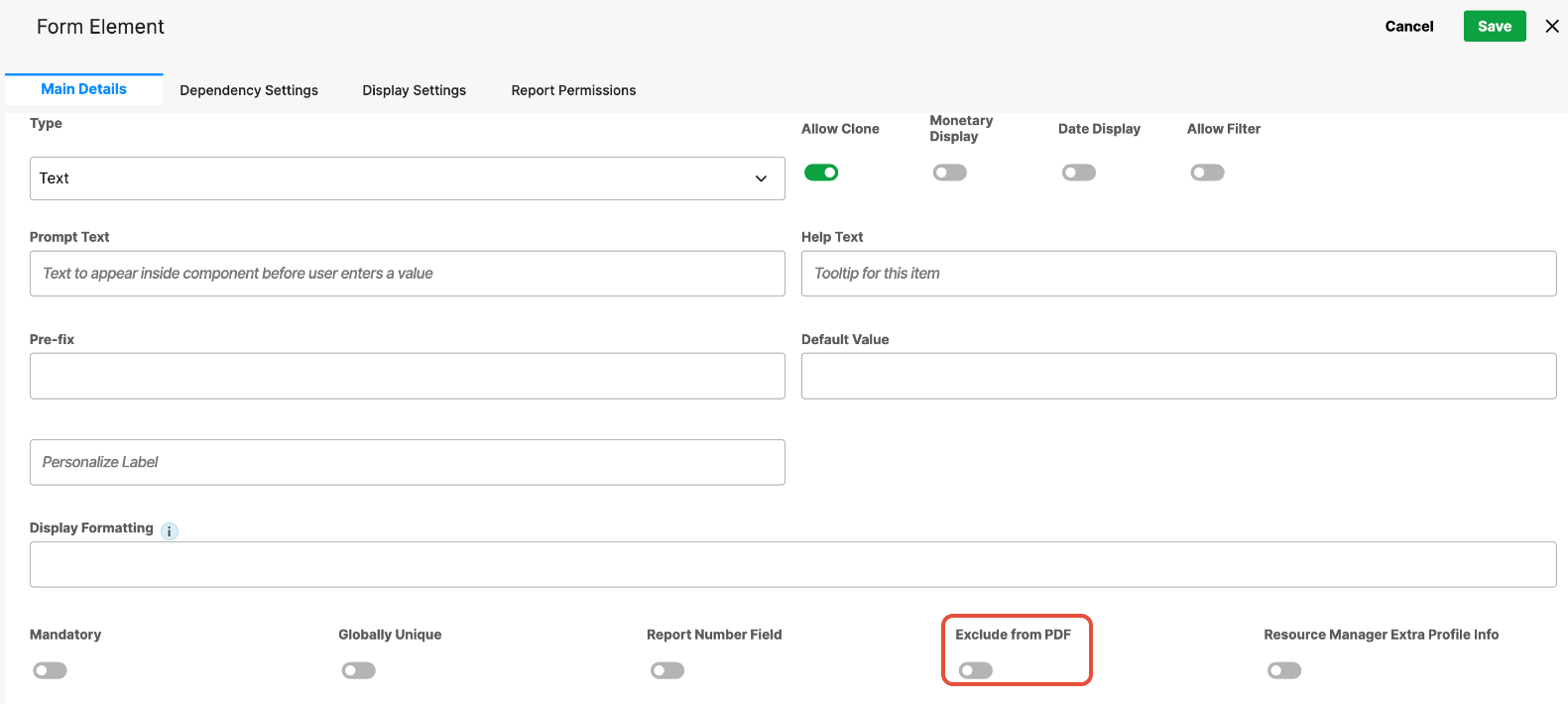
- Exclude from PDF – When enabled, the field will be omitted from generated PDF outputs, even though it remains visible in the form.
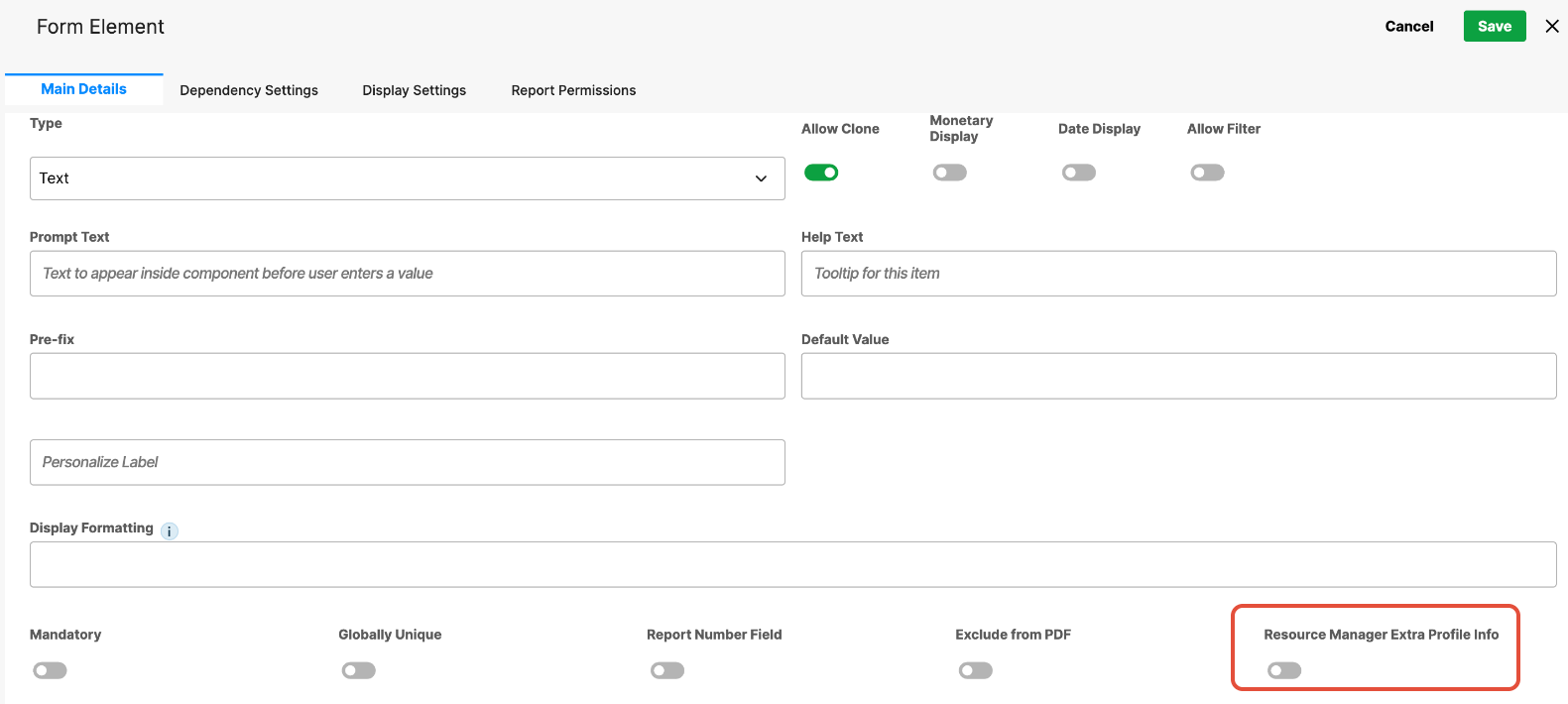
- Resource Manager Extra Profile Info – When enabled, the field is included as additional profile information within the Resource Manager, making it available for resourcing and planning views.
- Validation Sets – Associate the field with a predefined validation set to enforce specific rules on acceptable input values.
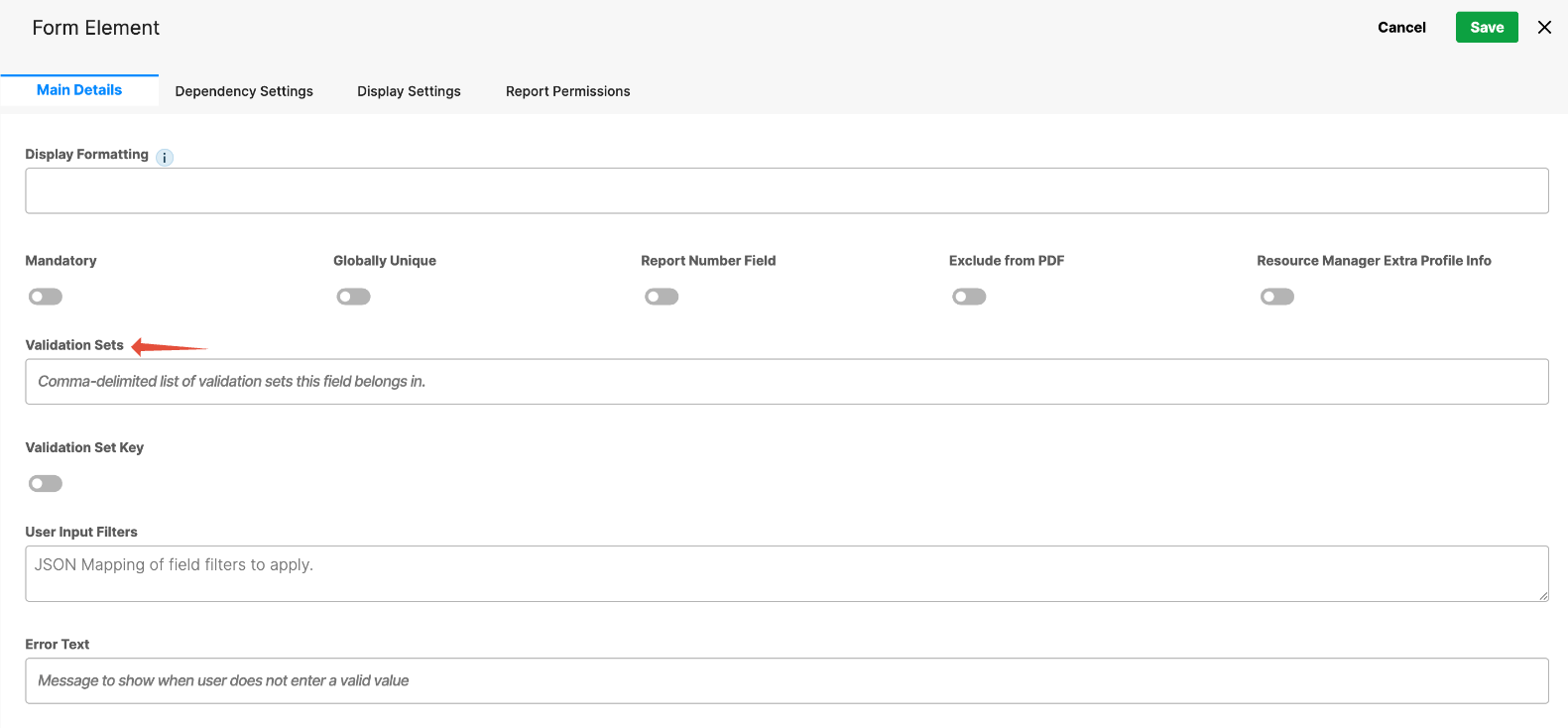
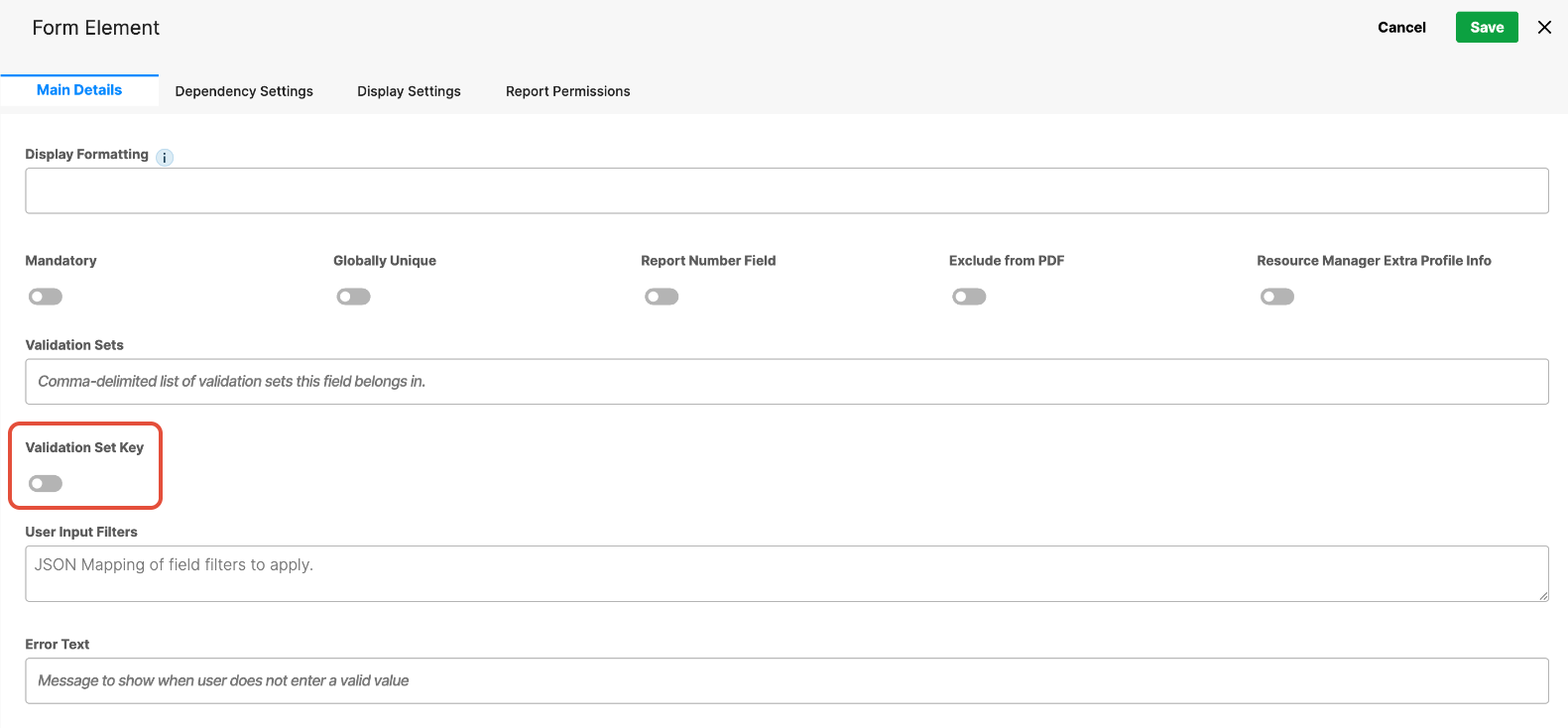
- Validation Set Key – When enabled, marks the field as the key used to identify and apply the selected validation set.
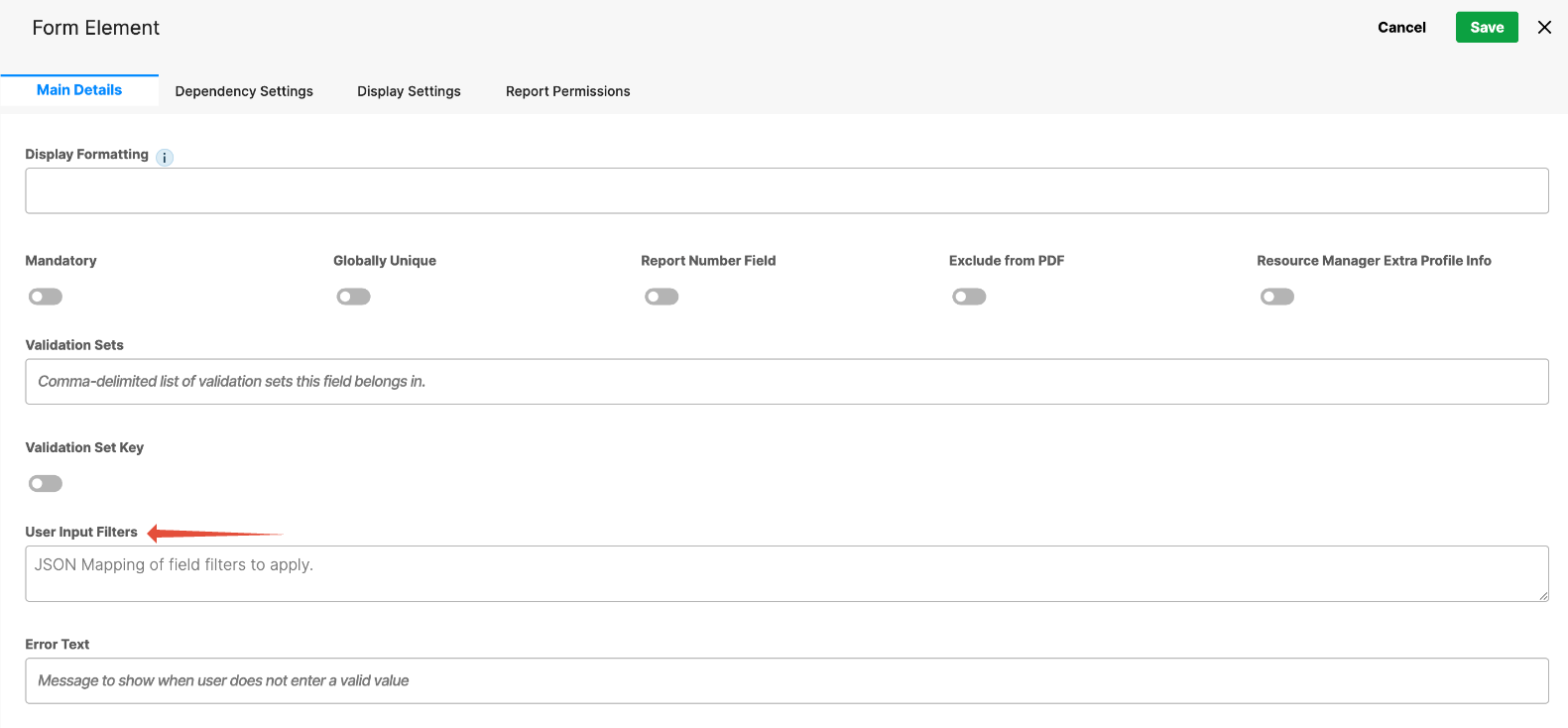
- User Input Filters – Controls which users can be selected in a User field by applying rules based on role, group, team, or availability. This helps ensure that users see only relevant, valid options and prevents incorrect or unintended selections.
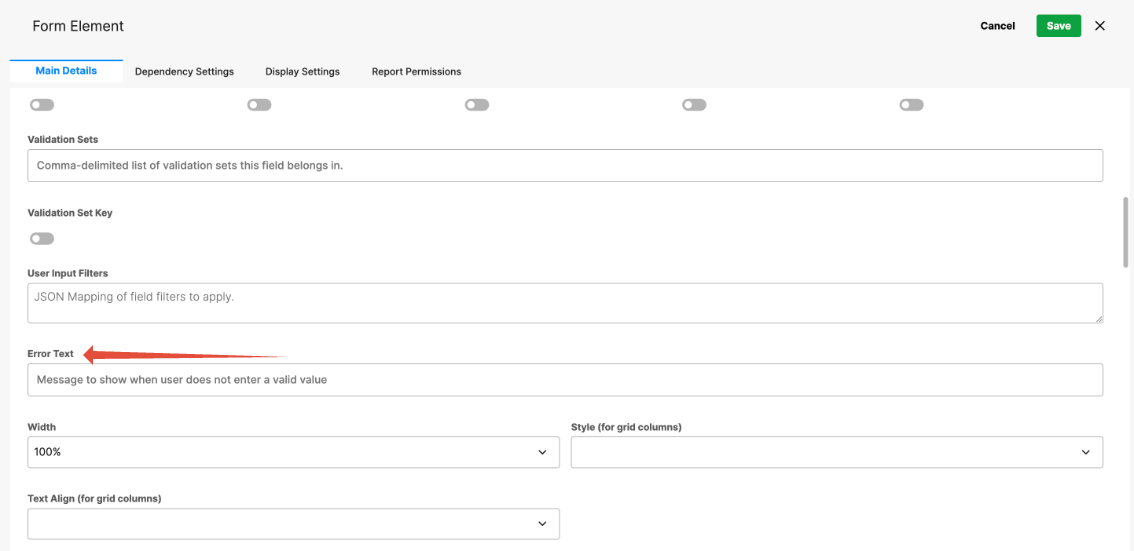
- Error Text – Message displayed when input is invalid.
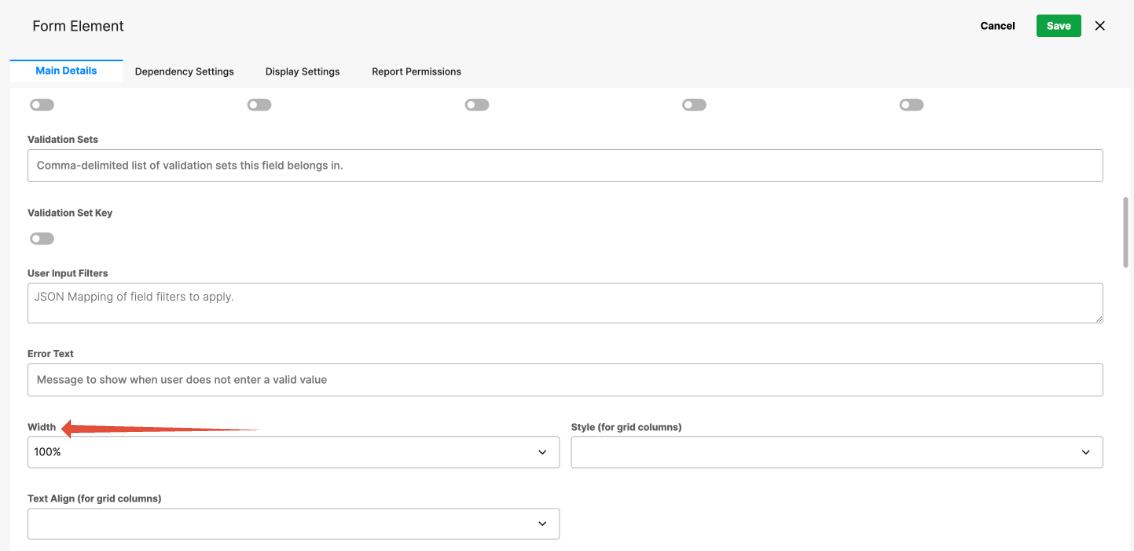
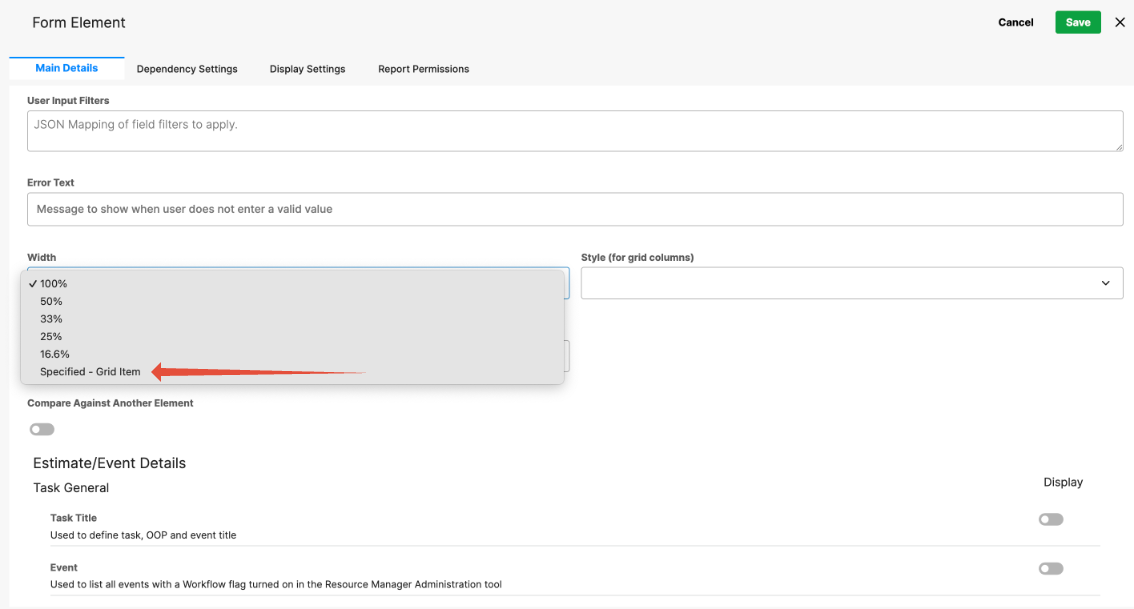
- Width – Defines form layout (100%, 50%, 33%, or 25%).
- Specified Width – For grid columns, width can be set in pixels.
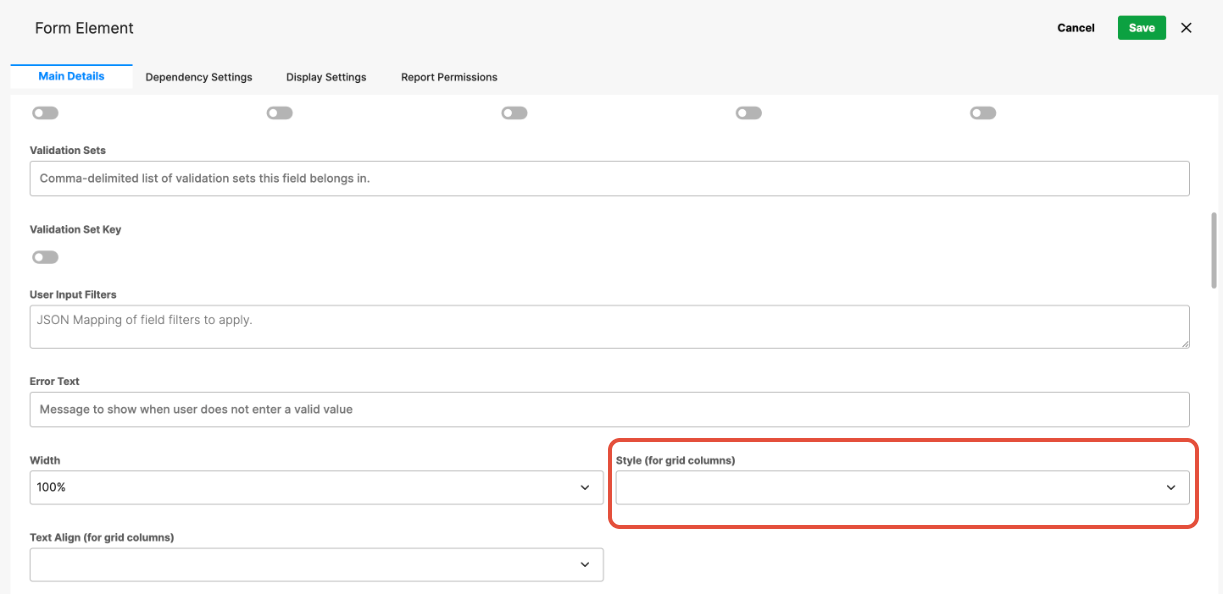
- Style (Grid Columns) – Background color formatting.
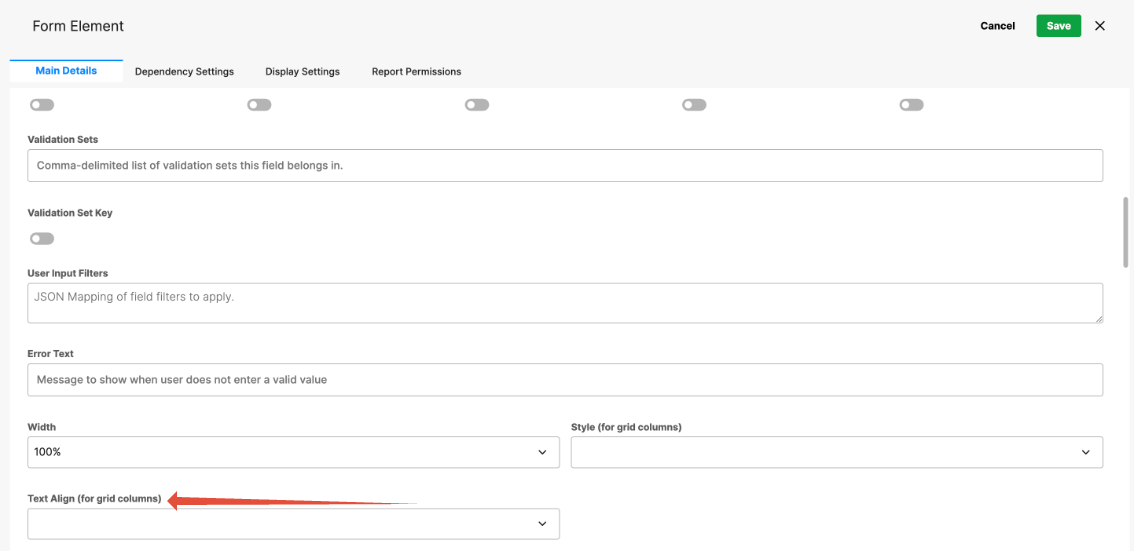
- Text Align (Grid Columns) – Left, center, or right alignment.
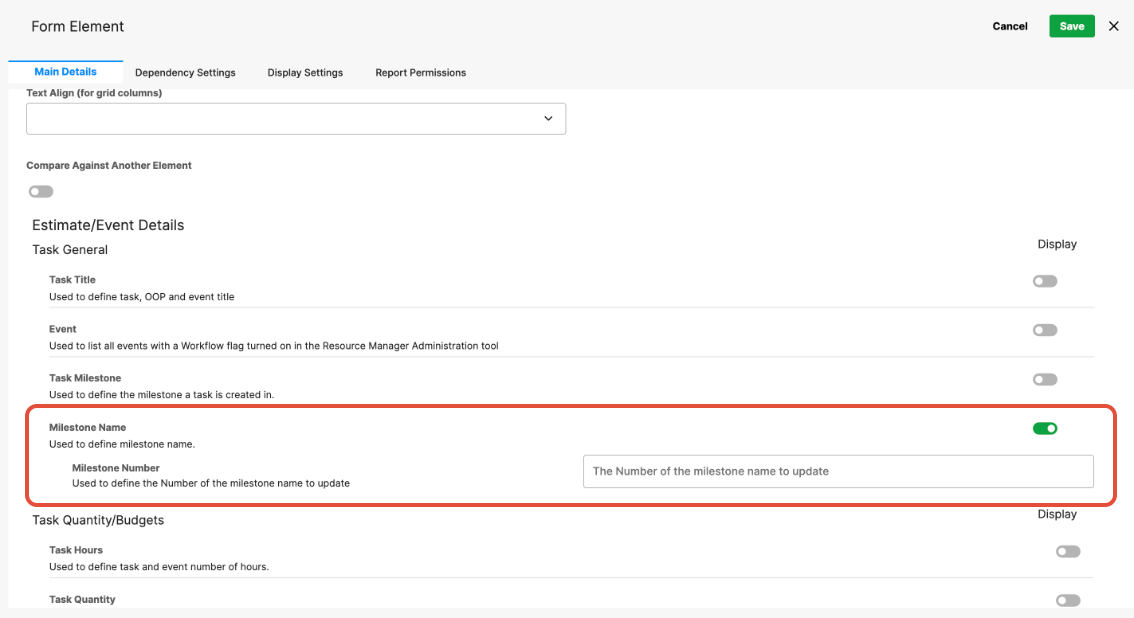
- Task Milestone – Map the element to project milestones dynamically.
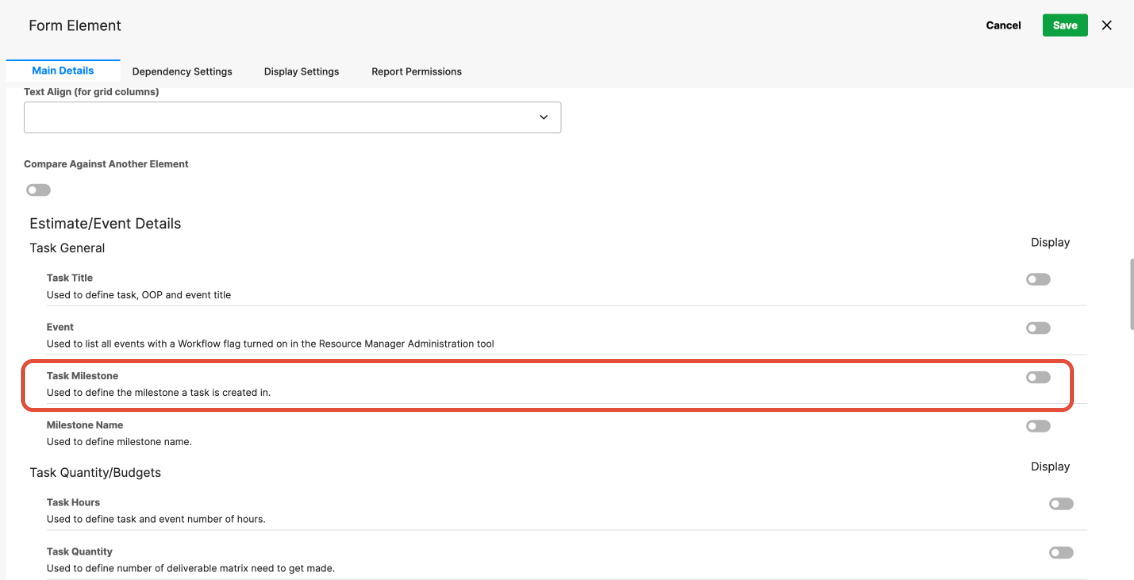
- Milestone Name/Number – Define the milestone name/number. If not set manually, system defaults (1, 2, 3, …) are used.
Was this article helpful?
That’s Great!
Thank you for your feedback
Sorry! We couldn't be helpful
Thank you for your feedback
Feedback sent
We appreciate your effort and will try to fix the article