Task Assignment Notifications for Imported Tasks
Task assignment notifications have been enhanced to ensure users are properly informed when tasks are imported from one project to another. These improvements align imported tasks with standard task behavior and give project managers greater control over when notifications are sent.
Overview
When tasks are imported from one project into another, the assigned users can now receive task assignment email notifications, just as they would when tasks are created manually.
This helps ensure that users are aware of new responsibilities created through project imports and reduces the risk of missed assignments.
Project managers can also suppress these notifications during the import process if needed.
Assignment Notifications for Imported Tasks
When tasks are imported from a source project into a destination project, the assigned users are notified.
Assigned users receive a task assignment email notification when tasks are imported.
Notifications are sent only if the user has task notifications enabled in their profile settings.
Imported tasks now behave the same as manually created tasks, which already trigger assignment notifications.
This ensures that users remain informed whenever they are assigned work.
Opt-Out Control for Project Managers
A new notification control has been added to the Import Tasks from Existing Project dialog.
This option allows project managers to decide whether to send assignment notifications when tasks are imported.
When enabled (default behavior):
- Assigned users receive notification emails when the tasks are imported.
When disabled:
- Tasks are imported without sending assignment notifications.
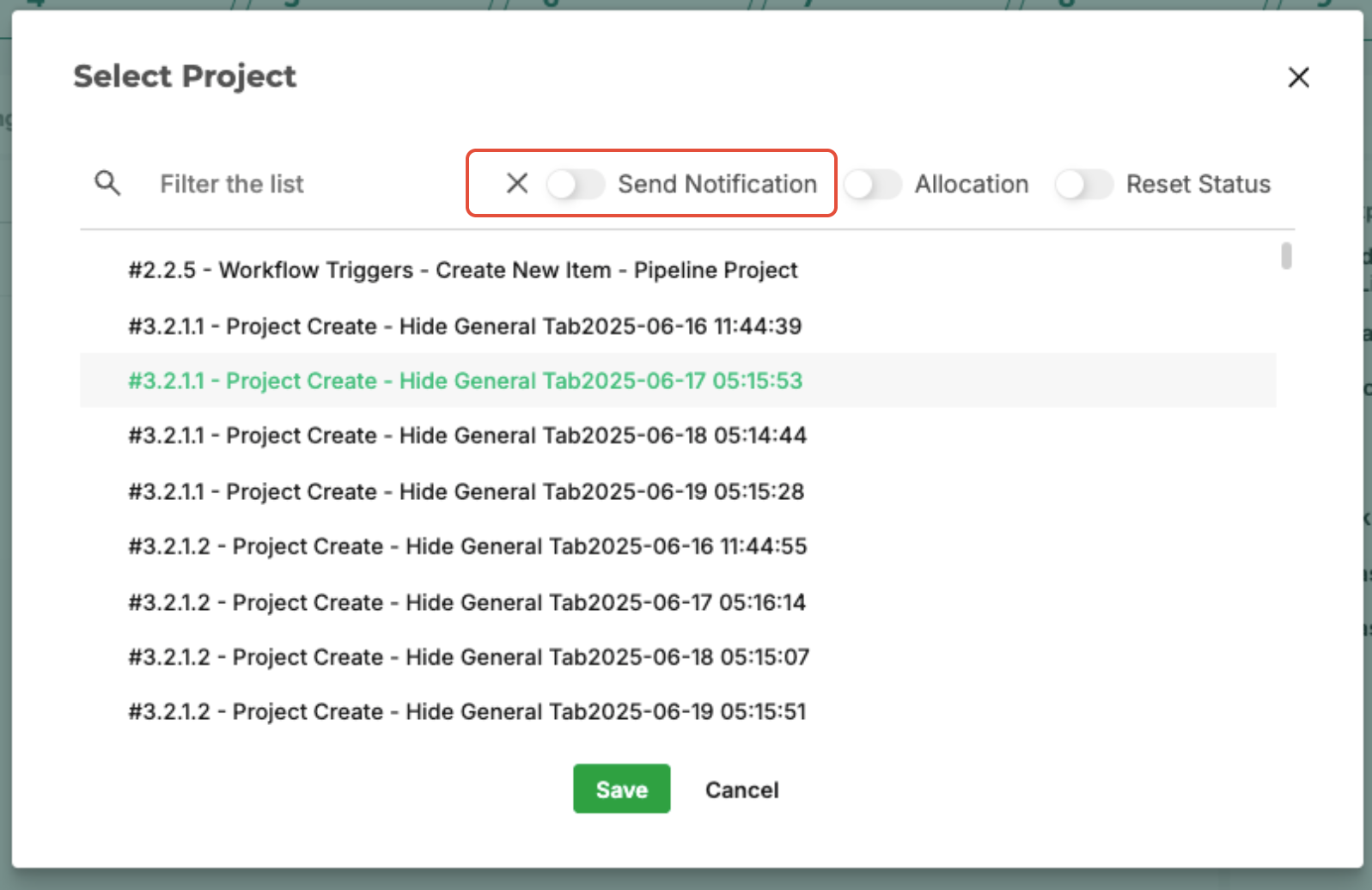
This is useful when performing large imports, templates, or setup work where notifications are not necessary.
Task Assignment Notifications
- Navigate to a project that supports task import.
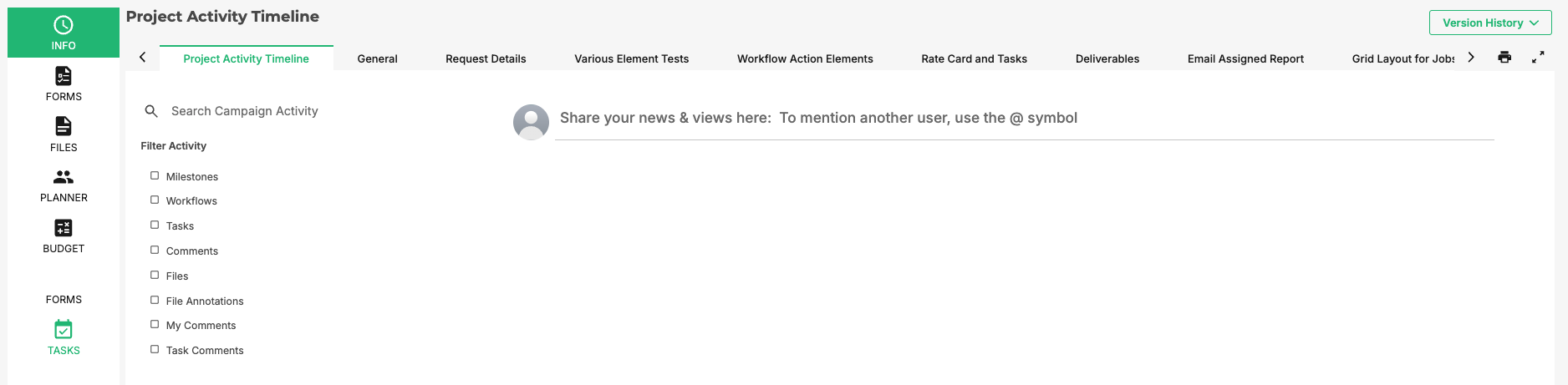
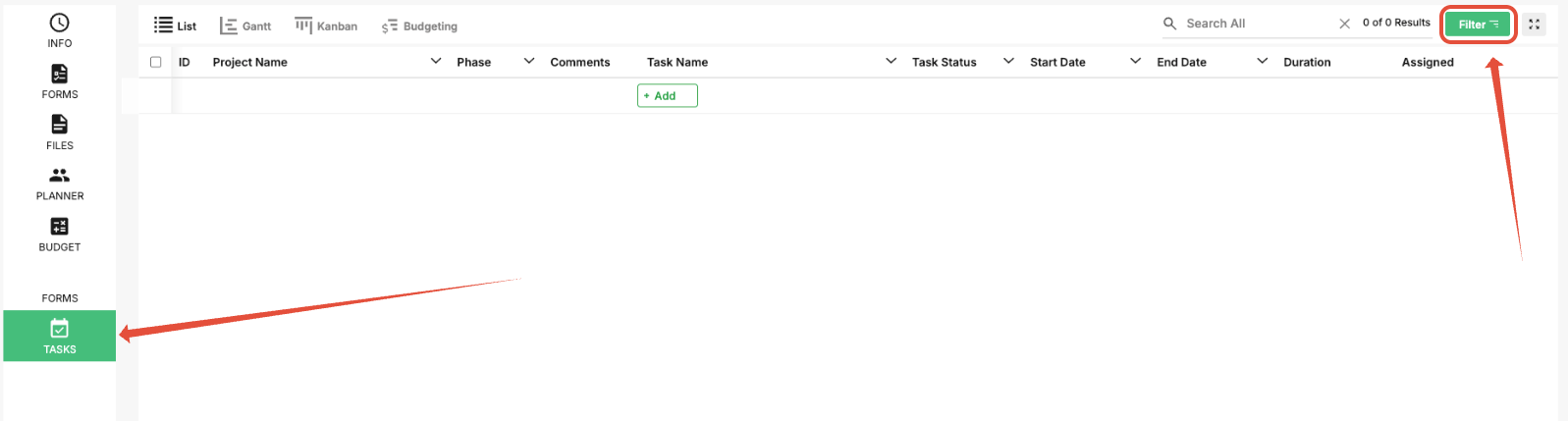
- Click Tasks and then click Filter.
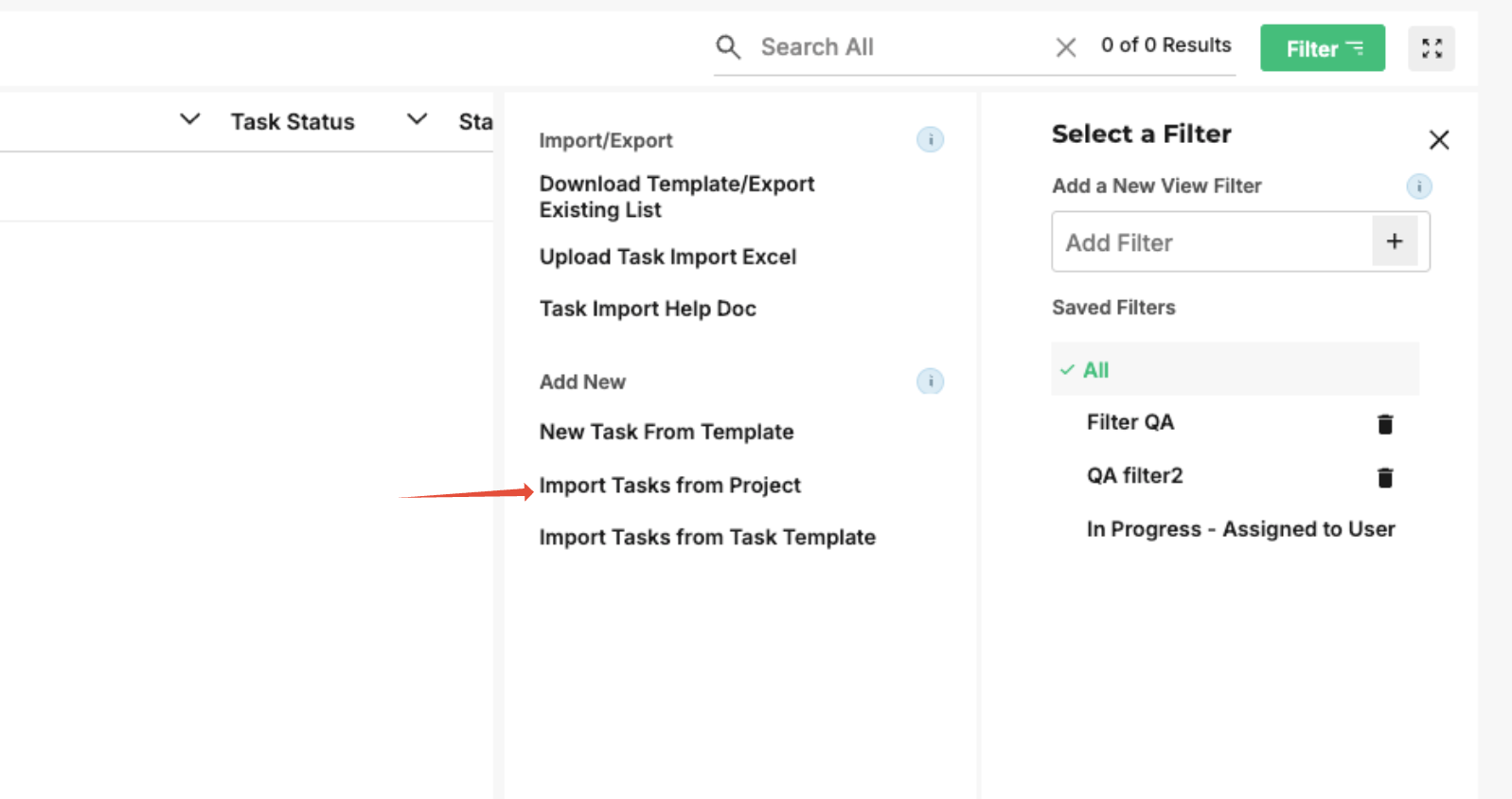
- Select Import Tasks from Project.
- Choose the source project.
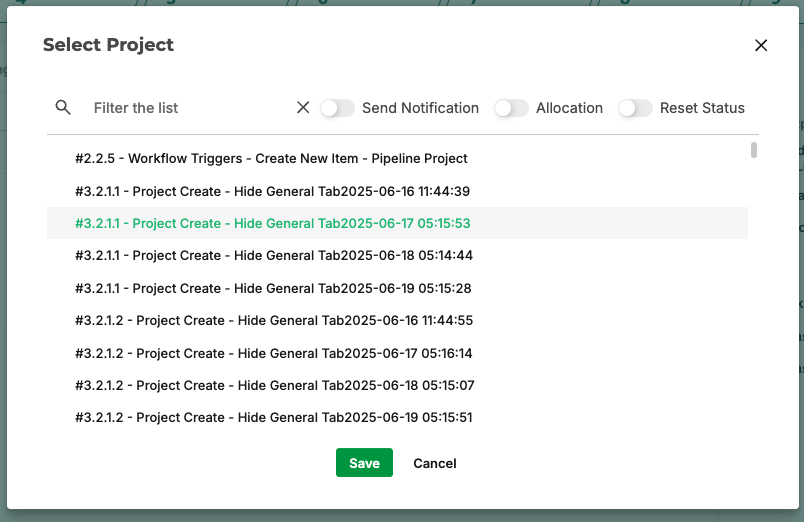
- In the import dialog, locate the Send Notification toggle to turn it on to notify assigned users or off to suppress notifications.
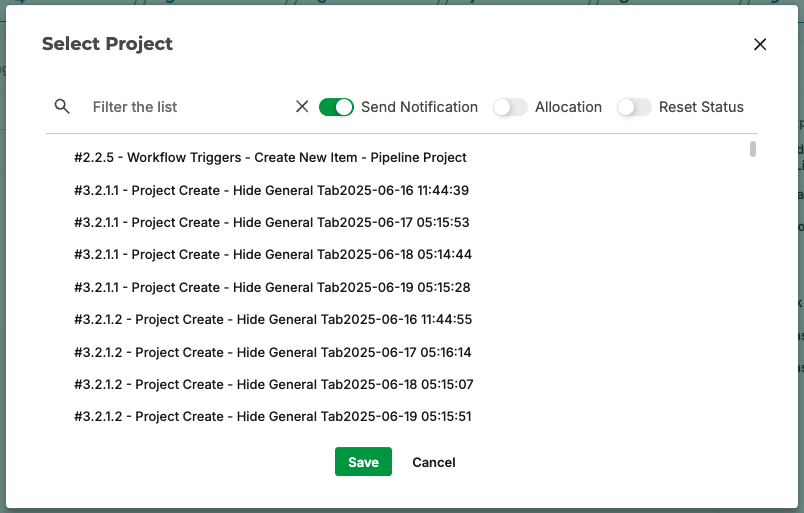
- Click Save to complete the import.
Once the import is complete, task assignment emails are sent and follow the selected notification setting.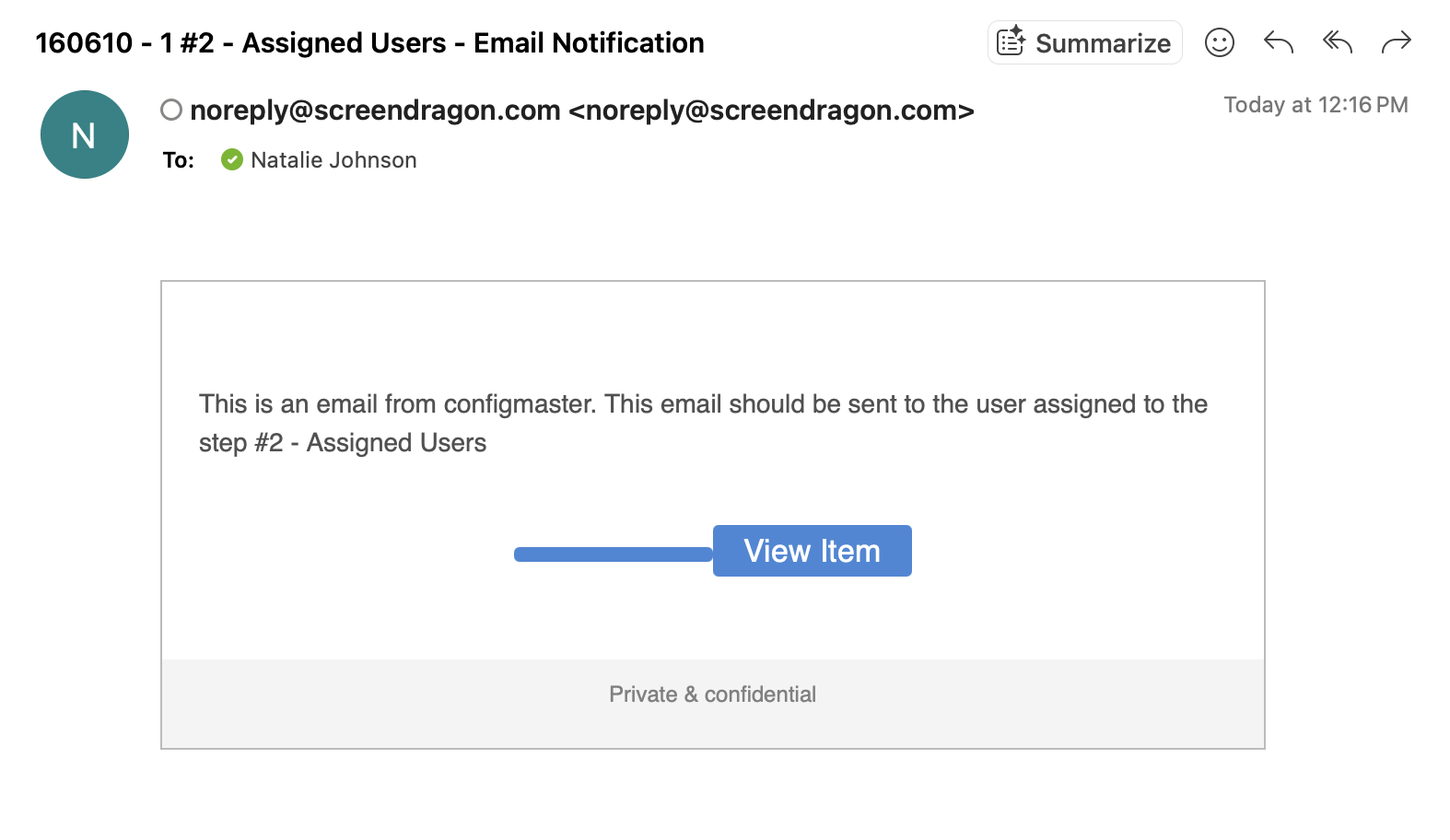
Was this article helpful?
That’s Great!
Thank you for your feedback
Sorry! We couldn't be helpful
Thank you for your feedback
Feedback sent
We appreciate your effort and will try to fix the article