Editing, Deleting, and Reordering Actions
Workflow Actions define how users interact with each step in a workflow. These actions (such as Submit, Approve, Reject, or custom actions) determine how a workflow progresses from one step to the next.
In the Workflow Builder, administrators can easily edit, delete, or reorder actions without recreating the workflow step. This flexibility allows you to refine and optimize workflow behavior as processes evolve.
Editing Workflow Actions
With proper access, you can modify an existing workflow action at any time by navigating to the admin tools and clicking Workflow Builder.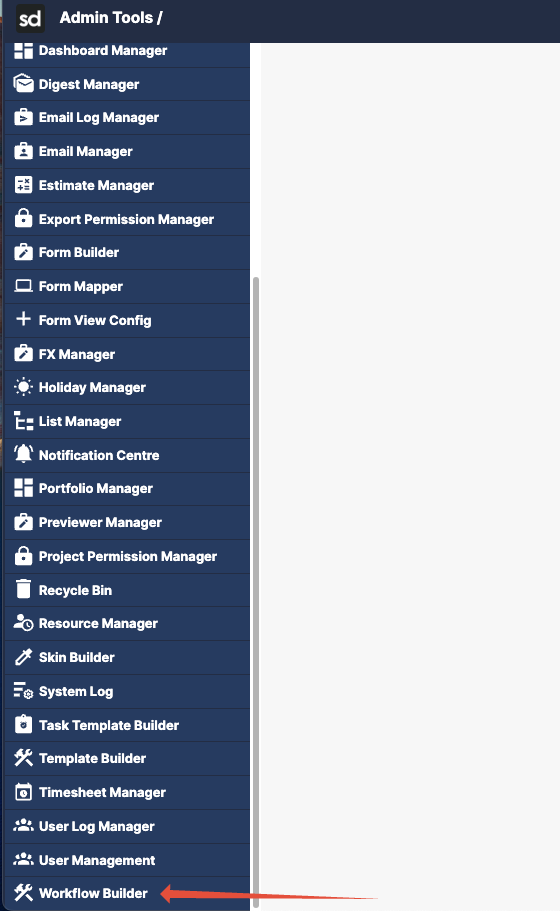
What Can Be Edited
Once you are in the builder interface, you can choose the workflow you want to edit by clicking the title.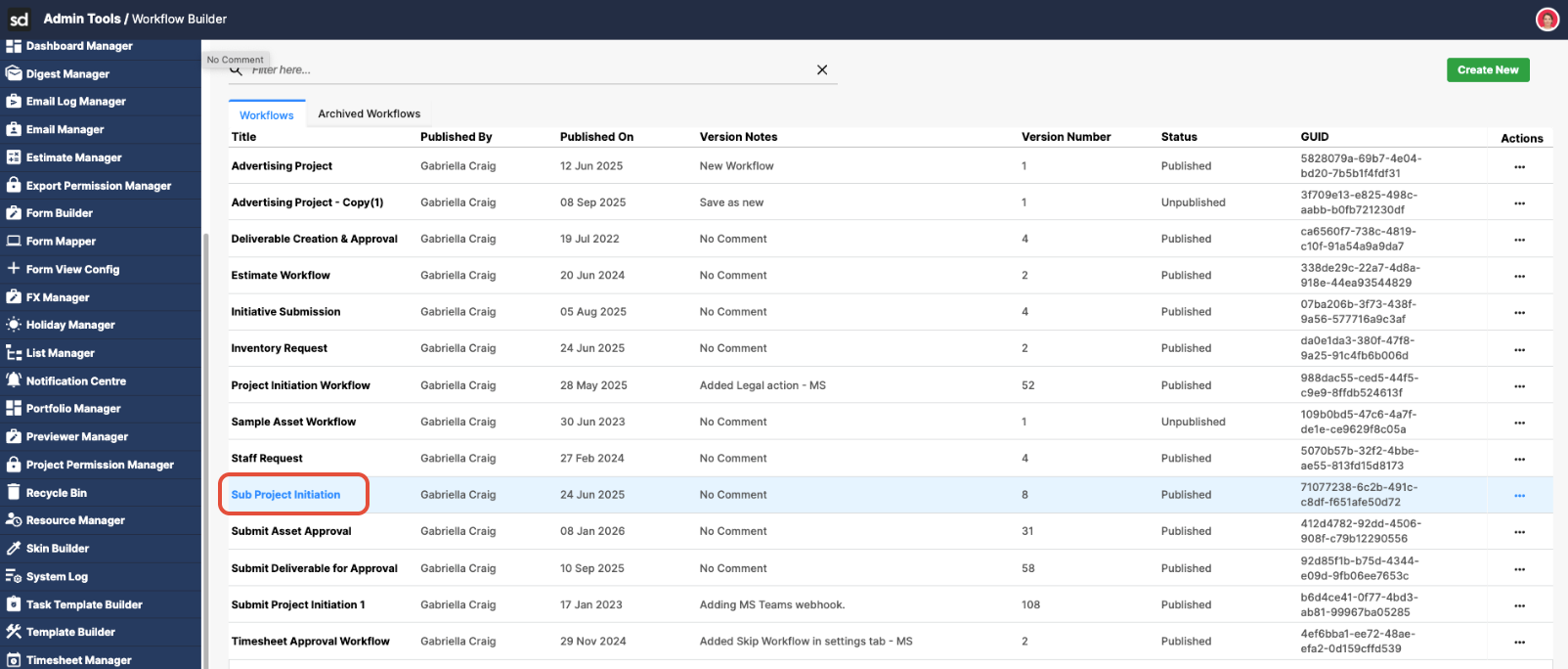
Depending on the configuration, you can double-click to update the fields.
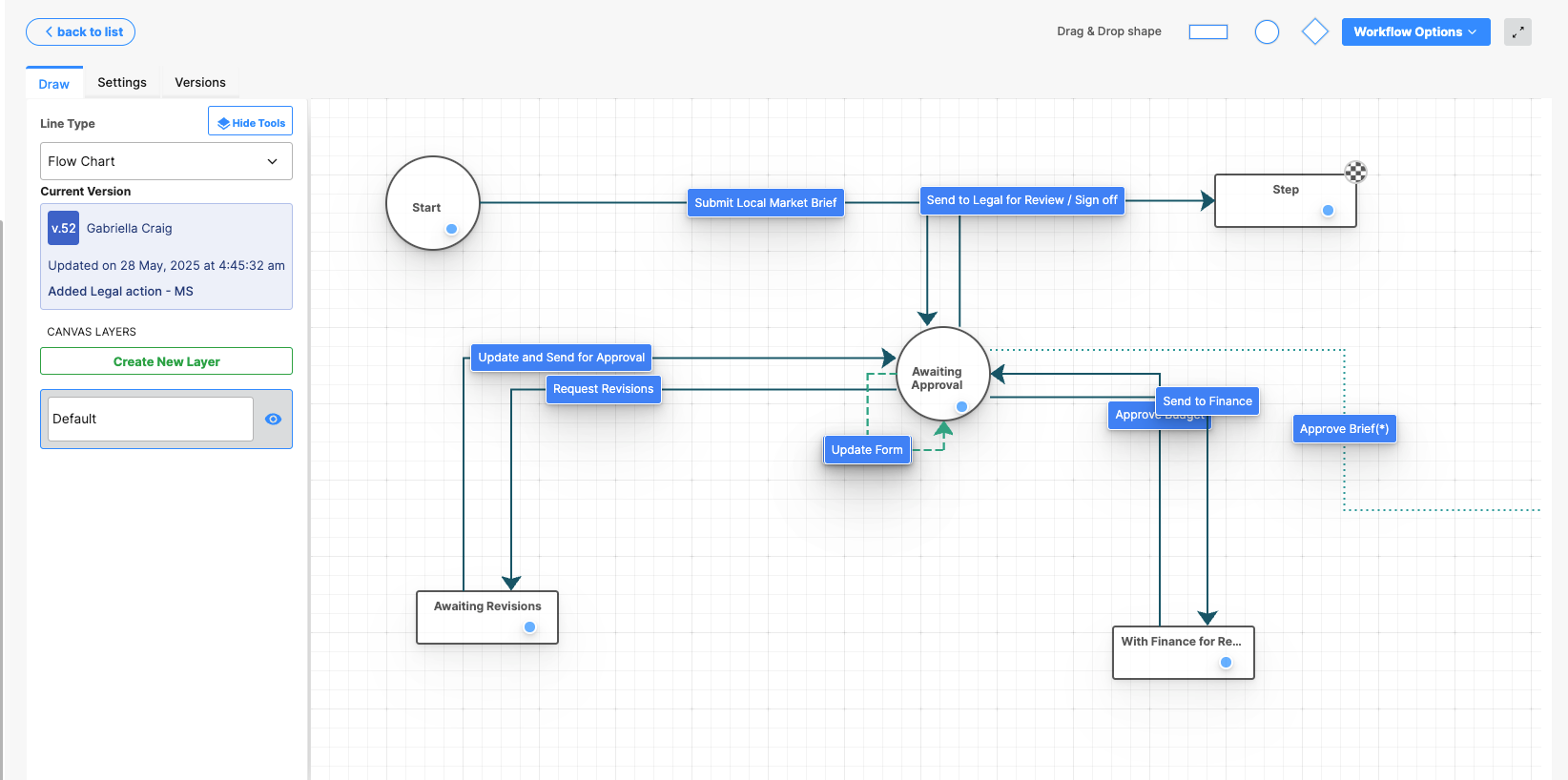
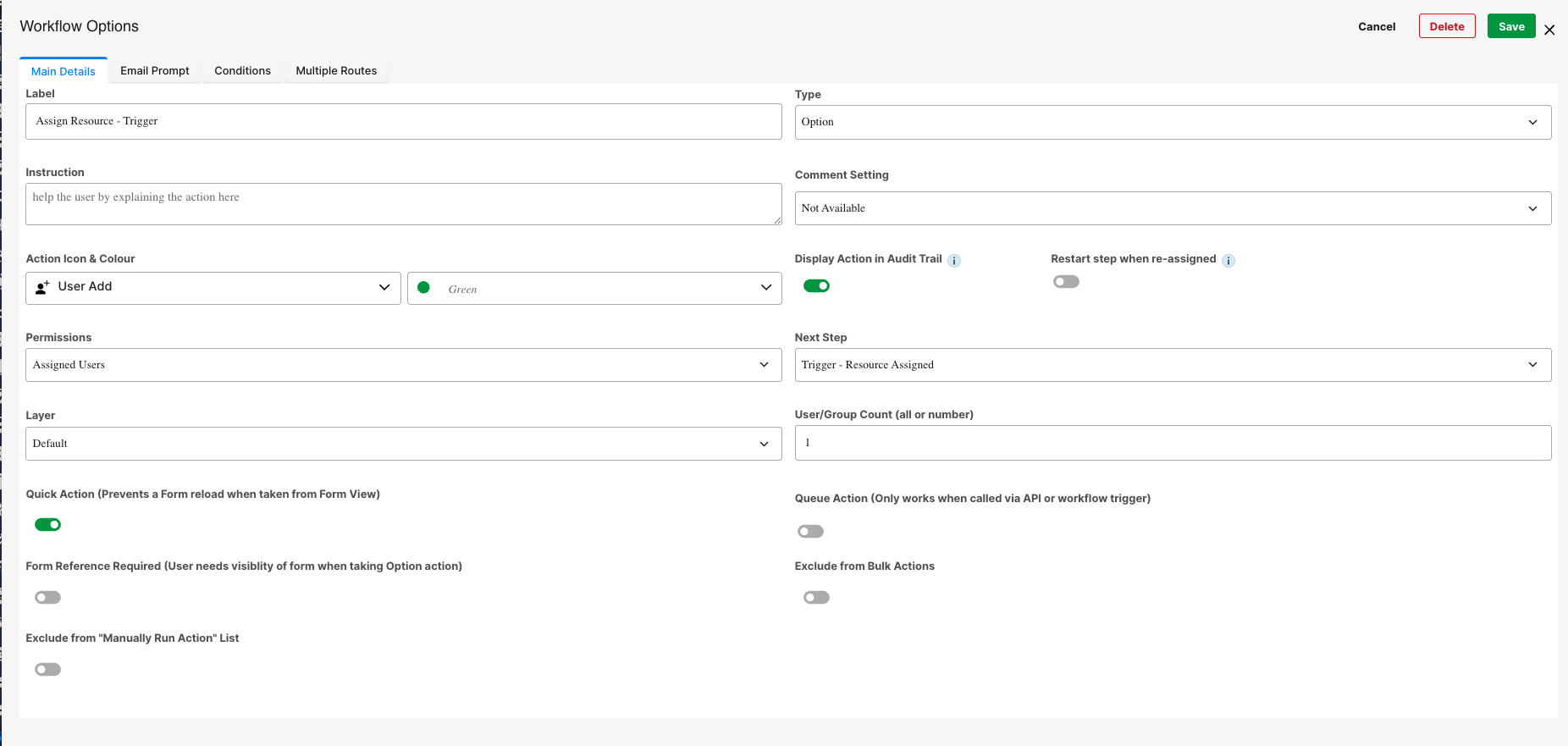
- Step Label (label shown to users)
- Step Status Text (where the workflow moves next)
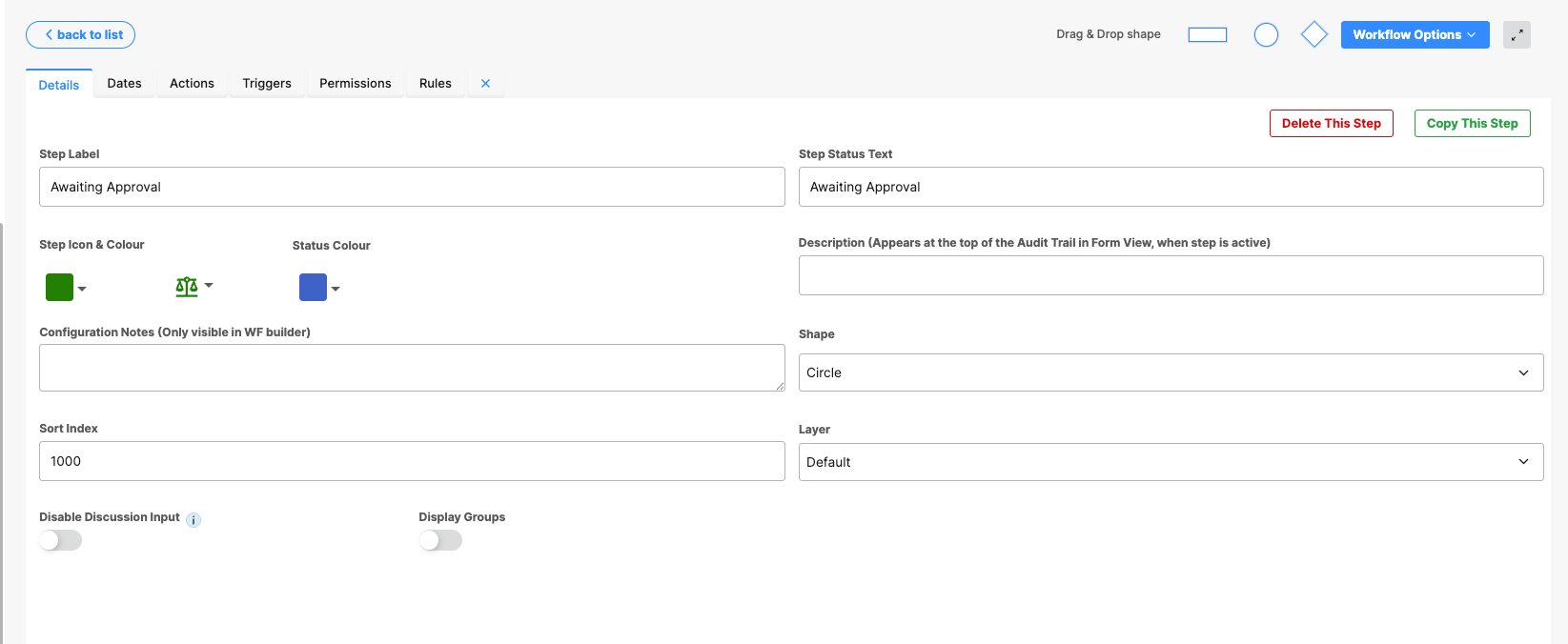
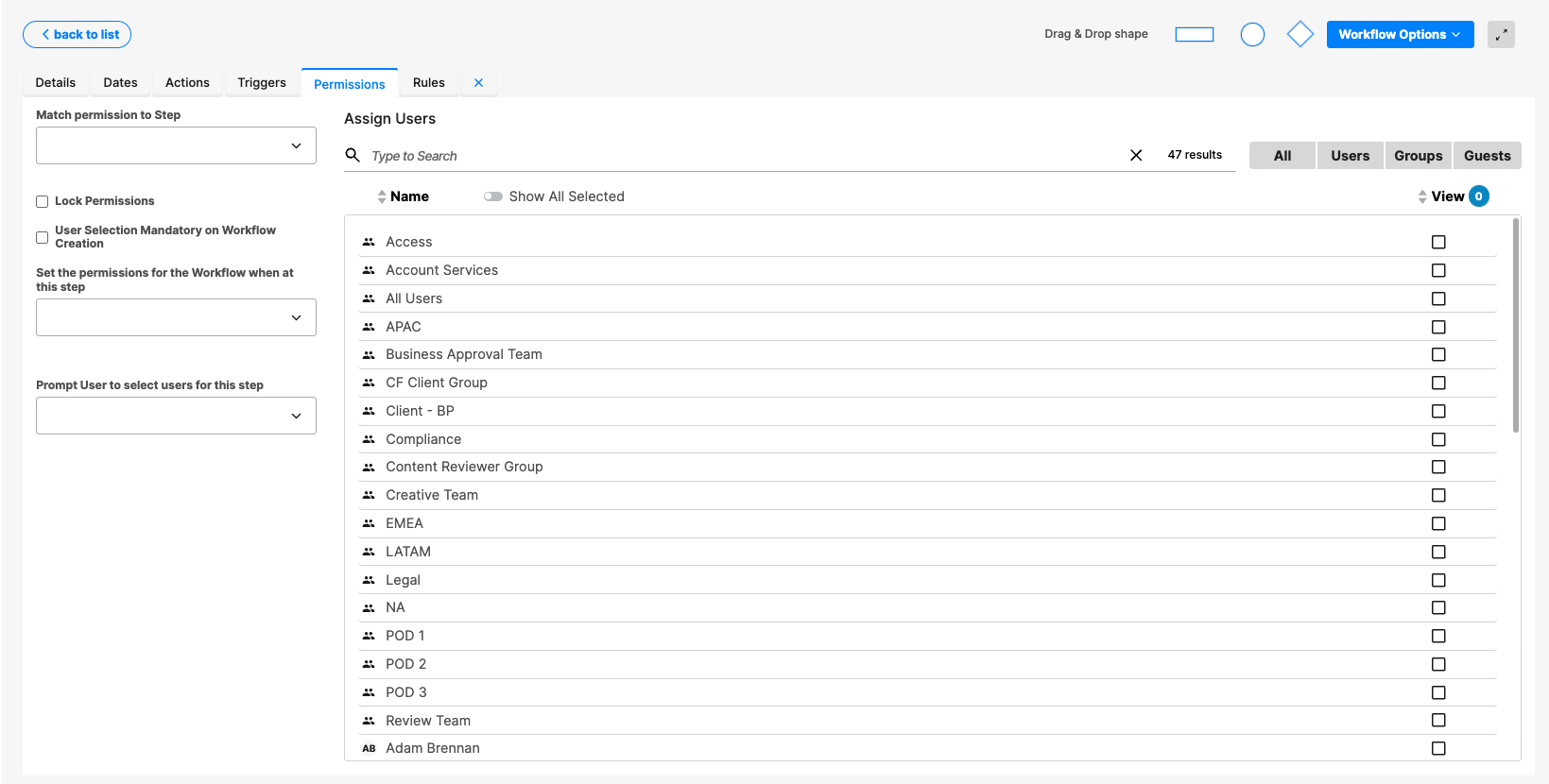
- Permissions (who can perform the action)
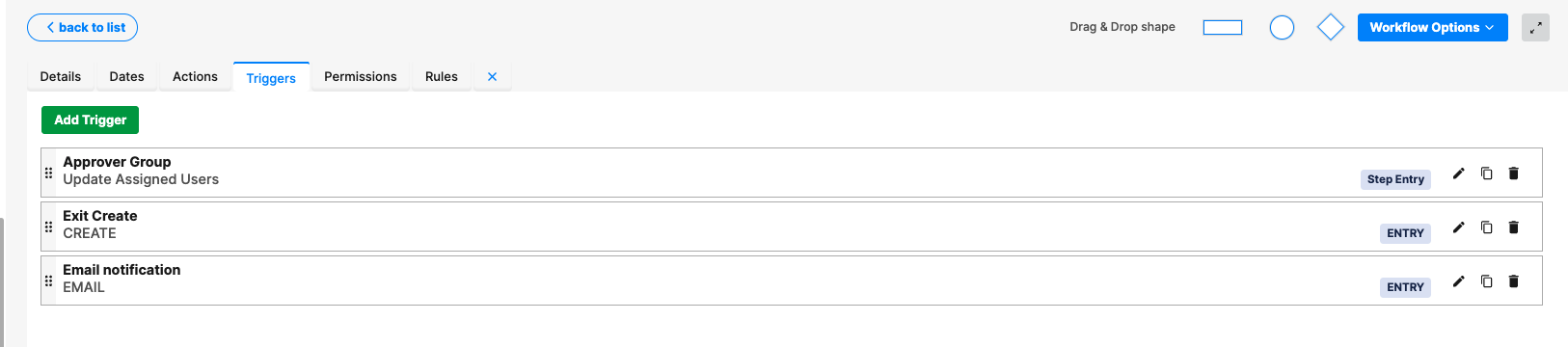
- Trigger logic or rule tab conditions
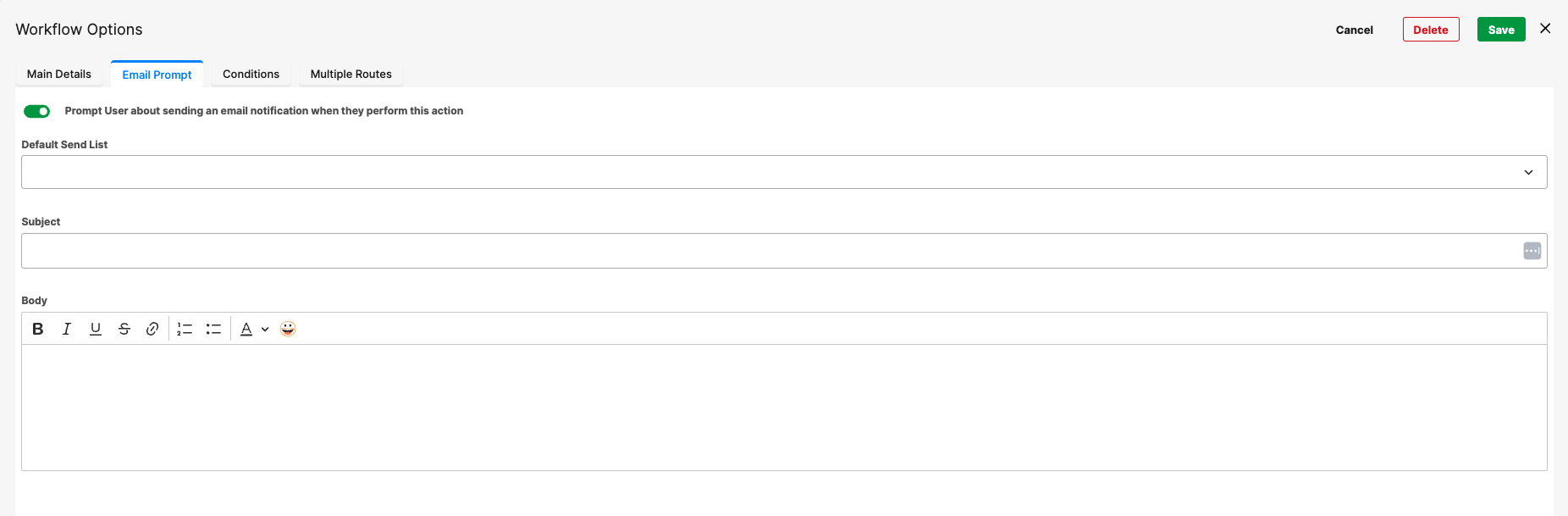
- Notifications associated with the action
- Form or field updates tied to the action
Why Edit an Action?
Editing is useful when:
- A process changes and the action needs to route to a different step
- Permissions need adjustment
- Notifications must be updated. Labels need clarification for end users
Edits take effect immediately once saved and apply to future workflow actions.
Was this article helpful?
That’s Great!
Thank you for your feedback
Sorry! We couldn't be helpful
Thank you for your feedback
Feedback sent
We appreciate your effort and will try to fix the article